6주차

쿠버네티스 데이터베이스 오퍼레이터 6주차

Stackable

Stackable은 Apache Spark, Apache Superset, Apache HBase, Apache Airflow 등 다양한 애플리케이션을 쿠버네티스 환경에 배포할 수 있으며 관리할 수 있다.

설치

# 다운로드
curl -L -o stackablectl https://github.com/stackabletech/stackable-cockpit/releases/download/stackablectl-1.0.0-rc3/stackablectl-x86_64-unknown-linux-gnu
chmod +x stackablectl
mv stackablectl /usr/local/bin

# 확인
stackablectl -h # 도움말
stackablectl -V # 버전확인
---
stackablectl 1.0.0-rc3

stackablectl release list
---
┌───┬─────────┬──────────────┬─────────────────────────────────────────────────────────────────────────────┐
│ # ┆ RELEASE ┆ RELEASE DATE ┆ DESCRIPTION                                                                 │
╞═══╪═════════╪══════════════╪═════════════════════════════════════════════════════════════════════════════╡
│ 1 ┆ 23.7    ┆ 2023-07-26   ┆ Sixth release focusing on resources and pod overrides                       │
├╌╌╌┼╌╌╌╌╌╌╌╌╌┼╌╌╌╌╌╌╌╌╌╌╌╌╌╌┼╌╌╌╌╌╌╌╌╌╌╌╌╌╌╌╌╌╌╌╌╌╌╌╌╌╌╌╌╌╌╌╌╌╌╌╌╌╌╌╌╌╌╌╌╌╌╌╌╌╌╌╌╌╌╌╌╌╌╌╌╌╌╌╌╌╌╌╌╌╌╌╌╌╌╌╌╌┤
│ 2 ┆ 23.4    ┆ 2023-05-17   ┆ Fifth release focusing on affinities and product status                     │
├╌╌╌┼╌╌╌╌╌╌╌╌╌┼╌╌╌╌╌╌╌╌╌╌╌╌╌╌┼╌╌╌╌╌╌╌╌╌╌╌╌╌╌╌╌╌╌╌╌╌╌╌╌╌╌╌╌╌╌╌╌╌╌╌╌╌╌╌╌╌╌╌╌╌╌╌╌╌╌╌╌╌╌╌╌╌╌╌╌╌╌╌╌╌╌╌╌╌╌╌╌╌╌╌╌╌┤
│ 3 ┆ 23.1    ┆ 2023-01-27   ┆ Fourth release focusing on image selection and logging                      │
├╌╌╌┼╌╌╌╌╌╌╌╌╌┼╌╌╌╌╌╌╌╌╌╌╌╌╌╌┼╌╌╌╌╌╌╌╌╌╌╌╌╌╌╌╌╌╌╌╌╌╌╌╌╌╌╌╌╌╌╌╌╌╌╌╌╌╌╌╌╌╌╌╌╌╌╌╌╌╌╌╌╌╌╌╌╌╌╌╌╌╌╌╌╌╌╌╌╌╌╌╌╌╌╌╌╌┤
│ 4 ┆ 22.11   ┆ 2022-11-14   ┆ Third release focusing on resource management                               │
├╌╌╌┼╌╌╌╌╌╌╌╌╌┼╌╌╌╌╌╌╌╌╌╌╌╌╌╌┼╌╌╌╌╌╌╌╌╌╌╌╌╌╌╌╌╌╌╌╌╌╌╌╌╌╌╌╌╌╌╌╌╌╌╌╌╌╌╌╌╌╌╌╌╌╌╌╌╌╌╌╌╌╌╌╌╌╌╌╌╌╌╌╌╌╌╌╌╌╌╌╌╌╌╌╌╌┤
│ 5 ┆ 22.09   ┆ 2022-09-09   ┆ Second release focusing on security and OpenShift support                   │
├╌╌╌┼╌╌╌╌╌╌╌╌╌┼╌╌╌╌╌╌╌╌╌╌╌╌╌╌┼╌╌╌╌╌╌╌╌╌╌╌╌╌╌╌╌╌╌╌╌╌╌╌╌╌╌╌╌╌╌╌╌╌╌╌╌╌╌╌╌╌╌╌╌╌╌╌╌╌╌╌╌╌╌╌╌╌╌╌╌╌╌╌╌╌╌╌╌╌╌╌╌╌╌╌╌╌┤
│ 6 ┆ 22.06   ┆ 2022-06-30   ┆ First official release of the Stackable Data Platform                       │
├╌╌╌┼╌╌╌╌╌╌╌╌╌┼╌╌╌╌╌╌╌╌╌╌╌╌╌╌┼╌╌╌╌╌╌╌╌╌╌╌╌╌╌╌╌╌╌╌╌╌╌╌╌╌╌╌╌╌╌╌╌╌╌╌╌╌╌╌╌╌╌╌╌╌╌╌╌╌╌╌╌╌╌╌╌╌╌╌╌╌╌╌╌╌╌╌╌╌╌╌╌╌╌╌╌╌┤
│ 7 ┆ latest  ┆ 2023-07-26   ┆ Always pointing to the latest stable version of the Stackable Data Platform │
├╌╌╌┼╌╌╌╌╌╌╌╌╌┼╌╌╌╌╌╌╌╌╌╌╌╌╌╌┼╌╌╌╌╌╌╌╌╌╌╌╌╌╌╌╌╌╌╌╌╌╌╌╌╌╌╌╌╌╌╌╌╌╌╌╌╌╌╌╌╌╌╌╌╌╌╌╌╌╌╌╌╌╌╌╌╌╌╌╌╌╌╌╌╌╌╌╌╌╌╌╌╌╌╌╌╌┤
│ 8 ┆ dev     ┆ 2023-01-27   ┆ Development versions from main branch. Not stable!                          │
└───┴─────────┴──────────────┴─────────────────────────────────────────────────────────────────────────────┘

# 자동완성
wget https://raw.githubusercontent.com/stackabletech/stackable-cockpit/main/extra/completions/stackablectl.bash
mv stackablectl.bash /etc/bash_completion.d/

stakablectl 제공하는 stack과 demo, operator 정보를 확인 할려면 아래의 명령어로 확인 할 수 있다.

# 제공 오퍼레이터
stackablectl operator list
---
┌────┬───────────┬─────────────────────────────────────────────────────────────────────────────────────────────────┐
│ #  ┆ OPERATOR  ┆ STABLE VERSIONS                                                                                 │
╞════╪═══════════╪═════════════════════════════════════════════════════════════════════════════════════════════════╡
│ 1  ┆ airflow   ┆ 0.1.0, 0.2.0, 0.3.0, 0.4.0, 0.5.0, 0.6.0, 23.1.0, 23.11.0, 23.4.0, 23.4.1, 23.7.0               │
├╌╌╌╌┼╌╌╌╌╌╌╌╌╌╌╌┼╌╌╌╌╌╌╌╌╌╌╌╌╌╌╌╌╌╌╌╌╌╌╌╌╌╌╌╌╌╌╌╌╌╌╌╌╌╌╌╌╌╌╌╌╌╌╌╌╌╌╌╌╌╌╌╌╌╌╌╌╌╌╌╌╌╌╌╌╌╌╌╌╌╌╌╌╌╌╌╌╌╌╌╌╌╌╌╌╌╌╌╌╌╌╌╌╌┤
│ 2  ┆ commons   ┆ 0.1.0, 0.2.0, 0.2.1, 0.3.0, 0.4.0, 23.1.0, 23.11.0, 23.4.0, 23.4.1, 23.7.0                      │
├╌╌╌╌┼╌╌╌╌╌╌╌╌╌╌╌┼╌╌╌╌╌╌╌╌╌╌╌╌╌╌╌╌╌╌╌╌╌╌╌╌╌╌╌╌╌╌╌╌╌╌╌╌╌╌╌╌╌╌╌╌╌╌╌╌╌╌╌╌╌╌╌╌╌╌╌╌╌╌╌╌╌╌╌╌╌╌╌╌╌╌╌╌╌╌╌╌╌╌╌╌╌╌╌╌╌╌╌╌╌╌╌╌╌┤
│ 3  ┆ druid     ┆ 0.1.0, 0.2.0, 0.3.0, 0.4.0, 0.5.0, 0.6.0, 0.7.0, 0.8.0, 23.1.0, 23.11.0, 23.4.0, 23.4.1, 23.7.0 │
├╌╌╌╌┼╌╌╌╌╌╌╌╌╌╌╌┼╌╌╌╌╌╌╌╌╌╌╌╌╌╌╌╌╌╌╌╌╌╌╌╌╌╌╌╌╌╌╌╌╌╌╌╌╌╌╌╌╌╌╌╌╌╌╌╌╌╌╌╌╌╌╌╌╌╌╌╌╌╌╌╌╌╌╌╌╌╌╌╌╌╌╌╌╌╌╌╌╌╌╌╌╌╌╌╌╌╌╌╌╌╌╌╌╌┤
│ 4  ┆ hbase     ┆ 0.2.0, 0.3.0, 0.4.0, 0.5.0, 23.1.0, 23.11.0, 23.4.0, 23.4.1, 23.7.0                             │
├╌╌╌╌┼╌╌╌╌╌╌╌╌╌╌╌┼╌╌╌╌╌╌╌╌╌╌╌╌╌╌╌╌╌╌╌╌╌╌╌╌╌╌╌╌╌╌╌╌╌╌╌╌╌╌╌╌╌╌╌╌╌╌╌╌╌╌╌╌╌╌╌╌╌╌╌╌╌╌╌╌╌╌╌╌╌╌╌╌╌╌╌╌╌╌╌╌╌╌╌╌╌╌╌╌╌╌╌╌╌╌╌╌╌┤
│ 5  ┆ hdfs      ┆ 0.3.0, 0.4.0, 0.5.0, 0.6.0, 23.1.0, 23.11.0, 23.4.0, 23.4.1, 23.7.0                             │
├╌╌╌╌┼╌╌╌╌╌╌╌╌╌╌╌┼╌╌╌╌╌╌╌╌╌╌╌╌╌╌╌╌╌╌╌╌╌╌╌╌╌╌╌╌╌╌╌╌╌╌╌╌╌╌╌╌╌╌╌╌╌╌╌╌╌╌╌╌╌╌╌╌╌╌╌╌╌╌╌╌╌╌╌╌╌╌╌╌╌╌╌╌╌╌╌╌╌╌╌╌╌╌╌╌╌╌╌╌╌╌╌╌╌┤
│ 6  ┆ hive      ┆ 0.3.0, 0.5.0, 0.6.0, 0.7.0, 0.8.0, 23.1.0, 23.11.0, 23.4.0, 23.4.1, 23.7.0                      │
├╌╌╌╌┼╌╌╌╌╌╌╌╌╌╌╌┼╌╌╌╌╌╌╌╌╌╌╌╌╌╌╌╌╌╌╌╌╌╌╌╌╌╌╌╌╌╌╌╌╌╌╌╌╌╌╌╌╌╌╌╌╌╌╌╌╌╌╌╌╌╌╌╌╌╌╌╌╌╌╌╌╌╌╌╌╌╌╌╌╌╌╌╌╌╌╌╌╌╌╌╌╌╌╌╌╌╌╌╌╌╌╌╌╌┤
│ 7  ┆ kafka     ┆ 0.4.0, 0.5.0, 0.6.0, 0.7.0, 0.8.0, 23.1.0, 23.11.0, 23.4.0, 23.4.1, 23.7.0                      │
├╌╌╌╌┼╌╌╌╌╌╌╌╌╌╌╌┼╌╌╌╌╌╌╌╌╌╌╌╌╌╌╌╌╌╌╌╌╌╌╌╌╌╌╌╌╌╌╌╌╌╌╌╌╌╌╌╌╌╌╌╌╌╌╌╌╌╌╌╌╌╌╌╌╌╌╌╌╌╌╌╌╌╌╌╌╌╌╌╌╌╌╌╌╌╌╌╌╌╌╌╌╌╌╌╌╌╌╌╌╌╌╌╌╌┤
│ 8  ┆ listener  ┆ 23.1.0, 23.11.0, 23.4.0, 23.4.1, 23.7.0                                                         │
├╌╌╌╌┼╌╌╌╌╌╌╌╌╌╌╌┼╌╌╌╌╌╌╌╌╌╌╌╌╌╌╌╌╌╌╌╌╌╌╌╌╌╌╌╌╌╌╌╌╌╌╌╌╌╌╌╌╌╌╌╌╌╌╌╌╌╌╌╌╌╌╌╌╌╌╌╌╌╌╌╌╌╌╌╌╌╌╌╌╌╌╌╌╌╌╌╌╌╌╌╌╌╌╌╌╌╌╌╌╌╌╌╌╌┤
│ 9  ┆ nifi      ┆ 0.4.0, 0.5.0, 0.6.0, 0.7.0, 0.8.0, 0.8.1, 23.1.0, 23.11.0, 23.4.0, 23.4.1, 23.7.0               │
├╌╌╌╌┼╌╌╌╌╌╌╌╌╌╌╌┼╌╌╌╌╌╌╌╌╌╌╌╌╌╌╌╌╌╌╌╌╌╌╌╌╌╌╌╌╌╌╌╌╌╌╌╌╌╌╌╌╌╌╌╌╌╌╌╌╌╌╌╌╌╌╌╌╌╌╌╌╌╌╌╌╌╌╌╌╌╌╌╌╌╌╌╌╌╌╌╌╌╌╌╌╌╌╌╌╌╌╌╌╌╌╌╌╌┤
│ 10 ┆ opa       ┆ 0.10.0, 0.11.0, 0.6.0, 0.7.0, 0.8.0, 0.9.0, 23.1.0, 23.11.0, 23.4.0, 23.4.1, 23.7.0             │
├╌╌╌╌┼╌╌╌╌╌╌╌╌╌╌╌┼╌╌╌╌╌╌╌╌╌╌╌╌╌╌╌╌╌╌╌╌╌╌╌╌╌╌╌╌╌╌╌╌╌╌╌╌╌╌╌╌╌╌╌╌╌╌╌╌╌╌╌╌╌╌╌╌╌╌╌╌╌╌╌╌╌╌╌╌╌╌╌╌╌╌╌╌╌╌╌╌╌╌╌╌╌╌╌╌╌╌╌╌╌╌╌╌╌┤
│ 11 ┆ secret    ┆ 0.1.0, 0.2.0, 0.3.0, 0.4.0, 0.5.0, 0.6.0, 23.1.0, 23.11.0, 23.4.0, 23.4.1, 23.7.0               │
├╌╌╌╌┼╌╌╌╌╌╌╌╌╌╌╌┼╌╌╌╌╌╌╌╌╌╌╌╌╌╌╌╌╌╌╌╌╌╌╌╌╌╌╌╌╌╌╌╌╌╌╌╌╌╌╌╌╌╌╌╌╌╌╌╌╌╌╌╌╌╌╌╌╌╌╌╌╌╌╌╌╌╌╌╌╌╌╌╌╌╌╌╌╌╌╌╌╌╌╌╌╌╌╌╌╌╌╌╌╌╌╌╌╌┤
│ 12 ┆ spark-k8s ┆ 0.1.0, 0.2.0, 0.3.0, 0.4.0, 0.5.0, 0.6.0, 23.1.0, 23.11.0, 23.4.0, 23.4.1, 23.7.0               │
├╌╌╌╌┼╌╌╌╌╌╌╌╌╌╌╌┼╌╌╌╌╌╌╌╌╌╌╌╌╌╌╌╌╌╌╌╌╌╌╌╌╌╌╌╌╌╌╌╌╌╌╌╌╌╌╌╌╌╌╌╌╌╌╌╌╌╌╌╌╌╌╌╌╌╌╌╌╌╌╌╌╌╌╌╌╌╌╌╌╌╌╌╌╌╌╌╌╌╌╌╌╌╌╌╌╌╌╌╌╌╌╌╌╌┤
│ 13 ┆ superset  ┆ 0.1.0, 0.2.0, 0.3.0, 0.4.0, 0.5.0, 0.6.0, 0.7.0, 23.1.0, 23.11.0, 23.4.0, 23.4.1, 23.7.0        │
├╌╌╌╌┼╌╌╌╌╌╌╌╌╌╌╌┼╌╌╌╌╌╌╌╌╌╌╌╌╌╌╌╌╌╌╌╌╌╌╌╌╌╌╌╌╌╌╌╌╌╌╌╌╌╌╌╌╌╌╌╌╌╌╌╌╌╌╌╌╌╌╌╌╌╌╌╌╌╌╌╌╌╌╌╌╌╌╌╌╌╌╌╌╌╌╌╌╌╌╌╌╌╌╌╌╌╌╌╌╌╌╌╌╌┤
│ 14 ┆ trino     ┆ 0.2.0, 0.3.0, 0.3.1, 0.4.0, 0.5.0, 0.6.0, 0.7.0, 0.8.0, 23.1.0, 23.11.0, 23.4.0, 23.4.1, 23.7.0 │
├╌╌╌╌┼╌╌╌╌╌╌╌╌╌╌╌┼╌╌╌╌╌╌╌╌╌╌╌╌╌╌╌╌╌╌╌╌╌╌╌╌╌╌╌╌╌╌╌╌╌╌╌╌╌╌╌╌╌╌╌╌╌╌╌╌╌╌╌╌╌╌╌╌╌╌╌╌╌╌╌╌╌╌╌╌╌╌╌╌╌╌╌╌╌╌╌╌╌╌╌╌╌╌╌╌╌╌╌╌╌╌╌╌╌┤
│ 15 ┆ zookeeper ┆ 0.10.0, 0.11.0, 0.12.0, 0.6.0, 0.7.0, 0.8.0, 0.9.0, 23.1.0, 23.11.0, 23.4.0, 23.4.1, 23.7.0     │
└────┴───────────┴─────────────────────────────────────────────────────────────────────────────────────────────────┘

# 제공 스택
stackablectl stack list
---
┌────┬────────────────────────────────────┬─────────┬─────────────────────────────────────────────────────────────────────────────────────────────────────────────────┐
│ #  ┆ STACK                              ┆ RELEASE ┆ DESCRIPTION                                                                                                     │
╞════╪════════════════════════════════════╪═════════╪═════════════════════════════════════════════════════════════════════════════════════════════════════════════════╡
│ 1  ┆ monitoring                         ┆ 23.7    ┆ Stack containing Prometheus and Grafana                                                                         │
├╌╌╌╌┼╌╌╌╌╌╌╌╌╌╌╌╌╌╌╌╌╌╌╌╌╌╌╌╌╌╌╌╌╌╌╌╌╌╌╌╌┼╌╌╌╌╌╌╌╌╌┼╌╌╌╌╌╌╌╌╌╌╌╌╌╌╌╌╌╌╌╌╌╌╌╌╌╌╌╌╌╌╌╌╌╌╌╌╌╌╌╌╌╌╌╌╌╌╌╌╌╌╌╌╌╌╌╌╌╌╌╌╌╌╌╌╌╌╌╌╌╌╌╌╌╌╌╌╌╌╌╌╌╌╌╌╌╌╌╌╌╌╌╌╌╌╌╌╌╌╌╌╌╌╌╌╌╌╌╌╌╌╌╌╌┤
│ 2  ┆ logging                            ┆ 23.7    ┆ Stack containing OpenSearch, OpenSearch Dashboards (Kibana) and Vector aggregator                               │
├╌╌╌╌┼╌╌╌╌╌╌╌╌╌╌╌╌╌╌╌╌╌╌╌╌╌╌╌╌╌╌╌╌╌╌╌╌╌╌╌╌┼╌╌╌╌╌╌╌╌╌┼╌╌╌╌╌╌╌╌╌╌╌╌╌╌╌╌╌╌╌╌╌╌╌╌╌╌╌╌╌╌╌╌╌╌╌╌╌╌╌╌╌╌╌╌╌╌╌╌╌╌╌╌╌╌╌╌╌╌╌╌╌╌╌╌╌╌╌╌╌╌╌╌╌╌╌╌╌╌╌╌╌╌╌╌╌╌╌╌╌╌╌╌╌╌╌╌╌╌╌╌╌╌╌╌╌╌╌╌╌╌╌╌╌┤
│ 3  ┆ airflow                            ┆ 23.7    ┆ Stack containing Airflow scheduling platform                                                                    │
├╌╌╌╌┼╌╌╌╌╌╌╌╌╌╌╌╌╌╌╌╌╌╌╌╌╌╌╌╌╌╌╌╌╌╌╌╌╌╌╌╌┼╌╌╌╌╌╌╌╌╌┼╌╌╌╌╌╌╌╌╌╌╌╌╌╌╌╌╌╌╌╌╌╌╌╌╌╌╌╌╌╌╌╌╌╌╌╌╌╌╌╌╌╌╌╌╌╌╌╌╌╌╌╌╌╌╌╌╌╌╌╌╌╌╌╌╌╌╌╌╌╌╌╌╌╌╌╌╌╌╌╌╌╌╌╌╌╌╌╌╌╌╌╌╌╌╌╌╌╌╌╌╌╌╌╌╌╌╌╌╌╌╌╌╌┤
│ 4  ┆ data-lakehouse-iceberg-trino-spark ┆ 23.7    ┆ Data lakehouse using Iceberg lakehouse on S3, Trino as query engine, Spark for streaming ingest and Superset    │
│    ┆                                    ┆         ┆ for data visualization                                                                                          │
├╌╌╌╌┼╌╌╌╌╌╌╌╌╌╌╌╌╌╌╌╌╌╌╌╌╌╌╌╌╌╌╌╌╌╌╌╌╌╌╌╌┼╌╌╌╌╌╌╌╌╌┼╌╌╌╌╌╌╌╌╌╌╌╌╌╌╌╌╌╌╌╌╌╌╌╌╌╌╌╌╌╌╌╌╌╌╌╌╌╌╌╌╌╌╌╌╌╌╌╌╌╌╌╌╌╌╌╌╌╌╌╌╌╌╌╌╌╌╌╌╌╌╌╌╌╌╌╌╌╌╌╌╌╌╌╌╌╌╌╌╌╌╌╌╌╌╌╌╌╌╌╌╌╌╌╌╌╌╌╌╌╌╌╌╌┤
│ 5  ┆ hdfs-hbase                         ┆ 23.7    ┆ HBase cluster using HDFS as underlying storage                                                                  │
├╌╌╌╌┼╌╌╌╌╌╌╌╌╌╌╌╌╌╌╌╌╌╌╌╌╌╌╌╌╌╌╌╌╌╌╌╌╌╌╌╌┼╌╌╌╌╌╌╌╌╌┼╌╌╌╌╌╌╌╌╌╌╌╌╌╌╌╌╌╌╌╌╌╌╌╌╌╌╌╌╌╌╌╌╌╌╌╌╌╌╌╌╌╌╌╌╌╌╌╌╌╌╌╌╌╌╌╌╌╌╌╌╌╌╌╌╌╌╌╌╌╌╌╌╌╌╌╌╌╌╌╌╌╌╌╌╌╌╌╌╌╌╌╌╌╌╌╌╌╌╌╌╌╌╌╌╌╌╌╌╌╌╌╌╌┤
│ 6  ┆ nifi-kafka-druid-superset-s3       ┆ 23.7    ┆ Stack containing NiFi, Kafka, Druid, MinIO and Superset for data visualization                                  │
├╌╌╌╌┼╌╌╌╌╌╌╌╌╌╌╌╌╌╌╌╌╌╌╌╌╌╌╌╌╌╌╌╌╌╌╌╌╌╌╌╌┼╌╌╌╌╌╌╌╌╌┼╌╌╌╌╌╌╌╌╌╌╌╌╌╌╌╌╌╌╌╌╌╌╌╌╌╌╌╌╌╌╌╌╌╌╌╌╌╌╌╌╌╌╌╌╌╌╌╌╌╌╌╌╌╌╌╌╌╌╌╌╌╌╌╌╌╌╌╌╌╌╌╌╌╌╌╌╌╌╌╌╌╌╌╌╌╌╌╌╌╌╌╌╌╌╌╌╌╌╌╌╌╌╌╌╌╌╌╌╌╌╌╌╌┤
│ 7  ┆ spark-trino-superset-s3            ┆ 23.7    ┆ Stack containing MinIO, Trino and Superset for data visualization                                               │
├╌╌╌╌┼╌╌╌╌╌╌╌╌╌╌╌╌╌╌╌╌╌╌╌╌╌╌╌╌╌╌╌╌╌╌╌╌╌╌╌╌┼╌╌╌╌╌╌╌╌╌┼╌╌╌╌╌╌╌╌╌╌╌╌╌╌╌╌╌╌╌╌╌╌╌╌╌╌╌╌╌╌╌╌╌╌╌╌╌╌╌╌╌╌╌╌╌╌╌╌╌╌╌╌╌╌╌╌╌╌╌╌╌╌╌╌╌╌╌╌╌╌╌╌╌╌╌╌╌╌╌╌╌╌╌╌╌╌╌╌╌╌╌╌╌╌╌╌╌╌╌╌╌╌╌╌╌╌╌╌╌╌╌╌╌┤
│ 8  ┆ trino-superset-s3                  ┆ 23.7    ┆ Stack containing MinIO, Trino and Superset for data visualization                                               │
├╌╌╌╌┼╌╌╌╌╌╌╌╌╌╌╌╌╌╌╌╌╌╌╌╌╌╌╌╌╌╌╌╌╌╌╌╌╌╌╌╌┼╌╌╌╌╌╌╌╌╌┼╌╌╌╌╌╌╌╌╌╌╌╌╌╌╌╌╌╌╌╌╌╌╌╌╌╌╌╌╌╌╌╌╌╌╌╌╌╌╌╌╌╌╌╌╌╌╌╌╌╌╌╌╌╌╌╌╌╌╌╌╌╌╌╌╌╌╌╌╌╌╌╌╌╌╌╌╌╌╌╌╌╌╌╌╌╌╌╌╌╌╌╌╌╌╌╌╌╌╌╌╌╌╌╌╌╌╌╌╌╌╌╌╌┤
│ 9  ┆ trino-iceberg                      ┆ 23.7    ┆ Stack containing Trino using Apache Iceberg as a S3 data lakehouse                                              │
├╌╌╌╌┼╌╌╌╌╌╌╌╌╌╌╌╌╌╌╌╌╌╌╌╌╌╌╌╌╌╌╌╌╌╌╌╌╌╌╌╌┼╌╌╌╌╌╌╌╌╌┼╌╌╌╌╌╌╌╌╌╌╌╌╌╌╌╌╌╌╌╌╌╌╌╌╌╌╌╌╌╌╌╌╌╌╌╌╌╌╌╌╌╌╌╌╌╌╌╌╌╌╌╌╌╌╌╌╌╌╌╌╌╌╌╌╌╌╌╌╌╌╌╌╌╌╌╌╌╌╌╌╌╌╌╌╌╌╌╌╌╌╌╌╌╌╌╌╌╌╌╌╌╌╌╌╌╌╌╌╌╌╌╌╌┤
│ 10 ┆ jupyterhub-pyspark-hdfs            ┆ 23.7    ┆ Jupyterhub with PySpark and HDFS integration                                                                    │
├╌╌╌╌┼╌╌╌╌╌╌╌╌╌╌╌╌╌╌╌╌╌╌╌╌╌╌╌╌╌╌╌╌╌╌╌╌╌╌╌╌┼╌╌╌╌╌╌╌╌╌┼╌╌╌╌╌╌╌╌╌╌╌╌╌╌╌╌╌╌╌╌╌╌╌╌╌╌╌╌╌╌╌╌╌╌╌╌╌╌╌╌╌╌╌╌╌╌╌╌╌╌╌╌╌╌╌╌╌╌╌╌╌╌╌╌╌╌╌╌╌╌╌╌╌╌╌╌╌╌╌╌╌╌╌╌╌╌╌╌╌╌╌╌╌╌╌╌╌╌╌╌╌╌╌╌╌╌╌╌╌╌╌╌╌┤
│ 11 ┆ dual-hive-hdfs-s3                  ┆ 23.7    ┆ Dual stack Hive on HDFS and S3 for Hadoop/Hive to Trino migration                                               │
├╌╌╌╌┼╌╌╌╌╌╌╌╌╌╌╌╌╌╌╌╌╌╌╌╌╌╌╌╌╌╌╌╌╌╌╌╌╌╌╌╌┼╌╌╌╌╌╌╌╌╌┼╌╌╌╌╌╌╌╌╌╌╌╌╌╌╌╌╌╌╌╌╌╌╌╌╌╌╌╌╌╌╌╌╌╌╌╌╌╌╌╌╌╌╌╌╌╌╌╌╌╌╌╌╌╌╌╌╌╌╌╌╌╌╌╌╌╌╌╌╌╌╌╌╌╌╌╌╌╌╌╌╌╌╌╌╌╌╌╌╌╌╌╌╌╌╌╌╌╌╌╌╌╌╌╌╌╌╌╌╌╌╌╌╌┤
│ 12 ┆ tutorial-openldap                  ┆ 23.7    ┆ An OpenLDAP instance with two users (alice:alice, bob:bob) and TLS enabled. The bind user credentials are:      │
│    ┆                                    ┆         ┆ ldapadmin:ldapadminpassword. No AuthenticationClass is configured, The AuthenticationClass is created manually  │
│    ┆                                    ┆         ┆ in the tutorial. Use the 'openldap' Stack for an OpenLDAD with an AuthenticationClass already installed.        │
├╌╌╌╌┼╌╌╌╌╌╌╌╌╌╌╌╌╌╌╌╌╌╌╌╌╌╌╌╌╌╌╌╌╌╌╌╌╌╌╌╌┼╌╌╌╌╌╌╌╌╌┼╌╌╌╌╌╌╌╌╌╌╌╌╌╌╌╌╌╌╌╌╌╌╌╌╌╌╌╌╌╌╌╌╌╌╌╌╌╌╌╌╌╌╌╌╌╌╌╌╌╌╌╌╌╌╌╌╌╌╌╌╌╌╌╌╌╌╌╌╌╌╌╌╌╌╌╌╌╌╌╌╌╌╌╌╌╌╌╌╌╌╌╌╌╌╌╌╌╌╌╌╌╌╌╌╌╌╌╌╌╌╌╌╌┤
│ 13 ┆ openldap                           ┆ 23.7    ┆ An OpenLDAP instance with two users (alice:alice, bob:bob) and TLS enabled. The bind user credentials are:      │
│    ┆                                    ┆         ┆ ldapadmin:ldapadminpassword. The LDAP AuthenticationClass is called 'ldap' and the SecretClass for the bind     │
│    ┆                                    ┆         ┆ credentials is called 'ldap-bind-credentials'. The stack already creates an appropriate Secret, so referring to │
│    ┆                                    ┆         ┆ the 'ldap' AuthenticationClass in your ProductCluster should be enough.                                         │
├╌╌╌╌┼╌╌╌╌╌╌╌╌╌╌╌╌╌╌╌╌╌╌╌╌╌╌╌╌╌╌╌╌╌╌╌╌╌╌╌╌┼╌╌╌╌╌╌╌╌╌┼╌╌╌╌╌╌╌╌╌╌╌╌╌╌╌╌╌╌╌╌╌╌╌╌╌╌╌╌╌╌╌╌╌╌╌╌╌╌╌╌╌╌╌╌╌╌╌╌╌╌╌╌╌╌╌╌╌╌╌╌╌╌╌╌╌╌╌╌╌╌╌╌╌╌╌╌╌╌╌╌╌╌╌╌╌╌╌╌╌╌╌╌╌╌╌╌╌╌╌╌╌╌╌╌╌╌╌╌╌╌╌╌╌┤
│ 14 ┆ keycloak-opa-poc                   ┆ 23.7    ┆ A Superset, Trino, Druid, Keycloak and OPA instance. Superset, Trino and Druid have single sign-on with         │
│    ┆                                    ┆         ┆ Keycloak enabled. Trino and Druid have OPA authorization enabled. 3 users are created in Keycloak:              │
│    ┆                                    ┆         ┆ admin:adminadmin, alice:alicealice, bob:bobbob. admin and alice are admins with full authorization in Druid and │
│    ┆                                    ┆         ┆ Trino, bob is not authorized. This is a proof-of-concept and the mechanisms used here are subject to change.    │
├╌╌╌╌┼╌╌╌╌╌╌╌╌╌╌╌╌╌╌╌╌╌╌╌╌╌╌╌╌╌╌╌╌╌╌╌╌╌╌╌╌┼╌╌╌╌╌╌╌╌╌┼╌╌╌╌╌╌╌╌╌╌╌╌╌╌╌╌╌╌╌╌╌╌╌╌╌╌╌╌╌╌╌╌╌╌╌╌╌╌╌╌╌╌╌╌╌╌╌╌╌╌╌╌╌╌╌╌╌╌╌╌╌╌╌╌╌╌╌╌╌╌╌╌╌╌╌╌╌╌╌╌╌╌╌╌╌╌╌╌╌╌╌╌╌╌╌╌╌╌╌╌╌╌╌╌╌╌╌╌╌╌╌╌╌┤
│ 15 ┆ signal-processing                  ┆ 23.7    ┆ A stack used for creating, streaming and processing in-flight data and persisting it to TimescaleDB before it   │
│    ┆                                    ┆         ┆ is displayed in Grafana                                                                                         │
└────┴────────────────────────────────────┴─────────┴─────────────────────────────────────────────────────────────────────────────────────────────────────────────────┘

# 제공 데모 : Stackable release 설치 > 스택 구성 > 데이터 구성
stackablectl demo list
---
┌────┬─────────────────────────────────────────────────────┬────────────────────────────────────┬─────────────────────────────────────────────────────────────────────┐
│ #  ┆ NAME                                                ┆ STACK                              ┆ DESCRIPTION                                                         │
╞════╪═════════════════════════════════════════════════════╪════════════════════════════════════╪═════════════════════════════════════════════════════════════════════╡
│ 1  ┆ airflow-scheduled-job                               ┆ airflow                            ┆ Activate a simple Airflow DAG to run continuously at a set interval │
├╌╌╌╌┼╌╌╌╌╌╌╌╌╌╌╌╌╌╌╌╌╌╌╌╌╌╌╌╌╌╌╌╌╌╌╌╌╌╌╌╌╌╌╌╌╌╌╌╌╌╌╌╌╌╌╌╌╌┼╌╌╌╌╌╌╌╌╌╌╌╌╌╌╌╌╌╌╌╌╌╌╌╌╌╌╌╌╌╌╌╌╌╌╌╌┼╌╌╌╌╌╌╌╌╌╌╌╌╌╌╌╌╌╌╌╌╌╌╌╌╌╌╌╌╌╌╌╌╌╌╌╌╌╌╌╌╌╌╌╌╌╌╌╌╌╌╌╌╌╌╌╌╌╌╌╌╌╌╌╌╌╌╌╌╌┤
│ 2  ┆ hbase-hdfs-load-cycling-data                        ┆ hdfs-hbase                         ┆ Copy data from S3 bucket to an HBase table                          │
├╌╌╌╌┼╌╌╌╌╌╌╌╌╌╌╌╌╌╌╌╌╌╌╌╌╌╌╌╌╌╌╌╌╌╌╌╌╌╌╌╌╌╌╌╌╌╌╌╌╌╌╌╌╌╌╌╌╌┼╌╌╌╌╌╌╌╌╌╌╌╌╌╌╌╌╌╌╌╌╌╌╌╌╌╌╌╌╌╌╌╌╌╌╌╌┼╌╌╌╌╌╌╌╌╌╌╌╌╌╌╌╌╌╌╌╌╌╌╌╌╌╌╌╌╌╌╌╌╌╌╌╌╌╌╌╌╌╌╌╌╌╌╌╌╌╌╌╌╌╌╌╌╌╌╌╌╌╌╌╌╌╌╌╌╌┤
│ 3  ┆ nifi-kafka-druid-earthquake-data                    ┆ nifi-kafka-druid-superset-s3       ┆ Demo ingesting earthquake data into Kafka using NiFi, streaming it  │
│    ┆                                                     ┆                                    ┆ into Druid and creating a Superset dashboard                        │
├╌╌╌╌┼╌╌╌╌╌╌╌╌╌╌╌╌╌╌╌╌╌╌╌╌╌╌╌╌╌╌╌╌╌╌╌╌╌╌╌╌╌╌╌╌╌╌╌╌╌╌╌╌╌╌╌╌╌┼╌╌╌╌╌╌╌╌╌╌╌╌╌╌╌╌╌╌╌╌╌╌╌╌╌╌╌╌╌╌╌╌╌╌╌╌┼╌╌╌╌╌╌╌╌╌╌╌╌╌╌╌╌╌╌╌╌╌╌╌╌╌╌╌╌╌╌╌╌╌╌╌╌╌╌╌╌╌╌╌╌╌╌╌╌╌╌╌╌╌╌╌╌╌╌╌╌╌╌╌╌╌╌╌╌╌┤
│ 4  ┆ nifi-kafka-druid-water-level-data                   ┆ nifi-kafka-druid-superset-s3       ┆ Demo ingesting water level data into Kafka using NiFi, streaming it │
│    ┆                                                     ┆                                    ┆ into Druid and creating a Superset dashboard                        │
├╌╌╌╌┼╌╌╌╌╌╌╌╌╌╌╌╌╌╌╌╌╌╌╌╌╌╌╌╌╌╌╌╌╌╌╌╌╌╌╌╌╌╌╌╌╌╌╌╌╌╌╌╌╌╌╌╌╌┼╌╌╌╌╌╌╌╌╌╌╌╌╌╌╌╌╌╌╌╌╌╌╌╌╌╌╌╌╌╌╌╌╌╌╌╌┼╌╌╌╌╌╌╌╌╌╌╌╌╌╌╌╌╌╌╌╌╌╌╌╌╌╌╌╌╌╌╌╌╌╌╌╌╌╌╌╌╌╌╌╌╌╌╌╌╌╌╌╌╌╌╌╌╌╌╌╌╌╌╌╌╌╌╌╌╌┤
│ 5  ┆ spark-k8s-anomaly-detection-taxi-data               ┆ spark-trino-superset-s3            ┆ Demo loading New York taxi data into an S3 bucket and carrying out  │
│    ┆                                                     ┆                                    ┆ an anomaly detection analysis on it                                 │
├╌╌╌╌┼╌╌╌╌╌╌╌╌╌╌╌╌╌╌╌╌╌╌╌╌╌╌╌╌╌╌╌╌╌╌╌╌╌╌╌╌╌╌╌╌╌╌╌╌╌╌╌╌╌╌╌╌╌┼╌╌╌╌╌╌╌╌╌╌╌╌╌╌╌╌╌╌╌╌╌╌╌╌╌╌╌╌╌╌╌╌╌╌╌╌┼╌╌╌╌╌╌╌╌╌╌╌╌╌╌╌╌╌╌╌╌╌╌╌╌╌╌╌╌╌╌╌╌╌╌╌╌╌╌╌╌╌╌╌╌╌╌╌╌╌╌╌╌╌╌╌╌╌╌╌╌╌╌╌╌╌╌╌╌╌┤
│ 6  ┆ trino-iceberg                                       ┆ trino-iceberg                      ┆ Demo containing Trino using Apache Iceberg as a S3 data lakehouse   │
├╌╌╌╌┼╌╌╌╌╌╌╌╌╌╌╌╌╌╌╌╌╌╌╌╌╌╌╌╌╌╌╌╌╌╌╌╌╌╌╌╌╌╌╌╌╌╌╌╌╌╌╌╌╌╌╌╌╌┼╌╌╌╌╌╌╌╌╌╌╌╌╌╌╌╌╌╌╌╌╌╌╌╌╌╌╌╌╌╌╌╌╌╌╌╌┼╌╌╌╌╌╌╌╌╌╌╌╌╌╌╌╌╌╌╌╌╌╌╌╌╌╌╌╌╌╌╌╌╌╌╌╌╌╌╌╌╌╌╌╌╌╌╌╌╌╌╌╌╌╌╌╌╌╌╌╌╌╌╌╌╌╌╌╌╌┤
│ 7  ┆ trino-taxi-data                                     ┆ trino-superset-s3                  ┆ Demo loading 2.5 years of New York taxi data into S3 bucket,        │
│    ┆                                                     ┆                                    ┆ creating a Trino table and a Superset dashboard                     │
├╌╌╌╌┼╌╌╌╌╌╌╌╌╌╌╌╌╌╌╌╌╌╌╌╌╌╌╌╌╌╌╌╌╌╌╌╌╌╌╌╌╌╌╌╌╌╌╌╌╌╌╌╌╌╌╌╌╌┼╌╌╌╌╌╌╌╌╌╌╌╌╌╌╌╌╌╌╌╌╌╌╌╌╌╌╌╌╌╌╌╌╌╌╌╌┼╌╌╌╌╌╌╌╌╌╌╌╌╌╌╌╌╌╌╌╌╌╌╌╌╌╌╌╌╌╌╌╌╌╌╌╌╌╌╌╌╌╌╌╌╌╌╌╌╌╌╌╌╌╌╌╌╌╌╌╌╌╌╌╌╌╌╌╌╌┤
│ 8  ┆ data-lakehouse-iceberg-trino-spark                  ┆ data-lakehouse-iceberg-trino-spark ┆ Data lakehouse using Iceberg lakehouse on S3, Trino as query        │
│    ┆                                                     ┆                                    ┆ engine, Spark for streaming ingest and Superset for data            │
│    ┆                                                     ┆                                    ┆ visualization. Multiple datasources like taxi data, water levels in │
│    ┆                                                     ┆                                    ┆ Germany, earthquakes, e-charging stations and more are loaded.      │
├╌╌╌╌┼╌╌╌╌╌╌╌╌╌╌╌╌╌╌╌╌╌╌╌╌╌╌╌╌╌╌╌╌╌╌╌╌╌╌╌╌╌╌╌╌╌╌╌╌╌╌╌╌╌╌╌╌╌┼╌╌╌╌╌╌╌╌╌╌╌╌╌╌╌╌╌╌╌╌╌╌╌╌╌╌╌╌╌╌╌╌╌╌╌╌┼╌╌╌╌╌╌╌╌╌╌╌╌╌╌╌╌╌╌╌╌╌╌╌╌╌╌╌╌╌╌╌╌╌╌╌╌╌╌╌╌╌╌╌╌╌╌╌╌╌╌╌╌╌╌╌╌╌╌╌╌╌╌╌╌╌╌╌╌╌┤
│ 9  ┆ jupyterhub-pyspark-hdfs-anomaly-detection-taxi-data ┆ jupyterhub-pyspark-hdfs            ┆ Jupyterhub with PySpark and HDFS integration                        │
├╌╌╌╌┼╌╌╌╌╌╌╌╌╌╌╌╌╌╌╌╌╌╌╌╌╌╌╌╌╌╌╌╌╌╌╌╌╌╌╌╌╌╌╌╌╌╌╌╌╌╌╌╌╌╌╌╌╌┼╌╌╌╌╌╌╌╌╌╌╌╌╌╌╌╌╌╌╌╌╌╌╌╌╌╌╌╌╌╌╌╌╌╌╌╌┼╌╌╌╌╌╌╌╌╌╌╌╌╌╌╌╌╌╌╌╌╌╌╌╌╌╌╌╌╌╌╌╌╌╌╌╌╌╌╌╌╌╌╌╌╌╌╌╌╌╌╌╌╌╌╌╌╌╌╌╌╌╌╌╌╌╌╌╌╌┤
│ 10 ┆ logging                                             ┆ logging                            ┆ Demo showing the logging stack in action                            │
├╌╌╌╌┼╌╌╌╌╌╌╌╌╌╌╌╌╌╌╌╌╌╌╌╌╌╌╌╌╌╌╌╌╌╌╌╌╌╌╌╌╌╌╌╌╌╌╌╌╌╌╌╌╌╌╌╌╌┼╌╌╌╌╌╌╌╌╌╌╌╌╌╌╌╌╌╌╌╌╌╌╌╌╌╌╌╌╌╌╌╌╌╌╌╌┼╌╌╌╌╌╌╌╌╌╌╌╌╌╌╌╌╌╌╌╌╌╌╌╌╌╌╌╌╌╌╌╌╌╌╌╌╌╌╌╌╌╌╌╌╌╌╌╌╌╌╌╌╌╌╌╌╌╌╌╌╌╌╌╌╌╌╌╌╌┤
│ 11 ┆ signal-processing                                   ┆ signal-processing                  ┆ Demo showing signal processing on time-series data                  │
└────┴─────────────────────────────────────────────────────┴────────────────────────────────────┴─────────────────────────────────────────────────────────────────────┘

Demo: Trino

대규모 데이터 웨어하우스 시스템에서 빠른 데이터 분석을 위한 분산 SQL 쿼리 엔진. 다양한 데이터 소스에 대한 SQL 쿼리를 실행할 수 있는 능력을 가지고 있으며, 이를 통해 사용자는 하나의 시스템을 통해 여러 데이터 저장소에서 정보를 조회 가능

  • 분산 아키텍처: Trino는 클러스터 환경에서 동작하며, 여러 노드에 걸쳐 데이터를 처리. 이를 통해 높은 병렬 처리 능력과 빠른 쿼리 성능을 제공
  • 다양한 데이터 소스 지원: Hadoop, S3, Cassandra, Kafka, MySQL 등 다양한 데이터 소스와 호환되어 사용자가 여러 데이터 소스를 하나의 쿼리로 통합 가능
  • 확장성과 유연성: Trino는 확장성이 뛰어나 대규모 데이터셋에도 효과적으로 대응할 수 있으며, 사용자의 요구에 맞게 확장하거나 조정이 가능
  • 실시간 쿼리 처리: Trino는 배치 처리보다는 실시간 쿼리 처리에 초점을 맞추고 있어, 빠른 분석이 필요한 비즈니스 환경에서 유용

실습

# Demo 정보 확인
stackablectl demo describe trino-taxi-data

# [터미널] 모니터링
watch -d "kubectl get pod -n stackable-operators;echo;kubectl get pod,job,svc,pvc"

# 데모 설치 : 데이터셋 다운로드 job 포함 8분 정도 소요
stackablectl demo install trino-taxi-data

# 설치 확인
helm list -n stackable-operators
---
NAME             	NAMESPACE          	REVISION	UPDATED                                	STATUS  	CHART                   	APP VERSION
commons-operator 	stackable-operators	1       	2023-11-25 21:13:37.843332029 +0900 KST	deployed	commons-operator-23.7.0 	23.7.0
hive-operator    	stackable-operators	1       	2023-11-25 21:13:54.678512397 +0900 KST	deployed	hive-operator-23.7.0    	23.7.0
opa-operator     	stackable-operators	1       	2023-11-25 21:14:11.721549445 +0900 KST	deployed	opa-operator-23.7.0     	23.7.0
secret-operator  	stackable-operators	1       	2023-11-25 21:14:28.040685639 +0900 KST	deployed	secret-operator-23.7.0  	23.7.0
superset-operator	stackable-operators	1       	2023-11-25 21:14:56.566879755 +0900 KST	deployed	superset-operator-23.7.0	23.7.0
trino-operator   	stackable-operators	1       	2023-11-25 21:15:14.814783186 +0900 KST	deployed	trino-operator-23.7.0   	23.7.0

# taxi driver data download job 완료 확인 택시 데이터까지 받았으면 완료됨
kubectl get job
---
NAME                                 COMPLETIONS   DURATION   AGE
create-ny-taxi-data-table-in-trino   1/1           3m57s      4m20s
load-ny-taxi-data                    1/1           3m12s      4m23s
setup-superset                       1/1           79s        4m18s
superset                             1/1           73s        4m25s

# 배포 스택 정보 확인 : 바로 확인 하지 말고, 설치 완료 후 아래 확인 할 것 - Endpoint(접속 주소 정보), Conditions(상태 정보)
stackablectl stacklet list
┌──────────┬───────────────┬───────────┬──────────────────────────────────────────────────┬─────────────────────────────────┐
│ PRODUCT  ┆ NAME          ┆ NAMESPACE ┆ ENDPOINTS                                        ┆ CONDITIONS                      │
╞══════════╪═══════════════╪═══════════╪══════════════════════════════════════════════════╪═════════════════════════════════╡
│ hive     ┆ hive          ┆ default   ┆                                                  ┆ Available, Reconciling, Running │
├╌╌╌╌╌╌╌╌╌╌┼╌╌╌╌╌╌╌╌╌╌╌╌╌╌╌┼╌╌╌╌╌╌╌╌╌╌╌┼╌╌╌╌╌╌╌╌╌╌╌╌╌╌╌╌╌╌╌╌╌╌╌╌╌╌╌╌╌╌╌╌╌╌╌╌╌╌╌╌╌╌╌╌╌╌╌╌╌╌┼╌╌╌╌╌╌╌╌╌╌╌╌╌╌╌╌╌╌╌╌╌╌╌╌╌╌╌╌╌╌╌╌╌┤
│ opa      ┆ opa           ┆ default   ┆                                                  ┆ Available, Reconciling, Running │
├╌╌╌╌╌╌╌╌╌╌┼╌╌╌╌╌╌╌╌╌╌╌╌╌╌╌┼╌╌╌╌╌╌╌╌╌╌╌┼╌╌╌╌╌╌╌╌╌╌╌╌╌╌╌╌╌╌╌╌╌╌╌╌╌╌╌╌╌╌╌╌╌╌╌╌╌╌╌╌╌╌╌╌╌╌╌╌╌╌┼╌╌╌╌╌╌╌╌╌╌╌╌╌╌╌╌╌╌╌╌╌╌╌╌╌╌╌╌╌╌╌╌╌┤
│ superset ┆ superset      ┆ default   ┆ external-superset   http://3.36.15.36:31001      ┆ Available, Reconciling, Running │
├╌╌╌╌╌╌╌╌╌╌┼╌╌╌╌╌╌╌╌╌╌╌╌╌╌╌┼╌╌╌╌╌╌╌╌╌╌╌┼╌╌╌╌╌╌╌╌╌╌╌╌╌╌╌╌╌╌╌╌╌╌╌╌╌╌╌╌╌╌╌╌╌╌╌╌╌╌╌╌╌╌╌╌╌╌╌╌╌╌┼╌╌╌╌╌╌╌╌╌╌╌╌╌╌╌╌╌╌╌╌╌╌╌╌╌╌╌╌╌╌╌╌╌┤
│ trino    ┆ trino         ┆ default   ┆ coordinator-metrics 13.125.102.235:31090         ┆ Available, Reconciling, Running │
│          ┆               ┆           ┆ coordinator-https   https://13.125.102.235:32369 ┆                                 │
├╌╌╌╌╌╌╌╌╌╌┼╌╌╌╌╌╌╌╌╌╌╌╌╌╌╌┼╌╌╌╌╌╌╌╌╌╌╌┼╌╌╌╌╌╌╌╌╌╌╌╌╌╌╌╌╌╌╌╌╌╌╌╌╌╌╌╌╌╌╌╌╌╌╌╌╌╌╌╌╌╌╌╌╌╌╌╌╌╌┼╌╌╌╌╌╌╌╌╌╌╌╌╌╌╌╌╌╌╌╌╌╌╌╌╌╌╌╌╌╌╌╌╌┤
│ minio    ┆ minio-console ┆ default   ┆ http                http://15.164.211.67:30633   ┆                                 │
└──────────┴───────────────┴───────────┴──────────────────────────────────────────────────┴─────────────────────────────────┘

# 배포 스택의 product 접속 계정 정보 확인 : 대부분 admin / adminadmin 계정 정보 사용
stackablectl stacklet credentials superset superset
---
USERNAME  admin
PASSWORD  adminadmin
stackablectl stacklet credentials minio minio-console  # admin / adminadmin 계정 정보 출력 안됨
---
No credentials

# 배포 오퍼레이터 확인
stackablectl operator installed
┌───────────────────┬─────────┬─────────────────────┬──────────┬─────────────────────────────────────────┐
│ OPERATOR          ┆ VERSION ┆ NAMESPACE           ┆ STATUS   ┆ LAST UPDATED                            │
╞═══════════════════╪═════════╪═════════════════════╪══════════╪═════════════════════════════════════════╡
│ commons-operator  ┆ 23.7.0  ┆ stackable-operators ┆ deployed ┆ 2023-11-25 21:13:37.843332029 +0900 KST │
├╌╌╌╌╌╌╌╌╌╌╌╌╌╌╌╌╌╌╌┼╌╌╌╌╌╌╌╌╌┼╌╌╌╌╌╌╌╌╌╌╌╌╌╌╌╌╌╌╌╌╌┼╌╌╌╌╌╌╌╌╌╌┼╌╌╌╌╌╌╌╌╌╌╌╌╌╌╌╌╌╌╌╌╌╌╌╌╌╌╌╌╌╌╌╌╌╌╌╌╌╌╌╌╌┤
│ hive-operator     ┆ 23.7.0  ┆ stackable-operators ┆ deployed ┆ 2023-11-25 21:13:54.678512397 +0900 KST │
├╌╌╌╌╌╌╌╌╌╌╌╌╌╌╌╌╌╌╌┼╌╌╌╌╌╌╌╌╌┼╌╌╌╌╌╌╌╌╌╌╌╌╌╌╌╌╌╌╌╌╌┼╌╌╌╌╌╌╌╌╌╌┼╌╌╌╌╌╌╌╌╌╌╌╌╌╌╌╌╌╌╌╌╌╌╌╌╌╌╌╌╌╌╌╌╌╌╌╌╌╌╌╌╌┤
│ opa-operator      ┆ 23.7.0  ┆ stackable-operators ┆ deployed ┆ 2023-11-25 21:14:11.721549445 +0900 KST │
├╌╌╌╌╌╌╌╌╌╌╌╌╌╌╌╌╌╌╌┼╌╌╌╌╌╌╌╌╌┼╌╌╌╌╌╌╌╌╌╌╌╌╌╌╌╌╌╌╌╌╌┼╌╌╌╌╌╌╌╌╌╌┼╌╌╌╌╌╌╌╌╌╌╌╌╌╌╌╌╌╌╌╌╌╌╌╌╌╌╌╌╌╌╌╌╌╌╌╌╌╌╌╌╌┤
│ secret-operator   ┆ 23.7.0  ┆ stackable-operators ┆ deployed ┆ 2023-11-25 21:14:28.040685639 +0900 KST │
├╌╌╌╌╌╌╌╌╌╌╌╌╌╌╌╌╌╌╌┼╌╌╌╌╌╌╌╌╌┼╌╌╌╌╌╌╌╌╌╌╌╌╌╌╌╌╌╌╌╌╌┼╌╌╌╌╌╌╌╌╌╌┼╌╌╌╌╌╌╌╌╌╌╌╌╌╌╌╌╌╌╌╌╌╌╌╌╌╌╌╌╌╌╌╌╌╌╌╌╌╌╌╌╌┤
│ superset-operator ┆ 23.7.0  ┆ stackable-operators ┆ deployed ┆ 2023-11-25 21:14:56.566879755 +0900 KST │
├╌╌╌╌╌╌╌╌╌╌╌╌╌╌╌╌╌╌╌┼╌╌╌╌╌╌╌╌╌┼╌╌╌╌╌╌╌╌╌╌╌╌╌╌╌╌╌╌╌╌╌┼╌╌╌╌╌╌╌╌╌╌┼╌╌╌╌╌╌╌╌╌╌╌╌╌╌╌╌╌╌╌╌╌╌╌╌╌╌╌╌╌╌╌╌╌╌╌╌╌╌╌╌╌┤
│ trino-operator    ┆ 23.7.0  ┆ stackable-operators ┆ deployed ┆ 2023-11-25 21:15:14.814783186 +0900 KST │
└───────────────────┴─────────┴─────────────────────┴──────────┴─────────────────────────────────────────┘

Remote에서 접근 시 직접 endpoint 접근 할 수 있도록 Remote 환경 Ip 보안그룹에 추가(Ingress 를 사용하지 않을 경우)

NGSGID=$(aws ec2 describe-security-groups --filters Name=group-name,Values='***ng1***' --query "SecurityGroups[*].[GroupId]" --output text)
aws ec2 authorize-security-group-ingress --group-id $NGSGID --protocol '-1' **--cidr $(curl -s ipinfo.io/ip)/32**

superset, minio, trino webui 접근하기 : 위에서 stackablectl stacklet list 로 출력된 접근 정보를 이용하여 접근 id: admin password: adminadmin (전부 계정정보 동일)

Minio에 저장된 taxi 데이터
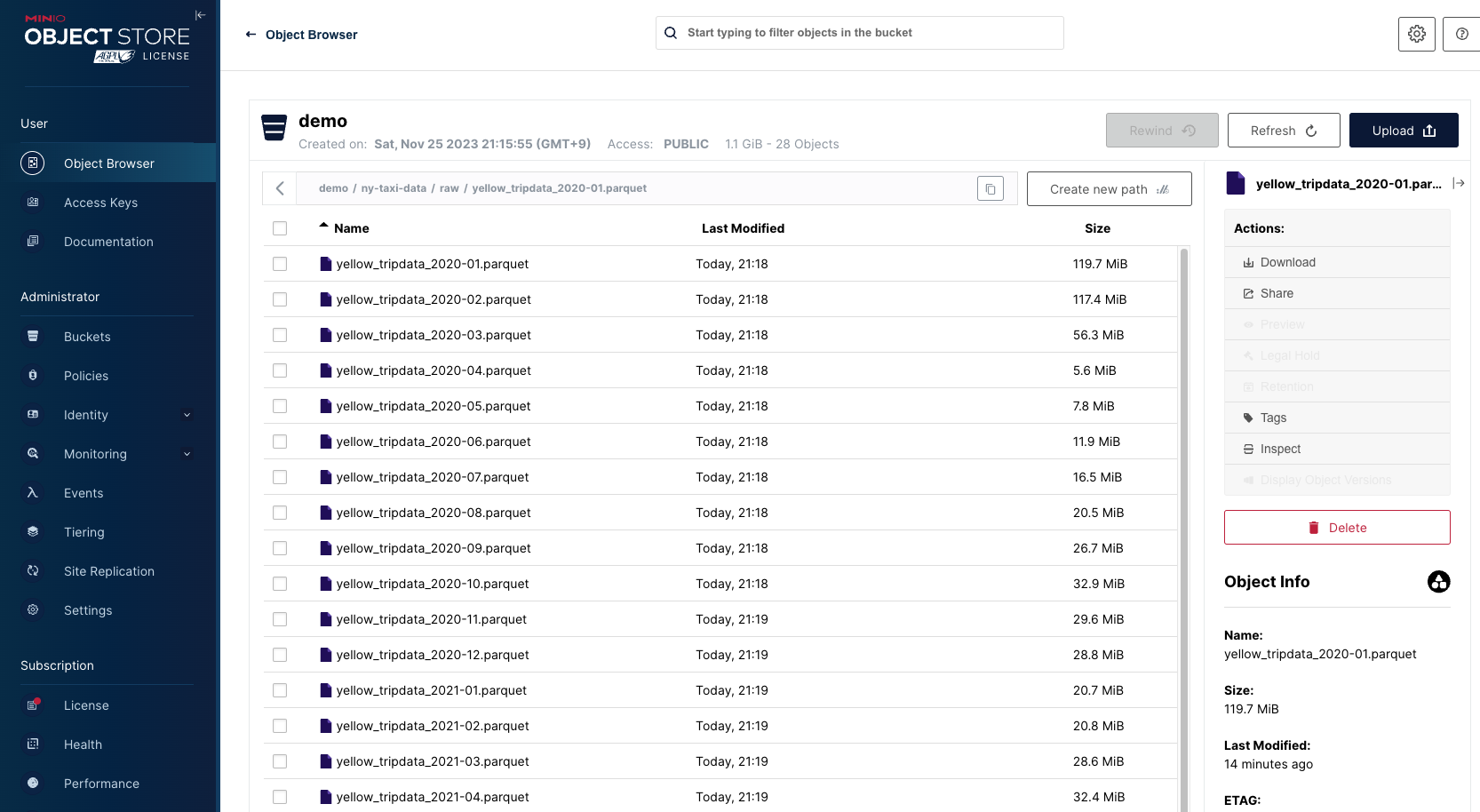
저장된 데이터 정보: 승차 및 하차 날짜/시간, 승차 및 하차 위치, 이동 거리, 항목별 요금, 요금 유형, 지불 유형 및 운전자가 보고한 승객 수

Trino
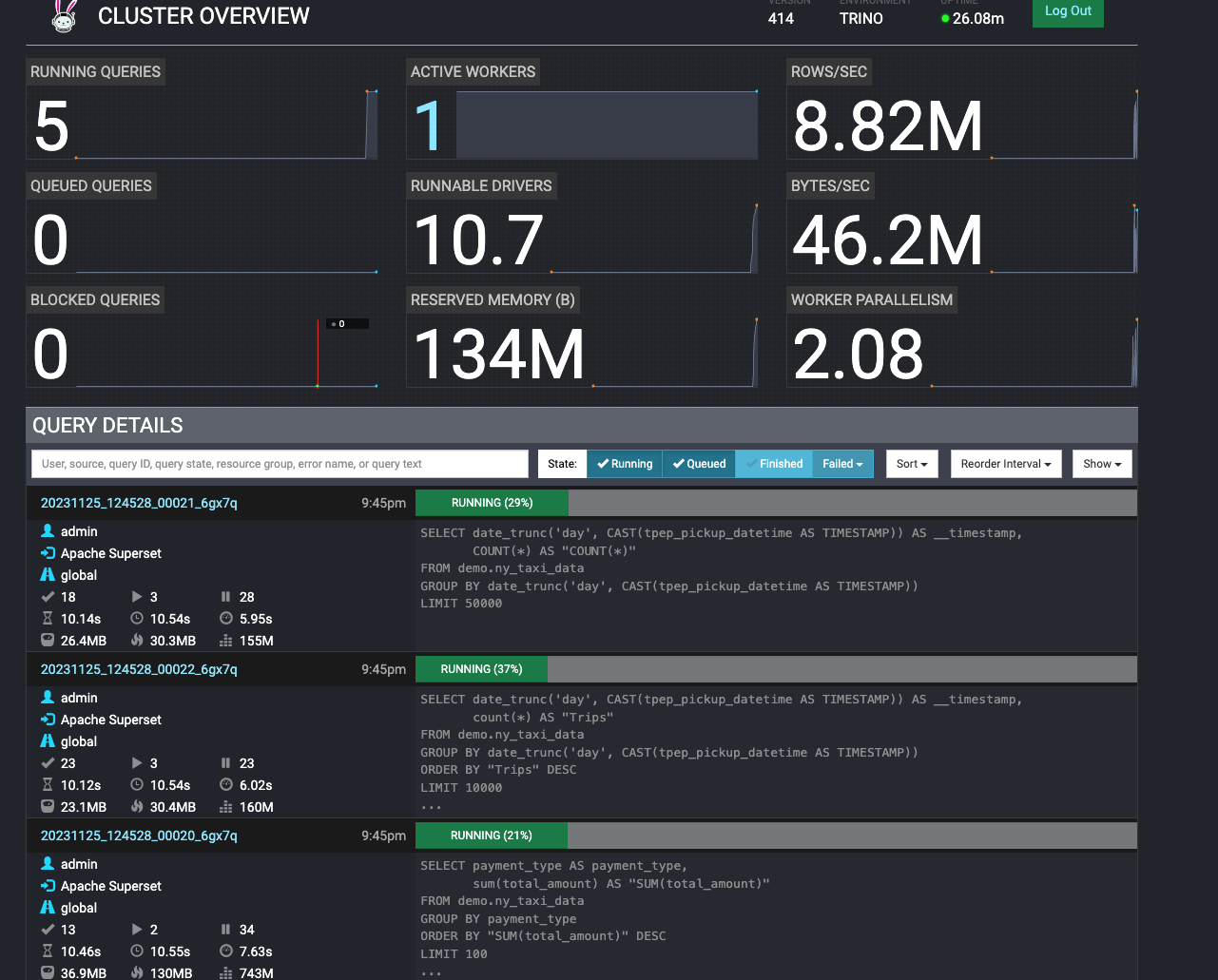
superset에서 대쉬보드 클릭하여 시각화 로드 시 trino에서 쿼리가 동작하여 데이터를 추출하는 task가 도는것을 볼 수 있다.

Superset

trino에서 추출된 데이터가 시각화되어 볼수 있다.

Trino Worker 2대로 증설

오퍼레이터로 편하게 worker 를 늘릴 수 있다. 반대로 줄이는것 도 가능.

# 로그 출력
kubectl logs -n stackable-operators -l app.kubernetes.io/instance=trino-operator -f

# trino worker 2대로 증설
kubectl get trinocluster trino -o json | cat -l json -p
kubectl patch trinocluster trino --type='json' -p='[{"op": "replace", "path": "/spec/workers/roleGroups/default/replicas", "value":2}]'

# 확인
kubectl get pod
NAME                                       READY   STATUS      RESTARTS   AGE
trino-worker-default-0                     1/1     Running     0          38m
trino-worker-default-1                     1/1     Running     0          5m12s

# 다시 줄이기
kubectl patch trinocluster trino --type='json' -p='[{"op": "replace", "path": "/spec/workers/roleGroups/default/replicas", "value":1}]'

워커노드가 2대로 늘었기에 시각화시 로드 속도도 더 빨라진다.

삭제

demo의 경우 자동 삭제가 안되므로 직접 삭제해줘야 한다.

kubectl delete supersetcluster,supersetdb superset
kubectl delete trinocluster trino && kubectl delete trinocatalog hive
kubectl delete hivecluster hive
kubectl delete s3connection minio
kubectl delete opacluster opa

# 저장소 삭제
helm uninstall postgresql-superset
helm uninstall postgresql-hive
helm uninstall minio

#
kubectl delete job --all
kubectl delete pvc --all

# 
kubectl delete cm create-ny-taxi-data-table-in-trino-script setup-superset-script trino-opa-bundle
kubectl delete secret minio-s3-credentials secret-provisioner-tls-ca superset-credentials superset-mapbox-api-key trino-users
kubectl delete sa superset-sa

# operator 삭제 오퍼레이터는 자동 삭제 가능
stackablectl operator **uninstall** superset trino hive secret opa commons

# 남은 리소스 확인
kubectl get-all -n stackable-operators

데모가 아닌 Operator를 이용하여 원하는 리소스만 직접 설치하는 방법

설치

zookeeper, kafka 설치

# [터미널1] 모니터링
watch -d "kubectl get pod -n stackable-operators"

# [터미널2] 설치
stackablectl release list
┌───┬─────────┬──────────────┬─────────────────────────────────────────────────────────────────────────────┐
│ # ┆ RELEASE ┆ RELEASE DATE ┆ DESCRIPTION                                                                 │
╞═══╪═════════╪══════════════╪═════════════════════════════════════════════════════════════════════════════╡
│ 1 ┆ 23.7    ┆ 2023-07-26   ┆ Sixth release focusing on resources and pod overrides                       │
├╌╌╌┼╌╌╌╌╌╌╌╌╌┼╌╌╌╌╌╌╌╌╌╌╌╌╌╌┼╌╌╌╌╌╌╌╌╌╌╌╌╌╌╌╌╌╌╌╌╌╌╌╌╌╌╌╌╌╌╌╌╌╌╌╌╌╌╌╌╌╌╌╌╌╌╌╌╌╌╌╌╌╌╌╌╌╌╌╌╌╌╌╌╌╌╌╌╌╌╌╌╌╌╌╌╌┤

# 23.7 버전을 설치
stackablectl release install -i commons -i secret -i zookeeper -i kafka 23.7 
Installed release 23.7

설치확인

# 설치 확인
helm list -n stackable-operators
---
NAME              	NAMESPACE          	REVISION	UPDATED                                	STATUS  	CHART                    	APP VERSION
commons-operator  	stackable-operators	1       	2023-11-25 22:08:54.742209744 +0900 KST	deployed	commons-operator-23.7.0  	23.7.0
kafka-operator    	stackable-operators	1       	2023-11-25 22:09:01.016951379 +0900 KST	deployed	kafka-operator-23.7.0    	23.7.0
secret-operator   	stackable-operators	1       	2023-11-25 22:09:15.285615199 +0900 KST	deployed	secret-operator-23.7.0   	23.7.0
zookeeper-operator	stackable-operators	1       	2023-11-25 22:09:19.241458599 +0900 KST	deployed	zookeeper-operator-23.7.0	23.7.0

stackablectl operator installed
---
┌────────────────────┬─────────┬─────────────────────┬──────────┬─────────────────────────────────────────┐
│ OPERATOR           ┆ VERSION ┆ NAMESPACE           ┆ STATUS   ┆ LAST UPDATED                            │
╞════════════════════╪═════════╪═════════════════════╪══════════╪═════════════════════════════════════════╡
│ commons-operator   ┆ 23.7.0  ┆ stackable-operators ┆ deployed ┆ 2023-11-25 22:08:54.742209744 +0900 KST │
├╌╌╌╌╌╌╌╌╌╌╌╌╌╌╌╌╌╌╌╌┼╌╌╌╌╌╌╌╌╌┼╌╌╌╌╌╌╌╌╌╌╌╌╌╌╌╌╌╌╌╌╌┼╌╌╌╌╌╌╌╌╌╌┼╌╌╌╌╌╌╌╌╌╌╌╌╌╌╌╌╌╌╌╌╌╌╌╌╌╌╌╌╌╌╌╌╌╌╌╌╌╌╌╌╌┤
│ kafka-operator     ┆ 23.7.0  ┆ stackable-operators ┆ deployed ┆ 2023-11-25 22:09:01.016951379 +0900 KST │
├╌╌╌╌╌╌╌╌╌╌╌╌╌╌╌╌╌╌╌╌┼╌╌╌╌╌╌╌╌╌┼╌╌╌╌╌╌╌╌╌╌╌╌╌╌╌╌╌╌╌╌╌┼╌╌╌╌╌╌╌╌╌╌┼╌╌╌╌╌╌╌╌╌╌╌╌╌╌╌╌╌╌╌╌╌╌╌╌╌╌╌╌╌╌╌╌╌╌╌╌╌╌╌╌╌┤
│ secret-operator    ┆ 23.7.0  ┆ stackable-operators ┆ deployed ┆ 2023-11-25 22:09:15.285615199 +0900 KST │
├╌╌╌╌╌╌╌╌╌╌╌╌╌╌╌╌╌╌╌╌┼╌╌╌╌╌╌╌╌╌┼╌╌╌╌╌╌╌╌╌╌╌╌╌╌╌╌╌╌╌╌╌┼╌╌╌╌╌╌╌╌╌╌┼╌╌╌╌╌╌╌╌╌╌╌╌╌╌╌╌╌╌╌╌╌╌╌╌╌╌╌╌╌╌╌╌╌╌╌╌╌╌╌╌╌┤
│ zookeeper-operator ┆ 23.7.0  ┆ stackable-operators ┆ deployed ┆ 2023-11-25 22:09:19.241458599 +0900 KST │
└────────────────────┴─────────┴─────────────────────┴──────────┴─────────────────────────────────────────┘

kubectl get crd | grep stackable.tech
---
authenticationclasses.authentication.stackable.tech   2023-11-25T12:13:35Z
druidconnections.superset.stackable.tech              2023-11-25T12:14:53Z
hiveclusters.hive.stackable.tech                      2023-11-25T12:13:52Z
kafkaclusters.kafka.stackable.tech                    2023-11-25T13:08:58Z
opaclusters.opa.stackable.tech                        2023-11-25T12:14:09Z
s3buckets.s3.stackable.tech                           2023-11-25T12:13:35Z
s3connections.s3.stackable.tech                       2023-11-25T12:13:35Z
secretclasses.secrets.stackable.tech                  2023-11-25T12:14:27Z
supersetclusters.superset.stackable.tech              2023-11-25T12:14:54Z
supersetdbs.superset.stackable.tech                   2023-11-25T12:14:53Z
trinocatalogs.trino.stackable.tech                    2023-11-25T12:15:11Z
trinoclusters.trino.stackable.tech                    2023-11-25T12:15:11Z
zookeeperclusters.zookeeper.stackable.tech            2023-11-25T13:09:16Z
zookeeperznodes.zookeeper.stackable.tech              2023-11-25T13:09:16Z

배포

Apache ZooKeeper

kubectl apply -f - <<EOF
---
apiVersion: zookeeper.stackable.tech/v1alpha1
kind: ZookeeperCluster
metadata:
  name: simple-zk
spec:
  image:
    productVersion: "3.8.1"
    stackableVersion: "23.7"
  clusterConfig:
    tls:
      serverSecretClass: null
  servers:
    roleGroups:
      primary:
        replicas: 1
        config:
          myidOffset: 10
---
apiVersion: zookeeper.stackable.tech/v1alpha1
kind: ZookeeperZnode
metadata:
  name: simple-zk-znode
spec:
  clusterRef:
    name: simple-zk
EOF

# 설치 확인
kubectl get zookeepercluster,zookeeperznode
kubectl get pod,svc,ep,pvc -l app.kubernetes.io/instance=simple-zk
kubectl describe pod -l app.kubernetes.io/instance=simple-zk

Apache Kafka

kubectl apply -f - <<EOF
---
apiVersion: kafka.stackable.tech/v1alpha1
kind: KafkaCluster
metadata:
  name: simple-kafka
spec:
  image:
    productVersion: "3.4.0"
    stackableVersion: "23.7"
  clusterConfig:
    zookeeperConfigMapName: simple-kafka-znode
    tls:
      serverSecretClass: null
  brokers:
    roleGroups:
      brokers:
        replicas: 3**
---
apiVersion: zookeeper.stackable.tech/v1alpha1
kind: ZookeeperZnode
metadata:
  name: simple-kafka-znode
spec:
  clusterRef:
    name: simple-zk
    namespace: default
EOF

# 설치 확인
kubectl get kafkacluster,zookeeperznode
kubectl get pod,svc,ep,pvc -l app.kubernetes.io/instance=simple-kafka
kubectl describe pod -l app.kubernetes.io/instance=simple-kafka

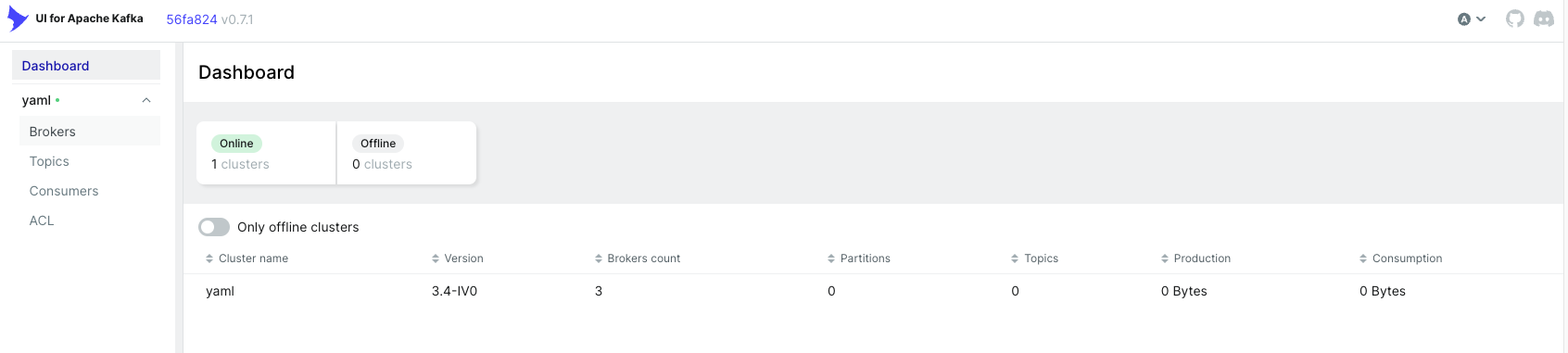
Kafka UI

helm repo add kafka-ui https://provectus.github.io/kafka-ui-charts
cat <<EOF > kafkaui-values.yml
yamlApplicationConfig:
  kafka:
    clusters:
      - name: yaml
        bootstrapServers: simple-kafka-broker-brokers:9092
  auth:
    type: disabled
  management:
    health:
      ldap:
        enabled: false
EOF

# 설치
helm install kafka-ui kafka-ui/kafka-ui **-f** kafkaui-values.yml

# 접속 확인
kubectl patch svc kafka-ui -p '{"spec":{"type":"LoadBalancer"}}'
kubectl annotate service kafka-ui "external-dns.alpha.kubernetes.io/hostname=kafka-ui.$MyDomain"
echo -e "kafka-ui Web URL = http://kafka-ui.$MyDomain"
쿠버네티스 데이터베이스 오퍼레이터 5주차

카프카란?

Apache Kafka는 빠르고 확장 가능한 작업을 위해 데이터 피드의 분산 스트리밍, 파이프 라이닝 및 재생을 위한 실시간 스트리밍 데이터를 처리하기 위한 목적으로 설계된 오픈 소스 분산형 게시-구독 메시징 플랫폼

Apache Kafka의 개념

토픽: 토픽은 게시/구독 메시징에서 상당히 보편적인 개념입니다. Apache Kafka 및 기타 메시징 솔루션에서 토픽은 지정된 데이터 스트림(일련의 레코드/메시지)에 대한 관심을 표시하는 데 사용되는 주소 지정 가능한 추상화입니다. 토픽은 게시 및 구독할 수 있으며 애플리케이션에서 주어진 데이터 스트림에 대한 관심을 표시하는 데 사용하는 추상화 계층입니다.

파티션 : Apache Kafka에서 토픽은 파티션이라는 일련의 순서 대기열로 세분화될 수 있습니다. 이러한 파티션은 연속적으로 추가되어 순차적 커밋 로그를 형성합니다. Kafka 시스템에서 각 레코드/메시지에는 지정된 파티션의 메시지 또는 레코드를 식별하는 데 사용되는 오프셋이라는 순차 ID가 할당됩니다.

영속성: Apache Kafka는 레코드/메시지가 게시될 때 지속적으로 유지하는 서버 클러스터를 유지 관리하여 작동합니다. Kafka 클러스터는 구성 가능한 보존 시간 제한을 사용하여 소비에 관계없이 주어진 레코드가 지속되는 기간을 결정합니다. 레코드/메시지가 보존 시간 제한 내에 있는 동안 레코드/메시지를 사용할 수 있습니다. 레코드/메시지가 이 보존 시간 제한을 초과하면 레코드/메시지가 삭제되고 공간이 확보됩니다.

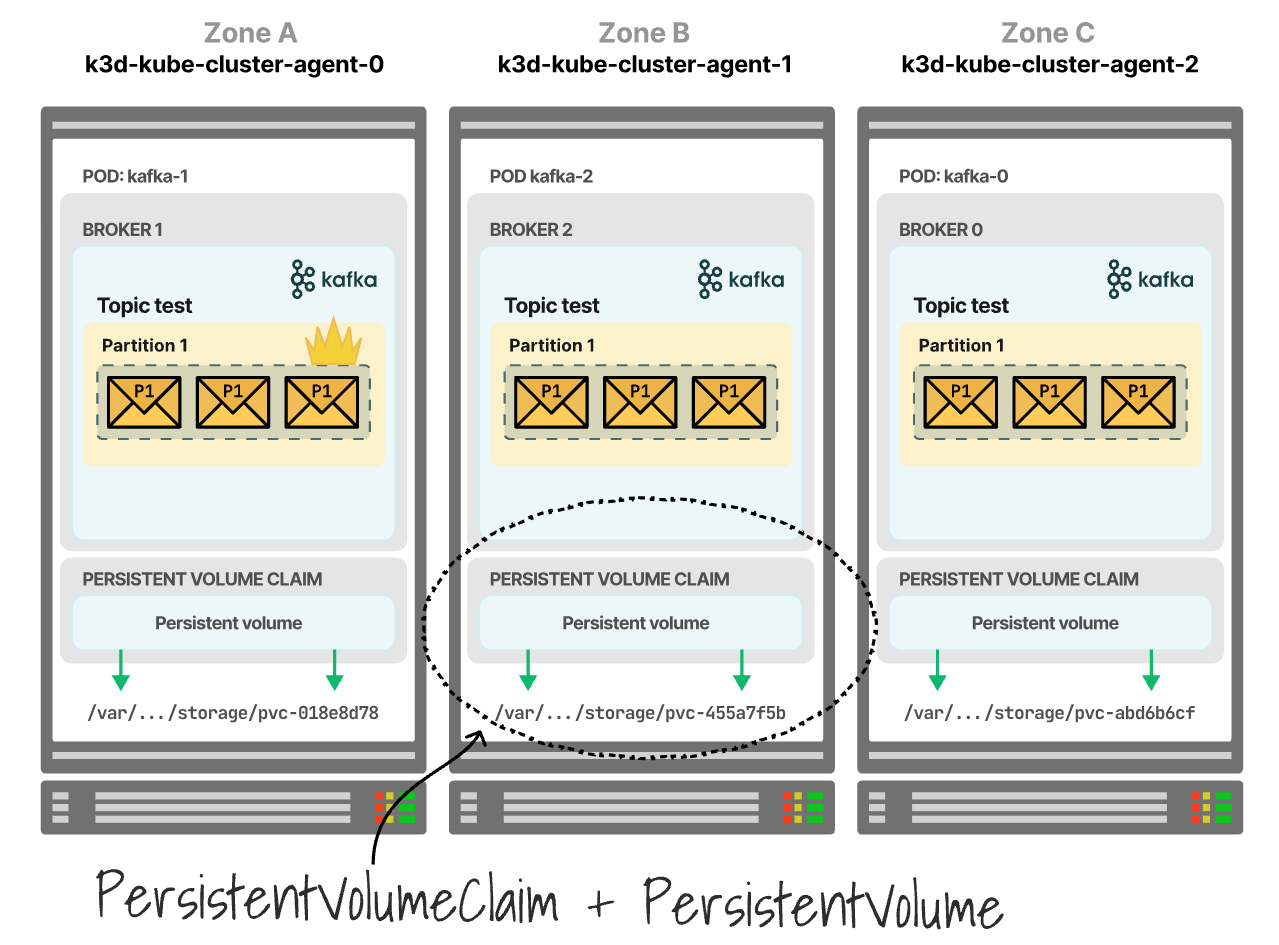
토픽/파티션 확장 : Apache Kafka는 서버 클러스터로 작동하기 때문에 주어진 토픽/파티션에서 각 서버에 부하를 공유하여 토픽/파티션을 확장할 수 있습니다. 이 부하 공유를 통해 Kafka 클러스터의 각 서버는 주어진 토픽/파티션에 대한 레코드/메시지의 배포 및 영속성을 처리할 수 있습니다. 개별 서버가 모든 배포 및 영속성을 처리하는 동안 모든 서버는 서버가 실패할 경우 내결함성과 고가용성을 제공하는 데이터를 복제합니다. 파티션은 파티션 리더로 선택된 한개 서버와 팔로워 역할을 하는 다른 모든 서버들로 분할됩니다. 파티션 리더 인 서버는 데이터의 모든 배포 및 영속성 (읽기/쓰기)을 처리하고 팔로워 서버는 내결함성을 위한 복제 서비스를 제공합니다.

프로듀서: Apache Kafka에서 프로듀서 개념은 대부분의 메시징 시스템과 다르지 않습니다. 데이터(레코드/메시지) 프로듀서는 주어진 레코드/메시지가 게시되어야 하는 토픽(데이터 스트림)를 정의합니다. 파티션은 추가 확장성을 제공하는 데 사용되므로 프로듀서는 주어진 레코드/메시지가 게시되는 파티션도 정의할 수 있습니다. 프로듀서는 주어진 파티션을 정의할 필요가 없으며 파티션을 정의하지 않음으로써 토픽 파티션에서 순차 순환 대기 방식의 로드 밸런싱을 달성할 수 있습니다.

컨슈머: 대부분의 메시징 시스템과 마찬가지로 Kafka의 컨슈머는 레코드/메시지를 처리하는 엔터티입니다. 컨슈머는 개별 워크로드에서 독립적으로 작업하거나 지정된 워크로드에서 다른 컨슈머와 협력하여 작업하도록 구성할 수 있습니다(로드 밸런싱). 컨슈머는 컨슈머 그룹 이름을 기반으로 워크로드를 처리하는 방법을 관리합니다. 컨슈머 그룹 이름을 사용하면 컨슈머를 단일 프로세스 내, 여러 프로세스, 심지어 여러 시스템에 분산시킬 수 있습니다. 컨슈머 그룹 이름을 사용하여 컨슈머는 컨슈머 집합 전체에서 레코드/메시지 소비를 로드 밸런싱(동일한 컨슈머 그룹 이름을 가진 여러 컨슈머)하거나 토픽/파티션을 구독하는 각 컨슈머가 처리 메시지를 받도록 각 레코드/메시지를 고유하게 (고유한 컨슈머 그룹 이름을 가진 여러 컨슈머) 처리할 수 있습니다.

Strimzi

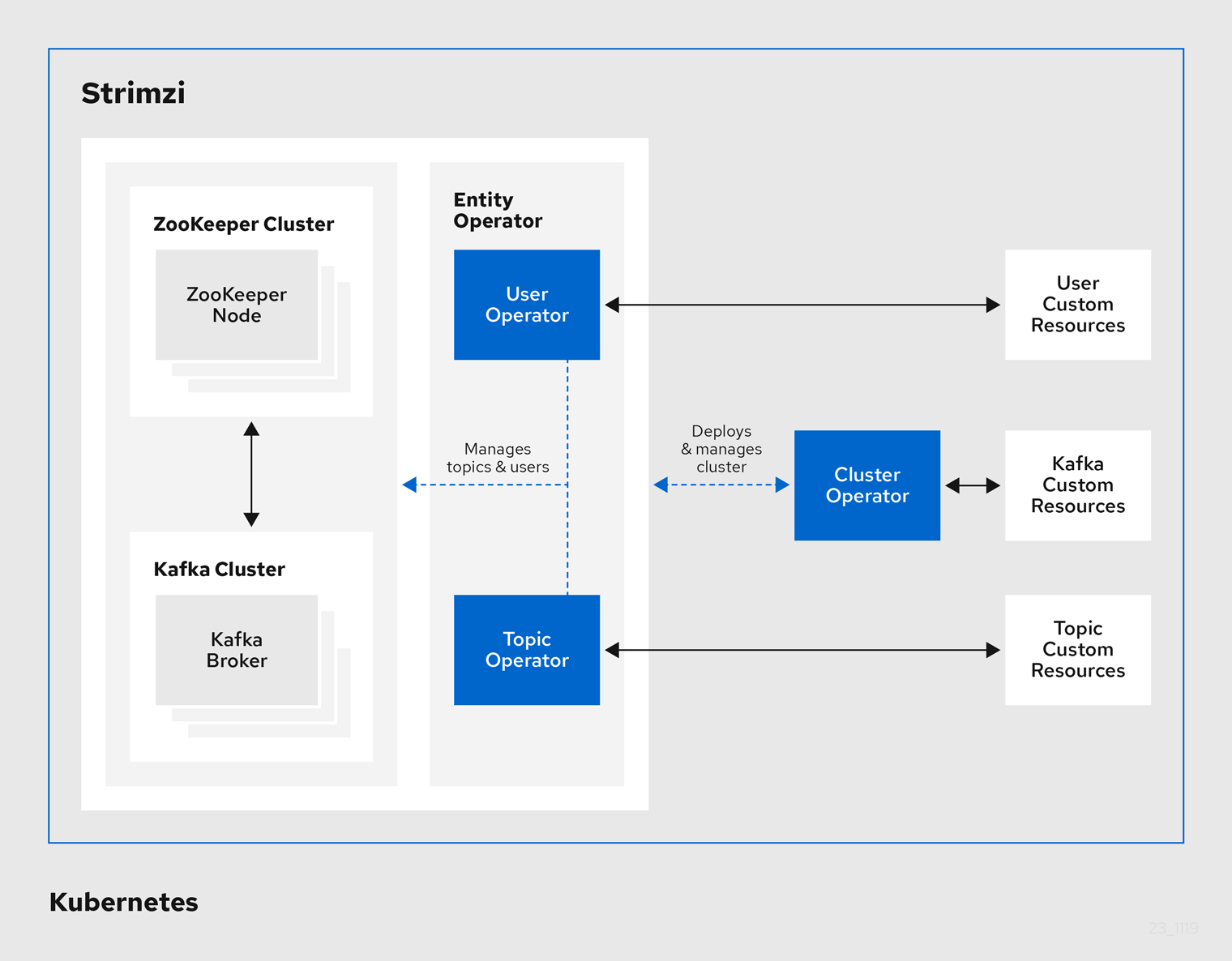
Strimzi 는 쿠버네티스 환경에서 카프카 Kafka 운영 관리에 도움을 주는 Operator

오퍼레이터 설치

Apache Kafka 지원 버전 - v3.5.0, v3.5.1, v3.6.0

# 네임스페이스 생성
kubectl create namespace kafka

# Repo 추가
helm repo add strimzi https://strimzi.io/charts/

# 차트 설치 : 오퍼레이터 파드 설치
helm install kafka-operator strimzi/strimzi-kafka-operator --version 0.38.0 --namespace kafka

# 배포한 리소스 확인 : Operator 디플로이먼트(파드)
kubectl get deploy,pod -n kafka
kubectl get-all -n kafka

# 오퍼레이터가 지원하는 카프카 버전 확인
kubectl describe deploy -n kafka | grep KAFKA_IMAGES: -A3

# 배포한 리소스 확인 : CRDs - 각각이 제공 기능으로 봐도됨!
kubectl get crd | grep strimzi
kafkabridges.kafka.strimzi.io                2023-11-12T11:35:19Z
kafkaconnectors.kafka.strimzi.io             2023-11-12T11:35:19Z
kafkaconnects.kafka.strimzi.io               2023-11-12T11:35:19Z
kafkamirrormaker2s.kafka.strimzi.io          2023-11-12T11:35:19Z
kafkamirrormakers.kafka.strimzi.io           2023-11-12T11:35:19Z
kafkanodepools.kafka.strimzi.io              2023-11-12T11:35:20Z
kafkarebalances.kafka.strimzi.io             2023-11-12T11:35:20Z
kafkas.kafka.strimzi.io                      2023-11-12T11:35:18Z
kafkatopics.kafka.strimzi.io                 2023-11-12T11:35:19Z
kafkausers.kafka.strimzi.io                  2023-11-12T11:35:19Z
strimzipodsets.core.strimzi.io               2023-11-12T11:35:19Z

# (참고) CRD 상세 정보 확인
kubectl describe crd kafkas.kafka.strimzi.io
kubectl describe crd kafkatopics.kafka.strimzi.io

카프카 클러스터 구성 with monitoring

# 카프카 클러스터 YAML 파일 확인 : listeners(3개), podAntiAffinity
# exporter 관련 설정 확인
curl -s -O https://raw.githubusercontent.com/gasida/DOIK/main/strimzi/kafka-2.yaml
cat kafka-2.yaml | yh

# 카프카 클러스터 배포 : 카프카(브로커 3개), 주키퍼(3개), entityOperator 디플로이먼트
# exporter 설정된 카프카 클러스터 배포
kubectl apply -f **kafka-2.yaml** -n **kafka**

# 예제코드 복사
git clone https://github.com/**AmarendraSingh88**/kafka-on-kubernetes.git
cd kafka-on-kubernetes/kafka-demo/demo3-monitoring/

# 프로메테우스 설치
kubectl apply -f prometheus-operator-deployment.yaml -n monitoring **--server-side**
kubectl apply -f prometheus.yaml -n monitoring
kubectl apply -f prometheus-rules.yaml -n monitoring
kubectl apply -f strimzi-pod-monitor.yaml -n monitoring

# 그라파나 설치
kubectl apply -f grafana/grafana.yaml -n monitoring
kubectl patch svc -n monitoring grafana -p '{"spec":{"type":"LoadBalancer"}}'
kubectl annotate service grafana -n monitoring "external-dns.alpha.kubernetes.io/hostname=**grafana**.$MyDomain"

# 접속 정보 확인(그라파나 웹 접속 : admin / admin)
echo -e "Grafana URL = http://grafana.$MyDomain:3000"

# 배포된 리소스들 확인
kubectl **get-all** -n kafka

# 컨피그맵 상세 확인
kubectl describe cm -n kafka strimzi-cluster-operator
kubectl describe cm -n kafka my-cluster-zookeeper-config
kubectl describe cm -n kafka my-cluster-entity-topic-operator-config
kubectl describe cm -n kafka my-cluster-entity-user-operator-config
**kubectl** describe cm -n kafka my-cluster-kafka-0
**kubectl** describe cm -n kafka my-cluster-kafka-1
**kubectl** describe cm -n kafka my-cluster-kafka-2

# kafka 클러스터 Listeners 정보 확인 : 각각 9092 평문, 9093 TLS, 세번째 정보는 External 접속 시 NodePort 정보
**kubectl get kafka -n kafka my-cluster -o jsonpath={.status.listeners} | jq**

그라파나 설정

그라파나 데이터 소스 설정 : 프로메테우스파드-0 에 헤드리스 접속 주소 입력 후 연결 확인

kubectl run -it --rm netdebug --image=nicolaka/netshoot --restart=Never -- zsh
nslookup prometheus-prometheus-0.prometheus-operated.monitoring.svc.cluster.local:9090

prometheus datasource 추가(URL prometheus-prometheus-0.prometheus-operated.monitoring.svc.cluster.local:9090 입력)

그라파나 대시보드 추가 : 아래 파일 다운 로드 후 Import 에서 내용 입력 하고 Datasource에서 위에서 생성한 prometheus 선택 - Link

zookeeper-dashboard.json

kafka-dashboard.json

kafka-exporter.json

설치가 완료되면 위와 같은 dashboard 조회 가능

카프가 UI설치

# 배포
helm repo add kafka-ui https://provectus.github.io/kafka-ui-charts
cat <<EOF > kafkaui-values.yml
yamlApplicationConfig:
  kafka:
    clusters:
      - name: yaml
        bootstrapServers: **my-cluster-kafka-bootstrap**.**kafka**.svc:9092
  auth:
    type: disabled
  management:
    health:
      ldap:
        enabled: false
EOF

# 설치
helm install kafka-ui kafka-ui/kafka-ui **-f** kafkaui-values.yml

# 접속 확인
kubectl patch svc kafka-ui -p '{"spec":{"type":"LoadBalancer"}}'
kubectl annotate service kafka-ui "external-dns.alpha.kubernetes.io/hostname=kafka-ui.$MyDomain"
echo -e "kafka-ui Web URL = http://kafka-ui.$MyDomain"

클라이언트 파드 생성

# 파일 다운로드
curl -s -O https://raw.githubusercontent.com/gasida/DOIK/main/strimzi/myclient.yaml
cat myclient.yaml | yh

# 데몬셋으로 myclient 파드 배포
VERSION=3.6 envsubst < myclient.yaml | kubectl apply -f -
kubectl get pod -l name=kafkaclient -owide

# Kafka client 에서 제공되는 kafka 관련 도구들 확인
kubectl exec -it ds/myclient -- ls /opt/bitnami/kafka/bin

# 카프카 파드의 SVC 도메인이름을 변수에 지정
SVCDNS=my-cluster-kafka-bootstrap.kafka.svc:9092
echo "export SVCDNS=my-cluster-kafka-bootstrap.kafka.svc:9092" >> /etc/profile

# 브로커 정보
kubectl exec -it ds/myclient -- kafka-broker-api-versions.sh --bootstrap-server $SVCDNS

# 브로커에 설정된 각종 기본값 확인 : --broker --all --describe 로 조회
kubectl exec -it ds/myclient -- kafka-configs.sh --bootstrap-server $SVCDNS --broker 1 --all --describe
kubectl exec -it ds/myclient -- kafka-configs.sh --bootstrap-server $SVCDNS --broker 2 --all --describe
kubectl exec -it ds/myclient -- kafka-configs.sh --bootstrap-server $SVCDNS --broker 0 --all --describe

# 토픽 리스트 확인
kubectl exec -it ds/myclient -- kafka-topics.sh --bootstrap-server $SVCDNS --list

# 토픽 리스트 확인 (kubectl native) : PARTITIONS, REPLICATION FACTOR
kubectl get kafkatopics -n kafka

카프카 동작

토픽 생성 및 메시지 주고받기

토픽생성

# 토픽 Topic 생성 (kubectl native) : 파티션 1개 리플리케이션 3개, envsubst 활용
curl -s -O https://raw.githubusercontent.com/gasida/DOIK/main/3/mytopic.yaml
cat mytopic.yaml | yh
TOPICNAME=mytopic1 envsubst < mytopic.yaml | kubectl apply -f - -n kafka

# 토픽 생성 확인 (kubectl native)
kubectl get kafkatopics -n kafka
NAME                                                                                               CLUSTER      PARTITIONS   REPLICATION FACTOR   READY
mytopic1                                                                                           my-cluster   1            3                    True

kubectl exec -it ds/myclient -- kafka-topics.sh --bootstrap-server $SVCDNS --list | grep mytopic
mytopic1

# 토픽 상세 정보 확인 : 설정값 미 지정 시 기본값이 적용
kubectl exec -it ds/myclient -- kafka-topics.sh --bootstrap-server $SVCDNS --topic mytopic1 --describe
Topic: mytopic1	
TopicId: 6NofWN1rQP6XFl7ILW_A2Q	
PartitionCount: 1	
ReplicationFactor: 3	
Configs: min.insync.replicas=2
segment.bytes=1073741824
retention.ms=7200000
message.format.version=3.0-IV1

Topic: mytopic1	Partition: 0	Leader: 2	Replicas: 2,1,0	Isr: 2,1,0

토픽 파티션 수 조정

# 테스트용 토픽 Topic 생성 : 파티션 1개 리플리케이션 3개
kubectl exec -it ds/myclient -- kafka-topics.sh --create --bootstrap-server $SVCDNS --topic mytopic2 --partitions 1 --replication-factor 3 --config retention.ms=172800000

# 토픽의 파티션 갯수 늘리기
kubectl exec -it ds/myclient -- kafka-topics.sh --bootstrap-server $SVCDNS --topic mytopic2 --alter --partitions 2
kubectl exec -it ds/myclient -- kafka-topics.sh --bootstrap-server $SVCDNS --topic mytopic2 --describe
Topic: mytopic2	
TopicId: z1EsOsnqRMuZbAp-Og_PEQ	
PartitionCount: 2	
ReplicationFactor: 3	
Configs: min.insync.replicas=2,retention.ms=172800000,message.format.version=3.0-IV1
Topic: mytopic2	Partition: 0	Leader: 0	Replicas: 0,2,1	Isr: 0,2,1
Topic: mytopic2	Partition: 1	Leader: 1	Replicas: 1,2,0	Isr: 1,2,0

# Kafka-UI 같이 확인
# 실습 구성도 그림 확인

# 토픽의 파티션 갯수 줄이기(안됨)
kubectl exec -it ds/myclient -- kafka-topics.sh --bootstrap-server $SVCDNS --topic mytopic2 --alter --partitions 1
Error while executing topic command : Topic currently has 2 partitions, which is higher than the requested 1.
[2023-11-12 13:57:51,002] ERROR org.apache.kafka.common.errors.InvalidPartitionsException: Topic currently has 2 partitions, which is higher than the requested 1.
 (kafka.admin.TopicCommand$)
command terminated with exit code 1

# 토픽 일부 옵션 설정 : min.insync.replicas=2 를 min.insync.replicas=3 으로 수정
kubectl exec -it ds/myclient -- kafka-configs.sh --bootstrap-server $SVCDNS --topic mytopic2 --alter -add-config min.insync.replicas=3

# 토픽 일부 옵션 설정 : 다음 실습을 위해 min.insync.replicas=2 로 다시 수정
kubectl exec -it ds/myclient -- kafka-configs.sh --bootstrap-server $SVCDNS --topic mytopic2 --alter -add-config min.insync.replicas=

토픽에 메시지 주고받기

# 토픽에 데이터 넣어보기
kubectl exec -it ds/myclient -- kafka-console-producer.sh --bootstrap-server $SVCDNS --topic mytopic1
> hi
> this is kafka test
> 0
> 1
> 2
CTRL+D 로 빠져나오기

# 토픽 데이터 확인
kubectl exec -it ds/myclient -- kafka-console-consumer.sh --bootstrap-server $SVCDNS --topic mytopic1 --from-beginning
hi
this is kafka test
0
1
2
CTRL+C 로 빠져나오기

# 토픽에 데이터(메시지키+메시지값) 넣어보기
# key로 파티션이 나뉘어 메시지 전송 가능
kubectl exec -it ds/myclient -- kafka-console-producer.sh --bootstrap-server $SVCDNS --topic mytopic2 --property "parse.key=true" --property "key.separator=:"
>key1:doik1
>key1:doik1-1
>key2:doik2
>key2:doik2-1
>key3:doik3
CTRL+D 로 빠져나오기

# 토픽에 데이터(메시지키+메시지값) 확인
kubectl exec -it ds/myclient -- kafka-console-consumer.sh --bootstrap-server $SVCDNS --topic mytopic2 --property print.key=true --property key.separator="-" --from-beginning
CTRL+C 로 빠져나오기

# 토픽에 데이터 최대 컨슘 메시지 갯수 확인
kubectl exec -it ds/myclient -- kafka-console-consumer.sh --bootstrap-server $SVCDNS --topic mytopic2 --max-messages 2 --from-beginning

# 토픽에서 특정 파티션만 컨슘 확인
kubectl exec -it ds/myclient -- kafka-console-consumer.sh --bootstrap-server $SVCDNS --topic mytopic2 --partition 0 --from-beginning

컨슈머 그룹

# 토픽에 데이터 넣어보기
kubectl exec -it ds/myclient -- kafka-console-producer.sh --bootstrap-server $SVCDNS --topic mytopic2 <<EOF
101
102
103
104
105
106
107
108
109
110
EOF

kubectl exec -it ds/myclient -- kafka-console-producer.sh --bootstrap-server $SVCDNS --topic mytopic2 <<EOF
AAA
BBB
CCC
DDD
EOF

# 컨슈머 그룹 확인
kubectl exec -it ds/myclient -- kafka-consumer-groups.sh --bootstrap-server $SVCDNS --list
__strimzi-topic-operator-kstreams

# 컨슈머 그룹 기반으로 동작, 특정 목적을 가진 컨슈머들을 묶음으로 사용하는 것. 컨슈머그룹으로 토픽의 레코드를 가져갈 경우 어느 레코드까지 읽었는지에 대한 데이터가 브로커에 저장됨
## 컨슈머 그룹은 따로 생성하는 명령을 적용하는 것이 아니라, 컨슈머를 동작할 때 컨슈머 그룹이름을 지정하면 새로 생성됨
kubectl exec -it ds/myclient -- kafka-console-consumer.sh --bootstrap-server $SVCDNS --topic mytopic2 --group mygroup --from-beginning
...
CTRL+C 로 빠져나오기

# 컨슈머 그룹 상태 확인
## 파티션 번호, 현재까지 가져간 레코드의 오프셋, 파티션 마지막 레코드의 오프셋, 컨슈머 랙 LAG, 컨슈머 ID, 호스트 정보 확인 가능
kubectl exec -it ds/myclient -- kafka-consumer-groups.sh --bootstrap-server $SVCDNS --group mygroup --describe
Consumer group 'mygroup' has no active members.
GROUP           TOPIC           PARTITION  CURRENT-OFFSET  LOG-END-OFFSET  LAG             CONSUMER-ID     HOST            CLIENT-ID
mygroup         mytopic2        0          2               2               0               -               -               -
mygroup         mytopic2        1          13              13              0               -               -               -

# 오프셋 리셋: 리셋 시 초기부터 다시 컨슈밍 할 수 있음, 컨슈머 그룹을 분리하였기에 다른 컨슈머는 영향없음
kubectl exec -it ds/myclient -- kafka-consumer-groups.sh --bootstrap-server $SVCDNS --group mygroup --topic mytopic2 --reset-offsets --to-earliest --execute
GROUP                          TOPIC                          PARTITION  NEW-OFFSET
mygroup                        mytopic2                       0          0
mygroup                        mytopic2                       1          0

# 다시 컨슈머 그룹 상태 확인 : LAG 확인됨!(컨슈밍 했지만 LAG가 다시 원래대로 돌아옴)
kubectl exec -it ds/myclient -- kafka-consumer-groups.sh --bootstrap-server $SVCDNS --group mygroup --describe
Consumer group 'mygroup' has no active members.
GROUP           TOPIC           PARTITION  CURRENT-OFFSET  LOG-END-OFFSET  LAG             CONSUMER-ID     HOST            CLIENT-ID
mygroup         mytopic2        0          0               2               2               -               -               -
mygroup         mytopic2        1          0               13              13              -               -               -

LAG : 소비자하지 않는 메시지의 수, 쌓이면 쌓일 수록 메시지가 많이 남아있으므로 파티션을 늘리고 컨슈머를 늘려야한다.

로그 세그먼트

# 파드와 노드 매칭 확인
kubectl get pod -n kafka -owide | grep kafka

# 카프카 설정 확인
kubectl describe cm -n kafka my-cluster-kafka-config
##########
# Kafka message logs configuration
##########
log.dirs=/var/lib/kafka/data-0/kafka-log0

# 로그 저장소 확인 : 특정 토픽(파티션 개수에 따른 폴더 생성됨)에 세그먼트 확인
kubectl exec -it -n kafka my-cluster-kafka-1 -c kafka -- ls -al /var/lib/kafka/data-0/kafka-log1
drwxr-sr-x 2 kafka root 4096 Nov 12 13:48 __consumer_offsets-9
drwxr-sr-x 2 kafka root 4096 Nov 12 13:48 __strimzi-topic-operator-kstreams-topic-store-changelog-0
drwxr-sr-x 2 kafka root 4096 Nov 12 13:48 __strimzi_store_topic-0
-rw-r--r-- 1 kafka root    0 Nov 12 13:47 cleaner-offset-checkpoint
-rw-r--r-- 1 kafka root    4 Nov 12 14:42 log-start-offset-checkpoint
-rw-r--r-- 1 kafka root   88 Nov 12 13:47 meta.properties
drwxr-sr-x 2 kafka root 4096 Nov 12 14:15 mytopic1-0
drwxr-sr-x 2 kafka root 4096 Nov 12 14:17 mytopic2-0
drwxr-sr-x 2 kafka root 4096 Nov 12 13:57 mytopic2-1
-rw-r--r-- 1 kafka root 1320 Nov 12 14:42 recovery-point-offset-checkpoint
-rw-r--r-- 1 kafka root 1321 Nov 12 14:42 replication-offset-checkpoint

# xxd 툴로 00000000000000000000.log 의 hexdump 내용 확인 : 보낸 메시지 내용 확인, 로그 파일에 저장된 메시지는 컨슈머가 읽어갈 수 있음
kubectl exec -it -n kafka my-cluster-kafka-0 -c kafka -- cat /var/lib/kafka/data-0/kafka-log0/mytopic2-0/00000000000000000000.log | xxd
...
00000090: 6b65 7931 0e64 6f69 6b31 2d31 00         key1.doik1-1.

장애테스트

🔥강제로 kafka or zookeeper pod 1개 삭제

# 모니터링
watch -d kubectl get pod -owide -n kafka
kubectl logs -n kafka -l name=strimzi-cluster-operator -f   # Reconciliation 로그 확인

# 토픽 Topic 생성 (kubectl native) : 파티션 1개 리플리케이션 3개, ISR=2, envsubst 활용
TOPICNAME=mytopic3 envsubst < mytopic.yaml | kubectl apply -f - -n kafka

# 토픽 정보 확인 : 컨트롤러 브로커 위치 확인
kubectl get pod -n kafka -l app.kubernetes.io/name=kafka -owide
NODE1IP=$(kubectl get node -owide | grep 192.168.1 | awk '{print $6}')
NODEPORT=$(kubectl get svc -n kafka my-cluster-kafka-external-bootstrap -o jsonpath={.spec.ports[0].nodePort})
docker run -it --rm --network=host edenhill/kcat:1.7.1 -b $NODE1IP:$NODEPORT -L -t mytopic3 | grep controller
----
broker 1 at ec2-3-38-194-27.ap-northeast-2.compute.amazonaws.com:30487 (controller) >> 해당 유동 공인IP를 가진 EC2 찾기

kubectl exec -it ds/myclient -- kafka-topics.sh --bootstrap-server $SVCDNS --topic mytopic3 --describe
Topic: mytopic3	
TopicId: TbRzhvJKS7Kx4v1wFID8sw	
PartitionCount: 1	ReplicationFactor: 3	
Configs: min.insync.replicas=2,segment.bytes=1073741824,retention.ms=7200000,message.format.version=3.0-IV1
Topic: mytopic3	Partition: 0	Leader: 2	Replicas: 2,1,0	Isr: 2,1,0

# 메시지 받기 : script 혹은 kafka-ui
kubectl exec -it ds/myclient -- kafka-console-consumer.sh --bootstrap-server $SVCDNS --topic mytopic3 --from-beginning

# (터미널1) for문 반복 메시지 보내기
kubectl exec -it ds/myclient -- sh -c "echo mytest | kafka-console-producer.sh --bootstrap-server $SVCDNS --topic mytopic3"
for ((i=1; i<=100;  i++)); do echo "failover-test1-$i" ; kubectl exec -it ds/myclient -- sh -c "echo test1-$i | kafka-console-producer.sh --bootstrap-server $SVCDNS --topic mytopic3" ; date ; done

# 강제로 컨트롤러 브로커 파드 삭제(위치 확인) : 오퍼레이터가 annotate 설정을 모니터링 주기(2분)가 있어서 시간이 지나면 삭제가 실행됨
kubectl annotate pod -n kafka my-cluster-kafka-0 strimzi.io/delete-pod-and-pvc=true && kubectl get pv -w
혹은
kubectl annotate pod -n kafka my-cluster-kafka-1 strimzi.io/delete-pod-and-pvc=true && kubectl get pv -w
혹은
kubectl annotate pod -n kafka my-cluster-kafka-2 strimzi.io/delete-pod-and-pvc=true && kubectl get pv -w

# 강제로 주키퍼 파드 삭제
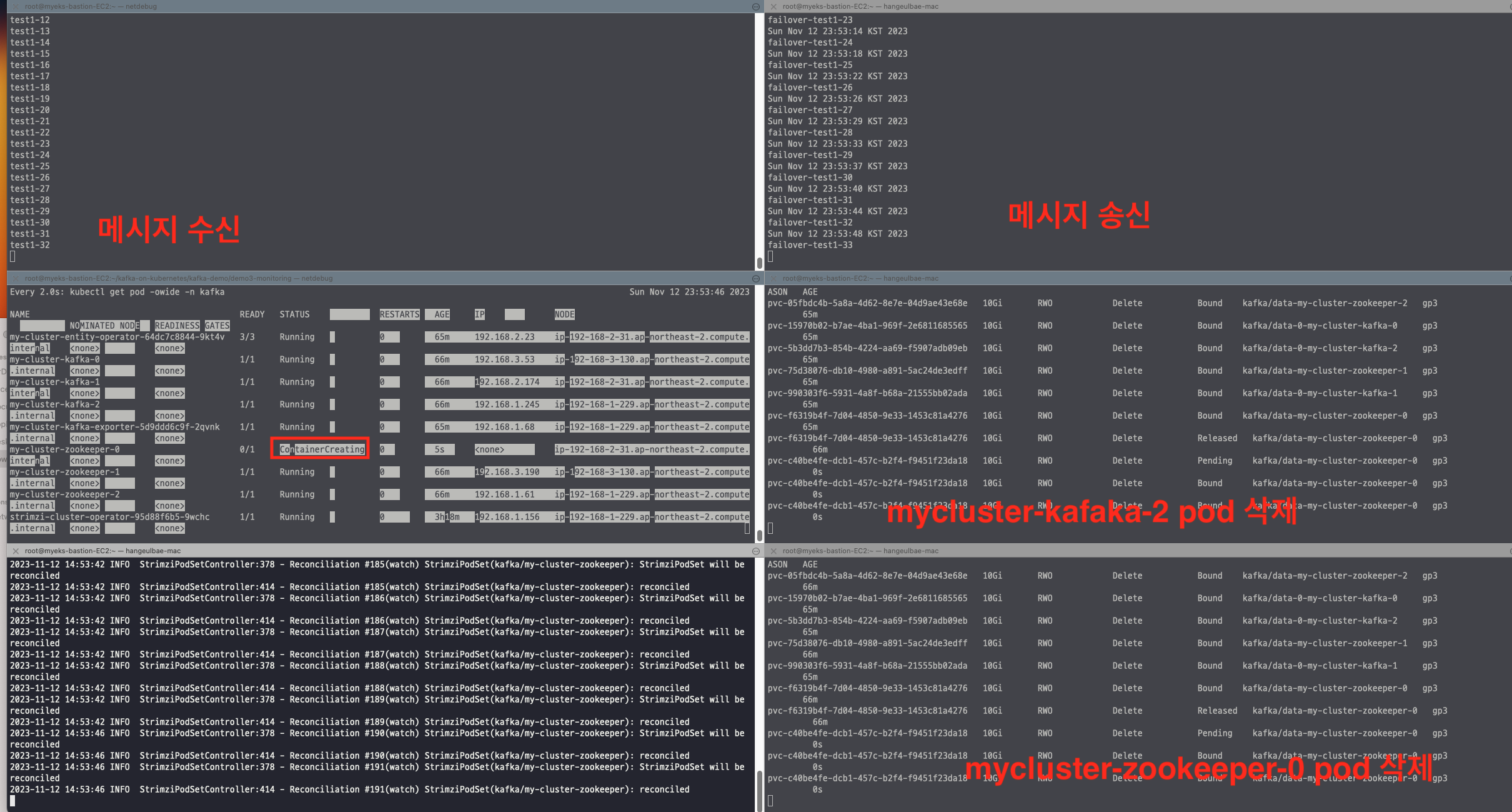
kubectl annotate pod -n kafka my-cluster-zookeeper-0 strimzi.io/delete-pod-and-pvc=true && kubectl get pv -w

zookeeper와 kafka 가 삭제되어도 메시지 송수신이 정상적으로 수행됨을 볼 수 있음

# 모니터링
watch kubectl get pod -owide -n kafka
kubectl logs -n kafka -l name=strimzi-cluster-operator -f   # Reconciliation 로그 확인

# 카프카 토픽 정보 확인 : 리더파드가 있는 워커노드 위치 확인
kubectl exec -it ds/myclient -- kafka-topics.sh --bootstrap-server $SVCDNS --topic mytopic3 --describe
Topic: mytopic3	
TopicId: 077wfV5dSnORaZrLh3WLAw	PartitionCount: 1	ReplicationFactor: 3	Configs: min.insync.replicas=2,segment.bytes=1073741824,retention.ms=7200000,message.format.version=3.0-IV1
Topic: mytopic3	Partition: 0	Leader: 1	Replicas: 2,1,0	Isr: 1,0,2

# test 토픽 리더 kafka 파드의 워커노드 확인
kubectl get pod -owide -n kafka  | grep kafka
my-cluster-kafka-0                            1/1     Running   0          70m     192.168.3.53    ip-192-168-3-130.ap-northeast-2.compute.internal   <none>           <none>
my-cluster-kafka-1                            1/1     Running   0          70m     192.168.2.174   ip-192-168-2-31.ap-northeast-2.compute.internal    <none>           <none>
my-cluster-kafka-2                            1/1     Running   0          3m42s   192.168.1.227   ip-192-168-1-229.ap-northeast-2.compute.internal   <none>           <none>
ip-192-168-2-31.ap-northeast-2.compute.internal 이 리더 노드

# (터미널2) 메시지 받기
kubectl exec -it ds/myclient -- kafka-console-consumer.sh --bootstrap-server $SVCDNS --topic mytopic3 --from-beginning

# (터미널1) for문 반복 메시지 보내기
for ((i=1; i<=100;  i++)); do echo "failover-test2-$i" ; kubectl exec -it ds/myclient -- sh -c "echo test2-$i | kafka-console-producer.sh --bootstrap-server $SVCDNS --topic mytopic3" ; date ; done

# test 토픽 리더 kafka 파드의 워커노드에서 drain : test topic leader pod evict
NODE=ip-192-168-2-31.ap-northeast-2.compute.internal # 위에서 확인한 리더노드 지정
kubectl drain $NODE --delete-emptydir-data --force --ignore-daemonsets && kubectl get node -w

# 해당 워커노드 drain 확인
kubectl get kafka,strimzipodsets -n kafka
kubectl get node 

# kafka 파드 상태
kubectl get pod -l app.kubernetes.io/name=kafka -n kafka

# 카프카 토픽 정보 확인
kubectl exec -it ds/myclient -- kafka-topics.sh --bootstrap-server $SVCDNS --topic mytopic3 --describe
Topic: mytopic3	TopicId: TbRzhvJKS7Kx4v1wFID8sw	PartitionCount: 1	ReplicationFactor: 3	Configs: min.insync.replicas=2,segment.bytes=1073741824,retention.ms=7200000,message.format.version=3.0-IV1
Topic: mytopic3	Partition: 0	Leader: 2	Replicas: 2,1,0	Isr: 0,2 # 브로커1는 not in-sync 상태

# ISR min.insync.replicas=3 으로 증가 후 메시지 보내고 받기 확인
kubectl exec -it ds/myclient -- kafka-configs.sh --bootstrap-server $SVCDNS --topic mytopic3 --alter -add-config min.insync.replicas=3
[2023-11-12 15:02:16,037] ERROR Error when sending message to topic mytopic3 with key: null, value: 8 bytes with error: (org.apache.kafka.clients.producer.internals.ErrorLoggingCallback)
org.apache.kafka.common.errors.NotEnoughReplicasException: Messages are rejected since there are fewer in-sync replicas than required.
Mon Nov 13 00:02:16 KST 2023

# 메시지 보내고 받기 확인
kubectl exec -it ds/myclient -- sh -c "echo mytest | kafka-console-producer.sh --bootstrap-server $SVCDNS --topic mytopic3"

# ISR min.insync.replicas=2 으로 설정 수정 원상 복귀
kubectl exec -it ds/myclient -- kafka-configs.sh --bootstrap-server $SVCDNS --topic mytopic3 --alter -add-config min.insync.replicas=2

# 메시지 보내고 받기 확인
kubectl exec -it ds/myclient -- sh -c "echo mytest | kafka-console-producer.sh --bootstrap-server $SVCDNS --topic mytopic3"

# 동작 확인 후 uncordon 설정
kubectl get kafka,strimzipodsets -n kafka
kubectl uncordon $NODE

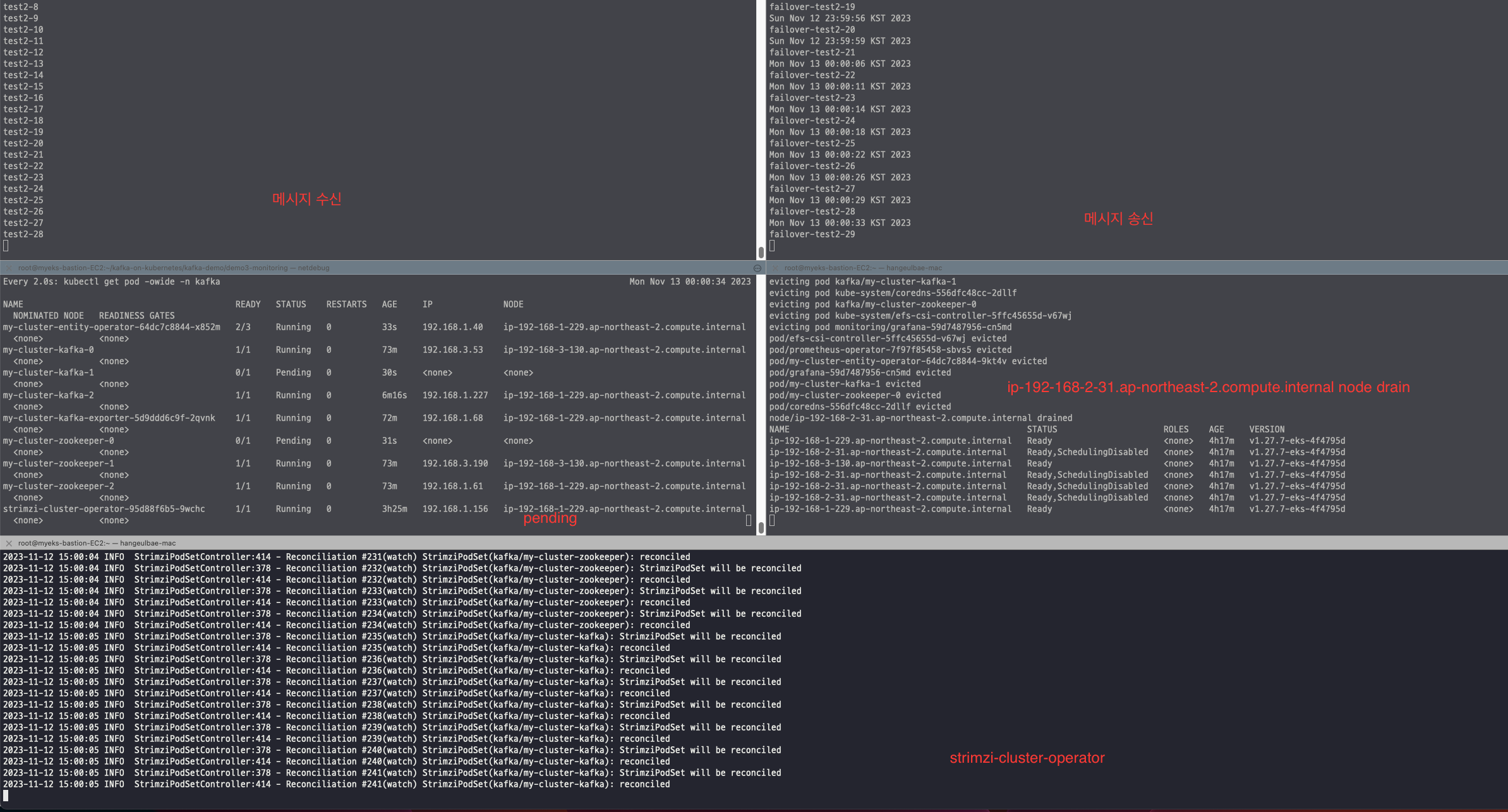
node drain 시 메시지는 정상 송수신 되나 ISR min.insync.replicas=3 설정 시 아래의 에러가 뜨면서 노드가 부족하여 해당 옵션을 정상적으로 수행할 수 없음. 다시 현재 노드 수만큼으로 맞추니 정상작동

[2023-11-12 15:02:16,037] ERROR Error when sending message to topic mytopic3 with key: null, value: 8 bytes with error: (org.apache.kafka.clients.producer.internals.ErrorLoggingCallback)
org.apache.kafka.common.errors.NotEnoughReplicasException: Messages are rejected since there are fewer in-sync replicas than required.
Mon Nov 13 00:02:16 KST 2023

KEDA 설정

# KEDA 설치
kubectl create namespace keda
helm repo add kedacore https://kedacore.github.io/charts
helm install keda kedacore/keda --version 2.12.0 --namespace keda

# KEDA 설치 확인
kubectl get all -n keda
kubectl get-all -n keda
kubectl get crd | grep keda
clustertriggerauthentications.keda.sh        2023-11-12T15:06:38Z
scaledjobs.keda.sh                           2023-11-12T15:06:38Z
scaledobjects.keda.sh                        2023-11-12T15:06:38Z
triggerauthentications.keda.sh               2023-11-12T15:06:38Z

# Deploy Consumer application : 컨슈머로 인해 토픽도 생성됨
curl -s -O https://raw.githubusercontent.com/gasida/DOIK/main/3/keda-deploy-svc.yaml
cat keda-deploy-svc.yaml | yh
kubectl apply -f keda-deploy-svc.yaml
kubectl get pod -n keda -l app=consumer-service

# 확인
kubectl get kafkatopics -n kafka
# 테스트 용 my-topic 생성
kubectl exec -it ds/myclient -- kafka-topics.sh --bootstrap-server $SVCDNS --topic my-topic --describe
kubectl exec -it ds/myclient -- kafka-consumer-groups.sh --bootstrap-server $SVCDNS --group keda-consumer --describe
kubectl logs -n keda -l app=consumer-service -f

# KEDA 스케일 관련 정책 생성 : LAG 1 기준 달성 시 파드 증가, producer traffic rate 가 기준 이상이 되면 consumer instances 증가
# 컨슈머 LAG (지연) = ‘프로듀서가 보낸 메시지 갯수(카프카에 남아 있는 메시지 갯수)’ - 컨슈머가 가져간 메시지 갯수’
curl -s -O https://raw.githubusercontent.com/gasida/DOIK/main/3/keda-scale.yaml
cat keda-scale.yaml | yh
apiVersion: keda.sh/v1alpha1
kind: ScaledObject
metadata:
  name: consumer-scaler
  namespace: keda
spec:
  scaleTargetRef:
    name: consumer
  pollingInterval: 1
  cooldownPeriod: 10
  minReplicaCount: 1
  maxReplicaCount: 10
  triggers:
    - type: kafka
      metadata:
        topic: my-topic
        bootstrapServers: my-cluster-kafka-bootstrap.kafka.svc:9092
        consumerGroup: keda-consumer
        lagThreshold: "1" # lag가 1일때 파드 증가 옵션
        offsetResetPolicy: earliest
        allowIdleConsumers: "1"
kubectl apply -f keda-scale.yaml

# 모니터링
watch 'kubectl get ScaledObject,hpa,pod -n keda' 
kubectl get ScaledObject,hpa -n keda
kubectl logs -n keda -l app=consumer-service

# (터미널1) for문 반복 메시지 보내기
for ((i=1; i<=100;  i++)); do echo "keda-scale-test-$i" ; kubectl exec -it ds/myclient -- sh -c "echo test1-$i | kafka-console-producer.sh --bootstrap-server $SVCDNS --topic my-topic" ; date ; done

# 모니터링 : 증가한 consumer 파드 확인
kubectl get pod -n keda -l app=consumer-service

# 메시지 보내기 취소 후 일정 시간이 지나면 자동으로 consumer 파드가 최소 갯수 1개로 줄어든다

메시지가 많이 생성되면 lag가 증가하게되는 대 이때 lag에 따라 consumer를 autoscaling하여 컨슈머를 늘림으로 써 메시지가 쌓이는걸 방지 할 수 있음

메시지 송신이 없을 경우 파드가 줄어드는 것을 볼 수 있다.

4주차

쿠버네티스 데이터베이스 오퍼레이터 4주차

NoSQL

NoSQL은 전통적인 SQL 데이터베이스 관리 시스템(RDBMS)과는 다른 데이터베이스 모델과 저장 및 검색 방법을 사용하는 데이터베이스 관리 시스템을 의미함.NoSQL 데이터베이스는 대량의 데이터를 저장하고 분산 처리, 빠른 읽기 및 쓰기, 고 가용성 등의 다양한 요구 사항을 충족하는 데 특히 유용하다. Nosql 의 특징은 아래와 같다.

주요 특징:

  1. 스키마 유연성: NoSQL 데이터베이스는 스키마가 정적이거나 엄격하게 정의되지 않으므로 데이터 모델을 변경하거나 확장하기가 쉽습니다. 이는 데이터 모델링 및 스키마 설계를 간소화
  2. 분산 데이터베이스: 대부분의 NoSQL 데이터베이스는 분산 아키텍처를 기반으로 하며, 데이터를 여러 노드 또는 서버에 저장하고 처리합니다. 이를 통해 확장성과 고 가용성을 제공
  3. 고성능: NoSQL 데이터베이스는 대부분의 경우 빠른 읽기 및 쓰기 성능을 제공하며 대규모 데이터 집합을 효율적으로 처리
  4. 다양한 데이터 모델: NoSQL 데이터베이스는 다양한 데이터 모델을 지원합니다. 주요 종류로는 문서, 키-값, 열 지향, 그래프 등이 있으며, 각 데이터 모델은 다른 유형의 데이터 처리에 적합

NoSQL 데이터베이스의 주요 종류:

  1. 문서 지향 데이터베이스: 문서 데이터 모델을 사용하며, JSON 또는 BSON과 같은 형식으로 데이터를 저장. 예시로는 MongoDB
  2. 키-값 데이터베이스: 간단한 키와 해당 값을 저장하는 데이터 모델을 사용. 예시로는 Redis, Amazon DynamoDB
  3. 열 지향 데이터베이스: 데이터를 열 기반으로 저장하며, 대량의 구조화된 데이터를 처리하는 데 적합. 예시로는 Apache Cassandra, HBase
  4. 그래프 데이터베이스: 그래프 데이터 모델을 사용하여 데이터의 관계를 표현하며, 복잡한 관계와 쿼리에 특히 유용. 예시로는 Neo4j

NoSQL 데이터베이스는 다양한 사용 사례와 요구 사항에 따라 선택할 수 있으며, 일괄 처리, 실시간 분석, IoT 데이터 저장, 소셜 미디어 분석, 로그 및 이벤트 처리 등 다양한 분야에서 활용. 그러나 NoSQL 데이터베이스를 선택할 때는 데이터 모델과 요구 사항을 고려하여 적절한 유형의 데이터베이스를 선택해야 한다. 아래는 nosql 중에 많이 사용되는 것을 비교한 표이다.

몽고DB

  • 확장 기능 : 보조 인덱스 secondary index , 범위 쿼리 range query , 정렬 sorting , 집계 aggregation , 공간 정보 인덱스 geospatial index 등
  • 손쉬운 사용 : 도큐먼트 지향 데이터베이스 document-oriented database. 관계형 모델을 사용하지 않은 주된 이유는 분산 확장 scale-out 을 쉽게 하기 위함
    • 행 개념 대신에 보다 유연한 모델인 도큐먼트 document 를 사용.
    • 내장 도규먼트와 배열을 허용함으로써 도큐먼트 지향 모델은 복잡한 계층 관계 hierarchical relationship 를 하나의 레코드로 표현할 수 있다.
    • 도큐먼트의 키와 값을 미리 정의 하지 않음. 따라서 고정된 스키마가 없다. 고정된 스키마가 없으므로 필요할 때마다 쉽게 필드를 추가하거나 제거할 수 있다.
  • 확장 가능한 설계 : 몽고DB는 분산 확장을 염두에 두고 설계됨, 도큐먼트 지향 데이터 모델은 데이터를 여러 서버에 더 쉽게 분산하게 해줌.

  • 다양한 기능 : CRUD 이외도 DBMS 의 대부분의 기능을 제공
    • 인덱싱 : 보조 인덱스를 지원하며 고유 unique, 복합 compound, 공간 정보, 전문 full-text 인덱스 기능도 제공. 중첩된 도큐먼트 nested document 보조 인덱스도 지원
    • 집계 : 집계 파이프라인 aggregation pipeline 은 데이터베이스 최적화를 활용해, 서버 측에서 간단히 데이터를 처리하여 복잡한 분석 엔진 analytics engine 을 구착하게 해줌.
    • 특수한 컬렉션 유형 : 로그와 같은 최신 데이터를 유지하고자 세션이나 고정 크기 컬렉션(제한 컬렉션 capped collection)과 같이 특정 시간에 만료해야 하는 데이터에 대한 유효 시간(TTL) 컬렉션을 지원함. 또한 기준 필터 criteria filter 와 일치하는 도큐먼트에 한정된 부분 인덱스 partial index 를 지원함으로써 효율성을 높이고 필요한 저장 공간을 줄임.
    • 파일 스토리지 : 큰 파일과 파일 메타데이터를 편리하게 저장하는 프로토콜을 지원.
  • 고성능 : 동시성 **concurrency 과 처리량을 극대화하기 위해 와이어드타이거 WiredTiger 스토리지 엔진에 기회적 락** opportunistic locking 을 사용함.
    • 따라서 캐시처럼 제한된 용량의 램으로 퀴리에 알맞은 인덱스를 자동으로 선택할 수 있다 → 요약하면 모든 측면에서 고성능을 유지하기 위해 설계됨.

Percona Operator for MongoDB

  • Percona Server for MongoDB 6.0은 MongoDB 6.0을 기반으로 합니다.
  • Percona Server for MongoDB는 MongoDB Community Edition을 확장하여 MongoDB Enterprise Edition에서만 사용 가능한 기능을 포함하고 있습니다.

복제

복제만 테스트하기 위해 sharding  diasble 하여 테스트, 그 외에 운영이 아닌 실습환경이기에 backup, arbiter diasble

설치

# CRD 설치
kubectl apply --server-side -f https://raw.githubusercontent.com/gasida/DOIK/main/psmdb/crd.yaml

# namespace 생성, 실습 편리를 위해서 네임스페이스 변경
kubectl create ns psmdb
kubectl ns psmdb   

# RBAC 설치
kubectl apply -f https://raw.githubusercontent.com/gasida/DOIK/main/psmdb/rbac.yaml

# 오퍼레이터 설치
curl -s -O https://raw.githubusercontent.com/gasida/DOIK/main/psmdb/operator.yaml
kubectl apply -f operator.yaml

# 닉네임 변수 지정 : 클러스터 이름으로 사용됨
MYNICK=hanship
echo "export MYNICK=hanship" >> /etc/profile

# 계정 정보를 위한 secret 생성
curl -s -O https://raw.githubusercontent.com/gasida/DOIK/main/psmdb/secrets.yaml
cat secrets.yaml | sed -e "s/my-cluster-name/$MYNICK/" | kubectl apply -f -

# 클러스터 생성 : 복제 세트(3개 파드) replsets(rs0, size 3)
curl -s -O https://raw.githubusercontent.com/gasida/DOIK/main/psmdb/cluster1.yaml
cat cluster1.yaml | sed -e "s/my-cluster-name/$MYNICK/" | kubectl apply -f -

# 클러스터 생성 정보 확인 : 약자 psmdb
kubectl get perconaservermongodbs
kubectl get psmdb
NAME      ENDPOINT                              STATUS         AGE
hanship   hanship-rs0.psmdb.svc.cluster.local   initializing   56s

노드에 나눠서 설치 정보확인
affinity:
antiAffinityTopologyKey: "kubernetes.io/hostname"
kubectl get node --label-columns=kubernetes.io/hostname,topology.kubernetes.io/zone

NAME STATUS ROLES AGE VERSION HOSTNAME ZONE
ip-192-168-1-95.ap-northeast-2.compute.internal Ready 84m v1.27.6-eks-a5df82a ip-192-168-1-95.ap-northeast-2.compute.internal ap-northeast-2a
ip-192-168-2-89.ap-northeast-2.compute.internal Ready 84m v1.27.6-eks-a5df82a ip-192-168-2-89.ap-northeast-2.compute.internal ap-northeast-2b
ip-192-168-3-193.ap-northeast-2.compute.internal Ready 84m v1.27.6-eks-a5df82a ip-192-168-3-193.ap-northeast-2.compute.internal ap-northeast-2c

같은 노드에 배포되지 않도록 설정하였기에 서로 다른 노드에 배포

노드에 나눠서 설치 정보확인
affinity:
antiAffinityTopologyKey: "kubernetes.io/hostname"
kubectl get node --label-columns=kubernetes.io/hostname,topology.kubernetes.io/zone

NAME STATUS ROLES AGE VERSION HOSTNAME ZONE
ip-192-168-1-95.ap-northeast-2.compute.internal Ready 84m v1.27.6-eks-a5df82a ip-192-168-1-95.ap-northeast-2.compute.internal ap-northeast-2a
ip-192-168-2-89.ap-northeast-2.compute.internal Ready 84m v1.27.6-eks-a5df82a ip-192-168-2-89.ap-northeast-2.compute.internal ap-northeast-2b
ip-192-168-3-193.ap-northeast-2.compute.internal Ready 84m v1.27.6-eks-a5df82a ip-192-168-3-193.ap-northeast-2.compute.internal ap-northeast-2c

같은 노드에 배포되지 않도록 설정하였기에 서로 다른 노드에 배포

DB접속

# myclient 데몬셋 배포
curl -s -O https://raw.githubusercontent.com/gasida/DOIK/main/psmdb/myclient.yaml
VERSION=4.4.24-23 envsubst < myclient.yaml | kubectl apply -f -

# [터미널1] 클러스터 접속(ADMIN_USER)
kubectl exec ds/myclient -it -- mongo --quiet "mongodb+srv://userAdmin:userAdmin123456@$MYNICK-rs0.psmdb.svc.cluster.local/admin?replicaSet=rs0&ssl=false"
rs0:PRIMARY> show dbs # db list 출력
rs0:PRIMARY> db # 현재 사용 db 출력

## 데이터베이스를 사용할 유저 생성
rs0:PRIMARY> db.createUser({user: "doik" , pwd: "qwe123" , roles: [ "userAdminAnyDatabase", "dbAdminAnyDatabase","readWriteAnyDatabase"]})

## 복제 정보 확인 시도
rs0:PRIMARY> rs.status()

# [터미널2] 클러스터 접속(CLUSTER_USER)
kubectl exec ds/myclient -it -- mongo --quiet "mongodb+srv://clusterAdmin:clusterAdmin123456@$MYNICK-rs0.psmdb.svc.cluster.local/admin?replicaSet=rs0&ssl=false"

CRUD

  • 몽고디비 특징
    • primary key 를 위한 별도 컬럼 만들 필요 없음, mongodb는 collection에서 _id가 각 document마다 자동생성되어 primary key 역햘을 함
    • 컬럼마다 데이터 타입을 정할 필요 없음 ("컬럼명": 컬럼값 이 기본 형태임)
    • collection 구조 변경 : rdb 처럼 alter table 은 기본적으로 collection 에서는 필요 없음
# [터미널3] 클러스터 접속(doik)
kubectl exec ds/myclient -it -- mongo --quiet "mongodb+srv://doik:qwe123@$MYNICK-rs0.psmdb.svc.cluster.local/admin?replicaSet=rs0&ssl=false"
# doik 테이터베이스 선택(없으면 데이터베이스 생성됨) 및 test 콜렉션에 도큐먼트 1개 넣기
rs0:PRIMARY> use doik

# Create 
rs0:PRIMARY> db.createCollection("employees")

# 콜렉션 확인
rs0:PRIMARY> show collections
------------------
employees
system.profile

# Insert
rs0:PRIMARY> db.employees.insertMany(
[
   { user_id: "user01", age: 45, status: "A" },
   { user_id: "user02", age: 35, status: "A" },
   { user_id: "user03", age: 25, status: "B" },
   { user_id: "user04", age: 20, status: "A" },
   { user_id: "abcd01", age: 28, status: "B" }
 ]
)

# Search
rs0:PRIMARY> db.employees.find({ age: { $gt: 25, $lte: 50 } }) *# SELECT * FROM people WHERE age > 25 AND age <= 50*
rs0:PRIMARY> db.employees.find({ status: "A", age: 20 }) *# SELECT * FROM people WHERE status = "A" AND age = 20*

# Update
rs0:PRIMARY> db.employees.updateMany( { age: {$gt: 30} }, { $set: {status: "B"} } )
------------------
{ "acknowledged" : true, "matchedCount" : 2, "modifiedCount" : 2 }

# 콜렉션 삭제하기
rs0:PRIMARY> db.db.employees.drop()

복제테스트

시나리오: primary 에서는 100개의 데이터를 insert 하고 2개의 secondary 에서 count를 수행하여 100개가 일치하는 지 확인

# [터미널1] 프라이머리 파드 접속(doik) : 헤드리스 서비스 주소
kubectl exec ds/myclient -it -- mongo --quiet "mongodb://doik:qwe123@$MYNICK-rs0-0.$MYNICK-rs0.psmdb.svc.cluster.local/admin?replicaSet=rs0&ssl=false"
rs0:PRIMARY> use doik
rs0:PRIMARY> db.createCollection("test")

# [터미널2] 세컨더리 파드1 접속(doik) : 헤드리스 서비스 주소
kubectl exec ds/myclient -it -- bash -il
--------------------------------------
# 변수 지정
MYNICK=hanship
while true; do echo $'rs.secondaryOk()\nuse doik\ndb.test.count()' | mongo --quiet "mongodb://doik:qwe123@$MYNICK-rs0-1.$MYNICK-rs0.psmdb.svc/admin?ssl=false" | grep -v Error; date; sleep 1; done


# [터미널3] 세컨더리 파드2 접속(doik) : 헤드리스 서비스 주소
kubectl exec ds/myclient -it -- bash -il
--------------------------------------
# 변수 지정
MYNICK=hanship
while true; do echo $'rs.secondaryOk()\nuse doik\ndb.test.count()' | mongo --quiet "mongodb://doik:qwe123@$MYNICK-rs0-2.$MYNICK-rs0.psmdb.svc/admin?ssl=false" | grep -v Error; date; sleep 1; done


# [터미널1] 프라이머리 파드 접속(doik) : 대량의 도큐먼트 생성 및 복제 확인
rs0:PRIMARY> for (i=0; i<100; i++) {db.test.insert({count: i, "created_at" : new Date()})}

[터미널2]

[터미널3]

Sun Nov 5 13:50:12 UTC 2023
switched to db doik
100
Sun Nov 5 13:50:17 UTC 2023
switched to db doik
100

🔥장애1 Primary Pod 강제 삭제 시 Read 테스트

현재 primary 는 hanship-rs0-0 이므로 hanship-rs0-0 삭제

# [터미널3] 세컨더리 파드2 접속(doik) : 헤드리스 서비스 주소
kubectl exec ds/myclient -it -- bash -il
--------------------------------------
# 변수 지정
MYNICK=hanship
echo $'rs.secondaryOk()\nuse doik\ndb.test.count()' | mongo --quiet "mongodb://doik:qwe123@$MYNICK-rs0-2.$MYNICK-rs0.psmdb.svc/admin?ssl=false"
while true; do echo $'rs.secondaryOk()\nuse doik\ndb.test.count()' | mongo --quiet "mongodb://doik:qwe123@$MYNICK-rs0-2.$MYNICK-rs0.psmdb.svc/admin?ssl=false" | grep -v Error; date; sleep 1; done
--------------------------------------

# [터미널1] 모니터링
watch -d "kubectl get psmdb;echo; kubectl get pod,pvc -l app.kubernetes.io/component=mongod -owide"

# [터미널2] 클러스터 접속(CLUSTER_USER) : 프라이머리 파드 확인
kubectl exec ds/myclient -it -- mongo --quiet "mongodb+srv://clusterAdmin:clusterAdmin123456@$MYNICK-rs0.psmdb.svc.cluster.local/admin?replicaSet=rs0&ssl=false"
rs0:PRIMARY> rs.status()['members']
--------------------------------------
[
	{
		"_id" : 0,
		"name" : "hanship-rs0-0.hanship-rs0.psmdb.svc.cluster.local:27017",
		"health" : 1,
		"state" : 1,
		"stateStr" : "PRIMARY",
		"uptime" : 5172,
		"optime" : {
			"ts" : Timestamp(1699192435, 1),
			"t" : NumberLong(1)
		},
...(생략)...
# 강제로 rs0-Y 프라이머리 파드 1개 삭제
kubectl delete pod $MYNICK-rs0-0
# [터미널1] 모니터링
NAME                READY   STATUS        RESTARTS   AGE   IP              NODE                                               NOMINATED NODE   READINESS GATES
pod/hanship-rs0-0   1/1     Terminating   0	     92m   192.168.1.212   ip-192-168-1-95.ap-northeast-2.compute.internal    <none>	       <none>
pod/hanship-rs0-1   1/1     Running       0	     91m   192.168.3.135   ip-192-168-3-193.ap-northeast-2.compute.internal   <none>	       <none>
pod/hanship-rs0-2   1/1     Running       0	     90m   192.168.2.223   ip-192-168-2-89.ap-northeast-2.compute.internal    <none>	       <none>

# [터미널2] 클러스터 접속(CLUSTER_USER) : 프라이머리 파드 확인
kubectl exec ds/myclient -it -- mongo --quiet "mongodb+srv://clusterAdmin:clusterAdmin123456@$MYNICK-rs0.psmdb.svc.cluster.local/admin?replicaSet=rs0&ssl=false"
rs0:PRIMARY> rs.status()['members']

{
"_id" : 1,
"name" : "hanship-rs0-1.hanship-rs0.psmdb.svc.cluster.local:27017",
"health" : 1,
"state" : 1,
"stateStr" : "PRIMARY",
"uptime" : 5495,
"optime" : {
"ts" : Timestamp(1699192822, 2),
"t" : NumberLong(2)
},
hanship-rs0-1 이 primary로 변경되고 아래에서 보듯이 [터미널3]에서 데이터는 정상적으로 count

100
Sun Nov 5 14:01:31 UTC 2023

🔥장애2 Node 2개 Drain 시 Write/Read 테스트

# [터미널2] 클러스터 접속(CLUSTER_USER) : 프라이머리 파드 확인
kubectl exec ds/myclient -it -- mongo --quiet "mongodb+srv://clusterAdmin:clusterAdmin123456@$MYNICK-rs0.psmdb.svc.cluster.local/admin?replicaSet=rs0&ssl=false"
--------------------------------------
rs0:PRIMARY> rs.status()['members']
{
		"_id" : 1,
		"name" : "hanship-rs0-1.hanship-rs0.psmdb.svc.cluster.local:27017",
		"health" : 1,
		"state" : 1,
		"stateStr" : "PRIMARY",

# 프라이머리 파드가 배포 정보 확인
kubectl get pod -l app.kubernetes.io/instance=$MYNICK -owide
--------------------------------------
NAME            READY   STATUS    RESTARTS   AGE     IP              NODE                                               NOMINATED NODE   READINESS GATES
hanship-rs0-0   1/1     Running   0          7m12s   192.168.1.109   ip-192-168-1-95.ap-northeast-2.compute.internal    <none>           <none>
hanship-rs0-1   1/1     Running   0          98m     192.168.3.135   ip-192-168-3-193.ap-northeast-2.compute.internal   <none>           <none>
hanship-rs0-2   1/1     Running   0          98m     192.168.2.223   ip-192-168-2-89.ap-northeast-2.compute.internal    <none>           <none>

hanship-rs0-1 이 primary 이고 node 3번에 배포되어 있음, node 2개를 drain하기 위해 node3(primary), node2(secondary) drain

# node2, node3 drain
kubectl drain ip-192-168-3-193.ap-northeast-2.compute.internal ip-192-168-2-89.ap-northeast-2.compute.internal --delete-emptydir-data --force --ignore-daemonsets
--------------------------------------
error when evicting pods/"hanship-rs0-2" -n "psmdb" (will retry after 5s): Cannot evict pod as it would violate the pod's disruption budget.

# pod, node 확인
--------------------------------------
k get po,node -owide
NAME                                                  READY   STATUS    RESTARTS   AGE     IP              NODE                                               NOMINATED NODE   READINESS GATES
pod/hanship-rs0-0                                     1/1     Running   0          20m     192.168.1.109   ip-192-168-1-95.ap-northeast-2.compute.internal    <none>           <none>
pod/hanship-rs0-1                                     0/1     Pending   0          2m55s   <none>          <none>                                             <none>           <none>
pod/hanship-rs0-2                                     1/1     Running   0          111m    192.168.2.223   ip-192-168-2-89.ap-northeast-2.compute.internal    <none>           <none>

NAME                                                    STATUS                     ROLES    AGE    VERSION               INTERNAL-IP     EXTERNAL-IP      OS-IMAGE         KERNEL-VERSION                  CONTAINER-RUNTIME
node/ip-192-168-1-95.ap-northeast-2.compute.internal    Ready                      <none>   152m   v1.27.6-eks-a5df82a   192.168.1.95    3.39.227.88      Amazon Linux 2   5.10.197-186.748.amzn2.x86_64   containerd://1.6.19
node/ip-192-168-2-89.ap-northeast-2.compute.internal    Ready,SchedulingDisabled   <none>   152m   v1.27.6-eks-a5df82a   192.168.2.89    15.165.208.199   Amazon Linux 2   5.10.197-186.748.amzn2.x86_64   containerd://1.6.19
node/ip-192-168-3-193.ap-northeast-2.compute.internal   Ready,SchedulingDisabled   <none>   151m   v1.27.6-eks-a5df82a   192.168.3.193   13.125.217.147   Amazon Linux 2   5.10.197-186.748.amzn2.x86_64   containerd://1.6.19

# [터미널1] 클러스터 접속(CLUSTER_USER) : 장애 상태 확인
rs0:PRIMARY> rs.status()['members']
--------------------------------------
no-output

# 동작 확인 후 uncordon 설정
kubectl uncordon ip-192-168-3-193.ap-northeast-2.compute.internal ip-192-168-2-89.ap-northeast-2.compute.internal

데이터 Write/Read는 정상적으로 수행되었으나 rs.status()['members'] 에서 primary 조회가 되지 않음

1900
Sun Nov 5 14:26:13 UTC 2023

두 개 노드 drain인 시 아래 에러 발생, 실제로 노드는 drain 상태인것으로 나오나 pod는 Running 상태
error when evicting pods/"hanship-rs0-2" -n "psmdb" (will retry after 5s): Cannot evict pod as it would violate the pod's disruption budget.

노드 복구 후 정상적으로 primary 조회 가능

[
{
"_id" : 0,
"name" : "hanship-rs0-0.hanship-rs0.psmdb.svc.cluster.local:27017",
"health" : 1,
"state" : 1,
"stateStr" : "PRIMARY",
"uptime" : 1706,
"optime" : {
"ts" : Timestamp(1699194512, 1),
"t" : NumberLong(3)
},

샤드

샤딩 테스트를 위해 sharding  enable 하여 테스트, 그 외에 운영이 아닌 실습환경이기에 backup, arbiter diasble

설치

# 신규 터미널 : 모니터링
watch kubectl get psmdb,sts,pod,svc,ep,pvc
--------------------------------------
NAME                                             ENDPOINT                                                                          STATUS   AGE
perconaservermongodb.psmdb.percona.com/hanship   k8s-psmdb-hanshipm-e1b14c3a07-25b399b1164850b6.elb.ap-northeast-2.amazonaws.com   ready    4m3s

NAME                              READY   AGE
statefulset.apps/hanship-cfg      3/3     4m2s
statefulset.apps/hanship-mongos   3/3     105s
statefulset.apps/hanship-rs0      3/3     4m1s
statefulset.apps/hanship-rs1	  3/3     4m1s

NAME                                                  READY   STATUS    RESTARTS   AGE
pod/hanship-cfg-0                                     1/1     Running   0 	   4m1s
pod/hanship-cfg-1                                     1/1     Running   0          3m35s
pod/hanship-cfg-2                                     1/1     Running   0 	   3m6s
pod/hanship-mongos-0                                  1/1     Running   0 	   105s
pod/hanship-mongos-1                                  1/1     Running   0          80s
pod/hanship-mongos-2                                  1/1     Running   0          54s
pod/hanship-rs0-0                                     1/1     Running   0          4m1s
pod/hanship-rs0-1                                     1/1     Running   0          3m22s
pod/hanship-rs0-2                                     1/1     Running   0          2m39s

# ebs gp3 스토리지 클래스 : 삭제 정책 변경 RECLAIMPOLICY Delete -> Retain 으로 변경하기 위함
kubectl get sc gp3
# The StorageClass "gp3" is invalid: reclaimPolicy: Forbidden: updates to reclaimPolicy are forbidden. 발생하므로 기존 gp3 삭제후 진행
kubectl delete sc gp3
kubectl apply -f https://raw.githubusercontent.com/gasida/DOIK/main/1/gp3-sc-retain.yaml
kubectl get sc gp3

# 클러스터 생성 : 복제 셋 2개(rs-0, rs1), mongos(파드 3개), cfg(파드 3개)
kubectl get secret $MYNICK-secrets
curl -s -O https://raw.githubusercontent.com/gasida/DOIK/main/psmdb/cluster2.yaml
cat cluster2.yaml | sed -e "s/my-cluster-name/$MYNICK/" | kubectl apply -f -
# Error from server (NotFound): services "hanship-mongos" not found 에러 발생 시 일정시간 지난 후 mongos 생성 후 실행
kubectl annotate service $MYNICK-mongos "external-dns.alpha.kubernetes.io/hostname=mongos.$MyDomain"

# 클러스터 생성 정보 확인
kubectl get psmdb
kubectl get psmdb hanship -o yaml | kubectl neat | yh

# 클러스타 파드 정보 확인
kubectl get sts,pod -owide
kubectl get svc,ep
kubectl df-pv
kubectl get pvc,pv

샤딩 정보확인

  • Shard : 데이터베이스의 Replica Set
  • Mongos : 클라이언트 애플리케이션의 쿼리를 처리하는 라우터
  • Config Servers : Replica Set 의 메타데이터와 샤드 클러스터의 정보를 저장
  • 샤드 접근 : mongos Pods - query routers, which acts as an entry point for client applications
# mongos 라우터 접속 서비스 정보 확인
kubectl get svc,ep $MYNICK-mongos
--------------------------------------
NAME                     TYPE           CLUSTER-IP       EXTERNAL-IP                                                                       PORT(S)           AGE
service/hanship-mongos   LoadBalancer   10.100.154.208   k8s-psmdb-hanshipm-e1b14c3a07-25b399b1164850b6.elb.ap-northeast-2.amazonaws.com   27017:32317/TCP   4m19s

NAME                       ENDPOINTS                                                    AGE
endpoints/hanship-mongos   192.168.1.99:27017,192.168.2.194:27017,192.168.3.141:27017   4m19s

# [터미널1] 클러스터 접속(ADMIN_USER)
kubectl exec ds/myclient -it -- mongo --quiet "mongodb://userAdmin:userAdmin123456@$MYNICK-mongos.psmdb.svc.cluster.local/admin?ssl=false"
mongos> db
mongos> show dbs
# 데이터베이스를 사용할 유저 생성
mongos> db.createUser({user: "doik" , pwd: "qwe123" , roles: [ "userAdminAnyDatabase", "dbAdminAnyDatabase","readWriteAnyDatabase"]})

# [터미널2] 클러스터 접속(CLUSTER_USER)
kubectl exec ds/myclient -it -- mongo --quiet "mongodb://clusterAdmin:clusterAdmin123456@$MYNICK-mongos.psmdb.svc.cluster.local/admin?ssl=false"
mongos> use config
# 샤드 목록 정보 확인
mongos> db.shards.find().pretty()
--------------------------------------
{
	"_id" : "rs0",
	"host" : "rs0/hanship-rs0-0.hanship-rs0.psmdb.svc.cluster.local:27017,hanship-rs0-1.hanship-rs0.psmdb.svc.cluster.local:27017,hanship-rs0-2.hanship-rs0.psmdb.svc.cluster.local:27017",
	"state" : 1,
	"topologyTime" : Timestamp(1699195400, 4)
}
{
	"_id" : "rs1",
	"host" : "rs1/hanship-rs1-0.hanship-rs1.psmdb.svc.cluster.local:27017,hanship-rs1-1.hanship-rs1.psmdb.svc.cluster.local:27017,hanship-rs1-2.hanship-rs1.psmdb.svc.cluster.local:27017",
	"state" : 1,
	"topologyTime" : Timestamp(1699195406, 5)
}

# (옵션) 설정 서버에 저장된 메타데이터 확인
mongos> show collections
mongos> show changelog  # 메타메이터가 변경된 내용을 기록한 목록
mongos> show chunks     # 샤딩된 컬렉션의 청크 정보, 어떤 샤드에 어떤 범위로 있는지 확인 가능
mongos> show collections   # 샤드 클러스터 컬렉션 목록
mongos> show lockpings  # 샤드 클러스터의 구성원이 서로의 연결상태를 확인한 일시가 있는 목록
mongos> show locks      # 컬렉션 잠금에 대한 목록. 서로 다른 mongos 가 보낸 명령 충돌을 방지한다
mongos> show mongos     # 실행중인 라우터 mongos 목록
mongos> show shards     # 샤드 클러스터에 등록된 샤드 목록
mongos> show version    # 샤드 클러스터 메타데이터 전체에 대한 버전 정보, 동기화를 위한 필요
mongos> db.changelog.find().pretty()  # 메타메이터가 변경된 내용을 기록한 목록
mongos> db.chunks.find().pretty()     # 샤딩된 컬렉션의 청크 정보, 어떤 샤드에 어떤 범위로 있는지 확인 가능

# 샤드 클러스터 상태 확인 : 기본 정보, 샤드 정보, 밸런서 정보, 샤딩 설정이 된 컬렉션 정보, 청크 정보 등 출력
mongos> sh.help()
mongos> sh.status({"verbose":1})
--- Sharding Status ---
  sharding version: {
  	"_id" : 1,
  	"minCompatibleVersion" : 5,
  	"currentVersion" : 6,
  	"clusterId" : ObjectId("6547b5c390c26679ba5549b7")
  }
  shards:
        {  "_id" : "rs0",  "host" : "rs0/hanship-rs0-0.hanship-rs0.psmdb.svc.cluster.local:27017,hanship-rs0-1.hanship-rs0.psmdb.svc.cluster.local:27017,hanship-rs0-2.hanship-rs0.psmdb.svc.cluster.local:27017",  "state" : 1,  "topologyTime" : Timestamp(1699198663, 4) }
        {  "_id" : "rs1",  "host" : "rs1/hanship-rs1-0.hanship-rs1.psmdb.svc.cluster.local:27017,hanship-rs1-1.hanship-rs1.psmdb.svc.cluster.local:27017,hanship-rs1-2.hanship-rs1.psmdb.svc.cluster.local:27017",  "state" : 1,  "topologyTime" : Timestamp(1699198658, 4) }
  active mongoses:
        {  "_id" : "hanship-mongos-0:27017",  "advisoryHostFQDNs" : [ ],  "created" : ISODate("2023-11-05T15:34:01.726Z"),  "mongoVersion" : "6.0.9-7",  "ping" : ISODate("2023-11-05T15:39:12.168Z"),  "up" : NumberLong(310),  "waiting" : true }
        {  "_id" : "hanship-mongos-1:27017",  "advisoryHostFQDNs" : [ ],  "created" : ISODate("2023-11-05T15:34:28.012Z"),  "mongoVersion" : "6.0.9-7",  "ping" : ISODate("2023-11-05T15:39:08.394Z"),  "up" : NumberLong(280),  "waiting" : true }
        {  "_id" : "hanship-mongos-2:27017",  "advisoryHostFQDNs" : [ ],  "created" : ISODate("2023-11-05T15:34:54.045Z"),  "mongoVersion" : "6.0.9-7",  "ping" : ISODate("2023-11-05T15:39:04.660Z"),  "up" : NumberLong(250),  "waiting" : true }
  autosplit:
        Currently enabled: yes
  balancer:
        Currently enabled:  yes
        Currently running:  no
        Failed balancer rounds in last 5 attempts:  0
        Migration Results for the last 24 hours:
                No recent migrations
  databases:
        {  "_id" : "config",  "primary" : "config",  "partitioned" : true }
                config.system.sessions
                        shard key: { "_id" : 1 }
                        unique: false
                        balancing: true
                        chunks:

샤딩 테스트

[터미널1]

# [터미널1] 클러스터 접속(doik)
kubectl exec ds/myclient -it -- mongo --quiet "mongodb://doik:qwe123@$MYNICK-mongos.psmdb.svc.cluster.local/admin?ssl=false"
## doik 테이터베이스 선택(없으면 데이터베이스 생성됨)
mongos> use doik
## 도큐먼트 추가
mongos> db.test.insertOne({ hello: 'world' })
## 콜렉션에서 도큐먼트 조회
mongos> db.test.find()
mongos> db.test.find({},{_id:0})
{ "hello" : "world" }

[터미널2]

# [터미널2] 클러스터 접속(CLUSTER_USER)
kubectl exec ds/myclient -it -- mongo --quiet "mongodb://clusterAdmin:clusterAdmin123456@$MYNICK-mongos.psmdb.svc.cluster.local/admin?ssl=false"
mongos> use config
## 샤드 클러스터 상태 확인 : 기본 정보, 샤드 정보, 밸런서 정보, 샤딩 설정이 된 컬렉션 정보, 청크 정보 등 출력
mongos> sh.status({"verbose":1})  # 모든 정보 출력

## doik 데이터베이스에서 샤딩을 활성화
mongos> sh.enableSharding("doik")

--------------------------------------
## chunks 사이즈가 64MB(기본값)을 테스트를 위해서 1M 줄이기 - [링크](https://www.mongodb.com/docs/manual/tutorial/modify-chunk-size-in-sharded-cluster/)
## 기본 청크사이즈가 64MB 여서 10만 도큐먼트(레코드)는 분할이 되지 않았습니다.
## 그래서 테스트를 위해 청크사이즈를 1MB로 변경하고 테스트 하시면 분할 확인이 가능합니다.
--------------------------------------

mongos> db.settings.save({_id: "chunksize", value: 1})
--------------------------------------
WriteResult({ "nMatched" : 0, "nUpserted" : 1, "nModified" : 0, "_id" : "chunksize" })
## chunks 사이즈 설정 정보 확인 
mongos> db.settings.find()
--------------------------------------
{ "_id" : "ReadWriteConcernDefaults", "defaultReadConcern" : { "level" : "majority" }, "defaultWriteConcern" : { "w" : "majority", "wtimeout" : 0 }, "updateOpTime" : Timestamp(1699196289, 1), "updateWallClockTime" : ISODate("2023-11-05T14:58:10.232Z") }
{ "_id" : "chunksize", "value" : 1 }

테스트

# [터미널1] 클러스터 접속(doik)
# 샤딩 활성화를 위해서 샤딩하려는 키에 해시 인덱스를 생성
mongos> db.test.createIndex({"username" : "hashed"})

# [터미널2] 클러스터 접속(CLUSTER_USER)
# 이제 "username" 으로 컬렉션을 샤딩할 수 있다
mongos> sh.shardCollection("doik.test", {"username" : "hashed"})
# 몇 분 기다렸다가 다시 샤드 클러스터 상태 확인 : 휠씬 많은 정보가 표시됨
mongos> sh.status()
--- Sharding Status ---
  sharding version: {
  	"_id" : 1,
  	"minCompatibleVersion" : 5,
  	"currentVersion" : 6,
  	"clusterId" : ObjectId("6547a8c49e02d8e3d56244b5")
  }
  shards:
        {  "_id" : "rs0",  "host" : "rs0/hanship-rs0-0.hanship-rs0.psmdb.svc.cluster.local:27017,hanship-rs0-1.hanship-rs0.psmdb.svc.cluster.local:27017,hanship-rs0-2.hanship-rs0.psmdb.svc.cluster.local:27017",  "state" : 1,  "topologyTime" : Timestamp(1699195400, 4) }
        {  "_id" : "rs1",  "host" : "rs1/hanship-rs1-0.hanship-rs1.psmdb.svc.cluster.local:27017,hanship-rs1-1.hanship-rs1.psmdb.svc.cluster.local:27017,hanship-rs1-2.hanship-rs1.psmdb.svc.cluster.local:27017",  "state" : 1,  "topologyTime" : Timestamp(1699195406, 5) }
  active mongoses:
        {  "_id" : "hanship-mongos-0:27017",  "advisoryHostFQDNs" : [ ],  "created" : ISODate("2023-11-05T14:39:23.405Z"),  "mongoVersion" : "6.0.9-7",  "ping" : ISODate("2023-11-05T14:54:35.024Z"),  "up" : NumberLong(911),  "waiting" : true }
        {  "_id" : "hanship-mongos-1:27017",  "advisoryHostFQDNs" : [ ],  "created" : ISODate("2023-11-05T14:39:48.836Z"),  "mongoVersion" : "6.0.9-7",  "ping" : ISODate("2023-11-05T14:54:30.485Z"),  "up" : NumberLong(881),  "waiting" : true }
        {  "_id" : "hanship-mongos-2:27017",  "advisoryHostFQDNs" : [ ],  "created" : ISODate("2023-11-05T14:40:16.349Z"),  "mongoVersion" : "6.0.9-7",  "ping" : ISODate("2023-11-05T14:54:27.865Z"),  "up" : NumberLong(851),  "waiting" : true }
  autosplit:
        Currently enabled: yes
  balancer:
        Currently enabled:  yes
        Currently running:  no
        Failed balancer rounds in last 5 attempts:  0
        Migration Results for the last 24 hours:
                No recent migrations
  databases:
        {  "_id" : "config",  "primary" : "config",  "partitioned" : true }
                config.system.sessions
                        shard key: { "_id" : 1 }
                        unique: false
                        balancing: true
                        chunks:
        {  "_id" : "doik",  "primary" : "rs1",  "partitioned" : false,  "version" : {  "uuid" : UUID("81c16b8b-e731-4de1-b966-69f7ad9aa730"),  "timestamp" : Timestamp(1699196044, 1),  "lastMod" : 1 } }

# [터미널1] 클러스터 접속(doik)
# 대량의 도큐먼트 생성: 20 분정도 시간 소요
mongos> for (i=10; i<100000; i++) {db.test.insert({"username" : "user"+i, "created_at" : new Date()})}

# [터미널3] 클러스터 접속(doik)
kubectl exec ds/myclient -it -- mongo --quiet "mongodb://doik:qwe123@MYNICK-mongos.psmdb.svc.cluster.local/admin?ssl=false" mongos> use doik mongos> db.test.count() 10001 **# 데이터가 여러 샤드에 분산됐으므로 몇 가지 쿼리를 시도해서 확인 : 쿼리 정상 작동 확인** mongos> db.test.find({username: "user1234"}) { "_id" : ObjectId("6547af867bdfebc3913bcacd"), "username" : "user1234", "created_at" : ISODate("2023-11-05T15:06:46.885Z") } **# 쿼리 내부 수행 작업 확인** mongos> db.test.find({username: "user1234"}).explain() { "queryPlanner" : { "mongosPlannerVersion" : 1, "winningPlan" : { "stage" : "SINGLE_SHARD", "shards" : [ { "shardName" : "rs1", "connectionString" : "rs1/hanship-rs1-0.hanship-rs1.psmdb.svc.cluster.local:27017,hanship-rs1-1.hanship-rs1.psmdb.svc.cluster.local:27017,hanship-rs1-2.hanship-rs1.psmdb.svc.cluster.local:27017", "serverInfo" : { "host" : "hanship-rs1-0", "port" : 27017, "version" : "6.0.9-7", "gitVersion" : "81b02fc96fb1fe0fc550b98f870e1ca01c574dd4" }, "namespace" : "doik.test", "indexFilterSet" : false, "parsedQuery" : { "username" : { "eq" : "user1234"
}
},
"queryHash" : "7D9BB680",
"planCacheKey" : "24069050",
"maxIndexedOrSolutionsReached" : false,
"maxIndexedAndSolutionsReached" : false,
"maxScansToExplodeReached" : false,
"winningPlan" : {
"stage" : "FETCH",
"filter" : {
"username" : {
"eq" : "user1234" } }, "inputStage" : { "stage" : "IXSCAN", "keyPattern" : { "username" : "hashed" }, "indexName" : "username_hashed", "isMultiKey" : false, "isUnique" : false, "isSparse" : false, "isPartial" : false, "indexVersion" : 2, "direction" : "forward", "indexBounds" : { "username" : [ "[8720327145141812260, 8720327145141812260]" ] } } }, "rejectedPlans" : [ ] } ] } }, "serverInfo" : { "host" : "hanship-mongos-1", "port" : 27017, "version" : "6.0.9-7", "gitVersion" : "81b02fc96fb1fe0fc550b98f870e1ca01c574dd4" }, "serverParameters" : { "internalQueryFacetBufferSizeBytes" : 104857600, "internalQueryFacetMaxOutputDocSizeBytes" : 104857600, "internalLookupStageIntermediateDocumentMaxSizeBytes" : 104857600, "internalDocumentSourceGroupMaxMemoryBytes" : 104857600, "internalQueryMaxBlockingSortMemoryUsageBytes" : 104857600, "internalQueryProhibitBlockingMergeOnMongoS" : 0, "internalQueryMaxAddToSetBytes" : 104857600, "internalDocumentSourceSetWindowFieldsMaxMemoryBytes" : 104857600 }, "command" : { "find" : "test", "filter" : { "username" : "user1234" }, "lsid" : { "id" : UUID("0aea0757-af0d-4fff-a1d7-812343e4e795") }, "clusterTime" : {
"clusterTime" : Timestamp(1699196973, 1),
"signature" : {
"hash" : BinData(0,"MJ7hgEub79SaLTtZscHGrWl/ZPg="),
"keyId" : NumberLong("7297987280944234512")
}
},
"db" : "doik" }, "ok" : 1, "clusterTime" : {
"clusterTime" : Timestamp(1699196985, 1),
"signature" : {
"hash" : BinData(0,"q3OTt9tN+L456QFenrsQd0xU4gk="),
"keyId" : NumberLong("7297987280944234512")
}
},
"operationTime" : Timestamp(1699196978, 1)
}

# [터미널2] 클러스터 접속(CLUSTER_USER)
# 클러스터 내 모든 샤드 정보 출력
--------------------------------------
mongos> db.shards.find()
{ "_id" : "rs0", "host" : "rs0/hanship-rs0-0.hanship-rs0.psmdb.svc.cluster.local:27017,hanship-rs0-1.hanship-rs0.psmdb.svc.cluster.local:27017,hanship-rs0-2.hanship-rs0.psmdb.svc.cluster.local:27017", "state" : 1, "topologyTime" : Timestamp(1699195400, 4) }
{ "_id" : "rs1", "host" : "rs1/hanship-rs1-0.hanship-rs1.psmdb.svc.cluster.local:27017,hanship-rs1-1.hanship-rs1.psmdb.svc.cluster.local:27017,hanship-rs1-2.hanship-rs1.psmdb.svc.cluster.local:27017", "state" : 1, "topologyTime" : Timestamp(1699195406, 5) }

## 클러스터가 알고 있는 모든 샤딩 데이터베이스 출력 : enableSharding 실행된 데이터베이스이며, partitioned 가 false
mongos> db.databases.find()
{ "_id" : "doik", "primary" : "rs1", "partitioned" : false, "version" : { "uuid" : UUID("81c16b8b-e731-4de1-b966-69f7ad9aa730"), "timestamp" : Timestamp(1699196044, 1), "lastMod" : 1 } }

## 샤딩된 컬렉션 출력
mongos> db.collections.find().pretty()
{
	"_id" : "doik.test",
	"lastmodEpoch" : ObjectId("6547adccdfcbc5c94a6e5a5e"),
	"lastmod" : ISODate("2023-11-05T14:59:24.498Z"),
	"timestamp" : Timestamp(1699196364, 7),
	"uuid" : UUID("c8b85bc2-af5a-49b3-bd58-8e81d30eb948"),
	"key" : {
		"username" : "hashed"
	},
	"unique" : false,
	"chunksAlreadySplitForDowngrade" : false,
	"noBalance" : false
}

## 모든 컬렉션 내의 청크 기록
mongos> db.chunks.find().skip(1).limit(1).pretty()
mongos> db.chunks.find().skip(1).limit(10).pretty()

## 분할과 마이그레이션 기록
mongos> db.changelog.find().pretty()

## 샤딩 안됨
mongos> use doik
mongos> db.test.getShardDistribution()
---
Collection doik.test is not sharded.

sharding으로 설정하고 배포를 했는데 샤딩 정보를 얻을 수 없었음…

가시다님이 진행하는 CI/CD 스터디 마지막 세션입니다.

vault를 kubernetes에서 다뤄보는 실습을 진행해보겠습니다.

vault on k8s

Quick install

클러스터 생성

kind create cluster --name myk8s --image kindest/node:v1.32.8 --config - <<EOF
kind: Cluster
apiVersion: kind.x-k8s.io/v1alpha4
nodes:
- role: control-plane
  labels:
    ingress-ready: true
  extraPortMappings:
  - containerPort: 30000  # Vault Web UI
    hostPort: 30000
  - containerPort: 30001  # Sample application
    hostPort: 30001
EOF

# 노드에 기본 툴 설치
docker exec -it myk8s-control-plane sh -c 'apt update && apt install tree psmisc lsof wget net-tools dnsutils tcpdump ngrep iputils-ping git vim -y'

vault 설치

helm repo add hashicorp https://helm.releases.hashicorp.com
helm repo update

helm install vault hashicorp/vault -n vault --create-namespace --version 0.31.0 \
  --set global.enabled=true \
  --set global.tlsDisable=true \
  --set server.standalone.enabled=true \
  --set-file server.standalone.config=<(cat <<'EOF'
ui = true
listener "tcp" {
  address = "[::]:8200"
  cluster_address = "[::]:8201"
  tls_disable = 1
}
storage "file" {
  path = "/vault/data"
}
EOF
) \
  --set server.dataStorage.enabled=true \
  --set server.dataStorage.size="10Gi" \
  --set server.dataStorage.mountPath="/vault/data" \
  --set server.auditStorage.enabled=true \
  --set server.auditStorage.size="10Gi" \
  --set server.auditStorage.mountPath="/vault/logs" \
  --set server.service.enabled=true \
  --set server.service.type=NodePort \
  --set server.service.nodePort=30000 \
  --set ui.enabled=true \
  --set injector.enabled=false
  
  # 리소스 배포확인
  kubectl krew install get-all
  kubectl get-all -n vault

valut의 Sealed 개념

Sealed(봉인) 상태는 Vault의 보안 메커니즘

Sealed 상태 Unsealed 상태

Vault가 암호화 키를 메모리에서 제거한 상태  
저장된 데이터는 접근 불가  
API 요청 대부분이 거부됨 (health check 등 일부만 허용) 암호화 키가 메모리에 로드된 상태
데이터 읽기/쓰기 가능  
정상 동작 상태  

valut status 명령으로 Sealed 상태확인

kubectl exec -ti vault-0 -n vault -- vault status
Key                Value
---                -----
Seal Type          shamir 
Initialized        false
Sealed             true # Sealed true로 확인

valut Unseal 수행

kubectl exec vault-0 -n vault -- vault operator init \
    -key-shares=1 \
    -key-threshold=1 \
    -format=json > cluster-keys.json

# key값 추출
jq -r ".unseal_keys_b64[]" cluster-keys.json
OcEZTfz6zMS/N1oYRzrj9tJwJHrpCzqecGnV/yAj4DQ=

# unseal 수행
VAULT_UNSEAL_KEY=$(jq -r ".unseal_keys_b64[]" cluster-keys.json)
kubectl exec vault-0 -n vault -- vault operator unseal $VAULT_UNSEAL_KEY
Key             Value
---             -----
Seal Type       shamir
Initialized     true
Sealed          false # Sealed 해제

# Pod 상태확인 -> Running이여야 함
kubectl get pod -n vault
NAME      READY   STATUS    RESTARTS   AGE
vault-0   1/1     Running   0          4h38m

vault pod의 경우 Readiness(exec [/bin/sh -ec vault status -tls-skip-verify])가 상태체크를 하는데 Sealed 가 해제가 안되면 실패로 되어 Pod 상태가 failed 가 된다.

현재 Sealed 가 해제되었으므로 정상적으로 Running상태를 유지한다.

valut cli 로 접속하기

# root 토큰 추출
jq -r ".root_token" cluster-keys.json
hvs.w5RaBb6Puc5KuANxSZbGqh2b
export VAULT_ADDR='http://localhost:30000'
vault status
Key             Value
---             -----
Seal Type       shamir
Initialized     true
Sealed          false

vault login
Token (will be hidden): # root 토큰 입력

secrets on k8s

k8s에서 vault에 있는 secret 정보를 가져오는 webapp 을 구현해보겠습니다. 전체적인 구조도는 아래와 같습니다.

우선 vault에 secret를 생성해줍니다.

vault secrets enable -path=secret kv-v2
vault kv put secret/webapp/config username="static-user" password="static-password"
# 확인
vault kv get secret/webapp/config

vault service account 확인

kubectl rbac-tool lookup vault
  SUBJECT | SUBJECT TYPE   | SCOPE       | NAMESPACE | ROLE                  | BINDING
----------+----------------+-------------+-----------+-----------------------+-----------------------
  vault   | ServiceAccount | ClusterRole |           | system:auth-delegator | vault-server-binding
  
kubectl rolesum vault -n vault
ServiceAccount: vault/vault
Secrets:

Policies:

• [CRB] */vault-server-binding ⟶  [CR] */system:auth-delegator
  Resource                                   Name  Exclude  Verbs  G L W C U P D DC
  subjectaccessreviews.authorization.k8s.io  [*]     [-]     [-]   ✖ ✖ ✖ ✔ ✖ ✖ ✖ ✖
  tokenreviews.authentication.k8s.io         [*]     [-]     [-]   ✖ ✖ ✖ ✔ ✖ ✖ ✖ ✖

vault sa에 kubernetes token을 검증할 수 있는 role 이 부과되어 있다.

kubernetes authentication method 활성화

vault auth enable kubernetes

# 확인
vault auth list
Path           Type          Accessor                    Description                Version
----           ----          --------                    -----------                -------
kubernetes/    kubernetes    auth_kubernetes_3f25d891    n/a                        n/a     # -> kubernetes 인증 추가
token/         token         auth_token_d62d3f8a         token based credentials    n/a

vault에 어떤 kubernetes를 인증할껀지 cluster를 지정해줘야한다. 현재 vault가 설치되어 있는 kubernetes 주소를 입력해준다. 만약 다른 cluster라면 cluster의 주소를 입력한다.

vault write auth/kubernetes/config kubernetes_host="https://kubernetes.default.svc

# 확인
vault read auth/kubernetes/config
Key                                  Value
---                                  -----
disable_iss_validation               true
disable_local_ca_jwt                 false
issuer                               n/a
kubernetes_ca_cert                   n/a
kubernetes_host                      https://kubernetes.default.svc
pem_keys                             []
token_reviewer_jwt_set               false

이후 클라이언트가 secret/webapp/config (아직 생성하지는 않음)에서 정의된 비밀 데이터에 접근하기 위해 path secret/data/webapp/config에 대한 읽기 기능이 부여된 policy를 생성합니다.

vault policy write webapp - <<EOF
path "secret/data/webapp/config" {
  capabilities = ["read"]
}
EOF

kubernetes 서비스 계정 이름과 웹앱 정책을 연결하는 웹앱이라는 이름의 kubernetes 인증 역할을 생성해줍니다.

정책 연결을 위해 sa 도 같이 생성해줍니다.

# sa 생성
kubectl create sa vault -n default

# 정책을 연결하는 역할
vault write auth/kubernetes/role/webapp \
        bound_service_account_names=vault \
        bound_service_account_namespaces=default \
        policies=webapp \
        ttl=24h \
        audience="https://kubernetes.default.svc.cluster.local"
Success! Data written to: auth/kubernetes/role/webapp

위 내용은 namespace default에 있는 service account vault와 policy는 webapp을 연결하고 토큰은 24시간동안 유효하다는 것을 의미합니다.

실제 webapp 애플리케이션을 배포하고 vault를 이용해서 인증처리를 하는 지 실습을 해보겠습니다.

cat <<EOF | kubectl apply -f -
apiVersion: apps/v1
kind: Deployment
metadata:
  name: webapp
  labels:
    app: webapp
spec:
  replicas: 1
  selector:
    matchLabels:
      app: webapp
  template:
    metadata:
      labels:
        app: webapp
    spec:
      serviceAccountName: vault
      containers:
        - name: app
          image: hashieducation/simple-vault-client:latest
          imagePullPolicy: Always
          env:
            - name: VAULT_ADDR
              value: 'http://vault.vault.svc:8200'
            - name: JWT_PATH
              value: '/var/run/secrets/kubernetes.io/serviceaccount/token'
            - name: SERVICE_PORT
              value: '8080'
          volumeMounts:
          - name: sa-token
            mountPath: /var/run/secrets/kubernetes.io/serviceaccount
            readOnly: true
      volumes:
      - name: sa-token
        projected:
          sources:
          - serviceAccountToken:
              path: token
              expirationSeconds: 600 # 10분 만료 , It defaults to 1 hour and must be at least 10 minutes (600 seconds)
---
apiVersion: v1
kind: Service
metadata:
  name: webapp
spec:
  selector:
    app: webapp
  type: NodePort
  ports:
  - port: 80
    targetPort: 8080
    protocol: TCP
    nodePort: 30001
EOF

# 배포확인
kubectl get pod -l app=webapp

위 배포 yaml을 살펴보면 아래와 같은 항목들이 있습니다.

      volumes:
      - name: sa-token
        projected:
          sources:
          - serviceAccountToken:
              path: token
              expirationSeconds: 600 # 10분 만료 , It defaults to 1 hour and must be at least 10 minutes (600 seconds)

위 설정은 서비스 계정 토큰의 시크릿 기반 볼륨 대신 projected volume 사용. 토큰을 사용하는 대상(audience), 유효 기간(expiration) 등 토큰의 속성을 지정할 필요가 있기 때문에 Service Account Token Volume Projection 를 사용합니다. 참조-1 참조-2

배포 이후 실제 토큰을 로드하는 지 확인해봅니다.

kubectl exec -it deploy/webapp -- cat /var/run/secrets/kubernetes.io/serviceaccount/token
kubectl exec -it deploy/webapp -- cat /var/run/secrets/kubernetes.io/serviceaccount/token | cut -d '.' -f2 | base64 -d ; echo "\"}"
{"aud":["https://kubernetes.default.svc.cluster.local"],"exp":1764882573,"iat":1764881973,"iss":"https://kubernetes.default.svc.cluster.local","jti":"4acc3902-8060-4d78-a3a3-260542b95ab8","kubernetes.io":{"namespace":"default","node":{"name":"myk8s-control-plane","uid":"2e0af074-7bc8-4e65-9ad8-2add60113d0c"},"pod":{"name":"webapp-9484c6fd7-782bq","uid":"4c3818e5-f3e2-41b7-8e99-4dc87e3b28fb"},"serviceaccount":{"name":"vault","uid":"aaf76c55-ef56-43cb-91b3-57c7dc7ead3a"}},"nbf":1764881973,"sub":"system:serviceaccount:default:vault"}

실제 제대로 secret 정보를 가져오는 테스트를 해보고 로그도 확인해보면 아래와 같이 나옵니다.

curl 127.0.0.1:30001
password:static-password username:static-user

kubectl logs -l app=webapp -f
Retrieved token:  hvs.CAESIKrXQrz_W-uWSgPAkMrHBYmeHgfUtAerip4Soycigg9fGh4KHGh2cy5xZW1Xek50SUxtT0JXSVVlWkhxNEN3a1Y
2025/12/04 21:10:12 Received Request - Port forwarding is working.
Read JWT: eyJhbGciOiJSUzI1NiIsImtpZCI6IkR4dHh2UTg0VV95Q283c3RsMFdXd3JxVDYwYkcyZzkzLTNjZUZPTzRQQUEifQ.eyJhdWQiOlsiaHR0cHM6Ly9rdWJlcm5ldGVzLmRlZmF1bHQuc3ZjLmNsdXN0ZXIubG9jYWwiXSwiZXhwIjoxNzY0ODgzMDg5LCJpYXQiOjE3NjQ4ODI0ODksImlzcyI6Imh0dHBzOi8va3ViZXJuZXRlcy5kZWZhdWx0LnN2Yy5jbHVzdGVyLmxvY2FsIiwianRpIjoiYzc1MTE2Y2YtMTM2Zi00NGM4LWE0M2QtOTBkMjY5NjExYjQ0Iiwia3ViZXJuZXRlcy5pbyI6eyJuYW1lc3BhY2UiOiJkZWZhdWx0Iiwibm9kZSI6eyJuYW1lIjoibXlrOHMtY29udHJvbC1wbGFuZSIsInVpZCI6IjJlMGFmMDc0LTdiYzgtNGU2NS05YWQ4LTJhZGQ2MDExM2QwYyJ9LCJwb2QiOnsibmFtZSI6IndlYmFwcC05NDg0YzZmZDctNzgyYnEiLCJ1aWQiOiI0YzM4MThlNS1mM2UyLTQxYjctOGU5OS00ZGM4N2UzYjI4ZmIifSwic2VydmljZWFjY291bnQiOnsibmFtZSI6InZhdWx0IiwidWlkIjoiYWFmNzZjNTUtZWY1Ni00M2NiLTkxYjMtNTdjN2RjN2VhZDNhIn19LCJuYmYiOjE3NjQ4ODI0ODksInN1YiI6InN5c3RlbTpzZXJ2aWNlYWNjb3VudDpkZWZhdWx0OnZhdWx0In0.arj9M_bX9FYS8CghkiJFamey5kNRB3id8WKVUIn0D0N7u71L82Bu0Vytwslg-656I-UjH_aFx0K6xUICMfy5jQp6aYiYjUSs8ftuIbR_HYJ_RZEGTXOYnoD2hvUZoTzHVviY-6nVIMZ6sb-sK2JJZMEpBuUEZtILkoIvZS2S6p3CxHgMhpFsLp7yv-Bcl3ddj4ZKg6O4EkHVNhwzVxS0slMcJcwA8nMeCCpBUyJ0bvc5jRyU0a8LmuQ0lLQ2c4uR9kLOfFLVFZKcbMnx_Df5C7eHGf2842I9ienskPCCITzaiskNqKmZgnMAWS31HO2yxMITyYMORfwUmEswOjpTcg

로그에 나와 있는 jwt 를 확인해보면

{
  "aud": [
    "https://kubernetes.default.svc.cluster.local"
  ],
  "exp": 1764883089,
  "iat": 1764882489,
  "iss": "https://kubernetes.default.svc.cluster.local",
  "jti": "c75116cf-136f-44c8-a43d-90d269611b44",
  "kubernetes.io": {
    "namespace": "default",
    "node": {
      "name": "myk8s-control-plane",
      "uid": "2e0af074-7bc8-4e65-9ad8-2add60113d0c"
    },
    "pod": {
      "name": "webapp-9484c6fd7-782bq",
      "uid": "4c3818e5-f3e2-41b7-8e99-4dc87e3b28fb"
    },
    "serviceaccount": {
      "name": "vault",
      "uid": "aaf76c55-ef56-43cb-91b3-57c7dc7ead3a"
    }
  },
  "nbf": 1764882489,
  "sub": "system:serviceaccount:default:vault"
}

위와 같이 나타나며 sa는 vault, namespace는 default 가 명시된 것을 확인 할 수 있습니다.

이번에는 secret 변경해서 제대로 로드 되는 지 테스트를 해보겠습니다.

vault kv put secret/webapp/config username="changed-user" password="changed-password"
====== Secret Path ======
secret/data/webapp/config

======= Metadata =======
Key                Value
---                -----
created_time       2025-12-04T21:11:35.302425054Z
custom_metadata    <nil>
deletion_time      n/a
destroyed          false
version            2    # secret 변경으로 version 2로 변경됨

# 변경된 정보 확인
curl 127.0.0.1:30001
password:changed-password username:changed-user

vault secrets operator

VSO는 k8S Native Secret 를 업데이트 및 관리, 개발자가 Vault 도구 학습할 필요가 없습니다.

  • 기존에 Vault 사용을 위해 Vault Login, Vault Secret Read 등에 대한 동작을 애플리케이션에서 구현할 필요 없이, VSO가 대신 수행.
  • VSO는 Vault 의 Secret 를 k8S Native Secret 에 동기화.
    • Deployment, ReplicaSet, StatefulSet, Argo Rollout Kubernetes 리소스 유형에 대한 Rollout 으로 자동 시크릿 교체 적용 가능
      • 물론 Rollout 하지 않고, 애플리케이션에서 변경된 값을 반영하게 구성 가능함.

Quick install

테스트를 위한 클러스터는 아래와 같이 구성하고 vault는 dev모드를 활성화 해줍니다.

# 클러스터 구성
kind create cluster --name myk8s --image kindest/node:v1.32.8 --config - <<EOF
kind: Cluster
apiVersion: kind.x-k8s.io/v1alpha4
nodes:
- role: control-plane
  labels:
    ingress-ready: true
  extraPortMappings:
  - containerPort: 80
    hostPort: 80
    protocol: TCP
  - containerPort: 443
    hostPort: 443
    protocol: TCP
  - containerPort: 30000  # Vault Web UI
    hostPort: 30000
  - containerPort: 30001  # Sample application
    hostPort: 30001
EOF
docker exec -it myk8s-control-plane sh -c 'apt update && apt install tree psmisc lsof wget net-tools dnsutils tcpdump ngrep iputils-ping git vim -y'


# vault 설치 dev 모드 활성화
helm install vault hashicorp/vault -n vault --create-namespace \
  --set server.image.repository=hashicorp/vault \
  --set server.image.tag=1.19.0 \
  --set server.dev.enabled=true \
  --set server.dev.devRootToken=root \
  --set server.logLevel=debug \
  --set server.service.enabled=true \
  --set server.service.type=ClusterIP \
  --set server.service.port=8200 \
  --set server.service.targetPort=8200 \
  --set ui.enabled=true \
  --set ui.serviceType=NodePort \
  --set ui.externalPort=8200 \
  --set ui.serviceNodePort=30000 \
  --set injector.enabled=false \
  --version 0.30.0
  
# 확인
kubectl get pods -n vault

vault 설정을 위해서 vault cli 로 초기 설정을 진행합니다. 아래의 작업들을 순서대로 진행해줍니다.

  • kubernetes 인증 활성화
  • 시크릿(엔진v2) 생성
  • policy 생성
  • 역할 맵핑
  • secrets 생성
# vault login
export VAULT_ADDR='http://localhost:30000'
vault login
Token (will be hidden): root

# kubernetes 인증 활성화
vault auth enable -path demo-auth-mount kubernetes

# kubernetes cluster 설정
vault write auth/demo-auth-mount/config kubernetes_host="https://kubernetes.default.svc"

# 시크릿(엔진v2) 생성
vault secrets enable -path=kvv2 kv-v2
vault kv put kvv2/webapp/config username="static-user" password="static-password"

# 정책생성
vault policy write webapp - <<EOF
path "kvv2/data/webapp/config" {
  capabilities = ["read"]
}
EOF

# 역할 맵핑
vault write auth/demo-auth-mount/role/role1 \
   bound_service_account_names=demo-static-app \
   bound_service_account_namespaces=app \
   policies=webapp \
   audience=vault \
   ttl=24h

vault secrets operator 설치를 진행해봅니다. (helm v4 버전으로 설치 시 validation 강화로 에러가 발생한다고 합니다. 저는 helm v3를 사용하고 있어서 그냥 진행하도록 하겠습니다)

# Helm v3 설치
curl https://raw.githubusercontent.com/helm/helm/main/scripts/get-helm-3 | bash
helm version
helm repo add hashicorp https://helm.releases.hashicorp.com
helm repo update

helm search repo hashicorp/vault
NAME                            	CHART VERSION	APP VERSION	DESCRIPTION
hashicorp/vault                 	0.31.0       	1.20.4     	Official HashiCorp Vault Chart
hashicorp/vault-secrets-gateway 	0.0.2        	0.1.0      	A Helm chart for Kubernetes
hashicorp/vault-secrets-operator	1.0.1        	1.0.1      	Official Vault Secrets Operator Chart

helm install vault-secrets-operator hashicorp/vault-secrets-operator -n vault-secrets-operator-system --create-namespace \
  --set defaultVaultConnection.enabled=true \
  --set defaultVaultConnection.address=http://vault.vault.svc.cluster.local:8200 \
  --set defaultVaultConnection.skipTLSVerify=false \
  --set controller.manager.clientCache.persistenceModel=direct-encrypted \
  --set controller.manager.clientCache.storageEncryption.enabled=true \
  --set controller.manager.clientCache.storageEncryption.mount=k8s-auth-mount \
  --set controller.manager.clientCache.storageEncryption.keyName=vso-client-cache \
  --set controller.manager.clientCache.storageEncryption.transitMount=demo-transit \
  --set controller.manager.clientCache.storageEncryption.kubernetes.role=auth-role-operator \
  --set controller.manager.clientCache.storageEncryption.kubernetes.serviceAccount=vault-secrets-operator-controller-manager \
  --set 'controller.manager.clientCache.storageEncryption.kubernetes.tokenAudiences[0]=vault' \
  --version 0.10.0
NAME: vault-secrets-operator
LAST DEPLOYED: Fri Dec  5 06:55:30 2025
NAMESPACE: vault-secrets-operator-system
STATUS: deployed
REVISION: 1

# 설치확인
kubectl get-all -n vault-secrets-operator-system

vso 를 설치하면 아래의 crd 들이 생깁니다. 해당 crd를 활용하여 vault 인증에 사용됩니다. 대표적으로는 vaultconnections, vaultauths crd를 사용합니다.

kubectl get crd | grep secrets.hashicorp.com
hcpauths.secrets.hashicorp.com                2025-12-04T21:55:30Z
hcpvaultsecretsapps.secrets.hashicorp.com     2025-12-04T21:55:30Z
secrettransformations.secrets.hashicorp.com   2025-12-04T21:55:30Z
vaultauthglobals.secrets.hashicorp.com        2025-12-04T21:55:30Z
vaultauths.secrets.hashicorp.com              2025-12-04T21:55:30Z
vaultconnections.secrets.hashicorp.com        2025-12-04T21:55:30Z
vaultdynamicsecrets.secrets.hashicorp.com     2025-12-04T21:55:30Z
vaultpkisecrets.secrets.hashicorp.com         2025-12-04T21:55:30Z
vaultstaticsecrets.secrets.hashicorp.com      2025-12-04T21:55:30Z

kubectl get vaultconnections,vaultauths -n vault-secrets-operator-system
NAME                                            AGE
vaultconnection.secrets.hashicorp.com/default   2m5s
NAME                                                                          AGE
vaultauth.secrets.hashicorp.com/vault-secrets-operator-default-transit-auth   2m5s

# vaultconnection CRD 확인
kubectl get vaultconnections -n vault-secrets-operator-system default -o jsonpath='{.spec}' | jq
{
  "address": "http://vault.vault.svc.cluster.local:8200",
  "skipTLSVerify": false
}

# vaultauth CRD 확인
kubectl get vaultauth -n vault-secrets-operator-system vault-secrets-operator-default-transit-auth -o jsonpath='{.spec}' | jq
{
  "kubernetes": {
    "audiences": [
      "vault"
    ],
    "role": "auth-role-operator",
    "serviceAccount": "vault-secrets-operator-controller-manager",
    "tokenExpirationSeconds": 600
  },
  "method": "kubernetes",
  "mount": "k8s-auth-mount",
  "storageEncryption": {
    "keyName": "vso-client-cache",
    "mount": "demo-transit"
  },
  "vaultConnectionRef": "default"
}

# VSO 파드에 서비스 어카운트가 사용 가능한 Role 확인
kubectl rbac-tool lookup vault-secrets-operator-controller-manager

  SUBJECT                                   | SUBJECT TYPE   | SCOPE       | NAMESPACE                     | ROLE                                        | BINDING
--------------------------------------------+----------------+-------------+-------------------------------+---------------------------------------------+-----------------------------------------------------
  vault-secrets-operator-controller-manager | ServiceAccount | ClusterRole |                               | vault-secrets-operator-manager-role         | vault-secrets-operator-manager-rolebinding
  vault-secrets-operator-controller-manager | ServiceAccount | ClusterRole |                               | vault-secrets-operator-proxy-role           | vault-secrets-operator-proxy-rolebinding
  vault-secrets-operator-controller-manager | ServiceAccount | Role        | vault-secrets-operator-system | vault-secrets-operator-leader-election-role | vault-secrets-operator-leader-election-rolebinding

# vault-secrets-operator-controller-manager 를 확인해보면 secrets 에 대해서 full 권한을 가진 것을 확인해볼 수 있다.
# VSO는 deployment 등에 Secret 적용을 위한 rollout(G W P U) 필요, 특히 vault 서버로 부터 암호 값을 가져와서 secret 에 업데이트 및 관리 필요함.
kubectl rolesum -n vault-secrets-operator-system vault-secrets-operator-controller-manager
  secrets                                                 [*]     [-]     [-]   ✔ ✔ ✔ ✔ ✔ ✔ ✔ ✔

vso 설치를 끝냈으니 webapp 에서 사용될 service account를 생성 해줍니다.

kubectl create ns app
cat << EOF | kubectl apply -f -
apiVersion: v1
kind: ServiceAccount
metadata:
  # SA bound to the VSO namespace for transit engine auth
  namespace: vault-secrets-operator-system
  name: demo-operator
---
apiVersion: v1
kind: ServiceAccount
metadata:
  namespace: app
  name: demo-static-app
---
apiVersion: secrets.hashicorp.com/v1beta1
kind: VaultAuth
metadata:
  name: static-auth
  namespace: app
spec:
  method: kubernetes
  mount: demo-auth-mount
  kubernetes:
    role: role1
    serviceAccount: demo-static-app
    audiences:
      - vault
EOF

VaultStaticSecret crd를 생성해줍니다.

  • VaultStaticSecret은 VSO의 Custom Resource로, Vault의 정적 시크릿을 Kubernetes Secret으로 동기화합니다.
  • Vault에 저장된 정적 시크릿을 Kubernetes Secret으로 자동 동기화
cat << EOF | kubectl apply -f -
apiVersion: secrets.hashicorp.com/v1beta1
kind: VaultStaticSecret
metadata:
  name: vault-kv-app
  namespace: app
spec:
  # secret version
  type: kv-v2

  # mount path
  mount: kvv2

  # path of the secret
  path: webapp/config

  # dest k8s secret
  destination:
    name: secretkv
    create: true

  # static secret refresh interval 시크릿 리프레시 주기
  refreshAfter: 30s

  # Name of the CRD to authenticate to Vault
  vaultAuthRef: static-auth
EOF

# 확인
kubectl get vaultstaticsecret -n app
NAME           AGE
vault-kv-app   21s
  • refreshAfter 30s 로 설정되었기에 vault에서 변경 시 30s 마다 kubernetes secret에 반영됨

static secrets rotate 테스트를 진행해보겠습니다.

# destination을 secretkv로 했기에 app ns에서 secretkv가 생성되었습니다.
kubectl get secret -n app
NAME       TYPE     DATA   AGE
secretkv   Opaque   3      16m

# secretkv 를 확인해보면 webapp/config에 있는 vault secret 정보를 가지고 있습니다.
kubectl krew install view-secret
kubectl view-secret -n app secretkv --all
_raw='{"data":{"password":"static-password","username":"static-user"},"metadata":{"created_time":"2025-12-04T21:45:21.758055505Z","custom_metadata":null,"deletion_time":"","destroyed":false,"version":1}}'
password='static-password'
username='static-user'

secretkv에 webapp/config 의 secrets가 저장되어 있습니다. vault secret을 업데이트 하고 실제로 sa 에 변경되는 지 확인해보겠습니다.

vault kv put kvv2/webapp/config username="static-user2" password="static-password2"
===== Secret Path =====
kvv2/data/webapp/config

======= Metadata =======
Key                Value
---                -----
created_time       2025-12-05T03:51:38.360539428Z
custom_metadata    <nil>
deletion_time      n/a
destroyed          false
version            2    # version2

# secret 업데이트 이후 조회하면 변경된 secret 정보가 반영된 것을 확인할 수 잇습니다.
kubectl view-secret -n app secretkv --all
_raw='{"data":{"password":"static-password2","username":"static-user2"},"metadata":{"created_time":"2025-12-05T03:51:38.360539428Z","custom_metadata":null,"deletion_time":"","destroyed":false,"version":2}}'
password='static-password2'
username='static-user2'

# secret을 보면 새로 생성하지는 않고 값만 업데이트함을 age를 통해 확인할 수 있음.
kubectl get secret -n app
NAME       TYPE     DATA   AGE
secretkv   Opaque   3      19m


PostgreSQL 파드 배포 및 Vault Database Secret Engine 설정

vault를 database와 연동하여 진행하는 실습을 해보겠습니다.

kubectl create ns postgres

# postgres 설치
helm repo add bitnami https://charts.bitnami.com/bitnami
helm upgrade --install postgres bitnami/postgresql --namespace postgres --set auth.audit.logConnections=true  --set auth.postgresPassword=secret-pass

# 설치확인
kubectl get sts,pod,svc,ep,pvc,secret -n postgres
kubectl view-secret -n postgres postgres-postgresql --all

# db 확인
kubectl exec -it -n postgres postgres-postgresql-0 -- sh -c "PGPASSWORD=secret-pass psql -U postgres -h localhost -c '\l'"

postgres에서 vault secret 연동을 위한 설정을 해보겠습니다.

# 먼저 database secret engine을 활성화 시켜줍니다.
vault secrets enable -path=demo-db database

# vault 에 DB에 대한 정보 설정 (DB 사용자 이름, 암호)
vault write demo-db/config/demo-db \
   plugin_name=postgresql-database-plugin \
   allowed_roles="dev-postgres" \
   connection_url="postgresql://{{username}}:{{password}}@postgres-postgresql.postgres.svc.cluster.local:5432/postgres?sslmode=disable" \
   username="postgres" \
   password="secret-pass"

# DB 사용자 동적 생성 Role 등록
vault write demo-db/roles/dev-postgres \
   db_name=demo-db \
   creation_statements="CREATE ROLE \"{{name}}\" WITH LOGIN PASSWORD '{{password}}' VALID UNTIL '{{expiration}}'; \
      GRANT ALL PRIVILEGES ON DATABASE postgres TO \"{{name}}\";" \
   revocation_statements="REVOKE ALL ON DATABASE postgres FROM  \"{{name}}\";" \
   backend=demo-db \
   name=dev-postgres \
   default_ttl="10m" \
   max_ttl="20m

# 정책생성
vault policy write demo-auth-policy-db - <<EOF
path "demo-db/creds/dev-postgres" {
   capabilities = ["read"]
}
EOF

동적 시크릿을 셋업해보겠습니다.

vault write auth/demo-auth-mount/role/auth-role \
   bound_service_account_names=demo-dynamic-app \
   bound_service_account_namespaces=demo-ns \
   token_ttl=0 \
   token_period=120 \
   token_policies=demo-auth-policy-db \
   audience=vault

동적 시크릿 생성까지 마쳤으니 demo-ns 네임스페이스에 vso-db-demo 파드가 동적 암호를 사용할 수 있게 해보겠습니다.

# 예제 배포를 위해 소스코드를 다운 받아 줍니다.
git clone https://github.com/hashicorp-education/learn-vault-secrets-operator
cd learn-vault-secrets-operator

# dynamic-secrets 관련 리소스 배포
kubectl create ns demo-ns
kubectl apply -f dynamic-secrets/.

# 확인
kubectl get pod -n demo-ns

# pod 내에 secret 정보확인
kubectl exec -it deploy/vso-db-demo -n demo-ns -- ls -al /etc/secrets
kubectl exec -it deploy/vso-db-demo -n demo-ns -- cat /etc/secrets/username ; echo
kubectl exec -it deploy/vso-db-demo -n demo-ns -- cat /etc/secrets/password ; echo

# k8s secret 확인
kubectl view-secret -n demo-ns vso-db-demo --all
_raw='{"password":"-7PrAIpXTPuhgAud1zOk","username":"v-demo-aut-dev-post-F4IubNIZJgA3yxOSn3eS-1764909190"}'
password='-7PrAIpXTPuhgAud1zOk'
username='v-demo-aut-dev-post-F4IubNIZJgA3yxOSn3eS-1764909190'

Vault 가 Psql 암호를 동적으로 변경하고 VSO가 해당 암호를 K8S Secret 동기화 관련 상세 확인해보겠습니다.

postgres에 주기적으로 role name이 쌓이고, secret은 업데이트 되며, pod에는 업데이트 secret 반영 시 rollout을 통해 업데이트 된 값을 반영하는 방식으로 동기화가 진행됩니다.

kubectl exec -it -n postgres postgres-postgresql-0 -- sh -c "PGPASSWORD=secret-pass psql -U postgres -h localhost -c '\du'"
                                                  List of roles
                      Role name                      |                         Attributes
-----------------------------------------------------+------------------------------------------------------------
 postgres                                            | Superuser, Create role, Create DB, Replication, Bypass RLS
 v-demo-aut-dev-post-6S7DF0WhoAZdInsPvZUN-1764908346 | Password valid until 2025-12-05 04:39:11+00
 v-demo-aut-dev-post-F4IubNIZJgA3yxOSn3eS-1764909190 | Password valid until 2025-12-05 04:50:01+00
 v-demo-aut-dev-post-mvGivMJamb14Pnb8k6ix-1764909167 | Password valid until 2025-12-05 04:49:50+00
 v-demo-aut-dev-post-nQbIqxaHsIXyjA4KstmU-1764908346 | Password valid until 2025-12-05 04:29:11+00
 v-demo-aut-dev-post-o3EqFmRNzHMllt3U2nOg-1764908347 | Password valid until 2025-12-05 04:39:12+00
 v-demo-aut-dev-post-sHAKjT3I7A6DmEaDyrtO-1764908346 | Password valid until 2025-12-05 04:29:11+00

# 현재 secret age 상태 25m
kubectl get secret -n demo-ns
NAME                  TYPE     DATA   AGE
vso-db-demo           Opaque   3      25m
vso-db-demo-created   Opaque   3      25m

# 현재 시점에서 동기화된 postgres username: v-demo-aut-dev-post-F4IubNIZJgA3yxOSn3eS-1764909190
kubectl view-secret -n demo-ns vso-db-demo --all
_raw='{"password":"-7PrAIpXTPuhgAud1zOk","username":"v-demo-aut-dev-post-F4IubNIZJgA3yxOSn3eS-1764909190"}'
password='-7PrAIpXTPuhgAud1zOk'
username='v-demo-aut-dev-post-F4IubNIZJgA3yxOSn3eS-1764909190'

# (5분 정도 이후) 2차 K8S Secret 확인
# secret 리소스가 재생성되지는 않았고, Data 값만 바뀌었다
kubectl get secret -n demo-ns
NAME                  TYPE     DATA   AGE
vso-db-demo           Opaque   3      30m
vso-db-demo-created   Opaque   3      30m

# 변경된 postgres username: v-demo-aut-dev-post-clfCeAzddy7Hyhr53enX-1764910006
# 주기적으로 동기화하고 있음을 알 수 있다.
kubectl view-secret -n demo-ns vso-db-demo --all
_raw='{"password":"EQJKEfS7D5-hLsQtxQGf","username":"v-demo-aut-dev-post-clfCeAzddy7Hyhr53enX-1764910006"}'
password='EQJKEfS7D5-hLsQtxQGf'
username='v-demo-aut-dev-post-clfCeAzddy7Hyhr53enX-1764910006'

# AGE를 보면 파드가 rollout 되었음을 알 수 있다
kubectl get pod -n demo-ns
NAME                          READY   STATUS    RESTARTS   AGE
vso-db-demo-58c59b765-hlbhl   1/1     Running   0          2m22s
vso-db-demo-58c59b765-jbsbc   1/1     Running   0          2m25s
vso-db-demo-58c59b765-pf8r5   1/1     Running   0          2m25s
kubectl describe deploy -n demo-ns

# 실제 postgresql 에 사용자 정보 확인 : 계속 추가되고 있음..
kubectl exec -it -n postgres postgres-postgresql-0 -- sh -c "PGPASSWORD=secret-pass psql -U postgres -h localhost -c '\du'"

Vault PKI + cert-manager를 통한 동적 인증서 관리

Vault PKI Secrets Engine과 cert-manager를 연동해 Kubernetes에서 TLS 인증서를 자동 발급·갱신합니다. 인증서는 Vault에서 생성되고 Kubernetes Secret으로 저장되어 애플리케이션에서 사용됩니다.

Vault PKI Secrets Engine 설정

PKI 엔진 활성화

vault secrets enable pki
  • PKI Secrets Engine을 pki/ 경로에 활성화
  • 인증서 발급, 서명, 갱신, 폐기 관리

TTL 설정

vault secrets tune -max-lease-ttl=8760h pki
  • 기본 TTL(30일)을 8760시간(1년)으로 변경
  • 발급 가능한 최대 유효기간 설정

Root CA 생성

vault write pki/root/generate/internal \
    common_name=example.com \
    ttl=8760h
  • 자체 서명 Root CA 생성
  • example.com을 Common Name으로 사용
  • 8760시간 유효
  • 참고: 프로덕션에서는 외부 Root CA를 사용하고 Vault에는 Intermediate CA를 제공하는 것을 권장

CA 및 CRL URL 설정

vault write pki/config/urls \\
    issuing_certificates="http://vault.vault.svc:8200/v1/pki/ca" \
    crl_distribution_points="http://vault.vault.svc:8200/v1/pki/crl"

# CA 인증서 확인
open "http://127.0.0.1:30000/v1/pki/ca"
openssl x509 -noout -text -in ~/Downloads/ca

# CRL 확인
open "http://127.0.0.1:30000/v1/pki/crl"
openssl crl -noout -text -in ~/Downloads/crl
  • 발급 인증서에 AIA/CDP 확장 필드 포함
  • 클라이언트가 CA 인증서와 CRL을 자동으로 가져와 검증

PKI Role 생성

vault write pki/roles/example-dot-com \
    allowed_domains=example.com \
    allow_subdomains=true \
    max_ttl=72h
  • Role: 인증서 발급 정책의 논리적 이름
  • allowed_domains: 허용 도메인
  • allow_subdomains: 서브도메인 허용 (예: www.example.com, api.example.com)
  • max_ttl: 발급 인증서 최대 유효기간 (72시간)

Policy 생성

vault policy write pki - <<EOF
path "pki*"                        { capabilities = ["read", "list"] }
path "pki/sign/example-dot-com"    { capabilities = ["create", "update"] }
path "pki/issue/example-dot-com"   { capabilities = ["create"] }
EOF
  • pki*: PKI 엔진 경로 읽기/목록 조회
  • pki/sign/example-dot-com: 인증서 서명
  • pki/issue/example-dot-com: 인증서 발급

Kubernetes 인증 설정

Kubernetes Auth 활성화

vault auth enable kubernetes
  • Kubernetes ServiceAccount 기반 인증 활성화

Kubernetes Auth 설정

vault write auth/kubernetes/config kubernetes_host="https://kubernetes.default.svc"
  • Kubernetes API 서버 주소 설정
  • Vault가 ServiceAccount 토큰 검증

Kubernetes Role 생성

vault write auth/kubernetes/role/issuer \
    bound_service_account_names=issuer \
    bound_service_account_namespaces=default \
    policies=pki \
    ttl=20m
  • bound_service_account_names: 허용 ServiceAccount 이름
  • bound_service_account_namespaces: 허용 네임스페이스
  • policies: 부여할 Vault 정책 (pki)
  • ttl: 인증 토큰 유효기간 (20분)

cert-manager 설치 및 설정

cert-manager CRD 설치

kubectl apply --validate=false -f https://github.com/jetstack/cert-manager/releases/download/v1.12.3/cert-manager.crds.yaml
  • cert-manager Custom Resource Definitions 설치

cert-manager 설치

helm repo add jetstack https://charts.jetstack.io
helm repo update
helm install cert-manager --namespace cert-manager --create-namespace --version v1.12.3 jetstack/cert-manager
  • Helm으로 cert-manager 설치
  • 인증서 발급/갱신 자동화

ServiceAccount 및 Token 생성

ServiceAccount 생성

kubectl create serviceaccount issuer
  • issuer ServiceAccount 생성
  • Vault 인증에 사용

Token Secret 생성

cat << EOF | kubectl apply -f -
apiVersion: v1
kind: Secret
metadata:
  name: issuer-token-lmzpj
  annotations:
    kubernetes.io/service-account.name: issuer
type: kubernetes.io/service-account-token
EOF
  • ServiceAccount 토큰을 담은 Secret 생성
  • cert-manager가 이 토큰으로 Vault 인증

Token Secret 이름 확인

ISSUER_SECRET_REF=$(kubectl get secrets --output=json | jq -r '.items[].metadata | select(.name|startswith("issuer-token-")).name')
echo $ISSUER_SECRET_REF
  • 동적으로 생성된 Secret 이름을 변수에 저장

Issuer 리소스 생성

Vault Issuer 생성

cat << EOF | kubectl apply -f -
apiVersion: cert-manager.io/v1
kind: Issuer
metadata:
  name: vault-issuer
  namespace: default
spec:
  vault:
    server: http://vault.vault.svc:8200
    path: pki/sign/example-dot-com
    auth:
      kubernetes:
        mountPath: /v1/auth/kubernetes
        role: issuer
        secretRef:
          name: $ISSUER_SECRET_REF
          key: token
EOF
  • server: Vault 서버 주소
  • path: 인증서 서명 경로 (pki/sign/example-dot-com)
  • auth.kubernetes: Kubernetes 인증 설정
    • mountPath: Kubernetes Auth 마운트 경로
    • role: Vault Kubernetes Role 이름
    • secretRef: ServiceAccount 토큰이 담긴 Secret 참조

Certificate 리소스 생성

Certificate 생성

cat << EOF | kubectl apply -f -
apiVersion: cert-manager.io/v1
kind: Certificate
metadata:
  name: example-com
  namespace: default
spec:
  secretName: $ISSUER_SECRET_REF
  issuerRef:
    name: vault-issuer
  commonName: www.example.com
  dnsNames:
  - www.example.com
EOF
  • secretName: 인증서가 저장될 Secret 이름
  • issuerRef: 사용할 Issuer 참조
  • commonName: 인증서 CN
  • dnsNames: SAN DNS 이름 목록

인증서 상태 확인

kubectl get certificate.cert-manager.io/example-com -owide
kubectl describe certificate.cert-manager example-com

Secret 확인

kubectl view-secret $ISSUER_SECRET_REF --all

Secret 내용

  • tls.crt: 인증서
  • tls.key: 개인키
  • ca.crt: CA 인증서

전체 프로세스 흐름

  1. Vault 설정
    • PKI 엔진 활성화 → Root CA 생성 → Role/Policy 생성
  2. Kubernetes 인증 설정
    • Kubernetes Auth 활성화 → Role 생성
  3. cert-manager 설정
    • cert-manager 설치 → ServiceAccount/Token 생성 → Issuer 생성
  4. 인증서 발급
    • Certificate 리소스 생성 → cert-manager가 Vault 인증 → 인증서 발급 요청 → Secret 생성/업데이트
  5. 자동 갱신
    • cert-manager가 만료 전 자동 갱신 → Secret 업데이트 → 애플리케이션에 반영

주요 장점

  1. 자동화: 인증서 발급/갱신 자동화
  2. 보안: Vault에서 중앙 관리
  3. 동적 갱신: 만료 전 자동 갱신
  4. Kubernetes 통합: 네이티브 리소스로 관리
  5. 정책 기반: Role/Policy로 제어


Vault Production

이번 테스트에서는 vault production 모드를 어떻게 구축하고 사용하는지에 대해서 알아보겠습니다.

클러스터 구성

kind create cluster --name myk8s --image kindest/node:v1.32.8 --config - <<EOF
kind: Cluster
apiVersion: kind.x-k8s.io/v1alpha4
nodes:
- role: control-plane
  labels:
    ingress-ready: true
  extraPortMappings:
  - containerPort: 80
    hostPort: 80
    protocol: TCP
  - containerPort: 443
    hostPort: 443
    protocol: TCP
  - containerPort: 30000
    hostPort: 30000
  - containerPort: 30001
    hostPort: 30001
- role: worker
- role: worker
- role: worker
EOF

ingres 배포

kubectl apply -f https://raw.githubusercontent.com/kubernetes/ingress-nginx/main/deploy/static/provider/kind/deploy.yaml

# nodeSelector 지정
kubectl patch deployment ingress-nginx-controller -n ingress-nginx \
  --type='merge' \
  -p='{
    "spec": {
      "template": {
        "spec": {
          "nodeSelector": {
            "ingress-ready": "true"
          }
        }
      }
    }
  }'

# SSL Passthrough flag 활성화 설정 https://kubernetes.github.io/ingress-nginx/user-guide/tls/#ssl-passthrough
kubectl patch deployment ingress-nginx-controller -n ingress-nginx --type='json' -p='[
  {
    "op": "add",
    "path": "/spec/template/spec/containers/0/args/-",
    "value": "--enable-ssl-passthrough"
  }
]'

vault 설치

helm install vault hashicorp/vault -n vault \
  --create-namespace \
  --set server.replicas=3 \
  --set server.ha.enabled=true \
  --set server.ha.replicas=3 \
  --set server.ha.raft.enabled=true \
  --set 'server.ha.config=ui = true
listener "tcp" {
  tls_disable = 1
  address = "[::]:8200"
  cluster_address = "[::]:8201"
}
service_registration "kubernetes" {}' \
  --set server.readinessProbe.enabled=true \
  --set server.dataStorage.enabled=true \
  --set server.dataStorage.size=10Gi \
  --set server.service.enabled=true \
  --set server.service.type=ClusterIP \
  --set server.service.port=8200 \
  --set server.service.targetPort=8200 \
  --set ui.enabled=true \
  --set ui.serviceType=NodePort \
  --set ui.externalPort=8200 \
  --set ui.serviceNodePort=30000 \
  --set injector.enabled=false \
  --version 0.31.0
 
# 로그확인
kubectl stern -n vault vault-0

vault 초기화 작업

vault production mode 설치가 끝나면 sealed 되어 있기 때문에 unseal을 해줘야 한다. root 토큰은 나중에 사용하니 저장해준다.

# vault 초기화
kubectl exec -it vault-0 -n vault -- sh
vault operator init
Unseal Key 1: epmrRLlqiS6jD+A7CGEIF7GIWTbhS/9tqnArNH42pRy0
Unseal Key 2: CK6n6/SWsoT3HmXZT92ak/eByHSHTwcm5V3S8bX9p1XD
Unseal Key 3: BVaiCT9O5iLUoW2/IL2eaz6FuY3XpWqldLpe/CTVNnj+
Unseal Key 4: MtTxs5puj5MlHP7zcXe/onvGAz6CE+YgdGg8rd7eZxv/
Unseal Key 5: RORUpkoy2tCTuHHMACWsJg9subG5NYyxB1Dcse3HmC/I
Initial Root Token: hvs.trmJPVHrjmTKOKH3gSBeFudX # -> root 토큰은 저장해두자

vault status
Key                     Value
---                     -----
Seal Type               shamir
Initialized             true
Sealed                  true
Total Shares            5

위 명령어로 조회 시 unseal 5개 key중 3개의 키를를 반복적으로 입력해서 unseal을 수행해줘야 한다. 아래와 같이 반복적으로 3개 키 모두 진행한다.

vault operator unseal
Unseal Key (will be hidden): m3ZdD5M66/5g859TEaGNxKfxecbD03Gq0Mp3eb894XaP # 첫번째 키 입력
Key                     Value
---                     -----
Seal Type               shamir
Initialized             true
Sealed                  true
Total Shares            5
Threshold               3
Unseal Progress         1/3 # -> 진행할 수록 2/3, 3/3 변함
...

vault status
Key                     Value
---                     -----
Seal Type               shamir
Initialized             true
Sealed                  false # -> Sealed 해제
HA Enabled              true
HA Cluster              https://vault-0.vault-internal:8201 # -> 완료 된 경우
HA Mode                 active

vault-1, vault-2 를 vault-0에 join시킨다. join을 해야 vault-0에서 생성된 unseal key로 다른 vault에서도 unseal을 진행 할 수 있다.

kubectl exec -n vault -it vault-1 -- vault operator raft join http://vault-0.vault-internal:8200
kubectl exec -n vault -it vault-2 -- vault operator raft join http://vault-0.vault-internal:8200

vault ha 모드에서 총 3개의 pod 가 생성되는 데 unseal 작업을 vault-0 에서 진행했으므로 나머지 vault-1, vault-2 에도 똑같이 진행해준다. 아래에서 보듯이 vault-0 은 Ready Pod가 올라왔고 나머지는 아직 Ready 파드가 안올라왔다.

로그에서도 보듯이 vault-1 은 seal configuration missing 로그가 보인다.

kubectl get pods --selector='app.kubernetes.io/name=vault' -n vault
NAME      READY   STATUS    RESTARTS   AGE
vault-0   1/1     Running   0          8m13s
vault-1   0/1     Running   0          8m13s
vault-2   0/1     Running   0          8m13s

k stern -n vault vault-1
vault-1 vault 2025-12-05T08:06:51.439Z [INFO]  core: security barrier not initialized
vault-1 vault 2025-12-05T08:06:51.439Z [INFO]  core: seal configuration missing, not initialized

# vault-1
# vault-0에서의 unseal key를 사용한다.
kubectl exec -it vault-1 -n vault -- sh
vault operator unseal
vault status
HA Cluster              https://vault-0.vault-internal:8201

# vault-2
# vault-0에서의 unseal key를 사용한다.
kubectl exec -it vault-2 -n vault -- sh
vault operator unseal
vault status
HA Cluster              https://vault-0.vault-internal:8201

다 수행하고 나서 vault 의 running 파드가 다 올라왔는지 인지 확인한다.

kubectl get pods --selector='app.kubernetes.io/name=vault' -n vault
NAME      READY   STATUS    RESTARTS   AGE
vault-0   1/1     Running   0          16m
vault-1   1/1     Running   0          16m
vault-2   1/1     Running   0          16m

vault-0 에서 생성된 Root 토큰을 가지고 호스트 쉘에서 접근으로 사용한다.

export VAULT_ROOT_TOKEN=hvs.trmJPVHrjmTKOKH3gSBeFudX
export VAULT_ADDR='http://localhost:30000'
vault login
Token (will be hidden): hvs.trmJPVHrjmTKOKH3gSBeFudX # vault-2에서 생성된 root 토큰

vault operator raft list-peers
Node                                    Address                        State       Voter
----                                    -------                        -----       -----
b97e06b4-3556-f666-b524-82696fcf32a5    vault-0.vault-internal:8201    leader      true
ebcf7b53-00b4-594b-eb21-28128c92f4be    vault-1.vault-internal:8201    follower    true
2a2b1a95-72e5-c51e-f60e-33bb04214951    vault-2.vault-internal:8201    follower    true

다른 vault 들이 join한 것을 확인 할 수 있고 vault-0 가 leader이다.

이번에는 ldap 과 vault를 연동해보는 실습을 진행해보겠습니다.

ldap 서버 배포를 진행합니다.

cat <<EOF | kubectl apply -f -
apiVersion: v1
kind: Namespace
metadata:
  name: openldap
---
apiVersion: apps/v1
kind: Deployment
metadata:
  name: openldap
  namespace: openldap
spec:
  replicas: 1
  selector:
    matchLabels:
      app: openldap
  template:
    metadata:
      labels:
        app: openldap
    spec:
      containers:
        - name: openldap
          image: osixia/openldap:1.5.0
          ports:
            - containerPort: 389
              name: ldap
            - containerPort: 636
              name: ldaps
          env:
            - name: LDAP_ORGANISATION    # 기관명, LDAP 기본 정보 생성 시 사용
              value: "Example Org"
            - name: LDAP_DOMAIN          # LDAP 기본 Base DN 을 자동 생성
              value: "example.org"
            - name: LDAP_ADMIN_PASSWORD  # LDAP 관리자 패스워드
              value: "admin"
            - name: LDAP_CONFIG_PASSWORD
              value: "admin"
        - name: phpldapadmin
          image: osixia/phpldapadmin:0.9.0
          ports:
            - containerPort: 80
              name: phpldapadmin
          env:
            - name: PHPLDAPADMIN_HTTPS
              value: "false"
            - name: PHPLDAPADMIN_LDAP_HOSTS
              value: "openldap"   # LDAP hostname inside cluster
---
apiVersion: v1
kind: Service
metadata:
  name: openldap
  namespace: openldap
spec:
  selector:
    app: openldap
  ports:
    - name: phpldapadmin
      port: 80
      targetPort: 80
      nodePort: 30001
    - name: ldap
      port: 389
      targetPort: 389
    - name: ldaps
      port: 636
      targetPort: 636
  type: NodePort
EOF

# 확인
kubectl get deploy,pod,svc,ep -n openldap

# 기본 LDAP 정보 : 아래 Bind DN과 PW로 로그인
## Base DN: dc=example,dc=org
## Bind DN: cn=admin,dc=example,dc=org
## Password: admin
open http://127.0.0.1:30001

# 로그 확인
kubectl logs -n openldap -l app=openldap -c phpldapadmin -f # phpLDAPadmin
kubectl logs -n openldap -l app=openldap -c openldap -f     # openldap

ldap 조직도 구성

kubectl -n openldap exec -it deploy/openldap -c openldap -- bash

# ldapadd로 ou 추가 (organizationalUnit)
cat <<EOF | ldapadd -x -D "cn=admin,dc=example,dc=org" -w admin
dn: ou=people,dc=example,dc=org
objectClass: organizationalUnit
ou: people

dn: ou=groups,dc=example,dc=org
objectClass: organizationalUnit
ou: groups
EOF

# ldapadd로 users 추가 (inetOrgPerson) : alice , bob
cat <<EOF | ldapadd -x -D "cn=admin,dc=example,dc=org" -w admin
dn: uid=alice,ou=people,dc=example,dc=org
objectClass: inetOrgPerson
cn: Alice
sn: Kim
uid: alice
mail: alice@example.org
userPassword: alice123

dn: uid=bob,ou=people,dc=example,dc=org
objectClass: inetOrgPerson
cn: Bob
sn: Lee
uid: bob
mail: bob@example.org
userPassword: bob123
EOF

# ldapadd로 groups 추가 (groupOfNames) : devs, admins
cat <<EOF | ldapadd -x -D "cn=admin,dc=example,dc=org" -w admin
dn: cn=devs,ou=groups,dc=example,dc=org
objectClass: groupOfNames
cn: devs
member: uid=bob,ou=people,dc=example,dc=org

dn: cn=admins,ou=groups,dc=example,dc=org
objectClass: groupOfNames
cn: admins
member: uid=alice,ou=people,dc=example,dc=org
EOF

# 빠져나오기
exit

Vault Auth with LDAP 설정하기

# ldap 엔진 활성화
vault auth enable ldap

# ldap config
vault write auth/ldap/config \
    url="ldap://openldap.openldap.svc:389" \
    starttls=false \
    insecure_tls=true \
    binddn="cn=admin,dc=example,dc=org" \
    bindpass="admin" \
    userdn="ou=people,dc=example,dc=org" \
    groupdn="ou=groups,dc=example,dc=org" \
    groupfilter="(member=uid={{.Username}},ou=people,dc=example,dc=org)" \
    groupattr="cn"

ldap 하고 잘 연동이 되었는 지 테스트하기 위해서 alice 계정으로 vault에 로그인을 시도해봅니다.

# LDAP 인증 테스트 :  
vault login -method=ldap username=alice
Password (will be hidden): alice123
Success! You are now authenticated. The token information displayed below
is already stored in the token helper. You do NOT need to run "vault login"
again. Future Vault requests will automatically use this token.

Key                    Value
---                    -----
token                  hvs.CAESIIvb-vnlWyS5iuoYNQdkV27X3OBycxVWbDEf5jsbSsRlGh4KHGh2cy4wNG16RVZOSDI2RnNreDNPdmNtTGpscGw
token_accessor         n89HBfpnHyHvYR8Ua9lzZVZs
token_duration         768h
token_renewable        true
token_policies         ["default"]
identity_policies      []
policies               ["default"]
token_meta_username    alice

ldap group을 vault policy에 맵핑해봅니다.

# root 계정으로 다시 로그인(alice 계정 그대로 사용할 경우)
vault login

# 정책 생성 
vault policy write admin - <<EOF
path "*" {
capabilities = ["create", "read", "update", "delete", "list", "sudo"]
}
EOF

# LDAP admins 그룹에 admin (vault) 정책 지정
vault write auth/ldap/groups/admins policies=admin

ldap 구조를 보면 alice는 admin, bob은 devs 그룹 유저입니다. 정책은 admin만 생성했기에 admin만 리소스가 보이고 devs는 아무런 리소스가 보여야하지 않습니다.

dc=example,dc=org
├── ou=people
│   ├── uid=alice
│   │   ├── cn: Alice
│   │   ├── sn: Kim
│   │   ├── uid: alice
│   │   └── mail: alice@example.org
│   └── uid=bob
│       ├── cn: Bob
│       ├── sn: Lee
│       ├── uid: bob
│       └── mail: bob@example.org
└── ou=groups
    ├── cn=devs
    │   └── member: uid=bob,ou=people,dc=example,dc=org
    └── cn=admins
        └── member: uid=alice,ou=people,dc=example,dc=org

alice와 bob으로 각각 로그인을 해서 확인해봅니다.

# alice 로그인 : 토큰, policy 확인
vault login -method=ldap username=alice password=alice123
...
token_policies         ["admin" "default"]
identity_policies      []
policies               ["admin" "default"]
...

# 정책 적용 확인
vault policy read admin 
path "*" {
capabilities = ["create", "read", "update", "delete", "list", "sudo"]
}

# bob으로 로그인
vault login -method=ldap username=bob password=bob123
vault policy read admin

Error reading policy named admin: Error making API request.

URL: GET http://localhost:30000/v1/sys/policies/acl/admin
Code: 403. Errors:

* 1 error occurred:
	* permission denied

bob은 권한이 없음을 알 수 있습니다.

위와 같이 ldap과 vault를 연결하여 그룹기반으로 권한제어를 할 수 있습니다.

'스터디 > [gasida] ci-cd 스터디 1기' 카테고리의 다른 글

Helm, Tekton  (0) 2025.12.05
Image Build  (0) 2025.12.05
Vault  (0) 2025.11.26
OpenLDAP + KeyCloak + Argo CD + Jenkins  (0) 2025.11.23
ArgoCD ApplicationSet  (0) 2025.11.23

PostgreSQL

PostgreSQL 데이터베이스 구조

  • 클러스터 Cluster : 데이터베이스들의 집합
  • 스키마 Schema : 개체들의 논리적인 집합, 개체는 테이블, 뷰, 함수, 인덱스, 데이터 타입, 연산자 등이 있다.
    • 데이터베이스 생성 시 자동으로 기본 스키마인 public 스키마가 생성됨
    • PostgreSQL 는 테이블의 집합을 스키마의 개념으로 사용한다. 여기서 스키마들의 집합이 데이터베이스가 된다.
    • 대표적으로 MySQL 에서는 테이블의 집합이 데이터베이스가 된다.
  • 테이블 Table : 가장 기본 구조인 테이블, 표를 테이블이라 부른다고 생각하면 좋다
    • 테이블은 가로행(row) 과 세로열(column)로 이루어져 있다.
    • 어떤 경우에는 테이블을 ‘릴레이션 relation’ 라고 한다. 테이블과 릴레이션은 데이터간 ‘관계'를 통해 데이터를 관리할 수 있게 한다.

PostgreSQL의 주요 특징:

  • SQL 표준 준수 : PostgreSQL은 SQL 표준에 가깝게 구현된 시스템으로, 다양한 SQL 언어의 기능을 지원
  • ACID 준수 트랜잭션 : Atomicity(원자성), Consistency(일관성), Isolation(고립성), Durability(영구성)을 보장
  • 확장 가능한 구조 : 사용자 정의 타입, 함수, 연산자 등을 통해 확장할 수 있으며, 플러그인이나 외부 모듈을 통한 기능 추가가 가능
  • 복잡한 쿼리 실행 : 강력한 인덱스 기능과 복잡한 SQL 쿼리 실행 능력을 갖추고 있음
  • MVCC : Multi-Version Concurrency Control을 통해 고수준의 동시성과 성능을 제공
  • 강력한 데이터 타입 지원 : 다양한 내장 데이터 타입과 사용자 정의 데이터 타입을 지원
  • 완벽한 텍스트 검색 : 내장 텍스트 검색 기능을 통해 복잡한 텍스트 기반 쿼리를 지원
  • 보안 : 강력한 인증, 권한 부여 체계와 SSL 지원을 통해 데이터 보안을 보장
  • 대용량 데이터 처리 능력 : 테라바이트 이상의 대용량 데이터를 처리할 수 있음

PostgreSQL의 사용법

  • postgresql 실행
docker run -p 5432:5432 --name postgres -e POSTGRES_PASSWORD=postgres -d postgres
  • 접속 client
docker exec -it postgres psql -U postgres;

그외에도 pgadmin, dbeaver, datagrip과 같은 툴을 이용하여 접근 가능하다.

CloudNativePG

Kubernetes 환경에서 PostgreSQL 데이터베이스를 실행 및 관리하기 위한 오픈소스이다

CloudNativePG 설치

**curl -sL <https://github.com/operator-framework/operator-lifecycle-manager/releases/download/v0.25.0/install.sh> | bash -s v0.25.0**
kubectl get all -n olm
NAME                                    READY   STATUS    RESTARTS   AGE
pod/catalog-operator-569cd6998d-l6jbv   1/1     Running   0          60s
pod/olm-operator-6fbbcd8c8b-p6qbt       1/1     Running   0          60s
pod/operatorhubio-catalog-fgwlx         1/1     Running   0          50s
pod/packageserver-78dc57bf98-frbvr      1/1     Running   0          50s
pod/packageserver-78dc57bf98-jxjb9      1/1     Running   0          50s

NAME                            TYPE        CLUSTER-IP      EXTERNAL-IP   PORT(S)     AGE
service/operatorhubio-catalog   ClusterIP   10.100.29.65            50051/TCP   50s
service/packageserver-service   ClusterIP   10.100.65.160           5443/TCP    51s

NAME                               READY   UP-TO-DATE   AVAILABLE   AGE
deployment.apps/catalog-operator   1/1     1            1           60s
deployment.apps/olm-operator       1/1     1            1           60s
deployment.apps/packageserver      2/2     2            2           51s

NAME                                          DESIRED   CURRENT   READY   AGE
replicaset.apps/catalog-operator-569cd6998d   1         1         1       60s
replicaset.apps/olm-operator-6fbbcd8c8b       1         1         1       60s
replicaset.apps/packageserver-78dc57bf98      2         2         2       51s

설치 후 olm을 확인할 수 있다. olm(operator lifecycle manage) 은 오퍼레이터를 관리하기 위한 시스템 파드들이 배치된 곳이다.

curl -s -O https://operatorhub.io/install/cloudnative-pg.yaml
kubectl create -f cloudnative-pg.yaml
# check
kubectl get all -n operators
NAME                                           READY   STATUS    RESTARTS   AGE
pod/cnpg-controller-manager-7c74c96b65-gpvm2   1/1     Running   0          26s

NAME                                      TYPE        CLUSTER-IP      EXTERNAL-IP   PORT(S)   AGE
service/cnpg-controller-manager-service   ClusterIP   10.100.110.12   <none>        443/TCP   26s
service/cnpg-webhook-service              ClusterIP   10.100.55.12    <none>        443/TCP   28s

NAME                                      READY   UP-TO-DATE   AVAILABLE   AGE
deployment.apps/cnpg-controller-manager   1/1     1            1           26s

NAME                                                 DESIRED   CURRENT   READY   AGE
replicaset.apps/cnpg-controller-manager-7c74c96b65   1         1         1       26s

kubectl get crd | grep cnpg # cnpg 관련 crd 확인
backups.postgresql.cnpg.io                    2023-11-04T06:46:52Z
clusters.postgresql.cnpg.io                   2023-11-04T06:46:52Z
poolers.postgresql.cnpg.io                    2023-11-04T06:46:51Z
scheduledbackups.postgresql.cnpg.io           2023-11-04T06:46:51Z # 백업할때  사용하는 crd

위 명령어를 이용하여 오퍼레이터를 설치한다.(cnpg = cloudnativepg)

cat <<EOT> mycluster1.yaml
# Example of PostgreSQL cluster
apiVersion: postgresql.cnpg.io/v1
kind: Cluster
metadata:
  name: mycluster
spec:
  imageName: ghcr.io/cloudnative-pg/postgresql:15.3 # postgres 버전
  instances: 3
  storage:
    size: 3Gi
  postgresql:
    parameters:
      max_worker_processes: "40"
      timezone: "Asia/Seoul"
    pg_hba: # 인증관련
      - host all postgres all trust
  primaryUpdateStrategy: unsupervised 
  enableSuperuserAccess: true
  bootstrap: # 최초 데이터베이스 생성 시
    initdb:
      database: app
      encoding: UTF8
      localeCType: C
      localeCollate: C
      owner: app

  monitoring:
    enablePodMonitor: true # prometheus 수집가능
EOT

kubectl apply -f mycluster1.yaml

위 명령어를 이용하여 실제 클러스터를 배포한다.

kubectl get pod -w 를 통해 생성과정을 보면

mycluster-1-initdb-9dwcc   0/1     Pending   0          1s
mycluster-1-initdb-9dwcc   0/1     Pending   0          4s
mycluster-1-initdb-9dwcc   0/1     Init:0/1   0          5s
mycluster-1-initdb-9dwcc   0/1     PodInitializing   0          16s
mycluster-1-initdb-9dwcc   1/1     Running           0          28s
mycluster-1-initdb-9dwcc   0/1     Completed         0          35s
...
mycluster-2-join-7lqkc     0/1     Pending           0          0s
mycluster-2-join-7lqkc     0/1     Pending           0          4s
mycluster-2-join-7lqkc     0/1     Init:0/1          0          4s
mycluster-2-join-7lqkc     0/1     Init:0/1          0          13s
mycluster-2-join-7lqkc     0/1     PodInitializing   0          14s
mycluster-2-join-7lqkc     1/1     Running           0          27s
mycluster-2-join-7lqkc     0/1     Completed         0          33s
...
mycluster-2-join-7lqkc     0/1     Terminating       0          2m40s
mycluster-1-initdb-9dwcc   0/1     Terminating       0          3m36s
mycluster-2-join-7lqkc     0/1     Terminating       0          2m40s
mycluster-1-initdb-9dwcc   0/1     Terminating       0          3m36s
mycluster-3-join-jxgcx     0/1     Terminating       0          112s

처음에는 initdb 가 돌고 그 다음에는 mycluster-2-join-7lqkc 파드에서 join을 볼 수 있는데 이는 primary인 mycluster-1 이 실행되고 나면 두번째가 join으로 primary에 join을 하게된다. 2번이 끝나면 그 다음 3번이 primary에 join하게 된다.

마지막에는 job같은 것들은 Terminating 된다.

Service, Endpoint ro,rw,r 확인

kubectl get svc
NAME           TYPE        CLUSTER-IP       EXTERNAL-IP   PORT(S)    AGE
kubernetes     ClusterIP   10.100.0.1       <none>        443/TCP    90m
mycluster-r    ClusterIP   10.100.218.178   <none>        5432/TCP   4m33s
mycluster-ro   ClusterIP   10.100.154.145   <none>        5432/TCP   4m33s
mycluster-rw   ClusterIP   10.100.171.7     <none>        5432/TCP   4m33s

k get endpointslices
NAME                 ADDRESSTYPE   PORTS   ENDPOINTS                                  AGE
kubernetes           IPv4          443     192.168.1.245,192.168.3.45                 105m
mycluster-r-wpqct    IPv4          5432    192.168.3.212,192.168.2.150,192.168.1.82   18m
mycluster-ro-766zp   IPv4          5432    192.168.2.150,192.168.1.82                 18m
mycluster-rw-sdgm2   IPv4          5432    192.168.3.212                              18m

mycluster-ro : Read-only workloads -RO 요청을 Standby 로 Round robin 방식으로 전달

mycluster-r : Read-only workloads -R 요청 any로 전달(any는 promary, standby 모두 접근 가능)

mycluster-rw : -RW 요청을 프라이머리로 전달, primary pod에 해당

kubectl describe pod -l cnpg.io/cluster=mycluster # TCP 9187 메트릭 제공
kubectl get pod -l cnpg.io/cluster=mycluster -owide
curl -s <파드IP>:9187/metrics
curl -s 192.168.1.84:9187/metrics
# 그라파나 대시보드 설정 : CloudNativePG 대시보드
kubectl apply -f https://raw.githubusercontent.com/cloudnative-pg/cloudnative-pg/main/docs/src/samples/monitoring/grafana-configmap.yaml

위 명령어를 통해 metric과 granfana 를 확인 할 수 있다

kubectl krew install cnpg
# 플러그인 설치 후 정보를 편하게 확인할 수 있다.
kubectl cnpg status mycluster
Cluster Summary
Name:                mycluster
Namespace:           default
System ID:           7297496592879362067
PostgreSQL Image:    ghcr.io/cloudnative-pg/postgresql:15.3
Primary instance:    mycluster-1
Primary start time:  2023-11-04 06:54:08 +0000 UTC (uptime 14m0s)
Status:              Cluster in healthy state
Instances:           3
Ready instances:     3
Current Write LSN:   0/7000060 (Timeline: 1 - WAL File: 000000010000000000000007)

Certificates Status
Certificate Name       Expiration Date                Days Left Until Expiration
----------------       ---------------                --------------------------
mycluster-ca           2024-02-02 06:48:20 +0000 UTC  89.99
mycluster-replication  2024-02-02 06:48:20 +0000 UTC  89.99
mycluster-server       2024-02-02 06:48:20 +0000 UTC  89.99

Continuous Backup status
Not configured

Streaming Replication status
Replication Slots Enabled
Name         Sent LSN   Write LSN  Flush LSN  Replay LSN  Write Lag  Flush Lag  Replay Lag  State      Sync State  Sync Priority  Replication Slot
----         --------   ---------  ---------  ----------  ---------  ---------  ----------  -----      ----------  -------------  ----------------
mycluster-2  0/7000060  0/7000060  0/7000060  0/7000060   00:00:00   00:00:00   00:00:00    streaming  async       0              active
mycluster-3  0/7000060  0/7000060  0/7000060  0/7000060   00:00:00   00:00:00   00:00:00    streaming  async       0              active

Unmanaged Replication Slot Status
No unmanaged replication slots found

Instances status
Name         Database Size  Current LSN  Replication role  Status  QoS         Manager Version  Node
----         -------------  -----------  ----------------  ------  ---         ---------------  ----
mycluster-1  29 MB          0/7000060    Primary           OK      BestEffort  1.21.1           ip-192-168-3-23.ap-northeast-2.compute.internal
mycluster-2  29 MB          0/7000060    Standby (async)   OK      BestEffort  1.21.1           ip-192-168-2-98.ap-northeast-2.compute.internal
mycluster-3  29 MB          0/7000060    Standby (async)   OK      BestEffort  1.21.1           ip-192-168-1-204.ap-northeast-2.compute.internal

사전에 krew를 설치하고 cnpg 플러그인을 설치한다. -v 옵션으로 좀 더 디테일하게 볼 수 있다.

k get sts
No resources found in default namespace.
statefullset 을 조회하면 아무것도 안나오는데 cnpg는 statefullset을 사용하지 않는다. statefullset은 중간에 변경이 힘드는 듯 여러가지 단점이 있기에 커스텀 컨트롤러를 만들어서 직접관리해서 사용하지 않음.
kubectl describe pv | grep 'Node Affinity:' -A2
Node Affinity:
  Required Terms:
    Term 0:        topology.ebs.csi.aws.com/zone in [ap-northeast-2c]
--
Node Affinity:
  Required Terms:
    Term 0:        topology.ebs.csi.aws.com/zone in [ap-northeast-2b]
--
Node Affinity:
  Required Terms:
    Term 0:        topology.ebs.csi.aws.com/zone in [ap-northeast-2a]

위 명령어를 통해 pv가 할당된 aws subnet의 zone을 확인 할 수 있다. 데이터베이스에서 ebs가 늘어나기 위해서는 해당 zone에 자원이 있어야 한다.

CloudNativePG 사용

postgres 접속준비 절차

# superuser 계정명 확인
kubectl get secrets mycluster-superuser -o jsonpath={.data.username} | base64 -d ;echo
postgres
# superuser 계정 암호 확인
kubectl get secrets mycluster-superuser -o jsonpath={.data.password} | base64 -d ;echo
iwAdrHxRiBkVkHyHNIsMDL9b37DD5N3zWxYKsHlnDLONkDLcQCxKVPZoi2u757q2

# app 계정명
kubectl get secrets mycluster-app -o jsonpath={.data.username} | base64 -d ;echo
app

# app 계정 암호
kubectl get secrets mycluster-app -o jsonpath={.data.password} | base64 -d ;echo
F29o4utoZUt7RIhsacu6obVmugEsiyVJxwEV1E8V8QgHsLn5R8lxVQhHaTuObySO

# app 계정 암호 변수 지정
AUSERPW=$(kubectl get secrets mycluster-app -o jsonpath={.data.password} | base64 -d)

# myclient 파드 3대 배포 : envsubst 활용
curl -s <https://raw.githubusercontent.com/gasida/DOIK/main/5/myclient-new.yaml> -o myclient.yaml
for ((i=1; i<=3; i++)); do PODNAME=myclient$i VERSION=15.3.0 envsubst < myclient.yaml | kubectl apply -f - ; done

postgres user로 접속

# [myclient1] superuser 계정으로 mycluster-rw 서비스 접속
kubectl exec -it myclient1 -- psql -U postgres -h mycluster-rw -p 5432

연결정보 확인

postgres-# \\conninf
You are connected to database "postgres" as user "postgres" on host "mycluster-rw" (address "10.100.171.7") at port "5432".
SSL connection (protocol: TLSv1.3, cipher: TLS_AES_256_GCM_SHA384, compression: off)

mycluster-rw 클러스터 아이피 10.100.171.7 으로 접속했다는 의미

데이터 베이스 조회(bootstrap에서 생성된 db)

postgres=# \l
List of databases
   Name    |  Owner   | Encoding | Collate | Ctype | ICU Locale | Locale Provider |   Access privileges
-----------+----------+----------+---------+-------+------------+-----------------+-----------------------
 app       | app      | UTF8     | C       | C     |            | libc            |
 postgres  | postgres | UTF8     | C       | C     |            | libc            |
 template0 | postgres | UTF8     | C       | C     |            | libc            | =c/postgres          +
           |          |          |         |       |            |                 | postgres=CTc/postgres
 template1 | postgres | UTF8     | C       | C     |            | libc            | =c/postgres          +
           |          |          |         |       |            |                 | postgres=CTc/postgres
(4 rows)

app 계정으로 접속(접속 시 아까 출력한 app 계정 암호 입력)

kubectl exec -it myclient1 -- psql -U app -h mycluster-rw -p 5432
Password for user app: F29o4utoZUt7RIhsacu6obVmugEsiyVJxwEV1E8V8QgHsLn5R8lxVQhHaTuObySO
app=> \conninfo # 접속 정보
app=> \l # db 출력
app=> \dt 
app=> \q # 종료

외부에서 접속 → NLB로 통해서 외부에서 접근 가능하도록 설정, 사전에 external dns, nlb controller 설치 필요

# postgresql psql 툴 설치
yum install postgresql -y

# Service(LoadBalancer)로 외부 노출 설정 : 3~5분 정도 대기 후 아래 접속 시도 배포 시간 걸림
kubectl patch svc mycluster-rw -p '{"spec":{"type":"LoadBalancer"}}'
kubectl annotate service mycluster-rw "external-dns.alpha.kubernetes.io/hostname=psql.$MyDomain"

# 접속
psql -U postgres -h psql.$MyDomain

CloudNativePG 부하 분산 테스트

rw, ro, r 접근 시 부하 분산이 어떻게 되는 지에 대한 테스트

mycluster-1 ⇒ 192.168.3.212 primary

mycluster-2 ⇒ 192.168.2.150 standby

mycluster-3 ⇒ 192.168.1.82 standby

k get po -owide
mycluster-1   1/1     Running   0          67m   192.168.3.212   ip-192-168-3-23.ap-northeast-2.compute.internal    <none>           <none>
mycluster-2   1/1     Running   0          66m   192.168.2.150   ip-192-168-2-98.ap-northeast-2.compute.internal    <none>           <none>
mycluster-3   1/1     Running   0          64m   192.168.1.82    ip-192-168-1-204.ap-northeast-2.compute.internal   <none>           <none>

# rw
for i in {1..12}; do kubectl exec -it myclient1 -- psql -U postgres -h mycluster-rw -p 5432 -c "select inet_server_addr();"; done | sort | uniq -c | sort -nr | grep 192
12  192.168.3.212

# ro
for i in {1..12}; do kubectl exec -it myclient1 -- psql -U postgres -h mycluster-ro -p 5432 -c "select inet_server_addr();"; done | sort | uniq -c | sort -nr | grep 192
7  192.168.2.150
5  192.168.1.82

# r
for i in {1..12}; do kubectl exec -it myclient1 -- psql -U postgres -h mycluster-r -p 5432 -c "select inet_server_addr();"; done | sort | uniq -c | sort -nr | grep 192
6  192.168.1.82
3  192.168.3.212
3  192.168.2.150

rw는 primary만 접근하기에 mycluster-1 만 12번 접근

ro는 standby만 접근하기에 mycluster-2, mycluster-3 를 7,5번 나눠서 접근

r은 모두 접근하는 any이기에 각각 6,3,3 나눠서 접근

cnpg 는 확률에 의한 부하분산이기에 접근 시 한쪽으로 쏠리는 경향이 있음

rw는 primary만 접근하기에 mycluster-1 만 12번 접근

ro는 standby만 접근하기에 mycluster-2, mycluster-3 를 7,5번 나눠서 접근

r은 모두 접근하는 any이기에 각각 6,3,3 나눠서 접근

cnpg 는 확률에 의한 부하분산이기에 접근 시 한쪽으로 쏠리는 경향이 있음

CloudNativePG 장애 테스트

사전 준비 - 데이터 준비

# 다운로드
curl -LO https://www.postgresqltutorial.com/wp-content/uploads/2019/05/dvdrental.zip
unzip dvdrental.zip

# myclient1 파드에 dvdrental.tar 복사
kubectl cp dvdrental.tar myclient1:/tmp

# [myclient1] superuser 계정으로 mycluster-rw 서비스 접속 후 데이터베이스 생성
kubectl exec -it myclient1 -- createdb -U postgres -h mycluster-rw -p 5432 dvdrental

# DVD Rental Sample Database 불러오기
kubectl exec -it myclient1 -- pg_restore -U postgres -d dvdrental /tmp/dvdrental.tar -h mycluster-rw -p 5432

# DVD Rental Sample Database 에서 actor 테이블 조회
kubectl exec -it myclient1 -- psql -U postgres -h mycluster-rw -p 5432 -d dvdrental -c "SELECT * FROM actor"
actor_id | first_name  |  last_name   |      last_update
----------+-------------+--------------+------------------------
        1 | Penelope    | Guiness      | 2013-05-26 14:47:57.62
        2 | Nick        | Wahlberg     | 2013-05-26 14:47:57.62
        3 | Ed          | Chase        | 2013-05-26 14:47:57.62
        4 | Jennifer    | Davis        | 2013-05-26 14:47:57.62
        5 | Johnny      | Lollobrigida | 2013-05-26 14:47:57.62
        6 | Bette       | Nicholson    | 2013-05-26 14:47:57.62

사전 준비 - 환경설정

# 파드IP 변수 지정
POD1=$(kubectl get pod mycluster-1 -o jsonpath={.status.podIP})
POD2=$(kubectl get pod mycluster-2 -o jsonpath={.status.podIP})
POD3=$(kubectl get pod mycluster-3 -o jsonpath={.status.podIP})

# query.sql
curl -s -O <https://raw.githubusercontent.com/gasida/DOIK/main/5/query.sql>

# SQL 파일 query 실행
kubectl cp query.sql myclient1:/tmp
kubectl exec -it myclient1 -- psql -U postgres -h mycluster-rw -p 5432 -f /tmp/query.sql

[장애1] 프라이머리 파드(인스턴스) 1대 강제 삭제 및 동작 확인, 터미널 4개 실행 필요

데이터를 Insert 하는 중에 primary pod 삭제 시 Insert가 끊어지는 지 확인하는 확인

# [터미널1] 모니터링
watch kubectl get pod -l cnpg.io/cluster=mycluster

# [터미널2] 모니터링
while true; do kubectl exec -it myclient2 -- psql -U postgres -h mycluster-ro -p 5432 -d test -c "SELECT COUNT(*) FROM t1"; date;sleep 1; done

# [터미널3] test 데이터베이스에 다량의 데이터 INSERT
for ((i=10001; i<=20000; i++)); do kubectl exec -it myclient2 -- psql -U postgres -h mycluster-rw -p 5432 -d test -c "INSERT INTO t1 VALUES ($i, 'Luis$i');";echo; done

primary pod 강제 삭제(현재 primary pod는 mycluster-1)

kubectl delete pvc/mycluster-1 pod/mycluster-1
kubectl cnpg status mycluster

Insert 계속 되는 지 [터미널2] 로 확인

# 삭제전 count 는 계속 증가
count
-------
    12
(1 row)
Sat Nov  4 17:14:20 KST 2023
 count
-------
    13
(1 row)
Sat Nov  4 17:14:23 KST 2023

# 삭제후
[터미널1]
NAME                     READY   STATUS      RESTARTS   AGE
mycluster-2              1/1     Running     0          80m
mycluster-3              1/1     Running     0          78m
mycluster-4              0/1     Running     0          11s
mycluster-4-join-rhjvx   0/1     Completed   0          27s

[터미널2]
Sat Nov  4 17:15:21 KST 2023
 count
-------
    52
(1 row)
Sat Nov  4 17:15:23 KST 2023
 count
-------
    53
(1 row)
Sat Nov  4 17:15:26 KST 2023
 count
-------
    55
(1 row)
Sat Nov  4 17:15:28 KST 2023

[터미널3]
INSERT 0 1

psql: error: connection to server at "mycluster-rw" (10.100.171.7), port 5432 failed: FATAL:  the database system is shutting down
command terminated with exit code 2

INSERT 0 1

터미널3 에서 끊어졌다고 에러가 나오지만 터미널2를 보면 정상적으로 데이터가 Insert 되고 있고 터미널1에서 바로 join이 실행되는걸 볼수 있음

[장애2] 프라이머리 파드(인스턴스) 가 배포된 노드 1대 drain 설정 및 동작 확인

# [터미널1] 모니터링
watch kubectl get pod -l cnpg.io/cluster=mycluster

# [터미널2] 모니터링
while true; do kubectl exec -it myclient1 -- psql -U postgres -h mycluster-ro -p 5432 -d test -c "SELECT COUNT(*) FROM t1"; date;sleep 1; done

# [터미널3] test 데이터베이스에 다량의 데이터 INSERT
for ((i=301; i<=10000; i++)); do kubectl exec -it myclient1 -- psql -U postgres -h mycluster-rw -p 5432 -d test -c "INSERT INTO t1 VALUES ($i, 'Luis$i');";echo; done

워커노드 drain 위 테스트로 인해 mycluster-2번이 primary로 되었음 그렇기에 mycluster-2 drain

k cnpg status mycluster
Instances status
Name         Database Size  Current LSN  Replication role  Status  QoS         Manager Version  Node
----         -------------  -----------  ----------------  ------  ---         ---------------  ----
mycluster-2  51 MB          0/D00A9B8    Primary           OK      BestEffort  1.21.1           ip-192-168-2-98.ap-northeast-2.compute.internal
mycluster-3  51 MB          0/D00A9B8    Standby (async)   OK      BestEffort  1.21.1           ip-192-168-1-204.ap-northeast-2.compute.internal
mycluster-4  51 MB          0/D00A9B8    Standby (async)   OK      BestEffort  1.21.1           ip-192-168-3-23.ap-northeast-2.compute.internal

# mycluster-2 가 위치한 노드 확인 후 해당 node 주소 입력
kubectl get node
NODE=ip-192-168-2-98.ap-northeast-2.compute.internal
kubectl drain $NODE --delete-emptydir-data --force --ignore-daemonsets && kubectl get node -w
# drain 이후
[터미널1]
NAME          READY   STATUS        RESTARTS     AGE
mycluster-2   0/1     Terminating   1 (7s ago)   88m
mycluster-3   1/1     Running       0            86m
mycluster-4   1/1     Running       0            7m45s

[터미널2]
INSERT 0 1
INSERT 0 1
INSERT 0 1

[터미널3]
count
-------
   125
(1 row)
Sat Nov  4 17:23:34 KST 2023
 count
-------
   125
(1 row)

kubectl cnpg status mycluster
Instances status
Name         Database Size  Current LSN  Replication role  Status             QoS         Manager Version  Node
----         -------------  -----------  ----------------  ------             ---         ---------------  ----
mycluster-3  51 MB          0/F00D450    Primary           OK                 BestEffort  1.21.1           ip-192-168-1-204.ap-northeast-2.compute.internal
mycluster-4  51 MB          0/F00D450    Standby (async)   OK                 BestEffort  1.21.1           ip-192-168-3-23.ap-northeast-2.compute.internal
mycluster-2  -              -            -                 pod not available  BestEffort  -

# drain node 복구
kubectl uncordon $NODE
kubectl cnpg status mycluster
Instances status
Name         Database Size  Current LSN  Replication role  Status  QoS         Manager Version  Node
----         -------------  -----------  ----------------  ------  ---         ---------------  ----
mycluster-3  51 MB          0/F012AC0    Primary           OK      BestEffort  1.21.1           ip-192-168-1-204.ap-northeast-2.compute.internal
mycluster-2  51 MB          0/F012AC0    Standby (async)   OK      BestEffort  1.21.1           ip-192-168-2-98.ap-northeast-2.compute.internal
mycluster-4  51 MB          0/F012AC0    Standby (async)   OK      BestEffort  1.21.1           ip-192-168-3-23.ap-northeast-2.compute.internal

node가 drain 됬지만 mycluster 3번이 primary로 승격하여 정상적인 db 동작

CloudNativePG 운영 테스트

파드볼륨 증가

db 운영 시 pod 볼륨 부족으로 scale up 해야될 경우가 있다. cnpg에서는 해당 기능이 명령어만으로 aws와 연동하여 가능하다. 다만 늘릴수는 있어도 줄일 수는 없다. 볼륨을 수동으로 변경 시 상당히 번거로운데 명령어만으로 간편하게 스케일업가능

# 모니터링
watch kubectl get pod,pvc

# 현재 pv 용량 확인
kubectl df-pv
PV NAME                                   PVC NAME     NAMESPACE  NODE NAME                                         POD NAME     VOLUME MOUNT NAME  SIZE  USED   AVAILABLE  %USED  IUSED  IFREE   %IUSED
pvc-24ae349b-4f2d-4fa5-897b-ac8f34af3e63  mycluster-2  default    ip-192-168-2-98.ap-northeast-2.compute.internal   mycluster-2  pgdata             2Gi   291Mi  2Gi        9.88   2034   194574  1.03
pvc-d43bd5fa-14dd-4eea-810c-a517384e6516  mycluster-4  default    ip-192-168-3-23.ap-northeast-2.compute.internal   mycluster-4  pgdata             2Gi   131Mi  2Gi        4.46   2012   194596  1.02
pvc-a8d1b7da-ae9b-44d4-b570-9f4c5a33a366  mycluster-3  default    ip-192-168-1-204.ap-northeast-2.compute.internal  mycluster-3  pgdata             2Gi   259Mi  2Gi        8.80   2029   194579  1.03

pod 들이 2g씩 할당되어 있음을 볼 수 있다. 이 용량을 5g로 증가시킨다.

kubectl patch cluster mycluster --type=merge -p '{"spec":{"storage":{"size":"**5Gi**"}}}'
kubectl df-pv
PV NAME                                   PVC NAME     NAMESPACE  NODE NAME                                         POD NAME     VOLUME MOUNT NAME  SIZE  USED   AVAILABLE  %USED  IUSED  IFREE   %IUSED
 pvc-24ae349b-4f2d-4fa5-897b-ac8f34af3e63  mycluster-2  default    ip-192-168-2-98.ap-northeast-2.compute.internal   mycluster-2  pgdata             4Gi   307Mi  4Gi        6.20   2036   325644  0.62

aws console에서도 ebs가 5기가로 변경됨을 볼 수 있다.

primary 파드 변경

운영중 primary 파드 변경 시 간편하게 변경할 수 있다. 아래의 예시에서 mycluster-3에서 mycluster-4로 변경됨을 볼 수 있다.

# 현재 primary 확인 -> mycluster-3 이 primary
kubectl cnpg status mycluster
Instances status
Name         Database Size  Current LSN  Replication role  Status  QoS         Manager Version  Node
----         -------------  -----------  ----------------  ------  ---         ---------------  ----
mycluster-3  51 MB          0/10000110   Primary           OK      BestEffort  1.21.1           ip-192-168-1-204.ap-northeast-2.compute.internal
mycluster-2  51 MB          0/10000110   Standby (async)   OK      BestEffort  1.21.1           ip-192-168-2-98.ap-northeast-2.compute.internal
mycluster-4  51 MB          0/10000110   Standby (async)   OK      BestEffort  1.21.1           ip-192-168-3-23.ap-northeast-2.compute.internal

# primary 파드 변경 mycluster-4 로 변경
kubectl cnpg promote mycluster mycluster-4

kubectl cnpg status mycluster
Instances status
Name         Database Size  Current LSN  Replication role  Status  QoS         Manager Version  Node
----         -------------  -----------  ----------------  ------  ---         ---------------  ----
mycluster-4  51 MB          0/11001410   Primary           OK      BestEffort  1.21.1           ip-192-168-3-23.ap-northeast-2.compute.internal
mycluster-2  51 MB          0/11001410   Standby (async)   OK      BestEffort  1.21.1           ip-192-168-2-98.ap-northeast-2.compute.internal
mycluster-3  50 MB          0/110000A0   Standby (async)   OK      BestEffort  1.21.1           ip-192-168-1-204.ap-northeast-2.compute.internal

scale in/out 테스트

운영중 db 트래픽이 증가하여 pod를 늘릴 필요가 있다. 아래의 과정을 통해 간편하게 scale out 할 수 있다.

# 현재 정보 확인, 현재 3대 운영중
kubectl cnpg status mycluster
Instances status
Name         Database Size  Current LSN  Replication role  Status  QoS         Manager Version  Node
----         -------------  -----------  ----------------  ------  ---         ---------------  ----
mycluster-4  51 MB          0/110033D0   Primary           OK      BestEffort  1.21.1           ip-192-168-3-23.ap-northeast-2.compute.internal
mycluster-2  51 MB          0/110033D0   Standby (async)   OK      BestEffort  1.21.1           ip-192-168-2-98.ap-northeast-2.compute.internal
mycluster-3  51 MB          0/110033D0   Standby (async)   OK      BestEffort  1.21.1           ip-192-168-1-204.ap-northeast-2.compute.internal

# 5대로 증가 -> scale out
kubectl patch cluster mycluster --type=merge -p '{"spec":{"instances":5}}' && kubectl get pod -l postgresql=mycluster -w

# 정보 확인
kubectl cnpg status mycluster
Instances status
Name         Database Size  Current LSN  Replication role  Status  QoS         Manager Version  Node
----         -------------  -----------  ----------------  ------  ---         ---------------  ----
mycluster-4  51 MB          0/15000060   Primary           OK      BestEffort  1.21.1           ip-192-168-3-23.ap-northeast-2.compute.internal
mycluster-2  51 MB          0/15000060   Standby (async)   OK      BestEffort  1.21.1           ip-192-168-2-98.ap-northeast-2.compute.internal
mycluster-3  51 MB          0/15000060   Standby (async)   OK      BestEffort  1.21.1           ip-192-168-1-204.ap-northeast-2.compute.internal
mycluster-5  51 MB          0/15000060   Standby (async)   OK      BestEffort  1.21.1           ip-192-168-2-98.ap-northeast-2.compute.internal
mycluster-6  51 MB          0/15000060   Standby (async)   OK      BestEffort  1.21.1           ip-192-168-1-204.ap-northeast-2.compute.internal

# any로 모든 pod 접근 가능여부 확인
for i in {1..30}; do kubectl exec -it myclient1 -- psql -U postgres -h mycluster-r -p 5432 -c "select inet_server_addr();"; done | sort | uniq -c | sort -nr | grep 192
7  192.168.3.147
7  192.168.2.121
6  192.168.1.199
5  192.168.2.56
5  192.168.1.82

# 다시 3대로 감소 -> scale in
kubectl patch cluster mycluster --type=merge -p '{"spec":{"instances":3}}' && kubectl get pod -l postgresql=mycluster -w

롤링업데이트

서비스 운영중 primary 파드의 postgres 버전 업그레이드가 필요할 경우가 있는데 아래 과정을 통해 15.3 의 버전을 15.4 로 업그레이드 가능하다.

업데이트 설정에 는 두가지가 있다

primaryUpdateMethod

  • restart(default)
  • swithover

primaryUpdateStrategy

  • unsupervised(default) : 자동으로 해줌
  • supervised : 사용자가 수동으로 stop/restart 해야 함
# [터미널1] 모니터링
watch kubectl get pod -l cnpg.io/cluster=mycluster

# [터미널2] 모니터링
while true; do kubectl exec -it myclient1 -- psql -U postgres -h mycluster-ro -p 5432 -d test -c "SELECT COUNT(*) FROM t1"; date;sleep 1; done

# 현재 primary image 버전 확인
kubectl cnpg status mycluster
Cluster Summary
Name:                mycluster
Namespace:           default
System ID:           7297496592879362067
PostgreSQL Image:    ghcr.io/cloudnative-pg/postgresql:15.3
Primary instance:    mycluster-4

# [터미널3] test 데이터베이스에 다량의 데이터 INSERT

# [터미널4] postgresql:15.3 → postgresql:15.4 로 업데이트 >> 순서와 절차 확인
k edit cluster mycluster
# 혹은 기본값이 restart 이기에 swithover 옵션을 넣어준다
kubectl patch cluster mycluster --type=merge -p '{"spec":{"imageName":"ghcr.io/cloudnative-pg/postgresql:**15.4**","primaryUpdateStrategy":"unsupervised","primaryUpdateMethod":"switchover"}}' && kubectl get pod -l postgresql=mycluster -w

# [터미널1]
NAME          READY   STATUS            RESTARTS   AGE
mycluster-2   1/1     Running     	0          31m
mycluster-3   0/1     PodInitializing   0          18s
mycluster-4   1/1     Running     	0          39m

kubectl cnpg status mycluster
Cluster Summary
Name:                mycluster
Namespace:           default
System ID:           7297496592879362067
PostgreSQL Image:    ghcr.io/cloudnative-pg/postgresql:15.4
Primary instance:    mycluster-2
Primary start time:  2023-11-04 08:55:54 +0000 UTC (uptime 7s)
Status:              Waiting for the instances to become active Some instances are not yet active. Please wait.
Instances:           3
Ready instances:     2
Current Write LSN:   0/170037F8 (Timeline: 5 - WAL File: 000000050000000000000017)

Instances status
Name         Database Size  Current LSN  Replication role  Status  QoS         Manager Version  Node
----         -------------  -----------  ----------------  ------  ---         ---------------  ----
mycluster-2  51 MB          0/170037F8   Primary           OK      BestEffort  1.21.1           ip-192-168-2-98.ap-northeast-2.compute.internal
mycluster-3  51 MB          0/170037F8   Standby (async)   OK      BestEffort  1.21.1           ip-192-168-1-204.ap-northeast-2.compute.internal
mycluster-4  50 MB          0/170037F8   Unknown           OK      BestEffort  1.21.1           ip-192-168-3-23.ap-northeast-2.compute.interna

switchover로 인해 기존 primary 가 mycluster-4에서 mycluster-2로 변경되었고 이미지는 15.4로 정상적으로 업데이트 되었다

CloudNativePG 기타

PgBouncer

PgBouncer는 PostgreSQL 데이터베이스 서버의 연결을 관리하기 위한 경량의 커넥션 풀러. 대량의 동시 데이터베이스 연결을 효율적으로 관리함으로써 성능을 향상시키고, 시스템 자원의 오버헤드를 줄이는 데 도움을 줌

DB 앞단의 proxy와 유사한 기능

기존 실습 삭제

kubectl delete cluster mycluster && kubectl delete pod —all

설치(최신버전인 16.0으로 설치)

# 클러스터 신규 설치 : 동기 복제
cat <<EOT> mycluster2.yaml
> # Example of PostgreSQL cluster
> apiVersion: postgresql.cnpg.io/v1
> kind: Cluster
> metadata:
>   name: mycluster
> spec:
>   imageName: ghcr.io/cloudnative-pg/postgresql:16.0
>   instances: 3
>   storage:
>     size: 3Gi
>   postgresql:
>     pg_hba:
>       - host all postgres all trust
>   enableSuperuserAccess: true
>   minSyncReplicas: 1
>   maxSyncReplicas: 2
>   monitoring:
>     enablePodMonitor: true
> EOT
kubectl apply -f mycluster2.yaml && kubectl get pod -w

# 동기 복제 정보 확인 Sync 로 되어있음
kubectl cnpg status mycluster
Instances status
Name         Database Size  Current LSN  Replication role  Status  QoS         Manager Version  Node
----         -------------  -----------  ----------------  ------  ---         ---------------  ----
mycluster-1  29 MB          0/7000000    Primary           OK      BestEffort  1.21.1           ip-192-168-2-98.ap-northeast-2.compute.internal
mycluster-2  29 MB          0/7000000    Standby (sync)    OK      BestEffort  1.21.1           ip-192-168-1-204.ap-northeast-2.compute.internal
mycluster-3  29 MB          0/7000000    Standby (sync)    OK      BestEffort  1.21.1           ip-192-168-3-23.ap-northeast-2.compute.internal

# 클러스터와 반드시 동일한 네임스페이스에 PgBouncer 파드 설치
cat <<EOT> pooler.yaml
> apiVersion: postgresql.cnpg.io/v1
> kind: Pooler
> metadata:
>   name: pooler-rw
> spec:
>   cluster:
>     name: mycluster
>   instances: 3
>   type: rw
>   pgbouncer:
>     poolMode: session
>     parameters:
>       max_client_conn: "1000"
>       default_pool_size: "10"
> EOT
kubectl apply -f pooler.yaml

# 확인
kubectl get pooler
NAME        AGE   CLUSTER     TYPE
pooler-rw   32s   mycluster   rw

kubectl get svc,ep pooler-rw
NAME                TYPE        CLUSTER-IP     EXTERNAL-IP   PORT(S)    AGE
service/pooler-rw   ClusterIP   10.100.7.179   <none>        5432/TCP   68s
NAME                  ENDPOINTS                                                 AGE
endpoints/pooler-rw   192.168.1.82:5432,192.168.2.121:5432,192.168.3.213:5432   68s

# superuser 계정 암호
kubectl get secrets mycluster-superuser -o jsonpath={.data.password} | base64 -d ; echo
P7spo92qE1wn1lMVOdzwOAm46XjqoQCvq7srOS1pExYAGPqROYMYTYacXSVn6qmI

# 접속 client 생성
for ((i=1; i<=3; i++)); do PODNAME=myclient$i VERSION=15.3.0 envsubst < myclient.yaml | kubectl apply -f - ; done
# 접속 확인 : pooler 인증 설정이 적용됨! -> rw여서 동일한 pod 접근
kubectl exec -it myclient1 -- psql -U postgres -h pooler-rw -p 5432 -c "select inet_server_addr();"
P7spo92qE1wn1lMVOdzwOAm46XjqoQCvq7srOS1pExYAGPqROYMYTYacXSVn6qmI
inet_server_addr
------------------
 192.168.2.150
(1 row)

# (옵션) Monitoring Metrics
kubectl get pod -l cnpg.io/poolerName=pooler-rw -owide
curl <파드IP>:9127/metrics

cat <<EOT> podmonitor-pooler-rw.yaml
apiVersion: monitoring.coreos.com/v1
kind: PodMonitor
metadata:
  name: pooler-rw
spec:
  selector:
    matchLabels:
      cnpg.io/poolerName: pooler-rw
  podMetricsEndpoints:
  - port: metrics
EOT
kubectl apply -f podmonitor-pooler-rw.yaml


쿠버네티스 데이터베이스 오퍼레이터 스터티 2주차 내용

쿠버네티스 오퍼레이터

쿠버네티스 추상화를 통해 관리 대상 소프트웨어의 전체 라이프사이클을 자동화, 애플리케이션을 패키징-배포-관리하는 방법론이고,
오퍼레이터라고하면 오퍼레이터 패턴이라는 개념도 많이 등장하는데
오퍼레이터패턴이란 커스텀 컨트롤러가 사용자가 생성한 Custom Resource를 watch 하고, Custom Resource에 정의된 desired state와 현재 상태를 일치시키기 위한 Custom Resource에 특화된 동작을 하는 것

오퍼레이터 사용방식

오퍼레이터는 https://operatorhub.io/?category=Database 에서 찾아볼 수 있다.

아래의 그림에서 총 5단계가 있으며, 3단계 이상 사용하는 것이 좋다.

선언적 생성방식

아래에는 생성시 사용되는 개념들이다.

  • CRD Custom Resource Definition : 오퍼레이터로 사용할 상태 관리용 객체들의 Spec 을 정의
  • CR Custom Resource : CRD의 Spec 를 지키는 객체들의 실제 상태 데이터 조합
  • CC Custom Controller : CR의 상태를 기준으로 현재의 상태를 규정한 상태로 처리하기 위한 컨트롤 루프
  • 생성 yaml
    apiVersion: apiextensions.k8s.io/v1
    kind: CustomResourceDefinition        # 사용자 정의 리소스(CRD) 생성
    metadata:
      # name must match the spec fields below, and be in the form: <plural>.< group>
      name: crontabs.stable.example.com   # <NAMES>.<GROUP> 으로 정의
    spec:
      # group name to use for REST API: /apis/<group>/<version>
      group: stable.example.com           # apiVersion 그룹 이름(<GROUP>) 을 지정
      # list of versions supported by this CustomResourceDefinition
      versions:                           # CRD 버전 정의
        - name: v1
          # Each version can be enabled/disabled by Served flag.
          served: true
          # One and only one version must be marked as the storage version.
          storage: true
          schema:
            openAPIV3Schema:
              type: object
              properties: # status에 해당
                spec:
                  type: object
                  properties:
                    cronSpec:
                      type: string
                    image:
                      type: string
                    replicas:
                      type: integer
      # either Namespaced or Cluster
      scope: Namespaced                  # Cluster 레벨 리소스인지 vs 네임스페이스 레벨 리소스인지 지정
      names:
        # plural name to be used in the URL: /apis/<group>/<version>/<plural>
        plural: crontabs                 # 복수 이름
        # singular name to be used as an alias on the CLI and for display
        singular: crontab                # 단수 이름
        # kind is normally the CamelCased singular type. Your resource manifests use this.
        kind: CronTab                    # Kind 이름
        # shortNames allow shorter string to match your resource on the CLI
        shortNames:                      # 축약 이름
        - ct

데이터베이스 k8s로 운영하기위해서는 쿠버네티스 오퍼레이터가 필요하다. 그 이유는 데이터베이스는 클러스터 상에서 노드간 동기화가 주기적으로 이루어져야하고 노드가 죽을 시 다른 노드가 master를 유지하여 서비스 상 장애가 발생하지 않도록 상태를 유지하는 것이 중요하기 때문


MySQL Operator for k8s

쿠버네티스 클러스터에서 MySQL 데이터베이스 인스턴스나 클러스터를 쉽게 배포하고 관리할 수 있게 해주는 오퍼레이터이며, 쿠버네티스의 커스텀 리소스(Custom Resources)와 컨트롤러 (Controllers)를 사용하여 MySQL의 운영 작업을 자동화하고, 데이터베이스 관리의 복잡성을 줄여 줌. MySQL 8.0.29 버전과 함께 릴리즈 됨


구축

MySQL Operator Install with Helm

설치시 버전은 https://github.com/mysql/mysql-operator/tags 에서 참조

10/28일 기준으로 container-registry.oracle.com/mysql/community-server:8.2.0 image를 pull 할 수 없고 8.1.0 image만 pull 할수 있으나 operator 2.1.0 이 현재 삭제되어 helm을 받을 수가 없어 kubectl로 배포

# helm chart download
wget https://github.com/mysql/mysql-operator/archive/refs/tags/8.1.0-2.1.0.tar.gz
tar -zxvf 8.1.0-2.1.0.tar.gz
cd mysql-operator-8.1.0-2.1.0/helm

# 설치
helm install mysql-operator ./mysql-operator --namespace mysql-operator --create-namespace
helm get manifest mysql-operator -n mysql-operator

# 설치 확
kubectl get deploy,pod -n mysql-operator
NAME                             READY   UP-TO-DATE   AVAILABLE   AGE
deployment.apps/mysql-operator   1/1     1            1           25s

NAME                                 READY   STATUS    RESTARTS   AGE
pod/mysql-operator-d6ff8f8f6-86fgv   1/1     Running   0          25s

# CRD 확인
kubectl get crd | egrep 'mysql|zalando'
clusterkopfpeerings.zalando.org              2023-10-28T11:13:14Z
innodbclusters.mysql.oracle.com              2023-10-28T11:13:14Z
kopfpeerings.zalando.org                     2023-10-28T11:13:14Z
mysqlbackups.mysql.oracle.com                2023-10-28T11:13:14Z

## CRD 상세 정보 확인
kubectl describe crd innodbclusters.mysql.oracle.com
...생략

## 삭제
helm uninstall mysql-operator -n mysql-operator && kubectl delete ns mysql-operator

MySQL InnoDB Cluster Install with Helm

설치

# 파라미터 파일 생성
cat <<EOT> mycnf-values.yaml
credentials:
  root:
    password: sakilaserverConfig:
  mycnf: |
    [mysqld]
     max_connections=300
     default_authentication_plugin=mysql_native_passwordtls:
  useSelfSigned: true
EOT

# 차트 설치(기본값) : root 사용자(root), 호스트(%), 서버인스턴스(파드 3개), 라우터인스턴스(파드 1개), serverVersion(8.0.35)
# root 사용자 암호(), tls.useSelfSigned(사용), 네임스페이스 생성 및 적용(mysql-cluster)
helm install mycluster ./mysql-innodbcluster --namespace mysql-cluster -f mycnf-values.yaml --create-namespacehelm get values mycluster -n mysql-clusterhelm get manifest mycluster -n mysql-cluster

watch kubectl get innodbcluster,sts,pod,pvc,svc -n mysql-cluster
NAME                                       STATUS   ONLINE   INSTANCES   ROUTERS   AGE
innodbcluster.mysql.oracle.com/mycluster   ONLINE   1        3           1         73s

NAME                         READY   AGE
statefulset.apps/mycluster   1/3     73s

NAME              READY   STATUS    RESTARTS   AGE
pod/mycluster-0   2/2     Running   0          73s
pod/mycluster-1   2/2     Running   0          73s
pod/mycluster-2   2/2     Running   0          73s

NAME                                        STATUS   VOLUME                                     CAPACITY   ACCESS MODES   STORAGECLASS   AGE
persistentvolumeclaim/datadir-mycluster-0   Bound    pvc-83a3e2b9-9792-4cd7-b825-8ed6771df817   2Gi        RWO            gp3            73s
persistentvolumeclaim/datadir-mycluster-1   Bound    pvc-e98a7172-3d00-47ad-a7ef-a6e0778b4c6b   2Gi        RWO            gp3            73s
persistentvolumeclaim/datadir-mycluster-2   Bound    pvc-7d81080a-d600-40a5-8b47-9ecba0f8b3a4   2Gi        RWO            gp3            73s

NAME                          TYPE        CLUSTER-IP	  EXTERNAL-IP   PORT(S)                                                           AGE
service/mycluster             ClusterIP   10.100.241.39   <none>        3306/TCP,33060/TCP,6446/TCP,6448/TCP,6447/TCP,6449/TCP,8443/TCP   73s
service/mycluster-instances   ClusterIP   None            <none>        3306/TCP,33060/TCP,33061/TCP                                      73s -> headless 서비스, 개벌파드로 직접 접근가능

# 삭제
helm uninstall mycluster -n mysql-cluster && kubectl delete ns mysql-cluster

설치 확인

# 설치 확인
kubectl get innodbcluster,sts,pod,pvc,svc,pdb,all -n mysql-cluster
kubectl df-pv
kubectl resource-capacity

## MySQL InnoDB Cluster 구성요소 확인
kubectl get InnoDBCluster -n mysql-cluster
NAME        STATUS   ONLINE   INSTANCES   ROUTERS   AGE
mycluster   ONLINE   3        3           1         2m25s

## 이벤트 확인
kubectl describe innodbcluster -n mysql-cluster | grep Events: -A30
	Normal  Logging           2m47s  kopf      Handler 'on_innodbcluster_field_router_instances/spec.router.instances' succeeded.
  Normal  Logging           2m47s  kopf      Handler 'on_innodbcluster_field_image_pull_policy/spec.imagePullPolicy' succeeded.
  Normal  Logging           2m47s  kopf      Handler 'on_innodbcluster_field_version/spec.version' succeeded.
  Normal  Logging           2m47s  kopf      Handler 'on_innodbcluster_field_instances/spec.instances' succeeded.
  Normal  Logging           2m47s  kopf      Handler 'on_innodbcluster_create' succeeded.
  Normal  Logging           2m46s  kopf      on_innodbcluster_field_tls_use_self_signed
  Normal  Logging           2m46s  kopf      Handler 'on_innodbcluster_field_tls_use_self_signed/spec.tlsUseSelfSigned' succeeded.
  Normal  Logging           2m46s  kopf      Creation is processed: 6 succeeded; 0 failed.

## MySQL InnoDB Cluster 초기 설정 확인
kubectl get configmap -n mysql-cluster mycluster-initconf -o json | jq -r '.data["my.cnf.in"]'
kubectl get configmap -n mysql-cluster mycluster-initconf -o yaml | yh
kubectl describe configmap -n mysql-cluster 

## 서버인스턴스 확인(스테이트풀셋) : 3개의 노드에 각각 파드 생성 확인, 사이드카 컨테이너 배포
kubectl get sts -n mysql-cluster; echo; kubectl get pod -n mysql-cluster -l app.kubernetes.io/component=database -owide
NAME        READY   AGE
mycluster   3/3     3m12s

NAME          READY   STATUS    RESTARTS   AGE     IP              NODE                                               NOMINATED NODE   READINESS GATES
mycluster-0   2/2     Running   0          3m13s   192.168.2.141   ip-192-168-2-161.ap-northeast-2.compute.internal   <none>           2/2
mycluster-1   2/2     Running   0          3m13s   192.168.3.115   ip-192-168-3-96.ap-northeast-2.compute.internal    <none>           2/2
mycluster-2   2/2     Running   0          3m13s   192.168.1.25    ip-192-168-1-32.ap-northeast-2.compute.internal    <none>           2/2

## 프로브 확인(Readiness, Liveness, Startup)
 describe pod -n mysql-cluster mycluster-0 | egrep 'Liveness|Readiness:|Startup'
		Liveness:       exec [/livenessprobe.sh] delay=15s timeout=1s period=15s #success=1 #failure=10
    Readiness:      exec [/readinessprobe.sh] delay=10s timeout=1s period=5s #success=1 #failure=10000
    Startup:        exec [/livenessprobe.sh 8] delay=5s timeout=1s period=3s #success=1 #failure=10000

## 서버인스턴스가 사용하는 PV(PVC) 확인 : AWS EBS 볼륨 확인해보기
kubectl get sc
kubectl df-pv
pvc,pv -n mysql-cluster
NAME                                        STATUS   VOLUME                                     CAPACITY   ACCESS MODES   STORAGECLASS   AGE
persistentvolumeclaim/datadir-mycluster-0   Bound    pvc-83a3e2b9-9792-4cd7-b825-8ed6771df817   2Gi        RWO            gp3            3m54s
persistentvolumeclaim/datadir-mycluster-1   Bound    pvc-e98a7172-3d00-47ad-a7ef-a6e0778b4c6b   2Gi        RWO            gp3            3m54s
persistentvolumeclaim/datadir-mycluster-2   Bound    pvc-7d81080a-d600-40a5-8b47-9ecba0f8b3a4   2Gi        RWO            gp3            3m54s

NAME                                                        CAPACITY   ACCESS MODES   RECLAIM POLICY   STATUS   CLAIM                               STORAGECLASS   REASON   AGE
persistentvolume/pvc-7d81080a-d600-40a5-8b47-9ecba0f8b3a4   2Gi        RWO            Delete           Bound    mysql-cluster/datadir-mycluster-2   gp3                     3m50s
persistentvolume/pvc-83a3e2b9-9792-4cd7-b825-8ed6771df817   2Gi        RWO            Delete           Bound    mysql-cluster/datadir-mycluster-0   gp3                     3m50s
persistentvolume/pvc-e98a7172-3d00-47ad-a7ef-a6e0778b4c6b   2Gi        RWO            Delete           Bound    mysql-cluster/datadir-mycluster-1   gp3                     3m50s

## 서버인스턴스 각각 접속을 위한 헤드리스 Headless 서비스 확인
kubectl describe svc -n mysql-cluster mycluster-instances

kubectl get svc,ep -n mysql-cluster mycluster-instances
NAME                          TYPE        CLUSTER-IP   EXTERNAL-IP   PORT(S)                        AGE
service/mycluster-instances   ClusterIP   None         <none>        3306/TCP,33060/TCP,33061/TCP   4m37s

NAME                            ENDPOINTS                                                                AGE
endpoints/mycluster-instances   192.168.1.25:33060,192.168.2.141:33060,192.168.3.115:33060 + 6 more...   4m37s

## 라우터인스턴스(디플로이먼트) 확인  : 1대의 파드 생성 확인
deploy -n mysql-cluster; -n mysql-cluster -l app.kubernetes.io/component=router
NAME               READY   UP-TO-DATE   AVAILABLE   AGE
mycluster-router   1/1     1            1           5m6s
NAME                                READY   STATUS    RESTARTS   AGE
mycluster-router-65469cb756-9nbf2   1/1     Running   0          3m38s

## 라우터인스턴스 접속을 위한 서비스(ClusterIP) 확인
svc,ep -n mysql-cluster mycluster

# max_connections 설정 값 확인 : MySQL 라우터를 통한 MySQL 파드 접속 >> Helm 차트 설치 시 파라미터러 기본값(151 -> 300)을 변경함
MIC=mycluster.mysql-cluster.svc.cluster.local
echo "export MIC=mycluster.mysql-cluster.svc.cluster.local" >> /etc/profile
kubectl exec -it -n mysql-operator deploy/mysql-operator -- mysqlsh mysqlx://root@$ --password=sakila --sqlx --execute="SHOW VARIABLES LIKE 'max_connections';"
WARNING: Using a password on the command line interface can be insecure.
Variable_name	Value
max_connections	300

정보확인 및 설정

MySQL 접속

Headless 서비스 주소로 개별 MySQL 서버(파드)로 직접 접속 → 각각의 db 서버로 직접접근

headless 이기에 mycluster-0, mycluster-1, mycluster-2 식으로 pod name이 번호를 붙여가며 순차적으로 네이밍 결정되어 고정된 주소로 접근 가능

# MySQL 라우터 접속을 위한 서비스 정보 확인 : 실습 환경은 Cluster-IP Type
kubectl get svc -n mysql-cluster mycluster
NAME        TYPE        CLUSTER-IP      EXTERNAL-IP   PORT(S)                                                           AGE
mycluster   ClusterIP   10.100.241.39   <none>        3306/TCP,33060/TCP,6446/TCP,6448/TCP,6447/TCP,6449/TCP,8443/TCP   6m7s

# MySQL 서버(파드) 접속을 위한 서비스 정보 확인 : Headless 서비스
kubectl get svc -n mysql-cluster mycluster-instances
NAME                  TYPE        CLUSTER-IP   EXTERNAL-IP   PORT(S)                        AGE
mycluster-instances   ClusterIP   None         <none>        3306/TCP,33060/TCP,33061/TCP   6m18s

kubectl get pod -n mysql-cluster -l app.kubernetes.io/component=database -owide
NAME          READY   STATUS    RESTARTS   AGE     IP              NODE                                               NOMINATED NODE   READINESS GATES
mycluster-0   2/2     Running   0          6m29s   192.168.2.141   ip-192-168-2-161.ap-northeast-2.compute.internal   <none>           2/2
mycluster-1   2/2     Running   0          6m29s   192.168.3.115   ip-192-168-3-96.ap-northeast-2.compute.internal    <none>           2/2
mycluster-2   2/2     Running   0          6m29s   192.168.1.25    ip-192-168-1-32.ap-northeast-2.compute.internal    <none>           2/2

# netshoot 파드에 zsh 접속해서 DNS 쿼리 수행
kubectl run -it --rm netdebug --image=nicolaka/netshoot --restart=Never -- zsh
-------
# dig 툴로 도메인 질의 : <서비스명>.<네임스페이스>.svc 혹은 <서비스명>.<네임스페이스>.svc.cluster.local
# 아래 도메인 주소로 접근 시 MySQL 라우터를 통해서 MySQL 서버(파드)로 접속됨
dig mycluster.mysql-cluster.svc +search +short
10.100.241.39 -> cluster ip 10.100.241.39 와 일치
dig mycluster.mysql-cluster.svc.cluster.local

# Headless 서비스 주소로 개별 MySQL 서버(파드)로 직접 접속을 위한 DNS 쿼리
dig mycluster-instances.mysql-cluster.svc +search
;; ANSWER SECTION:
mycluster-instances.mysql-cluster.svc.cluster.local. 5 IN A 192.168.1.25
mycluster-instances.mysql-cluster.svc.cluster.local. 5 IN A 192.168.3.115
mycluster-instances.mysql-cluster.svc.cluster.local. 5 IN A 192.168.2.141
;; Query time: 0 msec
;; SERVER: 10.100.0.10#53(10.100.0.10) (UDP)
;; WHEN: Sat Oct 28 11:23:34 UTC 2023
;; MSG SIZE  rcvd: 293

dig mycluster-instances.mysql-cluster.svc.cluster.local +short
192.168.3.115
192.168.1.25
192.168.2.141

# MySQL 서버(파드)마다 고유한 SRV 레코드가 있고, 해당 도메인 주소로 접속 시 MySQL 라우터를 경유하지 않고 지정된 MySQL 서버(파드)로 접속됨
dig mycluster-instances.mysql-cluster.svc.cluster.local SRV
..(생략)...
;; ADDITIONAL SECTION:
mycluster-1.mycluster-instances.mysql-cluster.svc.cluster.local. 5 IN A	192.168.3.115
mycluster-0.mycluster-instances.mysql-cluster.svc.cluster.local. 5 IN A	192.168.2.141
mycluster-2.mycluster-instances.mysql-cluster.svc.cluster.local. 5 IN A	192.168.1.25
# mycluster-1.mycluster-instances.mysql-cluster.svc.cluster.local 로 접근 시 192.168.3.115 로 맵핑된다.

# zsh 빠져나오기
exit
-------

# 접속 주소 변수 지정
MIC=mycluster.mysql-cluster.svc.cluster.local
MDB1=mycluster-0.mycluster-instances.mysql-cluster.svc.cluster.local
MDB2=mycluster-1MDB3=mycluster-2.mycluster-instances.mysql-cluster.svc.cluster.local

# MySQL 라우터를 통한 MySQL 파드 접속
# kubectl exec -it -n mysql-operator deploy/mysql-operator -- mysqlsh mysqlx://root@$ --password=sakila
kubectl exec -it -n mysql-operator deploy/mysql-operator -- mysqlsh mysqlx://root@$ --password=sakila --sqlx --execute='show databases;'
Database
information_schema
mysql
mysql_innodb_cluster_metadata
performance_schema
sys

kubectl exec -it -n mysql-operator deploy/mysql-operator -- mysqlsh mysqlx://root@$ --password=sakila --sqlx --execute="SHOW VARIABLES LIKE 'max_connections';"
Variable_name	Value
max_connections	300

# 개별 MySQL 파드 접속 : 헤드리스 서비스
kubectl exec -it -n mysql-operator deploy/mysql-operator -- mysqlsh mysqlx://root@$MDB1 --password=sakila --sqlx --execute='SELECT @@hostname;'mycluster-0

kubectl exec -it -n mysql-operator deploy/mysql-operator -- mysqlsh mysqlx://root@$MDB2 --password=sakila --sqlx --execute='SELECT @@hostname;'mycluster-1mysqlsh mysqlx://root@$MDB3 --password=sakila --sqlx --execute='SELECT @@hostname;'mycluster-2

MySQL Shell 8.x 를 통한 연결 → shell로 통합접근, 다양한 언어(sql, python, javascript) client 환경을 사용할 수 있음

kubectl exec -it -n mysql-operator deploy/mysql-operator -- mysqlsh
MySQL  JS >
MySQL  JS > \connect root@mycluster.mysql-cluster.svc
Fetching schema names for auto-completion... Press ^C to stop.
Your MySQL connection id is 1968 (X protocol)
Server version: 8.1.0 MySQL Community Server - GPL
No default schema selected; type \use <schema> to set one.
MySQL  mycluster.mysql-cluster.svc:33060+ ssl  JS >

## MySQL InnoDB Cluster 상태 확인 : JavaScript 모드
\status
MySQL Shell version 8.1.0

Connection Id:                1968
Default schema:
Current schema:
Current user:                 root@ip-192-168-2-131.ap-northeast-2.compute.internal
SSL:                          Cipher in use: TLS_AES_256_GCM_SHA384 TLSv1.3
Using delimiter:              ;
Server version:               8.1.0 MySQL Community Server - GPL
Protocol version:             X protocol
Client library:               8.1.0
Connection:                   mycluster.mysql-cluster.svc via TCP/IP
TCP port:                     33060
Server characterset:          utf8mb4
Schema characterset:          utf8mb4
Client characterset:          utf8mb4
Conn. characterset:           utf8mb4
Result characterset:          utf8mb4
Compression:                  Disabled
Uptime:                       14 min 8.0000 sec

## Python 모드로 전환
MySQL  mycluster.mysql-cluster.svc:33060+ ssl  JS > \py
Switching to Python mode...
MySQL  mycluster.mysql-cluster.svc:33060+ ssl  Py >

# 종료
\exit

MySQL 라우터 확인 & 프라이머리 변경

# MySQL 라우터 bash 셸 접속
kubectl exec -it -n mysql-cluster deploy/mycluster-router -- bash
--------------------
# help
mysqlrouter --help
mysqlrouter --version

# 관련 파일 확인
ls -al /tmp/mysqlrouter/
total 16
drwx--S--- 5 mysqlrouter mysqlrouter  118 Oct 28 11:16 .
drwxrwsrwx 3 root        mysqlrouter   69 Oct 28 11:16 ..
drwx--S--- 2 mysqlrouter mysqlrouter  116 Oct 28 11:16 data
drwx--S--- 2 mysqlrouter mysqlrouter   29 Oct 28 11:16 log
-rw------- 1 mysqlrouter mysqlrouter 1870 Oct 28 11:16 mysqlrouter.conf
-rw------- 1 mysqlrouter mysqlrouter   87 Oct 28 11:16 mysqlrouter.key
drwx--S--- 2 mysqlrouter mysqlrouter    6 Oct 28 11:16 run
-rwx------ 1 mysqlrouter mysqlrouter  135 Oct 28 11:16 start.sh
-rwx------ 1 mysqlrouter mysqlrouter  158 Oct 28 11:16 stop.sh

cat /tmp/mysqlrouter/mysqlrouter.conf
[DEFAULT]
...
connect_timeout=5
read_timeout=30
dynamic_state=/tmp/mysqlrouter/data/state.json
...

[metadata_cache:bootstrap]  # 라우터에 접속할 InnoDB 클러스터의 정보를 구성하고 관리
cluster_type=gr
router_id=1
user=mysqlrouter
metadata_cluster=mycluster
ttl=0.5                     # MySQL 라우터가 내부적으로 캐싱하고 있는 클러스터 메타데이터를 갱신하는 주기, 단위(초)
auth_cache_ttl=-1
auth_cache_refresh_interval=2
use_gr_notifications=0      # 해당 옵션 활성화시, 클러스터의 그룹 복제 변경사항을 MySQL 라우터가 알람을 받을 수 있다, 알람 받으면 클러스터 메타데이터를 갱신한다

# 각각 MySQL 기본 프로토콜로 연결되는 '읽기전용포트', 읽기-쓰기포트'와 X프로토콜로 연결되는 읽기전용포트', 읽기-쓰기포트'로 총 4개의 TCP 포트를 사용
# role 이 PRIMART 시 : 기본 round-robin 동작, MySQL 라우터 부트스트랩 설정 시 first-available 설정이 자동 지정, 2가지 중 선택(round-robin,first-available)
# role 이 SECONDARY 시 : 기본 round-robin 동작, MySQL 라우터 부트스트랩 설정 시 round-robin-with-fallback 설정이 자동 지정, 3가지 중 선택(round-robinfirst-available,round-robin-with-fallback)
# role 이 PRIMART_AND_SECONDARY 시 : 기본 round-robin 동작, 2가지 중 선택(round-robinfirst-available)
[routing:bootstrap_rw]
bind_address=0.0.0.0
bind_port=6446
destinations=metadata-cache://mycluster/?role=PRIMARY   # 라우팅 전달 대상이 URL 포맷은 동적이 대상임, role 프라이머리 서버로 연결(읽기-쓰기)
routing_strategy=first-available    # 쿼리 요청 전달 전략(4가지): round-robin, round-robin-with-fallback(세컨더리 서버에 RR, 세컨더리 없으면 프라이어머로 RR)        
protocol=classic                    # 쿼리 요청 전달 전략(이어서): first-available(목록 중 사용 가능 첫번째 서버 연결, 연결안되면 그 다음 서버로 시도)
                                    # 쿼리 요청 전달 전략(이어서): next-available(first-available 와 동일하나, 연결 오류 서버는 연결 불가로 표시하고, 연결 대상에서 제외, 단 정적으로 서버 지정시만 가능)
[routing:bootstrap_ro]
bind_address=0.0.0.0
bind_port=6447
destinations=metadata-cache://mycluster/?role=SECONDARY # role 는 어떤 타입의 MySQL 서버로 연결할지를 설정, 여기서는 세컨터리 타입 서버로 연결(읽기전용)
round-robin-with-fallback
     # 3306 기존 mysql TCP 통신 방법

[routing:bootstrap_x_rw]
bind_address=0.0.0.0
bind_port=6448
destinations=metadata-cache://mycluster/?role=PRIMARY
routing_strategy=first-available
x

[routing:bootstrap_x_ro]
bind_address=0.0.0.0
bind_port=6449
destinations=metadata-cache://mycluster/?role=SECONDARY
routing_strategy=round-robin-with-fallback
protocol=x

[http_server]
port=8443
ssl=1
ssl_cert=/tmp/mysqlrouter/data/router-cert.pem
ssl_key=/tmp/mysqlrouter/data/router-key.pem
...

exit
--------------------

# mysqlrouter 설정 확인
kubectl exec -it -n mysql-cluster deploy/mycluster-router -- mysqlrouter --help
kubectl exec -it -n mysql-cluster deploy/mycluster-router -- 
...(생략)...

# 메타데이터 캐시 정보 확인
kubectl exec -it -n mysql-cluster deploy/mycluster-router -- cat /tmp/mysqlrouter/data/state.json | jq
{
  "metadata-cache": {
    "group-replication-id": "65d7ad70-7583-11ee-9cca-5afbb6fcc8c7",
    "cluster-metadata-servers": [
      "mysql://mycluster-0.mycluster-instances.mysql-cluster.svc.cluster.local:3306",
      "mysql://mycluster-2.mycluster-instances.mysql-cluster.svc.cluster.local:3306",
      "mysql://mycluster-1.mycluster-instances.mysql-cluster.svc.cluster.local:3306"
    ]
  },
  "version": "1.0.0"
}

# 라우터 계정 정보 확인
kubectl get secret -n mysql-cluster  mycluster-router -o jsonpath={.data.routerUsername} | base64 -d;echo
mysqlrouter

kubectl get secret -n mysql-cluster  mycluster-router -o jsonpath={.data.routerPassword} | base64 -d;echo
WbiA2-8=sZ9-Jt~qn-GrSzE-ol=x3

# (옵션) 모니터링
watch -d "kubectl exec -it -n mysql-cluster deploy/mycluster-router -- cat /tmp/mysqlrouter/data/state.json"

샘플 대용량 데이터베이스 주입

30만명 직원의 400만 개의 레코드로 구성, 6개의 테이블, 160메가 링크 Github

터미널은 미리 2개를 띄워놓고 시작

각각의 db에 headless로 접근하여 데이터가 동일하다면 복제가 정상적으로 수행됨을 확인 할 수 있음

# [터미널1] 포트 포워딩
kubectl -n mysql-cluster port-forward service/mycluster mysql
Forwarding from 127.0.0.1:3306 -> 6446
Forwarding from [::1]:3306 -> 6446
-> local에서 3306 으로 접근 시 해당 서비스 포트포워딩

# [터미널2] 아래부터는 터미널2에서 입력
------------------------------
# 포트 포워드 확인
ss -tnlp | grep kubectl
LISTEN 0      128        127.0.0.1:3306       0.0.0.0:*    users:(("kubectl",pid=13357,fd=8))
LISTEN 0      128            [::1]:3306          [::]:*    users:(("kubectl",pid=13357,fd=9))

# 샘플 데이터베이스 git clone
git clone https://github.com/datacharmer/test_db && cd test_db/

# 마스터 노드에 mariadb-client 툴 설치
yum install mariadb -y
mysql -h127.0.0.1 -P3306 -uroot -psakila -e "SELECT @@hostname;"
+-------------+
| @@hostname  |
+-------------+
| mycluster-0 |
+-------------+

# To import the data into your MySQL instance, load the data through the mysql command-line tool: 1분 10초 정도 소요
mysql -h127.0.0.1 -P3306 -uroot -psakila -t < employees.sql

# 확인
mysql -h127.0.0.1 -P3306 -uroot -psakila -e "SHOW DATABASES;"
+-------------------------------+
| Database                      |
+-------------------------------+
| employees                     |
| information_schema            |
| mysql                         |
| mysql_innodb_cluster_metadata |
| performance_schema            |
| sys                           |
+-------------------------------+
mysql -h127.0.0.1 -P3306 -uroot -psakila -e "USE employees;SELECT * FROM employees;"
mysql -h127.0.0.1 -P3306 -uroot -psakila -e "USE employees;SELECT * FROM employees LIMIT 10;"
+--------+------------+------------+-----------+--------+------------+
| emp_no | birth_date | first_name | last_name | gender | hire_date  |
+--------+------------+------------+-----------+--------+------------+
|  10001 | 1953-09-02 | Georgi     | Facello   | M      | 1986-06-26 |
|  10002 | 1964-06-02 | Bezalel    | Simmel    | F      | 1985-11-21 |
|  10003 | 1959-12-03 | Parto      | Bamford   | M      | 1986-08-28 |
|  10004 | 1954-05-01 | Chirstian  | Koblick   | M      | 1986-12-01 |
|  10005 | 1955-01-21 | Kyoichi    | Maliniak  | M      | 1989-09-12 |
|  10006 | 1953-04-20 | Anneke     | Preusig   | F      | 1989-06-02 |
|  10007 | 1957-05-23 | Tzvetan    | Zielinski | F      | 1989-02-10 |
|  10008 | 1958-02-19 | Saniya     | Kalloufi  | M      | 1994-09-15 |
|  10009 | 1952-04-19 | Sumant     | Peac      | F      | 1985-02-18 |
|  10010 | 1963-06-01 | Duangkaew  | Piveteau  | F      | 1989-08-24 |
+--------+------------+------------+-----------+--------+------------+

# 각각 헤드리스 서비스 주소로 각각의 mysql 파드로 접속하여 데이터 조회 확인 : 대용량 데이터 복제가 잘 되었는지 확인해보기!
kubectl exec -it -n mysql-operator deploy/mysql-operator -- mysqlsh mysqlx://root@$MDB1 --password=sakila --sqlx --execute="USE employees;SELECT * FROM employees LIMIT 5;"
emp_no	birth_date	first_name	last_name	gender	hire_date
10001	1953-09-02	Georgi	Facello	M	1986-06-26
10002	1964-06-02	Bezalel	Simmel	F	1985-11-21
10003	1959-12-03	Parto	Bamford	M	1986-08-28
10004	1954-05-01	Chirstian	Koblick	M	1986-12-01
10005	1955-01-21	Kyoichi	Maliniak	M	1989-09-12
kubectl exec -it -n mysql-operator deploy/mysql-operator -- mysqlsh mysqlx://root@$MDB2 --password=sakila --sqlx --execute="USE employees;SELECT * FROM employees LIMIT 5;"
emp_no	birth_date	first_name	last_name	gender	hire_date
10001	1953-09-02	Georgi	Facello	M	1986-06-26
10002	1964-06-02	Bezalel	Simmel	F	1985-11-21
10003	1959-12-03	Parto	Bamford	M	1986-08-28
10004	1954-05-01	Chirstian	Koblick	M	1986-12-01
10005	1955-01-21	Kyoichi	Maliniak	M	1989-09-12
kubectl exec -it -n mysql-operator deploy/mysql-operator -- mysqlsh mysqlx://root@$MDB3 --password=sakila --sqlx --execute="USE employees;SELECT * FROM employees LIMIT 5;"
emp_no	birth_date	first_name	last_name	gender	hire_date
10001	1953-09-02	Georgi	Facello	M	1986-06-26
10002	1964-06-02	Bezalel	Simmel	F	1985-11-21
10003	1959-12-03	Parto	Bamford	M	1986-08-28
10004	1954-05-01	Chirstian	Koblick	M	1986-12-01
10005	1955-01-21	Kyoichi	Maliniak	M	1989-09-12
# 정상적으로 데이터가 복제됨

테스트

복제테스트

# 접속
MIC=mycluster.mysql-cluster.svc.cluster.local
kubectl exec -it -n mysql-operator deploy/mysql-operator -- mysqlsh mysqlx://root@$MIC --password=sakila --sqlx

CREATE DATABASE test;
USE test;
CREATE TABLE t1 (c1 INT PRIMARY KEY, c2 TEXT NOT NULL);
INSERT INTO t1 VALUES (1, 'Luis');
SELECT * FROM t1;
SHOW BINLOG EVENTS;
+------------------+-----+----------------+-----------+-------------+----------------------------------+
| Log_name         | Pos | Event_type     | Server_id | End_log_pos | Info                             |
+------------------+-----+----------------+-----------+-------------+----------------------------------+
| mycluster.000001 |   4 | Format_desc    |      1000 |         126 | Server ver: 8.1.0, Binlog ver: 4 |
| mycluster.000001 | 126 | Previous_gtids |      1000 |         157 |                                  |
| mycluster.000001 | 157 | Stop           |      1000 |         180 |                                  |
+------------------+-----+----------------+-----------+-------------+----------------------------------+

# Using Group Replication Group Write Consensus : Inspecting a Group's Write Concurrency
SQL > SELECT group_replication_get_write_concurrency();
+-------------------------------------------+
| group_replication_get_write_concurrency() |
+-------------------------------------------+
|                                        10 |
+-------------------------------------------+

kubectl exec -it -n mysql-operator deploy/mysql-operator -- mysqlsh mysqlx://root@$MDB1 --password=sakila --sqlx --execute='USE test; SELECT * FROM t1;'
c1	c2
1	Luis
kubectl exec -it -n mysql-operator deploy/mysql-operator -- mysqlsh mysqlx://root@$MDB2 --password=sakila --sqlx --execute='USE test; SELECT * FROM t1;'
c1	c2
1	Luis
kubectl exec -it -n mysql-operator deploy/mysql-operator -- mysqlsh mysqlx://root@$MDB3 --password=sakila --sqlx --execute='USE test; SELECT * FROM t1;'
c1	c2
1	Luis

SQL > SELECT group_replication_get_communication_protocol();
+------------------------------------------------+
| group_replication_get_communication_protocol() |
+------------------------------------------------+
| 8.0.27                                         |
+------------------------------------------------+

성능테스트

다수의 MySQL 클라이언트 파드를 통해 MySQL 라우터 시 부하분산 확인

시나리오

  • 3개의 client 가 mysql router를 통해 접근 시 라우터 정책이 first-available 일때와 round-robin-with-fallback 일 경우 접근하는 db 가 어떤것인지를 확인하고 부하분사 여부를 확인한다.
  • 접속 port 6446 는 first-available 이고, 6447 round-robin-with-fallback 이다.
  • 라운드 정책설정은 MySQL 라우터 확인 & 프라이머리 변경 참조
# mysql 클라이언트 파드 YAML 내용 확인
curl -s https://raw.githubusercontent.com/gasida/DOIK/main/2/myclient-new.yaml -o myclient.yaml
cat myclient.yaml | yh

# myclient 파드 1대 배포 : envsubst 활용
PODNAME=myclient1 envsubst < myclient.yaml | kubectl apply -f -

# myclient 파드 추가로 2대 배포
for ((i=2; i<=3; i++)); do PODNAME=myclient$i envsubst < myclient.yaml | kubectl apply -f - ; done

# myclient 파드들 확인
kubectl get pod -l app=myclient
NAME        READY   STATUS    RESTARTS   AGE
myclient1   1/1     Running   0          82s
myclient2   1/1     Running   0          74s
myclient3   1/1     Running   0          72s

# 파드1에서 mysql 라우터 서비스로 접속 확인 : TCP 3306
kubectl exec -it myclient1 -- mysql -h mycluster.mysql-cluster -uroot -psakila -e "SHOW DATABASES;"
+-------------------------------+
| Database                      |
+-------------------------------+
| employees                     |
| information_schema            |
| mysql                         |
| mysql_innodb_cluster_metadata |
| performance_schema            |
| sys                           |
| test                          |
+-------------------------------+
kubectl exec -it myclient1 -- mysql -h mycluster.mysql-cluster -uroot -psakila -e "SELECT @@HOSTNAME,@@SERVER_ID;"
kubectl exec -it myclient1 -- mysql -h mycluster.mysql-cluster -uroot -psakila -e "SELECT @@HOSTNAME,host from information_schema.processlist WHERE ID=connection_id();"

# 파드1에서 mysql 라우터 서비스로 접속 확인 : TCP 6446
kubectl exec -it myclient1 -- mysql -h mycluster.mysql-cluster -uroot -psakila --port=6446 -e "SELECT @@HOSTNAME,@@SERVER_ID;"
+-------------+-------------+
| @@HOSTNAME  | @@SERVER_ID |
+-------------+-------------+
| mycluster-0 |        1000 |
+-------------+-------------+
# 접속하는 host가 0으로 계속 접근(0번 db가 계속 살아 있기때문)

# 파드1에서 mysql 라우터 서비스로 접속 확인 : TCP 6447 >> 3초 간격으로 확인!
kubectl exec -it myclient1 -- mysql -h mycluster.mysql-cluster -uroot -psakila --port=6447 -e "SELECT @@HOSTNAME,@@SERVER_ID;"
+-------------+-------------+
| @@HOSTNAME  | @@SERVER_ID |
+-------------+-------------+
| mycluster-2 |        1002 |
+-------------+-------------+
3초 간격
+-------------+-------------+
| @@HOSTNAME  | @@SERVER_ID |
+-------------+-------------+
| mycluster-1 |        1001 |
+-------------+-------------+
# 접속하는 host가 변경됨

kubectl exec -it myclient1 -- mysql -h mycluster.mysql-cluster -uroot -psakila --port=6447 -e "SELECT @@HOSTNAME,@@SERVER_ID;"

# 파드들에서 mysql 라우터 서비스로 접속 확인 : MySQL 라우터정책이 first-available 라서 무조건 멤버 (프라이머리) 첫번쨰로 전달, host 에는 라우터의 IP가 찍힌다.
for ((i=1; i<=3; i++)); do kubectl exec -it myclient$i -- mysql -h mycluster.mysql-cluster -uroot -psakila -e "select @@hostname, @@read_only, @@super_read_only";echo; done
for ((i=1; i<=3; i++)); do kubectl exec -it myclient$i -- mysql -h mycluster.mysql-cluster -uroot -psakila -e "SELECT @@HOSTNAME,host from information_schema.processlist WHERE ID=connection_id();";echo; done
for ((i=1; i<=3; i++)); do kubectl exec -it myclient$i -- mysql -h mycluster.mysql-cluster -uroot -psakila -e "SELECT @@HOSTNAME;USE employees;SELECT * FROM employees LIMIT $i;";echo; done
mysql: [Warning] Using a password on the command line interface can be insecure.
+-------------+-------------+-------------------+
| @@hostname  | @@read_only | @@super_read_only |
+-------------+-------------+-------------------+
| mycluster-0 |           0 |                 0 |
+-------------+-------------+-------------------+

mysql: [Warning] Using a password on the command line interface can be insecure.
+-------------+-------------+-------------------+
| @@hostname  | @@read_only | @@super_read_only |
+-------------+-------------+-------------------+
| mycluster-0 |           0 |                 0 |
+-------------+-------------+-------------------+

mysql: [Warning] Using a password on the command line interface can be insecure.
+-------------+-------------+-------------------+
| @@hostname  | @@read_only | @@super_read_only |
+-------------+-------------+-------------------+
| mycluster-0 |           0 |                 0 |
+-------------+-------------+-------------------+

# 파드들에서 mysql 라우터 서비스로 접속 확인 : TCP 6447 접속 시 round-robin-with-fallback 정책에 의해서 2대에 라운드 로빈(부하분산) 접속됨
for ((i=1; i<=3; i++)); do kubectl exec -it myclient$i -- mysql -h mycluster.mysql-cluster -uroot -psakila --port=6447 -e "SELECT @@HOSTNAME,host from information_schema.processlist WHERE ID=connection_id();";echo; done
for ((i=1; i<=3; i++)); do kubectl exec -it myclient$i -- mysql -h mycluster.mysql-cluster -uroot -psakila --port=6447 -e "SELECT @@HOSTNAME;USE employees;SELECT * FROM employees LIMIT $i;";echo; done
for ((i=1; i<=3; i++)); do kubectl exec -it myclient$i -- mysql -h mycluster.mysql-cluster -uroot -psakila --port=6447 -e "select @@hostname, @@read_only, @@super_read_only";echo; done
mysql: [Warning] Using a password on the command line interface can be insecure.
+-------------+--------------------------------------------------------+
| @@HOSTNAME  | host                                                   |
+-------------+--------------------------------------------------------+
| mycluster-2 | ip-192-168-2-131.ap-northeast-2.compute.internal:54362 |
+-------------+--------------------------------------------------------+

mysql: [Warning] Using a password on the command line interface can be insecure.
+-------------+---------------------------------------------------------------+
| @@HOSTNAME  | host                                                          |
+-------------+---------------------------------------------------------------+
| mycluster-1 | 192-168-2-131.mycluster.mysql-cluster.svc.cluster.local:45424 |
+-------------+---------------------------------------------------------------+

mysql: [Warning] Using a password on the command line interface can be insecure.
+-------------+--------------------------------------------------------+
| @@HOSTNAME  | host                                                   |
+-------------+--------------------------------------------------------+
| mycluster-2 | ip-192-168-2-131.ap-northeast-2.compute.internal:54366 |
+-------------+--------------------------------------------------------+

반복적으로 데이터 INSERT 및 MySQL 서버에 복제 확인 : 세컨더리파드에 INSERT 시도

한쪽에서는 insert를 하고 한쪽에서는 조회를 하기 위해 터미너를 두개 생성해서 실습한다.

# 파드1에서 mysql 라우터 서비스로 접속 확인
kubectl exec -it myclient1 -- mysql -h mycluster.mysql-cluster -uroot -psakila
--------------------
# 간단한 데이터베이스 생성
CREATE DATABASE test;
USE test;
CREATE TABLE t1 (c1 INT PRIMARY KEY, c2 TEXT NOT NULL);
INSERT INTO t1 VALUES (1, 'Luis');
SELECT * FROM t1;
exit
--------------------

# 조회
kubectl exec -it myclient1 -- mysql -h mycluster.mysql-cluster -uroot -psakila -e "USE test;SELECT * FROM t1;"
+----+------+
| c1 | c2   |
+----+------+
|  1 | Luis |
+----+------+

# 추가 후 조회
kubectl exec -it myclient1 -- mysql -h mycluster.mysql-cluster -uroot -psakila -e "USE test;INSERT INTO t1 VALUES (2, 'Luis2');"
kubectl exec -it myclient1 -- mysql -h mycluster.mysql-cluster -uroot -psakila -e "USE test;SELECT * FROM t1;"
+----+-------+
| c1 | c2    |
+----+-------+
|  1 | Luis  |
|  2 | Luis2 |
+----+-------+

# 반복 추가 및 조회
# [터미널1]
for ((i=3; i<=100; i++)); do kubectl exec -it myclient1 -- mysql -h mycluster.mysql-cluster -uroot -psakila -e "SELECT @@HOSTNAME;USE test;INSERT INTO t1 VALUES ($i, 'Luis$i');";echo; done

# [터미널2]
kubectl exec -it myclient1 -- mysql -h mycluster.mysql-cluster -uroot -psakila -e "USE test;SELECT * FROM t1;"
+----+--------+
| c1 | c2     |
+----+--------+
|  1 | Luis   |
|  2 | Luis2  |
|  3 | Luis3  |
|  4 | Luis4  |
|  5 | Luis5  |
|  6 | Luis6  |
|  7 | Luis7  |
|  8 | Luis8  |
|  9 | Luis9  |
| 10 | Luis10 |
+----+--------+

# 모니터링 : 신규 터미널 3개
watch -d "kubectl exec -it myclient1 -- mysql -h mycluster-0.mycluster-instances.mysql-cluster.svc -uroot -psakila -e 'USE test;SELECT * FROM t1 ORDER BY c1 DESC LIMIT 5;'"
+----+--------+
| c1 | c2     |
+----+--------+
| 49 | Luis49 |
| 48 | Luis48 |
| 47 | Luis47 |
| 46 | Luis46 |
| 45 | Luis45 |
+----+--------+
watch -d "kubectl exec -it myclient2 -- mysql -h mycluster-1.mycluster-instances.mysql-cluster.svc -uroot -psakila -e 'USE test;SELECT * FROM t1 ORDER BY c1 DESC LIMIT 5;'"
+----+--------+
| c1 | c2     |
+----+--------+
| 49 | Luis49 |
| 48 | Luis48 |
| 47 | Luis47 |
| 46 | Luis46 |
| 45 | Luis45 |
+----+--------+
watch -d "kubectl exec -it myclient3 -- mysql -h mycluster-2.mycluster-instances.mysql-cluster.svc -uroot -psakila -e 'USE test;SELECT * FROM t1 ORDER BY c1 DESC LIMIT 5;'"
+----+--------+]
| c1 | c2     |
+----+--------+
| 49 | Luis49 |
| 48 | Luis48 |
| 47 | Luis47 |
| 46 | Luis46 |
| 45 | Luis45 |
+----+--------+

# (참고) 세컨더리 MySQL 서버 파드에 INSERT 가 되지 않는다 : --super-read-only option
kubectl exec -it myclient1 -- mysql -h mycluster-1.mycluster-instances.mysql-cluster.svc -uroot -psakila -e "USE test;INSERT INTO t1 VALUES (1089, 'Luis1089');" 
혹은
kubectl exec -it myclient1 -- mysql -h mycluster-2.mycluster-instances.mysql-cluster.svc -uroot -psakila -e "USE test;INSERT INTO t1 VALUES (1089, 'Luis1089');" 
mysql: [Warning] Using a password on the command line interface can be insecure.
ERROR 1062 (23000) at line 1: Duplicate entry '1089' for key 't1.PRIMARY'
command terminated with exit code 1

사전 준비: 워드프레스 설치

# NFS 마운트 확인
ssh ec2-user@$N1 sudo df -hT --type nfs4
df: no file systems processed
ssh ec2-user@$N2 sudo df -hT --type nfs4
df: no file systems processed
ssh ec2-user@$N3 sudo df -hT --type nfs4
df: no file systems processed
# 위와 같이 마운트 안되어있는것이 정상 워드프레스 설치 후 생성됨

# MySQL 에 wordpress 데이터베이스 생성
kubectl exec -it myclient1 -- mysql -h mycluster.mysql-cluster -uroot -psakila -e "create database wordpress;"
kubectl exec -it myclient1 -- mysql -h mycluster.mysql-cluster -uroot -psakila -e "show databases;"

# 파라미터 파일 생성
cat <<EOT > wp-values.yaml
wordpressUsername: admin
wordpressPassword: "password"
wordpressBlogName: "DOIK Study"
replicaCount: 3
service:
  type: NodePort
ingress:
  enabled: true
  ingressClassName: alb
  hostname: wp.$MyDomain
  path: /*
  annotations:
    alb.ingress.kubernetes.io/scheme: internet-facing
    alb.ingress.kubernetes.io/target-type: ip
    alb.ingress.kubernetes.io/listen-ports: '[{"HTTPS":443}, {"HTTP":80}]'
    alb.ingress.kubernetes.io/certificate-arn: $CERT_ARN
    alb.ingress.kubernetes.io/success-codes: 200-399
    alb.ingress.kubernetes.io/load-balancer-name: myeks-ingress-alb
    alb.ingress.kubernetes.io/group.name: study
    alb.ingress.kubernetes.io/ssl-redirect: '443'
persistence:
  enabled: true
  storageClass: "efs-sc"
  accessModes:
    - ReadWriteMany
mariadb:
  enabled: false
externalDatabase:
  host: mycluster.mysql-cluster.svc
  port: 3306
  user: root
  password: sakila
  database: wordpress
EOT

# wordpress 설치 : MySQL 접속 주소(mycluster.mysql-cluster.svc), MySQL 데이터베이스 이름 지정(wordpress) , 장애 테스트를 위해서 3대의 파드 배포
helm repo add bitnami https://charts.bitnami.com/bitnami
helm install my-wordpress bitnami/wordpress --version 18.0.7 -f wp-values.yaml
helm get values my-wordpress

# 설치 확인
watch -d kubectl get pod,svc,pvc
kubectl get deploy,ingress,pvc my-wordpress
kubectl get pod -l app.kubernetes.io/instance=my-wordpress
NAME                            READY   STATUS    RESTARTS      AGE
my-wordpress-5c65fbdfb6-bp75s   0/1     Running   0             43s
my-wordpress-5c65fbdfb6-v77f2   0/1     Running   1 (17s ago)   43s
my-wordpress-5c65fbdfb6-vg8g5   0/1     Running   0             43s

kubectl get sc,pv
NAME                                        PROVISIONER             RECLAIMPOLICY   VOLUMEBINDINGMODE      ALLOWVOLUMEEXPANSION   AGE
storageclass.storage.k8s.io/efs-sc          efs.csi.aws.com         Delete          Immediate              false                  3h26m
storageclass.storage.k8s.io/gp2             kubernetes.io/aws-ebs   Delete          WaitForFirstConsumer   false                  3h45m
storageclass.storage.k8s.io/gp3 (default)   ebs.csi.aws.com         Delete          WaitForFirstConsumer   true                   3h26m

NAME                                                        CAPACITY   ACCESS MODES   RECLAIM POLICY   STATUS   CLAIM                               STORAGECLASS   REASON   AGE
persistentvolume/pvc-54146fe0-658b-4ba0-8225-ff5a5b0915eb   10Gi       RWX            Delete           Bound    default/my-wordpress                efs-sc                  58s
persistentvolume/pvc-7d81080a-d600-40a5-8b47-9ecba0f8b3a4   2Gi        RWO            Delete           Bound    mysql-cluster/datadir-mycluster-2   gp3                     75m
persistentvolume/pvc-83a3e2b9-9792-4cd7-b825-8ed6771df817   2Gi        RWO            Delete           Bound    mysql-cluster/datadir-mycluster-0   gp3                     75m
persistentvolume/pvc-e98a7172-3d00-47ad-a7ef-a6e0778b4c6b   2Gi        RWO            Delete           Bound    mysql-cluster/datadir-mycluster-1   gp3                     75m

# NFS 마운트 확인
ssh ec2-user@$N1 sudo df -hT --type nfs4
Filesystem           Type  Size  Used Avail Use% Mounted on
127.0.0.1:/          nfs4  8.0E     0  8.0E   0% /var/lib/kubelet/pods/c41481ea-8599-4aa8-ac12-de9b61882956/volumes/kubernetes.io~csi/pvc-54146fe0-658b-4ba0-8225-ff5a5b0915eb/mount
127.0.0.1:/wordpress nfs4  8.0E     0  8.0E   0% /var/lib/kubelet/pods/c41481ea-8599-4aa8-ac12-de9b61882956/volume-subpaths/pvc-54146fe0-658b-4ba0-8225-ff5a5b0915eb/wordpress/0
ssh ec2-user@$N2 sudo df -hT --type nfs4
ssh ec2-user@$N3 sudo df -hT --type nfs4
Filesystem           Type  Size  Used Avail Use% Mounted on
127.0.0.1:/          nfs4  8.0E     0  8.0E   0% /var/lib/kubelet/pods/0991bc9d-4e06-49a3-aa56-1f102ca04220/volumes/kubernetes.io~csi/pvc-54146fe0-658b-4ba0-8225-ff5a5b0915eb/mount
127.0.0.1:/wordpress nfs4  8.0E     0  8.0E   0% /var/lib/kubelet/pods/0991bc9d-4e06-49a3-aa56-1f102ca04220/volume-subpaths/pvc-54146fe0-658b-4ba0-8225-ff5a5b0915eb/wordpress/0

# Wordpress 웹 접속 주소 확인 : 블로그, 관리자
echo -e "Wordpress Web   URL = https://wp.$MyDomain"
echo -e "Wordpress Admin URL = https://wp.$MyDomain/admin"   # 관리자 페이지 : admin, password

# 모니터링
while true; do kubectl exec -it myclient1 -- mysql -h mycluster.mysql-cluster -uroot -psakila -e "SELECT post_title FROM wordpress.wp_posts;"; date;sleep 1; done
+----------------+
| post_title     |
+----------------+
| Hello world!   |
| Sample Page    |
| Privacy Policy |
+----------------+

# (참고) EFS 확인
mount -t efs -o tls $EFS_ID:/ /mnt/myefs
df -hT --type nfs4
tree /mnt/myefs/ -L 4

# (참고) 관리자 로그인 후 새 글 작성(이미지 첨부) 후 아래 확인
kubectl exec -it myclient1 -- mysql -h mycluster.mysql-cluster -uroot -psakila -e "SELECT * FROM wordpress.wp_term_taxonomy;"
+------------------+---------+----------+-------------+--------+-------+
| term_taxonomy_id | term_id | taxonomy | description | parent | count |
+------------------+---------+----------+-------------+--------+-------+
|                1 |       1 | category |             |      0 |     2 |
|                2 |       2 | wp_theme |             |      0 |     1 |
+------------------+---------+----------+-------------+--------+-------+
kubectl exec -it myclient1 -- mysql -h mycluster.mysql-cluster -uroot -psakila -e "SELECT post_content FROM wordpress.wp_posts;"

장애 테스트

[장애1] MySQL 서버 파드(인스턴스) 1대 강제 삭제 및 동작 확인 : 워드프레스 정상 접속 및 포스팅 작성 가능, 데이터베이스에 반복해서 INSERT

사전 준비

mycluster-1 이 PRIMARY 인 상황

# PRIMARY 파드 정보 확인
kubectl exec -it myclient1 -- mysql -h mycluster.mysql-cluster -uroot -psakila -e 'SELECT VIEW_ID FROM performance_schema.replication_group_member_stats LIMIT 1;SELECT MEMBER_HOST, MEMBER_ROLE FROM performance_schema.replication_group_members;'
+---------------------+
| VIEW_ID             |
+---------------------+
| 16984917709340217:5 |
+---------------------+
+-----------------------------------------------------------------+-------------+
| MEMBER_HOST                                                     | MEMBER_ROLE |
+-----------------------------------------------------------------+-------------+
| mycluster-1.mycluster-instances.mysql-cluster.svc.cluster.local | PRIMARY     |
| mycluster-2.mycluster-instances.mysql-cluster.svc.cluster.local | SECONDARY   |
| mycluster-0.mycluster-instances.mysql-cluster.svc.cluster.local | SECONDARY   |
+-----------------------------------------------------------------+-------------+

kubectl get pod -n mysql-cluster -owide
mycluster-0                         2/2     Running   0          127m   192.168.2.141   ip-192-168-2-161.ap-northeast-2.compute.internal   <none>           2/2
mycluster-1                         2/2     Running   0          127m   192.168.3.115   ip-192-168-3-96.ap-northeast-2.compute.internal    <none>           2/2
mycluster-2                         2/2     Running   0          127m   192.168.1.25    ip-192-168-1-32.ap-northeast-2.compute.internal    <none>           2/2
mycluster-router-65469cb756-9nbf2   1/1     Running   0          126m   192.168.2.131   ip-192-168-2-161.ap-northeast-2.compute.internal   <none>           <none>

# 파드들에서 mysql 라우터 서비스로 접속 확인 : TCP 6447 접속 시 round-robin-with-fallback 정책에 의해서 2대에 라운드 로빈(부하분산) 접속됨 >> 3초 간격으로 확인!
kubectl exec -it myclient1 -- mysql -h mycluster.mysql-cluster -uroot -psakila --port=6447 -e "SELECT @@HOSTNAME,@@SERVER_ID;"
+-------------+-------------+
| @@HOSTNAME  | @@SERVER_ID |
+-------------+-------------+
| mycluster-2 |        1002 |
+-------------+-------------+
3초 간격
kubectl exec -it myclient1 -- mysql -h mycluster.mysql-cluster -uroot -psakila --port=6447 -e "SELECT @@HOSTNAME,@@SERVER_ID;"
+-------------+-------------+
| @@HOSTNAME  | @@SERVER_ID |
+-------------+-------------+
| mycluster-1 |        1001 |
+-------------+-------------+

장애 동작 확인

mycluster-1 이 PRIMARY 이므로 mycluster-1 을 삭제 후 wordpress에서 게시글 작성 가능확인

# 모니터링 : 터미널 3개
watch -d 'kubectl get pod -o wide -n mysql-cluster;echo;kubectl get pod -o wide'
while true; do kubectl exec -it myclient1 -- mysql -h mycluster.mysql-cluster -uroot -psakila -e 'SELECT VIEW_ID FROM performance_schema.replication_group_member_stats LIMIT 1;SELECT MEMBER_HOST, MEMBER_ROLE FROM performance_schema.replication_group_members;'; date;sleep 1; done
while true; do kubectl exec -it myclient1 -- mysql -h mycluster.mysql-cluster -uroot -psakila --port=6447 -e 'SELECT @@HOSTNAME;'; date;sleep 2; done

# 신규터미널4 : test 데이터베이스에 원하는 갯수 만큼 데이터 INSERT, CTRL+C 로 취소
for ((i=1001; i<=5000; i++)); do kubectl exec -it myclient1 -- mysql -h mycluster.mysql-cluster -uroot -psakila -e "SELECT NOW();INSERT INTO test.t1 VALUES ($i, 'Luis$i');";echo; done

# 신규터미널5 : 프라이머리 파드 삭제 kubectl delete pod -n mysql-cluster <현재 프라이머리 MySQL 서버파드 이름> && kubectl get pod -n mysql-cluster -w
kubectl delete pod -n mysql-cluster mycluster-1 && kubectl get pod -n mysql-cluster -w
NAME                                READY   STATUS        RESTARTS   AGE    IP    	    NODE                                               NOMINATED NODE   READINESS GATES
mycluster-0                         2/2     Running       0          2m8s   192.168.2.141   ip-192-168-2-161.ap-northeast-2.compute.internal   <none>           2/2
mycluster-1                         2/2     Terminating   0          134m   192.168.3.115   ip-192-168-3-96.ap-northeast-2.compute.internal    <none>           2/2
mycluster-2                         2/2     Running       0          134m   192.168.1.25    ip-192-168-1-32.ap-northeast-2.compute.internal    <none>           2/2
mycluster-router-65469cb756-9nbf2   1/1     Running       0          133m   192.168.2.131   ip-192-168-2-161.ap-northeast-2.compute.internal   <none>           <none>

NAME                            READY   STATUS    RESTARTS        AGE   IP              NODE                                               NOMINATED NODE   READINESS GATES
my-wordpress-5c65fbdfb6-4b8z7   1/1     Running   1 (9m11s ago)   12m   192.168.3.61    ip-192-168-3-96.ap-northeast-2.compute.internal    <none>           <none>
my-wordpress-5c65fbdfb6-mxbx7   1/1     Running   1 (11m ago)     12m   192.168.2.179   ip-192-168-2-161.ap-northeast-2.compute.internal   <none>           <none>
my-wordpress-5c65fbdfb6-nfk99   1/1     Running   1 (9m58s ago)   12m   192.168.1.218   ip-192-168-1-32.ap-northeast-2.compute.internal    <none>           <none>
myclient1                       1/1     Running   0               88m   192.168.1.203   ip-192-168-1-32.ap-northeast-2.compute.internal    <none>           <none>
myclient2                       1/1     Running   0               88m   192.168.3.185   ip-192-168-3-96.ap-northeast-2.compute.internal    <none>           <none>
myclient3                       1/1     Running   0               88m   192.168.2.96    ip-192-168-2-161.ap-northeast-2.compute.internal   <none>           <none>

+---------------------+
| VIEW_ID             |
+---------------------+
| 16984917709340217:6 |
+---------------------+
+-----------------------------------------------------------------+-------------+
| MEMBER_HOST                                                     | MEMBER_ROLE |
+-----------------------------------------------------------------+-------------+
| mycluster-2.mycluster-instances.mysql-cluster.svc.cluster.local | PRIMARY     |
| mycluster-0.mycluster-instances.mysql-cluster.svc.cluster.local | SECONDARY   |
+-----------------------------------------------------------------+-------------+

# 워드프레스에 글 작성 및 접속 확인 : 1초 미만으로 자동 절체! >> 원상복구 FailBack 확인(파드 재생성 후 그룹 멤버 Join 확인)
# 만약 <세컨더리 MySQL 서버파드> 를 삭제했을 경우에는 자동 Join 되지 않음 >> 아래 수동 Join 실행하자

mycluster-2가 PRIMARY로 바로 변경되었고 wordpress에서도 정상적으로 posting 가능하며 조회에도 이상없음을 확인함으로 써primary db가 죽어도 바로 복구되며 정상적인 서비스 운용이 가능함을 확인 할 수 있음

[장애2] MySQL 서버 파드(인스턴스) 가 배포된 노드 1대 drain 설정 및 동작 확인 : 워드프레스 정상 접속 및 포스팅 작성 가능, 데이터베이스에 반복해서 INSERT 시도

mycluster-2 가 PRIMARY 인 상황

# 모니터링 : 터미널 3개 >> 장애1 모니터링과 상동
watch -d 'kubectl get pod -o wide -n mysql-cluster;echo;kubectl get pod -o wide'
while true; do kubectl exec -it myclient1 -- mysql -h mycluster.mysql-cluster -uroot -psakila -e 'SELECT VIEW_ID FROM performance_schema.replication_group_member_stats LIMIT 1;SELECT MEMBER_HOST, MEMBER_ROLE FROM performance_schema.replication_group_members;'; date;sleep 1; done
while true; do kubectl exec -it myclient1 -- mysql -h mycluster.mysql-cluster -uroot -psakila --port=6447 -e 'SELECT @@HOSTNAME;'; date;sleep 2; done
NAME                                READY   STATUS    RESTARTS   AGE     IP              NODE                                               NOMINATED NODE   READINESS GATES
mycluster-0                         2/2     Running   0          4m57s   192.168.2.141   ip-192-168-2-161.ap-northeast-2.compute.internal   <none>           2/2
mycluster-1                         2/2     Running   0          107s    192.168.3.80    ip-192-168-3-96.ap-northeast-2.compute.internal    <none>           2/2
mycluster-2                         2/2     Running   0          137m    192.168.1.25    ip-192-168-1-32.ap-northeast-2.compute.internal    <none>           2/2
mycluster-router-65469cb756-9nbf2   1/1     Running   0          136m    192.168.2.131   ip-192-168-2-161.ap-northeast-2.compute.internal   <none>           <none>

NAME                            READY   STATUS    RESTARTS	AGE   IP              NODE                                               NOMINATED NODE   READINESS GATES
my-wordpress-5c65fbdfb6-4b8z7   1/1     Running   1 (12m ago)   15m   192.168.3.61    ip-192-168-3-96.ap-northeast-2.compute.internal    <none>           <none>
my-wordpress-5c65fbdfb6-mxbx7   1/1     Running   1 (14m ago)   15m   192.168.2.179   ip-192-168-2-161.ap-northeast-2.compute.internal   <none>           <none>
my-wordpress-5c65fbdfb6-nfk99   1/1     Running   1 (12m ago)   15m   192.168.1.218   ip-192-168-1-32.ap-northeast-2.compute.internal    <none>           <none>
myclient1                       1/1     Running   0             91m   192.168.1.203   ip-192-168-1-32.ap-northeast-2.compute.internal    <none>           <none>
myclient2                       1/1     Running   0             91m   192.168.3.185   ip-192-168-3-96.ap-northeast-2.compute.internal    <none>           <none>
myclient3                       1/1     Running   0             91m   192.168.2.96    ip-192-168-2-161.ap-northeast-2.compute.internal   <none>           <none>
+---------------------+
| VIEW_ID             |
+---------------------+
| 16984917709340217:7 |
+---------------------+
+-----------------------------------------------------------------+-------------+
| MEMBER_HOST                                                     | MEMBER_ROLE |
+-----------------------------------------------------------------+-------------+
| mycluster-1.mycluster-instances.mysql-cluster.svc.cluster.local | SECONDARY   |
| mycluster-2.mycluster-instances.mysql-cluster.svc.cluster.local | PRIMARY     |
| mycluster-0.mycluster-instances.mysql-cluster.svc.cluster.local | SECONDARY   |
+-----------------------------------------------------------------+-------------+
+-------------+
| @@HOSTNAME  |
+-------------+
| mycluster-0 |
+-------------+
Sat Oct 28 22:32:52 KST 2023
mysql: [Warning] Using a password on the command line interface can be insecure.
+-------------+
| @@HOSTNAME  |
+-------------+
| mycluster-1 |
+-------------+

# 신규터미널4 : test 데이터베이스에 원하는 갯수 만큼 데이터 INSERT, CTRL+C 로 취소
for ((i=5001; i<=10000; i++)); do kubectl exec -it myclient1 -- mysql -h mycluster.mysql-cluster -uroot -psakila -e "SELECT NOW();INSERT INTO test.t1 VALUES ($i, 'Luis$i');";echo; done

# 신규터미널5 : EC2 노드 1대 drain(중지) 설정 : 세컨더리 노드 먼저 테스트 =>> 이후 프라이머리 노드 테스트 해보자! 결과 비교!
kubectl get pdb -n mysql-cluster # 왜 오퍼레이터는 PDB 를 자동으로 설정했을까요?
# kubectl drain <<노드>> --ignore-daemonsets --delete-emptydir-data
kubectl get node
NODE=<각자 자신의 EC2 노드 이름 지정>
NODE=ip-192-168-3-96.ap-northeast-2.compute.internal # 3번째 node을 drain
kubectl drain $NODE --ignore-daemonsets --delete-emptydir-data --force && kubectl get pod -n mysql-cluster -w

# 워드프레스에 글 작성 및 접속 확인 & INSERT 및 확인

# 노드 상태 확인
kubectl get node
NAME                                               STATUS                     ROLES    AGE     VERSION
ip-192-168-1-32.ap-northeast-2.compute.internal    Ready                      <none>   4h42m   v1.27.5-eks-43840fb
ip-192-168-2-161.ap-northeast-2.compute.internal   Ready                      <none>   4h42m   v1.27.5-eks-43840fb
ip-192-168-3-96.ap-northeast-2.compute.internal    Ready,SchedulingDisabled   <none>   4h42m   v1.27.5-eks-43840fb

# 파드 상태 확인
kubectl get pod -n mysql-cluster -l app.kubernetes.io/component=database -owide
NAME          READY   STATUS    RESTARTS   AGE    IP              NODE                                               NOMINATED NODE   READINESS GATES
mycluster-0   2/2     Running   0          9m4s   192.168.2.141   ip-192-168-2-161.ap-northeast-2.compute.internal   <none>           2/2
mycluster-1   0/2     Pending   0          18s    <none>          <none>                                             <none>           0/2
mycluster-2   2/2     Running   0          141m   192.168.1.25    ip-192-168-1-32.ap-northeast-2.compute.internal    <none>           2/2

# db 확인
kubectl exec -it myclient1 -- mysql -h mycluster.mysql-cluster -uroot -psakila -e 'SELECT VIEW_ID FROM performance_schema.replication_group_member_stats LIMIT 1;SELECT MEMBER_HOST, MEMBER_ROLE FROM performance_schema.replication_group_members;'; date;sleep 1; done
+---------------------+
| VIEW_ID             |
+---------------------+
| 16984917709340217:8 |
+---------------------+
+-----------------------------------------------------------------+-------------+
| MEMBER_HOST                                                     | MEMBER_ROLE |
+-----------------------------------------------------------------+-------------+
| mycluster-2.mycluster-instances.mysql-cluster.svc.cluster.local | PRIMARY     |
| mycluster-0.mycluster-instances.mysql-cluster.svc.cluster.local | SECONDARY   |
+-----------------------------------------------------------------+-------------+

# EC2 노드 1대 uncordon(정상복귀) 설정
# kubectl uncordon <<노드>>
kubectl uncordon $NODE

node가 drain 되었을 때 wordpress 접속 시 접속이 바로 안됬지만 금방 다른 노드에 떠있는 파드로 연결되어 정상적으로 접속되었고 글도 바로 작성가능하며 db도 primary가 바로 변경되었음.

scale 테스트

MySQL 서버 파드(인스턴스) / 라우터 파드 증가 및 감소해보기

# 현재 MySQL InnoDB Cluster 정보 확인 : 서버파드(인스턴스)는 3대, 라우터파드(인스턴스)는 1대
kubectl get innodbclusters -n mysql-cluster
NAME        STATUS   ONLINE   INSTANCES   ROUTERS   AGE
mycluster   ONLINE   3        3           1         17m

# 모니터링
while true; do kubectl exec -it myclient1 -- mysql -h mycluster.mysql-cluster -uroot -psakila -e 'SELECT VIEW_ID FROM performance_schema.replication_group_member_stats LIMIT 1;SELECT MEMBER_HOST, MEMBER_ROLE FROM performance_schema.replication_group_members;'; date;sleep 1; done

# MySQL 서버 파드(인스턴스) 2대 추가 : 기본값(serverInstances: 3, routerInstances: 1) >> 복제 그룹 멤버 정상 상태(그후 쿼리 분산)까지 다소 시간이 걸릴 수 있다(데이터 복제 등)
helm upgrade mycluster mysql-operator/mysql-innodbcluster --reuse-values --set serverInstances=5 --namespace mysql-cluster

# MySQL 라우터 파드 3대로 증가 
helm upgrade mycluster mysql-operator/mysql-innodbcluster --reuse-values --set routerInstances=3 --namespace mysql-cluster

# 확인
kubectl get innodbclusters -n mysql-cluster
NAME        STATUS   ONLINE   INSTANCES   ROUTERS   AGE
mycluster   ONLINE   3        5           3         145m
kubectl get pod -n mysql-cluster -l app.kubernetes.io/component=database
kubectl get pod -n mysql-cluster -l app.kubernetes.io/component=router

# MySQL 서버 파드(인스턴스) 1대 삭제 : 스테이트풀셋이므로 마지막에 생성된 서버 파드(인스턴스)가 삭제됨 : PV/PVC 는 어떻게 될까요?
helm upgrade mycluster mysql-operator/mysql-innodbcluster --reuse-values --set serverInstances=4 --namespace mysql-cluster

# MySQL 라우터 파드 1대로 축소
helm upgrade mycluster mysql-operator/mysql-innodbcluster --reuse-values --set routerInstances=1 --namespace mysql-cluster

# 확인
kubectl get innodbclusters -n mysql-cluster
NAME        STATUS   ONLINE   INSTANCES   ROUTERS   AGE
mycluster   ONLINE   3        2           1         148m

쿠버네티스 데이터베이스 오퍼레이터 스터티 1주차 내용

쿠버네티스 특징

쿠버테니스트 아키텍처

쿠버네티스 아키텍처는 다음과 같다.

Control Plane: k8s 내에서 api, 메타 정보 저장, 배치 스케줄링, 이벤트 처리, 클라우드의 경우 클라우드 플랫폼과의 제어를 관장하는 처리를 하는 마스터 노드에 해당되는 핵심 컴포넌트이다.

Woker Node: application이 동작되는 곳이다. kubectl, kube-proxy, Container Runtime이 존재한다.

쿠버네티스 설치 방식

k8s는 클라우드와 온프렘에서 운영할 수 있다. 클라우드에서는 주로 콘솔이나 제공하는 툴을 사용하여 배포가능하고 배포가 주기적으로 이루어진다면 IaC 를 활용할 수 있는 테라폼을 사용할 수 있다. 온프렘에서는 kubespray 를 이용하여 k8s 클러스터를 구축할 수 있다.

aws에서는 주로 테라폼, eksctl, cloudformation을 많이 사용한다.

실습 시에는 주로 eksctl 로 사용하면 설치시 여러가지 설정을 어느정도 자동화해줌으로 초반에는 eksctl로 설치하는것이 설치가 쉽다

설치는 다음 링크를 참조 https://main.dfdgsw33yvsy6.amplifyapp.com/ko/

핵심 개념

k8s는 서버에서 남는 자원을 효율적으로 관리하며 독립된 환경을 통해 애플리케이션마다 동일 서버내에서 다른 환경을 적용하여 애플리케이션을 배포할 수 있다. 또한 여러가지 리소스를 설정으로 관리가되어 엄청나게 많은 애플리케이션이 있다면 유지보수가 유용하다. 쿠버네티스에서 주로 사용되는 개념은 다음과 같다.

Desired State : 특정 리소스를 지속적으로 바라보면 서 사용자가 생각하는 최종 애플리케이션 배포 상태 를 유지한다.

Namespace : 클러스터를 논리적으로 분리하는 개념, 네임스페이스마다 서로 다른 권한을 설정 할수 있으며 네트워크 정책등을 설정할 수 있다.

쿠버네티스 리소스, 오브젝트 : k8s 리소스에서는 컨테이너의 집합(Pods), 컨테이너의 집합을 관리하는 컨트롤러(Replica Set), 애플리케이션의 인스턴스를 관리하고 업데이트 리소스(Deployment) 등 다양한 리소스가 존재하고 오브젝트로 표현이 가능하다. k8s에서 기본이 되는 리소스는 Pod이고 최소 실행단위이다.

선언형 커맨드 : 사용자가 직접 시스템의 상태를 바꾸지 않고 사용자가 바라는 상태를 선언적으로 기술하여 명령을 내리는 방법이다. 주로 yaml과 같이 사전 정의된 파일에 상태를 정의하면 사용자가 일일이 상태 명령을 내리지 않아도 정의된 내용을 선언된 상태로 유지해준다. 이와 반대되는 개념은 명령형 커맨드이며 명령형은 사용자가 여러 상태를 커맨드라인으로 입력하여 상태를 변경한다.

Amazon EKS

Amazon Elastic Kubernetes Service는 자체 Kubernetes 컨트롤 플레인 또는 노드를 설치, 운영 및 유지 관리할 필요 없이 Kubernetes 실행에 사용할 수 있는 관리형 서비스 이다.

k8s에서는 유지보수가 어려운 Control Plane을 운용해주며 사용자는 Worker Node만 관리하면된다. 또한 aws 서비스와 통합이 용이하기에 초기 서비스 구성 aws 서비스와 연계하여 빠르게 서비스를 구축할 수 있다. 그리고 k8s 버전을 지원하기에 유지가 편리하다.

쿠버네티스 멱등성

쿠버네티스에서 상태를 유지하는지에 대해서 실습을 해본다.

먼저 파드를 모니터링 하기 위한 터미널 창을 연다

watch -d 'kubectl get pod'

그 다음 pod 3개를 배포해본다.

# Deployment 배포(Pod 3개)
kubectl create deployment my-webs --image=nginx --replicas=3
kubectl get pod -w
파드가 3개가 정상적으로 배포된것을 볼 수 있다. 옆의 그림에서도 3개의 파드를 확인할 수 있다.  

파드를 증가 시켜본다.

kubectl scale deployment my-webs --replicas=6
파드 6개가 각각의 노드에 2개식 배포된것을 옆의 그림으로 확인할 수 있다.  

파드를 감소시켜본다.

kubectl scale deployment my-webs --replicas=2
파드는 2개로 줄었고 2,3번 노드에만 남아 있다.  

파드를 강제로 삭제시켜본다. deloyment로 배포했기에 파드는 삭제되어도 다시 생성되어야 한다.

kubectl delete pod --all
파드를 삭제하지만 다시 재생성하며 이번에는 1,3번 노드에 파드가 2개가 생성되어 멱등성이 유지됨을 볼 수 있다.  

쿠버네티스 스토리지

파드는 삭제 시 내부 데이터가 모두 삭제되는 Stateless 애플리케이션이다. 하지만 서비스 운영 시 파드가 삭제되어도 데이터를 보존할 수 있는 Stateful 애플리케이션이 필요하다. 각각의 상태에서 사용되는 스토리지 개념은 다음과 같다.

Stateless : Temporary filesystem, Volume, 아래의 그림에서 emtyDir

Stateful : PV(Persistent Volume) & PVC, 아래의 그림에서 hostPath(잘 사용하지 않음), PVC/PV

볼륨의 형태는 ceph, nfs, aws ebs등 다양한 형태가 사용가능하고 k8s 자체 제공은 hostpath, local을 사용 할 수 도 있다.

CSI (Contaier Storage Interface) 소개

Kubernetes source code 내부에 존재하는 AWS EBS provisioner는 당연히 Kubernetes release lifecycle을 따라서 배포되므로, provisioner 신규 기능을 사용하기 위해서는 Kubernetes version을 업그레이드해야 하는 제약 사항이 있습니다. 따라서, Kubernetes 개발자는 Kubernetes 내부에 내장된 provisioner (in-tree)를 모두 삭제하고, 별도의 controller Pod을 통해 동적 provisioning을 사용할 수 있도록 만들었습니다. 이것이 바로 CSI (Container Storage Interface) driver 이다.

CSI 를 사용하면, K8S 의 공통화된 CSI 인터페이스를 통해 다양한 프로바이더를 사용할 수 있다.

아래의 그림은 CSI driver의 구조입니다. AWS EBS CSI driver 역시 아래와 같은 구조를 가지는데, 오른쪽 StatefulSet 또는 Deployment로 배포된 controller Pod이 AWS API를 사용하여 실제 EBS volume을 생성하는 역할을 한다. 왼쪽 DaemonSet으로 배포된 node Pod은 AWS API를 사용하여 Kubernetes node (EC2 instance)에 EBS volume을 attach 해준다.

Empty Dir 실습

demonset 애플리케이션을 배포하여 파드 삭제 시 데이터가 삭제되어 데이터가 유지되지 않음을 확인하는 실습

실습 애플이케션은 date 명령어로 현재 시간을 10초 간격으로 /home/pod-out.txt 파일에 저장한다 만약 삭제 시 이전 데이터를 볼수 없어야한다.

# 파드 배포
curl -s -O https://raw.githubusercontent.com/gasida/PKOS/main/3/date-busybox-pod.yaml
cat date-busybox-pod.yaml | yh
kubectl apply -f date-busybox-pod.yaml

배포 후 파일을 확인해본다. Sat Oct 21 12:14:26 UTC 2023 으로 데이터가 시작된다.

kubectl exec busybox -- tail -f /home/pod-out.txt
Sat Oct 21 12:14:26 UTC 2023
Sat Oct 21 12:14:36 UTC 2023
Sat Oct 21 12:14:46 UTC 2023
Sat Oct 21 12:14:56 UTC 2023

삭제 후 다시 확인해본다. Sat Oct 21 12:15:26 UTC 2023 로 데이터가 시작되어 위의 데이터가 삭제된것을 확인 할수 있다.

kubectl delete pod busybox
kubectl apply -f date-busybox-pod.yaml
kubectl exec busybox -- tail -f /home/pod-out.txt
Sat Oct 21 12:15:26 UTC 2023
Sat Oct 21 12:15:36 UTC 2023

AWS EBS로 PVC/PV 파드 실습

eks는 aws에서 동작하므로 aws에서 주로사용하는 스토리지인 ebs로 동작을 실습해본다.

ebs-csi-controller : EBS CSI driver 동작 : 볼륨 생성 및 파드에 볼륨 연결

PVC를 생성한다.(gp3 의 경우 storageClassName not found 에러가 발생하여 gp2로 생성, k8s 경우 버전마다 yaml 형식이 다르므로 해당 내용은 k8s 버전을 확인하여 yaml 내용확인필요)

cat <<EOT > awsebs-pvc.yaml
apiVersion: v1
kind: PersistentVolumeClaim
metadata:
  name: ebs-claim
spec:
  accessModes:
    - ReadWriteOnce
  resources:
    requests:
      storage: 4Gi
  storageClassName: gp2
EOT
kubectl apply -f awsebs-pvc.yaml
kubectl get pvc,pv

파드를 생성한다.

cat <<EOT > awsebs-pod.yaml
apiVersion: v1
kind: Pod
metadata:
  name: app
spec:
  terminationGracePeriodSeconds: 3
  containers:
  - name: app
    image: centos
    command: ["/bin/sh"]
    args: ["-c", "while true; do echo **\**$(date -u) >> /data/out.txt; sleep 5; done"]
    volumeMounts:
    - name: persistent-storage
      mountPath: /data
  volumes:
  - name: persistent-storage
    persistentVolumeClaim**:
      claimName: ebs-claim
EOT
kubectl apply -f awsebs-pod.yaml

리소스 생성확인

kubectl get pvc,pv,pod
NAME                              STATUS   VOLUME                                     CAPACITY   ACCESS MODES   STORAGECLASS   AGE
persistentvolumeclaim/ebs-claim   Bound    pvc-13b8a6d1-c1f2-47ae-8502-349ccf42a85e   4Gi        RWO            gp2            102s

NAME                                                        CAPACITY   ACCESS MODES   RECLAIM POLICY   STATUS   CLAIM               STORAGECLASS   REASON   AGE
persistentvolume/pvc-13b8a6d1-c1f2-47ae-8502-349ccf42a85e   4Gi        RWO            Delete           Bound    default/ebs-claim   gp2                     69s

NAME                               READY   STATUS    RESTARTS   AGE
pod/app                            1/1     Running   0          72s

저장내용확인

kubectl exec app -- tail -f /data/out.txt
Sat Oct 21 13:12:45 UTC 2023
Sat Oct 21 13:12:50 UTC 2023
Sat Oct 21 13:12:55 UTC 2023
Sat Oct 21 13:13:00 UTC 2023
Sat Oct 21 13:13:05 UTC 2023
Sat Oct 21 13:13:10 UTC 2023
Sat Oct 21 13:13:15 UTC 2023
Sat Oct 21 13:13:20 UTC 2023
Sat Oct 21 13:13:25 UTC 2023
Sat Oct 21 13:13:30 UTC 2023
Sat Oct 21 13:13:35 UTC 2023
Sat Oct 21 13:13:40 UTC 2023

파드 삭제 후 기존 pvc 부착(내용이 유지되는 것을 볼수있다)

k delete pod app
kubectl apply -f awsebs-pod.yaml
kubectl exec app -- tail -f /data/out.txt
Sat Oct 21 13:13:25 UTC 2023
Sat Oct 21 13:13:30 UTC 2023
Sat Oct 21 13:13:35 UTC 2023
Sat Oct 21 13:13:40 UTC 2023
Sat Oct 21 13:13:45 UTC 2023
Sat Oct 21 13:13:50 UTC 2023
Sat Oct 21 13:13:55 UTC 2023
Sat Oct 21 13:14:00 UTC 2023
Sat Oct 21 13:14:05 UTC 2023

cloud이기에 pvc의 볼륨을 늘릴수있다. 하지만 줄일 수는 없다.

# 현재 pv 의 이름을 기준하여 4G > 10G 로 증가 : .spec.resources.requests.storage의 4Gi 를 10Gi로 변경
kubectl get pvc ebs-claim -o jsonpath={.spec.resources.requests.storage} ; echo
kubectl get pvc ebs-claim -o jsonpath={.status.capacity.storage} ; echo
kubectl patch pvc ebs-claim -p '{"spec":{"resources":{"requests":{"storage":"10Gi"}}}}'

쿠버네티스 네트워크

k8s에서 네트워크 환경을 구성해주는 것을 k8s cni 라고 한다. aws에서는 파드의 ip를 할당하기 위해 aws vpc cni라는 것이 있으며 파드의 ip와 네트워크 대역과 워커노드의 ip 대역이 같아서 파드간 직접 통신이 가능하다.

aws에서 k8s 네트워크의 특징은 다음과 같다.

  • vpc와 통합 - vpc flow logs, vpc 라우팅 정책, 보안그룹 사용가능
  • vpc eni에 미리 할당된 ip를 하드에서 사용이 가능하다.

아래의 그림에서 노드와 파드의 아이피 대역이 일치함을 확인할 수 있다.

네트워크 실습

테스트용 파드 생성(netshoot 은 zsh를 제공함)

# 테스트용 파드 netshoot-pod 생성
cat <<EOF | kubectl create -f -
apiVersion: apps/v1
kind: Deployment
metadata:
  name: netshoot-pod
spec:
  replicas: 3
  selector:
    matchLabels:
      app: netshoot-pod
  template:
    metadata:
      labels:
        app: netshoot-pod
    spec:
      containers:
      - name: netshoot-pod
        image: nicolaka/netshoot
        command: ["tail"]
        args: ["-f", "/dev/null"]
      terminationGracePeriodSeconds: 0
EOF

# 파드 이름 변수 지정
PODNAME1=$(kubectl get pod -l app=netshoot-pod -o jsonpath={.items[0].metadata.name})
PODNAME2=$(kubectl get pod -l app=netshoot-pod -o jsonpath={.items[1].metadata.name})
PODNAME3=$(kubectl get pod -l app=netshoot-pod -o jsonpath={.items[2].metadata.name})

# 파드 확인
kubectl get pod -o wide
kubectl get pod -o=custom-columns=NAME:.metadata.name,IP:.status.podIP

파드가 생성되면 워커 노드 eniY@ifN 추가되고 라우팅 테이블에도 정보가 추가된다

테스트용 파드 접속(exec) 후 3개의 파드가 서로 통신이 가능한지 ping 테스트를 해본다.

# 테스트용 파드 접속(exec) 후 Shell 실행
kubectl exec -it $PODNAME1 -- zsh

# 2번 파드 ping 테스트
ping 192.168.2.73
PING 192.168.2.73 (192.168.2.73) 56(84) bytes of data.
64 bytes from 192.168.2.73: icmp_seq=1 ttl=125 time=1.31 ms
64 bytes from 192.168.2.73: icmp_seq=2 ttl=125 time=1.24 ms
64 bytes from 192.168.2.73: icmp_seq=3 ttl=125 time=1.35 ms
^C
--- 192.168.2.73 ping statistics ---
3 packets transmitted, 3 received, 0% packet loss, time 2003ms
rtt min/avg/max/mdev = 1.244/1.302/1.352/0.044 ms

# 3번 파드 ping 테스트
PING 192.168.1.22 (192.168.1.22) 56(84) bytes of data.
64 bytes from 192.168.1.22: icmp_seq=1 ttl=125 time=1.13 ms
64 bytes from 192.168.1.22: icmp_seq=2 ttl=125 time=1.19 ms
64 bytes from 192.168.1.22: icmp_seq=3 ttl=125 time=1.11 ms
^C
--- 192.168.1.22 ping statistics ---
3 packets transmitted, 3 received, 0% packet loss, time 2002ms
rtt min/avg/max/mdev = 1.107/1.142/1.187/0.033 ms

파드에서 외부 통신 테스트 확인(파드의 워크노드에 있는 외부아이피를 통해 외부와 통신할 수 있다)

# 작업용 EC2 : pod-1 Shell 에서 외부로 ping
kubectl exec -it $PODNAME1 -- ping -c 1 www.google.com
kubectl exec -it $PODNAME1 -- ping -i 0.1 www.google.com
PING www.google.com (142.250.206.228) 56(84) bytes of data.
64 bytes from kix06s10-in-f4.1e100.net (142.250.206.228): icmp_seq=1 ttl=103 time=16.0 ms
64 bytes from kix06s10-in-f4.1e100.net (142.250.206.228): icmp_seq=2 ttl=103 time=16.0 ms
64 bytes from kix06s10-in-f4.1e100.net (142.250.206.228): icmp_seq=3 ttl=103 time=16.0 ms
64 bytes from kix06s10-in-f4.1e100.net (142.250.206.228): icmp_seq=4 ttl=103 time=16.0 ms
64 bytes from kix06s10-in-f4.1e100.net (142.250.206.228): icmp_seq=5 ttl=103 time=16.2 ms
64 bytes from kix06s10-in-f4.1e100.net (142.250.206.228): icmp_seq=6 ttl=103 time=16.0 ms

쿠버네티스 서비스 실습

쿠버네티스에서 외부에서 파드의 접근하기위해서 서비스가 필요한데 서비스 형태는 아래와 같다.

# 작업용 EC2 - 디플로이먼트 & 서비스 생성
curl -s -O https://raw.githubusercontent.com/gasida/PKOS/main/2/echo-service-nlb.yaml
cat echo-service-nlb.yaml | yh
**kubectl apply -f echo-service-nlb.yaml**

nlb를 배포하면 aws ec2 > load balancer에서 provisining 되는것을 확인 할수 있다.

서비스를 확인해본다.

kubectl get svc,ep,ingressclassparams,targetgroupbindings
NAME                      TYPE           CLUSTER-IP      EXTERNAL-IP                                                                         PORT(S)        AGE
service/kubernetes        ClusterIP      10.100.0.1      <none>                                                                              443/TCP        113m
service/svc-nlb-ip-type   LoadBalancer   10.100.215.68   k8s-default-svcnlbip-ea7cd25388-3ff618a208573999.elb.ap-northeast-2.amazonaws.com   80:31013/TCP   19s

NAME                        ENDPOINTS                               AGE
endpoints/kubernetes        192.168.1.57:443,192.168.3.241:443      113m
endpoints/svc-nlb-ip-type   192.168.1.117:8080,192.168.2.213:8080   19s

NAME                                   GROUP-NAME   SCHEME   IP-ADDRESS-TYPE   AGE
ingressclassparams.elbv2.k8s.aws/alb                                           64m

NAME                                                               SERVICE-NAME      SERVICE-PORT   TARGET-TYPE   AGE
targetgroupbinding.elbv2.k8s.aws/k8s-default-svcnlbip-af02c27d84   svc-nlb-ip-type   80             ip            15s

k8s-default-svcnlbip-ea7cd25388-3ff618a208573999.elb.ap-northeast-2.amazonaws.com 접속정보로 애플리케이션에 접근이 가능하다.

curl http://k8s-default-svcnlbip-ea7cd25388-3ff618a208573999.elb.ap-northeast-2.amazonaws.com/

Hostname: deploy-echo-79d5d496bf-8k4mq

Pod Information:
	-no pod information available-

Server values:
	server_version=nginx: 1.13.0 - lua: 10008

Request Information:
	client_address=192.168.3.112
	method=GET
	real path=/
	query=
	request_version=1.1
	request_uri=http://k8s-default-svcnlbip-ea7cd25388-3ff618a208573999.elb.ap-northeast-2.amazonaws.com:8080/

Request Headers:
	accept=*/*
	host=k8s-default-svcnlbip-ea7cd25388-3ff618a208573999.elb.ap-northeast-2.amazonaws.com
	user-agent=curl/8.3.0

Request Body:
	-no body in request-

스테이트풀셋 & 헤드리스서비스

스테이트풀셋은 상태를 유지하는 애플리케이션을 관리하기 위한 API 오브젝트입니다. 이는 무상태 애플리케이션을 위한 Deployment와 유사하나, 몇 가지 중요한 차이점이 있습니다.

  • 예측 가능한 고유 이름: 스테이트풀셋에 의해 생성된 각 포드는 고유한, 예측 가능한 이름을 가집니다. 예를 들어, myapp-0, myapp-1 등으로 이름이 부여됩니다.
  • 순차적, 자동 롤링 업데이트: 포드는 순차적으로 업데이트되며, N-1번째 포드가 성공적으로 업데이트되고 실행되기 전까지 N번째 포드는 업데이트되지 않습니다.
  • 고정된 호스트 이름: 각 포드는 고정된 호스트 이름과 네트워크 식별자를 가집니다.
  • 지속적인 스토리지: 각 포드는 자체적인 스토리지 볼륨을 가지며, 포드가 재배치되더라도 이 데이터는 유지됩니다.

헤드리스 서비스는 클러스터의 IP가 할당되지 않은 서비스입니다. 이를 통해 서비스에 연결할 때, 서비스에 연결하는 대신 연결을 요청한 포드의 집합에 직접 연결할 수 있습니다. 스테이트풀셋과 함께 사용될 때, 헤드리스 서비스는 각 포드의 DNS 엔트리를 생성해주어, 포드간에 고정된 호스트네임으로 통신할 수 있게 도와줍니다.

  • 클러스터 IP 없음: 헤드리스 서비스는 클러스터 IP를 가지지 않습니다.
  • DNS 엔트리: 헤드리스 서비스는 연결된 각 포드에 대한 DNS A 레코드를 생성합니다.
  • 직접 포드 연결: 서비스를 통해 연결을 요청하면, 쿠버네티스는 서비스에 연결하는 대신 연결을 요청한 포드 집합 중 하나에 직접 연결합니다.

CI/CD 스터디 2주차 내용인 Helm과 Tekton에 대해서 다뤄 보겠습니다.

사전 준비

이번에도 실습을 위해서 kind를 사용하여 진행합니다. 사전에 kind를 통해 클러스터를 생성해줍니다.

kind create cluster --name myk8s --image kindest/node:v1.32.8 --config - <<EOF
kind: Cluster
apiVersion: kind.x-k8s.io/v1alpha4
nodes:
- role: control-plane
  extraPortMappings:
  - containerPort: 30000
    hostPort: 30000
  - containerPort: 30001
    hostPort: 30001
EOF

Helm

helm이란 무엇이고 왜 사용하는가?

  • helm은 쿠버네티스에서 배포 정의서 중 일 부 값을 변경하거나 환경별로 값을 다르게 할 때 매번 전체를 수정하는 것이 아니라 특정 템플릿을 통해 값을 변경하여 효율적인 배포환경을 구성할 수 있다.
  • helm은 템플릿 기반 솔루션이며 패키지 관리자 처럼 동작하여 버전 관리, 공유, 배포 가능 이티팩트를 생성한다.
  • helm과 유사한 개념으로 kustomize가 있다. 둘 다 비슷하나 helm은 템플릿 기반으로 values에 의해 동적으로 값을 만들어 낸다는 점에서 완전히 gitops 적이지 못한다고 할 수 있다.

Helm 프로젝트 만들기

간단한 helm 프로젝트를 만드는 실습을 해본다. service, deployment를 helm chart로 만들어 관리해본다.

# 1. 차트 디렉터리 생성
mkdir pacman
mkdir pacman/templates
cd pacman

# 2. Chart.yaml 작성
cat << EOF > **Chart.yaml**
apiVersion: v2
name: pacman
description: A Helm chart for Pacman
type: application
version: 0.1.0        # 차트 버전
appVersion: "1.0.0"   # 애플리케이션 버전
EOF

# 3. templates/deployment.yaml 작성
# 템플릿 문법(Go 템플릿)을 활용해 Chart.Name, Chart.AppVersion, Values 등을 참조하고 있습니다.
# toYaml 함수, nindent 함수 등을 사용하여 YAML 객체 들여쓰기까지 처리하는 예시입니다.
cat << EOF > **templates/deployment.yaml**
apiVersion: apps/v1
kind: Deployment
metadata:
  name: {{ .Chart.Name}}            # Chart.yaml 파일에 설정된 이름을 가져와 설정
  labels:
    app.kubernetes.io/name: {{ .Chart.Name}}
    *{{- if .Chart.AppVersion }}*     # Chart.yaml 파일에 appVersion 여부에 따라 버전을 설정
    app.kubernetes.io/version: {{ .Chart.AppVersion | quote }}     # appVersion 값을 가져와 지정하고 따움표 처리
    *{{- end }}*
spec:
  replicas: {{ .Values.replicaCount }}     # replicaCount 속성을 넣을 자리 *placeholder*
  selector:
    matchLabels:
      app.kubernetes.io/name: {{ .Chart.Name}}
  template:
    metadata:
      labels:
        app.kubernetes.io/name: {{ .Chart.Name}}
    spec:
      containers:
        - image: "{{ .Values.image.repository }}:*{{ .Values.image.tag | default .Chart.AppVersion}}*"   # 이미지 지정 *placeholder*, 이미지 태그가 있으면 넣고, 없으면 Chart.yaml에 값을 설정
          imagePullPolicy: {{ .Values.image.pullPolicy }}
          securityContext:
            *{{- toYaml .Values.securityContext | nindent 14 }}* # securityContext의 값을 YAML 객체로 지정하며 14칸 들여쓰기
          name: {{ .Chart.Name}}
          ports:
            - containerPort: {{ .Values.image.containerPort }}
              name: http
              protocol: TCP
EOF

# 4. templates/service.yaml 작성
cat << EOF > **templates/service.yaml**
apiVersion: v1
kind: Service
metadata:
  labels:
    app.kubernetes.io/name: {{ .Chart.Name }}
  name: {{ .Chart.Name }}
spec:
  ports:
    - name: http
      port: {{ .Values.image.containerPort }}
      targetPort: {{ .Values.image.containerPort }}
  selector:
    app.kubernetes.io/name: {{ .Chart.Name }}
EOF

5. values.yaml 작성 (기본값 설정)
cat << EOF > **values.yaml**
image:     # image 절 정의
  repository: quay.io/gitops-cookbook/pacman-kikd
  tag: "1.0.0"
  pullPolicy: Always
  containerPort: 8080

replicaCount: 1
securityContext: {}     # securityContext 속성의 값을 비운다
EOF

securityContext란?

  • securityContext 는 쿠버네티스에서 Pod 또는 Container 레벨에서 적용할 수 있는 보안 설정들의 집합
  • 이 설정을 통해 이 컨테이너는 어떤 사용자 ID로 실행돼야 하는가, 파일시스템 권한은?, 루트 권한을 가질 수 있는가? 등 실행 시점 권한 및 격리 정책을 정의
  • securityContext는 애플리케이션이 클러스터, 노드, 파일시스템 등에 대해 가지는 권한을 최소한으로 유지하면서 보안을 강화하는 수단

디렉터리 구조확인

.
├── Chart.yaml
├── templates
│   ├── deployment.yaml
│   └── service.yaml
└── values.yaml

.Chart, .Values 통해 값이 주입된다.

helm 차트를 렌더링 하기

배포하기 전에 사전에 렌더링을 진행 할 수 있다. 실제 Chart.yaml, values.yaml 파일을 통해 주입된 값을 가지고 완상된 템플릿을 추출해준다.

helm template .
---
# Source: pacman/templates/service.yaml
apiVersion: v1
kind: Service
metadata:
  labels:
    app.kubernetes.io/name: pacman
  name: pacman
spec:
  ports:
    - name: http
      port: 8080
      targetPort: 8080
  selector:
    app.kubernetes.io/name: pacman
---
# Source: pacman/templates/deployment.yaml
apiVersion: apps/v1
kind: Deployment
metadata:
  name: pacman            # Chart.yaml 파일에 설정된 이름을 가져와 설정
  labels:
    app.kubernetes.io/name: pacman     # Chart.yaml 파일에 appVersion 여부에 따라 버전을 설정
    app.kubernetes.io/version: "1.0.0"     # appVersion 값을 가져와 지정하고 따움표 처리
spec:
  replicas: 1     # replicaCount 속성을 넣을 자리 placeholder
  selector:
    matchLabels:
      app.kubernetes.io/name: pacman
  template:
    metadata:
      labels:
        app.kubernetes.io/name: pacman
    spec:
      containers:
        - image: "quay.io/gitops-cookbook/pacman-kikd:1.0.0"   # 이미지 지정 placeholder, 이미지 태그가 있으면 넣고, 없으면 Chart.yaml에 값을 설정
          imagePullPolicy: Always
          securityContext:
              {} # securityContext의 값을 YAML 객체로 지정하며 14칸 들여쓰기
          name: pacman
          ports:
            - containerPort: 8080
              name: http
              protocol: TCP
              
# values.yaml 을 수정하지 않고 cli 단에서 바로 수정할 수도 있다.
# set 이 우선순위가 더 높기에 set으로 지정하면 values를 덮어쓴다.

helm template --set replicaCount=3 .
...
spec:
  replicas: 3     # replicaCount 속성을 넣을 자리 placeholder

helm chart 배포 하기

# 설치
helm install pacman .
# 확인
helm list
---
NAME    NAMESPACE       REVISION        UPDATED                                 STATUS          CHART           APP VERSION
pacman  default         1               2025-10-20 11:22:13.929231 +0900 KST    deployed        pacman-0.1.0    1.0.0      

# 배포된 리소스 확인
kubectl get deploy,pod,svc,ep
kubectl get pod -o yaml *| kubectl neat | yq*  # kubectl krew install neat 
kubectl get pod -o json | grep securityContext -A1

# 기록조회
helm history pacman
---
REVISION        UPDATED                         STATUS          CHART           APP VERSION     DESCRIPTION     
1               Mon Oct 20 11:22:13 2025        deployed        pacman-0.1.0    1.0.0           Install complete

# Helm 자체가 배포 릴리스 메타데이터를 저장하기 위해 자동으로 Sercet 리소스 생성 : Helm이 차트의 상태를 복구하거나 rollback 할 때 이 데이터를 이용
kubectl get secret
---
NAME                           TYPE                 DATA   AGE
sh.helm.release.v1.pacman.v1   helm.sh/release.v1   1      73s

# secret 값 조회
k describe secrets sh.helm.release.v1.pacman.v1
---
Name:         sh.helm.release.v1.pacman.v1
Namespace:    default
Labels:       modifiedAt=1760926934
              name=pacman
              owner=helm
              status=deployed
              version=1
Annotations:  <none>

Type:  helm.sh/release.v1

Data
====
release:  2760 bytes

업그레이드 및 메타 데이터 조회

# replica 2로 업그레이드, --reuse-values: 기존 values 재 사용, --set: replicaCount 값 덮어쓰기
helm upgrade pacman --reuse-values --set replicaCount=2 .
kubectl get pod
NAME                      READY   STATUS             RESTARTS   AGE
pacman-576769bb86-mn9tt   0/1     ImagePullBackOff   0          3m39s
pacman-576769bb86-mwf2q   0/1     ErrImagePull       0          3s

# 메타데이터 변경사항 조회
kubectl get secret
NAME                           TYPE                 DATA   AGE
sh.helm.release.v1.pacman.v1   helm.sh/release.v1   1      11m
sh.helm.release.v1.pacman.v2   helm.sh/release.v1   1      20s

# helm 배포 정보 확인
helm get all pacman      # 모든 정보
helm get values pacman   # values 적용 정보
helm get manifest pacman # 실제 적용된 manifest
helm get notes pacman    # chart nodes

# 삭제 후 secret 확인
helm uninstall pacman
kubectl get secret

템플릿 재사용

  • helm의 목적은 템플릿을 재사용 하여 유지보수를 높이는 것이다. 일회성으로 매번 생성한다면 생산성이 크게 떨어지기 때문이다.
  • 템플릿 함수를 정의하는 파일명으로는 _helpers.tpl 을 사용하는 것이 일반적이지만, 사실 _로 시작하기만 하면 된다.
  • _ 로 시작하는 팔일은 쿠버네티스 매니패스트 파일로 취급받지 않는다.
  • _helpers.tpl 파일이란?
    • Helm 차트의 templates/ 디렉터리 내에서 파일명이 언더바로 시작하는 파일들은 일반 매니페스트로 바로 렌더링되지 않고, 헬름 템플릿 엔진 내부에서 헬퍼 또는 부분 템플릿 용도로 사용
    • 사용하는 이유
      • 코드 중복제거: 리소스 생성로직이 반복된다면 _helpers.tpl에 정의해두고 각 템플릿에서는 호출만해서 사용
      • 템플릿 유지보수성 향상: _helpers.tpl 한 곳만 변경하면 모든 곳 동일하게 변경
      • 복잡한 계산/포맷 캡슐화
      • 템플릿 가독성 향상
# 시나리오
# deployment.yaml, service.yaml 에 selector 필드가 동일
## deployment.yaml
spec:
  replicas: {{ .Values.replicaCount }}
  selector:
    matchLabels:
      app.kubernetes.io/name: {{ .Chart.Name}}
  template:
    metadata:
      labels:
        app.kubernetes.io/name: {{ .Chart.Name}}

## service.yaml
  selector:
    app.kubernetes.io/name: {{ .Chart.Name }}

## 이 필드를 업데이트하려면(selector 필드에 새 레이블 추가 등) 3곳을 똑같이 업데이트 해야함(유지보수성 떨어짐)

# 템플릿 디렉터리에 _helpers.tpl 파일을 만들고 그 안에 재사용 가능한 템플릿 코드를 두어 재사용할 수 있게 기존 코드를 디렉터링하자
## _helpers.tpl 파일 작성
cat << EOF > templates/_helpers.tpl
{{- define "pacman.selectorLabels" -}}   # stetement 이름을 정의 나중에 해당 필드로 값을 접근함.
app.kubernetes.io/name: {{ .Chart.Name}} # 해당 stetement 가 하는 일을 정의
{{- end }}
EOF

## 파일 수정. 반드시 nindent를 고려해야 한다. nindent 는 white space이다.
### deployment.yaml 수정
spec:
  replicas: {{ .Values.replicaCount }}
  selector:
    matchLabels:
      {{- include "pacman.selectorLabels" . | nindent 6 }}   # pacman.selectorLabels를 호출한 결과를 6만큼 들여쓰기하여 주입
  template:
    metadata:
      labels:
        {{- include "pacman.selectorLabels" . | nindent 8 }} # pacman.selectorLabels를 호출한 결과를 8만큼 들여쓰기하여 주입
        
##3 service.yaml 수정
  selector:
    {{- include "pacman.selectorLabels" . | nindent 6 }} # pacman.selectorLabels를 호출한 결과를 6만큼 들여쓰기하여 주입

# 변경된 차트를 로컬에서 YAML 렌더링 : _helpers.tpl 설정된 값으로 갱신 확인
helm template .
---
# Source: pacman/templates/service.yaml
apiVersion: v1
kind: Service
metadata:
  labels:
      # stetement 이름을 정의
      app.kubernetes.io/name: pacman # 해당 stetement 가 하는 일을 정의
   

# _helpers.tpl 파일 수정 : 새 속성 추가
cat << EOF > templates/_helpers.tpl
{{- define "pacman.selectorLabels" -}}
app.kubernetes.io/name: {{ .Chart.Name}}
app.kubernetes.io/version: {{ .Chart.AppVersion}}
{{- end }}
EOF

# 변경된 차트를 로컬에서 YAML 렌더링 : _helpers.tpl 설정된 값으로 갱신 확인
helm template .

helm 컨테이너 이미지 변경

  • 배포 파일에서 컨테이너 이미지를 갱신하고 실행 중인 인스턴스를 업그레이드 할 수 있다
  • 배포된 helm chart를 upgrade 만으로 새로운 revision을 만들어서 배포하게 된다. 버전 관리는 Chart에서 appVersion 또는 이미지 tag로 관리할 수 있다.
# _helpers.tpl 파일 초기 설정으로 수정
cat << EOF > templates/_helpers.tpl
{{- define "pacman.selectorLabels" -}}
app.kubernetes.io/name: {{ .Chart.Name}}
{{- end }}
EOF

# helm 배포
helm install pacman .

# 확인 : 리비전 번호, 이미지 정보 확인
helm history pacman
---
REVISION        UPDATED                         STATUS          CHART           APP VERSION     DESCRIPTION     
1               Mon Oct 20 11:43:34 2025        deployed        pacman-0.1.0    1.0.0           Install complete

# values.yaml 에 이미지 태그 업데이트
cat << EOF > values.yaml
image:
  repository: quay.io/gitops-cookbook/pacman-kikd
  tag: "1.1.0"
  pullPolicy: Always
  containerPort: 8080

replicaCount: 1
securityContext: {}
EOF

# Chart.yaml 파일에 appVersion 필드 갱신
cat << EOF > Chart.yaml
apiVersion: v2
name: pacman
description: A Helm chart for Pacman
type: application
version: 0.1.0
appVersion: "1.1.0"
EOF

# 배포 업그레이드
helm upgrade pacman .
---
Release "pacman" has been upgraded. Happy Helming!
NAME: pacman
LAST DEPLOYED: Mon Oct 20 11:44:16 2025
NAMESPACE: default
STATUS: deployed
REVISION: 2
TEST SUITE: None

# 확인
helm history pacman
---
REVISION        UPDATED                         STATUS          CHART           APP VERSION     DESCRIPTION     
1               Mon Oct 20 11:43:34 2025        superseded      pacman-0.1.0    1.0.0           Install complete
2               Mon Oct 20 11:44:16 2025        deployed        pacman-0.1.0    1.1.0           Upgrade complete

kubectl get secret
kubectl get deploy,replicaset -owide
  • 롤백
# 이전 버전으로 롤백
helm history pacman
helm rollback pacman 1 && kubectl get pod -w

# 확인, 롤백한 버전이 revision 3이 되었다.
helm history pacman
---
REVISION        UPDATED                         STATUS          CHART           APP VERSION     DESCRIPTION     
1               Mon Oct 20 11:43:34 2025        superseded      pacman-0.1.0    1.0.0           Install complete
2               Mon Oct 20 11:44:16 2025        superseded      pacman-0.1.0    1.1.0           Upgrade complete
3               Mon Oct 20 11:46:44 2025        deployed        pacman-0.1.0    1.0.0           Rollback to 1   

kubectl get secret
kubectl get deploy,replicaset -owide
  • 새로운 values 파일 override. 새로운 values를 기존 values에 덮어 씌울 수 있다. 이 부분은 멀티 환경에서 매우 유용할 것 같다.
# values 새 파일 작성
cat << EOF > newvalues.yaml
image:
  tag: "1.2.0"
EOF

# template 명령 실행 시 새 values 파일 함께 전달 : 결과적으로 values.yaml 기본값을 사용하지만, image.tag 값은 override 함
helm template pacman -f newvalues.yaml .
...
  - image: "quay.io/gitops-cookbook/pacman-kikd:1.2.0"
...

helm chart 패키징과 배포

  • 다른 유저가 helm chart를 재사용 할 수 있도록 패키징하여 배포할 수 있다.
  • helm package 명령어를 사용하여 패키징한다.
# pacman 차트를 .tgz 파일로 패키징
helm package .
Successfully packaged chart and saved it to: .../pacman/pacman-0.1.0.tgz

gzcat pacman-0.1.0.tgz

# 해당 차트를 차트 저장소 repository 에 게시
# 차트 저장소는 차트 및 .tgz 차트에 대한 메타데이터 정보를 담은 index.html 파일이 있는 HTTP 서버
# 차트를 저장소에 게시하려면 index.html 파일을 새 메타데이터 정보로 업데이트하고 아티팩트를 업로드해야 한다.

## index.html 파일 생성
helm repo index .
cat index.yaml
---
apiVersion: v1
entries:
  pacman:
  - apiVersion: v2
    appVersion: 1.1.0
    created: "2025-10-20T11:51:20.865546+09:00"
    description: A Helm chart for Pacman
    digest: 95d1fb6e020038e41139eafc95b171d026d484b2776262e0bd7a98df1864ef87
    name: pacman
    type: application
    urls:
    - pacman-0.1.0.tgz
    version: 0.1.0
generated: "2025-10-20T11:51:20.865074+09:00"

# 디렉터리 구조
tree .
---
.
├── Chart.yaml
├── index.yaml
├── pacman-0.1.0.tgz
├── templates
│   ├── _helpers.tpl
│   ├── deployment.yaml
│   └── service.yaml
└── values.yaml

저장소로 부터 helm chart 배포

내가 차트를 만들지 않고 다른 유저가 만들어 놓은 차트를 저장소로 부터 가져와서 배포할 수 있다.

# repo 추가
helm repo add bitnami https://charts.bitnami.com/bitnami
helm repo list
---
NAME   	URL
bitnami	https://charts.bitnami.com/bitnami

# repo로 부터 차트 검색
helm search repo postgresql
helm search repo postgresql -o json | jq
---
NAME                  	CHART VERSION	APP VERSION	DESCRIPTION
bitnami/postgresql    	18.0.17      	18.0.0     	PostgreSQL (Postgres) is an open source object-...
bitnami/postgresql-ha 	16.3.2       	17.6.0     	This PostgreSQL cluster solution includes the P...

# repo로 부터 차트를 배포하기
helm install my-db \
--set postgresql.postgresqlUsername=my-default,postgresql.postgresqlPassword=postgres,postgresql.postgresqlDatabase=mydb,postgresql.persistence.enabled=false \
bitnami/postgresql

# 확인
helm list
NAME  	NAMESPACE	REVISION	UPDATED                             	STATUS  	CHART             	APP VERSION
my-db 	default  	1       	2025-10-20 13:47:54.1578 +0900 KST  	deployed	postgresql-18.0.17	18.0.0

# 서드 파티 차트 사용 시, 기본값(default value)나 override 파라미터를 직접 확인 할 수 없고, helm show 로 확인 가능
helm show values bitnami/postgresql

# 실습 후 삭제
helm uninstall my-db

의존성과 함께 차트 배포

  • 어떤 차트가 다른 차트에 의존한다는 사실을 선언할 수 있고 Chart.yaml 에서 dependencies 섹션에 명시할 수 있다.
  • PostgreSQL 데이터베이스에 저장된 노래 목록을 반환하는 Java 서비스를 가지고 실습을 진행해본다.
mkdir -p music/templates && cd music

# deployment 파일
cat << EOF > templates/deployment.yaml
apiVersion: apps/v1
kind: Deployment
metadata:
  name: {{ .Chart.Name}}
  labels:
    app.kubernetes.io/name: {{ .Chart.Name}}
    {{- if .Chart.AppVersion }}
    app.kubernetes.io/version: {{ .Chart.AppVersion | quote }}
    {{- end }}
spec:
  replicas: {{ .Values.replicaCount }}
  selector:
    matchLabels:
      app.kubernetes.io/name: {{ .Chart.Name}}
  template:
    metadata:
      labels:
        app.kubernetes.io/name: {{ .Chart.Name}}
    spec:
      containers:
        - image: "{{ .Values.image.repository }}:{{ .Values.image.tag | default .Chart.AppVersion}}"
          imagePullPolicy: {{ .Values.image.pullPolicy }}
          name: {{ .Chart.Name}}
          ports:
            - containerPort: {{ .Values.image.containerPort }}
              name: http
              protocol: TCP
          env:
            - name: QUARKUS_DATASOURCE_JDBC_URL
              value: {{ .Values.postgresql.server | default (printf "%s-postgresql" ( .Release.Name )) | quote }}
            - name: QUARKUS_DATASOURCE_USERNAME
              value: {{ .Values.postgresql.postgresqlUsername | default (printf "postgres" ) | quote }}
            - name: QUARKUS_DATASOURCE_PASSWORD
              valueFrom:
                secretKeyRef:
                  name: {{ .Values.postgresql.secretName | default (printf "%s-postgresql" ( .Release.Name )) | quote }}
                  key: {{ .Values.postgresql.secretKey }}
EOF

# service 파일
cat << EOF > templates/service.yaml
apiVersion: v1
kind: Service
metadata:
  labels:
    app.kubernetes.io/name: {{ .Chart.Name }}
  name: {{ .Chart.Name }}
spec:
  ports:
    - name: http
      port: {{ .Values.image.containerPort }}
      targetPort: {{ .Values.image.containerPort }}
  selector:
    app.kubernetes.io/name: {{ .Chart.Name }}
EOF

# 의존성 명시: psql 10.16.2 차트 책 버전 사용 시 
cat << EOF > Chart.yaml
apiVersion: v2
name: music
description: A Helm chart for Music service
type: application
version: 0.1.0
appVersion: "1.0.0"
dependencies:
  - name: postgresql
    version: 10.16.2
    repository: "https://charts.bitnami.com/bitnami"
EOF

helm search repo postgresql
NAME                    CHART VERSION   APP VERSION     DESCRIPTION                                       
bitnami/postgresql      18.0.17         18.0.0          PostgreSQL (Postgres) is an open source object-...
bitnami/postgresql-ha   16.3.2          17.6.0          This PostgreSQL cluster solution includes the P...

# 의존성 명시: psql 버전 명시 의 경우, 현재 18.0.17 이 최신 버전이므로 해당 버전 사용
cat << EOF > Chart.yaml
apiVersion: v2
name: music
description: A Helm chart for Music service
type: application
version: 0.1.0
appVersion: "1.0.0"
dependencies:
  - name: postgresql
    version: 18.0.17
    repository: "https://charts.bitnami.com/bitnami"
EOF

# values 파일 작성
cat << EOF > values.yaml
image:
  repository: quay.io/gitops-cookbook/music
  tag: latest
  pullPolicy: Always
  containerPort: 8080

replicaCount: 1

postgresql:
  server: jdbc:postgresql://music-db-postgresql:5432/mydb
  postgresqlUsername: my-default
  postgresqlPassword: postgres
  postgresqlDatabase: mydb  
  secretName: music-db-postgresql
  secretKey: postgresql-password
EOF

# tree
.
├── Chart.yaml
├── templates
│   ├── deployment.yaml
│   └── service.yaml
└── values.yaml

# 의존성으로 선언된 차트를 다운로드하여 차트 디렉터리에 어장
helm dependency update
---
Hang tight while we grab the latest from your chart repositories...
...Successfully got an update from the "bitnami" chart repository
Update Complete. ⎈Happy Helming!⎈
Saving 1 charts
Downloading postgresql from repo https://charts.bitnami.com/bitnami
Pulled: registry-1.docker.io/bitnamicharts/postgresql:18.0.17
Digest: sha256:84b63af46f41ac35e3cbcf098e8cf124211c250807cfed43f7983c39c6e30b72
Deleting outdated charts

# update 이후 tree
.
├── Chart.lock
├── Chart.yaml
├── charts
│   └── postgresql-18.0.17.tgz
├── templates
│   ├── deployment.yaml
│   └── service.yaml
└── values.yaml

3 directories, 6 files

# Chart.lock
# 의존성 업데이트 이후 lock 파일도 생성되며 의존성 정보가 기입되어 있다.
dependencies:
- name: postgresql
  repository: https://charts.bitnami.com/bitnami
  version: 18.0.17
digest: sha256:4af693b17381c8b2e34298ce6eaf6e63d831bdfd0b2b88ca37b1abac4f5d556e
generated: "2025-10-20T13:58:57.261927+09:00"

# 차트 배포
helm install music-db .

# 확인
kubectl get sts,pod,svc,ep,secret,pv,pvc

# TS 1 : secret 에 키/값 추가
kubectl edit secret music-db-postgresql
postgresql-password: cG9zdGdyZXMK

# 에러가 발생하는데 뭔가 비번이 잘못됬는지 에러가 난다. 설정도 이상한게 없는데 뭔지는 모르겠다.

# database 접근하기
echo "M011bEMzNWpWMw==" | base64 -d
3MulC35jV3
kubectl exec -it music-db-postgresql-0 -- psql -U postgres -c "\du"
Password for user postgres: 3MulC35jV3
                             List of roles
 Role name |                         Attributes
-----------+------------------------------------------------------------
 postgres  | Superuser, Create role, Create DB, Replication, Bypass RLS

(책에는 정확한 정보가 안나와있다)

helm chart 롤링업데이트

  • sha256sum 템플릿 함수를 활용해서 Deployment 리소스의 Pod 템플릿에 변경값(체크섬)을 주입한다.
  • Kustomize 사용 시: ConfigMapGenerator를 통해 ConfigMap이 변경되면 메타데이터 이름에 해시값을 붙이고, Deployment가 그 해시 이름을 참조하도록 구성.
  • Helm 사용 시: 각 템플릿 파일(예: configmap.yaml)에 대해 체크섬을 계산해 Deployment annotation에 삽입하면, ConfigMap 내용이 바뀔 때마다 Pod 템플릿(metadata)이 바뀌고 결과적으로 롤링 업데이트가 트리거된다.
  • 참고: ‘Secret, ConfigMap 변경 시 자동으로 Deployments, StatefulSets 등에 롤아웃’을 지원하는 도구로 Stakater Reloader 가 있다.
  • 참고로 책에서 제공하는 이미지는 접근이 불가능하다. 새로운 이미지를 사용한다.
mkdir -p greetings/templates && cd greetings

# deployment 파일
cat << EOF > templates/deployment.yaml
apiVersion: apps/v1
kind: Deployment
metadata:
  name: {{ .Chart.Name}}
  labels:
    app.kubernetes.io/name: {{ .Chart.Name}}
    {{- if .Chart.AppVersion }}
    app.kubernetes.io/version: {{ .Chart.AppVersion | quote }}
    {{- end }}
spec:
  replicas: {{ .Values.replicaCount }}
  selector:
    matchLabels:
      app.kubernetes.io/name: {{ .Chart.Name}}
  template:
    metadata:
      labels:
        app.kubernetes.io/name: {{ .Chart.Name}}
    spec:
      containers:
        - image: "{{ .Values.image.repository }}:{{ .Values.image.tag | default .Chart.AppVersion}}"
          imagePullPolicy: {{ .Values.image.pullPolicy }}
          name: {{ .Chart.Name}}
          ports:
            - containerPort: {{ .Values.image.containerPort }}
              name: http
              protocol: TCP
          env:
            - name: GREETING
              valueFrom:
                configMapKeyRef:
                  name: {{ .Values.configmap.name }}
                  key: greeting
            - name: BLUE_GREEN_CANARY_COLOR
              valueFrom:
                configMapKeyRef:
                  name: {{ .Values.configmap.name }}
                  key: BLUE_GREEN_CANARY_COLOR
            - name: BLUE_GREEN_CANARY_MESSAGE
              valueFrom:
                configMapKeyRef:
                  name: {{ .Values.configmap.name }}
                  key: BLUE_GREEN_CANARY_MESSAGE
EOF

# configmap
cat << EOF > templates/configmap.yaml
apiVersion: v1
kind: ConfigMap
metadata:
  name: greeting-config
data:
  greeting: Aloha
  BLUE_GREEN_CANARY_COLOR: "#6bbded"
  BLUE_GREEN_CANARY_MESSAGE: "Hello"
EOF

# service 파일
cat << EOF > templates/service.yaml
apiVersion: v1
kind: Service
metadata:
  labels:
    app.kubernetes.io/name: {{ .Chart.Name }}
  name: {{ .Chart.Name }}
spec:
  ports:
    - name: http
      port: {{ .Values.image.containerPort }}
      targetPort: {{ .Values.image.containerPort }}
  selector:
    app.kubernetes.io/name: {{ .Chart.Name }}
EOF

cat << EOF > Chart.yaml
apiVersion: v2
name: greetings
type: application
version: 0.1.0
appVersion: "1.0.0"
EOF

# values 파일 작성
cat << EOF > values.yaml
image:
  repository: quay.io/rhdevelopers/blue-green-canary
  tag: latest
  pullPolicy: Always
  containerPort: 8080

replicaCount: 1

configmap:
  name: greeting-config
EOF

helm install greetings .

이렇게 설치하고 configmap 의 greeting을 변경해본다.

# configmap.yaml
greeting: Alohas

helm upgrade greetings .

# 확인
k get pods

pod를 확인해보면 아무런 변화가 없고 pod는 그대로이다. 즉 configmap 이 변경되면 pod 가 재시작해야 새로운 configmap을 업로드하는데 자동으로 재시작을 안한다.

자동으로 재시작을 하기 위해서 sha256 checksum을 이용한다.

deployment.yaml에서 annotaions에 configmap checksum을 넣어주면 자동으로 재시작을 한다.

  template:
    metadata:
      labels:
        app.kubernetes.io/name: {{ .Chart.Name}}
      annotations:
        checksum/config: {{ include (print $.Template.BasePath "/configmap.yaml") . | sha256sum }}  
    spec:
      containers:
        - image: "{{ .Values.image.repository }}:{{ .Values.image.tag | default .Chart.AppVersion}}"
          imagePullPolicy: {{ .Values.image.pullPolicy }}
          name: {{ .Chart.Name}}
          ports:

# helm 삭제후 재설치
helm uninstall greetings .
helm install greetings .

# configmap.yaml 변경
greeting: Alohas again

helm upgrade greetings .

# 확인
k get pods -w
NAME                         READY   STATUS    RESTARTS   AGE
greetings-76fc647fdb-2gbqh   1/1     Running   0          9s
greetings-6648dc9d5-vvr2f    0/1     Pending   0          0s
greetings-6648dc9d5-vvr2f    0/1     ContainerCreating   0          0s
greetings-6648dc9d5-vvr2f    1/1     Running             0          1s

rolling update 함을 확인 할 수 있다.

Tekton

tekton이란?

  • Tekton은 쿠버네티스 기반 오픈소스 클라우드 네이티브 CI/CD 시스템이다.
  • Git을 통해 수행되는 작업에 기반하여 자동화를 지원하고, GitOps 워크플로우의 기본 구성 요소가 된다.
  • Tekton은 쿠버네티스 클러스터에 확장 모듈 형태로 설치되며, CI/CD 파이프라인 구축에 쓰이는 CRD(Custom Resource Definition)도 제공한다.
  • 주요 개념
    • Task: 특정 기능(e.g., 컨테이너 이미지 빌드)을 수행하는 재사용 가능하고 느슨하게 결합된 여러 단계(steps). 태스크는 파드(Pod)로 실행되고, 각 단계는 컨테이너에 대응된다.
    • Pipeline: 앱을 빌드 및 또는 배포하는 데 필요한 Task의 목록.
    • TaskRun: Task 인스턴스의 실행 및 그 결과.
    • PipelineRun: Pipeline 인스턴스의 실행 및 그 결과. 다수의 TaskRun을 포함할 수 있다.
    • Trigger: 이벤트를 감지하고 다른 CRD에 연결하여 해당 이벤트가 발생했을 때 어떤 일이 발생하는지를 지정.
  • 구성 요소
    • Tekton Pipelines: Task 및 Pipeline을 포함.
    • Tekton Triggers: Trigger 및 EventListener 포함.
    • Tekton Dashboard: 파이프라인과 로그를 시각화 할 수 있는 웹 기반 대시보드.
    • Tekton CLI (tkn): Tekton 객체를 관리하기 위한 CLI (파이프라인 및 작업 시작/중지, 로그 확인 등).
    • Tekton Hub: 카탈로그에 접근하기 위한 웹 기반 그래픽 인터페이스. (26년 1월 종료)
    • Tekton Operator: k8s 클러스터에 tekton 프로젝트를 설치, 업데이트, 제거할 수 있는 kubernetes operator 패턴.
    • Tekton Chain: tekton pipeline으로 구축된 아티팩트의 출처를 생성, 저장하고 서명하는 도구
  • 공식문서 링크

tekton 설치하기

아래의 명령어를 통해 pipeline, trigger, dashboard를 설치하고 http://localhost:30000 으로 접속해서 tekton dashboard 브라우저가 뜬다면 성공한 것이다.

# pipeline 설치
kubectl apply -f https://storage.googleapis.com/tekton-releases/pipeline/latest/release.yaml
# 확인
kubectl get pod -n tekton-pipelines
tekton-dashboard-7d4499b584-tdfqk                    1/1     Running   2 (13h ago)   22h
tekton-events-controller-99665746c-8r44r             1/1     Running   2 (13h ago)   22h
tekton-pipelines-controller-7595d6585d-zsphc         1/1     Running   2 (13h ago)   22h
tekton-pipelines-webhook-5967d74cc4-hwvl8            1/1     Running   2 (13h ago)   22h

# trigger 설치
kubectl apply -f https://storage.googleapis.com/tekton-releases/triggers/latest/release.yaml
kubectl apply -f https://storage.googleapis.com/tekton-releases/triggers/latest/interceptors.yaml

# dashboard 설치
kubectl apply -f https://storage.googleapis.com/tekton-releases/dashboard/latest/release.yaml

# 전체 확인
kubectl get all -n tekton-pipelines
NAME                                                     READY   STATUS    RESTARTS      AGE
pod/tekton-dashboard-7d4499b584-tdfqk                    1/1     Running   2 (13h ago)   22h
pod/tekton-events-controller-99665746c-8r44r             1/1     Running   2 (13h ago)   22h
pod/tekton-pipelines-controller-7595d6585d-zsphc         1/1     Running   2 (13h ago)   22h
pod/tekton-pipelines-webhook-5967d74cc4-hwvl8            1/1     Running   2 (13h ago)   22h
pod/tekton-triggers-controller-74fccfc888-nbvpx          1/1     Running   2 (13h ago)   22h
pod/tekton-triggers-core-interceptors-7b8dcb59fb-769m7   1/1     Running   1 (13h ago)   22h
pod/tekton-triggers-webhook-5465cc8d5b-8h6qr             1/1     Running   2 (13h ago)   22h

NAME                                        TYPE        CLUSTER-IP      EXTERNAL-IP   PORT(S)                              AGE
service/tekton-dashboard                    ClusterIP   10.96.161.51    <none>        9097/TCP                             22h
service/tekton-events-controller            ClusterIP   10.96.47.176    <none>        9090/TCP,8008/TCP,8080/TCP           22h
service/tekton-pipelines-controller         ClusterIP   10.96.190.192   <none>        9090/TCP,8008/TCP,8080/TCP           22h
service/tekton-pipelines-webhook            ClusterIP   10.96.20.47     <none>        9090/TCP,8008/TCP,443/TCP,8080/TCP   22h
service/tekton-triggers-controller          ClusterIP   10.96.144.156   <none>        9000/TCP                             22h
service/tekton-triggers-core-interceptors   ClusterIP   10.96.39.11     <none>        8443/TCP                             22h
service/tekton-triggers-webhook             ClusterIP   10.96.146.196   <none>        443/TCP                              22h

NAME                                                READY   UP-TO-DATE   AVAILABLE   AGE
deployment.apps/tekton-dashboard                    1/1     1            1           22h
deployment.apps/tekton-events-controller            1/1     1            1           22h
deployment.apps/tekton-pipelines-controller         1/1     1            1           22h
deployment.apps/tekton-pipelines-webhook            1/1     1            1           22h
deployment.apps/tekton-triggers-controller          1/1     1            1           22h
deployment.apps/tekton-triggers-core-interceptors   1/1     1            1           22h
deployment.apps/tekton-triggers-webhook             1/1     1            1           22h

NAME                                                           DESIRED   CURRENT   READY   AGE
replicaset.apps/tekton-dashboard-7d4499b584                    1         1         1       22h
replicaset.apps/tekton-events-controller-99665746c             1         1         1       22h
replicaset.apps/tekton-pipelines-controller-7595d6585d         1         1         1       22h
replicaset.apps/tekton-pipelines-webhook-5967d74cc4            1         1         1       22h
replicaset.apps/tekton-triggers-controller-74fccfc888          1         1         1       22h
replicaset.apps/tekton-triggers-core-interceptors-7b8dcb59fb   1         1         1       22h
replicaset.apps/tekton-triggers-webhook-5465cc8d5b             1         1         1       22h

NAME                                                           REFERENCE                             TARGETS               MINPODS   MAXPODS   REPLICAS   AGE
horizontalpodautoscaler.autoscaling/tekton-pipelines-webhook   Deployment/tekton-pipelines-webhook   cpu: <unknown>/100%   1         5         1          22h

# dashboard service의 Nodeport 설정 : nodePort 30000
kubectl patch svc -n tekton-pipelines tekton-dashboard -p '{"spec":{"type":"NodePort","ports":[{"port":9097,"targetPort":9097,"nodePort":30000}]}}'
kubectl get svc,ep -n tekton-pipelines tekton-dashboard
---
NAME                       TYPE       CLUSTER-IP     EXTERNAL-IP   PORT(S)          AGE
service/tekton-dashboard   NodePort   10.96.161.51   <none>        9097:30000/TCP   22h

NAME                         ENDPOINTS         AGE
endpoints/tekton-dashboard   10.244.0.3:9097   22h

# 텍톤 대시보드 접속
open http://localhost:30000   # macOS 경우

tekton cli 설치

# macOS
brew install tektoncd-cli

tkn version
---
Client version: 0.42.0
Pipeline version: v1.5.0
Triggers version: v0.33.0
Dashboard version: v0.62.0

# 명령어들
tkn taskrun logs <task 명> # task 로그 조회
tkn taskrun list # 전체 taskrun 조회

tekton task 만들기

  • 간단한 tekton task를 만들어 본다.
  • tekton에서 task는 작업 수행에 필요한 로직을 순차적으로 실행하는 일련의 step 들로 정의 된다.
  • 모든 task는 pod로 실행되며, 각 step은 자체 컨테이너에서 실행된다.
# task 생성
cat << EOF | kubectl apply -f -
apiVersion: tekton.dev/v1
kind: Task
metadata:
  name: hello
spec:
  steps:
    - name: echo    *# step 이름*
      image: alpine *# step 수행 컨테이너 이미지*
      script: |
        #!/bin/sh
        echo "Hello World"
EOF

# 확인
tkn task list
---
NAME    DESCRIPTION   AGE
hello                 21 seconds ago

kubectl get tasks
---
NAME    AGE
hello   2m32s

kubectl get pod
---
# task가 실행되지는 않아 pipeline pod 들만 있다.

task 실행하기

# 신규 터미널 : 파드 상태 모니터링, task pod가 실행되며 2개의 init container가 실행된것을 볼 수 있다.
kubectl get pod -w
---
NAME                     READY   STATUS    RESTARTS         AGE
hello-run-xbxpr-pod      0/1     Pending            0                0s
# 2개의 init container
hello-run-xbxpr-pod      0/1     Init:0/2           0                0s
hello-run-xbxpr-pod      0/1     Init:1/2           0                7s
hello-run-xbxpr-pod      0/1     PodInitializing    0                11s
# 실제 step 실행
hello-run-xbxpr-pod      1/1     Running            0                16s
hello-run-xbxpr-pod      0/1     Completed          0                18s
hello-run-xbxpr-pod      0/1     Completed          0                19s
# tkn CLI로 task 시작 
tkn task start --showlog hello

# init container 로그 확인
# initial과 관련된 로그들이 보인다.
kubectl logs -l tekton.dev/task=hello -c prepare
2025/10/21 15:21:38 Entrypoint initialization
kubectl logs -l tekton.dev/task=hello -c place-scripts
2025/10/21 15:21:42 Decoded script /tekton/scripts/script-0-mcmkj

# step이 실행된 container의 로그 확인
kubectl logs -l tekton.dev/task=hello -c step-echo
---
Hello World

# kubectl 뿐만 아니라 tekton cli로도 확인할 수 있다.
tkn task logs hello
tkn task describe hello

# task 삭제
kubectl delete taskruns --all

Create a Task to Compile and Package an App from Git

  • 텍톤을 사용하여 Git 저장소에 보관된 앱 코드를 컴파일하고 패키징하는 작업을 자동화하는 방법에 대해서 다뤄 본다.
  • 추후 파이프라인을 만들 때 쓸 수 있도록 input과 output이 잘 규정된 Task를 만들어 본다.

Step1: Tekton Pipelines를 사용하여 git에서 소스 코드를 복제 : Git 저장소에서 소스 코드를 복제하는 작업

  • Task에 속한 각 단계 step 와 Task 는 텍톤 워크스페이스 workspace 라 불리는 파일 시스템을 공유할 수 있다.
  • 이 공유 파일 시스템은 PVC로 만들어진 파일 시스템이거나 ConfigMap 혹은 emptyDir 불륨을 사용한다.
  • Task 는 param 인자를 받을 수 있으며, 그 인자를 통해 실제 작업 내용을 동적으로 결정할 수 있다.
  • 시나리오
    • git repo를 input으로 주입받아 정의된 clone을 하는 파이프라인을 구성한다.
# 파이프라인 파일 작성
cat << EOF | kubectl apply -f -
apiVersion: tekton.dev/v1
kind: Pipeline
metadata:
  name: clone-read
spec:
  description: | 
    This pipeline clones a git repo, then echoes the README file to the stout.
  params:     # 매개변수 repo-url
  - name: repo-url
    type: string
    description: The git repo URL to clone from.
  workspaces: # 다운로드할 코드를 저장할 공유 볼륨인 작업 공간을 추가
  - name: shared-data
    description: | 
      This workspace contains the cloned repo files, so they can be read by the
      next task.
  tasks:      # task 정의
  - name: fetch-source
    taskRef:
      name: git-clone
    workspaces:
    - name: output
      workspace: shared-data
    params:
    - name: url
      value: \$(params.repo-url)
EOF

# 확인
tkn pipeline list
---
NAME         AGE              LAST RUN   STARTED   DURATION   STATUS
clone-read   26 seconds ago   ---        ---       ---        ---

tkn pipeline describe
---
Name:          clone-read
Namespace:     default
Description:   This pipeline clones a git repo, then echoes the README file to the stout.

⚓ Params

 NAME         TYPE     DESCRIPTION              DEFAULT VALUE
 ∙ repo-url   string   The git repo URL to...   ---

📂 Workspaces

 NAME            DESCRIPTION              OPTIONAL
 ∙ shared-data   This workspace cont...   false

🗒  Tasks

 NAME             TASKREF     RUNAFTER   TIMEOUT   PARAMS
 ∙ fetch-source   git-clone              ---       url: string

# 딱히 별도의 pipeline이 생성된 것 같지는 않다.
kubectl get pod -A
---
tekton-pipelines-resolvers   tekton-pipelines-remote-resolvers-86f56b6664-prkbs   1/1     Running            2 (14h ago)      23h
tekton-pipelines             tekton-dashboard-7d4499b584-tdfqk                    1/1     Running            2 (14h ago)      23h
tekton-pipelines             tekton-events-controller-99665746c-8r44r             1/1     Running            2 (14h ago)      23h
tekton-pipelines             tekton-pipelines-controller-7595d6585d-zsphc         1/1     Running            2 (14h ago)      23h
tekton-pipelines             tekton-pipelines-webhook-5967d74cc4-hwvl8            1/1     Running            2 (14h ago)      23h
tekton-pipelines             tekton-triggers-controller-74fccfc888-nbvpx          1/1     Running            2 (14h ago)      23h
tekton-pipelines             tekton-triggers-core-interceptors-7b8dcb59fb-769m7   1/1     Running            1 (14h ago)      23h
tekton-pipelines             tekton-triggers-webhook-5465cc8d5b-8h6qr             1/1     Running            2 (14h ago)      23h

Step2: 파이프라인 실행(에러 발생), https://github.com/tektoncd/website 을 params로 주입

cat << EOF | kubectl create -f -
apiVersion: tekton.dev/v1
kind: PipelineRun
metadata:
  generateName: clone-read-run-
spec:
  pipelineRef:
    name: clone-read
  taskRunTemplate:
    podTemplate:
      securityContext:
        fsGroup: 65532
  workspaces: # 작업 공간 인스턴스화, PVC 생성
  - name: shared-data
    volumeClaimTemplate:
      spec:
        accessModes:
        - ReadWriteOnce
        resources:
          requests:
            storage: 1Gi
  params:    # 저장소 URL 매개변수 값 설정
  - name: repo-url
    value: https://github.com/tektoncd/website
EOF

# 확인
kubectl get pipelineruns -o yaml | kubectl neat | yq
kubectl get pipelineruns
---
NAME                   SUCCEEDED   REASON           STARTTIME   COMPLETIONTIME
clone-read-run-pzxnk   False       CouldntGetTask   2m56s       2m56s

# 로그 확인 에러 발생 "git-clone" 명령어 없음으로 인한 에러
tkn pipelinerun logs clone-read-run-pzxnk
---
Pipeline default/clone-read can't be Run; it contains Tasks that don't exist: Couldn't retrieve Task "git-clone": tasks.tekton.dev "git-clone" not found

# task 확인, git-clone task가 없다.
k get tasks
---
NAME        AGE
hello       27m

git-clone task 가 없다고 하면서 pipeline 에러가 발생한다. 왜나면 git-clone task를 pipeline에 포함시켜 생성했지만 현재 git-clone task가 없기 때문이다.

Step3: 에러 해결, git-clone task생성하기

# 파이프라인에서 git clone 작업을 사용하려면 먼저 클러스터에 설치 필요 : tacket hub 에서 가져오기
tkn hub install task git-clone
---
WARN: This version has been deprecated
Task git-clone(0.9) installed in default namespace

# 추가된 task 확인, git-clone task 추가됨
kubectl get tasks
---
NAME        AGE
git-clone   71s

# 파이프라인 재실행
cat << EOF | kubectl create -f -
apiVersion: tekton.dev/v1
kind: PipelineRun
metadata:
  generateName: clone-read-run-
spec:
  pipelineRef:
    name: clone-read
  taskRunTemplate:
    podTemplate:
      securityContext:
        fsGroup: 65532
  workspaces:
  - name: shared-data
    volumeClaimTemplate:
      spec:
        accessModes:
        - ReadWriteOnce
        resources:
          requests:
            storage: 1Gi
  params:
  - name: repo-url
    value: https://github.com/tektoncd/website
EOF

# task 가 정상적으로 실행되므로 task의 pod가 새로 생성되었고 running으로 바뀌면서 로그 조회가 가능해진다.
tkn pipelinerun list
NAME                   STARTED         DURATION   STATUS
clone-read-run-n4p6s   5 seconds ago   ---        Running
clone-read-run-pzxnk   9 minutes ago   0s         Failed(CouldntGetTask)

tkn pipelinerun logs clone-read-run-n4p6s
---
[fetch-source : clone] + '[' false '=' true ]
[fetch-source : clone] + '[' false '=' true ]
[fetch-source : clone] + '[' false '=' true ]
[fetch-source : clone] + CHECKOUT_DIR=/workspace/output/
[fetch-source : clone] + '[' true '=' true ]
[fetch-source : clone] + cleandir
[fetch-source : clone] + '[' -d /workspace/output/ ]
[fetch-source : clone] + rm -rf '/workspace/output//*'
[fetch-source : clone] + rm -rf '/workspace/output//.[!.]*'
[fetch-source : clone] + rm -rf '/workspace/output//..?*'
[fetch-source : clone] + test -z
[fetch-source : clone] + test -z
[fetch-source : clone] + test -z
[fetch-source : clone] + git config --global --add safe.directory /workspace/output
[fetch-source : clone] + /ko-app/git-init '-url=https://github.com/tektoncd/website' '-revision=' '-refspec=' '-path=/workspace/output/' '-sslVerify=true' '-submodules=true' '-depth=1' '-sparseCheckoutDirectories='
[fetch-source : clone] {"level":"info","ts":1761061643.1798418,"caller":"git/git.go:176","msg":"Successfully cloned https://github.com/tektoncd/website @ e6d8959b05b8bbd4aa798b28153b25c0f8766dc7 (grafted, HEAD) in path /workspace/output/"}
[fetch-source : clone] {"level":"info","ts":1761061643.1893837,"caller":"git/git.go:215","msg":"Successfully initialized and updated submodules in path /workspace/output/"}
[fetch-source : clone] + cd /workspace/output/
[fetch-source : clone] + git rev-parse HEAD
[fetch-source : clone] + RESULT_SHA=e6d8959b05b8bbd4aa798b28153b25c0f8766dc7
[fetch-source : clone] + EXIT_CODE=0
[fetch-source : clone] + '[' 0 '!=' 0 ]
[fetch-source : clone] + git log -1 '--pretty=%ct'
[fetch-source : clone] + RESULT_COMMITTER_DATE=1760686100
[fetch-source : clone] + printf '%s' 1760686100
[fetch-source : clone] + printf '%s' e6d8959b05b8bbd4aa798b28153b25c0f8766dc7
[fetch-source : clone] + printf '%s' https://github.com/tektoncd/website

# pv,pvc 확인, pv/pvc가 생성됨을 확인할 수 있다. 왜냐하면 pipeline에서 volumeClaim 을 설정했기 때문에...
kubectl get pod,pv,pvc
NAME                                        READY   STATUS             RESTARTS       AGE
pod/clone-read-run-n4p6s-fetch-source-pod   0/1     Completed          0              46s

NAME                                                        CAPACITY   ACCESS MODES   RECLAIM POLICY   STATUS   CLAIM                                STORAGECLASS   VOLUMEATTRIBUTESCLASS   REASON   AGE
persistentvolume/pvc-0c2c3586-e367-42f4-8e40-a30fa8ffd6f2   1Gi        RWO            Delete           Bound    default/pvc-5aaa65334e               standard       <unset>                          43s

NAME                                               STATUS   VOLUME                                     CAPACITY   ACCESS MODES   STORAGECLASS   VOLUMEATTRIBUTESCLASS   AGE
persistentvolumeclaim/pvc-5aaa65334e               Bound    pvc-0c2c3586-e367-42f4-8e40-a30fa8ffd6f2   1Gi        RWO            standard       <unset>                 46s

# 실습 완료 후 삭제
kubectl delete pipelineruns.tekton.dev --all

Create a Task to Compile and Package an App from Private Git

  • 이번 실습은 비공개 Git 저장소에서 clone하여 tekton으로 자동화 하는 것이다.
  • 이전 실습은 공개 github이였기에 아무런 문제가 없었지만 비공개 git은 인증절차가 필요하다.
  • 사전 준비
    • git repo 생성: my-sample-app (반드시 private으로 생성한다)
    • 인증토큰 발급: PAT 방식의 인증토큰을 발급한다. [참조]
    • ssh 인증보다는 token 으로 인증한다. 실제 라이브 환경에서 ssh 인증을 잘 사용하지 않는다.

Step1: 샘플 앱 생성 및 Git 초기화

# 작업 폴더 생성
mkdir my-sample-app
cd my-sample-app

# 샘플 파일 만들기 (Node.js 예시)
echo 'console.log("Hello GitHub!");' > app.js
echo "# sample app" > readme.md

# Git 초기화
git init

# Git 사용자 설정 (처음이라면)
git config --global user.name "Your Name"
git config --global user.email "you@example.com"

# 파일 추가 및 커밋
git add .
git commit -m "Initial commit - sample app"

Step2: GitHub remote 연결 및 push

# origin remote 등록:
git remote add origin https://github.com/<your-username>/my-sample-app.git

# 메인 브랜치 이름을 main으로 변경 (GitHub 기본 브랜치와 맞춤):
git branch -M main

# Push!
git push -u origin main
---
Username for 'https://github.com': <your-username>
Password for 'https://<your-username>@github.com': <2번 토큰>

Step3: git credential 생성

# git credential 생성
cat << EOF | kubectl apply -f -
apiVersion: v1
kind: Secret
metadata:
  name: git-credentials
  annotations:
    tekton.dev/git-0: https://github.com/<your-username>/my-sample-app.git # 나의 git 주소
type: kubernetes.io/basic-auth
stringData:
  username: <your-username>
  password: <your-token>
EOF

# 확인
kubectl get secret
NAME                             TYPE                       DATA   AGE
git-credentials                  kubernetes.io/basic-auth   2      19s

# ServiceAccount 에 Secret 속성 지정
cat << EOF | kubectl apply -f -
apiVersion: v1
kind: ServiceAccount
metadata:
  name: build-bot
secrets:
  - name: git-credentials
EOF

# 확인
kubectl get sa
NAME                  SECRETS   AGE
build-bot             1         8s

Step4: pipeline 실행

# 파이프라인 파일 작성
cat << EOF | kubectl apply -f -
apiVersion: tekton.dev/v1
kind: Pipeline
metadata:
  name: my-clone-read
spec:
  description: | 
    This pipeline clones a git repo, then echoes the README file to the stout.
  params:     # 매개변수 repo-url
  - name: repo-url
    type: string
    description: The git repo URL to clone from.
  workspaces: # 다운로드할 코드를 저장할 공유 볼륨인 작업 공간을 추가
  - name: shared-data
    description: | 
      This workspace contains the cloned repo files, so they can be read by the
      next task.
  - name: git-credentials
    description: my git token credentials
  tasks:      # task 정의
  - name: fetch-source
    taskRef:
      name: git-clone
    workspaces:
    - name: output
      workspace: shared-data
    - name: ssh-directory
      workspace: git-credentials
    params:
    - name: url
      value: \$(params.repo-url)
  - name: show-readme # add task
    runAfter: ["fetch-source"]
    taskRef:
      name: show-readme
    workspaces:
    - name: source
      workspace: shared-data
EOF

# 확인
tkn pipeline list
NAME            AGE              LAST RUN   STARTED   DURATION   STATUS
my-clone-read   3 seconds ago    ---        ---       ---        ---

tkn pipeline describe

kubectl get pipeline
NAME            AGE
my-clone-read   29s

# yaml로 상세확인
kubectl get pipeline -o yaml | kubectl neat | yq

# task를 시작하지 않으므로 아무런 pod 없음
kubectl get pod

# show-readme task
cat << EOF | kubectl apply -f -
apiVersion: tekton.dev/v1
kind: Task
metadata:
  name: show-readme
spec:
  description: Read and display README file.
  workspaces:
  - name: source
  steps:
  - name: read
    image: alpine:latest
    script: | 
      #!/usr/bin/env sh
      cat \$(workspaces.source.path)/readme.md
EOF

# 파이프라인 실행
# params에 꼭 자신의 github주소를 지정하고 token 으로 credential을 생성했기에 https 주소로 입력한다.
cat << EOF | kubectl create -f -
apiVersion: tekton.dev/v1
kind: PipelineRun
metadata:
  generateName: clone-read-run-
spec:
  pipelineRef:
    name: my-clone-read
  taskRunTemplate:
    serviceAccountName: build-bot
    podTemplate:
      securityContext:
        fsGroup: 65532
  workspaces:
  - name: shared-data
    volumeClaimTemplate:
      spec:
        accessModes:
        - ReadWriteOnce
        resources:
          requests:
            storage: 1Gi
  - name: git-credentials
    secret:
      secretName: git-credentials
  params:
  - name: repo-url
    value: https://github.com/<your-username>/my-sample-app.git # 사용자 github 주소로 지정하기!
EOF

# 결과 확인 : 2개의 step 으로 각기 2개의 파드가 실행됨을 확인
kubectl get pod,pv,pvc
NAME                                        READY   STATUS             RESTARTS         AGE
pod/affinity-assistant-365a7c8dcd-0         1/1     Running            0                6s
pod/clone-read-run-sn5pc-fetch-source-pod   0/1     PodInitializing    0                6s

NAME                                                        CAPACITY   ACCESS MODES   RECLAIM POLICY   STATUS   CLAIM                                STORAGECLASS   VOLUMEATTRIBUTESCLASS   REASON   AGE
persistentvolume/pvc-9754b648-fbf1-46e3-b13b-bbc2b5b43fb1   1Gi        RWO            Delete           Bound    default/pvc-d4206cb781               standard       <unset>                          4s

NAME                                               STATUS   VOLUME                                     CAPACITY   ACCESS MODES   STORAGECLASS   VOLUMEATTRIBUTESCLASS   AGE
persistentvolumeclaim/pvc-d4206cb781               Bound    pvc-9754b648-fbf1-46e3-b13b-bbc2b5b43fb1   1Gi        RWO            standard       <unset>                 6s

# task 를 실행하는 파드에 service acount 정보 확인
kubectl describe pod | grep 'Service Account'
---
Service Account:  default
Service Account:  build-bot
Service Account:  default
Service Account:  music-db-postgresql

실행 결과

Containerize an Application Using a Tekton Task and Buildah

  • 텍톤 Task를 사용하여 git를 통하여 소스코드를 가지고 이미지를 빌드하고 container registry에 pus하는 파이프라인을 구성하는 실습이다.
  • 텍톤의 확장 가능한 모델 덕분에 이전에서 사용한 Task를 재사용하는 것이 가능하다.
  • 이전 단계 step 의 결과물을 가져와 컨테이너 이미지를 만드는 새로운 단계를 그림같이 추가하는 방식이다
    Build Push app
  • 동작
    1. Git 저장소에서 소스 코드를 복제하는 작업을 만듭니다.
    2. 복제된 코드를 사용하여 Docker 이미지를 빌드 kaniko 하고 레지스트리에 푸시하는 두 번째 작업을 만듭니다.
  • 사전 준비 : 비공개 컨테이너 이미지 저장소 인증 정보(토큰 등)
# task 설치 : https://hub.tekton.dev/tekton/task/kaniko
tkn hub install task kaniko
kubectl get tasks
---
NAME          AGE
git-clone     41m
hello         67m
kaniko        55s
show-readme   13m

# Docker 자격 증명으로 Secret을 적용
## macOS 경우
-------------------------------------------------
# 아래 명령어를 실행하면 username과 secret 정보를 얻을 수 있다.
echo "https://index.docker.io/v1/" | docker-credential-osxkeychain get | jq
---
{
  "ServerURL": "https://index.docker.io/v1/",
  "Username": "이 값과", 
  "Secret": "요값을 사용함,dckr_pat_Cs5gwal97c6sjsHhe_Z34dAt4co"
}

echo -n "<Username>:<Secret>" | base64
AXDFGHXXCFGFGF==

# ~/.docker/config.json 대신 임시 파일 dsh.txt 작성
cat > dsh.txt <<'EOF'
{
  "auths": {
    "https://index.docker.io/v1/": {
      "auth": "AXDFGHXXCFGFGF=="
    }
  }
}
EOF

# dsh.txt 파일 내용을 다시 base64 적용
DSH=$(cat dsh.txt | base64 -w0)
echo $DSH
-------------------------------------------------

# 여기서 부터는 공통 적용 내용
cat << EOF | kubectl apply -f -
apiVersion: v1
kind: Secret
metadata:
  name: docker-credentials
data:
  config.json: $DSH
EOF

# ServiceAccount 생성 및 Secert 연결
kubectl create sa build-sa
kubectl patch sa build-sa -p '{"secrets": [{"name": "docker-credentials"}]}'
kubectl get sa build-sa -o yaml | kubectl neat | yq
---
apiVersion: v1
kind: ServiceAccount
metadata:
  name: build-sa
  namespace: default
secrets:
  - name: docker-credentials

# 파이프라인 파일 작성
cat << EOF | kubectl apply -f -
apiVersion: tekton.dev/v1
kind: Pipeline
metadata:
  name: clone-build-push
spec:
  description: | 
    This pipeline clones a git repo, builds a Docker image with Kaniko and pushes it to a registry
  params:
  - name: repo-url
    type: string
  - name: image-reference
    type: string
  workspaces:
  - name: shared-data
  - name: docker-credentials
  tasks:
  - name: fetch-source
    taskRef:
      name: git-clone
    workspaces:
    - name: output
      workspace: shared-data
    params:
    - name: url
      value: \$(params.repo-url)
  - name: build-push
    runAfter: ["fetch-source"]
    taskRef:
      name: kaniko
    workspaces:
    - name: source
      workspace: shared-data
    - name: dockerconfig
      workspace: docker-credentials
    params:
    - name: IMAGE
      value: \$(params.image-reference)
EOF

# 파이프라인 실행
cat << EOF | kubectl create -f -
apiVersion: tekton.dev/v1
kind: PipelineRun
metadata:
  generateName: clone-build-push-run-
spec:
  pipelineRef:
    name: clone-build-push
  taskRunTemplate:
    serviceAccountName: build-sa
    podTemplate:
      securityContext:
        fsGroup: 65532
  workspaces:
  - name: shared-data
    volumeClaimTemplate:
      spec:
        accessModes:
        - ReadWriteOnce
        resources:
          requests:
            storage: 1Gi
  - name: docker-credentials
    secret:
      secretName: docker-credentials
  params:
  - name: repo-url
    value: https://github.com/gasida/docsy-example.git  # 유형욱님이 제보해주신 대로 Dockerfile 에 USER root 추가해두었습니다
  - name: image-reference
    value: docker.io/hanship0915/docsy:1.0.0    # 각자 자신의 저장소
EOF

# 결과 확인
kubectl get pod,pv,pvc
---
NAME                                              READY   STATUS             RESTARTS       AGE
pod/affinity-assistant-02e684853d-0               1/1     Running            0              7s
pod/clone-build-push-run-nvxwq-fetch-source-pod   1/1     Running            0              7s
pod/clone-read-run-qfvq8-fetch-source-pod         0/1     Completed          0              11m
pod/clone-read-run-qfvq8-show-readme-pod          0/1     Completed          0              11m
pod/clone-read-run-sn5pc-fetch-source-pod         0/1     Error              0              22m
pod/clone-read-run-tq2z4-fetch-source-pod         0/1     Completed          0              16m
pod/clone-read-run-tq2z4-show-readme-pod          0/1     Error              0              15m
pod/clone-read-run-zbnhr-fetch-source-pod         0/1     Completed          0              18m
pod/clone-read-run-zbnhr-show-readme-pod          0/1     Error              0              18m

tkn pipelinerun list
NAME                         STARTED          DURATION   STATUS
clone-build-push-run-nvxwq   1 minute ago     1m8s       Succeeded

tkn pipelinerun logs  clone-build-push-run-nvxwq -f

# 로그 확인
kubectl stern clone-build-push-run-5fn7x-build-push-pod
[fetch-source : clone] + '[' false '=' true ]
[fetch-source : clone] + '[' false '=' true ]
[fetch-source : clone] + '[' false '=' true ]
[fetch-source : clone] + CHECKOUT_DIR=/workspace/output/
[fetch-source : clone] + '[' true '=' true ]
[fetch-source : clone] + cleandir
[fetch-source : clone] + '[' -d /workspace/output/ ]
[fetch-source : clone] + rm -rf '/workspace/output//*'
[fetch-source : clone] + rm -rf '/workspace/output//.[!.]*'
[fetch-source : clone] + rm -rf '/workspace/output//..?*'
[fetch-source : clone] + test -z
[fetch-source : clone] + test -z
[fetch-source : clone] + test -z
[fetch-source : clone] + git config --global --add safe.directory /workspace/output
[fetch-source : clone] + /ko-app/git-init '-url=https://github.com/gasida/docsy-example.git' '-revision=' '-refspec=' '-path=/workspace/output/' '-sslVerify=true' '-submodules=true' '-depth=1' '-sparseCheckoutDirectories='
[fetch-source : clone] {"level":"info","ts":1761064488.694023,"caller":"git/git.go:176","msg":"Successfully cloned https://github.com/gasida/docsy-example.git @ 36776dc210006efaa6b487fe5cc772d466436cc6 (grafted, HEAD) in path /workspace/output/"}
[fetch-source : clone] {"level":"info","ts":1761064488.7060614,"caller":"git/git.go:215","msg":"Successfully initialized and updated submodules in path /workspace/output/"}
[fetch-source : clone] + cd /workspace/output/
[fetch-source : clone] + git rev-parse HEAD
[fetch-source : clone] + RESULT_SHA=36776dc210006efaa6b487fe5cc772d466436cc6
[fetch-source : clone] + EXIT_CODE=0
[fetch-source : clone] + '[' 0 '!=' 0 ]
[fetch-source : clone] + git log -1 '--pretty=%ct'
[fetch-source : clone] + RESULT_COMMITTER_DATE=1760966900
[fetch-source : clone] + printf '%s' 1760966900
[fetch-source : clone] + printf '%s' 36776dc210006efaa6b487fe5cc772d466436cc6
[fetch-source : clone] + printf '%s' https://github.com/gasida/docsy-example.git

[build-push : build-and-push] 2025/10/21 16:35:07 ERROR failed to get CPU variant os=linux error="getCPUVariant for OS linux: not implemented"
[build-push : build-and-push] INFO[0001] Retrieving image manifest floryn90/hugo:ext-alpine
[build-push : build-and-push] INFO[0001] Retrieving image floryn90/hugo:ext-alpine from registry index.docker.io
[build-push : build-and-push] INFO[0003] Built cross stage deps: map[]
[build-push : build-and-push] INFO[0003] Retrieving image manifest floryn90/hugo:ext-alpine
[build-push : build-and-push] INFO[0003] Returning cached image manifest
[build-push : build-and-push] INFO[0003] Executing 0 build triggers
[build-push : build-and-push] INFO[0003] Unpacking rootfs as cmd RUN apk add git &&   git config --global --add safe.directory /src requires it.
[build-push : build-and-push] INFO[0020] USER root
[build-push : build-and-push] INFO[0020] cmd: USER
[build-push : build-and-push] INFO[0020] RUN apk add git &&   git config --global --add safe.directory /src
[build-push : build-and-push] INFO[0020] Taking snapshot of full filesystem...
[build-push : build-and-push] INFO[0022] cmd: /bin/sh
[build-push : build-and-push] INFO[0022] args: [-c apk add git &&   git config --global --add safe.directory /src]
[build-push : build-and-push] INFO[0022] util.Lookup returned: &{Uid:0 Gid:0 Username:root Name:root HomeDir:/root}
[build-push : build-and-push] INFO[0022] performing slow lookup of group ids for root
[build-push : build-and-push] INFO[0022] Running: [/bin/sh -c apk add git &&   git config --global --add safe.directory /src]
[build-push : build-and-push] fetch https://dl-cdn.alpinelinux.org/alpine/v3.22/main/aarch64/APKINDEX.tar.gz
[build-push : build-and-push] fetch https://dl-cdn.alpinelinux.org/alpine/v3.22/community/aarch64/APKINDEX.tar.gz
[build-push : build-and-push] OK: 88 MiB in 68 packages
[build-push : build-and-push] INFO[0023] Taking snapshot of full filesystem...
[build-push : build-and-push] INFO[0023] Pushing image to docker.io/hanship0915/docsy:1.0.0
[build-push : build-and-push] INFO[0031] Pushed image to 1 destinations

[build-push : write-url] docker.io/<username>/docsy:1.0.0

# 다음 실습을 위해 삭제
kubectl delete taskruns,pipelineruns.tekton.dev --all

docker hub에 이미지가 올라갔음을 볼 수 있다.

기타: bitnami 공개 카탈로그 삭제

GeekNews

  • docker.io/Bitnami 삭제 예정 · 링크

Broadcom, Bitnami Secure Images 발표

  • “Production-Ready Containerized Applications” 발표 문서 [링크]
    • 기업용으로 하드닝된 이미지, 낮은 공격면(attack surface), 지속적인 보안 패치 제공.
    • Helm 차트 포함, SBOM(소프트웨어 자재 명세서), CVE 투명성 등 강조됨.

카탈로그 변경 예정 (2025.08.28 이후)

  • 저장소 및 제공 정책 변화 · 이슈
    • docker.io/bitnami 의 기존 이미지 대부분이 더 이상 업데이트되지 않거나 지원되지 않는 Legacy 저장소로 이전 예정.
    • 무료 커뮤니티용은 매우 제한된 hardened 이미지 + latest 태그로만 제공될 예정.

Bitnami Secure Images (BSI)

  • Docker Hub: bitnamisecure 사용자 네임스페이스에서 현재 일부 이미지 제공됨 · 링크
  • GitHub: 저장소 bitnami/containers · 링크
  • 예) bitnamisecure/nginx:latest 이미지 사용법
docker pull bitnamisecure/nginx:latest
docker run -d -p 8080:8080 --name nginx bitnamisecure/nginx:latest
curl -s 127.0.0.1:8080
docker logs nginx
docker rm -f nginx
  • GitHub에서 커스텀 이미지 빌드 가능:
git clone https://github.com/bitnami/containers.git
cd bitnami/APP/VERSION/OPERATING-SYSTEM
docker build -t REGISTRY_NAME/bitnami/APP:latest .

Bitnami Legacy Registry (“더 이상 업데이트되지 않는 저장소”)

  • docker.io/bitnamilegacy 네임스페이스에 기존 버전 이미지 보관됨.
  • 예) bitnamilegacy/nginx:1.28.0-debian-12-r4 등.
docker pull bitnamilegacy/nginx:1.28.0-debian-12-r4
docker run -d -p 8080:8080 --name nginx bitnamilegacy/nginx:1.28.0-debian-12-r4
curl -s 127.0.0.1:8080
docker logs nginx
docker rm -f nginx

OCI 방식으로 Helm 차트 저장/배포 가능

  • 기존 Helm repo 방식 vs OCI registry 방식 비교
항목Helm repo 방식 (기존)OCI 방식 (신규)
저장소 별도 Helm repo (예: https://charts.bitnami.com/bitnami) OCI 호환 컨테이너 레지스트리 (예: oci://registry-1.docker.io/...)
배포 helm repo add → helm install helm install oci://…
인증 Helm repo 별도 인증 필요할 수 있음 Docker 레지스트리 인증 방식 재사용
장점 익숙함 CI/CD 친화적, 표준화
단점 별도 repo 운영 필요 Helm 버전 3.8 이상 필요
  • 예시 명령:
helm pull oci://registry-1.docker.io/bitnamicharts/nginx --version 22.0.11
helm install my-nginx oci://registry-1.docker.io/bitnamicharts/nginx --version 22.0.11
 

'스터디 > [gasida] ci-cd 스터디 1기' 카테고리의 다른 글

Vault Production & Kubernetes  (0) 2025.12.05
Image Build  (0) 2025.12.05
Vault  (0) 2025.11.26
OpenLDAP + KeyCloak + Argo CD + Jenkins  (0) 2025.11.23
ArgoCD ApplicationSet  (0) 2025.11.23

가시다님이 진행하시는 ci/cd study[1기] 1주차 내용을 포스팅 할려고 합니다.
이번 포스티딩에서는 실습과 개념설명이 함께 있어 사전에 몇가지 준비가 필요하다.

사전 준비

  • docker hub 혹은 quay.io에 가입하기(실습 후 container image를 올리기 위함, quay.io는 limit 제한이 거의 없으므로 호출한도가 걱정된다면 quay.io를 통해 진행하면 된다)
  • kind 설치하기(mac 사용자 기준)(version: 0.30.0)
    brew install kind
    
    # 그 외에 필요한 툴 설치
    brew install heml
    brew install krew
    brew install k9s
    brew install kubecolor
  • kubectl 설치하기(mac 사용자 기준)(v1.34.1)
       curl -LO "https://dl.k8s.io/release/$(curl -L -s https://dl.k8s.io/release/stable.txt)/bin/darwin/arm64/kubectl"
  • Git 저장소 만들기: https://github.com/gitops-cookbook/gitops-cookbook-sc 를 clone하고 자신의 저장소를 만듬.

GitOps란?

Git 저장소를 단일 소스로 사용하여 인프라를 코드로 제공한다.

GitOps 방식의 CI/CD는 다음 단계로 나누어진다.

CI (Continuous Integration)

  • 개발자가 코드를 푸시하면 GitHub Actions, Jenkins, GitLab CI 등에서 빌드와 테스트를 수행
  • 이미지가 정상 빌드되면 Docker Registry(ECR, GCR 등)에 푸시

CD (Continuous Delivery / Deployment)

  • 배포 설정이 담긴 GitOps 저장소가 변경되면, Argo CD Flux CD 같은 GitOps 컨트롤러가 Git 저장소를 모니터링
  • 변경된 설정이 감지되면, 해당 내용을 쿠버네티스 클러스터에 동기화

실습환경 구성

  • kind 설치하기
    kind란?
    컨테이너 안에서 kubernetes 환경을 구성하여 별도의 k8s 클러스터 구축 없이 로컬 PC(맥, 윈도우, 리눅스)에서 컨테이너 엔진만 설치되어 있다면 k8s 환경을 구축할 수 있다. 일반적으로 vagrant, minikube로 구성하는 것 보다 훨씬 간결하고 빠르다. 실습환경에서는 최소 vCPU 4, Memory 8GB 할당을 권고 아래의 명령어로 cluster를 생성한다. kind로 생성 시 기존 kubeconfig의 current context가 신규 생성된 클러스터로 변경된다. 만약 current context를 바꾸고 싶으면 kubectx를 사용하여 변경하면 된다.
kind create cluster --name myk8s-1week --image kindest/node:v1.32.8 --config - <<EOF
      kind: Cluster
      apiVersion: kind.x-k8s.io/v1alpha4
      nodes:
      - role: control-plane
        extraPortMappings:
        - containerPort: 30000
          hostPort: 30000
        - containerPort: 30001
          hostPort: 30001
      - role: worker
      EOF

위와 같이 클러스터를 생성 후 docker ps 로 확인 시 아래와 같이 docker에 control plane node, worker node가 실행됨을 볼 수 있다.

docker ps
CONTAINER ID   IMAGE                  COMMAND                  CREATED       STATUS       PORTS                                                             NAMES
9461054e88f4   kindest/node:v1.32.8   "/usr/local/bin/entr…"   3 hours ago   Up 3 hours                                                                     myk8s-1week-worker
57e3f4f5b4bf   kindest/node:v1.32.8   "/usr/local/bin/entr…"   3 hours ago   Up 3 hours   0.0.0.0:40000-40001->40000-40001/tcp, 127.0.0.1:50253->6443/tcp   myk8s-1week-control-plan

# 아래 명령어로 클러스터의 상태를 확인한다.
k get nodes -o wide
k cluster-info

컨테이너

컨테이너는 애플리케이션을 배포 목적으로 패키징할 때 널리 사용되는 표준형식이다.

컨테이너 빌드는 여러가지 방식으로 할 수 있는데 이번 실습에서 다양한 방식으로 빌드하고 비교해본다.

Docker를 사용한 빌드

  • layer, image build, push 로 구성되며 Dockerfile 에 이미지 조립을 위한 명령을 담아 둔다.
  • 컨테이너 이미지는 여러개의 layer 계층으로 되어 있는데 아래의 그림과 같다.

  • 아래의 Dockerfile을 빌드해보자
# cat ch03/python-app/Dockerfile
# 기반 레이어가 되는 이미지 지정. UBI는 RHEL 기반이며 무료.
FROM registry.access.redhat.com/ubi8/python-39
ENV PORT=8080
EXPOSE 8080
WORKDIR /usr/src/app

COPY requirements.txt ./
RUN pip install --no-cache-dir -r requirements.txt 

COPY . .

ENTRYPOINT ["python"] # 컨테이너 내부의 앱 진입점 entrypoint 정의. 본 예제의 경우 파이썬 인터프리터.
CMD ["app.py"] # 컨테이너르 시작할 때 사용하는 명령어.

아래의 과정을 참조하면 된다.

git clone https://github.com/gitops-cookbook/chapters

cd chapters/chapters/ch03/python-app
MYREGISTRY=docker.io
MYUSER=<자신의 계정명>

# 컨테이너 이미지 빌드 : FROM 이후 4번의 변경 작업으로 4개의 Layer 추가됨
docker build -f Dockerfile -t $MYREGISTRY/$MYUSER/pythonapp:latest .
# 만약 캐싱을 하지 않는 다면 --no-cache 옵션 추가 해서 빌드

...
[+] Building 37.2s (10/10) FINISHED                                                                      docker:desktop-linux
 => [1/5] FROM registry.access.redhat.com/ubi8/python-39:latest@sha256:fc4a1bd6fc1975f6646e90ad14f57ab96fa11ba5520e09b  33.5s
 => [2/5] WORKDIR /usr/src/app                                                                                           1.1s
 => [3/5] COPY requirements.txt ./                                                                                       0.0s
 => [4/5] RUN pip install --no-cache-dir -r requirements.txt                                                             1.4s
 => [5/5] COPY . .                                                                                                       0.0s
...

# 이미지 확인
docker images

Dockerfile 을 보면 FROM 이후 4개의 Layer가 추가된 것을 볼 수 있다. workdir, copy, run 과 같은 명령어는 layer가 추가되고 환경변수, 포트 지정과 같은 명령어는 layer에 추가 되지 않는다.

추가적으로 한번 pull 한 이미지는 로컬에 캐싱되어 저장되기에 나중에 동일한 이미지를 다시 pull 할때는 로컬에 있는 것을 가져온다.

도커는 이미지 빌드 시 cpu 아키텍처가 중요한데 맥의 경우 arm/aarch64 두 가지가 가능하며 리눅스의 경우 amd64 이다. 빌드 시 호환가능하도록 할 수도 있다.

https://kim-dragon.tistory.com/152 참조

아래의 명령어들을 통해서 images의 상세 정보들을 조회할 수 있다

# 이미지 상세 정보확인 -> layer 확인 가능
docker inspect $MYUSER/pythonapp:latest | jq
# 이미지 빌드 히스토리
docker history $MYUSER/pythonapp:latest
# base 이미지 정보
docker inspect registry.access.redhat.com/ubi8/python-39:latest | jq

공개 이미지 레지스트리에 푸시

docker login $MYREGISTRY
docker push $MYREGISTRY/$MYUSER/pythonapp:latest

push한 이미지를 가지고 다시 pull 하여 실행시켜 보자

# 공개 레지스트리에 이미지로 컨테이너 실행
docker run -d --name myweb -p 8080:8080 -it $MYREGISTRY/$MYUSER/pythonapp:latest

# 확인
docker ps # port 정보 확인
docker images

# 접속 후 로그 확인
curl 127.0.0.1:8080
curl 127.0.0.1:8080
docker logs myweb

# 다음 실습을 위해 실행 중인 컨테이너 삭제
docker rm -f myweb

도전과제 Building OCI Images Without Using Docker 실습 따라해보기

참조 에서 상세사항은 확인해볼 수 있다.

아래의 Dockerfile에 해당하는 이미지를 실제 Docker를 사용하지 않고 리눅스를 이용해서 직접 빌드해본다.

FROM scratch
COPY rootfs/ /
ENV PATH=/bin
ENTRYPOINT ["/bin/bash"]

리눅스 환경에서 진행이 필요하기에 kind의 control-plane 에서 진행한다

# control plane 접근
docker exec -it myk8s-cookbook-control-plane bash

# 필요 패키지 설치
apt update -y
apt install vim skopeo -y 

# Step 1: OCI 레이아웃 초기화
mkdir -p image/blobs/sha256
echo '{"imageLayoutVersion":"1.0.1"}' > image/oci-layout

# Step 2: 루트 파일시스템 준비
mkdir -p rootfs/bin
mkdir -p rootfs/etc
mkdir -p rootfs/lib

ARCH=$(uname -m)
echo "  시스템 아키텍처: $ARCH"
OCI_ARCH="arm64"

# bash 복사, bash 커맨드 명령어를 실제 작업할 경로에 복사해준다.
BASH_PATH=$(which bash)
cp -v "$BASH_PATH" rootfs/bin/bash
chmod 755 rootfs/bin/bash

# 의존 라이브러리 찾기 및 복사
# ldd $(which bash)를 해보면 의존성에 필요한 라이브러리들이 명시되어 있다. 새로 만들 이미지에서도 해당 의존성은 필요하므로 복사해준다.
ldd $(which bash)
root@myk8s-cookbook-control-plane:/# ldd $(which bash)
	linux-vdso.so.1 (0x0000ffff9f23c000)
	libtinfo.so.6 => /lib/aarch64-linux-gnu/libtinfo.so.6 (0x0000ffff9f040000)
	libc.so.6 => /lib/aarch64-linux-gnu/libc.so.6 (0x0000ffff9ee90000)
	/lib/ld-linux-aarch64.so.1 (0x0000ffff9f1ff000)
linux-vdso.so.1 를 제외하고 전부 복사해준다

cp /lib/aarch64-linux-gnu/libtinfo.so.6 /rootfs/lib/aarch64-linux-gnu/
cp /lib/aarch64-linux-gnu/libc.so.6 /rootfs/lib/aarch64-linux-gnu/
cp /lib/ld-linux-aarch64.so.1 /rootfs/lib/

# /etc 파일 생성
cat > rootfs/etc/passwd << 'EOF'
root:x:0:0:root:/root:/bin/bash
EOF

cat > rootfs/etc/group << 'EOF'
root:x:0:
EOF

# SHA 계산
echo "[Step 4] SHA 체크섬 계산..."
LAYER_TAR_SHA=$(sha256sum rootfs.tar | cut -d " " -f1)
LAYER_TARGZ_SHA=$(sha256sum rootfs.tar.gz | cut -d " " -f1)
echo "  압축 전 SHA: $LAYER_TAR_SHA"
echo "  압축 후 SHA: $LAYER_TARGZ_SHA"

# 레이어 저장
mv rootfs.tar.gz "image/blobs/sha256/${LAYER_TARGZ_SHA}"
rm rootfs.tar

# 이미지 설정파일
cat > image/blobs/sha256/config.json << EOF
{
  "architecture": "$OCI_ARCH",
  "os": "linux",
  "config": {
    "Env": ["PATH=/usr/local/sbin:/usr/local/bin:/usr/sbin:/usr/bin:/sbin:/bin"],
    "Cmd": ["/bin/bash"],
    "WorkingDir": "/"
  },
  "rootfs": {
    "type": "layers",
    "diff_ids": ["sha256:${LAYER_TAR_SHA}"]
  },
  "history": [
    {
      "created": "$(date -u +%Y-%m-%dT%H:%M:%SZ)",
      "created_by": "manual OCI build"
    }
  ]
}
EOF

CONFIG_SHA=$(sha256sum image/blobs/sha256/config.json | cut -d " " -f1)
CONFIG_SIZE=$(stat -c%s image/blobs/sha256/config.json)
echo "  Config SHA: $CONFIG_SHA"
mv image/blobs/sha256/config.json "image/blobs/sha256/${CONFIG_SHA}"

# Step 6: Manifest
LAYER_SIZE=$(stat -c%s "image/blobs/sha256/${LAYER_TARGZ_SHA}")

cat > image/blobs/sha256/manifest.json << EOF
{
  "schemaVersion": 2,
  "config": {
    "mediaType": "application/vnd.oci.image.config.v1+json",
    "digest": "sha256:${CONFIG_SHA}",
    "size": ${CONFIG_SIZE}
  },
  "layers": [
    {
      "mediaType": "application/vnd.oci.image.layer.v1.tar+gzip",
      "digest": "sha256:${LAYER_TARGZ_SHA}",
      "size": ${LAYER_SIZE}
    }
  ]
}
EOF

MANIFEST_SHA=$(sha256sum image/blobs/sha256/manifest.json | cut -d " " -f1)
MANIFEST_SIZE=$(stat -c%s image/blobs/sha256/manifest.json)
echo "  Manifest SHA: $MANIFEST_SHA"
mv image/blobs/sha256/manifest.json "image/blobs/sha256/${MANIFEST_SHA}"

# Step 7: Index
cat > image/index.json << EOF
{
  "schemaVersion": 2,
  "manifests": [
    {
      "mediaType": "application/vnd.oci.image.manifest.v1+json",
      "digest": "sha256:${MANIFEST_SHA}",
      "size": ${MANIFEST_SIZE},
      "platform": {
        "architecture": "$OCI_ARCH",
        "os": "linux"
      }
    }
  ]
}
EOF

# Step 8: 최종 패키징
tar -cf image.tar -C image .

# 이미지 업로드
skopeo login docker.io # or quay.io
skopeo copy oci-archive:image.tar docker://do/myimage:latest

# 실행
docker pull hanship0915/myimage:latest
docker run --rm -it hanship0915/myimage:latest bash

위와 같이 실제 리눅스 시스템을 이용해서 Container 이미지를 만들 수 있다.

Jib을 사용한 컨테이너 빌드

사실 docker는 컨테이너 엔진이므로 컨테이너 빌드를 하는 방법은 docker를 제외하고 여러가지 방법들이 있다. 도커를 가지고 이미지를 빌드하기 위해서는 docker를 설치해야 되고 mac이나 windows의 경우에는 docker cli가 아닌 docker desktop을 사용해야되는데 이 또한 회사 규모에 따라서 비용을 지불하고 사용해야된다.

이러한 번거로움을 제거 하고 Docker 없이 컨테이너 이미지를 빌드 할 수 가 있는데 Jib이 그중 하나의 방법이다.

위 Dockerfile, Docker의 과정이 제외되고 바로 Project에서 이미지 빌드가 가능하다.

Jib은 애플리케이션을 종속 항목, 리소스, 클래스 등 별개의 레이어로 구성하고 Docker 이미지 레이어 캐싱을 활용하여 변경사항만 다시 빌드한다.

단, Jib은 JVM기반 언어만 지원하므로 golang, python, javascript와 같은 다른 언어의 경우에는 사용이 힘들다.

그러면 Jib을 이용해서 spring application의 이미지를 빌드 해보자

# java가 설정된 환경에서 작업해야되므로 kind의 worker node로 접속, mac에 java환경이 구성되어 있다면 mac에서 진행해도 된다.
docker exec -it myk8s-1week-worker bash
----------------------------------------
# openjdk 설치
apt update
mkdir -p /usr/share/man/man1
apt install perl-modules-5.36 -y
apt install openjdk-17-jdk -y

# java 버전 확인
java -version

# maven 설치
apt install maven -y

# maven 버전 확인
mvn -version

# 툴 설치
apt install git tree wget curl jq -y

# 소스 코드 가져오기
git clone https://github.com/gitops-cookbook/chapters
cd /chapters/chapters

# 스프링 부트 Hello World Java 애플리케이션
cd ch03/springboot-app/
tree | tee -a before.txt

# 도커 없이, 자바 애플리케이션을 컨테이너 이미지로 빌드 및 푸시!
## compile : 자바 소스 코드 컴파일
## com.google.cloud.tools:jib-maven-plugin:3.4.6:build - Maven 플러그인을 직접 지정하여 실행
## 자바 애플리케이션을 기반 이미지에 Layer 방식으로 올림, Dockerfile 없이 이미지 생성, 도커 데몬 없이 원격 레지스트리에 푸시

****# macOS
mvn compile com.google.cloud.tools:jib-maven-plugin:3.4.6:build \
  -Dimage=*docker.io/*<docker-hub-id>/jib-example:latest \
  -Djib.to.auth.username=<docker-hub-id> \
  -Djib.to.auth.password=<docker-hub token> \
  -Djib.from.platforms=linux/*arm64

...
[INFO] Scanning for projects...
[INFO]
[INFO] --------------------------< com.redhat:hello >--------------------------
[INFO] Building hello 0.0.1-SNAPSHOT
[INFO] --------------------------------[ jar ]---------------------------------
[INFO]
[INFO] --- maven-resources-plugin:3.2.0:resources (default-resources) @ hello ---
[INFO] Using 'UTF-8' encoding to copy filtered resources.
[INFO] Using 'UTF-8' encoding to copy filtered properties files.
[INFO] Copying 1 resource
[INFO] Copying 0 resource
[INFO]
[INFO] --- maven-compiler-plugin:3.8.1:compile (default-compile) @ hello ---
[INFO] Nothing to compile - all classes are up to date
[INFO]
[INFO] --- jib-maven-plugin:3.4.6:build (default-cli) @ hello ---
[WARNING] 'mainClass' configured in 'maven-jar-plugin' is not a valid Java class: ${start-class}
[INFO]
[INFO] Containerizing application to hanship0915/jib-example...
[WARNING] Base image 'eclipse-temurin:11-jre' does not use a specific image digest - build may not be reproducible
[INFO] Using credentials from <to><auth> for hanship0915/jib-example
[INFO] The base image requires auth. Trying again for eclipse-temurin:11-jre...
[INFO] Using base image with digest: sha256:a6296fe50db155baaa429abc3a5f01faecf29cab383c2a90c2221b398f155b1d
[INFO]
[INFO] Container entrypoint set to [java, -cp, @/app/jib-classpath-file, com.redhat.hello.HelloApplication]
[INFO]
[INFO] Built and pushed image as hanship0915/jib-example
[INFO] Executing tasks:
[INFO] [==============================] 100.0% complete
[INFO]
[INFO] ------------------------------------------------------------------------
[INFO] BUILD SUCCESS
[INFO] ------------------------------------------------------------------------
[INFO] Total time:  15.710 s
[INFO] Finished at: 2025-10-13T02:45:58Z
[INFO] ------------------------------------------------------------------------
...

# BUILD SUCCESS 가 나왔다면 성공한 것

exit # 빠져나오기*

위 와 같이하면 Dockerfile 없이 Java Application의 컨테이너 이미지를 빌드하고 공개 이미지 레지스트리에 Push 까지 가능하다.

해당 이미지가 제대로 빌드 되었는지 확인해보기 위해 맥에서 구동시켜 본다.

# 컨테이너 기동
docker run -d --name myweb2 -p 8080:8080 -it docker.io/$MYUSER/jib-example
docker ps

# 호출 확인
curl -s 127.0.0.1:8080/hello | jq

# 이미지 확인
docker images
docker inspect $MYUSER/jib-example | jq
# 총 9개의 레이어 확인 
    "RootFS": {
      "Type": "layers",
      "Layers": [
        "sha256:ab34259f9ca5d315bec1b17d9f1ca272e84dedd964a8988695daf0ec3e0bbc2e",
        "sha256:55bae6753dea40b379732b10484931d351dbc093378a7d38cd201d402c2ae012",
        "sha256:53f0220271979b2915ea189e31ab9e391266036d11c2f02327b17cd06fa378bd",
        "sha256:c4186695de41cd5f3cf82d0988644632fa540712733a073bb216631a728b18b0",
        "sha256:a73ac00ff5fbd201bc36a6c07af76551264d4904d83fe064857a7b5651e35981",
        "sha256:32aa8a1c89daefa50dd23dc2f178889e2008f5e7f08c380263798f95b8ea23b6",
        "sha256:19453caec741a081acf3685cfd1cd9b92b8bb6685a7154c3a154fb5192796338",
        "sha256:12f836f93b6bb6fc700bee8bab11f19b8737647d247545568f2e35d99f74ba65",
        "sha256:d0047b3741306dc4c7234a4cc69d9f972160b76ca8cbe2774660913604bfff29"
      ]
    },

# 다음 실습을 위해 컨테이너 삭제
docker rm -f myweb2

Buildah를 사용한 컨테이너 빌드

Docker 없이 이미지 빌드가 필요할때 Jib 의 경우 JVM기반 언어만 지원하지만 Buildah의 경우 모든 언어, 런타임에 범용적으로 사용가능한 이미지 빌더이다.

OCI를 기반으로 만들어졌다.

단, 빌다는 리눅스 커널의 컨테이너 네이티브 기능(namespace, cgroups 등)에 의존하여, 리눅스 하위 시스템에서 사용 가능 → mac 불가능!

빌다는 데몬이 필요없는 솔루션으로 도커 소켓을 마운트하지 않고도 컨테이너안에서 이미지를 생성할 수 있다. 이게 가능하다면 쿠버네티스 pod안에서 이미지를 빌드가 가능할 것 같음.

그렇기에 빌다는 보안과 이식성 측면에 유리하다.

buildah로 컨테이너 이미지를 빌드 해보자

# 리눅스 환경이 필요하므로 control-plane 노드에서 진행한다.
docker exec -it myk8s-1week-control-plane bash
----------------------------------------

# 참고
# kind container 내에서 container 리소스 조회 시 
# crictl은 이 CRI API를 사용하는 명령줄 클라이언트로, 런타임 레벨에서 컨테이너 / 이미지 / 파드 등을 조회하고 조작할 수 있게 해줌
crictl ps
crictl images

# podman (+buildah) 설치
apt update
mkdir -p /usr/share/man/man1
apt install podman -y

# podman 확인
podman version

# buildah 설치 확인 : podman 설치 시 같이 설치됨
apt install buildah -y
buildah version
buildah info
buildah images
buildah containers

# Dockerfile로 이미지 빌드하기

mkdir httpd-containers && cd httpd-containers
# index.html 생성
cat << EOF > index.html
<html>
    <head>
        <title>Cloudneta CICD Study</title>
    </head>
    <body>
        <h1>Hello, World!</h1>
    </body>
</html>
EOF
# Dockerfile 생성
cat << EOF > Dockerfile
FROM centos:latest
RUN yum -y install httpd
COPY index.html /var/www/html/index.html
EXPOSE 80
CMD ["/usr/sbin/httpd", "-DFOREGROUND"]
EOF

# 빌드, architecture arm64
buildah build **--arch arm64** -f Dockerfile -t *docker.io/<username>*/gitops-website

# 확인
buildah images && podman images
REPOSITORY                             TAG      IMAGE ID       CREATED          SIZE
docker.io/hanship0915/gitops-website   latest   ad75d2f1fece   13 seconds ago   390 MB
quay.io/centos/centos                  latest   be0706c8c591   6 days ago       336 MB
REPOSITORY                            TAG         IMAGE ID      CREATED         SIZE
docker.io/hanship0915/gitops-website  latest      ad75d2f1fece  14 seconds ago  390 MB
quay.io/centos/centos                 latest      be0706c8c591  6 days ago      336 MB

# 이미지를 공개 저장소에 push
buildah login --username <username> <registry-url>
buildah push <imageID> *docker.io/<username>*/gitops-website

Buildpacks를 통한 컨테이너 빌드

  • 대규모 scale 환경에서 컨테이너 이미지 빌드가 필요할 경우 Dockerfile을 사용하는 개발환경은 적용하기 까다로울 수 있다.
  • Dockerfile 없이 애플리케이션 소스코드를 검사하여 컨테이너 이미지를 빌드할 수 있는 도구 필요
  • buildpacks는 Dockerfile 없이 바로 소스코드에서 OCI 호환 컨테이너 이미지를 생성한다.
  • CNCF에 합류한 프로젝트로 써 클라우드 네이티브 환경에서의 OCI 표준을 준수한다.
  • buildpakcs를 이용하면 pod 안에서도 빌드를 할 수 있을 것 같다(kubeflow 노트북에서 작업하고 빌드를 해야되는 경우가 생기는 데 이 경우에 적용해볼 수 있을 것 같다. 아직 해보지는 않음)

Buildspacks는 Detect → Build 단계로 이루어지며 해당 단계에 대한 설명은 아래와 같다.

탐지

  • 빌드팩은 소스 코드를 탐색하여 어떤 프로그래밍 언어 또는 프레임워크가 사용되는지 파악하고 해당 소스 코드 빌드에 가장 적합한 빌드팩을 선정한다.

빌드

  • 일단 빌드팩이 결정되면 소스는 컴파일 되고, 빌드팩은 적절한 진입점과 시작 스크립트가 포함된 컨테이너 이미지를 만든다.

bulidpacks 설치

# mac 기준
brew install buildpacks/tap/pack

# 설치 확인
which pack
pack version
pack --help

# (참고) 삭제 시
brew uninstall pack
brew untap buildpacks/tap  # optional
rm -rf ~/.pack
brew cleanup

buildpakcs를 이용한 빌드하기

git clone https://github.com/gitops-cookbook/chapters
cd chapters/chapters/ch03/nodejs-app/

# List the recommended builders 확인
# 소스코드를 파악하여 추천해줌 Detection
pack builder suggest
Suggested builders:
	Google:                gcr.io/buildpacks/builder:google-22                     Ubuntu 22.04 base image with buildpacks for .NET, Dart, Go, Java, Node.js, PHP, Python, and Ruby
	Heroku:                heroku/builder:24                                       Ubuntu 24.04 AMD64+ARM64 base image with buildpacks for .NET, Go, Java, Node.js, PHP, Python, Ruby & Scala.
	Paketo Buildpacks:     paketobuildpacks/builder-jammy-base                     Ubuntu 22.04 Jammy Jellyfish base image with buildpacks for Java, Go, .NET Core, Node.js, Python, Apache HTTPD, NGINX and Procfile
	Paketo Buildpacks:     paketobuildpacks/builder-jammy-buildpackless-static     Static base image (Ubuntu Jammy Jellyfish build image, distroless-like run image) with no buildpacks included. To use, specify buildpacks at build time.
	Paketo Buildpacks:     paketobuildpacks/builder-jammy-full                     Ubuntu 22.04 Jammy Jellyfish full image with buildpacks for Apache HTTPD, Go, Java, Java Native Image, .NET, NGINX, Node.js, PHP, Procfile, Python, and Ruby
	Paketo Buildpacks:     paketobuildpacks/builder-jammy-tiny                     Tiny base image (Ubuntu Jammy Jellyfish build image, distroless-like run image) with buildpacks for Java, Java Native Image and Go
	Paketo Buildpacks:     paketobuildpacks/builder-ubi8-base                      Ubi 8 base builder with buildpacks for Node.js, Java, Quarkus and Procfile

# 이미지에 대한 레이어 상세 조회
pack builder inspect <image> 

# mac에서 빌드하기
pack build nodejs-app --platform linux/arm64 --builder heroku/builder:24

# 확인
docker images
REPOSITORY       TAG       IMAGE ID       CREATED        SIZE
heroku/heroku    24        d9a84e0ea06c   2 weeks ago    709MB
kindest/node     v1.32.8   abd489f042d2   6 weeks ago    1.51GB
nodejs-app       latest    ec581cd62ed4   45 years ago   1.13GB # => 실제 빌드된 이미지 용량이 상당하다.

# 컨테이너 실행
docker run -d --name myapp --rm -p 3000:3000 nodejs-app
docker ps

# 호출 확인
# 정상적으로 호출이 된다.
curl -s 127.0.0.1:3000
Hello Buildpacks!

# 다음 실습을 위해 삭제
docker rm -f myapp

도전과제 빌드팩 Buildpacks 을 사용하는 kpack 을 통해 Kubernetes 에서 OCI 이미지 빌드 해보기

Github , Docs , Tutorials 에서 상세 자료를 참조할 수 있다.

전체 아키텍처를 보면 아래와 같다

┌─────────────────────────────────────────────────────────────────┐
│                         Kubernetes                              │
│                                                                 │
│  ┌──────────────┐     ┌──────────────┐     ┌─────────────┐      │
│  │ ClusterStore │────▶│   Builder    │────▶│    Image    │      │
│  │  (빌드팩들)    │     │ (빌드 설정)     │     │ (앱 정의)     │     │  
│  └──────────────┘     └──────────────┘     └─────────────┘      │
│                               │                     │           │
│  ┌───────────────┐            │                     │           │
│  │ ClusterStack  │────────────┘                     │           │
│  │  (베이스 OS)    │                                  │           │
│  └───────────────┘                                  │           │
│                                                     ▼           │
│  ┌──────────────┐                          ┌──────────────┐     │
│  │ServiceAccount│◀─────────────────────────│    Build     │     │
│  │   (권한)      │                          │ (실제 빌드)    │     │
│  └──────────────┘                          └──────────────┘     │
│         │                                          │            │
└─────────┼──────────────────────────────────────────┼────────────┘
          │                                          │
          ▼                                          ▼
  ┌──────────────┐                          ┌──────────────┐
  │   Registry   │◀─────────────────────────│  Built Image │
  │ (Docker Hub) │                          │  (OCI 이미지)  │
  └──────────────┘                          └──────────────┘

인제 실습을 해보자

# 먼저 kpack를 설치해준다.
k apply -f https://github.com/buildpacks-community/kpack/releases/download/v0.17.0/release-0.17.0.yaml

# 설치 확인
kubectl get pods -n kpack

# Step 1: Registry Secret 생성
# docker registry에 write를 하기 위한 인증정보에 대한 SA를 생성하는 것이다.
# type이 docker-registry 로 설정되어 있어 자동으로 kubernetes.io/dockerconfigjson 설정되어 암호화되어 있다.
k create secret docker-registry tutorial-registry-credentials \
    --docker-username=user \
    --docker-password=password \
    --docker-server=https://index.docker.io/v1/ \
    --namespace default
# 생성확인
kubectl get secrets -n default

# Step 2: Service Account 생성
cat << EOF | k apply -f -
apiVersion: v1
kind: ServiceAccount
metadata:
  name: tutorial-service-account
  namespace: default
secrets:
- name: tutorial-registry-credentials
imagePullSecrets:
- name: tutorial-registry-credentials
EOF

# Step 3: ClusterStore 생성
# 목적: Buildpack들의 저장소 설정 - Java, Node.js, Python 등을 빌드할 수 있는 도구 모음
# ClusterStore이기에 클러스터 전역에서 사용가능하다. Store는 특정 네임스페이스에서만 사용가능하다.
cat << EOF | k apply -f - 
apiVersion: kpack.io/v1alpha2
kind: ClusterStore
metadata:
  name: default
spec:
  sources:
  - image: paketobuildpacks/java
  - image: paketobuildpacks/nodejs
EOF 

# Step 4: ClusterStack 생성
# 목적: 베이스 이미지(OS + 시스템 라이브러리)를 정의 - 컨테이너가 실행될 기반 환경
cat << EOF | k apply -f -
apiVersion: kpack.io/v1alpha2
kind: ClusterStack
metadata:
  name: base
spec:
  id: "io.buildpacks.stacks.jammy"
  buildImage:
    image: "paketobuildpacks/build-jammy-base"
  runImage:
    image: "paketobuildpacks/run-jammy-base"
EOF

cat << EOF | k apply -f -
apiVersion: kpack.io/v1alpha2
kind: ClusterLifecycle
metadata:
  name: default-lifecycle
spec:
  image: buildpacksio/lifecycle
EOF

# Step 5: Builder
# 목적: ClusterStore와 ClusterStack을 조합하여 실제 빌드 방법을 정의
# 
💡 Detection 과정 (자동 감지)
소스 코드 전달
    ↓
1. Java Buildpack 시도
   - pom.xml 있나? ❌
   - build.gradle 있나? ❌
   - 실패! 다음으로...
    ↓
2. Node.js Buildpack 시도
   - package.json 있나? ✅
   - 성공! Node.js로 빌드

cat << EOF | k apply -f -
apiVersion: kpack.io/v1alpha2
kind: Builder
metadata:
  name: my-builder
  namespace: default
spec:
  serviceAccountName: tutorial-service-account
  tag: <docker resigtry>:<tag>
  stack:
    name: base
    kind: ClusterStack
  store:
    name: default
    kind: ClusterStore
  order:
  - group:
    - id: paketo-buildpacks/java
  - group:
    - id: paketo-buildpacks/nodejs
EOF

# Step 6: Image - "무엇을 빌드할까?"
# 목적: 실제 애플리케이션 빌드 명세 - Git 저장소와 Builder를 연결

cat << EOF | k apply -f -
apiVersion: kpack.io/v1alpha2
kind: Image
metadata:
  name: tutorial-image
  namespace: default
spec:
  tag: <docker resigtry>:<tag>
  serviceAccountName: tutorial-service-account
  builder:
    name: my-builder
    kind: Builder
  source:
    git:
      url: https://github.com/spring-projects/spring-petclinic
      revision: 3be289517d320a47bb8f359acc1d1daf0829ed0b
  build:
    env:
    - name: BP_JVM_VERSION
      value: "17"  # Java 17 사용 (권장)
EOF

# 빌드하기
kp build logs tutorial-image -n default
k get pods 조회를 해보면 아래와 같이 build 하는 pod 가 생성되어 빌드를 진행하여 repo에 push하는 것을 볼 수 있다.
NAME                               READY   STATUS       RESTARTS   AGE
tutorial-image-build-1-build-pod   0/1     Init:Error   0          26m
tutorial-image-build-2-build-pod   0/1     Completed    0          12m

Shipwrite와 Kaniko or Buildah를 사용한 쿠버네티스 기반 컨테이너 빌드

  • 현재 시점으로 카니코는 구글에서 공식 지원을 종료함(한 떄 쿠베 환경에서 컨테이너 이미지 빌드로 많이 사용하였는데 종료되었다… https://github.com/chainguard-dev/kaniko 다른 회사에서 지원은 이어가고 있다…)
  • 쿠버네티스는 컨테이너 이미지 빌드하는 기능을 제공하지 않기 때문에 CI/CD 시스템을 사용하여 이미지를 빌드한다.
  • Shipwrite는 쿠버네티스에서 컨테이너 이미지를 빌드 하는 확장 가능 프레임워크다. Shipwrite Framework 안에서 Builash, Buildpacks, Kaniko 와 같은 도구를 선택하여 빌드 할 수 있다.
  • 쿠버네티스 API를 사용하며 Tekton 파이프라인 위에서 작업 할 수 있다.

kind에 설치를 해보자

# Tekton Pipeline 설치
kubectl apply -f https://storage.googleapis.com/tekton-releases/pipeline/previous/v0.70.0/release.yaml

# Tekton dependency 파이프라인(pipeline) 설치 확인
kubectl get crd
kubectl get all -n tekton-pipelines
kubectl get all -n tekton-pipelines-resolvers
kubectl get mutatingwebhookconfigurations,validatingwebhookconfigurations -o yaml

## SA 에 role 맵핑 정보 확인
kubectl get sa -n tekton-pipelines
kubectl get sa -n tekton-pipelines-resolvers

~~~~
# Shipwright Builds Directly 설치  
kubectl apply -f https://github.com/shipwright-io/build/releases/download/v0.11.0/release.yaml

# Shipwright Builds 설치 확인
kubectl get crd | grep shipwright
builds.shipwright.io                       2025-10-13T15:43:40Z
buildstrategies.shipwright.io              2025-10-13T15:43:40Z
clusterbuildstrategies.shipwright.io       2025-10-13T15:43:40Z

# builds.shipwright.io crd에 대해서 각 필드에 대한 상세한 설명을 볼려면 필드에 . 을 찍어가면 조회하면 된다.
kubectl explain builds.shipwright.io
kubectl explain builds.shipwright.io.spec
...

# Shipwright build strategies 빌드 전략 설치
kubectl apply -f https://github.com/shipwright-io/build/releases/download/v0.11.0/sample-strategies.yaml

# 사용 가능한 모든 ClusterBuildStrategy 객체 목록 확인
kubectl get clusterbuildstrategy

REGISTRY_SERVER=https://index.docker.io/v1/ # or quay.io
REGISTRY_USER=<your_registry_user>
REGISTRY_PASSWORD=<your_registry_password>
EMAIL=<your_email>

# 시크릿 생성
kubectl create secret docker-registry push-secret \
--docker-server=$REGISTRY_SERVER \
--docker-username=$REGISTRY_USER \
--docker-password=$REGISTRY_PASSWORD \
--docker-email=$EMAIL

# 시크릿 확인
kubectl get secret

카니코를 이용하여 샘플 앱 빌드하기

# Build 객체 생성
cat <<EOF | kubectl apply -f -
apiVersion: shipwright.io/v1alpha1
kind: Build
metadata:
  name: kaniko-golang-build
spec:
  source:
    url: https://github.com/shipwright-io/sample-go  # 소스 코드를 가져올 저장소
    contextDir: docker-build                         # 소스 코드가 있는 디렉터리
  strategy:
    name: kaniko                                     # 빌드에 사용할 ClusterBuildStrategy 이름
    kind: ClusterBuildStrategy
  dockerfile: Dockerfile
  output:
    image: docker.io/$REGISTRY_USER/sample-golang:latest # 결과 이미지를 저장할 장소
    credentials:
      name: push-secret                              # 레지스트리에 인증하고 이미지를 푸시하는 데 사용할 시크릿 이름  
EOF

# 확인
kubectl get builds kaniko-golang-build -o yaml
kubectl get builds
NAME                  REGISTERED   REASON      BUILDSTRATEGYKIND      BUILDSTRATEGYNAME   CREATIONTIME
kaniko-golang-build   True         Succeeded   ClusterBuildStrategy   kaniko              7s

# 빌드가 등록되었다 인제 빌드를 실행시켜 보자

# 파일 작성
cat << EOF > buildrun-go.yaml
apiVersion: shipwright.io/v1alpha1
kind: BuildRun
metadata:
  generateName: kaniko-golang-buildrun-
spec:
  buildRef:
    name: kaniko-golang-build
EOF
cat buildrun-go.yaml

k apply -f buildrun-go.yaml

k get pods -n default -w
NAME                                     READY   STATUS    RESTARTS   AGE
kaniko-golang-buildrun-ww7l4-jf5km-pod   0/3     Pending   0          0s
kaniko-golang-buildrun-ww7l4-jf5km-pod   0/3     Init:0/2   0          0s
kaniko-golang-buildrun-ww7l4-jf5km-pod   0/3     Init:1/2   0          7s
kaniko-golang-buildrun-ww7l4-jf5km-pod   0/3     PodInitializing   0          11s
kaniko-golang-buildrun-ww7l4-jf5km-pod   3/3     Running           0          34s
kaniko-golang-buildrun-ww7l4-jf5km-pod   2/3     NotReady          0          37s
kaniko-golang-buildrun-ww7l4-jf5km-pod   <0/3     Completed         0          93s
kaniko-golang-buildrun-ww7l4-jf5km-pod   0/3     Completed         0          94s

kaniko-golang-buildrun-ww7l4-jf5km-pod 라는 pod가 생성된다

│ step-build-and-push INFO[0001] Resolved base name ghcr.io/shipwright-io/shipwright-samples/golang:1.18 to build
│ step-build-and-push INFO[0001] Retrieving image manifest ghcr.io/shipwright-io/shipwright-samples/golang:1.18
│ step-build-and-push INFO[0001] Retrieving image ghcr.io/shipwright-io/shipwright-samples/golang:1.18 from registry ghcr.io
-> 빌드 시 base 이미지를 당겨오는 것을 볼 수 있다.
│ step-build-and-push INFO[0029] COPY main.go .
-> dockerfile 실행
│ step-build-and-push INFO[0046] Adding exposed port: 8080/tcp
│ step-build-and-push INFO[0046] Pushing image to docker.io/hanship0915/sample-golang:latest
│ step-build-and-push INFO[0054] Pushed index.docker.io/hanship0915/sample-golang@sha256:b6dc4832df4b0a19ae2dc215bb8d9c4ee0bd8f4b60225587731ac3e397c61f71
-> 종료 후 이미지 푸쉬
위 로그를 통해 빌드 됨을 확인할 수 있다.

빌드가 끝나고 나면 자동으로 연결된 레지스트리에 push가 된다.

각 단계를 보면 아래와 같다.

  • step-source-defualt: 소스 코드 가져오는데 사용
  • step-build-and-push: 소스 코드 또는 도커파일에서 빌드를 실행 후 레지스트리에 푸시하는 단계
  • step-results: 빌드 결과

커스터마이즈

kubernetes에 배포하는 도구로는 Helm과 Kustomize 두 가지가 있다. 아래는 helm과 kustomize를 비교한 것이다.

항목KustomizeHelm

구성 단위 base + overlay  
모든 사항이 git에 그대로 담겨있음 Chart (템플릿 + values.yaml)  
chart에 values를 입힐 때 진짜 template이 만들어짐, 선언적으로 정의 불가능    
변수 처리 YAML 패치(Merge, Replacement) Go 템플릿({{ .Values.image.tag }} 등)
복잡도 단순, 선언적 유연하지만 복잡 (템플릿 언어 필요)
CLI 통합 kubectl kustomize (내장) 별도 CLI (helm)
활용 사례 GitOps, ArgoCD, 환경별 overlay 앱 배포, 버전 관리, release rollback

보통 쿠버네티스에서는 자주 변경되지 않는 base가 있고 일부 replicas, configuration을 변경하는 방식이 필요하다. base에 overlay하여 변경하는 것을 가능하게 해주는 게 kustomize이며 여러 환경에 배포 시 용이하다.

kustomize로 쿠버네티스 리소스 자동생성하기

kustomize에는 secretGenerator와 configMapGenerator가 존재한다. .properties 파일 또는 .env 이나 ssh keyfile등을 읽어서 configmap, secret을 생성 할 수 있다.

kustomize.yaml에 설정을 해두면 자동으로 리소스를 생성하여 배포할 수 있다.

mkdir kustomize-test && cd kustomize-test

# .properties 파일로 배포하기
# Create a application.properties file
cat <<EOF > application.properties
FOO=Bar
EOF

cat <<EOF > kustomization.yaml
configMapGenerator:
- name: example-configmap-1
  files:
  - application.properties
EOF

# 자동생성 예시 확인하기
kubectl create -k ./ --dry-run=client -o yaml --save-config=false

# 실제 자동생성으로 배포하기
kubectl create -k ./ --save-config=false

# .env 파일 읽어서 생성하기
# # Create a .env file
cat << EOF > .env
FOO=Bar
STUDY=Cicd
EOF

cat << EOF > kustomization.yaml
configMapGenerator:
- name: example-configmap-1
  envs:
  - .env
EOF

#
kubectl create -k ./ --save-config=false

보통 .env에 패스워드 등 민감한 정보를 git에 올리지 않고 로컬에 두는데 위와 같이 설정하면 매번 configmap을 별도로 관리하지 않아도 git에 민감정보가 들어갈 걱정없이 로컬환경에서 .env를 가지고 필요한 secret을 그때그때 배포할 수 있다.

이러한 기능은 매우 편리한 것 같다. 매번 secret에 패스워드를 실수로 입력해놓고 git 에 푸시를 하던걸 생각하면….

아래는 configmap을 deployment에서 활용하는 예제 까지 연결시킨 경우이다

# Create an application.properties file
cat << EOF > application.properties
FOO=Bar
EOF

cat << EOF > deployment.yaml
apiVersion: apps/v1
kind: Deployment
metadata:
  name: my-app
  labels:
    app: my-app
spec:
  selector:
    matchLabels:
      app: my-app
  template:
    metadata:
      labels:
        app: my-app
    spec:
      containers:
      - name: app
        image: nginx:alpine
        volumeMounts:
        - name: config
          mountPath: /config
      volumes:
      - name: config
        configMap:
          name: example-configmap-1
EOF

cat << EOF > kustomization.yaml
resources:
- deployment.yaml
configMapGenerator:
- name: example-configmap-1
  files:
  - application.properties
EOF

그리고 secret도 생성할 수 있는 예제는 아래와 같다. config 파일을 가지고 자동으로 시크릿을 생성 할 수 있으며 생성된 시크릿을 deployment에 연동하면 된다.

cat << EOF > password.txt
username=admin
password=secret
EOF

# 파일 그대로 secret을 생성하는 방법
cat << EOF > kustomization.yaml
secretGenerator:
- name: example-secret-1
  files:
  - password.txt
EOF

# password파일에서 key=value로 추출하여 생성하는 방법
cat << EOF > kustomization.yaml
secretGenerator:
- name: example-secret-2
  literals:
  - username=admin
  - password=secret
EOF

[참고] generator에는 여러가지 옵션들이 있다. 상세한 내용은 https://kubernetes.io/docs/tasks/manage-kubernetes-objects/kustomization/#generatoroptions 참조를 하면된다.

cat << EOF > kustomization.yaml
configMapGenerator:
- name: example-configmap-3
  literals:
  - FOO=Bar
generatorOptions:
  disableNameSuffixHash: true
  labels:
    type: generated
  annotations:
    note: generated
EOF

generate 방식은 로컬에서 배포시 유용할 것 같으며 kustomize는 환경별로 설정이 가능하기에 로컬에서는 유용하게 사용할 수 있다. 단 production 환경에서는 secret-manager, vault를 연동해서 시크릿을 주입시킨다.

부분 패치하여 리소스 배포하기

kustomize는 base되는 yaml에서 일부분만 수정하여 다르게 배포할 수 있는 설정을 할 수 있다. 이는 helm에서 환경별로 일일이 template을 별도로 생성해서 할 필요없이 base를 가지고 overaly에서 필요한 부분만 수정하여 배포하기에 재활용을 하기가 용이하다.

# Create a deployment.yaml file
cat << EOF > deployment.yaml
apiVersion: apps/v1
kind: Deployment
metadata:
  name: my-nginx
spec:
  selector:
    matchLabels:
      run: my-nginx
  replicas: 2
  template:
    metadata:
      labels:
        run: my-nginx
    spec:
      containers:
      - name: my-nginx
        image: nginx:alpine
        ports:
        - containerPort: 80
EOF

# Create a patch increase_replicas.yaml
cat << EOF > increase_replicas.yaml
apiVersion: apps/v1
kind: Deployment
metadata:
  name: my-nginx
spec:
  replicas: 3
EOF

# Create another patch set_memory.yaml
cat << EOF > set_memory.yaml
apiVersion: apps/v1
kind: Deployment
metadata:
  name: my-nginx
spec:
  template:
    spec:
      containers:
      - name: my-nginx
        resources:
          limits:
            memory: 512Mi
EOF

위에서 deployment에서 replicas와 memory 설정을 customizing하는 yaml 두개를 아래와 같이 배포하면 아래에서 보듯이 수정해서 반영되어 배포된 것을 볼 수 있다. patches에 등록한 모든 설정이 다 반영되었다.

cat << EOF > kustomization.yaml
resources:
- deployment.yaml
**patches:
  - path: increase_replicas.yaml
  - path: set_memory.yaml**
EOF

kubectl create -k ./ --save-config=false

│ Name:                   my-nginx
│ Namespace:              default
│ CreationTimestamp:      Tue, 14 Oct 2025 10:42:29 +0900
│ Labels:                 <none>
│ Annotations:            deployment.kubernetes.io/revision: 1
│ Selector:               run=my-nginx
│ Replicas:               3 desired | 3 updated | 3 total | 3 available | 0 unavailable
│ StrategyType:           RollingUpdate
│ MinReadySeconds:        0
│ RollingUpdateStrategy:  25% max unavailable, 25% max surge
│ Pod Template:
│   Labels:  run=my-nginx
│   Containers:
│    my-nginx:
│     Image:      nginx:alpine
│     Port:       80/TCP
│     Host Port:  0/TCP
│     Limits:
│       memory:      512Mi
│     Environment:   <none>
│     Mounts:        <none>
│   Volumes:         <none>
│   Node-Selectors:  <none>
│   Tolerations:     <none>
│ Conditions:
│   Type           Status  Reason
│   ----           ------  ------
│   Available      True    MinimumReplicasAvailable
│   Progressing    True    NewReplicaSetAvailable
│ OldReplicaSets:  <none>
│ NewReplicaSet:   my-nginx-68cc48bf6c (3/3 replicas created)
│ Events:
│   Type    Reason             Age   From                   Message
│   ----    ------             ----  ----                   -------
│   Normal  ScalingReplicaSet  13s   deployment-controller  Scaled up replica set my-nginx-68cc48bf6c from 0 to 3

그 외에도 변경할 부분에 대해서 yaml을 만들지 않고 특정 필드 값만 수정해서 patch 할 수도 있다. 아래의 예시를 참조해보자

# base deployment 생성
cat << EOF > deployment.yaml
apiVersion: apps/v1
kind: Deployment
metadata:
  name: my-nginx
spec:
  selector:
    matchLabels:
      run: my-nginx
  replicas: 2
  template:
    metadata:
      labels:
        run: my-nginx
    spec:
      containers:
      - name: my-nginx
        image: nginx:alpine
        ports:
        - containerPort: 80
EOF

# image 수정
cat << EOF > kustomization.yaml
resources:
- deployment.yaml
images:
- name: nginx
  newName: quay.io/nginx/nginx-unprivileged
  newTag: "alpine"
EOF

# 기존 deployment.yaml 에서 patch 된 부분 확인!
kubectl create -k ./ --save-config=false

containers:
- image: quay.io/nginx/nginx-unprivileged:alpine
  imagePullPolicy: IfNotPresent
      
# 삭제
kubectl delete -k ./

조회 해보면 이미지의 tag만 수정되어 배포되었다.

그리고 배포하는 리소스에 prefix, suffix를 붙여 naming 관리를 할 수 있다 예를 들어 dev, staging, prod 환경마다 prefix를 붙일 수 있고 서버 가용성에 따라 001과 같은 suffix를 붙일 수가 있다.

cat << 'EOF' > deployment.yaml
apiVersion: apps/v1
kind: Deployment
metadata:
  name: my-nginx
spec:
  selector:
    matchLabels:
      run: my-nginx
  replicas: 2
  template:
    metadata:
      labels:
        run: my-nginx
    spec:
      containers:
      - name: my-nginx
        image: nginx:alpine
        command: ["start", "--host", "MY_SERVICE_NAME_PLACEHOLDER"]
EOF

cat << EOF > service.yaml
apiVersion: v1
kind: Service
metadata:
  name: my-nginx
  labels:
    run: my-nginx
spec:
  ports:
  - port: 80
    protocol: TCP
  selector:
    run: my-nginx
EOF

cat << EOF > kustomization.yaml
namePrefix: dev-
nameSuffix: "-001"

resources:
- deployment.yaml
- service.yaml

replacements:
- source:
    kind: Service
    name: my-nginx
    fieldPath: metadata.name
  targets:
  - select:
      kind: Deployment
      name: my-nginx
    fieldPaths:
    - spec.template.spec.containers.0.command.2
EOF

kubectl create -k ./ --dry-run=client -o yaml --save-config=false
---
생성된 yaml 

apiVersion: v1
kind: Service
metadata:
  labels:
    run: my-nginx
  name: dev-my-nginx-001
  namespace: default
spec:
  ports:
  - port: 80
    protocol: TCP
  selector:
    run: my-nginx
---
apiVersion: apps/v1
kind: Deployment
metadata:
  name: dev-my-nginx-001
  namespace: default
spec:
  replicas: 2
  selector:
    matchLabels:
      run: my-nginx
  template:
    metadata:
      labels:
        run: my-nginx
    spec:
      containers:
      - command:
        - start
        - --host
        - dev-my-nginx-001
        image: nginx:alpine
        name: my-nginx

base와 overlay 개념 이해하기

  • kustmoize에는 base와 overlay라는 개념이 있다.
  • base는 리소스 세트와 관련된 사용자 지정 항목을 포함하는 디렉토리이며 수정이 거의 일어나지 않는다.
  • overlay는 kustomization.yaml 이 다른 kustomization 디렉터리를 포함하는 디렉터리이다. overlay는 여러개의 base 들을 참조할 수 있으며 base에 정의된 모든 리소스를 통합된 구성으로 결합한다.

아래의 실습을 보면 이해가 좀 더 수월할 것이다.

mkdir -p kustomize-test/base

# base 파일 작성
# Create a base/deployment.yaml
cat << EOF > base/deployment.yaml
apiVersion: apps/v1
kind: Deployment
metadata:
  name: my-nginx
spec:
  selector:
    matchLabels:
      run: my-nginx
  replicas: 2
  template:
    metadata:
      labels:
        run: my-nginx
    spec:
      containers:
      - name: my-nginx
        image: nginx:alpine
EOF

# Create a base/service.yaml file
cat << EOF > base/service.yaml
apiVersion: v1
kind: Service
metadata:
  name: my-nginx
  labels:
    run: my-nginx
spec:
  ports:
  - port: 80
    protocol: TCP
  selector:
    run: my-nginx
EOF

# Create a base/kustomization.yaml
cat << EOF > base/kustomization.yaml
resources:
- deployment.yaml
- service.yaml
EOF

**# dev overlay 파일 작성**
cat <<EOF > dev/kustomization.yaml
resources:
- ../base
namePrefix: dev-
EOF
****
**# prod overlay 파일 작성**
cat <<EOF > prod/kustomization.yaml
resources:
- ../base
namePrefix: prod-
EOF

# 작성한 파일 확인
tree base dev prod
base
├── deployment.yaml
├── kustomization.yaml
└── service.yaml
dev
└── kustomization.yaml
prod
└── kustomization.yaml

# dev 환경 적용 배포
kubectl apply -k dev/

# prod 환경 적용 배포
kubectl apply -k prod/

위 와 같이 배포하면 base는 변경을 안하고 overlay만 수정함으로 써 prefix를 환경별로 변경하는 등 여러 환경에 대해서 helm과 다르게 선언적으로 정의하여 배포할 수 있다.

'스터디 > [gasida] ci-cd 스터디 1기' 카테고리의 다른 글

Vault Production & Kubernetes  (0) 2025.12.05
Helm, Tekton  (0) 2025.12.05
Vault  (0) 2025.11.26
OpenLDAP + KeyCloak + Argo CD + Jenkins  (0) 2025.11.23
ArgoCD ApplicationSet  (0) 2025.11.23

Vault는 HashiCorp가 만든 비밀 관리·암호화 플랫폼으로, 애플리케이션이 민감 정보를 직접 보관하거나 키를 들고 있지 않도록 대신 저장·암호화·서명 기능을 제공하는 중앙 집중형 서비스입니다. 주요 특징은 다음과 같습니다:

  • 다양한 비밀 엔진: KV 저장소, DB 동적 자격 증명, Cloud IAM, PKI, SSH, Transit 등.
  • 정책 기반 접근 제어와 감사 로그로 누가 어떤 시크릿을 사용했는지 추적 가능.
  • 자동 잠금/잠금해제, HSM 연동, 복제(Replication) 등 운영·규제 요구 대응.
  • API 호출로 암·복호화나 서명을 수행하는 Encryption-as-a-Service 제공(Transit).

왜 사용하는가?

  • 키 관리 분리: 앱·DB·파이프라인이 평문 키를 들지 않고 Vault가 대신 보관·회전.
  • 규정 준수: PCI-DSS, HIPAA, GDPR 등에서 요구하는 외부 키 보관, 감사 추적 요구 충족.
  • 멀티환경 일관성: 온프레미스, 멀티클라우드, 하이브리드 환경에서 동일한 API/정책으로 비밀을 다룸.
  • 동적 시크릿·단기 자격 증명: 필요할 때마다 임시 크리덴셜을 발급해 공격 표면 축소.
  • 중앙 감사·정책: 한 곳에서 접근 제어와 로그를 관리하여 보안 운영을 단순화.

Quick Install

클러스터 환경배포

# kind k8s 배포
kind create cluster --name myk8s --image kindest/node:v1.32.8 --config - <<EOF
kind: Cluster
apiVersion: kind.x-k8s.io/v1alpha4
nodes:
- role: control-plane
  extraPortMappings:
  - containerPort: 30000 # Vault UI
    hostPort: 30000
  - containerPort: 30001 # Jenkins UI
    hostPort: 30001
  - containerPort: 30002 # DB 배포(PostgreSQL 또는 MySQL)
    hostPort: 30002
  - containerPort: 30003 # # Sample App
    hostPort: 30003
EOF

실습환경을 위해 Dev모드로 설치합니다. (실제 환경에서는 Production 모드로 설치)

helm repo add hashicorp https://helm.releases.hashicorp.com
helm repo update

helm install vault hashicorp/vault -n vault --create-namespace \
  --set global.enabled=true \
  --set global.tlsDisable=true \
  --set injector.enabled=true \
  --set server.dev.enabled=true \
  --set server.dev.devRootToken="root" \
  --set server.dataStorage.enabled=false \
  --set server.service.type="NodePort" \
  --set server.service.nodePort=30000 \
  --set server.ui.enabled=true
  
# namespace 변경
kubens vault

# 배포확인
k get pods,svc,pvc
NAME                                        READY   STATUS    RESTARTS   AGE
pod/vault-0                                 0/1     Running   0          18s
pod/vault-agent-injector-556c5dd8fb-mnh8d   1/1     Running   0          18s

NAME                               TYPE        CLUSTER-IP      EXTERNAL-IP   PORT(S)                         AGE
service/vault                      NodePort    10.96.77.162            8200:30000/TCP,8201:30771/TCP   18s
service/vault-agent-injector-svc   ClusterIP   10.96.251.108           443/TCP                         18s
service/vault-internal             ClusterIP   None                    8200/TCP,8201/TCP               18s
  • server.dev.devRootToken 을 “root” 로 하드코딩합니다.
  • global.tlsDisable 도 true 로 설정합니다.
  • ui 사용을 위해 server.ui.enabled도 true로 설정합니다.
  • Dev 모드이기에 credential 정보가 메모리에 저장되어 Pod가 삭제되면 credential 정보가 날라갑니다.

vault 상태확인

kubectl exec -ti vault-0 -- vault status

위 명령어를 실행하면 아래의 내용들이 나온다.

Key             Value
---             -----
Seal Type       shamir
Initialized     true
Sealed          false
...
  • Dev 모드로 설치했기에 Sealed 가 false로 설정되어 있습니다. Production의 경우 Sealed 가 true로 되어 있어 풀어주는 작업을 해줘야 합니다.
  • 로컬 환경에서 설치했기에 Seal Type은 shamir 이고, 클라우드를 사용하면 Seal Type이 클라우드에서 지원하는 방법으로 배포됩니다.

http://localhost:30000 으로 접속을 해봅니다.

사전에 지정해놓은 Token 값이 root 을 입력하고 접속합니다.

초기 Root 토큰은 변경하고 admin token으로 변경하여 사용하여야 합니다.

vault client도 설정을 해줍니다. cli로 vault를 관리할 수 있습니다.

brew tap hashicorp/tap
brew install hashicorp/tap/vault
vault --version  # 설치 확인

# NodePort로 공개한 30000 Port로 설정
export VAULT_ADDR='http://localhost:30000'

# vault 상태확인
vault status

# Root Token으로 로그인
vault login 
Token (will be hidden): root

KV Secrets Engine란?

KV (Key-Value) Secrets Engine은 Vault에서 제공하는 가장 기본적이고 범용적인 비밀 정보 저장소입니다.

핵심 개념

  • Generic Key-Value Store: 임의의 비밀 정보를 키-값 쌍으로 저장
  • Physical Storage 활용: Vault가 설정된 물리적 저장소(파일, 데이터베이스 등)에 데이터 저장
  • KV v1, v2 두 가지 모드를 지원합니다.

KV v1 vs KV v2 비교

기능 KV v1 KV v2

경로 secret/myapp secret/data/myapp
버전 관리 ✅ (여러 버전 저장)
메타데이터 ✅ (생성일, 수정일 등)
삭제 복구 ✅ (소프트 삭제)
성능 빠름 약간 느림

왜 사용하는가?

  • 비밀 정보 중앙 집중 관리기존 방식
    • 각 서버/애플리케이션마다 개별 설정 파일
    • 모든 비밀 정보를 Vault 중앙에서 통합 관리
  • 보안 강화
    • 평문 저장 방지 (암호화된 상태로 저장)
    • 접근 권한 제어 (Policy 기반)
    • 감사 로그 자동 생성
  • 버전 관리 (KV v2)
    • 비밀 정보 변경 이력 추적
    • 이전 버전으로 롤백 가능
    • 실수로 삭제한 데이터 복구 가능
  • 동적 환경 지원
    • 컨테이너/마이크로서비스 환경에서 런타임 비밀 정보 주입
    • CI/CD 파이프라인에서 안전한 비밀 정보 전달

이번 단계에서는 kv v2를 사용하겠습니다.

# 활성화된 시크렛 엔진 목록 조회
vault secrets list

Path          Type         Accessor              Description
----          ----         --------              -----------
cubbyhole/    cubbyhole    cubbyhole_1a0b892b    per-token private secret storage
identity/     identity     identity_db64e70e     identity store
secret/       kv           kv_5be7047d           key/value secret storage
sys/          system       system_85659b20       system endpoints used for control, policy and debugging

# KV v2 형태로 엔진 활성화하기 위한 명령은 다음과 같지만 Dev 모드에서 활성화 되어있음.
# vault secrets enable -path=secret kv-v2

# 샘플 시크릿 저장 (경로: secret/sampleapp/config)
vault kv put secret/sampleapp/config \
  username="demo" \
  password="p@ssw0rd"
  
# 입력된 데이터 확인
vault kv get secret/sampleapp/config

======== Secret Path ========
secret/data/sampleapp/config

======= Metadata =======
Key                Value
---                -----
created_time       2025-11-25T14:45:56.337994591Z
custom_metadata    <nil>
deletion_time      n/a
destroyed          false
version            1

====== Data ======
Key         Value
---         -----
password    p@ssw0rd
username    demo


위 과정에서 생성한 secret를 ui에서도 확인 할 수 있습니다.

secret/sampleapp/config 로 생성한 secret 정보가 등록되었습니다.

생성한 secret 정보를 curl 호출로 받아볼 수 있습니다. X-Vault-Token 헤더에 토큰값을 넣어주면 secret 정보를 리턴 받을 수 있습니다.

curl -s --header "X-Vault-Token: root" \
  --request GET http://127.0.0.1:30000/v1/secret/data/sampleapp/config | jq

Vault Agent와 Sidecar 패턴

Vault Agent란?

애플리케이션과 Vault 서버 사이의 중간 프록시 역할을 하는 클라이언트 데몬

  • 자동 인증 및 토큰 갱신
  • 비밀 정보 캐싱
  • 템플릿 기반 파일 생성

Sidecar 패턴이란? 메인 애플리케이션 컨테이너와 함께 보조 컨테이너를 배포 하는 패턴

  • 같은 Pod 내에서 localhost 통신
  • 파일 시스템 공유

왜 사용하는가?

  • 애플리케이션 단순화
    • 기존: 애플리케이션이 직접 Vault SDK 사용
    • Sidecar: 애플리케이션은 파일만 읽으면 됨
  • 보안 강화
    • 애플리케이션은 Vault 토큰을 직접 보유하지 않음
    • 네트워크 접근을 localhost로 제한
  • 운영 효율성
    • 자동 토큰 갱신 및 비밀 정보 업데이트
    • 언어/프레임워크에 무관하게 사용 가능
  • 관심사 분리
    • 애플리케이션: 비즈니스 로직에 집중
    • Vault Agent: 인증 및 비밀 정보 관리 담당

핵심 이점

기존 방식: 앱 ↔ Vault (직접 통신, SDK 필요, 토큰 관리)
Sidecar 방식: 앱 ↔ 파일 ↔ Vault Agent ↔ Vault (간접 통신, 파일 읽기만)

사용성

  • 적합: 마이크로서비스, Kubernetes, 다양한 언어 혼재, 레거시 통합
  • 부적합: 단순 모놀리식, 리소스 제약, 실시간 성능 중시

실습을 통해서 구현해보도록 하겠습니다. Vault 에서 제공하는 AppRole 방식을 사용합니다.

먼저, 인증 구성 및 정책 적용을 합니다.

# 1. AppRole 인증 방식 활성화
vault auth enable approle
Success! Enabled approle auth method at: approle/
vault auth list
Path        Type       Accessor                 Description                Version
----        ----       --------                 -----------                -------
approle/    approle    auth_approle_ed00123f    n/a                        n/a
token/      token      auth_token_c7a94b8a      token based credentials    n/a

# 2. 정책 생성
# 사전에서 생성한 secret/data/sampleapp/* 에 읽기 권한을 부여하는 정책입니다.
vault policy write sampleapp-policy - <<EOF
path "secret/data/sampleapp/*" {
  capabilities = ["read"]
}
EOF

# 3. AppRole Role 생성 - 앞서 생성한 정책(sampleapp-policy) 연결
# ttl은 1시간이고 max는 4시간만 제한하도록 설정
vault write auth/approle/role/sampleapp-role \
  token_policies="sampleapp-policy" \
  secret_id_ttl="1h" \
  token_ttl="1h" \
  token_max_ttl="4h"

# 4. Role ID 및 Secret ID 추출 및 저장
ROLE_ID=$(vault read -field=role_id auth/approle/role/sampleapp-role/role-id)
SECRET_ID=$(vault write -f -field=secret_id auth/approle/role/sampleapp-role/secret-id)

# 5. 파일로 저장
mkdir -p approle-creds
echo "$ROLE_ID" > approle-creds/role_id.txt
echo "$SECRET_ID" > approle-creds/secret_id.txt

# 6. Kubernetes Secret으로 저장 (Agent 인증시 AppRole Role ID, Secret ID 사용)
kubectl create secret generic vault-approle -n vault \
  --from-literal=role_id="${ROLE_ID}" \
  --from-literal=secret_id="${SECRET_ID}" \
  --save-config \
  --dry-run=client -o yaml | kubectl apply -f -

# 확인
kubectl describe secret vault-approle

그런 다음, vault agent 와 sidecar를 연동합니다.

Vault Agent는 vault-agent-config.hcl 설정을 통해 연결할 Vault의 정보와, Template 구성, 렌더링 주기, 참조할 Vault KV 위치정보 등을 정의합니다.

vault-agent-config.hcl 설정을 가지고 있는 vault-agent-config configmap을 하나 만들어줍니다.

cat <<EOF | kubectl create configmap vault-agent-config -n vault --from-file=agent-config.hcl=/dev/stdin --dry-run=client -o yaml | kubectl apply -f -
vault {
  address = "http://vault.vault.svc:8200"
}

auto_auth {
  method "approle" {
    config = {
      role_id_file_path = "/etc/vault/approle/role_id"
      secret_id_file_path = "/etc/vault/approle/secret_id"
      remove_secret_id_file_after_reading = false
    }
  }

  sink "file" {
    config = {
      path = "/etc/vault-agent-token/token"
    }
  }
}

template_config {
  static_secret_render_interval = "20s"
}

template {
  destination = "/etc/secrets/index.html"
  contents = <<EOH
  <html>
  <body>
    <p>username: {{ with secret "secret/data/sampleapp/config" }}{{ .Data.data.username }}{{ end }}</p>
    <p>password: {{ with secret "secret/data/sampleapp/config" }}{{ .Data.data.password }}{{ end }}</p>
  </body>
  </html>
EOH
}
EOF
  • method: 인증방식 지정
  • sink: 인증정보를 가져올 위치
  • template_config: secret 정보 렌더링 주기
  • template: nginx에 노출 시킬 html 페이지입니다.

해당 정보를 가지고 샘플 애플리케이션을 배포해봅니다.

# deployment
kubectl apply -n vault -f - <<EOF
apiVersion: apps/v1
kind: Deployment
metadata:
  name: nginx-vault-demo
spec:
  replicas: 1
  selector:
    matchLabels:
      app: nginx-vault-demo
  template:
    metadata:
      labels:
        app: nginx-vault-demo
    spec:
      containers:
      - name: nginx
        image: nginx:latest
        ports:
        - containerPort: 80
        volumeMounts:
        - name: html-volume
          mountPath: /usr/share/nginx/html
      - name: vault-agent-sidecar
        image: hashicorp/vault:latest
        args:
          - "agent"
          - "-config=/etc/vault/agent-config.hcl"
        volumeMounts:
        - name: vault-agent-config
          mountPath: /etc/vault
        - name: vault-approle
          mountPath: /etc/vault/approle
        - name: vault-token
          mountPath: /etc/vault-agent-token
        - name: html-volume
          mountPath: /etc/secrets
      volumes:
      - name: vault-agent-config
        configMap:
          name: vault-agent-config
      - name: vault-approle
        secret:
          secretName: vault-approle
      - name: vault-token
        emptyDir: {}
      - name: html-volume
        emptyDir: {}
EOF

# service
kubectl apply -f - <<EOF
apiVersion: v1
kind: Service
metadata:
  name: nginx-service
spec:
  type: NodePort
  selector:
    app: nginx-vault-demo
  ports:
    - protocol: TCP
      port: 80
      targetPort: 80
      nodePort: 30001 # Kind에서 설정한 Port
EOF

실제 잘 config를 물고 올라갔는지 확인해봅니다.

curl <http://localhost:30001>
  <html>
  <body>
    <p>username: demo</p>
    <p>password: p@ssw0rd</p>
  </body>
  </html>

아까 설정한 username, password가 잘 들어간것을 볼 수 있습니다.

secret 정보가 잘 sink 되는 지 확인하기 위해 secret/sampleapp/config의 secret 값을 변경해봅니다.

vault kv patch secret/sampleapp/config \
  username="demo" \
  password="p@ssw0rd-again"
======== Secret Path ========
secret/data/sampleapp/config

======= Metadata =======
Key                Value
---                -----
created_time       2025-11-25T15:53:06.527042179Z
custom_metadata    <nil>
deletion_time      n/a
destroyed          false
version            2

kv version2를 사용했기에 secret 업데이트 시 버전관리로 인해 업데이트를 하게되면 version이 1에서 2로 변경된 것을 확인 할 수 있습니다

다시 nginx를 확인해봅니다. sink 주기가 20초 이기에 20초 이후 확인해보면 아래와 같이 변경된 값이 로드된 것을 확인할 수 있습니다.

curl <http://localhost:30001>
  <html>
  <body>
    <p>username: demo</p>
    <p>password: p@ssw0rd-again</p>
  </body>
  </html>

위와 같이 구현하면 모든 애플리케이션의 secret 정보를 애플리케이션 마다 변경할 필요없이 중앙에서 관리하여 전체 애플리케이션에 배포할 수 있습니다.

다음 실습을 위해 삭제해줍니다.

kubectl -n vault delete service nginx-service
kubectl -n vault delete deployment nginx-vault-demo

Jenkins with Vault

jenkins와 vault를 연동해서 pipeline 구성 시 secret 정보를 vault를 통해 제어하는 방법에 대해서 다뤄보겠습니다.

이번에도 AppRole을 사용해서 인증을 진행하도록 하겠습니다.

Quick install

먼저 jenkins를 설치해줍니다. 초기계정은 admin/admin123 으로 설정합니다. hashicorp-vault-plugin 은 생성 시 설치하도록 설정해줍니다.

helm repo add jenkins https://charts.jenkins.io
helm repo update

helm install jenkins jenkins/jenkins \
--namespace jenkins \
--create-namespace \
--set controller.serviceType=NodePort \
--set controller.nodePort=30001 \
--set "controller.additionalPlugins[0]=hashicorp-vault-plugin" \
--set controller.admin.username=admin \
--set controller.admin.password=admin123 \
--set persistence.enabled=true \
--set persistence.size=64Gi

jenkins 설치 이후 vault approle 정보를 확인합니다. 만료시간이 1시간이기에 만료가 되었다면 다시 생성해줍니다.

# role_id 확인
vault read auth/approle/role/sampleapp-role/role-id
Key        Value
---        -----
role_id    30ab16c5-c615-bea2-f775-ad8543635a9d

# secret 업데이트 
vault write -f auth/approle/role/sampleapp-role/secret-id
Key                   Value
---                   -----
secret_id             87722130-032c-0766-9579-459df8d862e4
secret_id_accessor    a862e56c-44f4-2155-1b05-11d361a04cbe
secret_id_num_uses    0
secret_id_ttl         1h

Jenkins UI에서 Vault를 설정해줍니다.

먼저, http://localhost:30001/manage/credentials/store/system/domain/_/ 접속하여 +Add Credentials 를 클릭해서 아래와 같이 Credential을 생성해줍니다.


  • Kind: Vault App Role Credential
  • Scope: Global
  • Role ID: 30ab16c5-c615-bea2-f775-ad8543635a9d
  • Secret ID: 87722130-032c-0766-9579-459df8d862e4
  • ID: vault-approle-creds

http://localhost:30001/manage/configure 로 접속하여 하단으로 스크롤하여 Vault Plugin 을 아래와 같이 설정후 Save 를 클릭해줍니다.

그런 다음 jenkins-vault-kv 이름의 ****pipeline을 생성해줍니다. Jenkinsfile 은 아래의 파일을 사용해줍니다.

Pipelien > Definition에 입력

pipeline {
  agent any

  environment {
    VAULT_ADDR = 'http://vault.vault.svc:8200'
  }

  stages {
    stage('Read Vault Secret') {
      steps {
        withVault([
          vaultSecrets: [
            [
              path: 'secret/sampleapp/config',
              engineVersion: 2,
              secretValues: [
                [envVar: 'USERNAME', vaultKey: 'username'],
                [envVar: 'PASSWORD', vaultKey: 'password']
              ]
            ]
          ],
          configuration: [
            vaultUrl: "${VAULT_ADDR}",
            vaultCredentialId: 'vault-approle-creds'
          ]
        ]) {
          sh '''
            echo "Username from Vault: $USERNAME"
            echo "Password from Vault: $PASSWORD"
          '''
          script {
            echo "Username (env): ${env.USERNAME}"
            echo "Password (env): ${env.PASSWORD}"
          }
        }
      }
    }
  }
}

생성 후 Build Now 를 클릭해서 Pipeline을 실행해줍니다.

Console Ouput을 확인해보면 아래와 같이 Vault 정보가 나오며 Secret 정보라 마스킹 처리가 된 것을 확인해볼 수 있습니다.

Retrieving secret: secret/sampleapp/config
[Pipeline] {
[Pipeline] sh
+ echo Username from Vault: ****
Username from Vault: ****
+ echo Password from Vault: ****
Password from Vault: ****
[Pipeline] script
[Pipeline] {
[Pipeline] echo
Warning: A secret was passed to "echo" using Groovy String interpolation, which is insecure.
		 Affected argument(s) used the following variable(s): [USERNAME]
		 See <https://jenkins.io/redirect/groovy-string-interpolation> for details.

Dynamic Secret 사용하기

Vault가 요청 시점마다 즉석에서 만들고, TTL이 지나거나 명시적으로 Revoke하면 자동으로 삭제되는 비밀 정보, DB 계정, 클라우드 IAM 키 등 현재 사용 중인 계정/키 를 임시로 발급하는 방식이다.

사용법

  • Secrets Engine 활성화
    • 예: vault secrets enable -path=database database
  • 연결 대상 설정
    • 예: vault write database/config/mysql plugin_name=mysql-database-plugin ...
  • Role 정의
    • 예: vault write database/roles/app-role db_name=mydb creation_statements="GRANT ..."
  • 애플리케이션은 Role로 로그인
    • vault read database/creds/app-role → 임시 계정/비밀번호 획득 (TTL 포함)
  • TTL 끝나면 자동 폐기
    • Vault가 계정을 삭제하거나 권한 회수

이점

  • 자동 만료: 사람이 직접 회수 안 해도 TTL 지나면 계정/키가 사라지니 유출 위험이 낮다.
  • 최소 권한: 각 요청마다 필요한 권한만 담긴 계정을 발급.
  • Audit/Trace: 누가 어떤 자격을 언제 발급/사용했는지 로그 확보.
  • 운영 편의성: 계정 회전(rotate), 만료 관리 등 반복 작업을 자동화.

Static Secrets VS Dynamic Sercrets

항목 Static Secrets Dynamic Secrets

발급 방식 미리 만들어 저장 요청 시 자동 생성
사용자 분리 여러 앱/인스턴스 공유 워크로드별 독립 계정
유효기간 장기적·고정적 짧은 TTL (자동 만료)
노출 위험 높음 (저장된 상태) 매우 낮음 (생성 시점 기반)
회수/삭제 수동 revoke 필요 자동 revoke
보안 수준 상대적으로 낮음 매우 높음
운영 효율성 Low (수동 관리) High (자동화)

실습을 위해 인프라를 구성해줍니다.

먼저 Vault가 계정을 생성해 줄 DB를 생성해줍니다.

# postgres-deploy.yaml
cat <<EOF | kubectl apply -f -
apiVersion: apps/v1
kind: Deployment
metadata:
  name: postgres
  namespace: default
spec:
  selector:
    matchLabels:
      app: postgres
  template:
    metadata:
      labels:
        app: postgres
    spec:
      containers:
        - name: postgres
          image: postgres:13
          env:
            - name: POSTGRES_PASSWORD
              value: "rootpassword"
            - name: POSTGRES_DB
              value: "mydb"
          ports:
            - containerPort: 5432
---
apiVersion: v1
kind: Service
metadata:
  name: postgres
  namespace: default
spec:
  type: NodePort
  ports:
    - port: 5432
      targetPort: 5432
      nodePort: 30002  # [External] Jenkins 접속용
  selector:
    app: postgres
EOF

그런 다음, Vault Database Engine을 설정해줍니다.

Vault가 DB 관리자 권한(rootpassword)을 가지고, 요청 시 임시 유저를 생성하도록 설정합니다.

# (로컬 터미널에서 수행)
export VAULT_ADDR=http://127.0.0.1:30000
export VAULT_TOKEN=root

# 1. Database Secret Engine 활성화
# database 가 추가되었습니다.
vault secrets enable database
vault secrets list
Path          Type         Accessor              Description
----          ----         --------              -----------
database/     database     database_47c9dd3f     n/a

# 2. Vault -> Postgres 연결 설정
# (Vault와 DB는 같은 K8s 안에 있으므로 내부 DNS 사용)
vault write database/config/my-postgresql-database \
    plugin_name=postgresql-database-plugin \
    allowed_roles="jenkins-role" \
    connection_url="postgresql://{{username}}:{{password}}@postgres.default.svc.cluster.local:5432/mydb?sslmode=disable" \
    username="postgres" \
    password="rootpassword"

그런 다음 Vault 가 DB Role을 생성할 수 있도록 권한을 위임해줍니다.

# 3. "1시간짜리 임시 계정" 생성 규칙 정의 (DB Role)
# 주의: Vault 내부의 Role이 아니라, DB 엔진용 Role입니다.
vault write database/roles/jenkins-role \
    db_name=my-postgresql-database \
    creation_statements="CREATE ROLE \\"{{name}}\\" WITH LOGIN PASSWORD '{{password}}' VALID UNTIL '{{expiration}}'; GRANT SELECT ON ALL TABLES IN SCHEMA public TO \"{{name}}\";" \
    default_ttl="1h" \
    max_ttl="24h"

기존 AppRole에 DB 접속 권한을 추가하는 설정을 진행해줍니다. AppRole을 새로 만들지 않고 기존 AppRole에 업데이트를 해줍니다.

# 기존 KV 권한 + 새로운 DB 권한(database/creds/jenkins-role) 병합
vault policy write sampleapp-policy - <<EOF
# 1. KV v2 데이터 읽기
path "secret/data/sampleapp/*" {
  capabilities = ["read"]
}
# 2. KV v2 목록 조회 (플러그인 에러 방지용 필수!)
path "secret/metadata/sampleapp/*" {
  capabilities = ["list", "read"]
}
# 3. DB Creds 발급
path "database/creds/jenkins-role" {
  capabilities = ["read"]
}
EOF
Success! Uploaded policy: sampleapp-policy

# 업데이트된 Policy 확인 (위 내용과 동일한지 확인)
vault policy read sampleapp-policy

# 관리자 로그인 상태에서 실행. token polices에 default도 함께추가
# 실습을 위해 secret_id_ttl이 만료되지 않도록 0으로 설정해줍니다.
vault write auth/approle/role/sampleapp-role \
  token_policies="default,sampleapp-policy" \
  secret_id_ttl="0" \
  token_ttl="1h" \
  token_max_ttl="4h"

Dynamic Secret 연동을 한 Jenkins Pipeline을 jenkins-vault-dynamic-secret 이름으로 생성해줍니다.

DB 엔진은 기본 방식(v1)으로 통신해야 하므로 v1 방식으로 설정하는 옵션을 넣어줍니다.

pipeline {
  agent any

  environment {
    VAULT_ADDR = 'http://vault.vault.svc:8200' 
    DB_HOST = 'postgres.default.svc'
    DB_PORT = '5432'
  }

  stages {
    stage('Vault 통합 및 DB 접속 테스트') {
      steps {
        withVault([
          configuration: [
            vaultUrl: "${VAULT_ADDR}",
            vaultCredentialId: 'vault-approle-creds',
            // ⚠️ 중요: 여기서 전역 engineVersion 설정을 하지 않습니다.
            skipSslVerification: true
          ],
          vaultSecrets: [
            // 1. KV Secret (정적 시크릿)
            // KV v2 엔진을 사용하므로 engineVersion: 2를 명시합니다.
            [
              path: 'secret/sampleapp/config',
              engineVersion: 2,
              secretValues: [
                [envVar: 'STATIC_USER', vaultKey: 'username']
              ]
            ],
            // 2. Database Secret (동적 시크릿)
            // DB 엔진은 기본 방식(v1)으로 통신해야 경로 에러가 없습니다.
            [
              path: 'database/creds/jenkins-role',
              engineVersion: 1,
              secretValues: [
                [envVar: 'DB_USER', vaultKey: 'username'],
                [envVar: 'DB_PASS', vaultKey: 'password']
              ]
            ]
          ]
        ]) {
          script {
            echo "=================================================="
            echo "             Vault 연동 테스트 시작                "
            echo "=================================================="

            // 1. 정적 시크릿 확인
            // sed 명령어로 글자 사이에 공백을 넣어 마스킹(****)을 우회합니다.
            // 예: d e m o
            sh '''
              echo "[1] KV Secret (Static)"
              echo " - 원본 값은 보안상 **** 로 표시됩니다."
              echo " - 실제 값 확인: $(echo $STATIC_USER | sed "s/./& /g")"
            '''
            
            // 2. 동적 시크릿 확인 (핵심!)
            // Vault가 생성한 임시 DB 계정(v-token-...)을 확인합니다.
            sh '''
              echo "--------------------------------------------------"
              echo "[2] Database Secret (Dynamic)"
              echo " - Vault가 생성한 임시 계정 ID입니다."
              echo " - 실제 값 확인: $(echo $DB_USER | sed "s/./& /g")"
              echo "--------------------------------------------------"
            '''
            
            // 3. DB 접속 시뮬레이션
            // 실제 애플리케이션에서 DB 연결 문자열을 만드는 과정입니다.
            sh '''
              echo "[3] DB Connection Simulation"
              echo " - Connecting to: ${DB_HOST}:${DB_PORT}"
              echo " - User: ${DB_USER}"
              echo " - Password: (Hidden)"
              echo " >> ✅ DB 접속 테스트 성공! (가상)"
            '''
          }
        }
      }
    }
  }
  
  post {
    success {
      script {
        echo "🎉 Pipeline 성공!" 
        echo "   -> 확인된 DB 계정(${env.DB_USER})은 Vault의 TTL 설정에 따라 1시간 후 자동 삭제됩니다."
      }
    }
    failure {
      echo "💥 Pipeline 실패! Vault 로그나 네트워크 설정을 확인하세요."
    }
  }
}

위와 같이 설정하고 Build Now를 클릭하면 Console Output에서 아래와 같은 출력이 나옵니다.

[Pipeline] sh
+ echo [1] KV Secret (Static)
[1] KV Secret (Static)
+ echo  - 원본 값은 보안상 **** 로 표시됩니다.
 - 원본 값은 보안상 **** 로 표시됩니다.
+ echo ****
+ sed s/./& /g
+ echo  - 실제 값 확인: d e m o 
 - 실제 값 확인: d e m o 
[Pipeline] sh
+ echo --------------------------------------------------
--------------------------------------------------
+ echo [2] Database Secret (Dynamic)
[2] Database Secret (Dynamic)
+ echo  - Vault가 생성한 임시 계정 ID입니다.
 - Vault가 생성한 임시 계정 ID입니다.
+ echo ****
+ sed s/./& /g
+ echo  - 실제 값 확인: v - a p p r o l e - j e n k i n s - - G e W F D J c z x 9 y A M O I r 5 2 Z 9 - 1 7 6 4 0 9 1 0 9 9 
 - 실제 값 확인: v - a p p r o l e - j e n k i n s - - G e W F D J c z x 9 y A M O I r 5 2 Z 9 - 1 7 6 4 0 9 1 0 9 9 
+ echo --------------------------------------------------
--------------------------------------------------
[Pipeline] sh
+ echo [3] DB Connection Simulation
[3] DB Connection Simulation
+ echo  - Connecting to: postgres.default.svc:5432
 - Connecting to: postgres.default.svc:5432
+ echo  - User: ****
 - User: ****
+ echo  - Password: (Hidden)
 - Password: (Hidden)
+ echo  >> ✅ DB 접속 테스트 성공! (가상)
 >> ✅ DB 접속 테스트 성공! (가상)

Pipeline이 돌면서 임시 Role을 발급받는데 v - a p p r o l e - j e n k i n s - - G e W F D J c z x 9 y A M O I r 5 2 Z 9 - 1 7 6 4 0 9 1 0 9 9 라는 임시 Role을 생성됩니다.

실제 Postgres에도 생성되었는지 확인해봅니다.

kubectl exec -it -n default deploy/postgres -- psql -U postgres
psql (13.23 (Debian 13.23-1.pgdg13+1))
Type "help" for help.

postgres=# \du
                                                        List of roles
                     Role name                      |                         Attributes                         | Member of
----------------------------------------------------+------------------------------------------------------------+-----------
 postgres                                           | Superuser, Create role, Create DB, Replication, Bypass RLS | {}
 v-approle-jenkins--GeWFDJczx9yAMOIr52Z9-1764091099 | Password valid until 2025-11-25 18:18:24+00                | {}

Postgres에도 v-approle-jenkins--GeWFDJczx9yAMOIr52Z9-1764091099 라는 Role 이 생성되었습니다.

Postgres를 삭제해줍니다.

kubectl -n default delete deploy postgres
kubectl -n default delete svc postgres

암호화(Encryption)와 Vault Transit 엔진

실습

먼저, 설정에 필요한 환경변수들을 활성화 해줍니다.

export NS=vault-demo
export IMAGE=hyungwookhub/vault-transit-demo:v1   # 이번 실습에서는 제 개인 저장소에 업로드한 이미지를 사용
# export IMAGE=DOCKER_HUB_USER/vault-transit-demo:latest   # 본인 계정으로 교체
export VAULT_ADDR=http://localhost:30000                 # NodePort 엔드포인트
export VAULT_TOKEN=root

vault transit을 활성화 시킵니다.

# Vault 서버 현재 상태 확인 (Seal 여부, 클러스터 상태 등)
vault status

# Transit 엔진 활성화 (암복호화 전용 엔진)
vault secrets enable transit

# 활성화된 모든 Secrets Engine 목록 보기
# 활성화한 transit 이 추가되어 있습니다.
vault secrets list
Path          Type         Accessor              Description
----          ----         --------              -----------
transit/      transit      transit_d729e271      n/a

# ds-poc 이름의 암호화 키 생성 (AES-256-GCM 모드 사용)
vault write -f transit/keys/ds-poc type=aes256-gcm96
Key                       Value
---                       -----
allow_plaintext_backup    false
auto_rotate_period        0s
deletion_allowed          false
derived                   false
exportable                false
imported_key              false
keys                      map[1:1764095383]
latest_version            1
min_available_version     0
min_decryption_version    1
min_encryption_version    0
name                      ds-poc
supports_decryption       true
supports_derivation       true
supports_encryption       true
supports_signing          false
type                      aes256-gcm96

# Transit 엔진 내에 생성된 키 목록 확인
vault list transit/keys
Keys
----
ds-poc

transit 엔진을 이용해서 암호화와 복호화를 진행해보겠습니다.

# 암/복호 테스트 (복붙)
PLAINTEXT="My Data"

# 평문을 Base64 → Vault Encrypt API 호출 → ciphertext 출력값 저장
CIPHERTEXT=$(vault write -field=ciphertext transit/encrypt/ds-poc \\
  plaintext=$(echo -n "$PLAINTEXT" | base64))

# 암호문(Ciphertext) 값 확인
echo "ciphertext: $CIPHERTEXT"
ciphertext: vault:v1:Xa8yHoRNKXlNzYdUqFY/5XbJ/e5wZ85XovbCk9aqz+kv4ys=

“My Data” 텍스트가 vault transit 엔진을 통해서 “v1:Xa8yHoRNKXlNzYdUqFY/5XbJ/e5wZ85XovbCk9aqz+kv4ys=” 로 암호화 되었습니다. 암호화 키는 vault에 저장되어 있습니다.

해당 암호화된 데이터를 다시 복호화를 해보겠습니다.

# 암호문을 Vault Decrypt API에 전달 → base64-decoding → 원문 출력
vault write -field=plaintext transit/decrypt/ds-poc \
  ciphertext="$CIPHERTEXT" | base64 -d && echo
My Data

DB에 암복호화를 테스트하기 위하여 MySQL를 배포하겠습니다.

cat <<EOF | kubectl apply -f -
apiVersion: v1
kind: Namespace
metadata:
  name: ${NS}
---
apiVersion: apps/v1
kind: Deployment
metadata:
  name: mysql
  namespace: ${NS}
spec:
  selector:
    matchLabels:
      app: mysql
  template:
    metadata:
      labels:
        app: mysql
    spec:
      containers:
      - name: mysql
        image: mysql:8.0.31
        env:
        - name: MYSQL_ROOT_PASSWORD
          value: "rootpassword"
        ports:
        - containerPort: 3306
---
apiVersion: v1
kind: Service
metadata:
  name: mysql
  namespace: ${NS}
spec:
  type: NodePort
  selector:
    app: mysql
  ports:
  - name: mysql
    port: 3306
    targetPort: 3306
    nodePort: 30002
EOF

# 배포확인
kubectl -n vault-demo get deploy,svc

테스트에 사용될 VaultData 데이터베이스도 생성해줍니다.

# DB 생성/계정 (root 사용; 필요 시 app/password 생성)
kubectl -n ${NS} exec -it deploy/mysql -- \
  mysql -uroot -prootpassword -e "CREATE DATABASE IF NOT EXISTS VaultData;"

# Database 생성확인
kubectl -n ${NS} exec -it deploy/mysql -- \
  mysql -uroot -prootpassword -e "SHOW DATABASES LIKE 'VaultData';"
mysql: [Warning] Using a password on the command line interface can be insecure.
+----------------------+
| Database (VaultData) |
+----------------------+
| VaultData            |
+----------------------+

인제, Transit Demo 앱을 배포해보겠습니다.

cat <<EOF | kubectl apply -f -
apiVersion: apps/v1
kind: Deployment
metadata:
  name: vault-transit-demo
  namespace: ${NS}
spec:
  replicas: 1
  selector:
    matchLabels:
      app: vault-transit-demo
  template:
    metadata:
      labels:
        app: vault-transit-demo
    spec:
      containers:
      - name: app
        image: ${IMAGE}
        imagePullPolicy: IfNotPresent
        ports:
        - containerPort: 8080
        env:
        - name: MYSQL_HOST
          value: mysql.${NS}.svc.cluster.local
        - name: MYSQL_PORT
          value: "3306"
        - name: MYSQL_DB_NAME
          value: VaultData
        - name: MYSQL_USERNAME
          value: root
        - name: MYSQL_USERPW
          value: rootpassword
        - name: VAULT_HOST
          value: vault.vault.svc.cluster.local    # 필요 시 노드 IP/NodePort로 교체
        - name: VAULT_PORT
          value: "8200"                           # NodePort로 붙을 땐 30000 등으로 교체
        - name: VAULT_SCHEME
          value: http
        - name: VAULT_TOKEN
          value: root
        - name: VAULT_TRANSIT_KEY_NAME
          value: ds-poc
        - name: SERVER_PORT
          value: "8080"
        - name: AWS_REGION
          value: "ap-northeast-2"
---
apiVersion: v1
kind: Service
metadata:
  name: vault-transit-demo
  namespace: ${NS}
spec:
  type: NodePort
  selector:
    app: vault-transit-demo
  ports:
  - port: 8080
    targetPort: 8080
    nodePort: 30003
    name: http
EOF

정상적으로 배포가 되었다면 http://localhost:30003 접속 시 아래와 같은 화면을 볼 수가 있습니다.

동작 구조는 아래와 같습니다.

Web에서 평문데이터를 전송하면 Web App에서 Transit을 이용하여 암호화를 하여 DB에 저장하고 다시 불러올 때는 복호화하여 전송해줍니다.

샘플데이터 기입이라고 요청해보겠습니다. 데이터는 v1:q+hmEwsHM6e2GTv/QHSytl6A+Wk/ajwr0zZi4H2f/XTC7C0UHFStyuNfVkedEYwgPZw= 로 암호화 되어 있습니다

데이터베이스에서 실제로 암호화 되어 저장되었는 지 확인해보겠습니다.

kubectl exec -it -n ${NS} deploy/mysql -- mysql -uroot -prootpassword -e "select * from VaultData.vault_data;"
+----+-------------------------------------------------------------------------------+----------------------------+
| id | data                                                                          | date_created               |
+----+-------------------------------------------------------------------------------+----------------------------+
|  1 | vault:v1:q+hmEwsHM6e2GTv/QHSytl6A+Wk/ajwr0zZi4H2f/XTC7C0UHFStyuNfVkedEYwgPZw= | 2025-11-26 03:37:33.815000 |
|  2 | vault:v1:863n3CyYepsila7bwLi7IsDstOji4UMosorZwdbFU4R1eYA=                     | 2025-11-26 03:40:05.426000 |
|  3 | vault:v1:Y5K4jwl4qEPEpYvmNxCJy8F2YWFM5Hf7VbAjjXkYDw==                         | 2025-11-26 03:42:25.084000 |
|  4 | vault:v1:PuXjjPiZOXPzqv2fVJq/44oACUND4cdw74Xz0qUcdw==                         | 2025-11-26 03:45:07.916000 |
+----+-------------------------------------------------------------------------------+----------------------------+

id 1번으로 6KAWhlbEuoJFClbf4Udp27PdQExiBeX506L2KGp53V2O6MiFCQhn0Q5VnL2z55djlFw= 암호화된 데이터가 저장된것을 볼 수가 있습니다.

이 처럼 암호화키를 vault transit engine을 이용하여 암복화를 진행해서 데이터를 보관할 수 있습니다.

AWS에서는 비슷한 예로 KMS가 있는 두 개의 차이점은 아래와 같습니다.

비교 항목 Cloud KMS (AWS/GCP/Azure) Vault Transit (Self-hosted)

종속성 (Lock-in) 특정 클라우드 제공사(CSP)에 종속됨 Cloud Agnostic. 온프레미스, AWS, GCP 어디서든 동일한 API 사용 가능
키 제어권 CSP가 관리하는 하드웨어(HSM)에 키 존재 사용자가 키의 생성, 보관, 폐기를 완벽하게 제어
암호화 방식 주로 엔벨롭(Envelope) 암호화 방식 사용 Transit 엔진을 통한 직접 암호화 및 배치(Batch) 처리 지원
비용 API 호출 횟수당 과금 (요청이 많으면 비쌈) 인프라 비용 외 추가 API 비용 없음 (대용량 트래픽에 유리)
확장성 리전(Region)별로 키가 분리되어 관리 복잡 복제(Replication) 기능을 통해 글로벌 클러스터 간 키 공유 용이

만약 트래픽이 많다면 KMS의 API 호출 비용이 많이 나오기 때문에 비용을 줄이고 싶다면 transit engine 도입을 검토해볼 수 있을 것 같습니다.

Database 암호화 외에도 파일 암호화 처리도 할 수가 있습니다.

먼저, 샘플 파일을 만들어 줍니다.

echo "hello vault transit" > original.txt

Web UI에서 해당 파일을 업로드 해줍니다. Choose File을 먼저 클릭해서 파일을 선택 후 업로드 버튼을 눌러줍니다.

복호화 시에도 동일한 방법으로 해줍니다.

암호화된 파일을 업로드 하면 암호화된 파일인 original.txt.enc 를 다운로드 받습니다.

cat original.txt.enc
vault:v1:KKU3rI7JjgnA5GrV8weHu5d1TjodX9aG8r4sYujTMZUA1/cnGS0+ZOb79DSL1lRHBc7Ffg3v6Z0=                                                                    hanship  ~/Downloads

암호화 되어있는 것을 볼 수 있고 다시 해당 파일을 복호화에 업로드 하면 복호화된 파일을 내려받을 수 있습니다.

실제 서버에도 동일하게 저장되어있습니다./

kubectl exec -it -n ${NS} deploy/vault-transit-demo -- ls -l
total 70420
-rw-r--r-- 1 root root 72101778 Nov 22 07:27 app.jar
-rw-r--r-- 1 root root       20 Nov 25 18:54 original.txt
-rw-r--r-- 1 root root       85 Nov 25 18:54 original.txt.enc

kubectl exec -it -n ${NS} deploy/vault-transit-demo -- cat original.txt.enc
vault:v1:KKU3rI7JjgnA5GrV8weHu5d1TjodX9aG8r4sYujTMZUA1/cnGS0+ZOb79DSL1lRHBc7Ffg3v6Z0=

rewrap과 rotate 수행하기

Rewrap

  • 목적
    • 이미 암호화된 데이터를 복호화하지 않고 새로운 버전의 키로 다시 암호화.
  • 사용 상황
    • 데이터베이스나 로그에 있는 암호문을 일괄적으로 최신 키 버전으로 갱신하고 싶은데, 평문을 애플리케이션으로 가져오고 싶지 않은 경우.
    • 규정상 평문 접근을 최소화해야 할 때.
  • 동작
    • /transit/rewrap/<key> 엔드포인트에 기존 ciphertext를 보내면, Vault가 내부에서 복호화 후 새 키 버전으로 즉시 재암호화한 ciphertext를 반환.
    • 평문이 클라이언트에 노출되지 않고 cipher만 교체됨.
    • 장점: 대량의 데이터도 안전하게 키 버전을 올릴 수 있어 키 회전 이후 후속 조치가 쉬움.

Rotate

  • 목적
    • Transit 키 자체의 버전을 올려 새 마스터 키 재질(material) 생성.
  • 사용 상황
    • 정기적인 키 회전을 통해 규정 준수.
    • 키가 의심되는 경우 새 키로 전환해야 할 때.
  • 동작:
    • /transit/keys/<key>/rotate 호출 시 Vault가 해당 키의 새 버전을 생성하고, 이후 암호화 요청에서 새 버전을 사용.
    • 기존 ciphertext는 그대로 유효하지만, 새 암호화 결과부터는 새로운 키 버전이 적용됨.
    • 후속 조치: 새 키 버전이 생성된 뒤에는 필요한 경우 rewrap을 통해 기존 암호문도 새 버전으로 전환할 수 있음.

rewrap을 이용해서 version을 3까지 올려보겠습니다. 위에 ID 2번의 version이 1인데 2번 변경해서 3으로 업데이트 해보겠습니다.

화면에서 빨간색으로 표시된 버튼을 누르면 Rewrap이 되는데 Decrpyt Data 페이지로 전환됩니다. 두 번 클릭하면 Rewrap 이 2 번 수행되어 version이 3으로 올라갑니다.

하지만 화면에서 버전은 그래도 v1이고 DB에도 v1입니다.

rotate를 수행해주어야만 실제 version이 변경됩니다.

vault read transit/keys/ds-poc
Key                       Value
---                       -----
allow_plaintext_backup    false
auto_rotate_period        0s
deletion_allowed          false
derived                   false
exportable                false
imported_key              false
keys                      map[1:1764095383 2:1764097660]
latest_version            2
min_available_version     0
min_decryption_version    1
min_encryption_version    0
name                      ds-poc
supports_decryption       true
supports_derivation       true
supports_encryption       true
supports_signing          false
type                      aes256-gcm96

아래 명령어를 통해 rotate를 해줍니다.

vault write -f transit/keys/ds-poc/rotate
Key                       Value
---                       -----
allow_plaintext_backup    false
auto_rotate_period        0s
deletion_allowed          false
derived                   false
exportable                false
imported_key              false
keys                      map[1:1764095383 2:1764097660 3:1764097666]
latest_version            3
min_available_version     0
min_decryption_version    1
min_encryption_version    0
name                      ds-poc
supports_decryption       true
supports_derivation       true
supports_encryption       true
supports_signing          false
type                      aes256-gcm96

Database도 조회해줍니다.

kubectl exec -it -n ${NS} deploy/mysql -- mysql -uroot -prootpassword -e "select * from VaultData.vault_data;"

mysql: [Warning] Using a password on the command line interface can be insecure.
+----+-------------------------------------------------------------------------------+----------------------------+
| id | data                                                                          | date_created               |
+----+-------------------------------------------------------------------------------+----------------------------+
|  1 | vault:v1:q+hmEwsHM6e2GTv/QHSytl6A+Wk/ajwr0zZi4H2f/XTC7C0UHFStyuNfVkedEYwgPZw= | 2025-11-26 03:37:33.815000 |
|  2 | vault:v3:DI8G+SsIy7MhyXnNaX/JnRVIL4qe2hRr9CVAD8ATiie8S3g=                     | 2025-11-26 03:40:05.426000 |
|  3 | vault:v1:Y5K4jwl4qEPEpYvmNxCJy8F2YWFM5Hf7VbAjjXkYDw==                         | 2025-11-26 03:42:25.084000 |
|  4 | vault:v1:PuXjjPiZOXPzqv2fVJq/44oACUND4cdw74Xz0qUcdw==                         | 2025-11-26 03:45:07.916000 |
+----+-------------------------------------------------------------------------------+----------------------------+

버전이 v3로 변경된 것을 확인할 수 있습니다.

클러스 터삭제

kind get clusters | xargs -I {} kind delete cluster --name {}

'스터디 > [gasida] ci-cd 스터디 1기' 카테고리의 다른 글

Helm, Tekton  (0) 2025.12.05
Image Build  (0) 2025.12.05
OpenLDAP + KeyCloak + Argo CD + Jenkins  (0) 2025.11.23
ArgoCD ApplicationSet  (0) 2025.11.23
Arocd Rollout  (0) 2025.11.16

ArgoCD의 ApplicationSet에 대해서 그동안 다뤄봤습니다.

이번에는 추가적으로 OpenLDAP, KeyCloak, Jenkins, ArgoCD를 통합 설정하여 CI/CD 플랫폼을 관리하기 위한 구성을 해보겠습니다.

해당 구현으로 다 수의 사용자 인증 부터 권한관리 까지 체계적으로 구성할 수 있어 미승인 사용자를 차단하고 권한부여된 사용자가 적절한 액션을 취할 수 있도록 할 수 있습니다.


Cluster 구성

이전 블로그에 있는 멀티 클러스터환경에 이어서 진행하겠습니다.

https://hanship.tistory.com/5 포스팅을 참조해서 클러스터 구성을 해줍니다.


KeyCloak 설정하기

cat <<EOF | kubectl apply -f -
apiVersion: apps/v1
kind: Deployment
metadata:
  name: keycloak
  labels:
    app: keycloak
spec:
  replicas: 1
  selector:
    matchLabels:
      app: keycloak
  template:
    metadata:
      labels:
        app: keycloak
    spec:
      containers:
        - name: keycloak
          image: quay.io/keycloak/keycloak:26.4.0
          args: ["start-dev"]     # dev mode 실행
          env:
            - name: KEYCLOAK_ADMIN
              value: admin
            - name: KEYCLOAK_ADMIN_PASSWORD
              value: admin
          ports:
            - containerPort: 8080
---
apiVersion: v1
kind: Service
metadata:
  name: keycloak
spec:
  selector:
    app: keycloak
  ports:
    - name: http
      port: 80
      targetPort: 8080
---
apiVersion: networking.k8s.io/v1
kind: Ingress
metadata:
  name: keycloak
  namespace: default
  annotations:
    nginx.ingress.kubernetes.io/rewrite-target: /
    nginx.ingress.kubernetes.io/ssl-redirect: "false"
spec:
  ingressClassName: nginx
  rules:
    - host: keycloak.example.com
      http:
        paths:
          - path: /
            pathType: Prefix
            backend:
              service:
                name: keycloak
                port:
                  number: 8080
EOF

# 확인
kubectl get deploy,svc,ep keycloak
kubectl get ingress keycloak
NAME       CLASS   HOSTS                  ADDRESS   PORTS   AGE
keycloak   nginx   keycloak.example.com             80      19s

# 도메인 설정
## macOS의 /etc/hosts 파일 수정
echo "127.0.0.1 keycloak.example.com" | sudo tee -a /etc/hosts

# keycloak 웹 접속 : admin / admin
open "http://keycloak.example.com/admin"

keycloak realms과 users를 생성합니다.

realms 생성 user 생성, 현재 realms 확인 비밀번호 설정(Credential에서 확인) 비밀번호 설정
  • realms 생성 : myrealm
  • users 생성 : alice - 암호 alice123

keycloak에서 argocd 를 위한 client을 생성합니다.

  • client id : argocd
  • name : argocd client
  • client auth : ON
  • Root URL : https://argocd.example.com/
  • Home URL : /applications
  • Valid redirect URIs : https://argocd.example.com/auth/callback
  • Valid post logout redirect URIs : https://argocd.example.com/applications
  • Web origins : +
  • 생성된 client 에서 → Credentials : 메모 해두기 3QhTVm6g4Bp3EOJGDyCII4XEwITJxXwn

위 설정을 한 후 아래의 명령어를 통해 잘 설정되었는 지 확인해봅니다.

curl -s http://keycloak.example.com/realms/myrealm/.well-known/openid-configuration> | jq
...
  "mtls_endpoint_aliases": {
    "token_endpoint": "<http://keycloak.example.com/realms/myrealm/protocol/openid-connect/token>",
    "revocation_endpoint": "<http://keycloak.example.com/realms/myrealm/protocol/openid-connect/revoke>",
    "introspection_endpoint": "<http://keycloak.example.com/realms/myrealm/protocol/openid-connect/token/introspect>",
    "device_authorization_endpoint": "<http://keycloak.example.com/realms/myrealm/protocol/openid-connect/auth/device>",
    "registration_endpoint": "<http://keycloak.example.com/realms/myrealm/clients-registrations/openid-connect>",
    "userinfo_endpoint": "<http://keycloak.example.com/realms/myrealm/protocol/openid-connect/userinfo>",
    "pushed_authorization_request_endpoint": "<http://keycloak.example.com/realms/myrealm/protocol/openid-connect/ext/par/request>",
    "backchannel_authentication_endpoint": "<http://keycloak.example.com/realms/myrealm/protocol/openid-connect/ext/ciba/auth>"
  },
  "authorization_response_iss_parameter_supported": true
...

ArgoCD OIDC 설정을 진행합니다. (클라이언트 시크릿 설정)

# oidc.keycloak.clientSecret 에서 메모해둔 Credentials 입력
kubectl -n argocd patch secret argocd-secret --patch='{"stringData": { "oidc.keycloak.clientSecret": "3QhTVm6g4Bp3EOJGDyCII4XEwITJxXwn" }}'

# 확인
kubectl get secret -n argocd argocd-secret -o jsonpath='{.data}' | jq
...
  "oidc.keycloak.clientSecret": "M1FoVFZtNmc0QnAzRU9KR0R5Q0lJNFhFd0lUSnhYd24=",
...

argocd 에서 keycloak authentication 를 활성화 할 수 있도록 설정해줍니다.

kubectl patch cm argocd-cm -n argocd --type merge -p '
data:
  oidc.config: |
    name: Keycloak
    issuer: http://keycloak.example.com/realms/myrealm
    clientID: argocd
    clientSecret: 3QhTVm6g4Bp3EOJGDyCII4XEwITJxXwn
    requestedScopes: ["openid", "profile", "email"]
'

# 확인
kubectl get cm -n argocd argocd-cm -o yaml | grep oidc.config: -A5

argocd server를 재시작 해줍니다.

kubectl rollout restart deploy argocd-server -n argocd

이렇게 한 후 argocd 에서 로그인을 해봅니다. LOG IN VIA KEYCLOAK 이 활성화 된 것 을 볼수 있습니다.

keycloak 으로 로그인하기를 클릭하면 아래와 같은 에러가 발생합니다.

failed to query provider "<http://keycloak.example.com/realms/myrealm>": Get "<http://keycloak.example.com/realms/myrealm/.well-known/openid-configuration>": dial tcp 127.0.0.1:80: connect: connection refused

keycloak으로 로그인 시 http://keycloak.example.com/realms/myrealm redirect 하는데 Host Mac에서는 해당 도메인이 접근되지만 kubernetes 환경에서는 해당 도메인에 대한 정보가 없기 때문에 접근을 할 수 없어 connect: connection refused 가 발생합니다.

ArgoCD가 **keycloak.example.com** 에 접근하지 못하는 경우, CoreDNS의 hosts 플러그인으로 클러스터 내부 IP로 매핑이 필요하기에 아래와 같이 설정을 해줍니다.

KEYCLOAK_IP=$(kubectl get svc -n default keycloak -o jsonpath='{.spec.clusterIP}' 2>/dev/null)
ARGOCD_IP=$(kubectl get svc -n argocd argocd-server -o jsonpath='{.spec.clusterIP}' 2>/dev/null)

kubectl patch cm coredns -n kube-system --type json -p="[
  {
    \"op\": \"replace\",
    \"path\": \"/data/Corefile\",
    \"value\": \".:53 {\\n    errors\\n    health {\\n       lameduck 5s\\n    }\\n    ready\\n    kubernetes cluster.local in-addr.arpa ip6.arpa {\\n       pods insecure\\n       fallthrough in-addr.arpa ip6.arpa\\n       ttl 30\\n    }\\n    hosts {\\n       ${KEYCLOAK_IP} keycloak.example.com\\n       ${ARGOCD_IP} argocd.example.com\\n       fallthrough\\n    }\\n    reload\\n    forward . /etc/resolv.conf {\\n       max_concurrent 1000\\n    }\\n    cache 30\\n    loop\\n    reload\\n    loadbalance\\n}\\n\"
  }
]"

# 확인
kubectl get cm coredns -n kube-system -o yaml
...
        hosts {
           10.96.201.45 keycloak.example.com
           10.96.74.42 argocd.example.com
           fallthrough
        }
...

위와 같이 설정 후 CoreDNS Pod가 자동으로 Reload 되며 다시 argocd에서 keycloak 으로 로그인하기를 누르면 아래와 같은 화면이 뜬다.

기존에 생성한 alice/alice123 비밀번호를 입력하고 접속한다.

Jenkins

kubectl create ns jenkins
cat <<EOF | kubectl apply -f -
apiVersion: v1
kind: PersistentVolumeClaim
metadata:
  name: jenkins-pvc
  namespace: jenkins
spec:
  accessModes:
    - ReadWriteOnce
  resources:
    requests:
      storage: 10Gi
---
apiVersion: apps/v1
kind: Deployment
metadata:
  name: jenkins
  namespace: jenkins
spec:
  replicas: 1
  selector:
    matchLabels:
      app: jenkins
  template:
    metadata:
      labels:
        app: jenkins
    spec:
      securityContext:
        fsGroup: 1000
      containers:
        - name: jenkins
          image: jenkins/jenkins:lts
          ports:
            - name: http
              containerPort: 8080
            - name: agent
              containerPort: 50000
          volumeMounts:
            - name: jenkins-home
              mountPath: /var/jenkins_home
      volumes:
        - name: jenkins-home
          persistentVolumeClaim:
            claimName: jenkins-pvc
---
apiVersion: v1
kind: Service
metadata:
  name: jenkins-svc
  namespace: jenkins
spec:
  type: ClusterIP
  selector:
    app: jenkins
  ports:
    - port: 8080
      targetPort: http
      protocol: TCP
      name: http
    - port: 50000
      targetPort: agent
      protocol: TCP
      name: agent
---
apiVersion: networking.k8s.io/v1
kind: Ingress
metadata:
  name: jenkins-ingress
  namespace: jenkins
  annotations:
    nginx.ingress.kubernetes.io/proxy-body-size: "0"
    nginx.ingress.kubernetes.io/proxy-read-timeout: "600"
spec:
  ingressClassName: nginx
  rules:
    - host: jenkins.example.com
      http:
        paths:
          - path: /
            pathType: Prefix
            backend:
              service:
                name: jenkins-svc
                port:
                  number: 8080
EOF

# 도메인 설정
echo "127.0.0.1 **jenkins.example.com**" **| sudo tee -a /etc/hosts**

jenkins의 경우 nginx.ingress proxy body size를 무제한으로 설정해준다

apiVersion: networking.k8s.io/v1
kind: Ingress
metadata:
  name: jenkins-ingress
  namespace: jenkins
  annotations:
    nginx.ingress.kubernetes.io/proxy-body-size: "0"
    nginx.ingress.kubernetes.io/proxy-read-timeout: "600"

초기 암호를 확인한다.

kubectl exec -it -n jenkins deploy/jenkins -- **cat /var/jenkins_home/secrets/initialAdminPassword**
0ff6ec37578d420691e40a6bedc95a02

http://jenkins.example.com/ 에 접속하여 초기암호를 입력하고 설치를 진행해준다.

admin/qwe123 으로 암호를 설정한다.

jenkins도 동일하게 CoreDNS의 hosts 플러그인으로 클러스터 내부 IP 매핑을 해준다.

KEYCLOAK_IP=$(kubectl get svc -n default keycloak -o jsonpath='{.spec.clusterIP}' 2>/dev/null)
ARGOCD_IP=$(kubectl get svc -n argocd argocd-server -o jsonpath='{.spec.clusterIP}' 2>/dev/null)
JENKINS_IP=$(kubectl get svc -n jenkins jenkins-svc -o jsonpath='{.spec.clusterIP}' 2>/dev/null)

kubectl patch cm coredns -n kube-system --type json -p="[
  {
    \"op\": \"replace\",
    \"path\": \"/data/Corefile\",
    \"value\": \".:53 {\\n    errors\\n    health {\\n       lameduck 5s\\n    }\\n    ready\\n    kubernetes cluster.local in-addr.arpa ip6.arpa {\\n       pods insecure\\n       fallthrough in-addr.arpa ip6.arpa\\n       ttl 30\\n    }\\n    hosts {\\n       ${KEYCLOAK_IP} keycloak.example.com\\n       ${ARGOCD_IP} argocd.example.com\\n       ${JENKINS_IP} jenkins.example.com\\n       fallthrough\\n    }\\n    reload\\n    forward . /etc/resolv.conf {\\n       max_concurrent 1000\\n    }\\n    cache 30\\n    loop\\n    reload\\n    loadbalance\\n}\\n\"
  }
]"

# 확인
kubectl get cm coredns -n kube-system -o yaml
...
        hosts {
           10.96.201.45 keycloak.example.com
           10.96.74.42 argocd.example.com
           10.96.95.174 jenkins.example.com
           fallthrough
        }
...

jenkins도 keycloak을 통해서 사용자 인증처리하여 로그인 할 수 있도록 keycloak에 접속하여 아래의 정보로 client를 생성해준다.(argocd client 생성 화면 참조)

keycloak 에 jenkins 를 위한 client 생성

http://jenkins.example.com/manage/pluginManager/available 에 접속하여 OpenID Connect Authentication plugins을 설치해준다**.**

재시작은 진행할 필요는 없다.

그런 다음 http://jenkins.example.com/manage/configureSecurity/ 으로 접속하여 keycloak 설정을 jenkins에 해준다.

  • Login with Openid Connect
  • Client id : jenkins
  • Client secret : <keycloak 에서 jenkins client 에서 credentials>
  • Configuration mode : Discovery…
  • Well-know configuration endpoint http://keycloak.example.com/realms/**myrealm**/.well-known/openid-configuration
  • Override scopes : openid email profile
  • Logout from OpenID Provider : Check
  • Security configuration
    • Disable ssl verification : Check

Jenkisn Logout을 하고 다시 접속시 keycloak 로그인으로 redirect된다. keycloak user/password인 alice/alice123 을 입력하면 jenkins에 로그인이 된다.

Jenkins와 ArgoCD 두 군데에 로그인 하면 keycloak session에서 두 군데에 로그인된 것을 확인할 수 있다.

LADP 구성하기

LDAP 이란 사용자·그룹·권한 정보를 계층적으로 보관하는 “주소록/조직도” 이다. 사내에서 구성원 정보를 계층적으로 관리하는데 많이 사용된다.

실습으로는 OPEN LDAP을 설치한다. 아래 예제를 참조해서 설치해본다.

cat <<EOF | kubectl apply -f -
apiVersion: v1
kind: Namespace
metadata:
  name: openldap
---
apiVersion: apps/v1
kind: Deployment
metadata:
  name: openldap
  namespace: openldap
spec:
  replicas: 1
  selector:
    matchLabels:
      app: openldap
  template:
    metadata:
      labels:
        app: openldap
    spec:
      containers:
        - name: openldap
          image: osixia/openldap:1.5.0
          ports:
            - containerPort: 389
              name: ldap
            - containerPort: 636
              name: ldaps
          env:
            - name: LDAP_ORGANISATION    # 기관명, LDAP 기본 정보 생성 시 사용
              value: "Example Org"
            - name: LDAP_DOMAIN          # LDAP 기본 Base DN 을 자동 생성
              value: "example.org"
            - name: LDAP_ADMIN_PASSWORD  # LDAP 관리자 패스워드
              value: "admin"
            - name: LDAP_CONFIG_PASSWORD
              value: "admin"
        - name: phpldapadmin
          image: osixia/phpldapadmin:0.9.0
          ports:
            - containerPort: 80
              name: phpldapadmin
          env:
            - name: PHPLDAPADMIN_HTTPS
              value: "false"
            - name: PHPLDAPADMIN_LDAP_HOSTS
              value: "openldap"   # LDAP hostname inside cluster
---
apiVersion: v1
kind: Service
metadata:
  name: openldap
  namespace: openldap
spec:
  selector:
    app: openldap
  ports:
    - name: phpldapadmin
      port: 80
      targetPort: 80
      nodePort: 30000
    - name: ldap
      port: 389
      targetPort: 389
    - name: ldaps
      port: 636
      targetPort: 636
  type: NodePort
EOF

아래의 명령어를 통해 설치된 정보를 확인해본다.

kubectl get deploy,pod,svc,ep -n openldap
NAME                       READY   UP-TO-DATE   AVAILABLE   AGE
deployment.apps/openldap   1/1     1            1           31s

NAME                            READY   STATUS    RESTARTS   AGE
pod/openldap-54857b746c-t2rf2   2/2     Running   0          31s

NAME               TYPE       CLUSTER-IP      EXTERNAL-IP   PORT(S)                                    AGE
service/openldap   NodePort   10.96.232.206   <none>        80:30000/TCP,389:31842/TCP,636:31803/TCP   31s

NAME                 ENDPOINTS                                        AGE
endpoints/openldap   10.244.0.31:80,10.244.0.31:389,10.244.0.31:636   31s

# 기본 LDAP 정보 : 아래 Bind DN과 PW로 로그인
## Base DN: dc=example,dc=org
## Bind DN: cn=admin,dc=example,dc=org
## Password: admin
open <http://127.0.0.1:30000>

# phpLDAPadmin 로그인
kubectl krew install stern
kubectl stern -n openldap openldap-54857b746c-ch9g4

http://127.0.0.1:30000/ 로 접속하여 위와 같이 로그인한다.

만약 로그인이 안된다면 deployment를 삭제하고 재배포 해본다.

로그인이 성공하면 아래와 같은 화면을 볼 수 있다.

openldap 을 cli에서 구성해본다.

# ldap cli 접속
kubectl -n openldap exec -it deploy/openldap -c openldap -- bash

# pstree 출력
pstree -aplpst
run,1 -u /container/tool/run
  └─slapd,433 -h ldap://openldap-54857b746c-t2rf2:389 ldaps://openldap-54857b746c-t2rf2:636 ldapi:/// -u openldap -g openldap -d 256
      ├─{slapd},436
      ├─{slapd},437
      └─{slapd},438

# LDAP 관리자 인증 테스트 : 정상일 경우 LDAP 기본 엔트리 출력
ldapsearch -x -H ldap://localhost:389 -b dc=example,dc=org -D "cn=admin,dc=example,dc=org" -w admin

실습은 아래의 구조로 테스트를 합니다.

# 실습 사용 최종 트리 구조
dc=example,dc=org
├── ou=people
│   ├── uid=alice
│   │   ├── cn: Alice
│   │   ├── sn: Kim
│   │   ├── uid: alice
│   │   └── mail: alice@example.org
│   └── uid=bob
│       ├── cn: Bob
│       ├── sn: Lee
│       ├── uid: bob
│       └── mail: bob@example.org
└── ou=groups
    ├── cn=devs
    │   └── member: uid=bob,ou=people,dc=example,dc=org
    └── cn=admins
        └── member: uid=alice,ou=people,dc=example,dc=org
  • user는 alice, bob을 사용합니다.
  • group은 devs, admins 그룹을 사용합니다.
  • ou(organizationalUnit) 은 people, groups 입니다.

위에 명시된 정보를 ldap에 생성하는 작업을 아래 스크립트에서 진행합니다. 기존에 접속한 ldap bash 환경에서 이어서 작업합니다.

# ldapadd로 ou 추가 (organizationalUnit)
cat <<EOF | ldapadd -x -D "cn=admin,dc=example,dc=org" -w admin
dn: ou=people,dc=example,dc=org
objectClass: organizationalUnit
ou: people

dn: ou=groups,dc=example,dc=org
objectClass: organizationalUnit
ou: groups
EOF
adding new entry "ou=people,dc=example,dc=org"
adding new entry "ou=groups,dc=example,dc=org"

# ldapadd로 users 추가 (inetOrgPerson) : alice , bob
cat <<EOF | ldapadd -x -D "cn=admin,dc=example,dc=org" -w admin
dn: uid=alice,ou=people,dc=example,dc=org
objectClass: inetOrgPerson
cn: Alice
sn: Kim
uid: alice
mail: alice@example.org
userPassword: alice123

dn: uid=bob,ou=people,dc=example,dc=org
objectClass: inetOrgPerson
cn: Bob
sn: Lee
uid: bob
mail: bob@example.org
userPassword: bob123
EOF
adding new entry "uid=alice,ou=people,dc=example,dc=org"
adding new entry "uid=bob,ou=people,dc=example,dc=org"

# ldapadd로 groups 추가 (groupOfNames) : devs, admins
cat <<EOF | ldapadd -x -D "cn=admin,dc=example,dc=org" -w admin
dn: cn=devs,ou=groups,dc=example,dc=org
objectClass: groupOfNames
cn: devs
member: uid=bob,ou=people,dc=example,dc=org

dn: cn=admins,ou=groups,dc=example,dc=org
objectClass: groupOfNames
cn: admins
member: uid=alice,ou=people,dc=example,dc=org
EOF
adding new entry "cn=devs,ou=groups,dc=example,dc=org"
adding new entry "cn=admins,ou=groups,dc=example,dc=org"

# ldapsearch 검색 : ou
ldapsearch -x -D "cn=admin,dc=example,dc=org" -w admin -b "dc=example,dc=org" "(objectClass=organizationalUnit)" ou

# ldapsearch 검색 : 사용자
ldapsearch -x -D "cn=admin,dc=example,dc=org" -w admin -b "ou=people,dc=example,dc=org" "(uid=*)" uid cn mail
  
# ldapsearch 검색 : 그룹/멤버 확인
ldapsearch -x -D "cn=admin,dc=example,dc=org" -w admin -b "ou=groups,dc=example,dc=org" "(objectClass=groupOfNames)" cn member
  

# LDAP 사용자 인증 테스트 : 정상일 경우 LDAP 기본 엔트리 출력
ldapwhoami -x -D "uid=alice,ou=people,dc=example,dc=org" -w alice123
dn:uid=alice,ou=people,dc=example,dc=org

설정이 정상적으로 되면 LDAP UI에서 Refresh 버튼을 클릭하면 아래와 같이 볼 수 있습니다.

Keycloak에서 LDAP 구성하기

keycloak과 ldap을 구성합니다. 유저를 keycloak이 아닌 ldap에서 생성하고 관리합니다. keycloak은 User Federation 으로 LDAP과 연동하여 사용자 정보를 동기화합니다.

설정 중간에 Test 버튼을 클릭하여 정상 연동됨을 확인합니다.

설정 값은 아래와 같습니다.

  • General
    • UI display name: ldap
    • Vendor: Other
  • Connection and authentication
    • Connection URL: ldap://openldap.openldap.svc:389 ⇒ Test connection
    • Bind DN: (= Login DN) cn=admin,dc=example,dc=org
    • Bind Credential: admin ⇒ Test authentication
  • LDAP searching and updating
    • Edit mode: WRITABLE
    • Users DN: ou=people,dc=example,dc=org
    • Username LDAP attribute: uid
    • RDN LDAP attribute: uid
    • UUID LDAP attribute: uid
    • User Object Classes: inetOrgPerson
    • Search scope: Subtree (OU 하위 모두 탐색)
  • Synchronization settings
    • Import Users: On (LDAP → KeyCloak : Sync OK)
    • Sync Registrations: Off (KeyCloak → LDAP : Sync OK)

위와 같이 설정하고 Keycloak에서 Users에서 전체 검색 시 LDAP에 등록된 유저가 연동됨을 확인 할 수 있습니다.

Bob 유저의 상세정보를 아래와 같이 Federation link 가 LDAP으로 설정됨을 볼 수 있습니다.


만약 보이지 않는다면 User Federation → LDAP Provider 선택 → Settings → Action : Sync all users 를 해봅니다.


유저 연동됨을 확인했으니 ArgoCD와 Jenkins으로 이동하여 bob 유저로 로그인해봅니다.

bob(암호: bob123) 를 입력하고 정상적으로 로그인 되는지 확인합니다. 로그인 된다면 ldap → keycloak 연동이 완료됨을 확인할 수 있습니다.

alice(암호: alice123) 도 동일하게 테스트 해줍니다.

새로운 유저인 jack(암호: jack123) 도 추가해서 로그인 해봅니다.

cat <<EOF | ldapadd -x -D "cn=admin,dc=example,dc=org" -w admin
dn: uid=jack,ou=people,dc=example,dc=org
objectClass: inetOrgPerson
cn: Jack
sn: Hong
uid: jack
mail: jack@example.org
userPassword: jack123
EOF

위와 같이 ldap user를 생성하고 로그인하면 정상적으로 로그인 됨을 확인 할 수 잇습니다.

ArgoCD에 LDAP User 권한 연동

argocd 에 sample application을 배포하고 조회가 되는지 테스트 해보겠습니다. 아래 스크립트로 샘플 애플리케이션을 배포해줍니다.

cat https://github.com/hanship0530/Learning
        targetRevision: HEAD
        path: ci-cd-cookbook/6w/guestbook
      destination:
        server: '{{.server}}'
        namespace: guestbook
      syncPolicy:
        syncOptions:
          - CreateNamespace=true
EOF

# sync
argocd app sync -l managed-by=applicationset

# 생성된 application yaml 확인
kubectl get applications -n argocd in-cluster-guestbook -o yaml | k neat | yq
kubectl get applications -n argocd dev-k8s-guestbook -o yaml | k neat | yq
kubectl get applications -n argocd prd-k8s-guestbook -o yaml | k neat | yq

# 각 k8s 에 배포된 파드 정보 확인
k8s1 get pod -n guestbook
k8s2 get pod -n guestbook
k8s3 get pod -n guestbook

jack 유저로 로그인해서 확인해보겠습니다.


로그인 시 아무것도 보이지 않습니다. Cookie에 등록된 jwt 정보를 확인해봅니다.

https://www.jwt.io/ 해당 값을 입력해서 확인해보면 User는 Jack인것을 확인할 수 있습니다.

현재 배포된 애플리케이션이 안보이는 이유는 Keycloak에 아무런 Group 정보가 연동이 안되어서 그렇습니다.

Keycloak에서 admin으로 접속하여 Group를 연동해줍니다.

  • User Federation → LDAP Provider 선택 → Mappers → Add mapper → 아래 설정 후 Save
    • name : ldap-groups
    • Mapper type: group-ldap-mapper
    • LDAP Groups DN : ou=groups,dc=example,dc=org
    • Group Name LDAP Attribute: cn
    • Group Object Classed: groupOfNames
    • Membership LDAP attribute: member
    • Membership attribute type: DN
    • Mode: READ_ONLY

위와 같이 설정하고 User federations → LDAP → Mappers → ldap-groups 선택 → Action → Sync LDAP groups to Keycloak 클릭해줍니다. 그리고 Group을 확인합니다.

그런 다음 Keycloak 에서 토큰에 Group 전달을 위한 설정 : ArgoCD Client 설정을 해줍니다.

  • Client Scoups 생성 : Name (groups) , 나머지는 기본값

그런 다음 해당 client scopes 에서 mappers 클릭 → [Configure a new mapper] 클릭 한 후 mapper 리스트가 나타나면 'Group Membership' 선택 후 Name, Token Claim Name 에 groups 입력


argocd client 에서 groups 전달을 위한 설정을 합니다. : client 에서 argocd 클릭

  • [Client scopes] 탭 이동 후, Add client scope 클릭 후 생성한 groups를 선택합니다. 이때, [Add] 선택 후 드롭다운의 Default를 선택.


위와 같이 설정 이후 Argo CD에 scope 에 groups 추가 설정을 진행하고 나서 로그아웃 후 로그인 시도를 해봅니다. (적용을 위해서 15초 정도 후에 아래 로그인 진행 합니다.)

Keycloak → Sessions → jack signout 을 해줍니다.

kubectl edit cm -n argocd argocd-cm
...
    requestedScopes: ["openid", "profile", "email" , "groups"]
...


scope에 groups가 추가되었습니다.


로그인 후 auth? 에서 scope에 groups가 추가된것을 확인합니다.

그런 다음 jack 계정으로 app 조회를 하기 위해 아래의 작업을 진행해줍니다.

Argo CD RBAC 할당 합니다. (Keycloak 그룹 ArgoCDAdmins에 ArgoCD 권한을 매핑하기 위해 argocd-rbac-cm 컨피그맵을 업데이트)

kubectl edit cm argocd-rbac-cm -n argocd
...
data:
  policy.csv: |
    g, devs, role:admin
...

해당 설정 후 bob으로 로그인 시 app이 보이지만 jack의 경우 안보입니다. Keycloak 을 확인해보면 Jack은 dev group에 추가가 안된 것을 볼 수 있습니다.

Ldap에서 추가해줍니다.

# ldap cli 접속
kubectl -n openldap exec -it deploy/openldap -c openldap -- bash
cat <<EOF | ldapmodify -x -D "cn=admin,dc=example,dc=org" -w admin
dn: cn=devs,ou=groups,dc=example,dc=org
changetype: modify
add: member
member: uid=jack,ou=people,dc=example,dc=org
EOF

위와 같이 한 후 User federation → ldap → Mappers → ldap-groups → Action → Sync LDAP groups to Keycloak 을 클릭하여 동기화를 진행해줍니다.

위와 같이 한 후 User federation → ldap → Settings → Action → Sync all users 을 클릭하여 동기화를 진행해줍니다.

이후 Keyclaok Groups에 devs 의 Members를 확인해보면 jack 추가된 것을 볼 수 있습니다. Jack User 정보에서도 Group에 추가됬는지 확인을 해줍니다.


devs 그룹에 jack 이 추가되었습니다.

Session에서 Jack을 Sign out 시킨 후 다시 로그인을 하면 dev-k8s-guestbook을 확인 할 수 있습니다.


LDAP + Keyclaok 으로 사용자 인증을 구현하고 Jenkins, ArgoCD에 접근을 제어하는 설정을 진행해보았습니다.

실습한 모든 클러스터를 삭제합니다.

kind get clusters | xargs -I {} kind delete cluster --name {}

'스터디 > [gasida] ci-cd 스터디 1기' 카테고리의 다른 글

Image Build  (0) 2025.12.05
Vault  (0) 2025.11.26
ArgoCD ApplicationSet  (0) 2025.11.23
Arocd Rollout  (0) 2025.11.16
ArgoCD + Ingress + Self Managed  (0) 2025.11.16

ArgoCD에서 여러 클러스터에 배포를 관리할 수 있는 패턴인 ApplicationSet에 대해서 알아보겠습니다.

실습을 위해 Quick Install을 수행합니다.

Quick Install

mgmt, dev, prod 3 개의 클러스터를 배포하고 mgmt 클러스터에 argocd를 설치하는 형태로 구성을 진행합니다.

docker-desktop으로 진행하기에 별도의 추가설정도 같이 진행합니다.

OrbStack과 Docker Desktop 의 Network 차이

kind로 멀티 클러스터 구성 시 docker network를 확인해보면 아래와 같이 별도의 네트워크 대역대로 구성되어 있습니다.

docker network inspect kind | grep -E 'Name|IPv4Address'
...
        "Name": "kind",
                "Name": "prd-control-plane",
                "IPv4Address": "172.18.0.4/16",
                "Name": "dev-control-plane",
                "IPv4Address": "172.18.0.3/16",
                "Name": "mgmt-control-plane",
                "IPv4Address": "172.18.0.2/16",
...

orbstack의 경우 네이티브와 통합되어 host에서 호출이 가능하지만 docker desktop의 경우 분리되어 있어 host에서 호출이 불가능합니다. 별도의 설정이 필요합니다.

# orbstack
┌──────────────────────────────────────────────────────────────┐
│                          macOS (호스트)                        │
│                                                              │
│   ┌────────────────────────────────────────────────────────┐ │
│   │                    OrbStack (네이티브 통합)             │  │
│   │                                                        │  │
│   │     ┌──────────────────────────────────────────────┐   │  │
│   │     │                  Docker Network              │   │  │
│   │     │                172.18.0.0/16                 │   │  │
│   │     │     ← macOS 네트워크 스택과 직접 통합         │   │  │
│   │     └──────────────────────────────────────────────┘   │  │
│   └────────────────────────────────────────────────────────┘  │
│                                                              │
│   ✔ macOS → 172.18.0.3 직접 접근 가능!                      │
└──────────────────────────────────────────────────────────────┘

# docker desktop
╭──────────────────────────────────────────────────────────────╮
│                          macOS (Host)                        │
│                                                              │
│   ╭────────────────────────────────────────────────────────╮ │
│   │               Docker Desktop VM (격리 환경)              │ │
│   │                                                        │ │
│   │    ╭────────────────────────────────────────────────╮  │ │
│   │    │                  Docker Network                │  │ │
│   │    │                172.18.0.0/16                   │  │ │
│   │    │       (VM 내부에서만 접근 가능한 네트워크)             │  │ │
│   │    ╰────────────────────────────────────────────────╯  │ │
│   ╰────────────────────────────────────────────────────────╯ │
│                                                              │
│   ✘ macOS → 172.18.0.3 직접 접근 불가                           │
╰──────────────────────────────────────────────────────────────╯

Cluster

docker container 네트워크 대역대와 호스트 네트워크 대역대가 다르기에 argocd와 호스트에서 동일하게 kube apiserver 접근을 위해 호스트 IP로 kube apiserver 접근 설정이 필요합니다.

kubeadm에서 호스트 IP로 호출하기 위해 certSANs에 호스트 IP를 입력해줍니다. 그러면 docker container 내부에서 호스트 IP는 라우팅이 되기 때문에 호스트 IP로 kube apiserver를 접근 할 수 있습니다.

이번 실습에서는 ClusterIP로 분리하지 않고 클러스터별로 Port를 분리하여 진행하겠습니다.(OrbStack 사용 시 ClusterIP로 분리가능)

mgmt: 6443. dev:6444, prd: 6445로 구분합니다.

certSANs 를 설정안하고 생성 시 호스트 IP로 kube apiserver 호출 시 인증서 에러가 발생합니다.

# 모든 kind cluster 삭제
kind get clusters | xargs -I {} kind delete cluster --name {}
docker system prune --force

HOSTIP=192.168.1.66

# mgmt cluster
kind create cluster --name mgmt --image kindest/node:v1.32.8 --config - <<EOF
kind: Cluster
apiVersion: kind.x-k8s.io/v1alpha4
nodes:
- role: control-plane
  labels:
    ingress-ready: true
  extraPortMappings:
  - containerPort: 80
    hostPort: 80
    protocol: TCP
  - containerPort: 443
    hostPort: 443
    protocol: TCP
  - containerPort: 30000
    hostPort: 30000
  - containerPort: 6443
    hostPort: 6443
    protocol: TCP
  kubeadmConfigPatches:
    - |
      kind: ClusterConfiguration
      apiServer:
        ExtraArgs:
          bind-address: 0.0.0.0
        certSANs:
        - "$HOSTIP"
        - "127.0.0.1"
EOF

# dev cluster
kind create cluster --name dev --image kindest/node:v1.32.8 --config - <<EOF
kind: Cluster
apiVersion: kind.x-k8s.io/v1alpha4
nodes:
- role: control-plane
  extraPortMappings:
  - containerPort: 31000
    hostPort: 31000
  - containerPort: 6443
    hostPort: 6444
    protocol: TCP
  kubeadmConfigPatches:
    - |
      kind: ClusterConfiguration
      apiServer:
        ExtraArgs:
          bind-address: 0.0.0.0
        certSANs:
        - "$HOSTIP"
        - "127.0.0.1"
EOF

# prod cluster
kind create cluster --name prd --image kindest/node:v1.32.8 --config - <<EOF
kind: Cluster
apiVersion: kind.x-k8s.io/v1alpha4
nodes:
- role: control-plane
  extraPortMappings:
  - containerPort: 32000
    hostPort: 32000
  - containerPort: 6443
    hostPort: 6445
    protocol: TCP
  kubeadmConfigPatches:
    - |
      kind: ClusterConfiguration
      apiServer:
        ExtraArgs:
          bind-address: 0.0.0.0
        certSANs:
        - "$HOSTIP"
        - "127.0.0.1"
EOF

# kubeconfig에서 호스트 ip주소로 변경
kubectl config set-cluster kind-mgmt --server=https://$HOSTIP:6443
kubectl config set-cluster kind-dev --server=https://$HOSTIP:6444
kubectl config set-cluster kind-prd --server=https://$HOSTIP:6445

# alias 설정
alias k8s1='kubectl --context kind-mgmt'
alias k8s2='kubectl --context kind-dev'
alias k8s3='kubectl --context kind-prd'

# 확인
k8s1 get node
k8s2 get node
k8s3 get node

# 모든 클러스터의 node가 Ready 임을 확인하기
NAME                 STATUS   ROLES           AGE   VERSION
mgmt-control-plane   Ready    control-plane   95s   v1.32.8
NAME                STATUS   ROLES           AGE   VERSION
dev-control-plane   Ready    control-plane   85s   v1.32.8
NAME                STATUS   ROLES           AGE   VERSION
prd-control-plane   Ready    control-plane   76s   v1.32.8

Ingress 설치 및 인증서

# 배포
kubectl --context kind-mgmt apply -f https://raw.githubusercontent.com/kubernetes/ingress-nginx/main/deploy/static/provider/kind/deploy.yaml

# ingress 설정
kubectl --context kind-mgmt patch deployment ingress-nginx-controller -n ingress-nginx \
  --type='json' \
  -p='[
    {"op": "add", "path": "/spec/template/spec/containers/0/args/-", "value": "--publish-status-address=localhost"},
    {"op": "add", "path": "/spec/template/spec/containers/0/args/-", "value": "--enable-ssl-passthrough"}
  ]'
  
# 인증서 생성
openssl req -x509 -nodes -days 365 -newkey rsa:2048 \
  -keyout argocd.example.com.key \
  -out argocd.example.com.crt \
  -subj "/CN=argocd.example.com/O=argocd"

# 인증서 반영
kubectl --context kind-mgmt create ns argocd

# tls 시크릿 생성
kubectl --context kind-mgmt -n argocd create secret tls argocd-server-tls \
  --cert=argocd.example.com.crt \
  --key=argocd.example.com.key
  
# 도메인 등록
echo "127.0.0.1 argocd.example.com" | sudo tee -a /etc/hosts

ArgoCD

helm repo add argo https://argoproj.github.io/argo-helm
helm repo update

helm --kube-context kind-mgmt install argocd argo/argo-cd \
  --version 9.0.5 \
  --namespace argocd \
  --set global.domain=argocd.example.com \
  --set server.ingress.enabled=true \
  --set server.ingress.ingressClassName=nginx \
  --set server.ingress.annotations."nginx.ingress.kubernetes.io/force-ssl-redirect"="true" \
  --set server.ingress.annotations."nginx.ingress.kubernetes.io/ssl-passthrough"="true" \
  --set server.ingress.tls=true

접근

# 접속 확인
curl -vk https://argocd.example.com/

# 최초 접속 암호 확인
ARGOPW=$(kubectl --context kind-mgmt -n argocd get secret argocd-initial-admin-secret -o jsonpath="{.data.password}" | base64 -d ;echo)

# argocd 서버 cli 로그인
argocd --kube-context kind-mgmt login argocd.example.com --insecure --username admin --password $ARGOPW

# admin 계정 암호 변경 : qwe12345
argocd --kube-context kind-mgmt account update-password --current-password $ARGOPW --new-password qwe12345

# Argo CD 웹 접속 주소 확인 : admin 계정 / qwe12345
open "http://argocd.example.com"
open "https://argocd.example.com"

실습을 하기 위한 설정이 모두 완료되었습니다.

지금부터 멀티 클러스터를 구성하고 ArgoCD ApplicationSet을 활용하여 애플리케이션 배포를 관리해보겠니다.

ArgoCD에 멀티 클러스터 등록하기

현재 mgmt 클러스터에 argocd를 설치했기 때문에 mgmt 클러스터만 등록되어있습니다. dev, prd 클러스터 등록을 진행하겠습니다.

명령어는 아래와 같습니다.

argocd cluster add kind-dev --name dev-k8s

명령어를 살펴보면

kind-dev 는 현재 로컬 환경의 kubeconfig에 있는 context 명칭이며 argocd cluster add를 하기 위해서는 argocd 내부와 로컬에서 동일하게 kube apiserver 호출이 가능해야합니다.

현재 호스트 IP를 kube apiserver로 지정했기에 아래와 같이 호스트 IP로 등록됩니다.

dev, prd 클러스터를 등록해줍니다.

argocd cluster add kind-dev --name dev-k8s --yes
{"level":"info","msg":"ServiceAccount \\"argocd-manager\\" created in namespace \\"kube-system\\"","time":"2025-11-22T21:52:29+09:00"}
{"level":"info","msg":"ClusterRole \\"argocd-manager-role\\" created","time":"2025-11-22T21:52:29+09:00"}
{"level":"info","msg":"ClusterRoleBinding \\"argocd-manager-role-binding\\" created","time":"2025-11-22T21:52:29+09:00"}
{"level":"info","msg":"Created bearer token secret \\"argocd-manager-long-lived-token\\" for ServiceAccount \\"argocd-manager\\"","time":"2025-11-22T21:52:29+09:00"}
Cluster '' added

argocd cluster add kind-prd --name prd-k8s --yes
Cluster '' added

argocd cluster list
SERVER                          NAME        VERSION  STATUS   MESSAGE                                                
       dev-k8s              Unknown  Cluster has no applications and is not being monitored.
       prd-k8s              Unknown  Cluster has no applications and is not being monitored.
<https://kubernetes.default.svc>  in-cluster           Unknown  Cluster has no applications and is not being monitored.

등록 과정을 살펴보면 아래의 순서대로 클러스터 연동 설정을 진행합니다.

  • kind-dev 클러스터내에 ServiceAccount 를 생성하고 ClusterRole을 생성하고 ClusterRolebinding을 생성합니다.
k8s2 get sa -n kube-system argocd-manager
NAME             SECRETS   AGE
argocd-manager   0         13m

k8s2 get clusterrole -n kube-system argocd-manager-role
NAME                  CREATED AT
argocd-manager-role   2025-11-22T12:52:29Z

k8s2 get clusterrolebinding -n kube-system argocd-manager-role-binding
NAME                          ROLE                              AGE
argocd-manager-role-binding   ClusterRole/argocd-manager-role   18m
  • kind-dev 클러스터의 ServiceAccount의 rolesum을 확인해보면 * 권한으로 kind-dev 클러스터의 모든 리소스를 접근할 수 있도록 설정되어 있습니다.
kubectl rolesum -n kube-system argocd-manager --context kind-dev
ServiceAccount: kube-system/argocd-manager
Secrets:

Policies:

• [CRB] */argocd-manager-role-binding ⟶  [CR] */argocd-manager-role
  Resource  Name  Exclude  Verbs  G L W C U P D DC
  *.*       [*]     [-]     [-]   ✔ ✔ ✔ ✔ ✔ ✔ ✔ ✔
  • kind-dev 클러스터의 자격증명은 kind-mgmt 클러스터 내에 secret으로 저장하여 kind-dev 클러스터를 argocd에서 제어할 수 있습니다.
k8s1 get secret -n argocd -l argocd.argoproj.io/secret-type=cluster
# argocd.argoproj.io/secret-type=cluster 라벨 필요

NAME                             TYPE     DATA   AGE
cluster-192.168.1.66-525208354   Opaque   3      19m

멀티 클러스터에 Nginx 배포하기

mgmt, dev, prd 클러스터에 각각 nginx를 배포합니다.

# 자격증명 변경
kubectl config use-context kind-mgmt

HOSTIP=192.168.1.66
cat https://github.com/hanship0530/Learning
    targetRevision: HEAD
  syncPolicy:
    automated:
      prune: true
    syncOptions:
    - CreateNamespace=true
  destination:
    namespace: mgmt-nginx
    server: https://kubernetes.default.svc
EOF

cat https://github.com/hanship0530/Learning
    targetRevision: HEAD
  syncPolicy:
    automated:
      prune: true
    syncOptions:
    - CreateNamespace=true
  destination:
    namespace: dev-nginx
    server: 
EOF

cat https://github.com/hanship0530/Learning
    targetRevision: HEAD
  syncPolicy:
    automated:
      prune: true
    syncOptions:
    - CreateNamespace=true
  destination:
    namespace: prd-nginx
    server: 
EOF

각 리소스가 잘 생성되었는 지 확인해보겠습니다.

argocd app list
NAME               CLUSTER                         NAMESPACE   PROJECT  STATUS  HEALTH       SYNCPOLICY  CONDITIONS  REPO                                  PATH         TARGET
argocd/dev-nginx          dev-nginx   default  Synced  Healthy      Auto-Prune        <https://github.com/gasida/cicd-study>  nginx-chart  HEAD
argocd/mgmt-nginx  <https://kubernetes.default.svc>  mgmt-nginx  default  Synced  Healthy      Auto-Prune        <https://github.com/gasida/cicd-study>  nginx-chart  HEAD
argocd/prd-nginx          prd-nginx   default  Synced  Progressing  Auto-Prune        <https://github.com/gasida/cicd-study>  nginx-chart  HEAD

kubectl get applications -n argocd
NAME         SYNC STATUS   HEALTH STATUS
dev-nginx    Synced        Healthy
mgmt-nginx   Synced        Healthy
prd-nginx    Synced        Healthy

# mgmt
kubectl get pod,svc,ep,cm -n mgmt-nginx
curl -s 

# dev
kubectl get pod,svc,ep,cm -n dev-nginx --context kind-dev
curl -s 

# prd
kubectl get pod,svc,ep,cm -n prd-nginx --context kind-prd
curl -s 


argocd에서도 각 클러스터 마다 잘 생성된 것을 확인 할 수 있습니다.


다음 실습을 위해 애플리케이션을 삭제해줍니다.

kubectl delete applications -n argocd mgmt-nginx dev-nginx prd-nginx

App of Apps 패턴

app of apps 패턴은 부모 애플리케이션과 자식 애플리케이션 집합을 논리적으로 그룹화할 수 있는 기능을 제공합니다.

아래 실습을 통해 app of apps를 구현해보겠습니다.

# Root Application 하나에 여러 Application manifest를 넣어 관리
argocd app create apps \
    --dest-namespace argocd \
    --dest-server https://kubernetes.default.svc \
    --repo https://github.com/hanship0530/Learning.git \
    --path ci-cd-cookbook/6w/apps

# Root Application을 sync하면 하위 앱들이 자동 생성됨    
argocd app sync apps

https://github.com/gasida/cicd-study/blob/main/apps/templates/applications.yaml 코드를 살펴보면

{{- range .Values.applications }}
{{- $config := $.Values.config -}}

Values 의 applications를 돌면서 Application 을 정의합니다.

spec:
  destination:
    namespace: {{ .namespace | default .name | quote }}
    server: {{ $config.spec.destination.server | quote }}

destination에는 namespace와 배포할 server를 Values로 부터 받아옵니다. server는 config 값에서 공통으로 정의합니다.

spec:
  project: default

project는 default 를 사용합니다.

spec:
  source:
    path: {{ .path | quote }}
    repoURL: {{ $config.spec.source.repoURL }}
    targetRevision: {{ $config.spec.source.targetRevision }}
    {{- with .tool }}
    {{- . | toYaml | nindent 4 }}
    {{- end }}

source에서는 Values.applications[].name 을 가져와서 path 로 지정합니다. 실제 github 을 보면 application 이름과 path 명이 일치합니다.


repoURL은 Values.config.source.repoURL에 정의되어 있습니다.

targetRevision은 Values.config.source.targetRevision에 브런치명이 정의되어 있습니다.

https://github.com/gasida/cicd-study/blob/main/apps/values.yaml values를 살펴보면 아래와 같이 구성되어 있습니다.

config:
  spec:
    destination:
      server: https://kubernetes.default.svc
    source:
      repoURL: https://github.com/hanship0530/Learning
      targetRevision: main

applications:
  - name: helm-guestbook
    path: ci-cd-cookbook/6w/helm-guestbook
    tool:
      helm:
        releaseName: helm-guestbook
  - name: kustomize-guestbook
    path: ci-cd-cookbook/6w/kustomize-guestbook
  - name: sync-waves
    path: ci-cd-cookbook/6w/sync-waves

argocd를 확인해보면 아래와 같이 단일 application에서 여러개의 application을 관리하는 것을 볼 수 있습니다.


이와 같이 app of apps 패턴을 사용하면 여러개의 application을 단일 application으로 관리할 수 있습니다.

다음 실습을 위해 부모 app을 삭제해주면 전체 app이 다 삭제됩니다.

argocd app delete argocd/apps --yes

ApplicationSet

ApplicationSet Controller란?

  • ApplicationSet Controller는 CustomResourceDefinition(CRD)을 기반으로 동작하는 Kubernetes 컨트롤러로,
  • Argo CD 애플리케이션을 대규모·자동화 방식으로 관리할 수 있게 해준다.
  • 다수의 클러스터 또는 모노레포 환경에서 애플리케이션 생성·관리·배포를 자동화하는 역할을 한다.

🚀주요 기능

1. 하나의 매니페스트로 여러 클러스터에 배포

  • 단일 ApplicationSet 매니페스트를 사용해
  • 여러 Kubernetes 클러스터에 Argo CD 애플리케이션을 자동 생성·배포한다.

2. 여러 Git 저장소 또는 다수의 애플리케이션을 한 번에 관리

  • 하나의 매니페스트로
  • 여러 Git repo 또는 동일 repo 내 여러 애플리케이션을 자동 생성할 수 있다.

3. 모노레포(monorepo) 지원 강화

  • 단일 Git 저장소에 여러 애플리케이션이 존재하는 구조에서도
  • 경로(Path)별로 개별 Argo CD 애플리케이션을 자동 관리해준다.

4. 멀티 테넌트 환경 지원

  • 다중 테넌트 클러스터에서 각 테넌트가 직접 애플리케이션을 배포할 수 있도록 지원.
  • 테넌트가 대상 클러스터/네임스페이스를 활성화하는 데
  • 클러스터 관리자 개입이 최소화된다.

목록 List 제너레이터

ApplicationSet 의 기본 구성 요소는 제너레이터이고 ApplicationSet 에서 사용되는 매개변수 생성을 담당합니다.

목록 List 제너레이터는 고정된 클러스터 목록에 Argo CD 애플리케이션을 지정할 수 있습니다.

아래 예제를 통해 테스트 해보겠습니다.

HOSTIP=192.168.1.66

# argocd app 배포
cat <
      - cluster: prd-k8s
        url: 
  template:
    metadata:
      name: '{{.cluster}}-guestbook'
      labels:
        environment: '{{.cluster}}'
        managed-by: applicationset
    spec:
      project: default
      source:
        repoURL: https://github.com/hanship0530/Learning.git
        targetRevision: HEAD
        path: ci-cd-cookbook/6w/appset/list/{{.cluster}}
      destination:
        server: '{{.url}}'
        namespace: guestbook
      syncPolicy:
        syncOptions:
          - CreateNamespace=true
EOF

# Sync
argocd app sync -l managed-by=applicationset

배포 Yaml을 살펴보면

spec:
  generators:
  - list:
      elements:
      - cluster: dev-k8s
        url: https://$HOSTIP:6444
      - cluster: prd-k8s
        url: https://$HOSTIP:6445

generators 에 배포할 클러스터를 지정하는 것을 볼 수 있습니다. Port로 클러스터를 분리했기때문에 HOSTIP:<PORT> 로 클러스터가 구분되어 있습니다.

배포된 리소스를 아래 명령어를 통해 확인해봅니다.

kubectl get applicationsets -n argocd guestbook -o yaml
kubectl get applicationsets -n argocd guestbook -o yaml | k neat | yq
kubectl get applicationsets -n argocd
argocd appset list
argocd app list
argocd app list -l managed-by=applicationset

kubectl get applications -n argocd
kubectl get applications -n argocd --show-labels

# 각 k8s 에 배포된 파드 정보 확인
k8s2 get pod -n guestbook
NAME                            READY   STATUS    RESTARTS   AGE
guestbook-ui-7cf4fd7cb9-jk78d   1/1     Running   0          39s

k8s3 get pod -n guestbook
NAME                            READY   STATUS    RESTARTS   AGE
guestbook-ui-7cf4fd7cb9-vplqv   1/1     Running   0          42s
guestbook-ui-7cf4fd7cb9-xgglp   1/1     Running   0          42s

위 와같이 동일한 application을 각 클러스터에 별도의 argocd 구성없이 동일하게 배포를 할 수 있습니다.

삭제는 아래와 같이 할 수 있습니다.

argocd appset delete guestbook --yes

클러스터 제너레이터

지정된 클러스터에만 배포하는 목록 제너레이터와 달리 클러스터 제너레이터는 Argo CD에서 사용 가능한 모든 쿠버네티스 클러스터를 대상으로 배포합니다.

아래 예제를 통해 실습을 해봅니다.

클러스터를 지정할 필요가 없기에 별도의 클러스터 지정옵션은 사용하지 않습니다.

cat https://github.com/hanship0530/Learning
        targetRevision: HEAD
        path: ci-cd-cookbook/6w/guestbook
      destination:
        server: '{{.server}}'
        namespace: guestbook
      syncPolicy:
        syncOptions:
          - CreateNamespace=true
EOF

# sync
argocd app sync -l managed-by=applicationset

목록 제너레이터와 template, metadata 설정은 비슷하지만 아래 설정만 다른것을 볼 수 있습니다.

spec:
  generators:
  - clusters: {}

generators 에서 cluster가 {} 으로 표기되어 있습니다.

아래 명령어로 확인을 해보면 dev,prd 뿐만 아니라 mgmt 클러스터에도 배포된 것을 확인 할 수 있습니다.

# 생성된 application yaml 확인
kubectl get applications -n argocd in-cluster-guestbook -o yaml | k neat | yq
kubectl get applications -n argocd dev-k8s-guestbook -o yaml | k neat | yq
kubectl get applications -n argocd prd-k8s-guestbook -o yaml | k neat | yq

# 각 k8s 에 배포된 파드 정보 확인
k8s1 get pod -n guestbook
k8s2 get pod -n guestbook
k8s3 get pod -n guestbook

argocd에서도 모든 클러스터에 배포된 것을 확인 할 수 있습니다.


삭제도 동일하게 아래 명령어로 해줍니다.

argocd appset delete guestbook --yes

클러스터 제너레이터에서도 일부 클러스터만 선택해서 배포를 진행할 수 있습니다.

argocd에서 클러스터 설정 시 설정된 클러스터에 대한 자격증명에 Label을 지정하여 배포 시 선택하는 설정을 통해 배포할 수 있습니다.

아래 예제를 통해 테스트를 해봅니다.

kubectl get secret -n argocd -l argocd.argoproj.io/secret-type=cluster
NAME                             TYPE     DATA   AGE
cluster-192.168.1.66-525208354   Opaque   3      88m -> dev
cluster-192.168.1.66-541985973   Opaque   3      75m -> prd

DEVK8S=cluster-192.168.1.66-525208354
kubectl label secrets $DEVK8S -n argocd env=stg
kubectl get secret -n argocd -l env=stg
NAME                             TYPE     DATA   AGE
cluster-192.168.1.66-525208354   Opaque   3      90m

위와 같이 지정하고 클러스터 제너레이터 Yaml에서 spec.generators 만 설정해서 배포합니다.

apiVersion: argoproj.io/v1alpha1
kind: ApplicationSet
metadata:
  name: guestbook
  namespace: argocd
spec:
  goTemplate: true
  goTemplateOptions: ["missingkey=error"]
  generators:
  - clusters:
      selector:
        matchLabels:
          env: "stg"    

dev 클러스터에만 배포된 것을 확인할 수 있습니다.

k8s2 get pod -n guestbook

NAME                            READY   STATUS    RESTARTS   AGE
guestbook-ui-85db984648-hrwxh   1/1     Running   0          26s

ArgoCD ApplicationSet을 활용하여 멀티클러스터 환경에서 중복적인 설정없이 통합설정으로 애플리케이션을 배포하고 관리 할 수 있습니다.


실습 완료 후 클러스터를 삭제합니다

kind get clusters | xargs -I {} kind delete cluster --name {}
docker system prune --force

'스터디 > [gasida] ci-cd 스터디 1기' 카테고리의 다른 글

Vault  (0) 2025.11.26
OpenLDAP + KeyCloak + Argo CD + Jenkins  (0) 2025.11.23
Arocd Rollout  (0) 2025.11.16
ArgoCD + Ingress + Self Managed  (0) 2025.11.16
4주차: Argo  (0) 2025.11.09

ArgoCD 의 Rollout을 가지고 실제 트래픽 기반으로 배포를 구성하는 방식에 대해서 진행해보겠습니다. 실제 Kubernetes Rolling Update는 단순한 업데이트 제어만 할 뿐 특정 조건에 따라 배포를 하지 않아 실제 서비스에서는 배포한 앱이 장애가 나면 수동으로 롤백해야되는 문제점이 있습니다.

ArgoCD는 이러한 상황에서 조건을 가지고 자동으로 배포가 이루어지고 문제 시 특정 메트릭 조건으로 배포를 제어할 수 있습니다.

가장 많이 사용되는 Canary, Blue/Green 배포에 대해서 알아보겠습니다.

항목 Kubernetes Rolling Update Argo Rollouts 방식

리소스 종류 Deployment 객체 (기본) Rollout CRD + (선택) AnalysisTemplate, AnalysisRun 등
주요 설정 필드 spec.strategy.type = RollingUpdate + rollingUpdate.maxSurge / maxUnavailable strategy.canary (또는 strategy.blueGreen) + steps (예: setWeight, pause) + trafficRouting + analysis 옵션
트래픽 제어 라우팅 제어 기본 제공 없음 — Pod 교체 순서만 제어 가능 트래픽 가중치 제어 가능 (예: “새 버전에 트래픽 10% 먼저”, 단계별 증가) + Service/Ingress/VirtualService 연동 가능
메트릭 기반 자동화 기본 제공 안함. 수동 롤백/승격 중심 메트릭 기반 자동 롤백/승격 가능 — 외부 메트릭 제공자 연동 가능
설정 복잡성 낮음 — 익숙한 Deployment 설정 높음 — CRD 추가, 트래픽 제어(메쉬/Ingress) 준비, 메트릭/분석 통합 필요
사용 적합성 표준 서비스, 충분한 안정성, 리스크 낮음 고가용성/대규모/리스크 민감 서비스, progressive delivery 필요 시
운영 부담 상대적으로 낮음 트래픽 제어, 분석 상태 모니터링, 단계별 승격 관리 등 부가 운영 요소 존재

Argo Rollout 설치하기

모든 코드는 https://github.com/hanship0530/Learning/tree/main/ci-cd-cookbook/5w/argo-rollout 에 있습니다.

https://hanship.tistory.com/3 앞에서 설명한 ArgoCD 설치하기 글을 참조합니다.


아래의 파일들을 작성하고 commit & push를 해줍니다.

  • apps/argo-rollouts/application.yaml 파일
apiVersion: argoproj.io/v1alpha1
kind: Application
metadata:
  name: argo-rollouts
  namespace: argocd
  finalizers:
    - resources-finalizer.argocd.argoproj.io
spec:
  project: dev
  source:
    repoURL: <https://github.com/><자신의 Github ID>/argo-rollout.git
    targetRevision: main
    path: bootstrap/argo-rollouts
  destination:
    server: <https://kubernetes.default.svc>
    namespace: argo-rollouts
  syncPolicy:
    automated:
      prune: true
      selfHeal: true
    syncOptions:
      - CreateNamespace=true
    retry:
      limit: 1
      backoff:
        duration: 5s
        factor: 2
        maxDuration: 3m
  • bootstrap/argo-rollouts/kustomization.yaml
apiVersion: kustomize.config.k8s.io/v1beta1
kind: Kustomization

namespace: argo-rollouts

resources:
- <https://github.com/argoproj/argo-rollouts/releases/latest/download/install.yaml>
- namespace.yaml

labels:
- pairs:
    app.kubernetes.io/name: argo-rollouts
    app.kubernetes.io/part-of: argo-rollouts
  • bootstrap/argo-rollouts/namespace.yaml
apiVersion: v1
kind: Namespace
metadata:
  name: argo-rollouts
  labels:
    app.kubernetes.io/name: argocd-rollouts
    app.kubernetes.io/part-of: argocd-rollouts
  • 위 사항을 작성하고 commit & push 합니다.
  • 확인
kubectl get all -n argo-rollouts
NAME                                 READY   STATUS    RESTARTS   AGE
pod/argo-rollouts-68bffbdf98-4fgtk   1/1     Running   0          23s

NAME                            TYPE        CLUSTER-IP      EXTERNAL-IP   PORT(S)    AGE
service/argo-rollouts-metrics   ClusterIP   10.96.152.216   <none>        8090/TCP   23s

NAME                            READY   UP-TO-DATE   AVAILABLE   AGE
deployment.apps/argo-rollouts   1/1     1            1           23s

NAME                                       DESIRED   CURRENT   READY   AGE
replicaset.apps/argo-rollouts-68bffbdf98   1         1         1       23s

kubectl get crd | grep rollouts
rollouts.argoproj.io                   2025-11-15T11:11:58Z

kubectl get application argo-rollouts -n argocd
NAME            SYNC STATUS   HEALTH STATUS
argo-rollouts   OutOfSync     Healthy

Rollout Extension 설치하기

https://github.com/argoproj-labs/rollout-extension#kustomize-patch 를 참조합니다.

bootstrap/argo-cd/kustomization.yaml 파일에 아래의 항목을 추가하여 commit & push를 해줍니다.

- target:
    kind: Deployment
    name: argocd-server
  patch: |-
    apiVersion: apps/v1
    kind: Deployment
    metadata:
      name: argocd-server
    spec:
      template:
        spec:
          initContainers:
            - name: rollout-extension
              image: quay.io/argoprojlabs/argocd-extension-installer:v0.0.8
              env:
                - name: EXTENSION_URL
                  value: <https://github.com/argoproj-labs/rollout-extension/releases/download/v0.3.7/extension.tar>
              volumeMounts:
                - name: extensions
                  mountPath: /tmp/extensions/
              securityContext:
                runAsUser: 1000
                allowPrivilegeEscalation: false
          containers:
            - name: argocd-server
              volumeMounts:
                - name: extensions
                  mountPath: /tmp/extensions/
          volumes:
            - name: extensions
              emptyDir: {}

추가적으로 프로젝트를 생성해줍니다

  • apps/projects/dev.yaml
apiVersion: argoproj.io/v1alpha1
kind: AppProject
metadata:
  name: dev
  namespace: argocd
spec:
  description: Dev Env
  sourceRepos:
    - '*'
  destinations:
    - namespace: '*'
      server: '*'
  clusterResourceWhitelist:
    - group: '*'
      kind: '*'
  namespaceResourceWhitelist:
    - group: '*'
      kind: '*'


모든 내용을 commit & push 하고 반영해줍니다.

설치된것을 확인할 수 있습니다.

Rollout Test를 위한 Prometheus 설치하기

ArgoCD에서 Prometheus를 연동하여 트래픽의 http status 가 200 으로 일정시간동안 유지시 배포가 되도록 설정하기 위한 Prometheus를 설치해줍니다.

argocd 설치하기에서 생성한 github repository인 argo-rollout 레포에서 이어서 작업합니다.

prometheus 설치외에 기존에 배포한 ingress-nginx도 metric 설정을 해줍니다.

아래에 명시된 파일들을 생성하고 commit & push 를 해줍니다.

  • apps/prometheus/application.yaml
apiVersion: argoproj.io/v1alpha1
kind: Application
metadata:
  name: prometheus
  namespace: argocd
  finalizers:
    - resources-finalizer.argocd.argoproj.io
spec:
  project: infra
  sources:
    # Helm chart 소스
    - repoURL: <https://prometheus-community.github.io/helm-charts>
      chart: kube-prometheus-stack
      targetRevision: "61.0.0"
      helm:
        releaseName: prometheus
        includeCRDs: true
        values: |
          # Prometheus 설정
          prometheus:
            prometheusSpec:
              retention: 30d
              storageSpec:
                volumeClaimTemplate:
                  spec:
                    accessModes: ["ReadWriteOnce"]
                    resources:
                      requests:
                        storage: 50Gi
              serviceMonitorSelectorNilUsesHelmValues: false
              podMonitorSelectorNilUsesHelmValues: false
              ruleSelectorNilUsesHelmValues: false
              # 모든 ServiceMonitor를 선택하도록 명시적으로 설정 (빈 selector = 모든 것 선택)
              serviceMonitorSelector: {}
              podMonitorSelector: {}
              # 모든 네임스페이스의 ServiceMonitor를 찾을 수 있도록 설정 (빈 selector = 모든 네임스페이스)
              serviceMonitorNamespaceSelector: {}
              podMonitorNamespaceSelector: {}
              # Service 생성 (Argo Rollouts에서 접근 가능하도록)
              service:
                type: ClusterIP
                port: 9090
              serviceAccount:
                create: true
              # 리소스 제한 (kind 환경에 맞게 조정)
              resources:
                requests:
                  memory: 512Mi
                  cpu: 200m
                limits:
                  memory: 1Gi
                  cpu: 500m
            # Ingress 설정 (별도로 관리하므로 비활성화)
            ingress:
              enabled: false
          
          # Grafana 설정 (선택사항)
          grafana:
            enabled: true
            adminPassword: admin  # 프로덕션에서는 Secret 사용 권장
            service:
              type: ClusterIP
              port: 80
            resources:
              requests:
                memory: 128Mi
                cpu: 100m
              limits:
                memory: 256Mi
                cpu: 200m
          
          # Alertmanager 설정
          alertmanager:
            enabled: true
            alertmanagerSpec:
              storage:
                volumeClaimTemplate:
                  spec:
                    accessModes: ["ReadWriteOnce"]
                    resources:
                      requests:
                        storage: 2Gi  # kind 환경에 맞게 조정
              resources:
                requests:
                  memory: 128Mi
                  cpu: 100m
                limits:
                  memory: 256Mi
                  cpu: 200m
          
          # Node Exporter
          nodeExporter:
            enabled: true
          
          # Kube State Metrics
          kubeStateMetrics:
            enabled: true
          
          # Prometheus Operator
          prometheusOperator:
            enabled: true
            resources:
              requests:
                memory: 128Mi
                cpu: 100m
              limits:
                memory: 256Mi
                cpu: 200m
          
          # 기본 ServiceMonitor 생성
          defaultRules:
            create: true
          
          # 네임스페이스 설정
          namespaceOverride: monitoring
    # Certificate 및 Ingress 소스 (kustomization)
    - repoURL: <https://github.com/><자신의 Github ID>/argo-rollout.git
      targetRevision: main
      path: bootstrap/prometheus
  destination:
    server: <https://kubernetes.default.svc>
    namespace: monitoring
  ignoreDifferences:
    # CRD annotation 크기 제한 문제로 인해 CRD를 ArgoCD 관리에서 완전히 제외
    # CRD는 Helm chart가 설치하되, ArgoCD는 동기화하지 않음
    - group: apiextensions.k8s.io
      kind: CustomResourceDefinition
      name: alertmanagers.monitoring.coreos.com
    - group: apiextensions.k8s.io
      kind: CustomResourceDefinition
      name: prometheuses.monitoring.coreos.com
    - group: apiextensions.k8s.io
      kind: CustomResourceDefinition
      name: prometheusagents.monitoring.coreos.com
    - group: apiextensions.k8s.io
      kind: CustomResourceDefinition
      name: thanosrulers.monitoring.coreos.com
  syncPolicy:
    automated:
      prune: true
      selfHeal: true
    syncOptions:
      - CreateNamespace=true
      - ServerSideApply=true  # CRD annotation 크기 제한 문제 해결
      - RespectIgnoreDifferences=true  # ignoreDifferences 설정 존중
    retry:
      limit: 1
      backoff:
        duration: 5s
        factor: 2
        maxDuration: 3m
  • apps/ingress-nginx/kustomization.yaml 를 아래와 같이 수정
apiVersion: kustomize.config.k8s.io/v1beta1
kind: Kustomization

namespace: ingress-nginx

resources:
- <https://raw.githubusercontent.com/kubernetes/ingress-nginx/main/deploy/static/provider/kind/deploy.yaml>
- servicemonitor.yaml

patches:
- target:
    kind: Deployment
    name: ingress-nginx-controller
  patch: |-
    apiVersion: apps/v1
    kind: Deployment
    metadata:
      name: ingress-nginx-controller
      namespace: ingress-nginx
    spec:
      template:
        metadata:
          annotations:
            prometheus.io/scrape: "true"
            prometheus.io/port: "10254"
        spec:
          nodeSelector:
            kubernetes.io/os: linux
            ingress-ready: "true"
          containers:
          - name: controller
            ports:
            - containerPort: 10254
              name: metrics
              protocol: TCP
- target:
    kind: Service
    name: ingress-nginx-controller
  patch: |-
    apiVersion: v1
    kind: Service
    metadata:
      name: ingress-nginx-controller
      namespace: ingress-nginx
      labels:
        app.kubernetes.io/name: ingress-nginx
        app.kubernetes.io/component: controller
    spec:
      ports:
      - name: metrics
        port: 10254
        protocol: TCP
        targetPort: metrics
- target:
    kind: ConfigMap
    name: ingress-nginx-controller
  patch: |-
    apiVersion: v1
    kind: ConfigMap
    metadata:
      name: ingress-nginx-controller
      namespace: ingress-nginx
    data:
      enable-ssl-passthrough: "true"
      # kind 환경에서 localhost를 address로 설정
      publish-status-address: "localhost"
      # 메트릭 활성화 (기본값이지만 명시적으로 설정)
      enable-metrics: "true"
      # 호스트별 메트릭 수집 활성화 (host 레이블을 위해 필요)
      metrics-per-host: "true"

patchesJson6902:
- target:
    group: apps
    version: v1
    kind: Deployment
    name: ingress-nginx-controller
    namespace: ingress-nginx
  path: metrics-args-patch.json
  • apps/ingress-nginx/metrics-args-patch.json 생성
[
  {
    "op": "add",
    "path": "/spec/template/spec/containers/0/args/-",
    "value": "--enable-metrics=true"
  },
  {
    "op": "add",
    "path": "/spec/template/spec/containers/0/args/-",
    "value": "--metrics-per-host=true"
  }
]
  • apps/ingress-nginx/servicemonitor.yaml 생성
apiVersion: monitoring.coreos.com/v1
kind: ServiceMonitor
metadata:
  name: ingress-nginx-controller
  namespace: ingress-nginx
  labels:
    app.kubernetes.io/name: ingress-nginx
    app.kubernetes.io/part-of: ingress-nginx
    release: prometheus
spec:
  selector:
    matchLabels:
      app.kubernetes.io/name: ingress-nginx
      app.kubernetes.io/component: controller
  endpoints:
  - port: metrics
    interval: 30s
    path: /metrics
    scheme: http
  namespaceSelector:
    matchNames:
    - ingress-nginx
  • host 추가
# host 추가
echo "127.0.0.1 prometheus.example.com" | sudo tee -a /etc/hosts

Canary Test

Canary 배포를 테스트해보겠습니다.

생성해야 할 파일들은 아래와 같습니다.

  • analysis-template.yaml : 배포 매트릭 체크를 위한 analysis template
  • cacary.yaml : rollout 파일
  • certificate.yaml : tls
  • ingress.yaml : ingress 생성을 위함
  • service.yaml : 서비스 파일

시나리오는 다음과 같습니다.

  • rollout-demo를 blue로 배포
  • rollout-demo를 yellow로 수정 후 3분 동안 200 status 가 80% 이상 유지되면 20%, 40%, 60%, 80%, 100% 배포를 한다
  • 2번 이상 실패 시 롤백한다.

이전에 만들어둔 argo-rollout repository에서 작업합니다. 아래의 파일들을 생성하고 commit & push 를 진행해줍니다.

  • rollouts/canary-test/analysis-template.yaml
apiVersion: argoproj.io/v1alpha1
kind: AnalysisTemplate
metadata:
  name: rollouts-demo-analysis
spec:
  args:
    # Prometheus 주소를 환경에 맞게 수정하세요
    # 예: <http://prometheus-kube-prometheus-prometheus.monitoring.svc:9090>
    - name: prometheus-address
      value: <http://prometheus-kube-prometheus-prometheus.monitoring.svc:9090>
    # 앱 이름 (기본값: rollouts-demo)
    - name: app-name
      value: rollouts-demo
    # Ingress 호스트명 (환경에 맞게 수정)
    - name: ingress-host
      value: rollouts-demo.example.com
    # Ingress 서비스 이름
    - name: ingress-service
      value: rollouts-demo
  metrics:
    # Ingress HTTP 200 응답 지속성 확인 - 3분 동안 지속적으로 HTTP 200 응답이 있어야 함
    # 이 메트릭은 3분 동안 매 30초마다 확인하여 HTTP 200 응답 비율이 80% 이상인지 확인합니다
    - name: ingress-http200-duration
      interval: 30s
      count: 6  # 6번 확인 (30초 * 6 = 3분)
      successCondition: result[0] >= 0.80  # HTTP 200 응답 비율이 80% 이상
      failureLimit: 2  # 2번 실패하면 롤백
      provider:
        prometheus:
          address: "{{args.prometheus-address}}"
          query: |
            # Ingress를 통한 HTTP 200 응답 비율 (3분 윈도우)
            # rollouts-demo만 필터링 (host로 필터링)
            (
              sum(rate(nginx_ingress_controller_response_duration_seconds_count{
                host="{{args.ingress-host}}",
                status="200"
              }[3m]))
              /
              sum(rate(nginx_ingress_controller_response_duration_seconds_count{
                host="{{args.ingress-host}}"
              }[3m]))
            ) or vector(0)
    
    # Ingress HTTP 200 응답 수 확인 - 최소 요청 수 확인 (트래픽이 있는지 확인)
    - name: ingress-http200-count
      interval: 30s
      count: 6  # 3분 동안 확인
      successCondition: result[0] >= 0.1  # 초당 0.1 개 이상의 요청이 있어야 함
      failureLimit: 6  # 모든 체크에서 실패해야 롤백 (더 관대하게)
      provider:
        prometheus:
          address: "{{args.prometheus-address}}"
          query: |
            # 3분 동안의 HTTP 200 응답 수 (rollouts-demo만)
            sum(rate(nginx_ingress_controller_response_duration_seconds_count{
              host="{{args.ingress-host}}",
              status="200"
            }[3m])) * 180
    
    # Ingress 레이턴시 메트릭 (P95) - Ingress를 통한 응답 시간 모니터링
    - name: ingress-latency-p95
      interval: 30s
      count: 6  # 3분 동안 확인
      successCondition: result[0] <= 1000  # P95 레이턴시가 1000ms 이하
      failureLimit: 3
      provider:
        prometheus:
          address: "{{args.prometheus-address}}"
          query: |
            # Ingress를 통한 P95 레이턴시 (밀리초) - rollouts-demo만
            # 메트릭이 없을 경우 NaN 방지
            (
              histogram_quantile(0.95,
                sum(rate(nginx_ingress_controller_response_duration_seconds_bucket{
                  host="{{args.ingress-host}}"
                }[3m])) by (le)
              ) * 1000
            ) or vector(0)
  • rollouts/canary-test/canary.yaml
apiVersion: argoproj.io/v1alpha1
kind: Rollout
metadata:
  name: rollouts-demo
spec:
  replicas: 5
  strategy:
    canary:
      # Analysis를 사용하여 트래픽 기반 자동 배포
      # 각 단계에서 메트릭을 확인하고 조건을 만족하면 자동으로 다음 단계로 진행
      analysis:
        templates:
        - templateName: rollouts-demo-analysis
        args:
        - name: prometheus-address
          value: <http://prometheus-kube-prometheus-prometheus.monitoring.svc:9090>  # 환경에 맞게 수정
        - name: app-name
          value: rollouts-demo
        - name: ingress-host
          value: rollouts-demo.example.com  # Ingress 호스트명 수정
        - name: ingress-service
          value: rollouts-demo  # Ingress 서비스 이름
        startingStep: 2  # 2단계부터 analysis 시작
        successfulRunHistoryLimit: 3
        unsuccessfulRunHistoryLimit: 3
      steps:
      - setWeight: 20
      - pause:
          duration: 30s  # 30초 대기 후 자동 진행 (또는 analysis 완료 시 자동 진행)
      - setWeight: 40
      - pause:
          duration: 10s  # 최소 대기 시간
      - analysis:
          templates:
          - templateName: rollouts-demo-analysis
          args:
          - name: prometheus-address
            value: <http://prometheus-kube-prometheus-prometheus.monitoring.svc:9090>
          - name: app-name
            value: rollouts-demo
          - name: ingress-host
            value: rollouts-demo.example.com
          - name: ingress-service
            value: rollouts-demo
      - setWeight: 60
      - pause:
          duration: 10s
      - analysis:
          templates:
          - templateName: rollouts-demo-analysis
          args:
          - name: prometheus-address
            value: <http://prometheus-kube-prometheus-prometheus.monitoring.svc:9090>
          - name: app-name
            value: rollouts-demo
          - name: ingress-host
            value: rollouts-demo.example.com
          - name: ingress-service
            value: rollouts-demo
      - setWeight: 80
      - pause:
          duration: 10s
      - analysis:
          templates:
          - templateName: rollouts-demo-analysis
          args:
          - name: prometheus-address
            value: <http://prometheus-kube-prometheus-prometheus.monitoring.svc:9090>
          - name: app-name
            value: rollouts-demo
          - name: ingress-host
            value: rollouts-demo.example.com
          - name: ingress-service
            value: rollouts-demo
  revisionHistoryLimit: 2
  selector:
    matchLabels:
      app: rollouts-demo
  template:
    metadata:
      labels:
        app: rollouts-demo
    spec:
      containers:
      - name: rollouts-demo
        image: argoproj/rollouts-demo:blue
        ports:
        - name: http
          containerPort: 8080
          protocol: TCP
        resources:
          requests:
            memory: 32Mi
            cpu: 5m
  • apps/canary-test/certificate.yaml
apiVersion: cert-manager.io/v1
kind: Certificate
metadata:
  name: rollouts-demo-tls
  namespace: default
spec:
  secretName: rollouts-demo-tls
  issuerRef:
    name: selfsigned-issuer
    kind: ClusterIssuer
  dnsNames:
  - rollouts-demo.example.com
  duration: 8760h # 1 year
  renewBefore: 720h # 30 days
  • apps/canary-test/ingress.yaml
apiVersion: networking.k8s.io/v1
kind: Ingress
metadata:
  name: rollouts-demo-ingress
  namespace: default
  annotations:
    # SSL 리다이렉트 (HTTP도 허용하도록 false로 설정, 또는 HTTPS만 사용하려면 true)
    nginx.ingress.kubernetes.io/ssl-redirect: "false"
    # 메트릭 수집을 위한 annotation (Prometheus가 메트릭을 수집할 수 있도록)
    prometheus.io/scrape: "true"
    prometheus.io/port: "10254"
spec:
  ingressClassName: nginx
  tls:
  - hosts:
    - rollouts-demo.example.com
    secretName: rollouts-demo-tls
  rules:
  - host: rollouts-demo.example.com
    http:
      paths:
      - path: /
        pathType: Prefix
        backend:
          service:
            name: rollouts-demo
            port:
              number: 80
  • apps/canary-test/service.yaml
apiVersion: v1
kind: Service
metadata:
  name: rollouts-demo
spec:
  ports:
  - port: 80
    targetPort: 8080  # Rollout 컨테이너의 실제 포트
    protocol: TCP
    name: http
  selector:
    app: rollouts-demo

그리고 나서 application을 생성해줍니다. 테스트를 위해 image 를 argocd에서 sync하는 옵션은 끄기로 한다.

  • apps/canary-test/application.yaml
apiVersion: argoproj.io/v1alpha1
kind: Application
metadata:
  name: canary-test
  namespace: argocd
  finalizers:
    - resources-finalizer.argocd.argoproj.io
spec:
  project: dev
  source:
    repoURL: <https://github.com/><자신의 Github ID>/argo-rollout.git
    targetRevision: main
    path: rollouts/canary-test
  destination:
    server: <https://kubernetes.default.svc>
    namespace: default
  ignoreDifferences:
    # kubectl patch로 변경한 image를 ArgoCD가 되돌리지 않도록 설정
    - group: argoproj.io
      kind: Rollout
      name: rollouts-demo
      namespace: default
      jsonPointers:
        - /spec/template/spec/containers/0/image
  syncPolicy:
    automated:
      prune: false
      selfHeal: false
    syncOptions:
      - RespectIgnoreDifferences=true
  • 호스트 추가
echo "127.0.0.1 rollouts-demo.example.com" | sudo tee -a /etc/hosts

앱이 배포 된 이후 prometheus에서 아래의 메트릭이 조회되는지 확인을 하고 canary 배포를 진행한다.

rollouts-demo.example.com 창을 열어두고 http://prometheus.example.com/ 에서 메트릭 조회를 해본다.

sum(rate(nginx_ingress_controller_response_duration_seconds_count{host="rollouts-demo.example.com"}[3m]))


메트릭이 조회되는 것을 확인 할 수 있다.


배포를 시작해본다. 현재 상태는 blue 이며 화면에서 처럼 Error 율을 조정할 수 있다.

3분 동안 성공 비율이 80% 이상이면 배포가 진행된다. 에러 비율을 30%로 조정해본다.


yellow로 배포해본다.

kubectl patch rollout rollouts-demo -n default --type='json' -p='[
  {
    "op": "replace",
    "path": "/spec/template/spec/containers/0/image",
    "value": "argoproj/rollouts-demo:yellow"
  }
]'

revision이 2로 되었으며 실제 20%가 배포되었다.


현재 설정은 아래와 같다. 30s 동안 대기 후 자동으로 처리되며 pause.duration: {}는 수동으로 한다. failureLimit 2 는 2번 정도 실패하면 롤백을 진행한다.

  • failureLimit: 2
  • pause.duration: 30s 로

Error rate를 6% 로 조정하니 배포가 순차적으로 진행된다.


이후 다시 Error 비율을 28%로 늘리니 Blue로 완전히 롤백되었다.


Revision 이 다시 자동으로 1로 돌아갔다.

다시 배포를 하기 위해 이번에는 Error Rate 를 5% 로 하고 배포를 진행해본다.

kubectl patch rollout rollouts-demo -n default --type='json' -p='[
  {
    "op": "replace",
    "path": "/spec/template/spec/containers/0/image",
    "value": "argoproj/rollouts-demo:yellow"
  }
]'
rollout.argoproj.io/rollouts-demo patched (no change)

진행 시 successCondition: result[0] 초당 1개의 요청은 있어야 하기에 창을 항상 켜놓는다.

정상적으로 배포가 되었다.
모두 yellow로 변경되었다.

Blue/Green 배포

Blue, Green 두 개를 배포하고 200 응답을 받은 비율이 80% 이상일 경우 Green으로 온전히 배포하는 테스트를 진행해보겠습니다.

동일하게 현재 Repository에서 아래의 파일들을 생성하고 commit & push 를 진행해줍니다.

  • rollouts/blue-green-test/analysis-template.yaml
apiVersion: argoproj.io/v1alpha1
kind: AnalysisTemplate
metadata:
  name: rollouts-demo-bg-analysis
spec:
  args:
    # Prometheus 주소를 환경에 맞게 수정하세요
    - name: prometheus-address
      value: <http://prometheus-kube-prometheus-prometheus.monitoring.svc:9090>
    # 앱 이름
    - name: app-name
      value: rollouts-demo-bg
    # Active Ingress 호스트명
    - name: ingress-host-active
      value: rollouts-demo-bg-active.example.com
    # Preview Ingress 호스트명
    - name: ingress-host-preview
      value: rollouts-demo-bg-preview.example.com
  metrics:
    # Ingress HTTP 200 응답 비율 확인 - 80% 이상이어야 함
    # 20% 단계 분석용 메트릭 (Preview 서비스 분석)
    - name: ingress-http200-ratio-20
      interval: 30s
      count: 6  # 6번 확인 (30초 * 6 = 3분)
      successCondition: result[0] >= 0.80  # HTTP 200 응답 비율이 80% 이상
      failureLimit: 2  # 2번 실패하면 롤백
      provider:
        prometheus:
          address: "{{args.prometheus-address}}"
          query: |
            # Preview Ingress를 통한 HTTP 200 응답 비율 (3분 윈도우)
            (
              sum(rate(nginx_ingress_controller_response_duration_seconds_count{
                host="{{args.ingress-host-preview}}",
                status="200"
              }[3m]))
              /
              sum(rate(nginx_ingress_controller_response_duration_seconds_count{
                host="{{args.ingress-host-preview}}"
              }[3m]))
            ) or vector(0)
    
    # 60% 단계 분석용 메트릭 (Preview 서비스 분석)
    - name: ingress-http200-ratio-60
      interval: 30s
      count: 6  # 6번 확인 (30초 * 6 = 3분)
      successCondition: result[0] >= 0.80  # HTTP 200 응답 비율이 80% 이상
      failureLimit: 2  # 2번 실패하면 롤백
      provider:
        prometheus:
          address: "{{args.prometheus-address}}"
          query: |
            # Preview Ingress를 통한 HTTP 200 응답 비율 (3분 윈도우)
            (
              sum(rate(nginx_ingress_controller_response_duration_seconds_count{
                host="{{args.ingress-host-preview}}",
                status="200"
              }[3m]))
              /
              sum(rate(nginx_ingress_controller_response_duration_seconds_count{
                host="{{args.ingress-host-preview}}"
              }[3m]))
            ) or vector(0)
    
    # 100% 단계 분석용 메트릭 (Preview 서비스 분석)
    - name: ingress-http200-ratio-100
      interval: 30s
      count: 6  # 6번 확인 (30초 * 6 = 3분)
      successCondition: result[0] >= 0.80  # HTTP 200 응답 비율이 80% 이상
      failureLimit: 2  # 2번 실패하면 롤백
      provider:
        prometheus:
          address: "{{args.prometheus-address}}"
          query: |
            # Preview Ingress를 통한 HTTP 200 응답 비율 (3분 윈도우)
            (
              sum(rate(nginx_ingress_controller_response_duration_seconds_count{
                host="{{args.ingress-host-preview}}",
                status="200"
              }[3m]))
              /
              sum(rate(nginx_ingress_controller_response_duration_seconds_count{
                host="{{args.ingress-host-preview}}"
              }[3m]))
            ) or vector(0)
  • rollouts/blue-green-test/blue-green.yaml
apiVersion: argoproj.io/v1alpha1
kind: Rollout
metadata:
  name: rollouts-demo-bg
spec:
  replicas: 3
  strategy:
    blueGreen:
      # Active 서비스는 현재 프로덕션 트래픽을 받는 서비스
      activeService: rollouts-demo-bg-active
      # Preview 서비스는 새 버전(green)의 트래픽을 받는 서비스
      previewService: rollouts-demo-bg-preview
      # Auto Promotion: 분석이 성공하면 자동으로 green을 active로 전환
      autoPromotionEnabled: true
      # Promotion Policy: 분석이 성공하면 자동으로 전환
      scaleDownDelaySeconds: 30  # 전환 후 30초 후에 이전 버전(blue) 제거
      # Analysis를 사용하여 트래픽 기반 자동 배포
      # HTTP 200 응답이 80% 이상일 때 자동으로 green을 active로 전환
      # 20%, 60%, 100% 세 단계로 분석 수행
      prePromotionAnalysis:
        templates:
        - templateName: rollouts-demo-bg-analysis
        args:
        - name: prometheus-address
          value: <http://prometheus-kube-prometheus-prometheus.monitoring.svc:9090>
        - name: app-name
          value: rollouts-demo-bg
        - name: ingress-host-active
          value: rollouts-demo-bg-active.example.com
        - name: ingress-host-preview
          value: rollouts-demo-bg-preview.example.com
        successfulRunHistoryLimit: 3
        unsuccessfulRunHistoryLimit: 3
      # Post Promotion Analysis: 전환 후에도 모니터링 (Active 서비스 분석)
      postPromotionAnalysis:
        templates:
        - templateName: rollouts-demo-bg-analysis
        args:
        - name: prometheus-address
          value: <http://prometheus-kube-prometheus-prometheus.monitoring.svc:9090>
        - name: app-name
          value: rollouts-demo-bg
        - name: ingress-host-active
          value: rollouts-demo-bg-active.example.com
        - name: ingress-host-preview
          value: rollouts-demo-bg-preview.example.com
        successfulRunHistoryLimit: 3
        unsuccessfulRunHistoryLimit: 3
  revisionHistoryLimit: 2
  selector:
    matchLabels:
      app: rollouts-demo-bg
  template:
    metadata:
      labels:
        app: rollouts-demo-bg
    spec:
      containers:
      - name: rollouts-demo-bg
        image: argoproj/rollouts-demo:blue
        ports:
        - name: http
          containerPort: 8080
          protocol: TCP
        resources:
          requests:
            memory: 32Mi
            cpu: 5m
  • rollouts/blue-green-test/certificate.yaml
apiVersion: cert-manager.io/v1
kind: Certificate
metadata:
  name: rollouts-demo-bg-active-tls
  namespace: default
spec:
  secretName: rollouts-demo-bg-active-tls
  issuerRef:
    name: selfsigned-issuer
    kind: ClusterIssuer
  dnsNames:
  - rollouts-demo-bg-active.example.com
  duration: 8760h # 1 year
  renewBefore: 720h # 30 days
---
apiVersion: cert-manager.io/v1
kind: Certificate
metadata:
  name: rollouts-demo-bg-preview-tls
  namespace: default
spec:
  secretName: rollouts-demo-bg-preview-tls
  issuerRef:
    name: selfsigned-issuer
    kind: ClusterIssuer
  dnsNames:
  - rollouts-demo-bg-preview.example.com
  duration: 8760h # 1 year
  renewBefore: 720h # 30 days

  • rollouts/blue-green-test/ingress.yaml
# Active 서비스용 Ingress (프로덕션 트래픽)
apiVersion: networking.k8s.io/v1
kind: Ingress
metadata:
  name: rollouts-demo-bg-active-ingress
  namespace: default
  annotations:
    # SSL 리다이렉트 (HTTP도 허용하도록 false로 설정, 또는 HTTPS만 사용하려면 true)
    nginx.ingress.kubernetes.io/ssl-redirect: "false"
    # 메트릭 수집을 위한 annotation (Prometheus가 메트릭을 수집할 수 있도록)
    prometheus.io/scrape: "true"
    prometheus.io/port: "10254"
spec:
  ingressClassName: nginx
  tls:
  - hosts:
    - rollouts-demo-bg-active.example.com
    secretName: rollouts-demo-bg-active-tls
  rules:
  - host: rollouts-demo-bg-active.example.com
    http:
      paths:
      - path: /
        pathType: Prefix
        backend:
          service:
            name: rollouts-demo-bg-active  # Active 서비스로 트래픽 라우팅
            port:
              number: 80
---
# Preview 서비스용 Ingress (테스트 트래픽)
apiVersion: networking.k8s.io/v1
kind: Ingress
metadata:
  name: rollouts-demo-bg-preview-ingress
  namespace: default
  annotations:
    nginx.ingress.kubernetes.io/ssl-redirect: "false"
    # 메트릭 수집을 위한 annotation (Prometheus가 메트릭을 수집할 수 있도록)
    prometheus.io/scrape: "true"
    prometheus.io/port: "10254"
spec:
  ingressClassName: nginx
  tls:
  - hosts:
    - rollouts-demo-bg-preview.example.com
    secretName: rollouts-demo-bg-preview-tls
  rules:
  - host: rollouts-demo-bg-preview.example.com
    http:
      paths:
      - path: /
        pathType: Prefix
        backend:
          service:
            name: rollouts-demo-bg-preview  # Preview 서비스로 트래픽 라우팅
            port:
              number: 80
  • rollouts/blue-green-test/service.yaml
apiVersion: v1
kind: Service
metadata:
  name: rollouts-demo-bg-active
spec:
  ports:
  - port: 80
    targetPort: 8080
    protocol: TCP
    name: http
  selector:
    app: rollouts-demo-bg
---
apiVersion: v1
kind: Service
metadata:
  name: rollouts-demo-bg-preview
spec:
  ports:
  - port: 80
    targetPort: 8080
    protocol: TCP
    name: http
  selector:
    app: rollouts-demo-bg
  • apps/blue-green-test/application.yaml
apiVersion: argoproj.io/v1alpha1
kind: Application
metadata:
  name: blue-green-test
  namespace: argocd
  finalizers:
    - resources-finalizer.argocd.argoproj.io
spec:
  project: dev
  source:
    repoURL: <https://github.com/hanship0530/argo-rollout.git>
    targetRevision: main
    path: rollouts/blue-green-test
  destination:
    server: <https://kubernetes.default.svc>
    namespace: default
  ignoreDifferences:
    # kubectl patch로 변경한 image를 ArgoCD가 되돌리지 않도록 설정
    - group: argoproj.io
      kind: Rollout
      name: rollouts-demo-bg
      namespace: default
      jsonPointers:
        - /spec/template/spec/containers/0/image
  syncPolicy:
    automated:
      prune: false
      selfHeal: false
    syncOptions:
      - RespectIgnoreDifferences=true
  • host 추가
echo "127.0.0.1 rollouts-demo-bg-active.example.com" | sudo tee -a /etc/hosts
echo "127.0.0.1 rollouts-demo-bg-preview.example.com" | sudo tee -a /etc/hosts

위와 같이 설정을 하고 commit & push를 합니다. 그러면 argocd에서 배포된 앱을 확인 할 수 있습니다.

argocd에 등록된 화면

green로 배포를 진행해봅니다.

kubectl patch rollout rollouts-demo-bg -n default --type='json' -p='[
  {
    "op": "replace",
    "path": "/spec/template/spec/containers/0/image",
    "value": "argoproj/rollouts-demo:green"
  }
]'
rollout.argoproj.io/rollouts-demo-bg patched


active


preview


preview와 active가 blue, green 으로 배포된 것을 볼 수 있습니다.

active의 error rate를 26% 로 수정합니다.

revision 2 가 배포됨을 볼 수 있고 아래의 pod 조회를 통해서 rollouts-demo-bg-59f7f685b5(blue), rollouts-demo-bg-84c464fb4(green) 각 3개 씩 배포된 것을 확인 할 수 있습니다.

Analysis 2-pre에서는 Revision 2에 대한 분석을 각 단계별로 진행합니다.

pre는 대부분의 request가 성공인 반면, post는 모두 실패합니다.

Revision이 2로 변경됨

kubectl get pods -l app=rollouts-demo-bg
NAME                                READY   STATUS    RESTARTS   AGE
rollouts-demo-bg-59f7f685b5-tx4vj   1/1     Running   0          3m51s
rollouts-demo-bg-59f7f685b5-vtbjv   1/1     Running   0          3m51s
rollouts-demo-bg-59f7f685b5-w7hxt   1/1     Running   0          3m51s
rollouts-demo-bg-84c464fb4-bnkgj    1/1     Running   0          2m44s
rollouts-demo-bg-84c464fb4-gcvd9    1/1     Running   0          2m44s
rollouts-demo-bg-84c464fb4-qtvkb    1/1     Running   0          2m44s

요건을 충족하지 못해 Rollback 됩니다.

Revision 1로 돌아감


 active


preview

activate는 그대로 blue 이며, preview 503 에러가 발생합니다.

다시 blue로 전환 후 green으로 재배포 하며 이번에는 Error Rate를 5%로 조정해보겠습니다.

kubectl patch rollout rollouts-demo-bg -n default --type='json' -p='[
  {
    "op": "replace",
    "path": "/spec/template/spec/containers/0/image",
    "value": "argoproj/rollouts-demo:blue"
  }
]'

# 적용 후
kubectl patch rollout rollouts-demo-bg -n default --type='json' -p='[
  {
    "op": "replace",
    "path": "/spec/template/spec/containers/0/image",
    "value": "argoproj/rollouts-demo:green"
  }
]'


4번의 배포로 인해 희망하는 상태는 Revision4이며 Revision 분석결과를 지켜봅니다.


Analysis 4-pre 가 정상적으로 끝난 후 post가 실행됩니다.

이번에는 정상적으로 배포되었습니다. 성공조건과 트래픽 조건을 통해 배포 제어를 진행할 수 있습니다.

active가 green으로 변경됨


'스터디 > [gasida] ci-cd 스터디 1기' 카테고리의 다른 글

OpenLDAP + KeyCloak + Argo CD + Jenkins  (0) 2025.11.23
ArgoCD ApplicationSet  (0) 2025.11.23
ArgoCD + Ingress + Self Managed  (0) 2025.11.16
4주차: Argo  (0) 2025.11.09
3주차: Jenkins + ArgoCD  (0) 2025.11.01

ArgoCD를 Self Manage와 Ingress Nginx 연동하여 설치하는 방법에 대해서 작성합니다.

전체 구조 개요

이 프로젝트는 Bootstrap 패턴을 사용하여 ArgoCD를 자체 관리(Self-Managed) 방식으로 설정합니다.

argocd-init/
├── bootstrap/          # 초기 설치를 위한 리소스 (수동 적용)
│   ├── app-of-apps.yaml
│   ├── cert-manager/
│   ├── ingress-nginx/
│   └── argo-cd/
└── apps/              # ArgoCD가 관리할 Application 정의
    ├── cert-manager/
    ├── ingress-nginx/
    ├── argocd/
    └── projects/


Bootstrap vs Apps

  • Bootstrap: ArgoCD가 설치되기 전에 수동으로 적용해야 하는 리소스들
  • Apps: ArgoCD가 설치된 후, ArgoCD Application을 통해 자동으로 관리되는 리소스들

컴포넌트별 역할


1. cert-manager

역할: Kubernetes 클러스터에서 TLS 인증서를 자동으로 발급하고 관리

주요 리소스:

  • ClusterIssuer (selfsigned-issuer): 자체 서명 인증서를 발급하는 Issuer
  • ArgoCD의 Ingress에서 사용할 TLS 인증서를 자동으로 생성

설치 위치: bootstrap/cert-manager/


2. ingress-nginx

역할: Kubernetes Ingress Controller로 외부에서 클러스터 내부 서비스에 접근할 수 있게 함

주요 기능:

  • 외부 트래픽을 클러스터 내부 서비스로 라우팅
  • SSL/TLS 종료 처리
  • ArgoCD 서버에 대한 외부 접근 제공

설치 위치: bootstrap/ingress-nginx/


3. ArgoCD

역할: GitOps를 통한 애플리케이션 배포 및 관리 플랫폼

주요 기능:

  • Git 저장소의 변경사항을 감지하고 자동 동기화
  • Kubernetes 리소스의 상태 모니터링
  • 롤백 및 헬스 체크 기능

설치 위치: bootstrap/argo-cd/


설치 순서 및 의존성

Phase 1: Bootstrap (수동 설치)

ArgoCD가 아직 설치되지 않은 상태이므로, 다음 순서로 수동으로 설치해야 합니다:

1. cert-manager 설치
   ↓
2. ingress-nginx 설치
   ↓
3. ArgoCD 설치 (cert-manager와 ingress-nginx에 의존)
   ↓
4. app-of-apps Application 생성


1단계: cert-manager 설치

kubectl apply -k bootstrap/cert-manager

설치 내용:

  • cert-manager v1.19.1 설치
  • selfsigned-issuer ClusterIssuer 생성 (자체 서명 인증서 발급용)

2단계: ingress-nginx 설치

kubectl apply -k bootstrap/ingress-nginx

설치 내용:

  • ingress-nginx Controller 설치
  • SSL passthrough 활성화
  • Kind 환경을 위한 설정 적용

3단계: ArgoCD 설치

kubectl apply -k bootstrap/argo-cd

설치 내용:

  • ArgoCD 공식 설치 매니페스트 적용
  • Ingress 리소스 생성 (argocd.example.com)
  • Certificate 리소스 생성 (cert-manager가 TLS 인증서 발급)
  • ArgoCD 서버 설정 (insecure 모드, basehref 설정)
  • Rollout extension 설치

의존성:

  • cert-manager: Certificate 리소스가 TLS 인증서를 자동 생성하기 위해 필요
  • ingress-nginx: Ingress 리소스가 작동하기 위해 필요

4단계: app-of-apps 패턴 적용

kubectl apply -f bootstrap/app-of-apps.yaml

이 Application은 apps/ 디렉토리의 모든 Application을 자동으로 생성합니다.


Phase 2: Apps (ArgoCD 자동 관리)

ArgoCD가 설치된 후, apps/ 디렉토리의 Application들이 자동으로 생성되어 각 컴포넌트를 관리합니다:

app-of-apps (bootstrap/app-of-apps.yaml)
    ├── cert-manager Application
    ├── ingress-nginx Application
    └── argocd Application

각 Application은 해당하는 bootstrap/ 디렉토리의 리소스를 GitOps 방식으로 관리합니다.


작동 흐름

1. TLS 인증서 발급 흐름

ArgoCD Ingress 생성
    ↓
Certificate 리소스 생성 (bootstrap/argo-cd/certificate.yaml)
    ↓
cert-manager가 Certificate 리소스 감지
    ↓
ClusterIssuer (selfsigned-issuer)를 통해 인증서 발급
    ↓
argocd-tls Secret 생성 (인증서 저장)
    ↓
Ingress가 Secret을 참조하여 HTTPS 트래픽 처리

관련 파일:

  • bootstrap/argo-cd/certificate.yaml: Certificate 리소스 정의
  • bootstrap/cert-manager/selfsigned-issuer.yaml: ClusterIssuer 정의
  • bootstrap/argo-cd/ingress.yaml: Ingress에서 TLS Secret 참조

2. 외부 접근 흐름

사용자 요청 (<https://argocd.example.com>)
    ↓
ingress-nginx Controller가 요청 수신
    ↓
Ingress 규칙에 따라 argocd-server Service로 라우팅
    ↓
ArgoCD 서버가 요청 처리

관련 파일:

  • bootstrap/ingress-nginx/kustomization.yaml: ingress-nginx Controller 설치
  • bootstrap/argo-cd/ingress.yaml: ArgoCD Ingress 규칙 정의

3. GitOps 관리 흐름

Git 저장소 변경
    ↓
app-of-apps Application이 변경 감지
    ↓
apps/ 디렉토리의 Application들 생성/업데이트
    ↓
각 Application이 bootstrap/ 디렉토리의 리소스 동기화
    ↓
Kubernetes 클러스터에 리소스 적용

관련 파일:

  • bootstrap/app-of-apps.yaml: App-of-Apps 패턴의 루트 Application
  • apps/*/application.yaml: 각 컴포넌트의 Application 정의

파일 구조 설명

디렉토리 / 파일 경로 설명

bootstrap/cert-manager/  
kustomization.yaml cert-manager v1.19.1 설치 및 ClusterRole 패치
selfsigned-issuer.yaml 자체 서명 인증서를 발급하는 ClusterIssuer 설정
bootstrap/ingress-nginx/  
kustomization.yaml ingress-nginx Controller 설치 및 Kind 환경 설정
bootstrap/argo-cd/  
namespace.yaml argocd 네임스페이스 생성
kustomization.yaml Argo CD 설치 및 서버 설정 패치
ingress.yaml Argo CD 서버에 대한 Ingress 규칙 (TLS 포함)
certificate.yaml cert-manager를 통한 TLS 인증서 발급 요청
bootstrap/app-of-apps.yaml Argo CD Application의 Application (App-of-Apps 패턴) — apps/ 디렉토리의 모든 Application을 자동 생성
apps 디렉토리  
apps/cert-manager/application.yaml cert-manager를 관리하는 Argo CD Application — 소스: bootstrap/cert-manager/, 자동 동기화 및 자가 치유 활성화
apps/ingress-nginx/application.yaml ingress-nginx를 관리하는 Argo CD Application — 소스: bootstrap/ingress-nginx/, Admission Job은 무시하도록 설정
apps/argocd/application.yaml Argo CD 자체를 관리하는 Argo CD Application (Self-Managed) — 소스: bootstrap/argo-cd/, 자동 동기화 및 자가 치유 활성화
apps/projects/infra.yaml Argo CD AppProject 정의 — 인프라 컴포넌트 관리를 위한 프로젝트 설정


의존성 다이어그램

┌─────────────────┐
│  cert-manager   │
│  (Bootstrap)    │
└────────┬────────┘
         │
         │ TLS 인증서 발급
         │
         ▼
┌─────────────────┐
│  ingress-nginx  │
│  (Bootstrap)    │
└────────┬────────┘
         │
         │ 외부 접근 제공
         │
         ▼
┌─────────────────┐
│     ArgoCD      │
│  (Bootstrap)    │
│                 │
│  ┌───────────┐  │
│  │ Ingress   │──┼──► cert-manager (TLS)
│  └───────────┘  │
└────────┬────────┘
         │
         │ App-of-Apps 패턴
         │
         ▼
┌─────────────────┐
│  app-of-apps    │
│  Application    │
└────────┬────────┘
         │
         ├──► cert-manager Application
         ├──► ingress-nginx Application
         └──► argocd Application (Self-Managed)

클러스터 배포

# ingress-index 설치를 위해 node-lable 추가
kind create cluster --name myk8s --image kindest/node:v1.32.8 --config - <<EOF
kind: Cluster
apiVersion: kind.x-k8s.io/v1alpha4
nodes:
- role: control-plane
  labels:
    ingress-ready: true
  extraPortMappings:
  - containerPort: 80
    hostPort: 80
    protocol: TCP
  - containerPort: 443
    hostPort: 443
    protocol: TCP
  - containerPort: 30000
    hostPort: 30000
  - containerPort: 30001
    hostPort: 30001
  - containerPort: 30002
    hostPort: 30002
  - containerPort: 30003
    hostPort: 30003
EOF

Github 준비 하기

ArgoCD와 Github 연동

kubectl apply -f - <https://github.com/><자신의 Github ID>/argo-rollout.git
  password: <자신의 Github Token>
  username: git
EOF

프로젝트 생성 및 애플리케이션 배포

kubectl apply -f - <<EOF
apiVersion: argoproj.io/v1alpha1
kind: AppProject
metadata:
  name: infra
  namespace: argocd
spec:
  description: Infrastructure project for managing ArgoCD and infrastructure components
  sourceRepos:
    - '*'
  destinations:
    - namespace: '*'
      server: '*'
  clusterResourceWhitelist:
    - group: '*'
      kind: '*'
  namespaceResourceWhitelist:
    - group: '*'
      kind: '*'
EOF

kubectl apply -f bootstrap/app-of-apps.yaml

# 확인
kubectl get appprojects -n argocd
kubectl get applications -n argocd

설치확인

암호확인

kubectl -n argocd get secret argocd-initial-admin-secret -o jsonpath="{.data.password}" | base64 -d ;echo
5oD-if8NU2t1PbxJ


argocd

# Pod 상태 확인
kubectl get pods -n argocd
NAME                                               READY   STATUS    RESTARTS   AGE
argocd-application-controller-0                    1/1     Running   0          4m27s
argocd-applicationset-controller-fc5545556-thz8k   1/1     Running   0          4m27s
argocd-dex-server-f59c65cff-g8wd7                  1/1     Running   0          4m27s
argocd-notifications-controller-59f6949d7-qdgqw    1/1     Running   0          4m27s
argocd-redis-75c946f559-9zgw2                      1/1     Running   0          4m27s
argocd-repo-server-6959c47c44-6dx5b                1/1     Running   0          4m27s
argocd-server-65544f4864-svs2f                     1/1     Running   0          4m27s

# Certificate 상태 확인
kubectl get certificate -n argocd
NAME         READY   SECRET       AGE
argocd-tls           argocd-tls   4m8s

# 모든 Pod가 Ready인지 확인
kubectl wait --for=condition=ready pod -l app.kubernetes.io/name=argocd-server -n argocd --timeout=300s

# 로그 확인 (문제 발생 시)
kubectl logs -n argocd -l app.kubernetes.io/name=argocd-server --tail=50
kubectl logs -n argocd -l app.kubernetes.io/name=argocd-application-controller --tail=50
kubectl logs -n argocd -l app.kubernetes.io/name=argocd-repo-server --tail=50


cert-manager

# Pod 상태 확인
kubectl get pods -n cert-manager
NAME                                      READY   STATUS    RESTARTS   AGE
cert-manager-767f578ff-485ns              1/1     Running   0          29m
cert-manager-cainjector-c7fdb4dbf-b82zj   1/1     Running   0          29m
cert-manager-webhook-768bf9d966-7qfpp     1/1     Running   0          29m

# ClusterIssuer 확인
kubectl get clusterissuer
NAME                READY   AGE
selfsigned-issuer           5m39s

kubectl describe clusterissuer selfsigned-issuer
Name:         selfsigned-issuer
Namespace:
Labels:       app.kubernetes.io/name=cert-manager
              app.kubernetes.io/part-of=cert-manager
Annotations:  <none>
API Version:  cert-manager.io/v1
Kind:         ClusterIssuer
Metadata:
  Creation Timestamp:  2025-11-15T08:35:29Z
  Generation:          1
  Resource Version:    2740
  UID:                 35412ff5-8741-41fc-a425-1fb8e146059d
Spec:
  Self Signed:
Events:  <none>

# Webhook CA 인증서 확인
kubectl get secret cert-manager-webhook-ca -n cert-manager

# CA Bundle 확인
kubectl get validatingwebhookconfiguration cert-manager-webhook -o jsonpath='{.webhooks[0].clientConfig.caBundle}'

# CRD 확인
kubectl get crd | grep cert-manager
certificaterequests.cert-manager.io   2025-11-15T08:11:52Z
certificates.cert-manager.io          2025-11-15T08:11:52Z
challenges.acme.cert-manager.io       2025-11-15T08:11:52Z
clusterissuers.cert-manager.io        2025-11-15T08:11:52Z
issuers.cert-manager.io               2025-11-15T08:11:52Z
orders.acme.cert-manager.io           2025-11-15T08:11:52Z

# Pod가 Ready 상태인지 확인
kubectl wait --for=condition=ready pod -l app.kubernetes.io/name=cert-manager -n cert-manager --timeout=300s
kubectl wait --for=condition=ready pod -l app.kubernetes.io/name=webhook -n cert-manager --timeout=300s
kubectl wait --for=condition=ready pod -l app.kubernetes.io/name=cainjector -n cert-manager --timeout=300s

# Cainjector 권한 확인 (leases 권한)
kubectl get clusterrole cert-manager-cainjector -o yaml | grep -A 5 "coordination.k8s.io"

# Controller 권한 확인 (leases 권한)
kubectl get clusterrole cert-manager-controller-certificates -o yaml | grep -A 5 "coordination.k8s.io"

# CertificateRequest 확인 (인증서 발급 프로세스)
kubectl get certificaterequest -A

# inject-ca-bundle Job 상태 확인
kubectl get jobs -n cert-manager
kubectl logs -n cert-manager job/inject-ca-bundle

# 로그 확인 (문제 발생 시)
kubectl logs -n cert-manager -l app.kubernetes.io/component=cainjector --tail=50
kubectl logs -n cert-manager -l app.kubernetes.io/component=controller --tail=50
kubectl logs -n cert-manager -l app.kubernetes.io/component=webhook --tail=50


ingress-nginx

# Pod 상태 확인
kubectl get pods -n ingress-nginx
NAME                                      READY   STATUS    RESTARTS   AGE
ingress-nginx-controller-d4448dd5-5rmdc   1/1     Running   0          5m7s

# Service 확인
kubectl get svc -n ingress-nginx
NAME                                 TYPE           CLUSTER-IP     EXTERNAL-IP   PORT(S)                      AGE
ingress-nginx-controller             LoadBalancer   10.96.4.240    <pending>     80:30436/TCP,443:31511/TCP   4m59s
ingress-nginx-controller-admission   ClusterIP      10.96.16.115   <none>        443/TCP                      4m59s

# Ingress Controller 확인
kubectl get ingressclass
NAME    CONTROLLER             PARAMETERS   AGE
nginx   k8s.io/ingress-nginx   <none>       4m52s

# NodePort 확인 (로컬 환경)
kubectl get svc -n ingress-nginx ingress-nginx-controller \\
  -o jsonpath='{.spec.ports[?(@.port==80)].nodePort}{"\\n"}{.spec.ports[?(@.port==443)].nodePort}'

# IngressClass 상세 정보
kubectl describe ingressclass nginx

# Ingress Controller 로그 확인 (문제 발생 시)
kubectl logs -n ingress-nginx -l app.kubernetes.io/name=ingress-nginx --tail=50

Project 생성해보기

아래 두 개의 파일을 생성하고 commit & push를 해보면 새로추가된 프로젝트를 확인할 수 있습니다.

  • apps/projects/dev.yaml
apiVersion: argoproj.io/v1alpha1
kind: AppProject
metadata:
  name: dev
  namespace: argocd
spec:
  description: Dev Env
  sourceRepos:
    - '*'
  destinations:
    - namespace: '*'
      server: '*'
  clusterResourceWhitelist:
    - group: '*'
      kind: '*'
  namespaceResourceWhitelist:
    - group: '*'
      kind: '*'
  • apps/projects/prod.yaml
apiVersion: argoproj.io/v1alpha1
kind: AppProject
metadata:
  name: prod
  namespace: argocd
spec:
  description: Prod Env
  sourceRepos:
    - '*'
  destinations:
    - namespace: '*'
      server: '*'
  clusterResourceWhitelist:
    - group: '*'
      kind: '*'
  namespaceResourceWhitelist:
    - group: '*'
      kind: '*'

위 파일 생성 후 commit & push 진행 시 자동으로 생성된 것을 볼 수 있다.

kubectl get appprojects -n argocd
NAME      AGE
default   173m
dev       172m
infra     173m
prod      172m

'스터디 > [gasida] ci-cd 스터디 1기' 카테고리의 다른 글

OpenLDAP + KeyCloak + Argo CD + Jenkins  (0) 2025.11.23
ArgoCD ApplicationSet  (0) 2025.11.23
Arocd Rollout  (0) 2025.11.16
4주차: Argo  (0) 2025.11.09
3주차: Jenkins + ArgoCD  (0) 2025.11.01

ArgoCD를 통한 CD를 학습해보겠습니다.

ArgoCD에 대해서 간략하게 설정하자면 Git Repository에서 선언된 상태와 클러스터의 상태를 일치시켜주는 것입니다.


실습환경 구성

cluster 구성

kind create cluster --name myk8s --image kindest/node:v1.32.8 --config - <<EOF
kind: Cluster
apiVersion: kind.x-k8s.io/v1alpha4
nodes:
- role: control-plane
  extraPortMappings:
  - containerPort: 30000
    hostPort: 30000
  - containerPort: 30001
    hostPort: 30001
  - containerPort: 30002
    hostPort: 30002
  - containerPort: 30003
    hostPort: 30003
EOF


ArgoCD

GitOps

ArgoCD는 GitOps 기반으로 동작된다.

GitOps란 인프라 및 애플리케이션의 구성을 코드화하고, 이를 Git 저장소를 Single Source of Truth 로 삼아 운영하는 방식이다.


ArgoCD

📌 ArgoCD란?

선언적 쿠버네티스 GitOps CD(Continuous Delivery) 도구

  • Git 리포지터리를 원천 소스(Source of Truth)로 사용
  • 애플리케이션 컨트롤러가 현재 상태와 의도한 상태를 지속적으로 비교하여 자동 동기화
  • 구성 드리프트 문제 해결 및 배포 이력 추적 용이

주요 사용 사례

  • 배포 자동화: Git 커밋 시 자동으로 클러스터에 반영
  • 관찰 가능성: UI/CLI로 동기화 상태 확인 및 알림
  • 멀티 테넌시: RBAC 정책으로 여러 클러스터 관리

🔑 핵심 개념

Reconciliation(조정)

  • Git 리포지터리의 의도한 상태를 클러스터의 현재 상태와 일치시키는 프로세스
  • Helm 차트 → YAML 렌더링 → kubectl apply로 배포 (helm install 사용 안 함)

주요 용어

용어 설명

타깃 상태 Git에 정의된 의도한 상태
현재 상태 클러스터에 배포된 실제 상태
동기화 상태 타깃 상태와 현재 상태의 일치 여부
동기화(Sync) 클러스터를 타깃 상태로 변경
새로고침 Git과 현재 상태의 차이점 비교
서비스 상태 애플리케이션의 운영 가능 여부

🏗️ 아키텍처 (3대 핵심 구성 요소)

1️⃣ API 서버

  • Web UI, CLI, CI/CD 시스템과 상호작용
  • 역할: 애플리케이션 관리, 인증/SSO, RBAC 정책 강화

2️⃣ 리포지터리 서버

  • Git 리포지터리의 로컬 캐시 유지
  • 쿠버네티스 매니페스트를 다른 컴포넌트에 제공

3️⃣ 애플리케이션 컨트롤러

  • 현재 상태를 지속적으로 모니터링하고 의도한 상태와 비교
  • 불일치 시 자동 동기화 수행 (기본 3분 간격)

동기화 트리거 방법

  1. UI에서 수동 시작
  2. CLI 사용: argocd app sync myapp
  3. Webhook 설정 (GitHub, GitLab 등)

📦 핵심 CRD 리소스

Application

클러스터에 배포할 애플리케이션 인스턴스 정의

kind: Application
spec:
  project: default              # 소속 프로젝트
  source:                        # Git 소스 정보
    repoURL: https://...
    chart: nginx
  destination:                   # 배포 대상
    namespace: nginx
    server: <https://kubernetes.default.svc>

AppProject

관련 애플리케이션을 논리적으로 그룹화

  • 배포 가능한 Repository / Namespace / Resource 제한 가능

Credentials

Repository Credentials (Secret)

Private Git 리포지터리 접근용

labels:
  argocd.argoproj.io/secret-type: repository

  • HTTPS 인증: username/password(PAT)
  • SSH 인증: sshPrivateKey

Cluster Credentials (Secret)

멀티 클러스터 환경에서 각각의 클러스터에 접근하기 위한 설정

labels:
  argocd.argoproj.io/secret-type: cluster

  • bearerToken과 TLS 인증서 포함
  • CLI로도 등록 가능: argocd cluster add CONTEXT_NAME

ArgoCD 설치하기

ArgoCD를 설치하는 방법은 총 4가지 방식이 있다.

  1. Helm Chart로 설치하기
  2. Kustomize로 설치하기
  3. ArgoCLI로 설치하기
  4. Argo-CD Autopilot으로 설치하기

Helm, Kustomize, CLI 방식은 기존에 많이 사용했었던 방식인데 Autopilot으로 설치하는 것은 해본적이 없어서 Autopoilot으로 설치해서 구성하는 방법에 대해서 작성해볼려고 합니다.

ArgoCD Autopilot이란?

배경

부트스트랩 문제

  • Argo CD Application이 동작하려면 → Argo CD가 필요
  • 그런데 Argo CD를 배포하려면 → Argo CD Application이 필요
  • 순환 참조 문제 발생!

핵심 아이디어

Argo CD가 자기 자신을 GitOps 방식으로 관리

  • Autopilot이 초기 부트스트랩을 수행
  • 이후 Argo CD가 자신의 배포와 구성을 스스로 관리

🎯 주요 기능

1️⃣ 자동화된 초기 설정

  • Argo CD 설치 자동화
  • GitOps 환경 초기화
  • Git 리포지터리를 구조화된 형태로 자동 구성

2️⃣ 선언적 관리

  • 애플리케이션/클러스터를 선언적으로 관리
  • Argo CD 수명 주기 전체를 Git으로 관리

3️⃣ 환경 관리

  • 여러 환경(dev, staging, prod)에서 애플리케이션 업데이트
  • 환경 간 승격(promote) 지원

4️⃣ 재해 복구

  • 장애 조치(failover) 클러스터 부트스트랩
  • 필요한 모든 유틸리티와 애플리케이션 자동 복구

ArgoCD Autopilot 설치하기

ArgoCD Autopilot CLI 설치하기

brew install argocd-autopilot
# 버전확인
argocd-autopilot version
v0.4.20

Git Token & Repository 준비하기

  • https://github.com/settings/tokens 에서 classic 모드로 scope에서 repo 체크 후 토큰 생성을 한다.
  • Private 으로 autopilot이라는 Repository를 생성한다.

설치하기

토큰 및 레포 설정하기(토큰 인증방식으므로 https 로 되어 있는 주소를 기입한다.

# 각자 자신의 Git 정보 사용하자
export GIT_TOKEN=<자신의 Git Token>
export GIT_REPO=<자신의 Repo> # 토큰 인증이므로 https로 되어있는 주소를 기입.

부트스트랩 생성하기(아이디, 패스워드는 터미널에서 나오는 값을 참조!)

argocd-autopilot repo bootstrap
# 설치되면 터미널에서 마지막에 패스워드가 나오며 아이디는 admin이다.
INFO running argocd login to initialize argocd config
'admin:login' logged in successfully
Context 'autopilot' updated
INFO argocd initialized. password: hDJIP1Syu5qSZgFJ
INFO run:

    kubectl port-forward -n argocd svc/argocd-server 8080:80

# crd 확인하기
kubectl get crd -n argocd
NAME                          CREATED AT
applications.argoproj.io      2025-11-08T10:49:34Z
applicationsets.argoproj.io   2025-11-08T10:49:34Z
appprojects.argoproj.io       2025-11-08T10:49:34Z

# pod 확인하기
kubectl get pod -n argocd
NAME                                               READY   STATUS    RESTARTS        AGE
argocd-application-controller-0                    1/1     Running   0               2m38s
argocd-applicationset-controller-fc5545556-7b9w8   1/1     Running   0               2m38s
argocd-dex-server-f59c65cff-d9r5g                  1/1     Running   1 (2m17s ago)   2m38s
argocd-notifications-controller-59f6949d7-427cj    1/1     Running   0               2m38s
argocd-redis-75c946f559-drmvz                      1/1     Running   0               2m38s
argocd-repo-server-6959c47c44-jfj58                1/1     Running   0               2m38s
argocd-server-65544f4864-96klq                     1/1     Running   0               2m38s

# 기본 프로젝트 확인
kubectl get appprojects.argoproj.io -n argocd
NAME      AGE
default   2m33s

# 애플리케이션 확인하기
# argo-cd, autopilot-bootstrap, cluster-resources-in-cluster, root이라는 애플리케이션을 자동으로 생성했음을 알 수 있음
kubectl get applications.argoproj.io -n argocd -owide
NAME                           SYNC STATUS   HEALTH STATUS   REVISION                                   PROJECT
argo-cd                        Synced        Healthy         7cce11c26ed4c4ad8ba22ec0e44616716af4ab9b   default
autopilot-bootstrap            Synced        Healthy         7cce11c26ed4c4ad8ba22ec0e44616716af4ab9b   default
cluster-resources-in-cluster   Synced        Healthy         7cce11c26ed4c4ad8ba22ec0e44616716af4ab9b   default
root                           Synced        Healthy         7cce11c26ed4c4ad8ba22ec0e44616716af4ab9b   default

만약 bootstrap을 지정해서 설치하고자 한다면 아래와 같이 배포할 수 있다(따로 bootstrap을 관리하는 경우)

argocd-autopilot repo bootstrap \\
  --repo <https://github.com/your-org/your-repo.git> \\
  --installation-path custom/bootstrap/path


Git 소스확인


실제 Github에 배포 소스가 올라가있고 kustomize로 배포된 것 같다. 버전은 v0.4.20으로 배포되어있다.

디렉터리 구조

  • apps : 애플리케이션 디렉터리
  • bootstrap : ArgoCD 초기 설정 및 클러스터 리소스
  • projects : 환경별 프로젝트 정의

외부 접근을 위해 NodePort 설정하기

autopilot git clone을 한 다음 bootstrap/argo-cd/kustomization.yaml 을 아래와 같이 수정한 후 git commit & push 를 해준다.

autopilot이 ArgoCD 관리를 위해 application을 생성 해놓았기에 argocd-server service의 type을 NodePort로 설정하면 port-forwarding 없이 접근할 수 있다.

apiVersion: kustomize.config.k8s.io/v1beta1
kind: Kustomization
namespace: argocd
resources:
- github.com/argoproj-labs/argocd-autopilot/manifests/base?ref=v0.4.20

patches:
- patch: |-
    apiVersion: v1
    kind: Service
    metadata:
      name: argocd-server
      namespace: argocd
    spec:
      type: NodePort
      ports:
      - name: http
        port: 80
        protocol: TCP
        targetPort: 8080
        nodePort: 30000
  target:
    kind: Service
    name: argocd-server


확인하기

http://localhost:30000 으로 접속하면 아래와 같이 autopilot이 생성한 애플리케이션을 볼 수 있고, ArgoCD 관리도 Git 기반으로 관리함을 볼 수 있다.


ArgoCD Autopilot 구조

📂 Git 리포지터리 디렉토리 구조

Autopilot가 생성하는 GitOps 리포지터리는 3개의 주요 폴더로 구성된다.

gitops-repo/
├── bootstrap/              # Argo CD 자체 관리
├── projects/               # AppProject 정의
└── apps/                   # 실제 애플리케이션 (또는 kustomize/)

🏗️ 1. Bootstrap 폴더

Argo CD 자체를 부트스트랩하고 관리하는 핵심 구조

bootstrap/
├── argo-cd.yaml                    # Argo CD Application 정의
├── cluster-resources.yaml          # 클러스터 리소스 ApplicationSet
├── root.yaml                       # 프로젝트 루트 Application
├── argo-cd/
│   └── kustomization.yaml         # Argo CD 설치 Kustomization
└── cluster-resources/
    ├── in-cluster.json            # 클러스터 정보 (변수)
    └── in-cluster/
        ├── argocd-ns.yaml         # argocd 네임스페이스
        └── README.md

핵심 Application 구조

Autopilot 부트스트랩 후 3개의 Application이 자동 생성

1) autopilot-bootstrap Application

  • 역할: 최상위 부모 Application
  • 관리 대상: bootstrap/ 디렉토리 전체
  • 특징: 클러스터에 직접 apply됨 (Git에 저장 안 됨)
  • 나머지 2개 Application을 관리하는 루트

2) argo-cd Application

3) root Application

  • 역할: 모든 프로젝트와 애플리케이션 관리
  • 경로: projects/ 디렉토리
  • 특징: 부트스트랩 직후에는 DUMMY 파일만 존재

🗂️ 2. Projects 폴더

AppProject와 ApplicationSet을 관리

projects/
├── staging.yaml            # Staging AppProject + ApplicationSet
├── production.yaml         # Production AppProject + ApplicationSet
└── README.md

AppProject 예시

# projects/staging.yaml
apiVersion: argoproj.io/v1alpha1
kind: AppProject
metadata:
  name: staging
spec:
  sourceRepos:
  - '*'
  destinations:
  - namespace: '*'
    server: '<https://kubernetes.default.svc>'
  clusterResourceWhitelist:
  - group: '*'
    kind: '*'
---
apiVersion: argoproj.io/v1alpha1
kind: ApplicationSet
metadata:
  name: staging
spec:
  generators:
  - git:
      repoURL: <https://github.com/user/repo>
      revision: HEAD
      files:
      - path: "apps/**/staging/config.json"
  template:
    # Application 템플릿...

동작 방식

  • ApplicationSet의 Git Generator가 apps/*/staging/config.json 파일들을 감지
  • 각 파일마다 자동으로 Application 생성

📦 3. Apps 폴더 (또는 Kustomize 폴더)

실제 애플리케이션 매니페스트를 Kustomize 패턴으로 관리

apps/ (또는 kustomize/)
└── my-app/
    ├── base/                       # 기본 매니페스트
    │   ├── deployment.yaml
    │   ├── service.yaml
    │   └── kustomization.yaml
    └── overlays/                   # 환경별 오버레이
        ├── staging/
        │   ├── config.json         # Autopilot 설정
        │   ├── kustomization.yaml  # 환경별 커스터마이징
        │   └── configmap.yaml      # 환경별 추가 리소스
        └── production/
            ├── config.json
            ├── kustomization.yaml
            └── configmap.yaml

config.json 구조

{
  "appName": "my-app",
  "userGivenName": "my-app",
  "destNamespace": "default",
  "destServer": "<https://kubernetes.default.svc>",
  "srcPath": "apps/my-app/overlays/staging",
  "srcRepoURL": "<https://github.com/user/repo>",
  "srcTargetRevision": "HEAD"
}

config.json의 역할:

  • ApplicationSet의 Git Generator가 이 파일을 읽음
  • 파일 내용이 Application 생성의 파라미터가 됨
  • 각 환경마다 다른 설정 적용 가능

🔄 전체 동작 흐름

1. argocd-autopilot repo bootstrap
   ↓
2. K8s 클러스터에 Argo CD 직접 배포
   ↓
3. Git 리포지터리에 구조 생성:
   - bootstrap/
   - projects/ (DUMMY)
   - apps/ (없음)
   ↓
4. autopilot-bootstrap Application을 클러스터에 apply
   ↓
5. autopilot-bootstrap이 argo-cd와 root Application 생성
   ↓
6. Argo CD가 자기 자신을 GitOps로 관리 시작

Phase 2: Project 생성

argocd-autopilot project create staging
   ↓
1. projects/staging.yaml 생성 (AppProject + ApplicationSet)
   ↓
2. Git에 커밋
   ↓
3. root Application이 변경 감지
   ↓
4. staging AppProject와 ApplicationSet 자동 배포

Phase 3: Application 추가

argocd-autopilot app create my-app \\
  --app github.com/user/app-repo \\
  -p staging
argocd-autopilot app create my-app \\
  --app github.com/user/app-repo \\
  -p staging
   ↓
1. apps/my-app/ 구조 생성:
   - base/ (원본 매니페스트)
   - overlays/staging/config.json
   ↓
2. Git에 커밋
   ↓
3. staging ApplicationSet이 config.json 감지
   ↓
4. my-app Application 자동 생성 및 배포

🎯 핵심 패턴 요약

1. App of Apps 패턴

autopilot-bootstrap (최상위)
  ├── argo-cd (자기 관리)
  └── root
      ├── staging (Project)
      │   └── my-app (Application)
      └── production (Project)
          └── my-app (Application)

2. Kustomize Overlay 패턴

  • base/: 환경 무관한 기본 리소스
  • overlays/: 환경별 커스터마이징 (dev, staging, prod)

3. Git Generator 패턴

  • ApplicationSet이 config.json 파일 감지
  • 파일 기반 자동 Application 생성
  • 선언적 멀티 환경 관리

ArgoCD Autopilot 실습

Proejct, Application 만들기

프로젝트 생성하기

argocd-autopilot project create dev
argocd-autopilot project create prd

# 프로젝트 생성확인
kubectl get appprojects.argoproj.io -n argocd
NAME      AGE
default   52m
dev       7m49s
prd       7m49s

애플리케이션 만들기

https://github.com/argoproj-labs/argocd-autopilot/examples/demo-app 앱을 사용

hellow-world1 app을 dev, prd 프로젝트에 각각 생성한다. 이를 통해 다양한 배포환경에 대한 애플리케이션을 관리 할 수 있다.

argocd-autopilot app create hello-world1 --app github.com/argoproj-labs/argocd-autopilot/examples/demo-app/ -p dev --type kustomize
argocd-autopilot app create hello-world1 --app github.com/argoproj-labs/argocd-autopilot/examples/demo-app/ -p prd --type kustomize

# 애플리케이션 삭제
argocd-autopilot app delete hello-world1 -p prd

# 애플리케이션 확인
kubectl get applications.argoproj.io -n argocd -owide
NAME                           SYNC STATUS   HEALTH STATUS   REVISION                                   PROJECT
argo-cd                        Synced        Healthy         7efcade9f291f724277bda5e923ac5e0aa31e087   default
autopilot-bootstrap            Synced        Healthy         7efcade9f291f724277bda5e923ac5e0aa31e087   default
cluster-resources-in-cluster   Synced        Healthy         7efcade9f291f724277bda5e923ac5e0aa31e087   default
dev-hello-world1               OutOfSync     Healthy         7efcade9f291f724277bda5e923ac5e0aa31e087   dev
prd-hello-world1               OutOfSync     Healthy         7efcade9f291f724277bda5e923ac5e0aa31e087   prd
root                           Synced        Healthy         7efcade9f291f724277bda5e923ac5e0aa31e087   default

# dev와 prd에 나누어서 배포된 앱 확인
kubectl get deploy,pod
NAME                                READY   UP-TO-DATE   AVAILABLE   AGE
deployment.apps/simple-deployment   1/1     1            1           5m8s

NAME                                     READY   STATUS    RESTARTS   AGE
pod/simple-deployment-7854dd65f8-96xq8   1/1     Running   0          5m8s

Git을 확인 해보면 overlays에 두 개의 환경으로 나뉘어져 설정됨을 확인 할 수 있다.


ArgoCD에서는 동일한 애플리케이션이 dev, prd 각각 배포되어 있다.


실제 ArgoCD을 Kustomize 패턴으로 Git을 설계하는 과정이 처음에 할려면 어렵고 복잡한데 Autopilot을 이용하면 그러한 설정을 자동으로 해주는 것 같다. 해당 템플릿을 이용해서 Autopilot CLI으로 bootstrap을 만들고 실제 Git을 수정해서 관리하면 초반에 환경구축하는데 좋을 것 같아 보인다.


Blue-Green 배포

Argo Rollouts는 두 개의 서비스를 사용합니다

  • Active Service: 현재 프로덕션 트래픽을 받는 서비스
  • Preview Service: 새 버전을 테스트하는 서비스

동작과정

초기 상태:
┌─────────────┐
│ Active Svc  │ ──> Blue Pods (v1.0) ──> 사용자 트래픽
└─────────────┘

새 버전 배포:
┌─────────────┐
│ Active Svc  │ ──> Blue Pods (v1.0) ──> 사용자 트래픽
└─────────────┘

┌──────────────┐
│ Preview Svc  │ ──> Green Pods (v2.0) ──> 테스트용 (트래픽 없음)
└──────────────┘

트래픽 전환:
┌─────────────┐
│ Active Svc  │ ──> Green Pods (v2.0) ──> 사용자 트래픽 (전환됨)
└─────────────┘

┌──────────────┐
│ Preview Svc  │ ──> Blue Pods (v1.0) ──> 롤백 대기
└──────────────┘


argo rollout plugin 설치하기

curl -LO <https://github.com/argoproj/argo-rollouts/releases/latest/download/kubectl-argo-rollouts-darwin-arm64>
chmod +x ./kubectl-argo-rollouts-darwin-arm64
sudo mv ./kubectl-argo-rollouts-darwin-arm64 /usr/local/bin/kubectl-argo-rollouts
kubectl argo rollouts version

kubectl-argo-rollouts: v1.8.3+49fa151
  BuildDate: 2025-06-04T22:19:21Z
  GitCommit: 49fa1516cf71672b69e265267da4e1d16e1fe114
  GitTreeState: clean
  GoVersion: go1.23.9
  Compiler: gc
  Platform: darwin/arm64


Rollout 설치하기

blue-green 테스트를 하기 위해서 rollout을 설치해야 한다. 아래의 파일들을 autopilot repo에서 생성하고 commit & push를 한다.

디렉터리는 표시된대로 생성 한 후 진행한다.


bootstrap/argo-rollouts/kustomization.yaml

apiVersion: kustomize.config.k8s.io/v1beta1
kind: Kustomization
namespace: argo-rollouts

resources:
  - <https://github.com/argoproj/argo-rollouts/releases/latest/download/install.yaml>


bootstrap/cluster-resources/in-cluster/argo-rollouts-ns.yaml

apiVersion: v1
kind: Namespace
metadata:
  annotations:
    argocd.argoproj.io/sync-options: Prune=false
  creationTimestamp: null
  name: argo-rollouts
spec: {}
status: {}


bootstrap/argo-rollout.yaml

apiVersion: argoproj.io/v1alpha1
kind: Application
metadata:
  creationTimestamp: null
  labels:
    app.kubernetes.io/managed-by: argocd-autopilot
    app.kubernetes.io/name: argo-rollout
  name: argo-rollout
  namespace: argocd
spec:
  destination:
    namespace: argo-rollouts
    server: <https://kubernetes.default.svc>
  ignoreDifferences:
  - group: argoproj.io
    jsonPointers:
    - /status
    kind: Application
  project: default
  source:
    path: bootstrap/argo-rollouts
    repoURL: ***<본인의 autopilot git 주소>***
  syncPolicy:
    automated:
      allowEmpty: true
      prune: true
      selfHeal: true
    syncOptions:
    - allowEmpty=true
status:
  health: {}
  sourceHydrator: {}
  summary: {}
  sync:
    comparedTo:
      destination: {}
      source:
        repoURL: ""
    status: ""


blue-green applicaion 과 project를 만들어서 배포해본다.

실제 동작할 rollout, application, project를 만든다.

apps/blue-green-demo/blue-green/kustomization.yaml

apiVersion: kustomize.config.k8s.io/v1beta1
kind: Kustomization

resources:
- rollout.yaml
- active-service.yaml
- preview-service.yaml


apps/blue-green-demo/blue-green/active-service.yaml

apiVersion: v1
kind: Service
metadata:
  name: blue-green-demo-active
  namespace: default
spec:
  selector:
    app: blue-green-demo
  type: NodePort
  ports:
  - port: 80
    targetPort: 8080
    protocol: TCP
    name: http
    nodePort: 30002


apps/blue-green-demo/blue-green/preview-service.yaml

apiVersion: v1
kind: Service
metadata:
  name: blue-green-demo-preview
  namespace: default
spec:
  selector:
    app: blue-green-demo
  type: NodePort
  ports:
  - port: 80
    targetPort: 8080
    protocol: TCP
    name: http
    nodePort: 30001


apps/blue-green-demo/blue-green/rollout.yaml

apiVersion: argoproj.io/v1alpha1
kind: Rollout
metadata:
  name: blue-green-demo
  namespace: default
spec:
  replicas: 2
  revisionHistoryLimit: 2
  selector:
    matchLabels:
      app: blue-green-demo
  template:
    metadata:
      labels:
        app: blue-green-demo
    spec:
      containers:
      - name: rollouts-demo
        image: argoproj/rollouts-demo:blue
        imagePullPolicy: Always
        ports:
        - containerPort: 8080
  strategy:
    blueGreen:
      activeService: blue-green-demo-active
      previewService: blue-green-demo-preview
      autoPromotionEnabled: true
      autoPromotionSeconds: 100


projects/blue-green.yaml

apiVersion: argoproj.io/v1alpha1
kind: AppProject
metadata:
  annotations:
    argocd-autopilot.argoproj-labs.io/default-dest-server: <https://kubernetes.default.svc>
    argocd.argoproj.io/sync-options: PruneLast=true
    argocd.argoproj.io/sync-wave: "-2"
  name: blue-green
  namespace: argocd
spec:
  clusterResourceWhitelist:
  - group: '*'
    kind: '*'
  description: blue-green project
  destinations:
  - namespace: '*'
    server: '*'
  namespaceResourceWhitelist:
  - group: '*'
    kind: '*'
  sourceRepos:
  - '*'

---
apiVersion: argoproj.io/v1alpha1
kind: Application
metadata:
  name: blue-green-demo
  namespace: argocd
  labels:
    app.kubernetes.io/managed-by: argocd-autopilot
    app.kubernetes.io/name: blue-green-demo
spec:
  project: blue-green
  source:
    repoURL: ***<본인의 autopilot git 주소>***
    targetRevision: main
    path: apps/blue-green-demo/blue-green
  destination:
    server: <https://kubernetes.default.svc>
    namespace: default
  syncPolicy:
    automated:
      prune: true
      selfHeal: true
    syncOptions:
    - CreateNamespace=true
  ignoreDifferences:
  - group: argoproj.io
    jsonPointers:
    - /status
    kind: Rollout

위 와 같이 만들고 commit & push 를 하면 rollout이 배포됨을 확인 할 수 있다.

배포확인

k get rollouts
NAME              DESIRED   CURRENT   UP-TO-DATE   AVAILABLE   AGE
blue-green-demo   2         2         2            2           56m

k get pods
NAME                               READY   STATUS    RESTARTS   AGE
blue-green-demo-5b4d597cd6-6flz7   1/1     Running   0          26m
blue-green-demo-5b4d597cd6-fmcbr   1/1     Running   0          26m

# rollout 상태 추적
kubectl argo rollouts get rollout blue-green-demo  --watch

블루그린 확인(preview, active 둘다 블루이다)


preview localhost:30001 active localhost:30002


argocd rollout 상태

그럼 apps/blue-green-demo/blue-green/rollout.yaml 에서 image을 blue 에서 green 으로 변경해본다.

    spec:
      containers:
      - name: rollouts-demo
        image: argoproj/rollouts-demo:green

수정 후 commit & push

green 으로 배포 되면 preview에서는 green 이 active 에서는 blue가 보인다.


active localhost:30002 preview localhost:30002


초기 preview 만 배포 상태
100초 이후 preview, active 둘 다 green으로 배포된 상태

autoPromotionSeconds: 100 로 설정했기에 100초 이후 preview, active 둘 다 green 으로 변경됨을 확인 할 수 있다.


ArgoCD HA 구성하기

ArgoCD를 실제 Production에서 운영하기 위해서 HA를 설정해서 운영을 해야하는데 그 과정에 대해서 다뤄본다. 상세설명

  • Argo CD HA의 핵심은 Controller, Repo-server, Server 3대 구성요소를 다중화 + Redis HA 구성
  • Redis HA는 Sentinel + HAProxy 로 장애 시 자동 failover
  • Controller는 Leader Election으로 1개만 active, 나머지는 standby
  • Repo-server / Server는 수평 확장으로 부하 분산
  • 모든 구성요소는 Argo CD CRD(Application)를 watch하여 자동 GitOps 수행

설치하기

사전에 argocd-ha 라는 Private Github Repository를 생성하고 clone 한 후 진행한다.

git clone <자신의 Github Repo 주소>
cd argocd-ha
mkdir resources

cat << EOF > resources/namespace.yaml
apiVersion: v1
kind: Namespace
metadata:
  name: argocd
EOF

kubectl apply -f resources/namespace.yaml
wget <https://raw.githubusercontent.com/argoproj/argo-cd/refs/heads/master/manifests/ha/install.yaml>
mv install.yaml resources/
kubectl apply -f resources/install.yaml -n argocd

# 확인
watch -d kubectl get pod -n argocd

# 비밀번호 확인
kubectl get secret -n argocd argocd-initial-admin-secret -o jsonpath='{.data.password}' | base64 -d ; echo
LGKo7EJ1e08v1fdM

# NodePort 수정
apiVersion: v1
kind: Service
metadata:
  labels:
    app.kubernetes.io/component: server
    app.kubernetes.io/name: argocd-server
    app.kubernetes.io/part-of: argocd
  name: argocd-server
spec:
  type: NodePort
  ports:
  - name: http
    port: 80
    protocol: TCP
    targetPort: 8080
    nodePort: 30000
  - name: https
    port: 443
    protocol: TCP
    targetPort: 8080
  selector:
    app.kubernetes.io/name: argocd-server

# 원격 리포지터리에 커밋하고 푸시한다.
git add . && git commit -m "Deploy Argo CD " && git push -u origin main

ArgoCD 자체 관리

ArgoCD 배포 이후 ArgoCD 자기 자신을 GItOps로 관리할 수 있는 기능을 제공한다.

  • Argo CD UI → Settings → Repo 에 자신의 Repo 추가
  • ArgoCD 애플리케이션 생성
  • cat <* targetRevision: main syncPolicy: automated: {} destination: namespace: argocd server: <https://kubernetes.default.svc> EOF # 확인하기 kubectl get applications.argoproj.io -n argocd -owide NAME SYNC STATUS HEALTH STATUS REVISION PROJECT argocd Synced Healthy e8d0e07367cc648be4de0b9d7f5d12f204f20644 default

Argo CD 설정 변경

  • networkpolicy 를 삭제 한 후 실제로 반영이 이루어지는 지 확인해보자.
  • install.yaml 에서 networkpolicy 관련 설정들을 삭제하고 Push 한다.
  • Push 이후 ArgoCD UI에서 Prune 설정을 켜고(install.yaml 에서 설정가능) Sync 된 것을(180초 이후) 확인 하며 삭제된 것을 볼 수 있다.
# 배포된 networkpolicy
kubectl get networkpolicies.networking.k8s.io -n argocd
NAME                                              POD-SELECTOR                                              AGE
argocd-application-controller-network-policy      app.kubernetes.io/name=argocd-application-controller      40m
argocd-applicationset-controller-network-policy   app.kubernetes.io/name=argocd-applicationset-controller   40m
argocd-dex-server-network-policy                  app.kubernetes.io/name=argocd-dex-server                  40m
argocd-notifications-controller-network-policy    app.kubernetes.io/name=argocd-notifications-controller    40m
argocd-redis-ha-proxy-network-policy              app.kubernetes.io/name=argocd-redis-ha-haproxy            40m
argocd-redis-ha-server-network-policy             app.kubernetes.io/name=argocd-redis-ha                    40m
argocd-repo-server-network-policy                 app.kubernetes.io/name=argocd-repo-server                 40m
argocd-server-network-policy                      app.kubernetes.io/name=argocd-server                      40m

# 삭제 후 확인
kubectl get networkpolicies.networking.k8s.io -n argocd
No resources found in argocd namespace.

관찰 가능성

kube-prometheus-stack 설치

# repo 추가
helm repo add prometheus-community <https://prometheus-community.github.io/helm-charts>

# 파라미터 파일 생성
cat < monitor-values.yaml
prometheus:
  prometheusSpec:
    scrapeInterval: "15s"
    evaluationInterval: "15s"
  service:
    type: NodePort
    nodePort: 30002

grafana:
  defaultDashboardsTimezone: Asia/Seoul
  adminPassword: prom-operator
  service:
    type: NodePort
    nodePort: 30003

alertmanager:
  enabled: false
defaultRules:
  create: false
prometheus-windows-exporter:
  prometheus:
    monitor:
      enabled: false
EOT
cat monitor-values.yaml

# 배포
helm install kube-prometheus-stack prometheus-community/kube-prometheus-stack --version 75.15.1 \\
-f monitor-values.yaml --create-namespace --namespace monitoring

# 각각 웹 접속 실행
open  # Prometheus
open  # Grafana

# 확인
## grafana : 프로메테우스는 메트릭 정보를 저장하는 용도로 사용하며, 그라파나로 시각화 처리
## prometheus-0 : 모니터링 대상이 되는 파드는 ‘exporter’라는 별도의 사이드카 형식의 파드에서 모니터링 메트릭을 노출, pull 방식으로 가져와 내부의 시계열 데이터베이스에 저장
## node-exporter : 노드익스포터는 물리 노드에 대한 자원 사용량(네트워크, 스토리지 등 전체) 정보를 메트릭 형태로 변경하여 노출
## operator : 시스템 경고 메시지 정책(prometheus rule), 애플리케이션 모니터링 대상 추가 등의 작업을 편리하게 할수 있게 CRD 지원
## kube-state-metrics : 쿠버네티스의 클러스터의 상태(kube-state)를 메트릭으로 변환하는 파드
helm list -n monitoring
kubectl get pod,svc,ingress,pvc -n monitoring
kubectl get-all -n monitoring
kubectl get prometheus,servicemonitors -n monitoring
~~~~kubectl get crd | grep monitoring

# 프로메테우스 버전 확인
kubectl exec -it sts/prometheus-kube-prometheus-stack-prometheus -n monitoring -c prometheus -- prometheus --version

# 프로메테우스 리소스 정보 확인
kubectl get prometheuses.monitoring.coreos.com -n monitoring
kubectl get prometheuses.monitoring.coreos.com -n monitoring -o yaml | k neat | yq

serviceMonitorSelector 의 Label 이 일치해야 모니터링 정보를 가져올 수 있다.
  serviceMonitorSelector:
    matchLabels:
      release: kube-prometheus-stack

Argo CD 구성요소에 대한 ServiceMonitor 생성

Prometheus Operator의 CRD로, 쿠버네티스 서비스의 메트릭을 자동으로 수집하도록 설정

Argo CD 메트릭 엔드포인트

컴포넌트 Service 이름 포트 메트릭 경로

Application Controller argocd-metrics 8082 /metrics
Server argocd-server-metrics 8083 /metrics
Repo Server argocd-repo-server 8084 /metrics
ApplicationSet Controller argocd-applicationset-controller 8080 /metrics
Dex Server argocd-dex-server 5558 /metrics
Redis HAProxy argocd-redis-ha-haproxy 9101 /metrics
Notifications Controller argocd-notifications-controller-metrics 9001 /metrics
# 테스트용 파드 기동
cat <<EOF | kubectl apply -f -
apiVersion: v1
kind: Pod
metadata:
  name: nginx
  labels:
    app: nginx
spec:
  containers:
  - name: nginx
    image: nginx:alpine
    ports:
    - containerPort: 80
EOF
    
# application-controller 메트릭 호출
kubectl exec -it -n default nginx -- curl argocd-metrics.argocd.svc:8082/metrics
...

# 추적 argocd-metrics 이 실제 수집하는 곳은?
# endpoints/argocd-metrics 를 수집
kubectl get svc,ep -n argocd -l app.kubernetes.io/name=argocd-metrics
NAME                     TYPE        CLUSTER-IP      EXTERNAL-IP   PORT(S)    AGE
service/argocd-metrics   ClusterIP   10.96.203.215   <none>        8082/TCP   82m

NAME                       ENDPOINTS          AGE
endpoints/argocd-metrics   10.244.2.22:8082   82m

# endpoints/argocd-metrics 조회 시 argocd-application-controller 를 바라봄
kubectl get svc -n argocd argocd-metrics -o yaml | k neat | yq
...
  ports:
    - name: metrics
      port: 8082
  selector:
    app.kubernetes.io/name: argocd-application-controller

# argocd-application-controller 확인
kubectl get pod -n argocd -l app.kubernetes.io/name=argocd-application-controller
NAME                              READY   STATUS    RESTARTS   AGE
argocd-application-controller-0   1/1     Running   0          109m

# ServiceMonitor 생성
cat <<EOF | kubectl apply -f -
apiVersion: monitoring.coreos.com/v1
kind: ServiceMonitor
metadata:
  name: argocd-metrics
  namespace: monitoring
  labels:
    release: kube-prometheus-stack
spec:
  selector:
    matchLabels:
      app.kubernetes.io/name: argocd-metrics
  endpoints:
    - port: metrics
  namespaceSelector:
    matchNames:
      - argocd
EOF

# argocd-server 메트릭 호출
kubectl exec -it -n default nginx -- curl argocd-server-metrics.argocd.svc:8083/metrics
...

# argocd service 중에 argocd-server-metrics label을 가지고 있는 
k get svc,ep -n argocd -l app.kubernetes.io/name=argocd-server-metrics
NAME                            TYPE        CLUSTER-IP   EXTERNAL-IP   PORT(S)    AGE
service/argocd-server-metrics   ClusterIP   10.96.1.83   <none>        8083/TCP   72m

NAME                              ENDPOINTS                         AGE
endpoints/argocd-server-metrics   10.244.1.5:8083,10.244.3.4:8083   72m

k get svc -n argocd argocd-server-metrics -o yaml | k neat | yq
...
  ports:
    - name: metrics
      port: 8083
  selector:
    app.kubernetes.io/name: argocd-server

kubectl get pod -n argocd -l app.kubernetes.io/name=argocd-server
NAME                            READY   STATUS    RESTARTS   AGE
argocd-server-8b767f58c-pd2dj   1/1     Running   0          92m
argocd-server-8b767f58c-qwk7z   1/1     Running   0          92m

# ServiceMonitor 생성
# release: kube-prometheus-stack 값이 serviceMonitorSelector 와 일치해야 수집이 가능하다.
cat <<EOF | kubectl apply -f -
apiVersion: monitoring.coreos.com/v1
kind: ServiceMonitor
metadata:
  name: argocd-server-metrics
  namespace: monitoring
  labels:
    release: kube-prometheus-stack
spec:
  selector:
    matchLabels:
      app.kubernetes.io/name: argocd-server-metrics
  endpoints:
    - port: metrics
  namespaceSelector:
    matchNames:
      - argocd
EOF

# repo-server 메트릭 호출
kubectl exec -it -n default nginx -- curl argocd-repo-server.argocd.svc:8084/metrics
...

# ServiceMonitor 생성
cat <<EOF | kubectl apply -f -
apiVersion: monitoring.coreos.com/v1
kind: ServiceMonitor
metadata:
  name: argocd-repo-server-metrics
  namespace: monitoring
  labels:
    release: kube-prometheus-stack
spec:
  selector:
    matchLabels:
      app.kubernetes.io/name: argocd-repo-server
  endpoints:
    - port: metrics
  namespaceSelector:
    matchNames:
      - argocd
EOF

# 나머지 ServiceMonitor 생성
cat <<EOF | kubectl apply -f -
apiVersion: monitoring.coreos.com/v1
kind: ServiceMonitor
metadata:
  name: argocd-applicationset-controller-metrics
  namespace: monitoring
  labels:
    release: kube-prometheus-stack
spec:
  selector:
    matchLabels:
      app.kubernetes.io/name: argocd-applicationset-controller
  endpoints:
    - port: metrics
  namespaceSelector:
    matchNames:
      - argocd
---
apiVersion: monitoring.coreos.com/v1
kind: ServiceMonitor
metadata:
  name: argocd-dex-server
  namespace: monitoring
  labels:
    release: kube-prometheus-stack
spec:
  selector:
    matchLabels:
      app.kubernetes.io/name: argocd-dex-server
  endpoints:
    - port: metrics
  namespaceSelector:
    matchNames:
      - argocd
---
apiVersion: monitoring.coreos.com/v1
kind: ServiceMonitor
metadata:
  name: argocd-redis-haproxy-metrics
  namespace: monitoring
  labels:
    release: kube-prometheus-stack
spec:
  selector:
    matchLabels:
      app.kubernetes.io/name: argocd-redis-ha-haproxy
  endpoints:
    - port: http-exporter-port
  namespaceSelector:
    matchNames:
      - argocd
---
apiVersion: monitoring.coreos.com/v1
kind: ServiceMonitor
metadata:
  name: argocd-notifications-controller
  namespace: monitoring
  labels:
    release: kube-prometheus-stack
spec:
  selector:
    matchLabels:
      app.kubernetes.io/name: argocd-notifications-controller-metrics
  endpoints:
    - port: metrics
  namespaceSelector:
    matchNames:
      - argocd
EOF

# 나머지 확인
kubectl get servicemonitors -n monitoring | grep argocd
argocd-applicationset-controller-metrics         7m52s
argocd-dex-server                                7m52s
argocd-notifications-controller                  7m52s
argocd-redis-haproxy-metrics                     7m52s
argocd-repo-server-metrics                       8m
argocd-server-metrics                            8m19s

Grafana Application 생성 후 확인

# guestbook helm 차트 애플리케이션 생성
cat <https://github.com/argoproj/argocd-example-apps>
    targetRevision: HEAD
  syncPolicy:
    automated:
      enabled: true
      prune: true
      selfHeal: true
    syncOptions:
    - CreateNamespace=true
  destination:
    namespace: guestbook
    server: <https://kubernetes.default.svc>
EOF

'스터디 > [gasida] ci-cd 스터디 1기' 카테고리의 다른 글

OpenLDAP + KeyCloak + Argo CD + Jenkins  (0) 2025.11.23
ArgoCD ApplicationSet  (0) 2025.11.23
Arocd Rollout  (0) 2025.11.16
ArgoCD + Ingress + Self Managed  (0) 2025.11.16
3주차: Jenkins + ArgoCD  (0) 2025.11.01

가시다님이 진행하시는 ci/cd 스터디 3주차 주제인 jenkins와 argocd에 대해서 알아보겠습니다.

이번 실습에서는 모든 환경을 Kubernetes에서 진행하고 Github Repo를 연동해서 진행합니다.

실습환경 구성

클러스터 구성

우선, 테스트를 위한 k8s 클러스터 환경을 구성합니다. 이번에는 control-plane, worker 두 개의 node를 띄웠기에 확인해줍니다.

kind create cluster --name myk8s --image kindest/node:v1.32.8 --config - <<EOF
kind: Cluster
apiVersion: kind.x-k8s.io/v1alpha4
networking:
  apiServerAddress: "0.0.0.0"
nodes:
- role: control-plane
  extraPortMappings:
  - containerPort: 30000
    hostPort: 30000
  - containerPort: 30001
    hostPort: 30001
  - containerPort: 30002
    hostPort: 30002
  - containerPort: 30003
    hostPort: 30003
- role: worker
EOF

# 두 개의 노드가 떴는지 확인
kind get nodes --name myk8s
myk8s-control-plane
myk8s-worker

Github 구성

CI/CD 를 위한 Github 연동을 하기위해 아래의 사항을 진행한다.

  1. https://github.com/settings/tokens 에 접속하여 아래와 같이 권한을 부여해주고 토큰을 생성한다.

    토큰정보 저장한다.
  2. 아래의 private repository 생성
    • New Repository 1 : 개발팀용
      • Repository Name : dev-app
      • Choose visibility : Private ← 선택
      • .gitignore : Python
      • Readme : Default → (Check) initialize this repository with selected files and template
      • ⇒ Create Repository 클릭 : Repo 주소 확인
    • New Repository 2 : 데브옵스팀용
      • Repository Name : ops-deploy
      • Choose visibility : Private ← 선택
      • .gitignore : Python
      • Readme : Default → (Check) initialize this repository with selected files and template
      • ⇒ Create Repository 클릭 : Repo 주소 확인

Github 저장소 구성

TOKEN=*<생성한 Github 토큰>*

git clone https://git:$TOKEN@github.com/*<자신의 Github 계정>*/dev-app.git
cd dev-app
git --no-pager config --local --list
git config --local user.name "devops"
git config --local user.email "a@a.com"
git config --local init.defaultBranch main
git config --local credential.helper store
git --no-pager config --local --list
cat .git/config
git --no-pager branch
git remote -v

# 서버코드 작성
cat > server.py <<EOF
**from http.server import ThreadingHTTPServer, BaseHTTPRequestHandler
from datetime import datetime
import socket

class RequestHandler(BaseHTTPRequestHandler):
    def do_GET(self):
        match self.path:
            case '/':
                now = datetime.now()
                hostname = socket.gethostname()
                response_string = now.strftime("The time is %-I:%M:%S %p, VERSION 0.0.1\n")
                response_string += f"Server hostname: {hostname}\n"                
                self.respond_with(200, response_string)
            case '/healthz':
                self.respond_with(200, "Healthy")
            case _:
                self.respond_with(404, "Not Found")

    def respond_with(self, status_code: int, content: str) -> None:
        self.send_response(status_code)
        self.send_header('Content-type', 'text/plain')
        self.end_headers()
        self.wfile.write(bytes(content, "utf-8")) 

def startServer():
    try:
        server = ThreadingHTTPServer(('', 80), RequestHandler)
        print("Listening on " + ":".join(map(str, server.server_address)))
        server.serve_forever()
    except KeyboardInterrupt:
        server.shutdown()

if __name__== "__main__":
    startServer()
EOF

# Dockerfile 생성
cat > Dockerfile <<EOF
FROM python:3.12
ENV PYTHONUNBUFFERED 1
COPY . /app
WORKDIR /app 
CMD python3 server.py
EOF

# VERSION 파일 생성
echo "0.0.1" > VERSION

tree
git status
.
├── Dockerfile
├── README.md
├── server.py
└── VERSION

1 directory, 4 files
On branch main
Your branch is up to date with 'origin/main'.

Untracked files:
  (use "git add <file>..." to include in what will be committed)
    Dockerfile
    VERSION
    server.py

# push
git add .
git commit -m "Add dev-app"
git push -u origin main

Docker Hub 구성

docker hub에서 회원가입을 하고 아래의 두 가지를 생성한다

  1. pat 토큰 만들기

    settings > personal token > pat 토큰 생성: 토큰이 dckr_pat_xxx 로 생성한 토큰을 발급한다.
  2. private repository 만들기
    dev-app로 된 private repository를 생성한다.
    토큰 정보를 저장한다.

Jenkins 구성

docker로 구성 펼치기

jenkins를 사용하기 위해 DooD(Docker out of Docker)를 사용한다. 아래의 방식으로 진행된다.

  - jenkins을 docker로 구성
  - jenkins 내에서 docker를 사용하기 위해 노트북의 docker.sock를 jenkins 도커내에서 공유하여 사용
  - jenkins 계정에 docker group을 만들고 docker.sock에 대한 접근 권한 부여하여 docker.sock 을 공유함
  - jenkins url을 노트북의 ip로 설정하여 kind로 구성된 클러스터에서도 접근가능하도록 함

  **DinD**

  - DinD는 컨테이너 내부에서 별도의 Docker 데몬을 실행하는 방식.
  - 컨테이너 안에 own dockerd 가 있고, 그 위에서 또 컨테이너를 실행 가능
  - 도커 위에 도커를 설치하는 방식이라 비효율적
  - 예: docker run --privileged --name docker-daemon -d docker:dind 처럼 컨테이너에 --privileged 옵션 주고 docker:dind 이미지를 실행하는 방식

  **DooD**

  - DooD는 컨테이너 내부에서 호스트의 Docker 데몬(소켓)을 직접 사용 하는 방식
  - 별도의 dockerd 를 내부에 실행하지 않고 /var/run/docker.sock 등을 마운트해서 호스트의 Docker 엔진을 공유하는 것
  - 예: docker run -v /var/run/docker.sock:/var/run/docker.sock docker 같은 방식

  ```bash
  # 작업 디렉토리 생성 후 이동
  mkdir cicd-labs
  cd cicd-labs

  # jenkins docker-compose 만들기
  cat <<EOT > docker-compose.yaml
  services:

    jenkins:
      container_name: jenkins
      image: jenkins/jenkins
      restart: unless-stopped
      networks:
        - cicd-network
      ports:
        - "8080:8080"
        - "50000:50000"                      *# Jenkins Agent - Controller : JNLP*
      volumes:
        - /var/run/docker.sock:/var/run/docker.sock
        - ./jenkins_home:/var/jenkins_home   # (방안1) 권한등으로 실패 시 ./ 제거하여 도커 볼륨으로 사용 (방안2)
  volumes:
    jenkins_home:
  networks:
    cicd-network:
      driver: bridge
  EOT

  # 배포
  docker compose up -d
  docker compose ps

  ## (방안1) 호스트 mount 볼륨 공유 사용 시
  tree jenkins_home

  ## (방안2) 도커 불륨 사용 시
  docker compose volumes 

  # 도커를 이용하여 컨테이너 접속
  docker compose exec jenkins bash

  # Jenkins 초기 암호 확인
  docker compose exec jenkins cat /var/jenkins_home/secrets/initialAdminPassword
  d92460ef6b0241cea3ac7bf8e1e6db9e

  # Jenkins 웹 접속 주소 확인 : 계정 / 암호 입력 >> admin / qwe123
  open "http://127.0.0.1:8080" # macOS
  # 아래의 과정을 진행
  ## 접속하게 되면 Unlock Jenkins 화면이 나오는데 Jenkins 초기 암호인 d92460ef6b0241cea3ac7bf8e1e6db9e 를 입력
  ## install sugestion plugin 옵션을 선택해서 설치
  ## 유저정보 설정에서 username: admin, password: qwe123 를 설정
  ## ip는 네트워크 통신을 위해서 127.0.0.1 이 아닌 pc의 아이피인 192.168.0.25 와 같은 형태의 아이피를 입력
  ## kind에서 127.0.0.1은 파드 내부이기에 jenkins 접근 불가능

  # docker out of docker 설정하기
  # Jenkins 컨테이너 내부에 도커 실행 파일 설치
  docker compose exec --privileged -u root jenkins bash
  -----------------------------------------------------
  id
  uid=0(root) gid=0(root) groups=0(root)

  # Install docker-ce-cli
  curl -fsSL https://download.docker.com/linux/debian/gpg -o /etc/apt/keyrings/docker.asc
  chmod a+r /etc/apt/keyrings/docker.asc
  echo \
    "deb [arch=$(dpkg --print-architecture) signed-by=/etc/apt/keyrings/docker.asc] https://download.docker.com/linux/debian \
    $(. /etc/os-release && echo "$VERSION_CODENAME") stable" | \
    tee /etc/apt/sources.list.d/docker.list > /dev/null
  apt-get update && apt install docker-ce-cli curl tree jq yq wget -y

  # docker images를 하면 실제 로컬에 있는 docker image를 조회할 수 있음. -> 도커 소켓을 공유하기 때문
  docker images
  REPOSITORY                                                               TAG                       IMAGE ID       CREATED        SIZE
  jenkins/jenkins                                                          latest                    febe17543e42   25 hours ago   836MB        753ac3728749   7 weeks ago    1.12GB
  kindest/node                                                             v1.32.8                   abd489f042d2   2 months ago   1.51GB

  # Jenkins 컨테이너 내부에서 root가 아닌 jenkins 유저도 docker를 실행할 수 있도록 권한을 부여
  # docker group을 만들고 실제 local host의 docker.sock에 접근 권한을 부여하여 jenkins 계정을 docker group 에 할당하여 jenkins에서도 접근가능하도록 함
  groupadd -g 2000 -f docker
  chgrp docker /var/run/docker.sock
  ls -l /var/run/docker.sock
  usermod -aG docker jenkins
  cat /etc/group | grep docker

  exit
  --------------------------------------------

  # jenkins item 실행 시 docker 명령 실행 권한 에러 발생 : Jenkins 컨테이너 재기동으로 위 설정 내용을 Jenkins app 에도 적용 필요
  ~~~~docker compose restart jenkins
  ~~~~
  # jenkins user로 docker 명령 실행 확인 -> 동일한 것을 확인
  docker compose exec jenkins id
  uid=1000(jenkins) gid=1000(jenkins) groups=1000(jenkins),2000(docker)
  docker compose exec jenkins docker images
  REPOSITORY                                                               TAG                       IMAGE ID       CREATED        SIZE
  jenkins/jenkins                                                          latest            
  kindest/node                                                             v1.32.8                   abd489f042d2   2 months ago   1.51GB        febe17543e42   25 hours ago   836MB
  docker compose exec jenkins docker ps
  CONTAINER ID   IMAGE                  COMMAND                  CREATED          STATUS          PORTS                                                                                          NAMES
  cb897d0af891   jenkins/jenkins        "/usr/bin/tini -- /u…"   15 minutes ago   Up 36 seconds   0.0.0.0:8080->8080/tcp, [::]:8080->8080/tcp, 0.0.0.0:50000->50000/tcp, [::]:50000->50000/tcp   jenkins
  a83a587d1b8b   kindest/node:v1.32.8   "/usr/local/bin/entr…"   36 minutes ago   Up 36 minutes   0.0.0.0:30000-30003->30000-30003/tcp, 0.0.0.0:60152->6443/tcp                                  myk8s-control-plane
  77e22ccb9461   kindest/node:v1.32.8   "/usr/local/bin/entr…"   36 minutes ago   Up 36 minutes                                                                                                  myk8s-worker

도전과제1: Jenkins 를 K8S 에 설치

이번 실습에서는 Jenkins를 kubernetes에 설치하여 실습을 진행한다.

helm repo add jenkins https://charts.jenkins.io
helm repo update

# jenkins namespace 만들기
k create namespace jenkins

# jenkins-service-account.yaml 만들기
cat <<EOT > jenkins-service-account.yaml
apiVersion: v1
kind: ServiceAccount
metadata:
  name: jenkins
  namespace: jenkins
---
apiVersion: rbac.authorization.k8s.io/v1
kind: Role
metadata:
  name: jenkins
  namespace: jenkins
rules:
- apiGroups: [""]
  resources: ["pods"]
  verbs: ["create","delete","get","list","patch","update","watch"]
- apiGroups: [""]
  resources: ["pods/exec"]
  verbs: ["create","get","list"]
- apiGroups: [""]
  resources: ["pods/log"]
  verbs: ["get","list","watch"]
- apiGroups: [""]
  resources: ["pods/status"]
  verbs: ["get","list","watch"]
- apiGroups: [""]
  resources: ["events"]
  verbs: ["watch"]
---
apiVersion: rbac.authorization.k8s.io/v1
kind: RoleBinding
metadata:
  name: jenkins
  namespace: jenkins
roleRef:
  apiGroup: rbac.authorization.k8s.io
  kind: Role
  name: jenkins
subjects:
- kind: ServiceAccount
  name: jenkins
  namespace: jenkins
EOT

k apply -f jenkins-service-account.yaml

# jenkins-values.yaml 만들기
cat <<EOT > jenkins-values.yaml
controller:
  serviceType: NodePort
  servicePort: 80
  nodePort: 30000
  jenkinsUriPrefix: "/jenkins"
  serviceAccount:
    create: false
    name: jenkins
  installPlugins:
    # Kubernetes
    - kubernetes:latest
    - kubernetes-cli:latest

    # GitHub
    - github:latest
    - github-branch-source:latest
    - github-api:latest
    - pipeline-github-lib:latest

    # Pipeline
    - workflow-aggregator:latest
    - pipeline-stage-view:latest

    # Git
    - git:latest
    - git-client:latest

    # Credentials
    - credentials:latest
    - credentials-binding:latest

    # 기타 유틸
    - configuration-as-code:latest
    - timestamper:latest
    - ansicolor:latest
    - junit:latest
  resources:
    requests:
      cpu: "500m"
      memory: "2Gi"
    limits:
      cpu: "2000m"
      memory: "4Gi"
  persistence:
    enabled: true
    size: 50Gi
EOT

helm install jenkins jenkins/jenkins -n jenkins -f jenkins-values.yaml

# 비밀번호 확인
kubectl exec --namespace jenkins -it svc/jenkins -c jenkins -- /bin/cat /run/secrets/additional/chart-admin-password && echo
U5rwZdPmDr6Za1Y7yCdeWz

# jenlins 접속
open http://localhost:30000/jenkins 

Jenkins로 CI 하기

Jenkins Credential 설정(도전과제2 Github Private Repo 연동)

http://localhost:30000/jenkins/manage/credentials/store/system/domain/_/ 접속해서 Add Credential 버튼을 클릭해서 아래의 자격증명을 설정한다.

  1. 도커 허브 자격증명 설정 : dockerhub-crd
    • Kind : Username with password
    • Username : *<도커 계정명>*
    • Password : *<도커 계정 암호 혹은 토큰>*
    • ID : dockerhub-crd
  2. 깃헙 자격증명 설정: github-crd
    • Kind: Username with password
    • Username : git
    • Password: *<깃헙 토큰>*
    • ID: github-crd

Pipeline 만들어보기(도전과제3 Jenkins에 이미지 빌드를 Podman으로 하기)

모든 설정을 끝냈으니 샘플 pipeline을 만들어보자

http://localhost:30000/jenkins/view/all/newJob 로 접속해서 아래의 pipeline script를 입력해서 pipeline을 생성해본다.

item 이름은 sample-pipeline, type은 pipeline을 선택한다.

이전 시간에 kubernetes에서 docker build를 하는 방법들이 여러가지가 있었는데 DinD, buildah, podman, tekton 여기서는 podman을 사용해본다.

진행되는 과정은 아래와 같다

  • jenkins 빌드 pipeline을 pod로 기동한다
  • docker image 빌드를 위해서 podman을 사용한다
  • github private repository를 연동해서 진행한다.

아래의 Pipeline Script를 Script에 입력하고 자신의 github, docker hub 계정명으로 입력해준다. 명시하지 않는 부분은 jnlp 컨테이너에서 실행된다.

pipeline {
    agent {
        kubernetes {
            yaml """
apiVersion: v1
kind: Pod
metadata:
  labels:
    jenkins-build: app-build
    some-label: "build-app-${BUILD_NUMBER}"
spec:
  containers:
  - name: podman
    image: quay.io/podman/stable:latest
    command: ['cat']
    tty: true
    securityContext:
      runAsUser: 1000
"""
        }
    }

    environment {
        DOCKER_IMAGE = '<자신의 docker hub 계정명>/dev-app'
    }

    stages {
        stage('Checkout') {
            steps {
                git branch: 'main',
                    url: 'https://github.com/***<자신의 Github 계정>***/dev-app.git',
                    credentialsId: 'github-crd'
            }
        }

        stage('Read VERSION') {
            steps {
                script {
                    def version = readFile('VERSION').trim()
                    env.DOCKER_TAG = version
                }
            }
        }

        stage('Build and Push with Podman') {
            steps {
                container('podman') {
                    script {
                        withCredentials([usernamePassword(
                            credentialsId: 'dockerhub-crd',
                            usernameVariable: 'DOCKER_USER',
                            passwordVariable: 'DOCKER_PASS'
                        )]) {
                            sh """
                                podman login -u \$DOCKER_USER -p \$DOCKER_PASS docker.io
                                podman build -t ${env.DOCKER_IMAGE}:${env.DOCKER_TAG} .
                                podman tag ${env.DOCKER_IMAGE}:${env.DOCKER_TAG} ${env.DOCKER_IMAGE}:latest
                                podman push ${env.DOCKER_IMAGE}:${env.DOCKER_TAG}
                                podman push ${env.DOCKER_IMAGE}:latest
                            """
                        }
                    }
                }
            }
        }
    }

    post {
        success {
            echo "✅ Successfully pushed ${env.DOCKER_IMAGE}:${env.DOCKER_TAG}"
        }
        failure {
            echo "❌ Pipeline failed."
        }
    }
}

Build Now 버튼을 클릭해서 보면 별도의 pod가 생성되어 진행됨을 볼 수 있고 docker hub에서 정상적으로 이미지가 업로드 된것을 확인할 수 있다.

sample-pipeline-6-bpv0k-ggnj9-f6m3x 내에 두개의 container가 있음을 볼 수 있다.
│ M1              podman            ●            quay.io/podman/stable:latest                           true            Running
│ M2              jnlp              ●            jenkins/inbound-agent:3341.v0766d82b_dec0-1            true            Running

k get pods -n jenkins -w
NAME        READY   STATUS    RESTARTS      AGE
jenkins-0   2/2     Running   1 (60m ago)   98m
sample-pipeline-6-bpv0k-ggnj9-f6m3x   0/2     Pending   0             0s
sample-pipeline-6-bpv0k-ggnj9-f6m3x   0/2     ContainerCreating   0             0s
sample-pipeline-6-bpv0k-ggnj9-f6m3x   2/2     Running             0             3s
sample-pipeline-6-bpv0k-ggnj9-f6m3x   2/2     Terminating         0             34s

인제 위에서 빌드한 이미지가 실제 잘 동작하는지 Kubernetes에 배포를 해본다.

docker hub repo 가 private 이기 때문에 secret 설정이 필요하다.

# docker 자격증명 설정하기
DHUSER=<도커 허브 계정>
DHPASS=<도커 허브 암호 혹은 토큰>
echo $DHUSER $DHPASS

kubectl create secret docker-registry dockerhub-secret \
  --docker-server=https://index.docker.io/v1/ \
  --docker-username=$DHUSER \
  --docker-password=$DHPASS

# 확인 : base64 인코딩 확인
kubectl get secret dockerhub-secret -o jsonpath='{.data.\.dockerconfigjson}' | base64 -d | jq

# 디플로이먼트 오브젝트 업데이트 : 시크릿 적용 >> 아래 도커 계정 부분만 변경해서 배포해보자
cat <<EOF | kubectl apply -f -
apiVersion: apps/v1
kind: Deployment
metadata:
  name: timeserver
spec:
  replicas: 2
  selector:
    matchLabels:
      pod: timeserver-pod
  template:
    metadata:
      labels:
        pod: timeserver-pod
    spec:
      containers:
      - name: timeserver-container
        image: docker.io/$DHUSER/dev-app:0.0.1
        livenessProbe:
          initialDelaySeconds: 30
          periodSeconds: 30
          httpGet:
            path: /healthz
            port: 80
            scheme: HTTP
          timeoutSeconds: 5
          failureThreshold: 3
          successThreshold: 1
      imagePullSecrets:
      - name: dockerhub-secret
EOF
kubectl get deploy,rs,pod -o wide
NAME                         READY   UP-TO-DATE   AVAILABLE   AGE   CONTAINERS             IMAGES                                SELECTOR
deployment.apps/timeserver   0/2     2            0           11s   timeserver-container   docker.io//dev-app:0.0.1   pod=timeserver-pod

NAME                                   DESIRED   CURRENT   READY   AGE   CONTAINERS             IMAGES                                SELECTOR
replicaset.apps/timeserver-c6756dd48   2         2         0       11s   timeserver-container   docker.io//dev-app:0.0.1   pod=timeserver-pod,pod-template-hash=c6756dd48

NAME                             READY   STATUS              RESTARTS   AGE   IP       NODE           NOMINATED NODE   READINESS GATES
pod/timeserver-c6756dd48-92758   0/1     ContainerCreating   0          11s   <none>   myk8s-worker   <none>           <none>
pod/timeserver-c6756dd48-9rv9t   0/1     ContainerCreating   0          11s   <none>   myk8s-worker   <none>           <none>

# 서비스 생성
cat <<EOF | kubectl apply -f -
apiVersion: v1
kind: Service
metadata:
  name: timeserver
spec:
  selector:
    pod: timeserver-pod
  ports:
  - port: 80
    targetPort: 80
    protocol: TCP
    nodePort: 30001
  type: NodePort
EOF

# 확인
kubectl get service,ep timeserver -owide
NAME                 TYPE       CLUSTER-IP     EXTERNAL-IP   PORT(S)        AGE   SELECTOR
service/timeserver   NodePort   10.96.39.165   <none>        80:30001/TCP   31s   pod=timeserver-pod

NAME                   ENDPOINTS   AGE
endpoints/timeserver   <none>      31s

# Service(NodePort)로 접속 확인 "노드IP:NodePort"
curl http://127.0.0.1:30001
The time is 12:55:28 PM, VERSION 0.0.1
Server hostname: timeserver-c6756dd48-92758
curl http://127.0.0.1:30001
curl http://127.0.0.1:30001/healthz

업로드 이미지가 정상적으로 작동됨을 확인할 수 있다.

Github 연동으로 CI 자동화

지금까지는 수동으로 pipelien을 실행시켜서 이미지를 업로드하고 배포를 했지만 git을 연동하여 자동으로 main 브런치에 merge가 될 때 trigger되어 빌드하도록 해본다.

ngrok 설치 하기(사전에 ngrok 회원가입하여 토큰 발급 필요) https://ngrok.com/

brew install ngrok
ngrok config add-authtoken $YOUR_AUTHTOKEN
ngrok http 30000 # jenkins nodeport
🧠 Call internal services from your gateway: https://ngrok.com/r/http-request

Version                       3.32.0
Region                        Japan (jp)
Latency                       41ms
Web Interface                 http://127.0.0.1:4040
Forwarding                    https://dbe0ac43421f.ngrok-free.app -> http://localhost:30000

Github Server 등록하기

발급했던 token을 가지고 아래와 같이 github-server credential을 생성해준다.

System Setting에서 아래와 같이 Github Server 설정을 하고 Test Connection을 한 후 정상적으로 연결되었으면 Apply를 한다.

Github dev-app Repository로 이동하여 Settings 에서 Webhooks에서 Add Webhooks을 통해 아래와 같이 설정해준다.

Payload URL 은 ngrok에서 생성된 url에 jenkins/github-webhook/ 을 붙여서 설정한다 / 를 붙여야 한다.

그리고 나서 dev-app에서 Jenkinsfile을 아래와 같이 만들고 commit and push를 한다.

pipeline {
    agent {
        kubernetes {
            yaml """
apiVersion: v1
kind: Pod
metadata:
  labels:
    jenkins-build: app-build
    some-label: "build-app-${BUILD_NUMBER}"
spec:
  containers:
  - name: podman
    image: quay.io/podman/stable:latest
    command: ['cat']
    tty: true
    securityContext:
      runAsUser: 1000
"""
        }
    }

    environment {
        DOCKER_IMAGE = '<자신의 docker hub 계정명>/dev-app'
    }

    stages {
        stage('Checkout') {
            steps {
                git branch: 'main',
                    url: 'https://github.com/<자신의 github 계정명>/dev-app.git',
                    credentialsId: 'github-crd'
            }
        }

        stage('Read VERSION') {
            steps {
                script {
                    def version = readFile('VERSION').trim()
                    env.DOCKER_TAG = version
                }
            }
        }

        stage('Build and Push with Podman') {
            steps {
                container('podman') {
                    script {
                        withCredentials([usernamePassword(
                            credentialsId: 'dockerhub-crd',
                            usernameVariable: 'DOCKER_USER',
                            passwordVariable: 'DOCKER_PASS'
                        )]) {
                            sh """
                                podman login -u \$DOCKER_USER -p \$DOCKER_PASS docker.io
                                podman build -t ${env.DOCKER_IMAGE}:${env.DOCKER_TAG} .
                                podman tag ${env.DOCKER_IMAGE}:${env.DOCKER_TAG} ${env.DOCKER_IMAGE}:latest
                                podman push ${env.DOCKER_IMAGE}:${env.DOCKER_TAG}
                                podman push ${env.DOCKER_IMAGE}:latest
                            """
                        }
                    }
                }
            }
        }
    }

    post {
        success {
            echo "✅ Successfully pushed ${env.DOCKER_IMAGE}:${env.DOCKER_TAG}"
        }
        failure {
            echo "❌ Pipeline failed."
        }
    }
}

git add . && git commit -m "VERSION $(cat VERSION) Changed" && git push -u origin main

설정이 끝났으면 Jenkins에서 새로운 Item을 만든다. 아이템 이름은 SCM-Pipeline이며 Type은 Pipeline으로 하고 아래와 같이 설정해준다.

General 설정 Piepline SCM 설정

설정 후 Build Now를 클릭하면 Github에서 Jenkinsfile을 가져와서 연동됨을 확인 할 수 있다.

그리고 나서 VERSION의 값을 0.0.2 로 설정하고 다시 push 를 하면 jenkins pipeline 이 자동으로 trigger 됨을 확인 할 수 있다.

git add . && git commit -m "VERSION $(cat VERSION) Changed" && git push -u origin main

webhook 기록확인

Jenkins로 CD하기

젠킨스로 kubernets에 deploy를 자동화하는 방법에 대해서 다뤄본다.

이전 실습에 디플로이먼트, 서비스 삭제

kubectl delete deploy,svc timeserver

디플로이먼트 / 서비스 yaml 파일 작성 - http-echo 및 코드 push

cd dev-app
mkdir deploy

# service, deployment 작성
cat > deploy/echo-server-blue.yaml <<EOF
apiVersion: apps/v1
kind: Deployment
metadata:
  name: echo-server-blue
spec:
  replicas: 2
  selector:
    matchLabels:
      app: echo-server
      version: blue
  template:
    metadata:
      labels:
        app: echo-server
        version: blue
    spec:
      containers:
      - name: echo-server
        image: hashicorp/http-echo
        args:
        - "-text=Hello from Blue"
        ports:
        - containerPort: 5678
EOF

cat > deploy/echo-server-service.yaml <<EOF
apiVersion: v1
kind: Service
metadata:
  name: echo-server-service
spec:
  selector:
    app: echo-server
    version: blue
  ports:
  - protocol: TCP
    port: 80
    targetPort: 5678
    nodePort: 30001
  type: NodePort
EOF

cat > deploy/echo-server-green.yaml <<EOF
apiVersion: apps/v1
kind: Deployment
metadata:
  name: echo-server-green
spec:
  replicas: 2
  selector:
    matchLabels:
      app: echo-server
      version: green
  template:
    metadata:
      labels:
        app: echo-server
        version: green
    spec:
      containers:
      - name: echo-server
        image: hashicorp/http-echo
        args:
        - "-text=Hello from Green"
        ports:
        - containerPort: 5678
EOF

#
tree
.
├── deploy
│   ├── echo-server-blue.yaml
│   ├── echo-server-green.yaml
│   └── echo-server-service.yaml
├── Dockerfile
├── Jenkinsfile
├── README.md
├── server.py
└── VERSION
git add . && git commit -m "Add echo server yaml" && git push -u origin main

클러스터에 배포하기 위한 jenkins-service-account.yaml 수정

다른 네임스페이스에 배포하기 위한 권한이 필요함으로 아래와 같이 수정해서 배포한다.

# jenkins-service-account.yaml 만들기
cat <<EOT > jenkins-service-account.yaml
apiVersion: v1
kind: ServiceAccount
metadata:
  name: jenkins
  namespace: jenkins
---
apiVersion: rbac.authorization.k8s.io/v1
kind: ClusterRole
metadata:
  name: jenkins
rules:
- apiGroups: [""]
  resources: ["pods", "services", "configmaps", "secrets", "persistentvolumeclaims", "namespaces"]
  verbs: ["get", "list", "watch", "create", "update", "patch", "delete"]
- apiGroups: ["apps"]
  resources: ["deployments", "replicasets", "statefulsets", "daemonsets"]
  verbs: ["get", "list", "watch", "create", "update", "patch", "delete"]
- apiGroups: [""]
  resources: ["pods/exec", "pods/log", "pods/status"]
  verbs: ["create", "get", "list", "watch"]
- apiGroups: [""]
  resources: ["events"]
  verbs: ["watch"]
---
apiVersion: rbac.authorization.k8s.io/v1
kind: ClusterRoleBinding
metadata:
  name: jenkins
roleRef:
  apiGroup: rbac.authorization.k8s.io
  kind: ClusterRole
  name: jenkins
subjects:
- kind: ServiceAccount
  name: jenkins
  namespace: jenkins
EOT

Jenkins Item 생성(Pipeline) : item name(k8s-bluegreen) - Jenkins 통한 k8s 기본 배포

아래와 같이 pipeline script를 작성해서 사용한다.

pipeline {
    agent {
        kubernetes {
            defaultContainer 'jnlp'
            namespace 'jenkins'
            yaml """
apiVersion: v1
kind: Pod
metadata:
  namespace: jenkins
spec:
  serviceAccountName: jenkins
  containers:
  - name: jnlp
    image: jenkins/inbound-agent:latest
    args: ['\$(JENKINS_SECRET)', '\$(JENKINS_NAME)']
  - name: kubectl
    image: alpine/k8s:1.27.4
    command:
    - cat
    tty: true
    env:
    - name: WORKSPACE
      value: /home/jenkins/agent/workspace/${env.JOB_NAME}
"""
        }
    }

    environment {
        NAMESPACE = 'default'
    }

    stages {
        stage('Checkout') {
            steps {
                git branch: 'main',
                    url: 'https://github.com/***<자신의 github 계정>***/dev-app.git',
                    credentialsId: 'github-crd'
            }
        }

        stage('container image build') {
            steps {
                echo "container image build"
            }
        }

        stage('container image upload') {
            steps {
                echo "container image upload"
            }
        }

        stage('k8s deployment blue version') {
            steps {
                container('kubectl') {
                    sh """
                        cd \${WORKSPACE}
                        kubectl apply -f ./deploy/echo-server-blue.yaml -n \${NAMESPACE}
                        kubectl apply -f ./deploy/echo-server-service.yaml -n \${NAMESPACE}
                    """
                }
            }
        }

        stage('approve green version') {
            steps {
                input message: 'approve green version', ok: "Yes"
            }
        }

        stage('k8s deployment green version') {
            steps {
                container('kubectl') {
                    sh """
                        cd \${WORKSPACE}
                        kubectl apply -f ./deploy/echo-server-green.yaml -n \${NAMESPACE}
                    """
                }
            }
        }

        stage('approve version switching') {
            steps {
                script {
                    returnValue = input message: 'Green switching?', ok: "Yes", 
                        parameters: [booleanParam(defaultValue: true, name: 'IS_SWITCHED')]
                    if (returnValue) {
                        container('kubectl') {
                            sh """
                                cd \${WORKSPACE}
                                kubectl patch svc echo-server-service -n \${NAMESPACE} \
                                -p '{\"spec\": {\"selector\": {\"version\": \"green\"}}}'
                            """
                        }
                    }
                }
            }
        }

        stage('Blue Rollback') {
            steps {
                script {
                    returnValue = input message: 'Blue Rollback?', 
                        parameters: [choice(choices: ['done', 'rollback'], name: 'IS_ROLLBACK')]

                    if (returnValue == "done") {
                        container('kubectl') {
                            sh """
                                cd \${WORKSPACE}
                                kubectl delete -f ./deploy/echo-server-blue.yaml -n \${NAMESPACE}
                            """
                        }
                    }
                    if (returnValue == "rollback") {
                        container('kubectl') {
                            sh """
                                cd \${WORKSPACE}
                                kubectl patch svc echo-server-service -n \${NAMESPACE} \
                                -p '{\"spec\": {\"selector\": {\"version\": \"blue\"}}}'
                            """
                        }
                    }
                }
            }
        }
    }
}

실제 파이프라인을 통해 배포된 리소스를 확인할 수 있다

k get deploy,rs,pod -o wide

NAME                                READY   UP-TO-DATE   AVAILABLE   AGE    CONTAINERS    IMAGES                SELECTOR
deployment.apps/echo-server-blue    2/2     2            2           119s   echo-server   hashicorp/http-echo   app=echo-server,version=blue
deployment.apps/echo-server-green   2/2     2            2           98s    echo-server   hashicorp/http-echo   app=echo-server,version=green

NAME                                           DESIRED   CURRENT   READY   AGE    CONTAINERS    IMAGES                SELECTOR
replicaset.apps/echo-server-blue-749f8577f6    2         2         2       119s   echo-server   hashicorp/http-echo   app=echo-server,pod-template-hash=749f8577f6,version=blue
replicaset.apps/echo-server-green-6cc846dcb6   2         2         2       98s    echo-server   hashicorp/http-echo   app=echo-server,pod-template-hash=6cc846dcb6,version=green

NAME                                     READY   STATUS    RESTARTS   AGE    IP            NODE           NOMINATED NODE   READINESS GATES
pod/echo-server-blue-749f8577f6-6cwj9    1/1     Running   0          119s   10.244.1.49   myk8s-worker   <none>           <none>
pod/echo-server-blue-749f8577f6-rctlg    1/1     Running   0          119s   10.244.1.48   myk8s-worker   <none>           <none>
pod/echo-server-green-6cc846dcb6-mbb4w   1/1     Running   0          98s    10.244.1.51   myk8s-worker   <none>           <none>
pod/echo-server-green-6cc846dcb6-n2j65   1/1     Running   0          98s    10.244.1.50   myk8s-worker   <none>           <none>

ArgoCD

Jenkins는 주로 CI용도로만 사용되고 CD는 주로 ArgoCD를 많이 이용한다. Jenkins는 CI 할때는 최적화되어있지만 CD 시 여러가지 옵션들은 ArgoCD가 더 풍부하게 제공 하기 때문인것 같다.

설치

# 네임스페이스 생성 및 파라미터 파일 작성
cd cicd-labs

kubectl create ns argocd
cat <<EOF > argocd-values.yaml
dex:
  enabled: false

server:
  service:
    type: NodePort
    nodePortHttps: 30002
  extraArgs:
    - --insecure  # HTTPS 대신 HTTP 사용
EOF

# 설치 : Argo CD v3.1.9 , (참고) 책 버전 v2.10.5
helm repo add argo https://argoproj.github.io/argo-helm
helm install argocd argo/argo-cd --version 9.0.5 -f argocd-values.yaml --namespace argocd

# 확인
kubectl get pod,svc,ep,secret,cm -n argocd
kubectl get crd | grep argo

# configmap
kubectl get cm -n argocd argocd-cm -o yaml
kubectl get cm -n argocd argocd-rbac-cm -o yaml
...
data:
  policy.csv: ""
  policy.default: ""
  policy.matchMode: glob
  scopes: '[groups]'

# 최초 접속 암호 확인
kubectl -n argocd get secret argocd-initial-admin-secret -o jsonpath="{.data.password}" | base64 -d ;echo
ZQlsiv6cZAca2pY1

# Argo CD 웹 접속 주소 확인 : 초기 암호 입력 (admin 계정)
open "http://127.0.0.1:30002" # macOS

ops-deploy Repo 등록 : Settings → Repositories → CONNECT REPO 클릭

  • connection method : VIA HTTPS
  • Type : git
  • Project : default
  • Repo URL : https://github.com/***<자신의 github ID>***/ops-deploy
  • Username : git
  • Password : *<Github 토큰>*
  • ⇒ 입력 후 CONNECT 클릭

CONNECTION STATUS 가 Successful로 되면 정상적으로 진행 완료

구성은 다되었고 Github에서 Push 하면 ArgoCD에서 반영하여 배포하도록 구성하는 실습을 해본다.

Github Push → ArgoCD

이를 위해 Github Webhook을 등록한다. 등록하는 방법은 위 Jenkins Webhook 방법을 참고하자

ngrook http 30002
🧠 Call internal services from your gateway: https://ngrok.com/r/http-request

Version                       3.32.0
Region                        Japan (jp)
Latency                       40ms
Web Interface                 http://127.0.0.1:4040
Forwarding                    https://c51b524cf5fa.ngrok-free.app -> http://localhost:30002

https://c51b524cf5fa.ngrok-free.app/api/webhook 주소를 Github에 등록

정상 연결이 되었음을 확인 할 수 있다.

실제 배포할 애플리케이션에 대한 배포 정보를 ops-deploy 에 작성

해당 git을 ArgoCD Application 으로 만들 것이다.

cd cicd-labs

TOKEN=<자신의 github token>
git clone https://git:$TOKEN@github.com/***<자신의 Github 계정>***/ops-deploy.git
cd ops-deploy

#
git config --local user.name "devops"
git config --local user.email "a@a.com"
git config --local init.defaultBranch main
git config --local credential.helper store
git --no-pager config --local --list
git --no-pager branch
git remote -v

#
VERSION=1.26.1
mkdir nginx-chart
mkdir nginx-chart/templates

cat > nginx-chart/VERSION <<EOF
$VERSION
EOF

cat > nginx-chart/templates/configmap.yaml <<EOF
apiVersion: v1
kind: ConfigMap
metadata:
  name: {{ .Release.Name }}
data:
  index.html: |
{{ .Values.indexHtml | indent 4 }}
EOF

cat > nginx-chart/templates/deployment.yaml <<EOF
apiVersion: apps/v1
kind: Deployment
metadata:
  name: {{ .Release.Name }}
spec:
  replicas: {{ .Values.replicaCount }}
  selector:
    matchLabels:
      app: {{ .Release.Name }}
  template:
    metadata:
      labels:
        app: {{ .Release.Name }}
    spec:
      containers:
      - name: nginx
        image: {{ .Values.image.repository }}:{{ .Values.image.tag }}
        ports:
        - containerPort: 80
        volumeMounts:
        - name: index-html
          mountPath: /usr/share/nginx/html/index.html
          subPath: index.html
      volumes:
      - name: index-html
        configMap:
          name: {{ .Release.Name }}
EOF

cat > nginx-chart/templates/service.yaml <<EOF
apiVersion: v1
kind: Service
metadata:
  name: {{ .Release.Name }}
spec:
  selector:
    app: {{ .Release.Name }}
  ports:
  - protocol: TCP
    port: 80
    targetPort: 80
    nodePort: 30003
  type: NodePort
EOF

cat > nginx-chart/values-dev.yaml <<EOF
indexHtml: |
  <!DOCTYPE html>
  <html>
  <head>
    <title>Welcome to Nginx!</title>
  </head>
  <body>
    <h1>Hello, Kubernetes!</h1>
    <p>DEV : Nginx version $VERSION</p>
  </body>
  </html>

image:
  repository: nginx
  tag: $VERSION

replicaCount: 1
EOF

cat > nginx-chart/values-prd.yaml <<EOF
indexHtml: |
  <!DOCTYPE html>
  <html>
  <head>
    <title>Welcome to Nginx!</title>
  </head>
  <body>
    <h1>Hello, Kubernetes!</h1>
    <p>PRD : Nginx version $VERSION</p>
  </body>
  </html>

image:
  repository: nginx
  tag: $VERSION

replicaCount: 2
EOF

cat > nginx-chart/Chart.yaml <<EOF
apiVersion: v2
name: nginx-chart
description: A Helm chart for deploying Nginx with custom index.html
type: application
version: 1.0.0
appVersion: "$VERSION"
EOF

tree nginx-chart
nginx-chart
├── Chart.yaml
├── templates
│   ├── configmap.yaml
│   ├── deployment.yaml
│   └── service.yaml
├── values-dev.yaml
├── values-prd.yaml
└── VERSION

# git push
git status && git add . && git commit -m "Add nginx helm chart" && git push -u origin main

ArgoCD Application을 생성한다

cat <<EOF | kubectl apply -f -
apiVersion: argoproj.io/v1alpha1
kind: Application
metadata:
  name: dev-nginx
  namespace: argocd
  finalizers:
  - resources-finalizer.argocd.argoproj.io
spec:
  project: default
  source:
    helm:
      valueFiles:
      - values-dev.yaml
    path: nginx-chart
    repoURL: https://github.com/**<자신의 Github 계정>**/ops-deploy
    targetRevision: HEAD
  syncPolicy:
    automated:
      prune: true
    syncOptions:
    - CreateNamespace=true
  destination:
    namespace: dev-nginx
    server: https://kubernetes.default.svc
EOF

# 확인
kubectl get applications -n argocd dev-nginx
NAME        SYNC STATUS   HEALTH STATUS
dev-nginx   Synced        Progressing
kubectl get applications -n argocd dev-nginx -o yaml | kubectl neat
kubectl describe applications -n argocd dev-nginx
kubectl get pod,svc,ep,cm -n dev-nginx
NAME                            READY   STATUS    RESTARTS   AGE
pod/dev-nginx-59f4c8899-hx6dd   1/1     Running   0          22s

NAME                TYPE       CLUSTER-IP      EXTERNAL-IP   PORT(S)        AGE
service/dev-nginx   NodePort   10.96.220.244   <none>        80:30003/TCP   22s

NAME                  ENDPOINTS        AGE
endpoints/dev-nginx   10.244.1.59:80   22s

NAME                         DATA   AGE
configmap/dev-nginx          1      22s
configmap/kube-root-ca.crt   1      22s

# 실제 nginx 확인
curl http://127.0.0.1:30003
open http://127.0.0.1:30003

실제 Github하고 연동되었는 지 확인하기 위해서 Github에서 배포 yaml을 수정하고 Trigger되는지 확인해보자

cd cicd-labs/ops-deploy/nginx-chart

# replicaCount 증가
sed -i '' "s|replicaCount: 1|replicaCount: 3|g" values-dev.yaml
git add values-dev.yaml && git commit -m "Modify nginx-chart : values-dev.yaml" && git push -u origin main
watch -d kubectl get all -n dev-nginx -o wide

# replicaCount 증가
sed -i '' "s|replicaCount: 3|replicaCount: 4|g" values-dev.yaml
git add values-dev.yaml && git commit -m "Modify nginx-chart : values-dev.yaml" && git push -u origin main
watch -d kubectl get all -n dev-nginx -o wide

# replicaCount 감소
sed -i "s|replicaCount: 4|replicaCount: 2|g" values-dev.yaml
git add values-dev.yaml && git commit -m "Modify nginx-chart : values-dev.yaml" && git push -u origin main
watch -d kubectl get all -n dev-nginx -o wide

NAME                            READY   STATUS    RESTARTS   AGE     IP            NODE           NOMINATED NODE   READINESS GATES
pod/dev-nginx-59f4c8899-28zd4   1/1     Running   0          73s     10.244.1.64   myk8s-worker   <none>           <none>
pod/dev-nginx-59f4c8899-f96h2   1/1     Running   0          73s     10.244.1.63   myk8s-worker   <none>           <none>
pod/dev-nginx-59f4c8899-hx6dd   1/1     Running   0          10m     10.244.1.59   myk8s-worker   <none>           <none>
pod/dev-nginx-59f4c8899-q27r5   1/1     Running   0          3m16s   10.244.1.60   myk8s-worker   <none>           <none>

NAME                TYPE       CLUSTER-IP      EXTERNAL-IP   PORT(S)        AGE   SELECTOR
service/dev-nginx   NodePort   10.96.220.244   <none>        80:30003/TCP   10m   app=dev-nginx

NAME                        READY   UP-TO-DATE   AVAILABLE   AGE   CONTAINERS   IMAGES         SELECTOR
deployment.apps/dev-nginx   4/4     4            4           10m   nginx        nginx:1.26.1   app=dev-nginx

NAME                                  DESIRED   CURRENT   READY   AGE   CONTAINERS   IMAGES         SELECTOR
replicaset.apps/dev-nginx-59f4c8899   4         4         4       10m   nginx        nginx:1.26.1   app=dev-nginx,pod-template-hash=59f4c8899

배포가 매우 빠르게 반영되어 실제 스크린샷을 찍기는 힘들었지만 Github에 Push 한 내용이 바로 ArgoCD에 자동으로 Sync 되어 배포 됨을 확인 할 수 있었다.

아래는 실제 생성된 Application 이다.

Argo CD Application 삭제

kubectl delete applications -n argocd dev-nginx

Jenkins + ArgoCD

Jenkins로 CI를 하고 ArgoCD에서 CD를 진행하는 실제 현업에서 많이 활용되는 CI/CD 패턴을 실습해본다.

Repo(ops-deploy) 기본 코드 작성

cd ops-deploy
mkdir dev-app

# 도커 계정 정보
DHUSER=<도커 허브 계정>
DHPASS=<도커 허브 토큰>

# 버전 정보 
VERSION=0.0.1

# 버전 파일 생성
cat > dev-app/VERSION <<EOF
$VERSION
EOF

cat > dev-app/timeserver.yaml <<EOF
apiVersion: apps/v1
kind: Deployment
metadata:
  name: timeserver
spec:
  replicas: 2
  selector:
    matchLabels:
      pod: timeserver-pod
  template:
    metadata:
      labels:
        pod: timeserver-pod
    spec:
      containers:
      - name: timeserver-container
        image: docker.io/$DHUSER/dev-app:$VERSION
        livenessProbe:
          initialDelaySeconds: 30
          periodSeconds: 30
          httpGet:
            path: /healthz
            port: 80
            scheme: HTTP
          timeoutSeconds: 5
          failureThreshold: 3
          successThreshold: 1
      imagePullSecrets:
      - name: dockerhub-secret
EOF

cat > dev-app/service.yaml <<EOF
apiVersion: v1
kind: Service
metadata:
  name: timeserver
spec:
  selector:
    pod: timeserver-pod
  ports:
  - port: 80
    targetPort: 80
    protocol: TCP
    nodePort: 30003
  type: NodePort
EOF

# git에 push & commit
git add . && git commit -m "Add dev-app deployment yaml" && git push -u origin main

Repo(ops-deploy) 를 바라보는 ArgoCD App 생성

cat <<EOF | kubectl apply -f -
apiVersion: argoproj.io/v1alpha1
kind: Application
metadata:
  name: timeserver
  namespace: argocd
  finalizers:
  - resources-finalizer.argocd.argoproj.io
spec:
  project: default
  source:
    path: dev-app
    repoURL: https://github.com/***<자신의 Github 계정>***/ops-deploy
    targetRevision: HEAD
  syncPolicy:
    automated:
      prune: true
    syncOptions:
    - CreateNamespace=true
  destination:
    namespace: default
    server: https://kubernetes.default.svc
EOF

# 확인
kubectl get applications -n argocd timeserver
NAME         SYNC STATUS   HEALTH STATUS
timeserver   Synced        Healthy
kubectl get applications -n argocd timeserver -o yaml | kubectl neat
kubectl describe applications -n argocd timeserver
kubectl get deploy,rs,pod
kubectl get svc,ep timeserver
NAME                 TYPE       CLUSTER-IP     EXTERNAL-IP   PORT(S)        AGE
service/timeserver   NodePort   10.96.25.212   <none>        80:30003/TCP   45s

NAME                   ENDPOINTS                       AGE
endpoints/timeserver   10.244.1.65:80,10.244.1.66:80   45s

# 브라우저 확인
curl http://127.0.0.1:30003
curl http://127.0.0.1:30003/healthz
Healthy
open http://127.0.0.1:30003

Repo(dev-app) 코드 작업

dev-app Repo에 VERSION 업데이트 시 → ops-deploy Repo 에 dev-app 에 파일에 버전 정보 업데이트 작업 추가

  1. 기존 버전 정보는 VERSION 파일 내에 정보를 가져와서 변수 지정 : OLDVER=$(cat dev-app/VERSION)
  2. 신규 버전 정보는 environment 도커 태그 정보를 가져와서 변수 지정 : NEWVER=$(echo ${DOCKER_TAG})
  3. 이후 sed 로 ops-deploy Repo 에 dev-app/VERSION, timeserver.yaml 2개 파일에 ‘기존 버전’ → ‘신규 버전’으로 값 변경
  4. 이후 ops-deploy Repo 에 git push ⇒ Argo CD App Trigger 후 AutoSync 로 신규 버전 업데이트 진행

dev-app에 있는 Jenkinsfile을 아래의 script로 바꾸고 push & commit을 해준다.

pipeline {
    agent {
        kubernetes {
            yaml """
apiVersion: v1
kind: Pod
metadata:
  labels:
    jenkins-build: app-build
    some-label: "build-app-${BUILD_NUMBER}"
spec:
  containers:
  - name: podman
    image: quay.io/podman/stable:latest
    command: ['cat']
    tty: true
    securityContext:
      runAsUser: 1000
"""
        }
    }

    environment {
        DOCKER_IMAGE = '***<자신의 Dockerhub 계정>***/dev-app'
        GITHUBCRD = credentials('github-crd')
    }

    stages {
        stage('dev-app Checkout') {
            steps {
                git branch: 'main',
                    url: 'https://github.com/***<자신의 Github 계정>***/dev-app.git',
                    credentialsId: 'github-crd'
            }
        }

        stage('Read VERSION') {
            steps {
                script {
                    def version = readFile('VERSION').trim()
                    echo "Version found: ${version}"
                    env.DOCKER_TAG = version
                }
            }
        }

        stage('Build and Push with Podman') {
            steps {
                container('podman') {
                    script {
                        withCredentials([usernamePassword(
                            credentialsId: 'dockerhub-crd',
                            usernameVariable: 'DOCKER_USER',
                            passwordVariable: 'DOCKER_PASS'
                        )]) {
                            sh """
                                podman login -u \$DOCKER_USER -p \$DOCKER_PASS docker.io
                                podman build -t ${env.DOCKER_IMAGE}:${env.DOCKER_TAG} .
                                podman tag ${env.DOCKER_IMAGE}:${env.DOCKER_TAG} ${env.DOCKER_IMAGE}:latest
                                podman push ${env.DOCKER_IMAGE}:${env.DOCKER_TAG}
                                podman push ${env.DOCKER_IMAGE}:latest
                            """
                        }
                    }
                }
            }
        }

        stage('ops-deploy Checkout') {
            steps {
                 git branch: 'main',
                 url: 'https://github.com/**<자신의 Github 계정>**/ops-deploy.git',  // Git에서 코드 체크아웃
                 credentialsId: 'github-crd'  // Credentials ID
            }
        }

        stage('ops-deploy version update push') {
            steps {
                **sh '''**
                OLDVER=$(cat dev-app/VERSION)
                NEWVER=$(echo ${DOCKER_TAG})
                sed -i '' "s/$OLDVER/$NEWVER/" dev-app/timeserver.yaml
                sed -i '' "s/$OLDVER/$NEWVER/" dev-app/VERSION
                git add ./dev-app
                git config user.name "devops"
                git config user.email "a@a.com"
                git commit -m "version update ${DOCKER_TAG}"
                git push https://${GITHUBCRD_USR}:${GITHUBCRD_PSW}@github.com/***<자신의 Github 계정>*/**ops-deploy.git
                **'''**
            }
        }
    }

    post {
        success {
            echo "✅ Docker image ${DOCKER_IMAGE}:${DOCKER_TAG} has been built and pushed successfully!"
        }
        failure {
            echo "❌ Pipeline failed. Please check the logs."
        }
    }
}

git add . && git commit -m "VERSION $(cat VERSION) Changed" && git push -u origin main

버전 바꾸고 push

# [터미널] 동작 확인 모니터링
while true; do curl -s --connect-timeout 1 http://127.0.0.1:30003 ; echo ; kubectl get deploy timeserver -owide; echo "------------" ; sleep 1 ; done

# VERSION 파일 수정 : 0.0.3
# server.py 파일 수정 : 0.0.3

git add . && git commit -m "VERSION $(cat VERSION) Changed" && git push -u origin main

Full CI/CD 동작 확인 : Argo CD app Trigger 후 AutoSync 로 신규 버전 업데이트 진행 확인

ngrok 이 계정당 하나의 proxy만 사용가능함으로 Jenkins는 수동으로 Build Now를 해주고 ArgoCD가 자동으로 바뀌는 지 확인해본다.

while true; do curl -s --connect-timeout 1 http://127.0.0.1:30003 ; echo ; kubectl get deploy timeserver -owide; echo "------------" ; sleep 1 ; done

NAME         READY   UP-TO-DATE   AVAILABLE   AGE   CONTAINERS             IMAGES                                SELECTOR
timeserver   2/2     2            2           24m   timeserver-container   docker.io//dev-app:0.0.3   pod=timeserver-pod
------------
The time is 6:59:39 PM, VERSION 0.0.3
Server hostname: timeserver-5845756b6-tgw9t

Jenkins Pipeline

ArgoCD 버전 Comment를 확인해보면 version update 0.0.3 으로 된것 을 확인 해 볼 수 있다.

위와 같이 Jenkins + ArgoCD 조합으로 CI/CD를 구현할 수 있다.

'스터디 > [gasida] ci-cd 스터디 1기' 카테고리의 다른 글

OpenLDAP + KeyCloak + Argo CD + Jenkins  (0) 2025.11.23
ArgoCD ApplicationSet  (0) 2025.11.23
Arocd Rollout  (0) 2025.11.16
ArgoCD + Ingress + Self Managed  (0) 2025.11.16
4주차: Argo  (0) 2025.11.09

+ Recent posts