ArgoCD의 ApplicationSet에 대해서 그동안 다뤄봤습니다.

이번에는 추가적으로 OpenLDAP, KeyCloak, Jenkins, ArgoCD를 통합 설정하여 CI/CD 플랫폼을 관리하기 위한 구성을 해보겠습니다.

해당 구현으로 다 수의 사용자 인증 부터 권한관리 까지 체계적으로 구성할 수 있어 미승인 사용자를 차단하고 권한부여된 사용자가 적절한 액션을 취할 수 있도록 할 수 있습니다.


Cluster 구성

이전 블로그에 있는 멀티 클러스터환경에 이어서 진행하겠습니다.

https://hanship.tistory.com/5 포스팅을 참조해서 클러스터 구성을 해줍니다.


KeyCloak 설정하기

cat <<EOF | kubectl apply -f -
apiVersion: apps/v1
kind: Deployment
metadata:
  name: keycloak
  labels:
    app: keycloak
spec:
  replicas: 1
  selector:
    matchLabels:
      app: keycloak
  template:
    metadata:
      labels:
        app: keycloak
    spec:
      containers:
        - name: keycloak
          image: quay.io/keycloak/keycloak:26.4.0
          args: ["start-dev"]     # dev mode 실행
          env:
            - name: KEYCLOAK_ADMIN
              value: admin
            - name: KEYCLOAK_ADMIN_PASSWORD
              value: admin
          ports:
            - containerPort: 8080
---
apiVersion: v1
kind: Service
metadata:
  name: keycloak
spec:
  selector:
    app: keycloak
  ports:
    - name: http
      port: 80
      targetPort: 8080
---
apiVersion: networking.k8s.io/v1
kind: Ingress
metadata:
  name: keycloak
  namespace: default
  annotations:
    nginx.ingress.kubernetes.io/rewrite-target: /
    nginx.ingress.kubernetes.io/ssl-redirect: "false"
spec:
  ingressClassName: nginx
  rules:
    - host: keycloak.example.com
      http:
        paths:
          - path: /
            pathType: Prefix
            backend:
              service:
                name: keycloak
                port:
                  number: 8080
EOF

# 확인
kubectl get deploy,svc,ep keycloak
kubectl get ingress keycloak
NAME       CLASS   HOSTS                  ADDRESS   PORTS   AGE
keycloak   nginx   keycloak.example.com             80      19s

# 도메인 설정
## macOS의 /etc/hosts 파일 수정
echo "127.0.0.1 keycloak.example.com" | sudo tee -a /etc/hosts

# keycloak 웹 접속 : admin / admin
open "http://keycloak.example.com/admin"

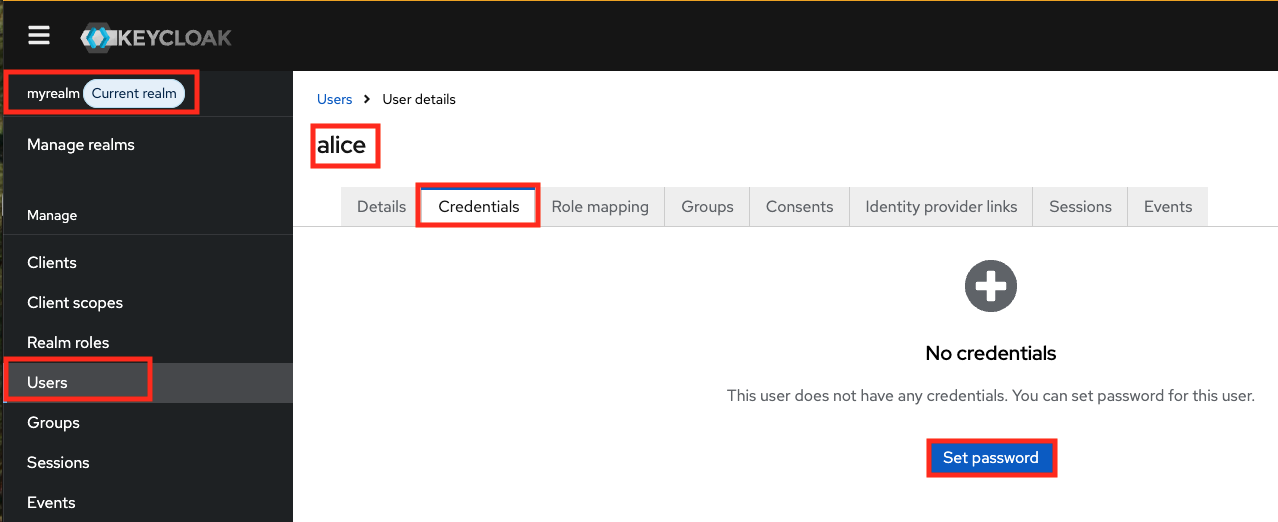
keycloak realms과 users를 생성합니다.
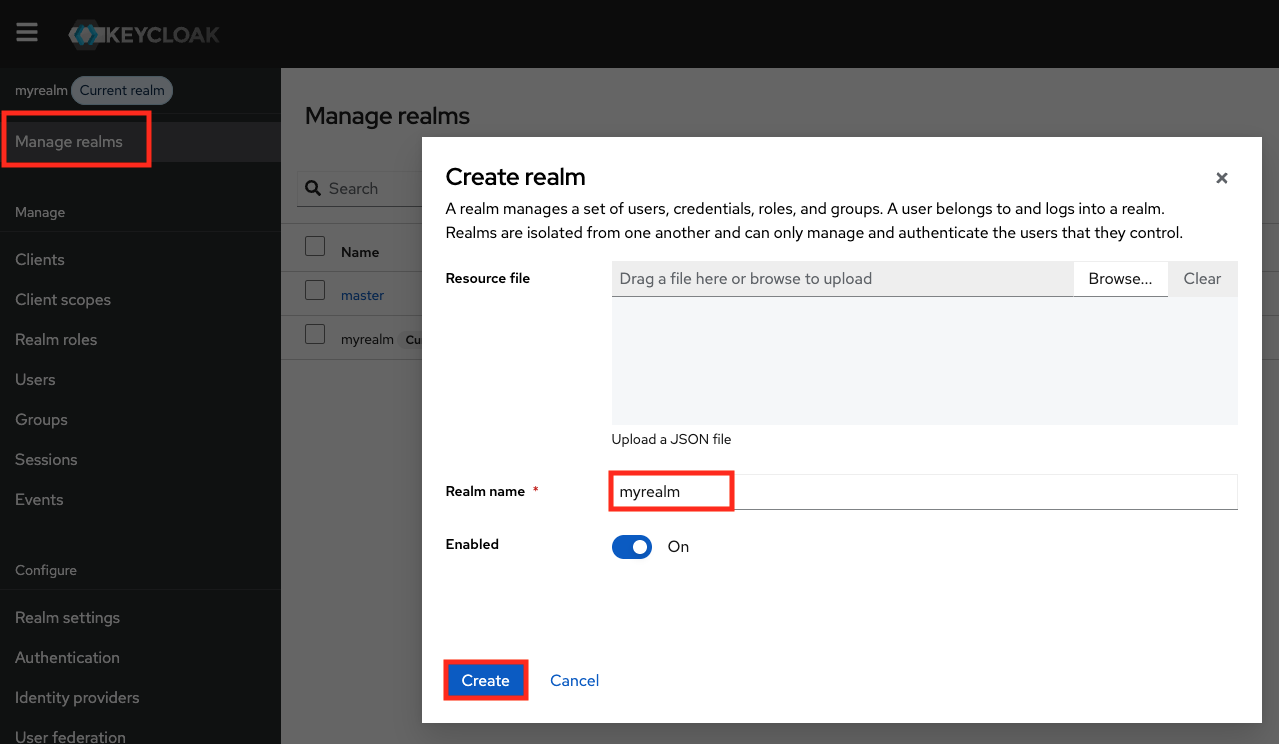
realms 생성 user 생성, 현재 realms 확인 비밀번호 설정(Credential에서 확인) 비밀번호 설정
  • realms 생성 : myrealm
  • users 생성 : alice - 암호 alice123

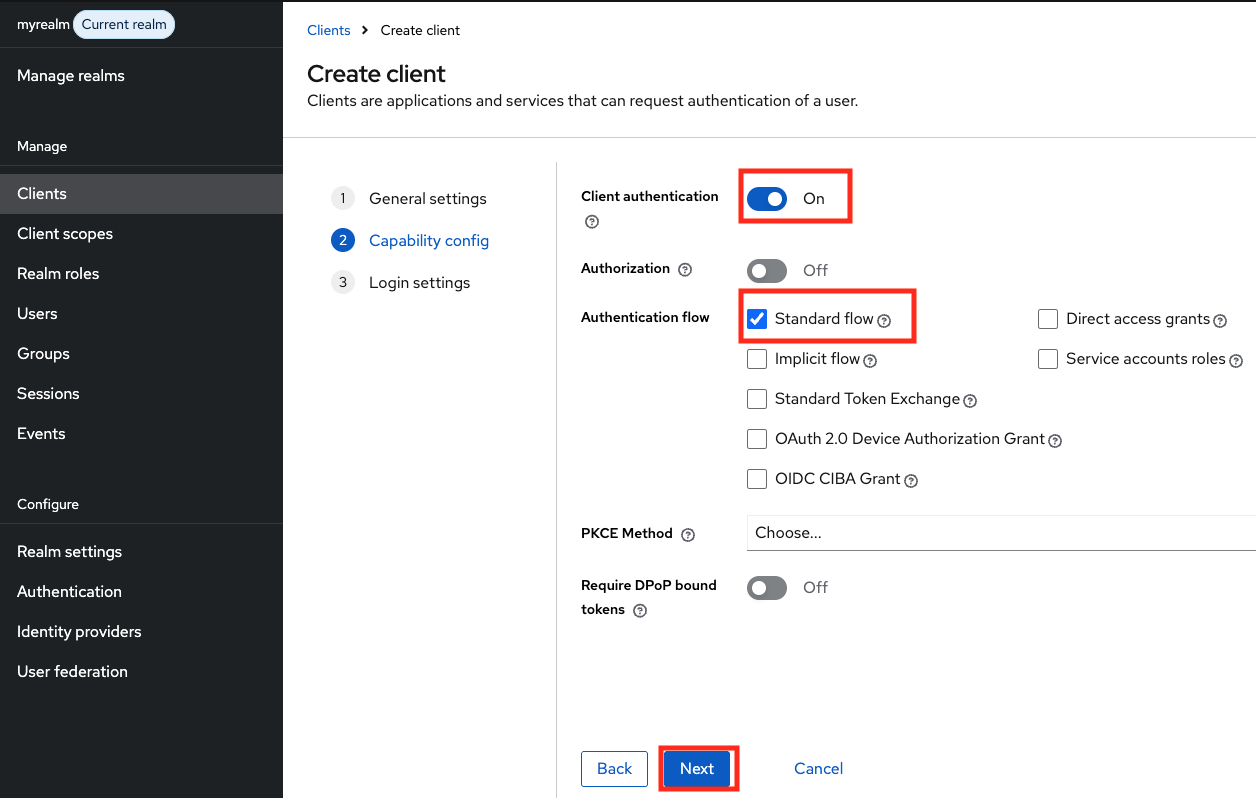
keycloak에서 argocd 를 위한 client을 생성합니다.
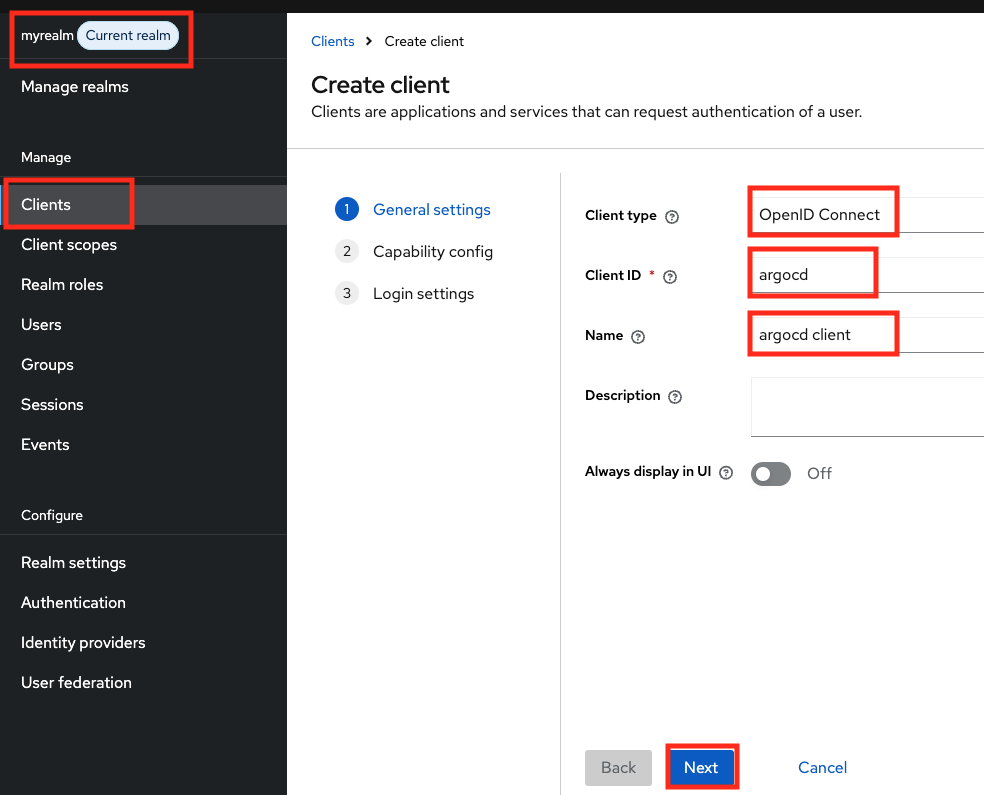
  • client id : argocd
  • name : argocd client
  • client auth : ON
  • Root URL : https://argocd.example.com/
  • Home URL : /applications
  • Valid redirect URIs : https://argocd.example.com/auth/callback
  • Valid post logout redirect URIs : https://argocd.example.com/applications
  • Web origins : +
  • 생성된 client 에서 → Credentials : 메모 해두기 3QhTVm6g4Bp3EOJGDyCII4XEwITJxXwn

위 설정을 한 후 아래의 명령어를 통해 잘 설정되었는 지 확인해봅니다.

curl -s http://keycloak.example.com/realms/myrealm/.well-known/openid-configuration> | jq
...
  "mtls_endpoint_aliases": {
    "token_endpoint": "<http://keycloak.example.com/realms/myrealm/protocol/openid-connect/token>",
    "revocation_endpoint": "<http://keycloak.example.com/realms/myrealm/protocol/openid-connect/revoke>",
    "introspection_endpoint": "<http://keycloak.example.com/realms/myrealm/protocol/openid-connect/token/introspect>",
    "device_authorization_endpoint": "<http://keycloak.example.com/realms/myrealm/protocol/openid-connect/auth/device>",
    "registration_endpoint": "<http://keycloak.example.com/realms/myrealm/clients-registrations/openid-connect>",
    "userinfo_endpoint": "<http://keycloak.example.com/realms/myrealm/protocol/openid-connect/userinfo>",
    "pushed_authorization_request_endpoint": "<http://keycloak.example.com/realms/myrealm/protocol/openid-connect/ext/par/request>",
    "backchannel_authentication_endpoint": "<http://keycloak.example.com/realms/myrealm/protocol/openid-connect/ext/ciba/auth>"
  },
  "authorization_response_iss_parameter_supported": true
...

ArgoCD OIDC 설정을 진행합니다. (클라이언트 시크릿 설정)

# oidc.keycloak.clientSecret 에서 메모해둔 Credentials 입력
kubectl -n argocd patch secret argocd-secret --patch='{"stringData": { "oidc.keycloak.clientSecret": "3QhTVm6g4Bp3EOJGDyCII4XEwITJxXwn" }}'

# 확인
kubectl get secret -n argocd argocd-secret -o jsonpath='{.data}' | jq
...
  "oidc.keycloak.clientSecret": "M1FoVFZtNmc0QnAzRU9KR0R5Q0lJNFhFd0lUSnhYd24=",
...

argocd 에서 keycloak authentication 를 활성화 할 수 있도록 설정해줍니다.

kubectl patch cm argocd-cm -n argocd --type merge -p '
data:
  oidc.config: |
    name: Keycloak
    issuer: http://keycloak.example.com/realms/myrealm
    clientID: argocd
    clientSecret: 3QhTVm6g4Bp3EOJGDyCII4XEwITJxXwn
    requestedScopes: ["openid", "profile", "email"]
'

# 확인
kubectl get cm -n argocd argocd-cm -o yaml | grep oidc.config: -A5

argocd server를 재시작 해줍니다.

kubectl rollout restart deploy argocd-server -n argocd

이렇게 한 후 argocd 에서 로그인을 해봅니다. LOG IN VIA KEYCLOAK 이 활성화 된 것 을 볼수 있습니다.
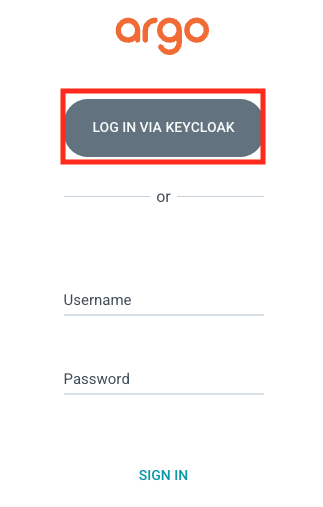
keycloak 으로 로그인하기를 클릭하면 아래와 같은 에러가 발생합니다.

failed to query provider "<http://keycloak.example.com/realms/myrealm>": Get "<http://keycloak.example.com/realms/myrealm/.well-known/openid-configuration>": dial tcp 127.0.0.1:80: connect: connection refused

keycloak으로 로그인 시 http://keycloak.example.com/realms/myrealm redirect 하는데 Host Mac에서는 해당 도메인이 접근되지만 kubernetes 환경에서는 해당 도메인에 대한 정보가 없기 때문에 접근을 할 수 없어 connect: connection refused 가 발생합니다.

ArgoCD가 **keycloak.example.com** 에 접근하지 못하는 경우, CoreDNS의 hosts 플러그인으로 클러스터 내부 IP로 매핑이 필요하기에 아래와 같이 설정을 해줍니다.

KEYCLOAK_IP=$(kubectl get svc -n default keycloak -o jsonpath='{.spec.clusterIP}' 2>/dev/null)
ARGOCD_IP=$(kubectl get svc -n argocd argocd-server -o jsonpath='{.spec.clusterIP}' 2>/dev/null)

kubectl patch cm coredns -n kube-system --type json -p="[
  {
    \"op\": \"replace\",
    \"path\": \"/data/Corefile\",
    \"value\": \".:53 {\\n    errors\\n    health {\\n       lameduck 5s\\n    }\\n    ready\\n    kubernetes cluster.local in-addr.arpa ip6.arpa {\\n       pods insecure\\n       fallthrough in-addr.arpa ip6.arpa\\n       ttl 30\\n    }\\n    hosts {\\n       ${KEYCLOAK_IP} keycloak.example.com\\n       ${ARGOCD_IP} argocd.example.com\\n       fallthrough\\n    }\\n    reload\\n    forward . /etc/resolv.conf {\\n       max_concurrent 1000\\n    }\\n    cache 30\\n    loop\\n    reload\\n    loadbalance\\n}\\n\"
  }
]"

# 확인
kubectl get cm coredns -n kube-system -o yaml
...
        hosts {
           10.96.201.45 keycloak.example.com
           10.96.74.42 argocd.example.com
           fallthrough
        }
...

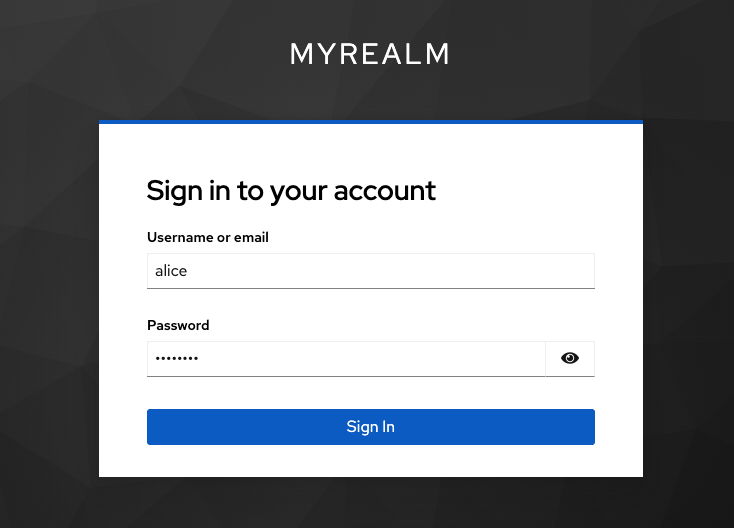
위와 같이 설정 후 CoreDNS Pod가 자동으로 Reload 되며 다시 argocd에서 keycloak 으로 로그인하기를 누르면 아래와 같은 화면이 뜬다.

기존에 생성한 alice/alice123 비밀번호를 입력하고 접속한다.
Jenkins

kubectl create ns jenkins
cat <<EOF | kubectl apply -f -
apiVersion: v1
kind: PersistentVolumeClaim
metadata:
  name: jenkins-pvc
  namespace: jenkins
spec:
  accessModes:
    - ReadWriteOnce
  resources:
    requests:
      storage: 10Gi
---
apiVersion: apps/v1
kind: Deployment
metadata:
  name: jenkins
  namespace: jenkins
spec:
  replicas: 1
  selector:
    matchLabels:
      app: jenkins
  template:
    metadata:
      labels:
        app: jenkins
    spec:
      securityContext:
        fsGroup: 1000
      containers:
        - name: jenkins
          image: jenkins/jenkins:lts
          ports:
            - name: http
              containerPort: 8080
            - name: agent
              containerPort: 50000
          volumeMounts:
            - name: jenkins-home
              mountPath: /var/jenkins_home
      volumes:
        - name: jenkins-home
          persistentVolumeClaim:
            claimName: jenkins-pvc
---
apiVersion: v1
kind: Service
metadata:
  name: jenkins-svc
  namespace: jenkins
spec:
  type: ClusterIP
  selector:
    app: jenkins
  ports:
    - port: 8080
      targetPort: http
      protocol: TCP
      name: http
    - port: 50000
      targetPort: agent
      protocol: TCP
      name: agent
---
apiVersion: networking.k8s.io/v1
kind: Ingress
metadata:
  name: jenkins-ingress
  namespace: jenkins
  annotations:
    nginx.ingress.kubernetes.io/proxy-body-size: "0"
    nginx.ingress.kubernetes.io/proxy-read-timeout: "600"
spec:
  ingressClassName: nginx
  rules:
    - host: jenkins.example.com
      http:
        paths:
          - path: /
            pathType: Prefix
            backend:
              service:
                name: jenkins-svc
                port:
                  number: 8080
EOF

# 도메인 설정
echo "127.0.0.1 **jenkins.example.com**" **| sudo tee -a /etc/hosts**

jenkins의 경우 nginx.ingress proxy body size를 무제한으로 설정해준다

apiVersion: networking.k8s.io/v1
kind: Ingress
metadata:
  name: jenkins-ingress
  namespace: jenkins
  annotations:
    nginx.ingress.kubernetes.io/proxy-body-size: "0"
    nginx.ingress.kubernetes.io/proxy-read-timeout: "600"

초기 암호를 확인한다.

kubectl exec -it -n jenkins deploy/jenkins -- **cat /var/jenkins_home/secrets/initialAdminPassword**
0ff6ec37578d420691e40a6bedc95a02

http://jenkins.example.com/ 에 접속하여 초기암호를 입력하고 설치를 진행해준다.
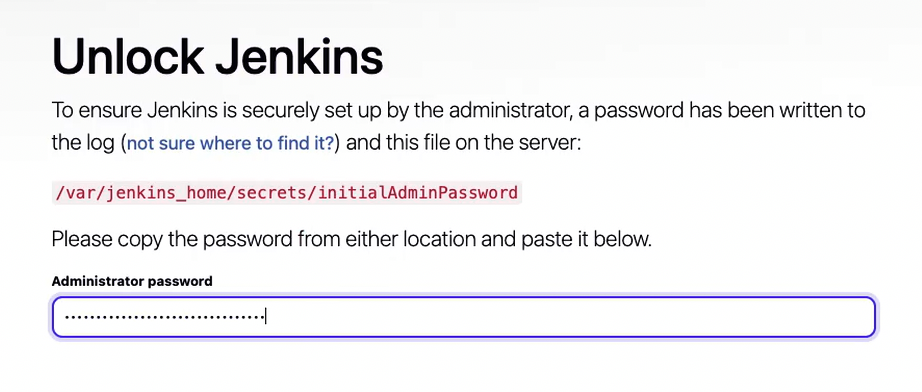
admin/qwe123 으로 암호를 설정한다.

jenkins도 동일하게 CoreDNS의 hosts 플러그인으로 클러스터 내부 IP 매핑을 해준다.

KEYCLOAK_IP=$(kubectl get svc -n default keycloak -o jsonpath='{.spec.clusterIP}' 2>/dev/null)
ARGOCD_IP=$(kubectl get svc -n argocd argocd-server -o jsonpath='{.spec.clusterIP}' 2>/dev/null)
JENKINS_IP=$(kubectl get svc -n jenkins jenkins-svc -o jsonpath='{.spec.clusterIP}' 2>/dev/null)

kubectl patch cm coredns -n kube-system --type json -p="[
  {
    \"op\": \"replace\",
    \"path\": \"/data/Corefile\",
    \"value\": \".:53 {\\n    errors\\n    health {\\n       lameduck 5s\\n    }\\n    ready\\n    kubernetes cluster.local in-addr.arpa ip6.arpa {\\n       pods insecure\\n       fallthrough in-addr.arpa ip6.arpa\\n       ttl 30\\n    }\\n    hosts {\\n       ${KEYCLOAK_IP} keycloak.example.com\\n       ${ARGOCD_IP} argocd.example.com\\n       ${JENKINS_IP} jenkins.example.com\\n       fallthrough\\n    }\\n    reload\\n    forward . /etc/resolv.conf {\\n       max_concurrent 1000\\n    }\\n    cache 30\\n    loop\\n    reload\\n    loadbalance\\n}\\n\"
  }
]"

# 확인
kubectl get cm coredns -n kube-system -o yaml
...
        hosts {
           10.96.201.45 keycloak.example.com
           10.96.74.42 argocd.example.com
           10.96.95.174 jenkins.example.com
           fallthrough
        }
...

jenkins도 keycloak을 통해서 사용자 인증처리하여 로그인 할 수 있도록 keycloak에 접속하여 아래의 정보로 client를 생성해준다.(argocd client 생성 화면 참조)

keycloak 에 jenkins 를 위한 client 생성

http://jenkins.example.com/manage/pluginManager/available 에 접속하여 OpenID Connect Authentication plugins을 설치해준다**.**

재시작은 진행할 필요는 없다.

그런 다음 http://jenkins.example.com/manage/configureSecurity/ 으로 접속하여 keycloak 설정을 jenkins에 해준다.

  • Login with Openid Connect
  • Client id : jenkins
  • Client secret : <keycloak 에서 jenkins client 에서 credentials>
  • Configuration mode : Discovery…
  • Well-know configuration endpoint http://keycloak.example.com/realms/**myrealm**/.well-known/openid-configuration
  • Override scopes : openid email profile
  • Logout from OpenID Provider : Check
  • Security configuration
    • Disable ssl verification : Check

Jenkisn Logout을 하고 다시 접속시 keycloak 로그인으로 redirect된다. keycloak user/password인 alice/alice123 을 입력하면 jenkins에 로그인이 된다.

Jenkins와 ArgoCD 두 군데에 로그인 하면 keycloak session에서 두 군데에 로그인된 것을 확인할 수 있다.

LADP 구성하기

LDAP 이란 사용자·그룹·권한 정보를 계층적으로 보관하는 “주소록/조직도” 이다. 사내에서 구성원 정보를 계층적으로 관리하는데 많이 사용된다.

실습으로는 OPEN LDAP을 설치한다. 아래 예제를 참조해서 설치해본다.

cat <<EOF | kubectl apply -f -
apiVersion: v1
kind: Namespace
metadata:
  name: openldap
---
apiVersion: apps/v1
kind: Deployment
metadata:
  name: openldap
  namespace: openldap
spec:
  replicas: 1
  selector:
    matchLabels:
      app: openldap
  template:
    metadata:
      labels:
        app: openldap
    spec:
      containers:
        - name: openldap
          image: osixia/openldap:1.5.0
          ports:
            - containerPort: 389
              name: ldap
            - containerPort: 636
              name: ldaps
          env:
            - name: LDAP_ORGANISATION    # 기관명, LDAP 기본 정보 생성 시 사용
              value: "Example Org"
            - name: LDAP_DOMAIN          # LDAP 기본 Base DN 을 자동 생성
              value: "example.org"
            - name: LDAP_ADMIN_PASSWORD  # LDAP 관리자 패스워드
              value: "admin"
            - name: LDAP_CONFIG_PASSWORD
              value: "admin"
        - name: phpldapadmin
          image: osixia/phpldapadmin:0.9.0
          ports:
            - containerPort: 80
              name: phpldapadmin
          env:
            - name: PHPLDAPADMIN_HTTPS
              value: "false"
            - name: PHPLDAPADMIN_LDAP_HOSTS
              value: "openldap"   # LDAP hostname inside cluster
---
apiVersion: v1
kind: Service
metadata:
  name: openldap
  namespace: openldap
spec:
  selector:
    app: openldap
  ports:
    - name: phpldapadmin
      port: 80
      targetPort: 80
      nodePort: 30000
    - name: ldap
      port: 389
      targetPort: 389
    - name: ldaps
      port: 636
      targetPort: 636
  type: NodePort
EOF

아래의 명령어를 통해 설치된 정보를 확인해본다.

kubectl get deploy,pod,svc,ep -n openldap
NAME                       READY   UP-TO-DATE   AVAILABLE   AGE
deployment.apps/openldap   1/1     1            1           31s

NAME                            READY   STATUS    RESTARTS   AGE
pod/openldap-54857b746c-t2rf2   2/2     Running   0          31s

NAME               TYPE       CLUSTER-IP      EXTERNAL-IP   PORT(S)                                    AGE
service/openldap   NodePort   10.96.232.206   <none>        80:30000/TCP,389:31842/TCP,636:31803/TCP   31s

NAME                 ENDPOINTS                                        AGE
endpoints/openldap   10.244.0.31:80,10.244.0.31:389,10.244.0.31:636   31s

# 기본 LDAP 정보 : 아래 Bind DN과 PW로 로그인
## Base DN: dc=example,dc=org
## Bind DN: cn=admin,dc=example,dc=org
## Password: admin
open <http://127.0.0.1:30000>

# phpLDAPadmin 로그인
kubectl krew install stern
kubectl stern -n openldap openldap-54857b746c-ch9g4
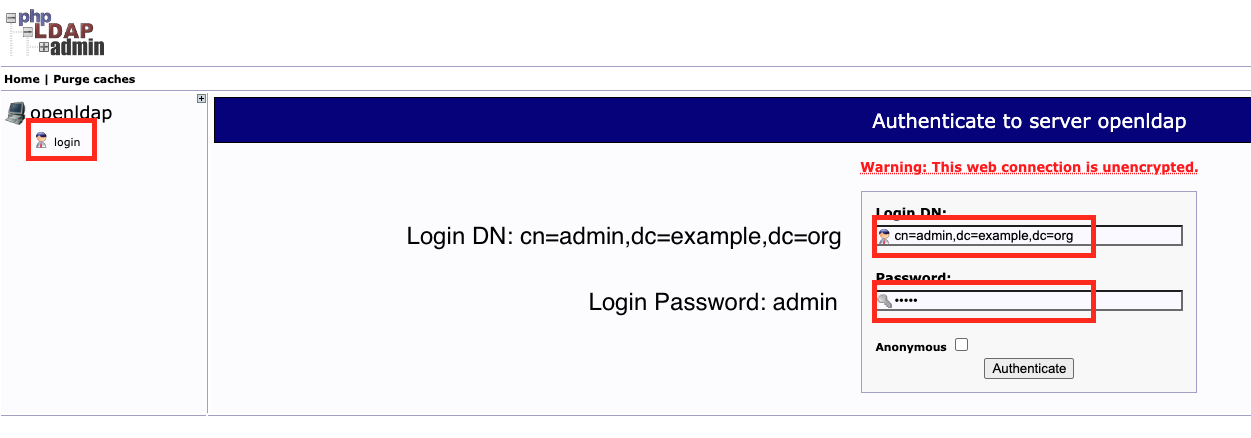
http://127.0.0.1:30000/ 로 접속하여 위와 같이 로그인한다.

만약 로그인이 안된다면 deployment를 삭제하고 재배포 해본다.

로그인이 성공하면 아래와 같은 화면을 볼 수 있다.

openldap 을 cli에서 구성해본다.

# ldap cli 접속
kubectl -n openldap exec -it deploy/openldap -c openldap -- bash

# pstree 출력
pstree -aplpst
run,1 -u /container/tool/run
  └─slapd,433 -h ldap://openldap-54857b746c-t2rf2:389 ldaps://openldap-54857b746c-t2rf2:636 ldapi:/// -u openldap -g openldap -d 256
      ├─{slapd},436
      ├─{slapd},437
      └─{slapd},438

# LDAP 관리자 인증 테스트 : 정상일 경우 LDAP 기본 엔트리 출력
ldapsearch -x -H ldap://localhost:389 -b dc=example,dc=org -D "cn=admin,dc=example,dc=org" -w admin

실습은 아래의 구조로 테스트를 합니다.

# 실습 사용 최종 트리 구조
dc=example,dc=org
├── ou=people
│   ├── uid=alice
│   │   ├── cn: Alice
│   │   ├── sn: Kim
│   │   ├── uid: alice
│   │   └── mail: alice@example.org
│   └── uid=bob
│       ├── cn: Bob
│       ├── sn: Lee
│       ├── uid: bob
│       └── mail: bob@example.org
└── ou=groups
    ├── cn=devs
    │   └── member: uid=bob,ou=people,dc=example,dc=org
    └── cn=admins
        └── member: uid=alice,ou=people,dc=example,dc=org
  • user는 alice, bob을 사용합니다.
  • group은 devs, admins 그룹을 사용합니다.
  • ou(organizationalUnit) 은 people, groups 입니다.

위에 명시된 정보를 ldap에 생성하는 작업을 아래 스크립트에서 진행합니다. 기존에 접속한 ldap bash 환경에서 이어서 작업합니다.

# ldapadd로 ou 추가 (organizationalUnit)
cat <<EOF | ldapadd -x -D "cn=admin,dc=example,dc=org" -w admin
dn: ou=people,dc=example,dc=org
objectClass: organizationalUnit
ou: people

dn: ou=groups,dc=example,dc=org
objectClass: organizationalUnit
ou: groups
EOF
adding new entry "ou=people,dc=example,dc=org"
adding new entry "ou=groups,dc=example,dc=org"

# ldapadd로 users 추가 (inetOrgPerson) : alice , bob
cat <<EOF | ldapadd -x -D "cn=admin,dc=example,dc=org" -w admin
dn: uid=alice,ou=people,dc=example,dc=org
objectClass: inetOrgPerson
cn: Alice
sn: Kim
uid: alice
mail: alice@example.org
userPassword: alice123

dn: uid=bob,ou=people,dc=example,dc=org
objectClass: inetOrgPerson
cn: Bob
sn: Lee
uid: bob
mail: bob@example.org
userPassword: bob123
EOF
adding new entry "uid=alice,ou=people,dc=example,dc=org"
adding new entry "uid=bob,ou=people,dc=example,dc=org"

# ldapadd로 groups 추가 (groupOfNames) : devs, admins
cat <<EOF | ldapadd -x -D "cn=admin,dc=example,dc=org" -w admin
dn: cn=devs,ou=groups,dc=example,dc=org
objectClass: groupOfNames
cn: devs
member: uid=bob,ou=people,dc=example,dc=org

dn: cn=admins,ou=groups,dc=example,dc=org
objectClass: groupOfNames
cn: admins
member: uid=alice,ou=people,dc=example,dc=org
EOF
adding new entry "cn=devs,ou=groups,dc=example,dc=org"
adding new entry "cn=admins,ou=groups,dc=example,dc=org"

# ldapsearch 검색 : ou
ldapsearch -x -D "cn=admin,dc=example,dc=org" -w admin -b "dc=example,dc=org" "(objectClass=organizationalUnit)" ou

# ldapsearch 검색 : 사용자
ldapsearch -x -D "cn=admin,dc=example,dc=org" -w admin -b "ou=people,dc=example,dc=org" "(uid=*)" uid cn mail
  
# ldapsearch 검색 : 그룹/멤버 확인
ldapsearch -x -D "cn=admin,dc=example,dc=org" -w admin -b "ou=groups,dc=example,dc=org" "(objectClass=groupOfNames)" cn member
  

# LDAP 사용자 인증 테스트 : 정상일 경우 LDAP 기본 엔트리 출력
ldapwhoami -x -D "uid=alice,ou=people,dc=example,dc=org" -w alice123
dn:uid=alice,ou=people,dc=example,dc=org

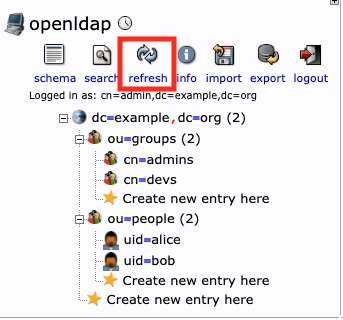
설정이 정상적으로 되면 LDAP UI에서 Refresh 버튼을 클릭하면 아래와 같이 볼 수 있습니다.
Keycloak에서 LDAP 구성하기

keycloak과 ldap을 구성합니다. 유저를 keycloak이 아닌 ldap에서 생성하고 관리합니다. keycloak은 User Federation 으로 LDAP과 연동하여 사용자 정보를 동기화합니다.

설정 중간에 Test 버튼을 클릭하여 정상 연동됨을 확인합니다.

설정 값은 아래와 같습니다.

  • General
    • UI display name: ldap
    • Vendor: Other
  • Connection and authentication
    • Connection URL: ldap://openldap.openldap.svc:389 ⇒ Test connection
    • Bind DN: (= Login DN) cn=admin,dc=example,dc=org
    • Bind Credential: admin ⇒ Test authentication
  • LDAP searching and updating
    • Edit mode: WRITABLE
    • Users DN: ou=people,dc=example,dc=org
    • Username LDAP attribute: uid
    • RDN LDAP attribute: uid
    • UUID LDAP attribute: uid
    • User Object Classes: inetOrgPerson
    • Search scope: Subtree (OU 하위 모두 탐색)
  • Synchronization settings
    • Import Users: On (LDAP → KeyCloak : Sync OK)
    • Sync Registrations: Off (KeyCloak → LDAP : Sync OK)

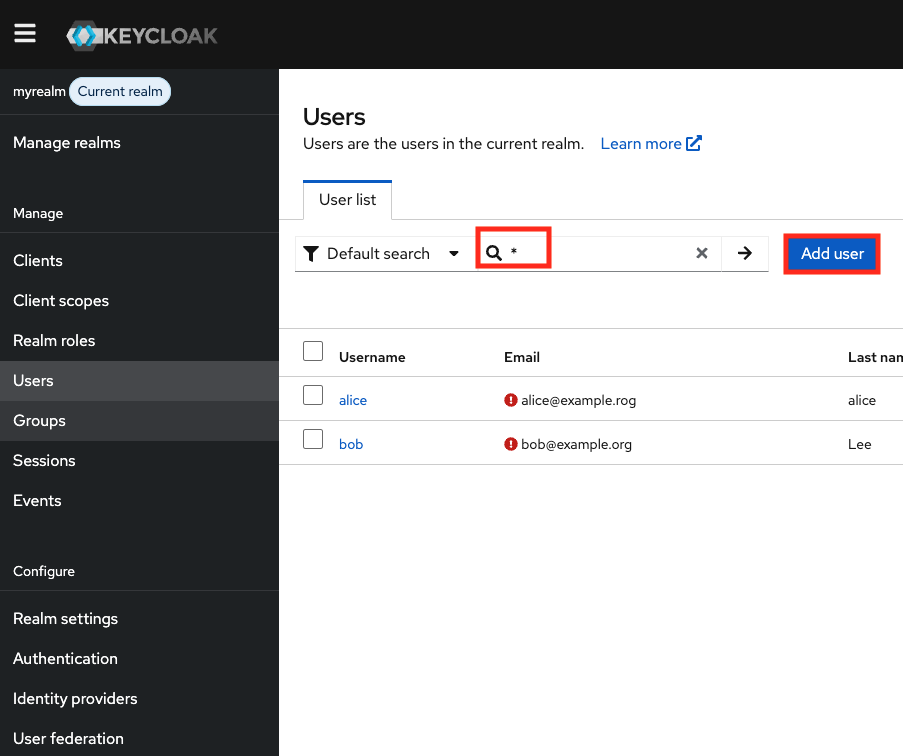
위와 같이 설정하고 Keycloak에서 Users에서 전체 검색 시 LDAP에 등록된 유저가 연동됨을 확인 할 수 있습니다.
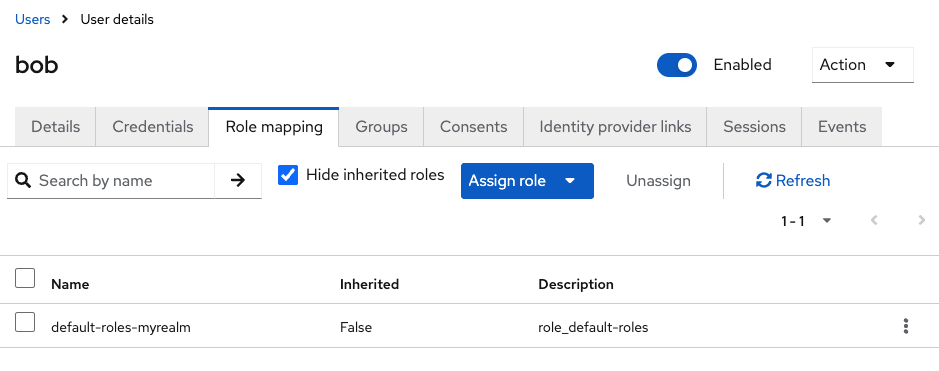
Bob 유저의 상세정보를 아래와 같이 Federation link 가 LDAP으로 설정됨을 볼 수 있습니다.


만약 보이지 않는다면 User Federation → LDAP Provider 선택 → Settings → Action : Sync all users 를 해봅니다.


유저 연동됨을 확인했으니 ArgoCD와 Jenkins으로 이동하여 bob 유저로 로그인해봅니다.

bob(암호: bob123) 를 입력하고 정상적으로 로그인 되는지 확인합니다. 로그인 된다면 ldap → keycloak 연동이 완료됨을 확인할 수 있습니다.

alice(암호: alice123) 도 동일하게 테스트 해줍니다.

새로운 유저인 jack(암호: jack123) 도 추가해서 로그인 해봅니다.

cat <<EOF | ldapadd -x -D "cn=admin,dc=example,dc=org" -w admin
dn: uid=jack,ou=people,dc=example,dc=org
objectClass: inetOrgPerson
cn: Jack
sn: Hong
uid: jack
mail: jack@example.org
userPassword: jack123
EOF

위와 같이 ldap user를 생성하고 로그인하면 정상적으로 로그인 됨을 확인 할 수 잇습니다.

ArgoCD에 LDAP User 권한 연동

argocd 에 sample application을 배포하고 조회가 되는지 테스트 해보겠습니다. 아래 스크립트로 샘플 애플리케이션을 배포해줍니다.

cat https://github.com/hanship0530/Learning
        targetRevision: HEAD
        path: ci-cd-cookbook/6w/guestbook
      destination:
        server: '{{.server}}'
        namespace: guestbook
      syncPolicy:
        syncOptions:
          - CreateNamespace=true
EOF

# sync
argocd app sync -l managed-by=applicationset

# 생성된 application yaml 확인
kubectl get applications -n argocd in-cluster-guestbook -o yaml | k neat | yq
kubectl get applications -n argocd dev-k8s-guestbook -o yaml | k neat | yq
kubectl get applications -n argocd prd-k8s-guestbook -o yaml | k neat | yq

# 각 k8s 에 배포된 파드 정보 확인
k8s1 get pod -n guestbook
k8s2 get pod -n guestbook
k8s3 get pod -n guestbook

jack 유저로 로그인해서 확인해보겠습니다.
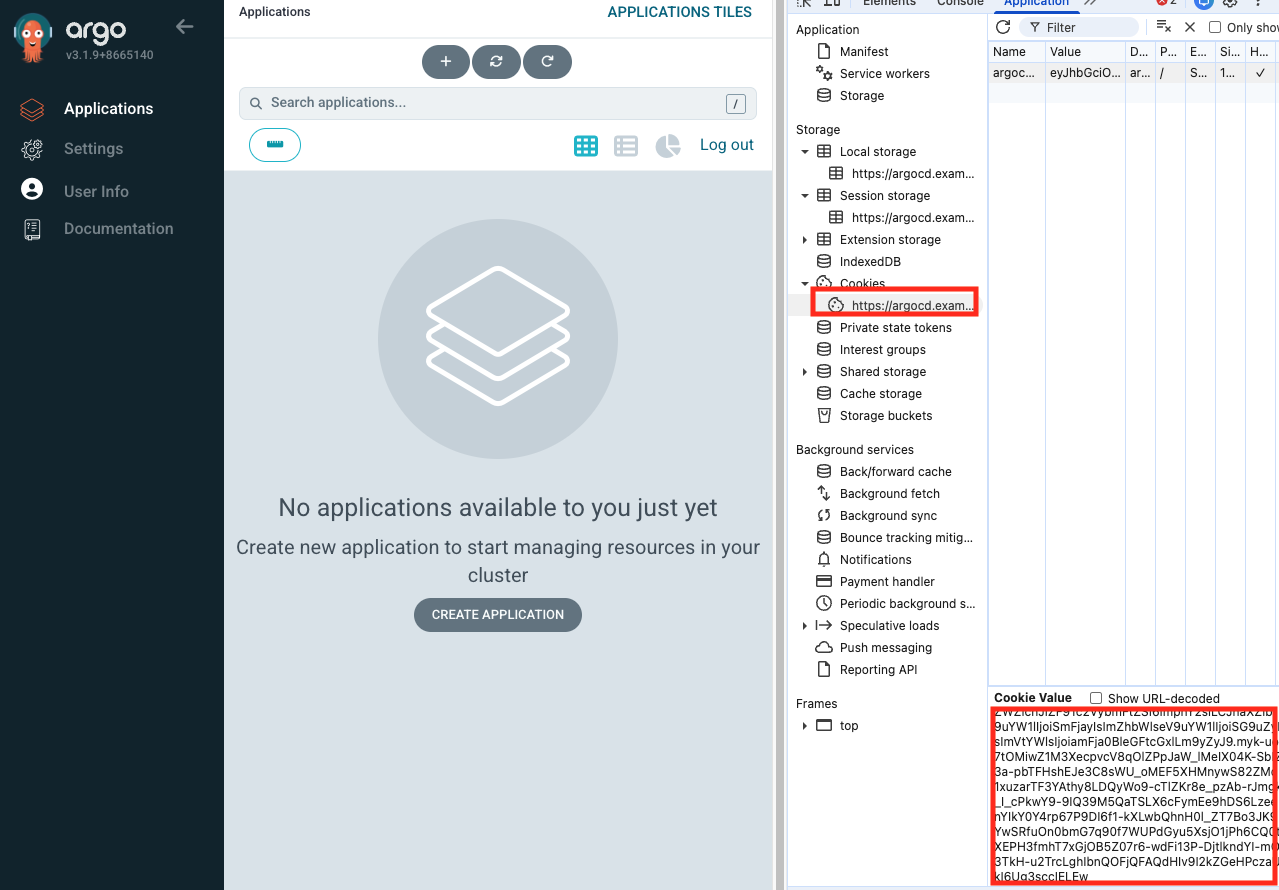
 

로그인 시 아무것도 보이지 않습니다. Cookie에 등록된 jwt 정보를 확인해봅니다.

https://www.jwt.io/ 해당 값을 입력해서 확인해보면 User는 Jack인것을 확인할 수 있습니다.
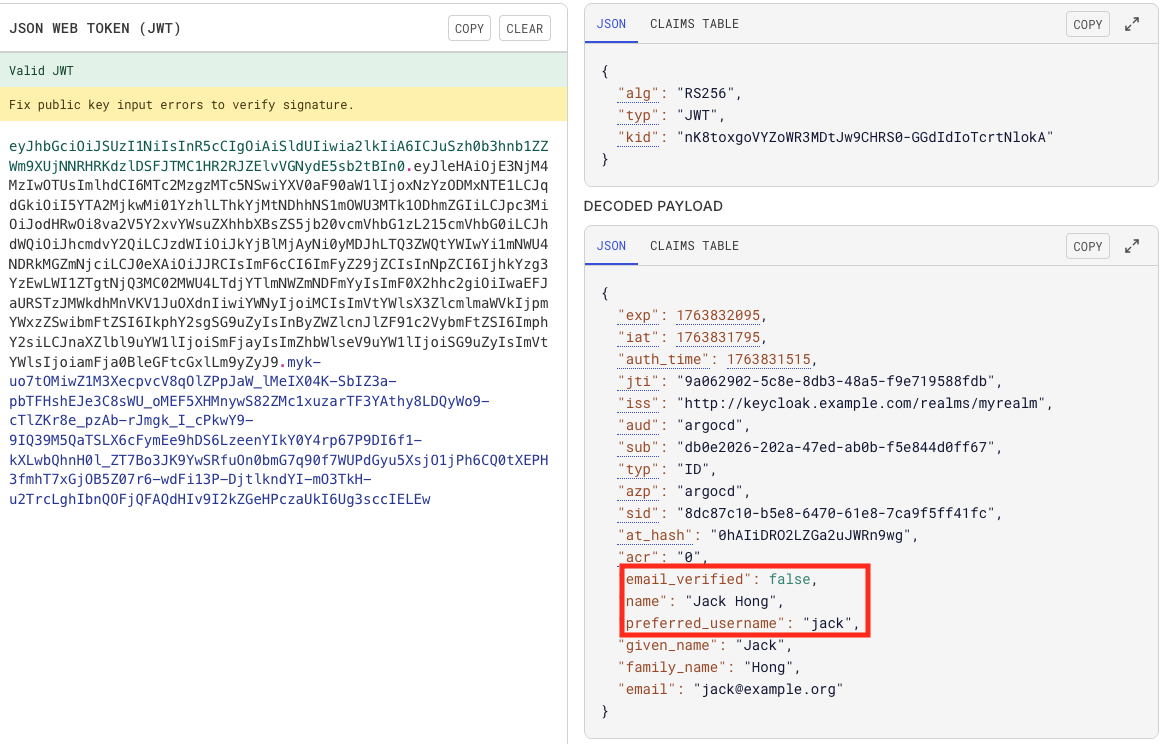
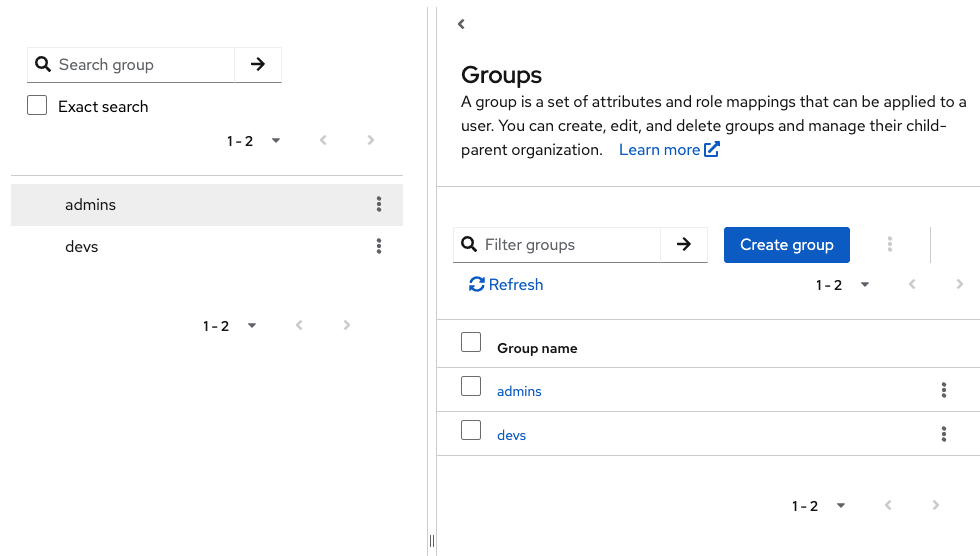
현재 배포된 애플리케이션이 안보이는 이유는 Keycloak에 아무런 Group 정보가 연동이 안되어서 그렇습니다.
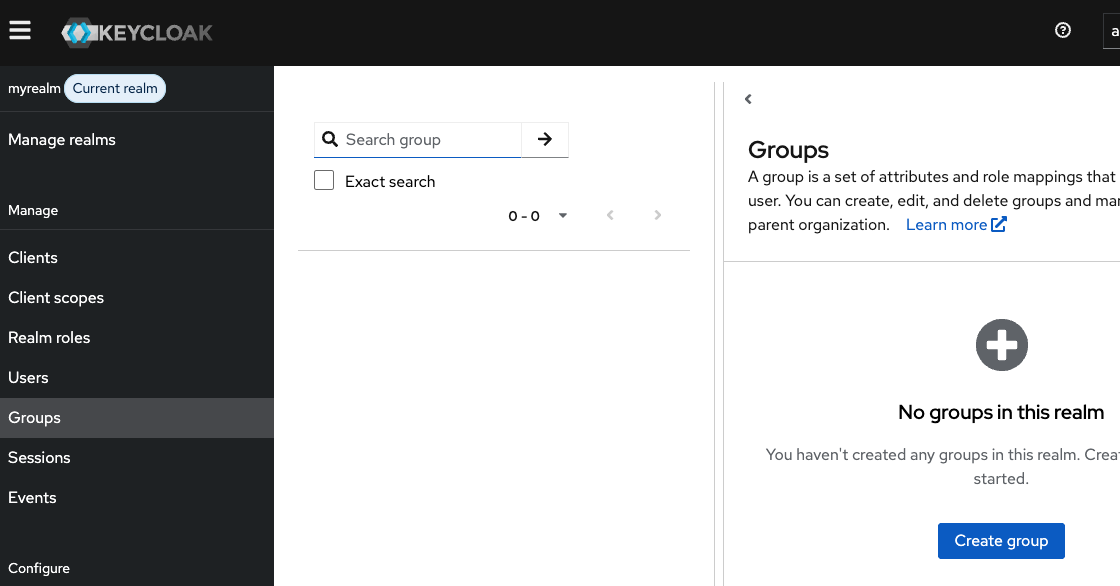
Keycloak에서 admin으로 접속하여 Group를 연동해줍니다.

  • User Federation → LDAP Provider 선택 → Mappers → Add mapper → 아래 설정 후 Save
    • name : ldap-groups
    • Mapper type: group-ldap-mapper
    • LDAP Groups DN : ou=groups,dc=example,dc=org
    • Group Name LDAP Attribute: cn
    • Group Object Classed: groupOfNames
    • Membership LDAP attribute: member
    • Membership attribute type: DN
    • Mode: READ_ONLY

위와 같이 설정하고 User federations → LDAP → Mappers → ldap-groups 선택 → Action → Sync LDAP groups to Keycloak 클릭해줍니다. 그리고 Group을 확인합니다.
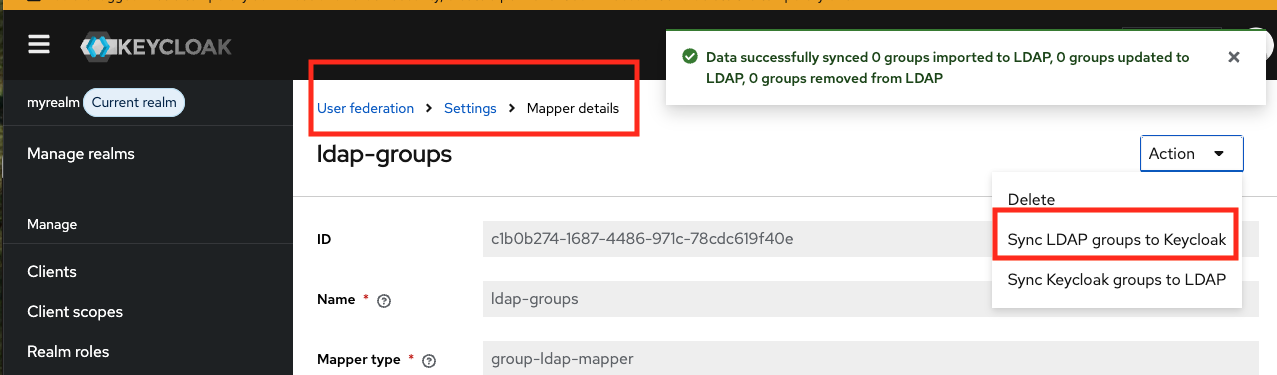
그런 다음 Keycloak 에서 토큰에 Group 전달을 위한 설정 : ArgoCD Client 설정을 해줍니다.
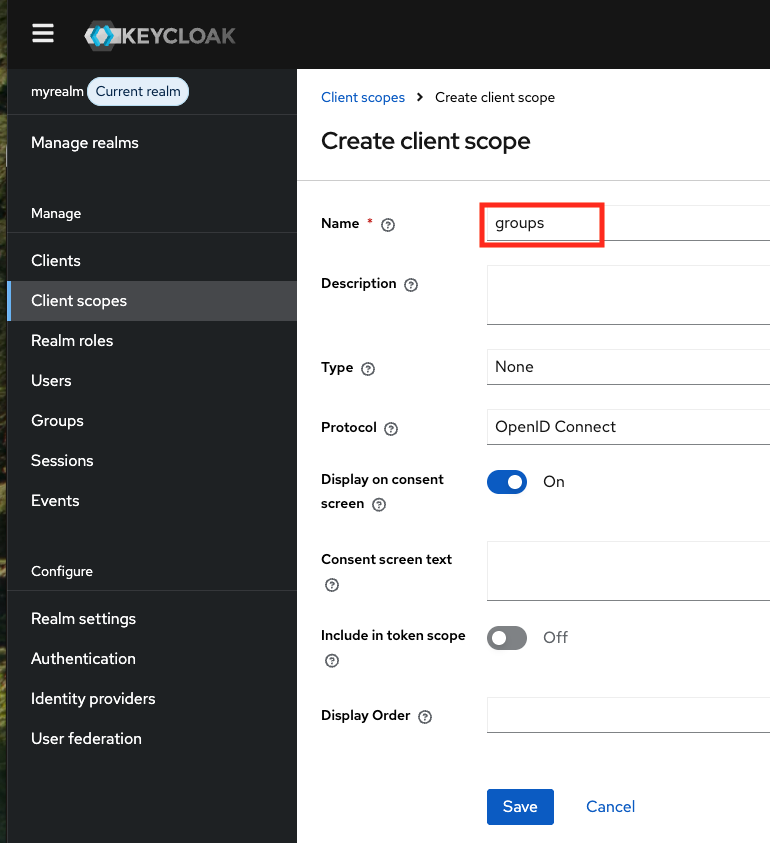
  • Client Scoups 생성 : Name (groups) , 나머지는 기본값

그런 다음 해당 client scopes 에서 mappers 클릭 → [Configure a new mapper] 클릭 한 후 mapper 리스트가 나타나면 'Group Membership' 선택 후 Name, Token Claim Name 에 groups 입력


argocd client 에서 groups 전달을 위한 설정을 합니다. : client 에서 argocd 클릭

  • [Client scopes] 탭 이동 후, Add client scope 클릭 후 생성한 groups를 선택합니다. 이때, [Add] 선택 후 드롭다운의 Default를 선택.


위와 같이 설정 이후 Argo CD에 scope 에 groups 추가 설정을 진행하고 나서 로그아웃 후 로그인 시도를 해봅니다. (적용을 위해서 15초 정도 후에 아래 로그인 진행 합니다.)

Keycloak → Sessions → jack signout 을 해줍니다.

kubectl edit cm -n argocd argocd-cm
...
    requestedScopes: ["openid", "profile", "email" , "groups"]
...
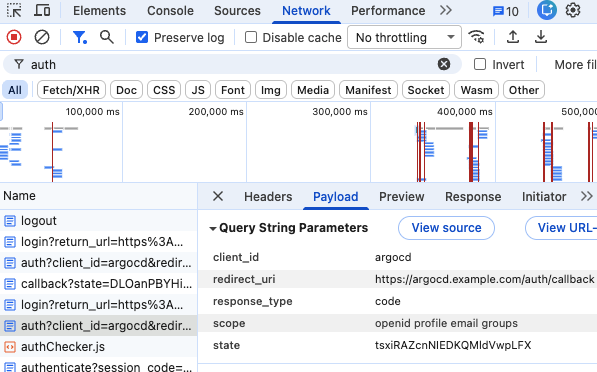
 

scope에 groups가 추가되었습니다.


로그인 후 auth? 에서 scope에 groups가 추가된것을 확인합니다.

그런 다음 jack 계정으로 app 조회를 하기 위해 아래의 작업을 진행해줍니다.

Argo CD RBAC 할당 합니다. (Keycloak 그룹 ArgoCDAdmins에 ArgoCD 권한을 매핑하기 위해 argocd-rbac-cm 컨피그맵을 업데이트)

kubectl edit cm argocd-rbac-cm -n argocd
...
data:
  policy.csv: |
    g, devs, role:admin
...

해당 설정 후 bob으로 로그인 시 app이 보이지만 jack의 경우 안보입니다. Keycloak 을 확인해보면 Jack은 dev group에 추가가 안된 것을 볼 수 있습니다.

Ldap에서 추가해줍니다.

# ldap cli 접속
kubectl -n openldap exec -it deploy/openldap -c openldap -- bash
cat <<EOF | ldapmodify -x -D "cn=admin,dc=example,dc=org" -w admin
dn: cn=devs,ou=groups,dc=example,dc=org
changetype: modify
add: member
member: uid=jack,ou=people,dc=example,dc=org
EOF

위와 같이 한 후 User federation → ldap → Mappers → ldap-groups → Action → Sync LDAP groups to Keycloak 을 클릭하여 동기화를 진행해줍니다.

위와 같이 한 후 User federation → ldap → Settings → Action → Sync all users 을 클릭하여 동기화를 진행해줍니다.

이후 Keyclaok Groups에 devs 의 Members를 확인해보면 jack 추가된 것을 볼 수 있습니다. Jack User 정보에서도 Group에 추가됬는지 확인을 해줍니다.


devs 그룹에 jack 이 추가되었습니다.

Session에서 Jack을 Sign out 시킨 후 다시 로그인을 하면 dev-k8s-guestbook을 확인 할 수 있습니다.


LDAP + Keyclaok 으로 사용자 인증을 구현하고 Jenkins, ArgoCD에 접근을 제어하는 설정을 진행해보았습니다.

실습한 모든 클러스터를 삭제합니다.

kind get clusters | xargs -I {} kind delete cluster --name {}

'스터디 > [gasida] ci-cd 스터디 1기' 카테고리의 다른 글

Image Build  (0) 2025.12.05
Vault  (0) 2025.11.26
ArgoCD ApplicationSet  (0) 2025.11.23
Arocd Rollout  (0) 2025.11.16
ArgoCD + Ingress + Self Managed  (0) 2025.11.16

가시다님이 진행하시는 ci/cd 스터디 3주차 주제인 jenkins와 argocd에 대해서 알아보겠습니다.

이번 실습에서는 모든 환경을 Kubernetes에서 진행하고 Github Repo를 연동해서 진행합니다.

실습환경 구성

클러스터 구성

우선, 테스트를 위한 k8s 클러스터 환경을 구성합니다. 이번에는 control-plane, worker 두 개의 node를 띄웠기에 확인해줍니다.

kind create cluster --name myk8s --image kindest/node:v1.32.8 --config - <<EOF
kind: Cluster
apiVersion: kind.x-k8s.io/v1alpha4
networking:
  apiServerAddress: "0.0.0.0"
nodes:
- role: control-plane
  extraPortMappings:
  - containerPort: 30000
    hostPort: 30000
  - containerPort: 30001
    hostPort: 30001
  - containerPort: 30002
    hostPort: 30002
  - containerPort: 30003
    hostPort: 30003
- role: worker
EOF

# 두 개의 노드가 떴는지 확인
kind get nodes --name myk8s
myk8s-control-plane
myk8s-worker

Github 구성

CI/CD 를 위한 Github 연동을 하기위해 아래의 사항을 진행한다.

  1. https://github.com/settings/tokens 에 접속하여 아래와 같이 권한을 부여해주고 토큰을 생성한다.

    토큰정보 저장한다.
  2. 아래의 private repository 생성
    • New Repository 1 : 개발팀용
      • Repository Name : dev-app
      • Choose visibility : Private ← 선택
      • .gitignore : Python
      • Readme : Default → (Check) initialize this repository with selected files and template
      • ⇒ Create Repository 클릭 : Repo 주소 확인
    • New Repository 2 : 데브옵스팀용
      • Repository Name : ops-deploy
      • Choose visibility : Private ← 선택
      • .gitignore : Python
      • Readme : Default → (Check) initialize this repository with selected files and template
      • ⇒ Create Repository 클릭 : Repo 주소 확인

Github 저장소 구성

TOKEN=*<생성한 Github 토큰>*

git clone https://git:$TOKEN@github.com/*<자신의 Github 계정>*/dev-app.git
cd dev-app
git --no-pager config --local --list
git config --local user.name "devops"
git config --local user.email "a@a.com"
git config --local init.defaultBranch main
git config --local credential.helper store
git --no-pager config --local --list
cat .git/config
git --no-pager branch
git remote -v

# 서버코드 작성
cat > server.py <<EOF
**from http.server import ThreadingHTTPServer, BaseHTTPRequestHandler
from datetime import datetime
import socket

class RequestHandler(BaseHTTPRequestHandler):
    def do_GET(self):
        match self.path:
            case '/':
                now = datetime.now()
                hostname = socket.gethostname()
                response_string = now.strftime("The time is %-I:%M:%S %p, VERSION 0.0.1\n")
                response_string += f"Server hostname: {hostname}\n"                
                self.respond_with(200, response_string)
            case '/healthz':
                self.respond_with(200, "Healthy")
            case _:
                self.respond_with(404, "Not Found")

    def respond_with(self, status_code: int, content: str) -> None:
        self.send_response(status_code)
        self.send_header('Content-type', 'text/plain')
        self.end_headers()
        self.wfile.write(bytes(content, "utf-8")) 

def startServer():
    try:
        server = ThreadingHTTPServer(('', 80), RequestHandler)
        print("Listening on " + ":".join(map(str, server.server_address)))
        server.serve_forever()
    except KeyboardInterrupt:
        server.shutdown()

if __name__== "__main__":
    startServer()
EOF

# Dockerfile 생성
cat > Dockerfile <<EOF
FROM python:3.12
ENV PYTHONUNBUFFERED 1
COPY . /app
WORKDIR /app 
CMD python3 server.py
EOF

# VERSION 파일 생성
echo "0.0.1" > VERSION

tree
git status
.
├── Dockerfile
├── README.md
├── server.py
└── VERSION

1 directory, 4 files
On branch main
Your branch is up to date with 'origin/main'.

Untracked files:
  (use "git add <file>..." to include in what will be committed)
    Dockerfile
    VERSION
    server.py

# push
git add .
git commit -m "Add dev-app"
git push -u origin main

Docker Hub 구성

docker hub에서 회원가입을 하고 아래의 두 가지를 생성한다

  1. pat 토큰 만들기

    settings > personal token > pat 토큰 생성: 토큰이 dckr_pat_xxx 로 생성한 토큰을 발급한다.
  2. private repository 만들기
    dev-app로 된 private repository를 생성한다.
    토큰 정보를 저장한다.

Jenkins 구성

docker로 구성 펼치기

jenkins를 사용하기 위해 DooD(Docker out of Docker)를 사용한다. 아래의 방식으로 진행된다.

  - jenkins을 docker로 구성
  - jenkins 내에서 docker를 사용하기 위해 노트북의 docker.sock를 jenkins 도커내에서 공유하여 사용
  - jenkins 계정에 docker group을 만들고 docker.sock에 대한 접근 권한 부여하여 docker.sock 을 공유함
  - jenkins url을 노트북의 ip로 설정하여 kind로 구성된 클러스터에서도 접근가능하도록 함

  **DinD**

  - DinD는 컨테이너 내부에서 별도의 Docker 데몬을 실행하는 방식.
  - 컨테이너 안에 own dockerd 가 있고, 그 위에서 또 컨테이너를 실행 가능
  - 도커 위에 도커를 설치하는 방식이라 비효율적
  - 예: docker run --privileged --name docker-daemon -d docker:dind 처럼 컨테이너에 --privileged 옵션 주고 docker:dind 이미지를 실행하는 방식

  **DooD**

  - DooD는 컨테이너 내부에서 호스트의 Docker 데몬(소켓)을 직접 사용 하는 방식
  - 별도의 dockerd 를 내부에 실행하지 않고 /var/run/docker.sock 등을 마운트해서 호스트의 Docker 엔진을 공유하는 것
  - 예: docker run -v /var/run/docker.sock:/var/run/docker.sock docker 같은 방식

  ```bash
  # 작업 디렉토리 생성 후 이동
  mkdir cicd-labs
  cd cicd-labs

  # jenkins docker-compose 만들기
  cat <<EOT > docker-compose.yaml
  services:

    jenkins:
      container_name: jenkins
      image: jenkins/jenkins
      restart: unless-stopped
      networks:
        - cicd-network
      ports:
        - "8080:8080"
        - "50000:50000"                      *# Jenkins Agent - Controller : JNLP*
      volumes:
        - /var/run/docker.sock:/var/run/docker.sock
        - ./jenkins_home:/var/jenkins_home   # (방안1) 권한등으로 실패 시 ./ 제거하여 도커 볼륨으로 사용 (방안2)
  volumes:
    jenkins_home:
  networks:
    cicd-network:
      driver: bridge
  EOT

  # 배포
  docker compose up -d
  docker compose ps

  ## (방안1) 호스트 mount 볼륨 공유 사용 시
  tree jenkins_home

  ## (방안2) 도커 불륨 사용 시
  docker compose volumes 

  # 도커를 이용하여 컨테이너 접속
  docker compose exec jenkins bash

  # Jenkins 초기 암호 확인
  docker compose exec jenkins cat /var/jenkins_home/secrets/initialAdminPassword
  d92460ef6b0241cea3ac7bf8e1e6db9e

  # Jenkins 웹 접속 주소 확인 : 계정 / 암호 입력 >> admin / qwe123
  open "http://127.0.0.1:8080" # macOS
  # 아래의 과정을 진행
  ## 접속하게 되면 Unlock Jenkins 화면이 나오는데 Jenkins 초기 암호인 d92460ef6b0241cea3ac7bf8e1e6db9e 를 입력
  ## install sugestion plugin 옵션을 선택해서 설치
  ## 유저정보 설정에서 username: admin, password: qwe123 를 설정
  ## ip는 네트워크 통신을 위해서 127.0.0.1 이 아닌 pc의 아이피인 192.168.0.25 와 같은 형태의 아이피를 입력
  ## kind에서 127.0.0.1은 파드 내부이기에 jenkins 접근 불가능

  # docker out of docker 설정하기
  # Jenkins 컨테이너 내부에 도커 실행 파일 설치
  docker compose exec --privileged -u root jenkins bash
  -----------------------------------------------------
  id
  uid=0(root) gid=0(root) groups=0(root)

  # Install docker-ce-cli
  curl -fsSL https://download.docker.com/linux/debian/gpg -o /etc/apt/keyrings/docker.asc
  chmod a+r /etc/apt/keyrings/docker.asc
  echo \
    "deb [arch=$(dpkg --print-architecture) signed-by=/etc/apt/keyrings/docker.asc] https://download.docker.com/linux/debian \
    $(. /etc/os-release && echo "$VERSION_CODENAME") stable" | \
    tee /etc/apt/sources.list.d/docker.list > /dev/null
  apt-get update && apt install docker-ce-cli curl tree jq yq wget -y

  # docker images를 하면 실제 로컬에 있는 docker image를 조회할 수 있음. -> 도커 소켓을 공유하기 때문
  docker images
  REPOSITORY                                                               TAG                       IMAGE ID       CREATED        SIZE
  jenkins/jenkins                                                          latest                    febe17543e42   25 hours ago   836MB        753ac3728749   7 weeks ago    1.12GB
  kindest/node                                                             v1.32.8                   abd489f042d2   2 months ago   1.51GB

  # Jenkins 컨테이너 내부에서 root가 아닌 jenkins 유저도 docker를 실행할 수 있도록 권한을 부여
  # docker group을 만들고 실제 local host의 docker.sock에 접근 권한을 부여하여 jenkins 계정을 docker group 에 할당하여 jenkins에서도 접근가능하도록 함
  groupadd -g 2000 -f docker
  chgrp docker /var/run/docker.sock
  ls -l /var/run/docker.sock
  usermod -aG docker jenkins
  cat /etc/group | grep docker

  exit
  --------------------------------------------

  # jenkins item 실행 시 docker 명령 실행 권한 에러 발생 : Jenkins 컨테이너 재기동으로 위 설정 내용을 Jenkins app 에도 적용 필요
  ~~~~docker compose restart jenkins
  ~~~~
  # jenkins user로 docker 명령 실행 확인 -> 동일한 것을 확인
  docker compose exec jenkins id
  uid=1000(jenkins) gid=1000(jenkins) groups=1000(jenkins),2000(docker)
  docker compose exec jenkins docker images
  REPOSITORY                                                               TAG                       IMAGE ID       CREATED        SIZE
  jenkins/jenkins                                                          latest            
  kindest/node                                                             v1.32.8                   abd489f042d2   2 months ago   1.51GB        febe17543e42   25 hours ago   836MB
  docker compose exec jenkins docker ps
  CONTAINER ID   IMAGE                  COMMAND                  CREATED          STATUS          PORTS                                                                                          NAMES
  cb897d0af891   jenkins/jenkins        "/usr/bin/tini -- /u…"   15 minutes ago   Up 36 seconds   0.0.0.0:8080->8080/tcp, [::]:8080->8080/tcp, 0.0.0.0:50000->50000/tcp, [::]:50000->50000/tcp   jenkins
  a83a587d1b8b   kindest/node:v1.32.8   "/usr/local/bin/entr…"   36 minutes ago   Up 36 minutes   0.0.0.0:30000-30003->30000-30003/tcp, 0.0.0.0:60152->6443/tcp                                  myk8s-control-plane
  77e22ccb9461   kindest/node:v1.32.8   "/usr/local/bin/entr…"   36 minutes ago   Up 36 minutes                                                                                                  myk8s-worker

도전과제1: Jenkins 를 K8S 에 설치

이번 실습에서는 Jenkins를 kubernetes에 설치하여 실습을 진행한다.

helm repo add jenkins https://charts.jenkins.io
helm repo update

# jenkins namespace 만들기
k create namespace jenkins

# jenkins-service-account.yaml 만들기
cat <<EOT > jenkins-service-account.yaml
apiVersion: v1
kind: ServiceAccount
metadata:
  name: jenkins
  namespace: jenkins
---
apiVersion: rbac.authorization.k8s.io/v1
kind: Role
metadata:
  name: jenkins
  namespace: jenkins
rules:
- apiGroups: [""]
  resources: ["pods"]
  verbs: ["create","delete","get","list","patch","update","watch"]
- apiGroups: [""]
  resources: ["pods/exec"]
  verbs: ["create","get","list"]
- apiGroups: [""]
  resources: ["pods/log"]
  verbs: ["get","list","watch"]
- apiGroups: [""]
  resources: ["pods/status"]
  verbs: ["get","list","watch"]
- apiGroups: [""]
  resources: ["events"]
  verbs: ["watch"]
---
apiVersion: rbac.authorization.k8s.io/v1
kind: RoleBinding
metadata:
  name: jenkins
  namespace: jenkins
roleRef:
  apiGroup: rbac.authorization.k8s.io
  kind: Role
  name: jenkins
subjects:
- kind: ServiceAccount
  name: jenkins
  namespace: jenkins
EOT

k apply -f jenkins-service-account.yaml

# jenkins-values.yaml 만들기
cat <<EOT > jenkins-values.yaml
controller:
  serviceType: NodePort
  servicePort: 80
  nodePort: 30000
  jenkinsUriPrefix: "/jenkins"
  serviceAccount:
    create: false
    name: jenkins
  installPlugins:
    # Kubernetes
    - kubernetes:latest
    - kubernetes-cli:latest

    # GitHub
    - github:latest
    - github-branch-source:latest
    - github-api:latest
    - pipeline-github-lib:latest

    # Pipeline
    - workflow-aggregator:latest
    - pipeline-stage-view:latest

    # Git
    - git:latest
    - git-client:latest

    # Credentials
    - credentials:latest
    - credentials-binding:latest

    # 기타 유틸
    - configuration-as-code:latest
    - timestamper:latest
    - ansicolor:latest
    - junit:latest
  resources:
    requests:
      cpu: "500m"
      memory: "2Gi"
    limits:
      cpu: "2000m"
      memory: "4Gi"
  persistence:
    enabled: true
    size: 50Gi
EOT

helm install jenkins jenkins/jenkins -n jenkins -f jenkins-values.yaml

# 비밀번호 확인
kubectl exec --namespace jenkins -it svc/jenkins -c jenkins -- /bin/cat /run/secrets/additional/chart-admin-password && echo
U5rwZdPmDr6Za1Y7yCdeWz

# jenlins 접속
open http://localhost:30000/jenkins 

Jenkins로 CI 하기

Jenkins Credential 설정(도전과제2 Github Private Repo 연동)

http://localhost:30000/jenkins/manage/credentials/store/system/domain/_/ 접속해서 Add Credential 버튼을 클릭해서 아래의 자격증명을 설정한다.

  1. 도커 허브 자격증명 설정 : dockerhub-crd
    • Kind : Username with password
    • Username : *<도커 계정명>*
    • Password : *<도커 계정 암호 혹은 토큰>*
    • ID : dockerhub-crd
  2. 깃헙 자격증명 설정: github-crd
    • Kind: Username with password
    • Username : git
    • Password: *<깃헙 토큰>*
    • ID: github-crd

Pipeline 만들어보기(도전과제3 Jenkins에 이미지 빌드를 Podman으로 하기)

모든 설정을 끝냈으니 샘플 pipeline을 만들어보자

http://localhost:30000/jenkins/view/all/newJob 로 접속해서 아래의 pipeline script를 입력해서 pipeline을 생성해본다.

item 이름은 sample-pipeline, type은 pipeline을 선택한다.

이전 시간에 kubernetes에서 docker build를 하는 방법들이 여러가지가 있었는데 DinD, buildah, podman, tekton 여기서는 podman을 사용해본다.

진행되는 과정은 아래와 같다

  • jenkins 빌드 pipeline을 pod로 기동한다
  • docker image 빌드를 위해서 podman을 사용한다
  • github private repository를 연동해서 진행한다.

아래의 Pipeline Script를 Script에 입력하고 자신의 github, docker hub 계정명으로 입력해준다. 명시하지 않는 부분은 jnlp 컨테이너에서 실행된다.

pipeline {
    agent {
        kubernetes {
            yaml """
apiVersion: v1
kind: Pod
metadata:
  labels:
    jenkins-build: app-build
    some-label: "build-app-${BUILD_NUMBER}"
spec:
  containers:
  - name: podman
    image: quay.io/podman/stable:latest
    command: ['cat']
    tty: true
    securityContext:
      runAsUser: 1000
"""
        }
    }

    environment {
        DOCKER_IMAGE = '<자신의 docker hub 계정명>/dev-app'
    }

    stages {
        stage('Checkout') {
            steps {
                git branch: 'main',
                    url: 'https://github.com/***<자신의 Github 계정>***/dev-app.git',
                    credentialsId: 'github-crd'
            }
        }

        stage('Read VERSION') {
            steps {
                script {
                    def version = readFile('VERSION').trim()
                    env.DOCKER_TAG = version
                }
            }
        }

        stage('Build and Push with Podman') {
            steps {
                container('podman') {
                    script {
                        withCredentials([usernamePassword(
                            credentialsId: 'dockerhub-crd',
                            usernameVariable: 'DOCKER_USER',
                            passwordVariable: 'DOCKER_PASS'
                        )]) {
                            sh """
                                podman login -u \$DOCKER_USER -p \$DOCKER_PASS docker.io
                                podman build -t ${env.DOCKER_IMAGE}:${env.DOCKER_TAG} .
                                podman tag ${env.DOCKER_IMAGE}:${env.DOCKER_TAG} ${env.DOCKER_IMAGE}:latest
                                podman push ${env.DOCKER_IMAGE}:${env.DOCKER_TAG}
                                podman push ${env.DOCKER_IMAGE}:latest
                            """
                        }
                    }
                }
            }
        }
    }

    post {
        success {
            echo "✅ Successfully pushed ${env.DOCKER_IMAGE}:${env.DOCKER_TAG}"
        }
        failure {
            echo "❌ Pipeline failed."
        }
    }
}

Build Now 버튼을 클릭해서 보면 별도의 pod가 생성되어 진행됨을 볼 수 있고 docker hub에서 정상적으로 이미지가 업로드 된것을 확인할 수 있다.

sample-pipeline-6-bpv0k-ggnj9-f6m3x 내에 두개의 container가 있음을 볼 수 있다.
│ M1              podman            ●            quay.io/podman/stable:latest                           true            Running
│ M2              jnlp              ●            jenkins/inbound-agent:3341.v0766d82b_dec0-1            true            Running

k get pods -n jenkins -w
NAME        READY   STATUS    RESTARTS      AGE
jenkins-0   2/2     Running   1 (60m ago)   98m
sample-pipeline-6-bpv0k-ggnj9-f6m3x   0/2     Pending   0             0s
sample-pipeline-6-bpv0k-ggnj9-f6m3x   0/2     ContainerCreating   0             0s
sample-pipeline-6-bpv0k-ggnj9-f6m3x   2/2     Running             0             3s
sample-pipeline-6-bpv0k-ggnj9-f6m3x   2/2     Terminating         0             34s

인제 위에서 빌드한 이미지가 실제 잘 동작하는지 Kubernetes에 배포를 해본다.

docker hub repo 가 private 이기 때문에 secret 설정이 필요하다.

# docker 자격증명 설정하기
DHUSER=<도커 허브 계정>
DHPASS=<도커 허브 암호 혹은 토큰>
echo $DHUSER $DHPASS

kubectl create secret docker-registry dockerhub-secret \
  --docker-server=https://index.docker.io/v1/ \
  --docker-username=$DHUSER \
  --docker-password=$DHPASS

# 확인 : base64 인코딩 확인
kubectl get secret dockerhub-secret -o jsonpath='{.data.\.dockerconfigjson}' | base64 -d | jq

# 디플로이먼트 오브젝트 업데이트 : 시크릿 적용 >> 아래 도커 계정 부분만 변경해서 배포해보자
cat <<EOF | kubectl apply -f -
apiVersion: apps/v1
kind: Deployment
metadata:
  name: timeserver
spec:
  replicas: 2
  selector:
    matchLabels:
      pod: timeserver-pod
  template:
    metadata:
      labels:
        pod: timeserver-pod
    spec:
      containers:
      - name: timeserver-container
        image: docker.io/$DHUSER/dev-app:0.0.1
        livenessProbe:
          initialDelaySeconds: 30
          periodSeconds: 30
          httpGet:
            path: /healthz
            port: 80
            scheme: HTTP
          timeoutSeconds: 5
          failureThreshold: 3
          successThreshold: 1
      imagePullSecrets:
      - name: dockerhub-secret
EOF
kubectl get deploy,rs,pod -o wide
NAME                         READY   UP-TO-DATE   AVAILABLE   AGE   CONTAINERS             IMAGES                                SELECTOR
deployment.apps/timeserver   0/2     2            0           11s   timeserver-container   docker.io//dev-app:0.0.1   pod=timeserver-pod

NAME                                   DESIRED   CURRENT   READY   AGE   CONTAINERS             IMAGES                                SELECTOR
replicaset.apps/timeserver-c6756dd48   2         2         0       11s   timeserver-container   docker.io//dev-app:0.0.1   pod=timeserver-pod,pod-template-hash=c6756dd48

NAME                             READY   STATUS              RESTARTS   AGE   IP       NODE           NOMINATED NODE   READINESS GATES
pod/timeserver-c6756dd48-92758   0/1     ContainerCreating   0          11s   <none>   myk8s-worker   <none>           <none>
pod/timeserver-c6756dd48-9rv9t   0/1     ContainerCreating   0          11s   <none>   myk8s-worker   <none>           <none>

# 서비스 생성
cat <<EOF | kubectl apply -f -
apiVersion: v1
kind: Service
metadata:
  name: timeserver
spec:
  selector:
    pod: timeserver-pod
  ports:
  - port: 80
    targetPort: 80
    protocol: TCP
    nodePort: 30001
  type: NodePort
EOF

# 확인
kubectl get service,ep timeserver -owide
NAME                 TYPE       CLUSTER-IP     EXTERNAL-IP   PORT(S)        AGE   SELECTOR
service/timeserver   NodePort   10.96.39.165   <none>        80:30001/TCP   31s   pod=timeserver-pod

NAME                   ENDPOINTS   AGE
endpoints/timeserver   <none>      31s

# Service(NodePort)로 접속 확인 "노드IP:NodePort"
curl http://127.0.0.1:30001
The time is 12:55:28 PM, VERSION 0.0.1
Server hostname: timeserver-c6756dd48-92758
curl http://127.0.0.1:30001
curl http://127.0.0.1:30001/healthz

업로드 이미지가 정상적으로 작동됨을 확인할 수 있다.

Github 연동으로 CI 자동화

지금까지는 수동으로 pipelien을 실행시켜서 이미지를 업로드하고 배포를 했지만 git을 연동하여 자동으로 main 브런치에 merge가 될 때 trigger되어 빌드하도록 해본다.

ngrok 설치 하기(사전에 ngrok 회원가입하여 토큰 발급 필요) https://ngrok.com/

brew install ngrok
ngrok config add-authtoken $YOUR_AUTHTOKEN
ngrok http 30000 # jenkins nodeport
🧠 Call internal services from your gateway: https://ngrok.com/r/http-request

Version                       3.32.0
Region                        Japan (jp)
Latency                       41ms
Web Interface                 http://127.0.0.1:4040
Forwarding                    https://dbe0ac43421f.ngrok-free.app -> http://localhost:30000

Github Server 등록하기

발급했던 token을 가지고 아래와 같이 github-server credential을 생성해준다.

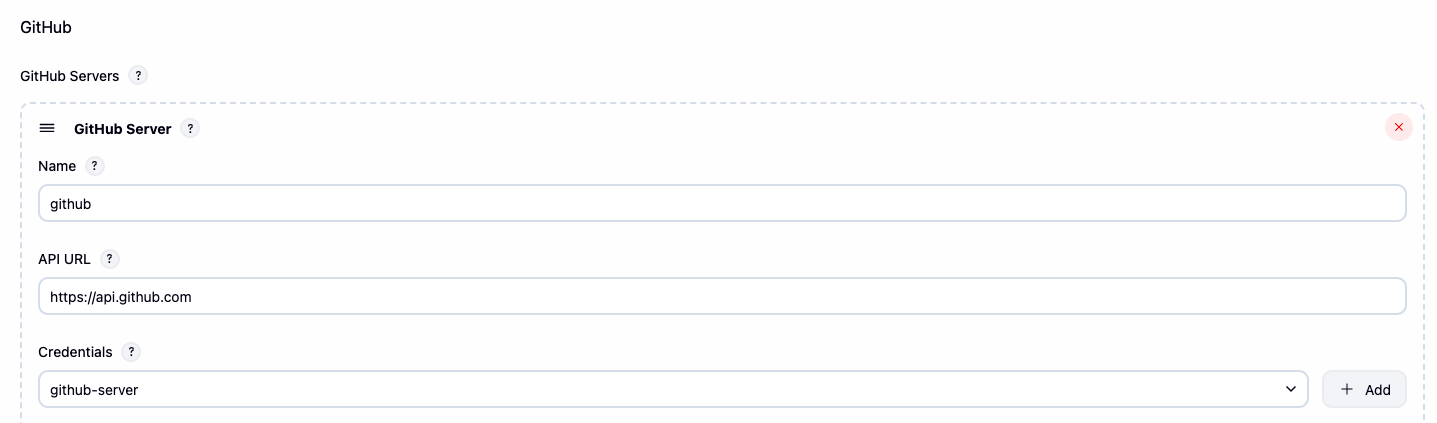
System Setting에서 아래와 같이 Github Server 설정을 하고 Test Connection을 한 후 정상적으로 연결되었으면 Apply를 한다.

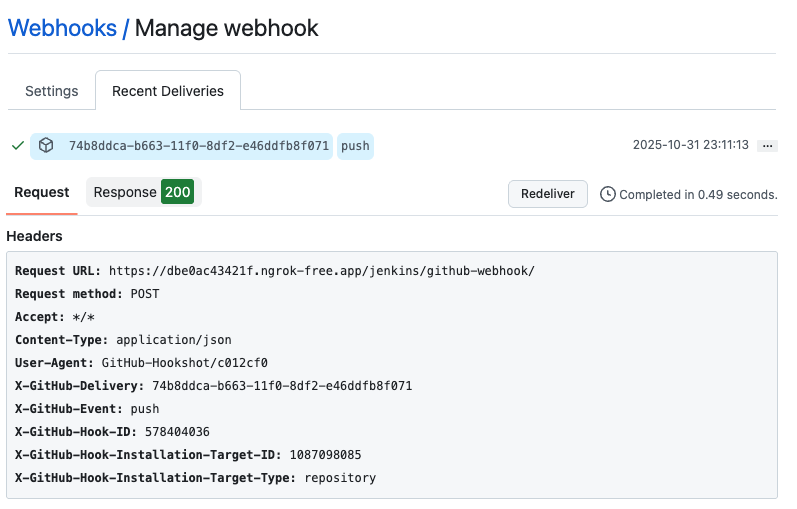
Github dev-app Repository로 이동하여 Settings 에서 Webhooks에서 Add Webhooks을 통해 아래와 같이 설정해준다.

Payload URL 은 ngrok에서 생성된 url에 jenkins/github-webhook/ 을 붙여서 설정한다 / 를 붙여야 한다.

그리고 나서 dev-app에서 Jenkinsfile을 아래와 같이 만들고 commit and push를 한다.

pipeline {
    agent {
        kubernetes {
            yaml """
apiVersion: v1
kind: Pod
metadata:
  labels:
    jenkins-build: app-build
    some-label: "build-app-${BUILD_NUMBER}"
spec:
  containers:
  - name: podman
    image: quay.io/podman/stable:latest
    command: ['cat']
    tty: true
    securityContext:
      runAsUser: 1000
"""
        }
    }

    environment {
        DOCKER_IMAGE = '<자신의 docker hub 계정명>/dev-app'
    }

    stages {
        stage('Checkout') {
            steps {
                git branch: 'main',
                    url: 'https://github.com/<자신의 github 계정명>/dev-app.git',
                    credentialsId: 'github-crd'
            }
        }

        stage('Read VERSION') {
            steps {
                script {
                    def version = readFile('VERSION').trim()
                    env.DOCKER_TAG = version
                }
            }
        }

        stage('Build and Push with Podman') {
            steps {
                container('podman') {
                    script {
                        withCredentials([usernamePassword(
                            credentialsId: 'dockerhub-crd',
                            usernameVariable: 'DOCKER_USER',
                            passwordVariable: 'DOCKER_PASS'
                        )]) {
                            sh """
                                podman login -u \$DOCKER_USER -p \$DOCKER_PASS docker.io
                                podman build -t ${env.DOCKER_IMAGE}:${env.DOCKER_TAG} .
                                podman tag ${env.DOCKER_IMAGE}:${env.DOCKER_TAG} ${env.DOCKER_IMAGE}:latest
                                podman push ${env.DOCKER_IMAGE}:${env.DOCKER_TAG}
                                podman push ${env.DOCKER_IMAGE}:latest
                            """
                        }
                    }
                }
            }
        }
    }

    post {
        success {
            echo "✅ Successfully pushed ${env.DOCKER_IMAGE}:${env.DOCKER_TAG}"
        }
        failure {
            echo "❌ Pipeline failed."
        }
    }
}

git add . && git commit -m "VERSION $(cat VERSION) Changed" && git push -u origin main

설정이 끝났으면 Jenkins에서 새로운 Item을 만든다. 아이템 이름은 SCM-Pipeline이며 Type은 Pipeline으로 하고 아래와 같이 설정해준다.

General 설정 Piepline SCM 설정

설정 후 Build Now를 클릭하면 Github에서 Jenkinsfile을 가져와서 연동됨을 확인 할 수 있다.

그리고 나서 VERSION의 값을 0.0.2 로 설정하고 다시 push 를 하면 jenkins pipeline 이 자동으로 trigger 됨을 확인 할 수 있다.

git add . && git commit -m "VERSION $(cat VERSION) Changed" && git push -u origin main

webhook 기록확인

Jenkins로 CD하기

젠킨스로 kubernets에 deploy를 자동화하는 방법에 대해서 다뤄본다.

이전 실습에 디플로이먼트, 서비스 삭제

kubectl delete deploy,svc timeserver

디플로이먼트 / 서비스 yaml 파일 작성 - http-echo 및 코드 push

cd dev-app
mkdir deploy

# service, deployment 작성
cat > deploy/echo-server-blue.yaml <<EOF
apiVersion: apps/v1
kind: Deployment
metadata:
  name: echo-server-blue
spec:
  replicas: 2
  selector:
    matchLabels:
      app: echo-server
      version: blue
  template:
    metadata:
      labels:
        app: echo-server
        version: blue
    spec:
      containers:
      - name: echo-server
        image: hashicorp/http-echo
        args:
        - "-text=Hello from Blue"
        ports:
        - containerPort: 5678
EOF

cat > deploy/echo-server-service.yaml <<EOF
apiVersion: v1
kind: Service
metadata:
  name: echo-server-service
spec:
  selector:
    app: echo-server
    version: blue
  ports:
  - protocol: TCP
    port: 80
    targetPort: 5678
    nodePort: 30001
  type: NodePort
EOF

cat > deploy/echo-server-green.yaml <<EOF
apiVersion: apps/v1
kind: Deployment
metadata:
  name: echo-server-green
spec:
  replicas: 2
  selector:
    matchLabels:
      app: echo-server
      version: green
  template:
    metadata:
      labels:
        app: echo-server
        version: green
    spec:
      containers:
      - name: echo-server
        image: hashicorp/http-echo
        args:
        - "-text=Hello from Green"
        ports:
        - containerPort: 5678
EOF

#
tree
.
├── deploy
│   ├── echo-server-blue.yaml
│   ├── echo-server-green.yaml
│   └── echo-server-service.yaml
├── Dockerfile
├── Jenkinsfile
├── README.md
├── server.py
└── VERSION
git add . && git commit -m "Add echo server yaml" && git push -u origin main

클러스터에 배포하기 위한 jenkins-service-account.yaml 수정

다른 네임스페이스에 배포하기 위한 권한이 필요함으로 아래와 같이 수정해서 배포한다.

# jenkins-service-account.yaml 만들기
cat <<EOT > jenkins-service-account.yaml
apiVersion: v1
kind: ServiceAccount
metadata:
  name: jenkins
  namespace: jenkins
---
apiVersion: rbac.authorization.k8s.io/v1
kind: ClusterRole
metadata:
  name: jenkins
rules:
- apiGroups: [""]
  resources: ["pods", "services", "configmaps", "secrets", "persistentvolumeclaims", "namespaces"]
  verbs: ["get", "list", "watch", "create", "update", "patch", "delete"]
- apiGroups: ["apps"]
  resources: ["deployments", "replicasets", "statefulsets", "daemonsets"]
  verbs: ["get", "list", "watch", "create", "update", "patch", "delete"]
- apiGroups: [""]
  resources: ["pods/exec", "pods/log", "pods/status"]
  verbs: ["create", "get", "list", "watch"]
- apiGroups: [""]
  resources: ["events"]
  verbs: ["watch"]
---
apiVersion: rbac.authorization.k8s.io/v1
kind: ClusterRoleBinding
metadata:
  name: jenkins
roleRef:
  apiGroup: rbac.authorization.k8s.io
  kind: ClusterRole
  name: jenkins
subjects:
- kind: ServiceAccount
  name: jenkins
  namespace: jenkins
EOT

Jenkins Item 생성(Pipeline) : item name(k8s-bluegreen) - Jenkins 통한 k8s 기본 배포

아래와 같이 pipeline script를 작성해서 사용한다.

pipeline {
    agent {
        kubernetes {
            defaultContainer 'jnlp'
            namespace 'jenkins'
            yaml """
apiVersion: v1
kind: Pod
metadata:
  namespace: jenkins
spec:
  serviceAccountName: jenkins
  containers:
  - name: jnlp
    image: jenkins/inbound-agent:latest
    args: ['\$(JENKINS_SECRET)', '\$(JENKINS_NAME)']
  - name: kubectl
    image: alpine/k8s:1.27.4
    command:
    - cat
    tty: true
    env:
    - name: WORKSPACE
      value: /home/jenkins/agent/workspace/${env.JOB_NAME}
"""
        }
    }

    environment {
        NAMESPACE = 'default'
    }

    stages {
        stage('Checkout') {
            steps {
                git branch: 'main',
                    url: 'https://github.com/***<자신의 github 계정>***/dev-app.git',
                    credentialsId: 'github-crd'
            }
        }

        stage('container image build') {
            steps {
                echo "container image build"
            }
        }

        stage('container image upload') {
            steps {
                echo "container image upload"
            }
        }

        stage('k8s deployment blue version') {
            steps {
                container('kubectl') {
                    sh """
                        cd \${WORKSPACE}
                        kubectl apply -f ./deploy/echo-server-blue.yaml -n \${NAMESPACE}
                        kubectl apply -f ./deploy/echo-server-service.yaml -n \${NAMESPACE}
                    """
                }
            }
        }

        stage('approve green version') {
            steps {
                input message: 'approve green version', ok: "Yes"
            }
        }

        stage('k8s deployment green version') {
            steps {
                container('kubectl') {
                    sh """
                        cd \${WORKSPACE}
                        kubectl apply -f ./deploy/echo-server-green.yaml -n \${NAMESPACE}
                    """
                }
            }
        }

        stage('approve version switching') {
            steps {
                script {
                    returnValue = input message: 'Green switching?', ok: "Yes", 
                        parameters: [booleanParam(defaultValue: true, name: 'IS_SWITCHED')]
                    if (returnValue) {
                        container('kubectl') {
                            sh """
                                cd \${WORKSPACE}
                                kubectl patch svc echo-server-service -n \${NAMESPACE} \
                                -p '{\"spec\": {\"selector\": {\"version\": \"green\"}}}'
                            """
                        }
                    }
                }
            }
        }

        stage('Blue Rollback') {
            steps {
                script {
                    returnValue = input message: 'Blue Rollback?', 
                        parameters: [choice(choices: ['done', 'rollback'], name: 'IS_ROLLBACK')]

                    if (returnValue == "done") {
                        container('kubectl') {
                            sh """
                                cd \${WORKSPACE}
                                kubectl delete -f ./deploy/echo-server-blue.yaml -n \${NAMESPACE}
                            """
                        }
                    }
                    if (returnValue == "rollback") {
                        container('kubectl') {
                            sh """
                                cd \${WORKSPACE}
                                kubectl patch svc echo-server-service -n \${NAMESPACE} \
                                -p '{\"spec\": {\"selector\": {\"version\": \"blue\"}}}'
                            """
                        }
                    }
                }
            }
        }
    }
}

실제 파이프라인을 통해 배포된 리소스를 확인할 수 있다

k get deploy,rs,pod -o wide

NAME                                READY   UP-TO-DATE   AVAILABLE   AGE    CONTAINERS    IMAGES                SELECTOR
deployment.apps/echo-server-blue    2/2     2            2           119s   echo-server   hashicorp/http-echo   app=echo-server,version=blue
deployment.apps/echo-server-green   2/2     2            2           98s    echo-server   hashicorp/http-echo   app=echo-server,version=green

NAME                                           DESIRED   CURRENT   READY   AGE    CONTAINERS    IMAGES                SELECTOR
replicaset.apps/echo-server-blue-749f8577f6    2         2         2       119s   echo-server   hashicorp/http-echo   app=echo-server,pod-template-hash=749f8577f6,version=blue
replicaset.apps/echo-server-green-6cc846dcb6   2         2         2       98s    echo-server   hashicorp/http-echo   app=echo-server,pod-template-hash=6cc846dcb6,version=green

NAME                                     READY   STATUS    RESTARTS   AGE    IP            NODE           NOMINATED NODE   READINESS GATES
pod/echo-server-blue-749f8577f6-6cwj9    1/1     Running   0          119s   10.244.1.49   myk8s-worker   <none>           <none>
pod/echo-server-blue-749f8577f6-rctlg    1/1     Running   0          119s   10.244.1.48   myk8s-worker   <none>           <none>
pod/echo-server-green-6cc846dcb6-mbb4w   1/1     Running   0          98s    10.244.1.51   myk8s-worker   <none>           <none>
pod/echo-server-green-6cc846dcb6-n2j65   1/1     Running   0          98s    10.244.1.50   myk8s-worker   <none>           <none>

ArgoCD

Jenkins는 주로 CI용도로만 사용되고 CD는 주로 ArgoCD를 많이 이용한다. Jenkins는 CI 할때는 최적화되어있지만 CD 시 여러가지 옵션들은 ArgoCD가 더 풍부하게 제공 하기 때문인것 같다.

설치

# 네임스페이스 생성 및 파라미터 파일 작성
cd cicd-labs

kubectl create ns argocd
cat <<EOF > argocd-values.yaml
dex:
  enabled: false

server:
  service:
    type: NodePort
    nodePortHttps: 30002
  extraArgs:
    - --insecure  # HTTPS 대신 HTTP 사용
EOF

# 설치 : Argo CD v3.1.9 , (참고) 책 버전 v2.10.5
helm repo add argo https://argoproj.github.io/argo-helm
helm install argocd argo/argo-cd --version 9.0.5 -f argocd-values.yaml --namespace argocd

# 확인
kubectl get pod,svc,ep,secret,cm -n argocd
kubectl get crd | grep argo

# configmap
kubectl get cm -n argocd argocd-cm -o yaml
kubectl get cm -n argocd argocd-rbac-cm -o yaml
...
data:
  policy.csv: ""
  policy.default: ""
  policy.matchMode: glob
  scopes: '[groups]'

# 최초 접속 암호 확인
kubectl -n argocd get secret argocd-initial-admin-secret -o jsonpath="{.data.password}" | base64 -d ;echo
ZQlsiv6cZAca2pY1

# Argo CD 웹 접속 주소 확인 : 초기 암호 입력 (admin 계정)
open "http://127.0.0.1:30002" # macOS

ops-deploy Repo 등록 : Settings → Repositories → CONNECT REPO 클릭

  • connection method : VIA HTTPS
  • Type : git
  • Project : default
  • Repo URL : https://github.com/***<자신의 github ID>***/ops-deploy
  • Username : git
  • Password : *<Github 토큰>*
  • ⇒ 입력 후 CONNECT 클릭

CONNECTION STATUS 가 Successful로 되면 정상적으로 진행 완료

구성은 다되었고 Github에서 Push 하면 ArgoCD에서 반영하여 배포하도록 구성하는 실습을 해본다.

Github Push → ArgoCD

이를 위해 Github Webhook을 등록한다. 등록하는 방법은 위 Jenkins Webhook 방법을 참고하자

ngrook http 30002
🧠 Call internal services from your gateway: https://ngrok.com/r/http-request

Version                       3.32.0
Region                        Japan (jp)
Latency                       40ms
Web Interface                 http://127.0.0.1:4040
Forwarding                    https://c51b524cf5fa.ngrok-free.app -> http://localhost:30002

https://c51b524cf5fa.ngrok-free.app/api/webhook 주소를 Github에 등록

정상 연결이 되었음을 확인 할 수 있다.

실제 배포할 애플리케이션에 대한 배포 정보를 ops-deploy 에 작성

해당 git을 ArgoCD Application 으로 만들 것이다.

cd cicd-labs

TOKEN=<자신의 github token>
git clone https://git:$TOKEN@github.com/***<자신의 Github 계정>***/ops-deploy.git
cd ops-deploy

#
git config --local user.name "devops"
git config --local user.email "a@a.com"
git config --local init.defaultBranch main
git config --local credential.helper store
git --no-pager config --local --list
git --no-pager branch
git remote -v

#
VERSION=1.26.1
mkdir nginx-chart
mkdir nginx-chart/templates

cat > nginx-chart/VERSION <<EOF
$VERSION
EOF

cat > nginx-chart/templates/configmap.yaml <<EOF
apiVersion: v1
kind: ConfigMap
metadata:
  name: {{ .Release.Name }}
data:
  index.html: |
{{ .Values.indexHtml | indent 4 }}
EOF

cat > nginx-chart/templates/deployment.yaml <<EOF
apiVersion: apps/v1
kind: Deployment
metadata:
  name: {{ .Release.Name }}
spec:
  replicas: {{ .Values.replicaCount }}
  selector:
    matchLabels:
      app: {{ .Release.Name }}
  template:
    metadata:
      labels:
        app: {{ .Release.Name }}
    spec:
      containers:
      - name: nginx
        image: {{ .Values.image.repository }}:{{ .Values.image.tag }}
        ports:
        - containerPort: 80
        volumeMounts:
        - name: index-html
          mountPath: /usr/share/nginx/html/index.html
          subPath: index.html
      volumes:
      - name: index-html
        configMap:
          name: {{ .Release.Name }}
EOF

cat > nginx-chart/templates/service.yaml <<EOF
apiVersion: v1
kind: Service
metadata:
  name: {{ .Release.Name }}
spec:
  selector:
    app: {{ .Release.Name }}
  ports:
  - protocol: TCP
    port: 80
    targetPort: 80
    nodePort: 30003
  type: NodePort
EOF

cat > nginx-chart/values-dev.yaml <<EOF
indexHtml: |
  <!DOCTYPE html>
  <html>
  <head>
    <title>Welcome to Nginx!</title>
  </head>
  <body>
    <h1>Hello, Kubernetes!</h1>
    <p>DEV : Nginx version $VERSION</p>
  </body>
  </html>

image:
  repository: nginx
  tag: $VERSION

replicaCount: 1
EOF

cat > nginx-chart/values-prd.yaml <<EOF
indexHtml: |
  <!DOCTYPE html>
  <html>
  <head>
    <title>Welcome to Nginx!</title>
  </head>
  <body>
    <h1>Hello, Kubernetes!</h1>
    <p>PRD : Nginx version $VERSION</p>
  </body>
  </html>

image:
  repository: nginx
  tag: $VERSION

replicaCount: 2
EOF

cat > nginx-chart/Chart.yaml <<EOF
apiVersion: v2
name: nginx-chart
description: A Helm chart for deploying Nginx with custom index.html
type: application
version: 1.0.0
appVersion: "$VERSION"
EOF

tree nginx-chart
nginx-chart
├── Chart.yaml
├── templates
│   ├── configmap.yaml
│   ├── deployment.yaml
│   └── service.yaml
├── values-dev.yaml
├── values-prd.yaml
└── VERSION

# git push
git status && git add . && git commit -m "Add nginx helm chart" && git push -u origin main

ArgoCD Application을 생성한다

cat <<EOF | kubectl apply -f -
apiVersion: argoproj.io/v1alpha1
kind: Application
metadata:
  name: dev-nginx
  namespace: argocd
  finalizers:
  - resources-finalizer.argocd.argoproj.io
spec:
  project: default
  source:
    helm:
      valueFiles:
      - values-dev.yaml
    path: nginx-chart
    repoURL: https://github.com/**<자신의 Github 계정>**/ops-deploy
    targetRevision: HEAD
  syncPolicy:
    automated:
      prune: true
    syncOptions:
    - CreateNamespace=true
  destination:
    namespace: dev-nginx
    server: https://kubernetes.default.svc
EOF

# 확인
kubectl get applications -n argocd dev-nginx
NAME        SYNC STATUS   HEALTH STATUS
dev-nginx   Synced        Progressing
kubectl get applications -n argocd dev-nginx -o yaml | kubectl neat
kubectl describe applications -n argocd dev-nginx
kubectl get pod,svc,ep,cm -n dev-nginx
NAME                            READY   STATUS    RESTARTS   AGE
pod/dev-nginx-59f4c8899-hx6dd   1/1     Running   0          22s

NAME                TYPE       CLUSTER-IP      EXTERNAL-IP   PORT(S)        AGE
service/dev-nginx   NodePort   10.96.220.244   <none>        80:30003/TCP   22s

NAME                  ENDPOINTS        AGE
endpoints/dev-nginx   10.244.1.59:80   22s

NAME                         DATA   AGE
configmap/dev-nginx          1      22s
configmap/kube-root-ca.crt   1      22s

# 실제 nginx 확인
curl http://127.0.0.1:30003
open http://127.0.0.1:30003

실제 Github하고 연동되었는 지 확인하기 위해서 Github에서 배포 yaml을 수정하고 Trigger되는지 확인해보자

cd cicd-labs/ops-deploy/nginx-chart

# replicaCount 증가
sed -i '' "s|replicaCount: 1|replicaCount: 3|g" values-dev.yaml
git add values-dev.yaml && git commit -m "Modify nginx-chart : values-dev.yaml" && git push -u origin main
watch -d kubectl get all -n dev-nginx -o wide

# replicaCount 증가
sed -i '' "s|replicaCount: 3|replicaCount: 4|g" values-dev.yaml
git add values-dev.yaml && git commit -m "Modify nginx-chart : values-dev.yaml" && git push -u origin main
watch -d kubectl get all -n dev-nginx -o wide

# replicaCount 감소
sed -i "s|replicaCount: 4|replicaCount: 2|g" values-dev.yaml
git add values-dev.yaml && git commit -m "Modify nginx-chart : values-dev.yaml" && git push -u origin main
watch -d kubectl get all -n dev-nginx -o wide

NAME                            READY   STATUS    RESTARTS   AGE     IP            NODE           NOMINATED NODE   READINESS GATES
pod/dev-nginx-59f4c8899-28zd4   1/1     Running   0          73s     10.244.1.64   myk8s-worker   <none>           <none>
pod/dev-nginx-59f4c8899-f96h2   1/1     Running   0          73s     10.244.1.63   myk8s-worker   <none>           <none>
pod/dev-nginx-59f4c8899-hx6dd   1/1     Running   0          10m     10.244.1.59   myk8s-worker   <none>           <none>
pod/dev-nginx-59f4c8899-q27r5   1/1     Running   0          3m16s   10.244.1.60   myk8s-worker   <none>           <none>

NAME                TYPE       CLUSTER-IP      EXTERNAL-IP   PORT(S)        AGE   SELECTOR
service/dev-nginx   NodePort   10.96.220.244   <none>        80:30003/TCP   10m   app=dev-nginx

NAME                        READY   UP-TO-DATE   AVAILABLE   AGE   CONTAINERS   IMAGES         SELECTOR
deployment.apps/dev-nginx   4/4     4            4           10m   nginx        nginx:1.26.1   app=dev-nginx

NAME                                  DESIRED   CURRENT   READY   AGE   CONTAINERS   IMAGES         SELECTOR
replicaset.apps/dev-nginx-59f4c8899   4         4         4       10m   nginx        nginx:1.26.1   app=dev-nginx,pod-template-hash=59f4c8899

배포가 매우 빠르게 반영되어 실제 스크린샷을 찍기는 힘들었지만 Github에 Push 한 내용이 바로 ArgoCD에 자동으로 Sync 되어 배포 됨을 확인 할 수 있었다.

아래는 실제 생성된 Application 이다.

Argo CD Application 삭제

kubectl delete applications -n argocd dev-nginx

Jenkins + ArgoCD

Jenkins로 CI를 하고 ArgoCD에서 CD를 진행하는 실제 현업에서 많이 활용되는 CI/CD 패턴을 실습해본다.

Repo(ops-deploy) 기본 코드 작성

cd ops-deploy
mkdir dev-app

# 도커 계정 정보
DHUSER=<도커 허브 계정>
DHPASS=<도커 허브 토큰>

# 버전 정보 
VERSION=0.0.1

# 버전 파일 생성
cat > dev-app/VERSION <<EOF
$VERSION
EOF

cat > dev-app/timeserver.yaml <<EOF
apiVersion: apps/v1
kind: Deployment
metadata:
  name: timeserver
spec:
  replicas: 2
  selector:
    matchLabels:
      pod: timeserver-pod
  template:
    metadata:
      labels:
        pod: timeserver-pod
    spec:
      containers:
      - name: timeserver-container
        image: docker.io/$DHUSER/dev-app:$VERSION
        livenessProbe:
          initialDelaySeconds: 30
          periodSeconds: 30
          httpGet:
            path: /healthz
            port: 80
            scheme: HTTP
          timeoutSeconds: 5
          failureThreshold: 3
          successThreshold: 1
      imagePullSecrets:
      - name: dockerhub-secret
EOF

cat > dev-app/service.yaml <<EOF
apiVersion: v1
kind: Service
metadata:
  name: timeserver
spec:
  selector:
    pod: timeserver-pod
  ports:
  - port: 80
    targetPort: 80
    protocol: TCP
    nodePort: 30003
  type: NodePort
EOF

# git에 push & commit
git add . && git commit -m "Add dev-app deployment yaml" && git push -u origin main

Repo(ops-deploy) 를 바라보는 ArgoCD App 생성

cat <<EOF | kubectl apply -f -
apiVersion: argoproj.io/v1alpha1
kind: Application
metadata:
  name: timeserver
  namespace: argocd
  finalizers:
  - resources-finalizer.argocd.argoproj.io
spec:
  project: default
  source:
    path: dev-app
    repoURL: https://github.com/***<자신의 Github 계정>***/ops-deploy
    targetRevision: HEAD
  syncPolicy:
    automated:
      prune: true
    syncOptions:
    - CreateNamespace=true
  destination:
    namespace: default
    server: https://kubernetes.default.svc
EOF

# 확인
kubectl get applications -n argocd timeserver
NAME         SYNC STATUS   HEALTH STATUS
timeserver   Synced        Healthy
kubectl get applications -n argocd timeserver -o yaml | kubectl neat
kubectl describe applications -n argocd timeserver
kubectl get deploy,rs,pod
kubectl get svc,ep timeserver
NAME                 TYPE       CLUSTER-IP     EXTERNAL-IP   PORT(S)        AGE
service/timeserver   NodePort   10.96.25.212   <none>        80:30003/TCP   45s

NAME                   ENDPOINTS                       AGE
endpoints/timeserver   10.244.1.65:80,10.244.1.66:80   45s

# 브라우저 확인
curl http://127.0.0.1:30003
curl http://127.0.0.1:30003/healthz
Healthy
open http://127.0.0.1:30003

Repo(dev-app) 코드 작업

dev-app Repo에 VERSION 업데이트 시 → ops-deploy Repo 에 dev-app 에 파일에 버전 정보 업데이트 작업 추가

  1. 기존 버전 정보는 VERSION 파일 내에 정보를 가져와서 변수 지정 : OLDVER=$(cat dev-app/VERSION)
  2. 신규 버전 정보는 environment 도커 태그 정보를 가져와서 변수 지정 : NEWVER=$(echo ${DOCKER_TAG})
  3. 이후 sed 로 ops-deploy Repo 에 dev-app/VERSION, timeserver.yaml 2개 파일에 ‘기존 버전’ → ‘신규 버전’으로 값 변경
  4. 이후 ops-deploy Repo 에 git push ⇒ Argo CD App Trigger 후 AutoSync 로 신규 버전 업데이트 진행

dev-app에 있는 Jenkinsfile을 아래의 script로 바꾸고 push & commit을 해준다.

pipeline {
    agent {
        kubernetes {
            yaml """
apiVersion: v1
kind: Pod
metadata:
  labels:
    jenkins-build: app-build
    some-label: "build-app-${BUILD_NUMBER}"
spec:
  containers:
  - name: podman
    image: quay.io/podman/stable:latest
    command: ['cat']
    tty: true
    securityContext:
      runAsUser: 1000
"""
        }
    }

    environment {
        DOCKER_IMAGE = '***<자신의 Dockerhub 계정>***/dev-app'
        GITHUBCRD = credentials('github-crd')
    }

    stages {
        stage('dev-app Checkout') {
            steps {
                git branch: 'main',
                    url: 'https://github.com/***<자신의 Github 계정>***/dev-app.git',
                    credentialsId: 'github-crd'
            }
        }

        stage('Read VERSION') {
            steps {
                script {
                    def version = readFile('VERSION').trim()
                    echo "Version found: ${version}"
                    env.DOCKER_TAG = version
                }
            }
        }

        stage('Build and Push with Podman') {
            steps {
                container('podman') {
                    script {
                        withCredentials([usernamePassword(
                            credentialsId: 'dockerhub-crd',
                            usernameVariable: 'DOCKER_USER',
                            passwordVariable: 'DOCKER_PASS'
                        )]) {
                            sh """
                                podman login -u \$DOCKER_USER -p \$DOCKER_PASS docker.io
                                podman build -t ${env.DOCKER_IMAGE}:${env.DOCKER_TAG} .
                                podman tag ${env.DOCKER_IMAGE}:${env.DOCKER_TAG} ${env.DOCKER_IMAGE}:latest
                                podman push ${env.DOCKER_IMAGE}:${env.DOCKER_TAG}
                                podman push ${env.DOCKER_IMAGE}:latest
                            """
                        }
                    }
                }
            }
        }

        stage('ops-deploy Checkout') {
            steps {
                 git branch: 'main',
                 url: 'https://github.com/**<자신의 Github 계정>**/ops-deploy.git',  // Git에서 코드 체크아웃
                 credentialsId: 'github-crd'  // Credentials ID
            }
        }

        stage('ops-deploy version update push') {
            steps {
                **sh '''**
                OLDVER=$(cat dev-app/VERSION)
                NEWVER=$(echo ${DOCKER_TAG})
                sed -i '' "s/$OLDVER/$NEWVER/" dev-app/timeserver.yaml
                sed -i '' "s/$OLDVER/$NEWVER/" dev-app/VERSION
                git add ./dev-app
                git config user.name "devops"
                git config user.email "a@a.com"
                git commit -m "version update ${DOCKER_TAG}"
                git push https://${GITHUBCRD_USR}:${GITHUBCRD_PSW}@github.com/***<자신의 Github 계정>*/**ops-deploy.git
                **'''**
            }
        }
    }

    post {
        success {
            echo "✅ Docker image ${DOCKER_IMAGE}:${DOCKER_TAG} has been built and pushed successfully!"
        }
        failure {
            echo "❌ Pipeline failed. Please check the logs."
        }
    }
}

git add . && git commit -m "VERSION $(cat VERSION) Changed" && git push -u origin main

버전 바꾸고 push

# [터미널] 동작 확인 모니터링
while true; do curl -s --connect-timeout 1 http://127.0.0.1:30003 ; echo ; kubectl get deploy timeserver -owide; echo "------------" ; sleep 1 ; done

# VERSION 파일 수정 : 0.0.3
# server.py 파일 수정 : 0.0.3

git add . && git commit -m "VERSION $(cat VERSION) Changed" && git push -u origin main

Full CI/CD 동작 확인 : Argo CD app Trigger 후 AutoSync 로 신규 버전 업데이트 진행 확인

ngrok 이 계정당 하나의 proxy만 사용가능함으로 Jenkins는 수동으로 Build Now를 해주고 ArgoCD가 자동으로 바뀌는 지 확인해본다.

while true; do curl -s --connect-timeout 1 http://127.0.0.1:30003 ; echo ; kubectl get deploy timeserver -owide; echo "------------" ; sleep 1 ; done

NAME         READY   UP-TO-DATE   AVAILABLE   AGE   CONTAINERS             IMAGES                                SELECTOR
timeserver   2/2     2            2           24m   timeserver-container   docker.io//dev-app:0.0.3   pod=timeserver-pod
------------
The time is 6:59:39 PM, VERSION 0.0.3
Server hostname: timeserver-5845756b6-tgw9t

Jenkins Pipeline

ArgoCD 버전 Comment를 확인해보면 version update 0.0.3 으로 된것 을 확인 해 볼 수 있다.

위와 같이 Jenkins + ArgoCD 조합으로 CI/CD를 구현할 수 있다.

'스터디 > [gasida] ci-cd 스터디 1기' 카테고리의 다른 글

OpenLDAP + KeyCloak + Argo CD + Jenkins  (0) 2025.11.23
ArgoCD ApplicationSet  (0) 2025.11.23
Arocd Rollout  (0) 2025.11.16
ArgoCD + Ingress + Self Managed  (0) 2025.11.16
4주차: Argo  (0) 2025.11.09

+ Recent posts